

If Netflix not showing cast icon is the problem on your phone, the first thing to know is that this is not always a random app failure. You open Netflix, tap a show, and notice the Cast button is gone. Yesterday it was there. Today it is not. The cause is often more specific: your TV device is no longer supported for Netflix mobile casting, your plan does not match the receiver, or your phone cannot detect the screen on the same local network.
This is why restarting the app does not always fix anything. In many cases, Netflix is following device and playback rules rather than failing to load a button. Netflix's own help page for Cast device or cast icon isn't showing reflects that narrower casting support.
Why Is Netflix Not Showing the Cast Icon?
Device support limits are one common reason. Netflix restricts mobile casting to specific receivers, so many newer TVs and streaming boxes will not show the Cast button inside the phone app.
Plan mismatch is another possible reason. Some plans can block casting to certain devices, especially when older Chromecast models are involved.
Network visibility is a frequent cause too. Your phone has to detect the receiver on the same local Wi-Fi network before the app can show any cast target.
App or system state can also stop detection. Local Network permission, Google Home, Google Play Services, or older phone software may prevent the app from exposing available receivers.
How to Fix Netflix Cast Icon Missing
If your setup should still support Netflix casting from your phone, work through these checks in order.
Check Your TV Device Still Supported
Netflix casting support now covers a fairly narrow device list. The main supported targets are Chromecast 3rd gen or older, Google Nest Hub Smart Display, and select cast-enabled Vizio and Compal TVs. If your device falls outside that group, stop troubleshooting the mobile app and switch to the Netflix app on the TV or another viewing method.
Check Your Netflix App Plan
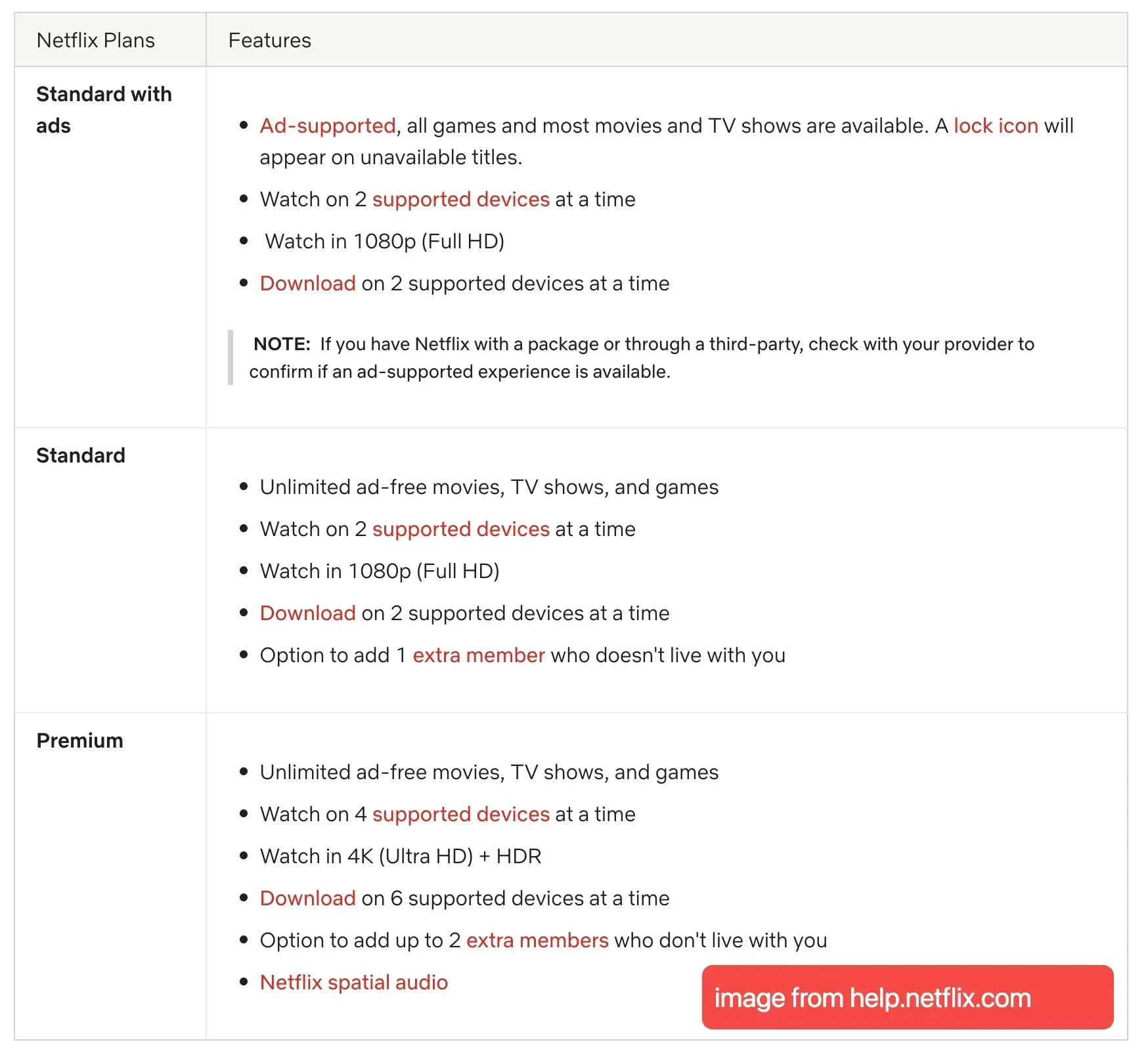
Open your Netflix account details and confirm your current plan before testing anything else. If you use an older Chromecast without a remote, avoid testing with an ad-supported plan. If possible, test the same setup with a Standard or Premium plan so you can rule out a plan-related limit early.
Make Sure the Phone and TV Are on the Same WiFi
Turn off mobile data for a minute and test on Wi-Fi only. Confirm that the TV or Chromecast is online, then open Google Home and see whether the receiver shows as available. If your router separates devices on guest Wi-Fi, avoid that network while testing.
Turn On Local Network Access for Netflix on iPhone
Step 1. Open Settings on your iPhone or iPad.
Step 2. Scroll down and tap Netflix.
Step 3. Make sure Local Network is turned on.
Update the Required Google Apps
If you are on Android:
- update the Netflix app
- update the Google Home app
- update Google Play Services
If you are on iPhone or iPad:
- update the Netflix app
- update the Google Home app
Restart the Phone and the Cast Device
- turn the phone all the way off, then turn it back on
- power off the Chromecast or cast-enabled display
- if it uses a power cable, unplug it for about 15 seconds
- turn it back on and try Netflix again
Check the Phone's Software Version
Check whether your phone still meets Netflix's casting requirements. Android devices need Android 9 or later, while iPhone and iPad devices need iOS or iPadOS 16 or later. If the phone is below that level, the app may stop exposing supported receivers correctly.
Confirm the Receiver Is Actually Visible in Google Home
Step 1. Open Google Home.
Step 2. Check whether the Chromecast or compatible receiver appears online.
Step 3. If it does not appear, reconnect the receiver to Wi-Fi first.
If Your Netflix Cast Icon Still Does Not Appear
At this point, the goal is no longer to keep forcing the same in-app control to return. What matters now is getting Netflix onto the larger screen in the cleanest way your setup still supports. The three options below are practical next steps, and each one works better for a slightly different kind of living-room setup.
Option 1. Use an Older Supported Chromecast
If you already own a Chromecast 3rd gen or older and your Netflix plan supports it, that is still one of the few direct casting options available.
This only helps if:
- the device is one of the supported older Chromecast models
- your plan is Standard or Premium
- the phone and Chromecast are on the same Wi-Fi
If one of those conditions is missing, the button may still stay hidden.
Option 2. Mirror Your Phone Screen
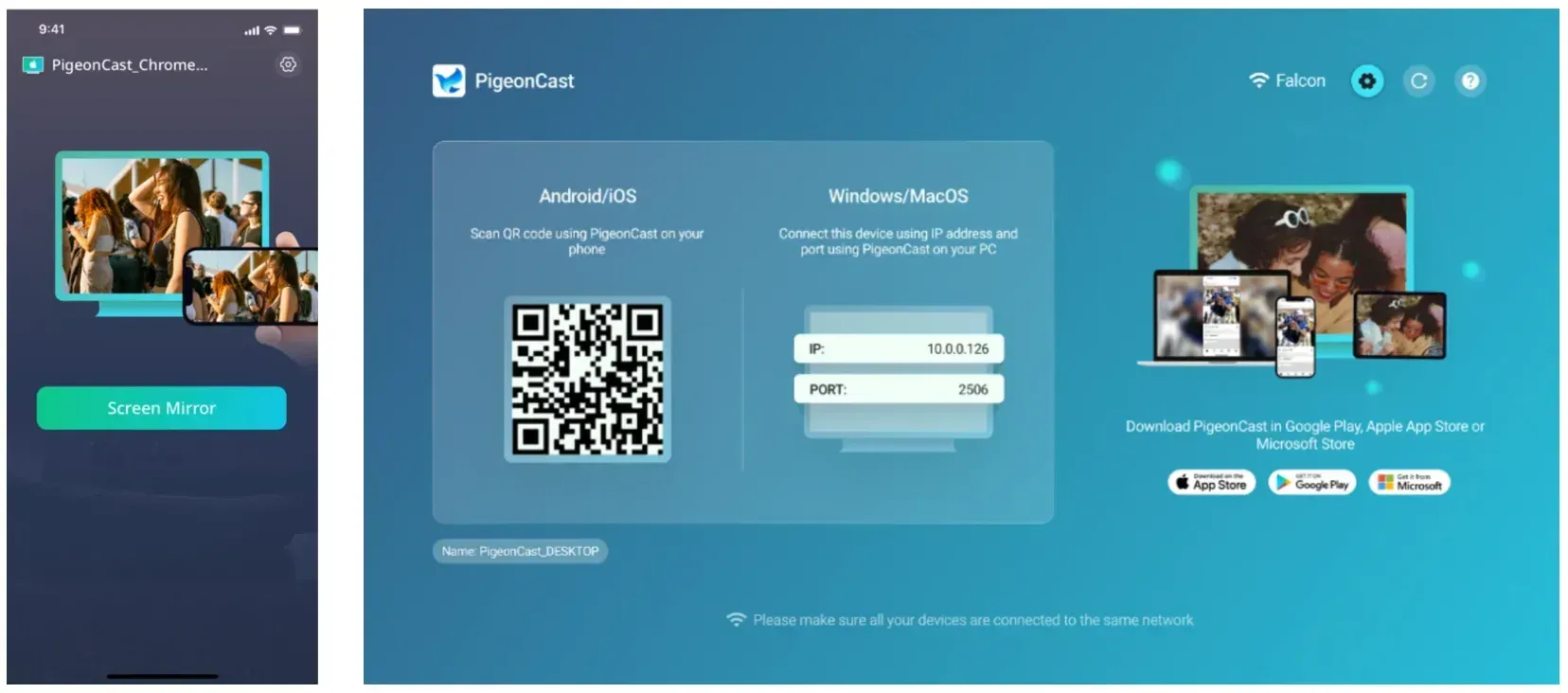
Step 1. Install a screen mirroring app like PigeonCast on your phone and open the receiver on your TV or target screen.


Overall Rating:



Step 2. Make sure both devices are on the same Wi-Fi network.
Step 3. Select the target screen in PigeonCast or scan the QR code shown on the TV.
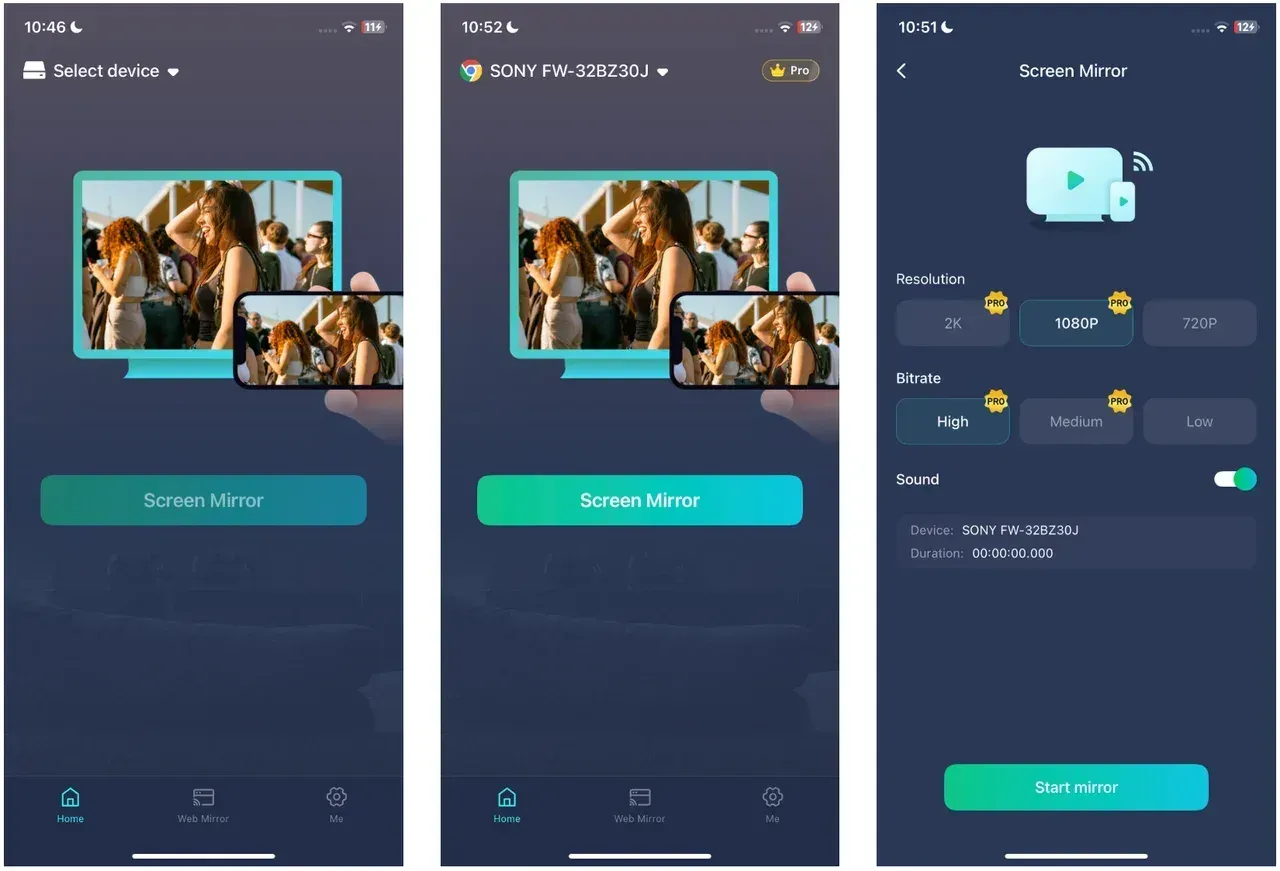
Step 4. Start screen mirroring in the app, then open Netflix on your phone and play the title you want.
This is different from native casting. Native casting hands playback to the receiver, while mirroring sends your phone display to the TV. But when the Cast button is unavailable because of device limits, mirroring is often the more realistic option.
Option 3. Use the Netflix App on the TV
For many newer TVs and streaming boxes, this is the simplest answer.
- open Netflix directly on the TV or streaming device
- sign in there
- search and play with the remote
If you still prefer browsing on your phone first, you can search on the phone and then play the same title in the TV app. It is less convenient than old-style casting, but it is often the most stable way to watch.
Conclusion
Even after you get Netflix working again, you may notice that not every viewing setup feels equally smooth. Native playback in the TV app is usually the most stable for long watching sessions, while mirroring is often better for quick playback when you want to stay on your phone. If the Cast button returns but disappears again after an update, a device change, or a plan change, the issue is often tied to support rules rather than a new bug.
Netflix Not Showing Cast Icon FAQ
Why is Netflix not showing the Cast button on iPhone?
The most common reasons are Local Network access being turned off, the TV not being a supported Netflix cast target, or the phone and TV not being on the same Wi-Fi network. On iPhone, check Settings > Netflix > Local Network first.
Why did the Netflix Cast button disappear?
It may have disappeared because Netflix changed casting support for your type of TV or streaming device. Mobile casting now works only on a shorter list of supported receivers than many people expect.
Can I cast Netflix to Chromecast anymore?
Yes, but only in certain cases. Chromecast 3rd gen or older can still work for casting, and plan type matters. On ad-supported plans, the button is not shown for casting to older Chromecast devices.
Why does Netflix cast work in YouTube but not in Netflix?
That usually means the network itself is fine and the issue is Netflix-specific. Netflix has its own playback rules, device support limits, and plan restrictions, so another app working does not guarantee Netflix will show the same control.
What should I do if Netflix will not cast to my TV at all?
Start by checking whether your TV device still qualifies for Netflix mobile casting. If it does, check Wi-Fi, Local Network permission, Google Home visibility, app updates, and phone software version. If it does not, use the Netflix TV app or mirror your phone screen instead.
Mia Clarke is a technology editor specializing in screen mirroring and casting solutions across multiple platforms. Mia provides clear, practical guides and in-depth insights to help users seamlessly connect their devices. Passionate about enhancing digital experiences, Mia is dedicated to keeping readers updated on the latest trends and tools in cross-platform screen sharing. Whether you’re looking to mirror your smartphone, laptop, or smart TV, Mia’s content delivers reliable, user-friendly advice to simplify your tech setup.