
If you search for AirPlay on Linux, you are usually trying to solve one of these problems mirror an iPhone, iPad, or Mac screen to a Linux computer, use a Linux machine as an AirPlay audio receiver, or find an easier way to share screens across different devices.
Linux can handle some AirPlay workflows, but it does not include official Apple AirPlay receiver software. The best solution depends on whether you need video mirroring, audio playback, or a broader screen-sharing setup.
Can You Use AirPlay on Linux?
Yes, you can use AirPlay on Linux, but the experience is different from using an Apple TV or an AirPlay-enabled smart TV.
Linux does not include official Apple AirPlay receiver software. However, third-party tools can help Linux receive AirPlay connections from Apple devices.
How to AirPlay to Linux
AirPlay on Linux depends on the type of content you want to send.
For Apple devices, you can use an AirPlay receiver tool to send your screen or audio to Linux. If you want to mirror Android or iPhone content without being limited to the AirPlay ecosystem, a cross-platform solution may be easier.
Method 1. Use UxPlay to AirPlay iPhone, iPad, or Mac to Linux
UxPlay is one of the most practical options when you want your Linux computer to work as an AirPlay receiver.
It allows Apple devices, including iPhone, iPad, and Mac, to send mirrored content to Linux.
Use UxPlay when your sender is an Apple device, Linux is the receiving screen, or you specifically need AirPlay compatibility.
To start:
Step 1. Install UxPlay on your Linux computer.
Step 2. Launch UxPlay and keep the receiver running.
Step 3. Connect your Apple device and Linux computer to the same network.
Step 4. Open Control Center on your iPhone or iPad and select Screen Mirroring.
Step 5. Choose your Linux computer from the available AirPlay devices.
UxPlay works best for Apple-to-Linux workflows, but performance may vary depending on your Linux system and network environment.
Method 2. Use Shairport Sync to AirPlay Audio to Linux
If you only want to play music from Apple devices through Linux, Shairport Sync is a better choice.
Unlike UxPlay, Shairport Sync focuses on AirPlay audio instead of screen mirroring.
It is useful for playing iPhone music through Linux speakers, creating a Linux-based AirPlay speaker, or home audio projects.
To start:
Step 1. Install Shairport Sync on your Linux machine.
Step 2. Configure your audio output.
Step 3. Start the Shairport Sync service.
Step 4. Select your Linux device from the AirPlay audio destination list.
Choose Shairport Sync only when audio is your goal. It does not support AirPlay screen mirroring.
Method 3. Use PigeonCast to Mirror Android or iPhone to Linux PC
If your goal is to display a phone screen on a Linux computer, AirPlay may not be the easiest option.
For example, you may want to mirror an Android phone to Linux, show an iPhone screen without setting up an AirPlay receiver, or share mobile apps, photos, or videos on a Linux display.
In these cases, a browser-based receiver can provide a simpler workflow.
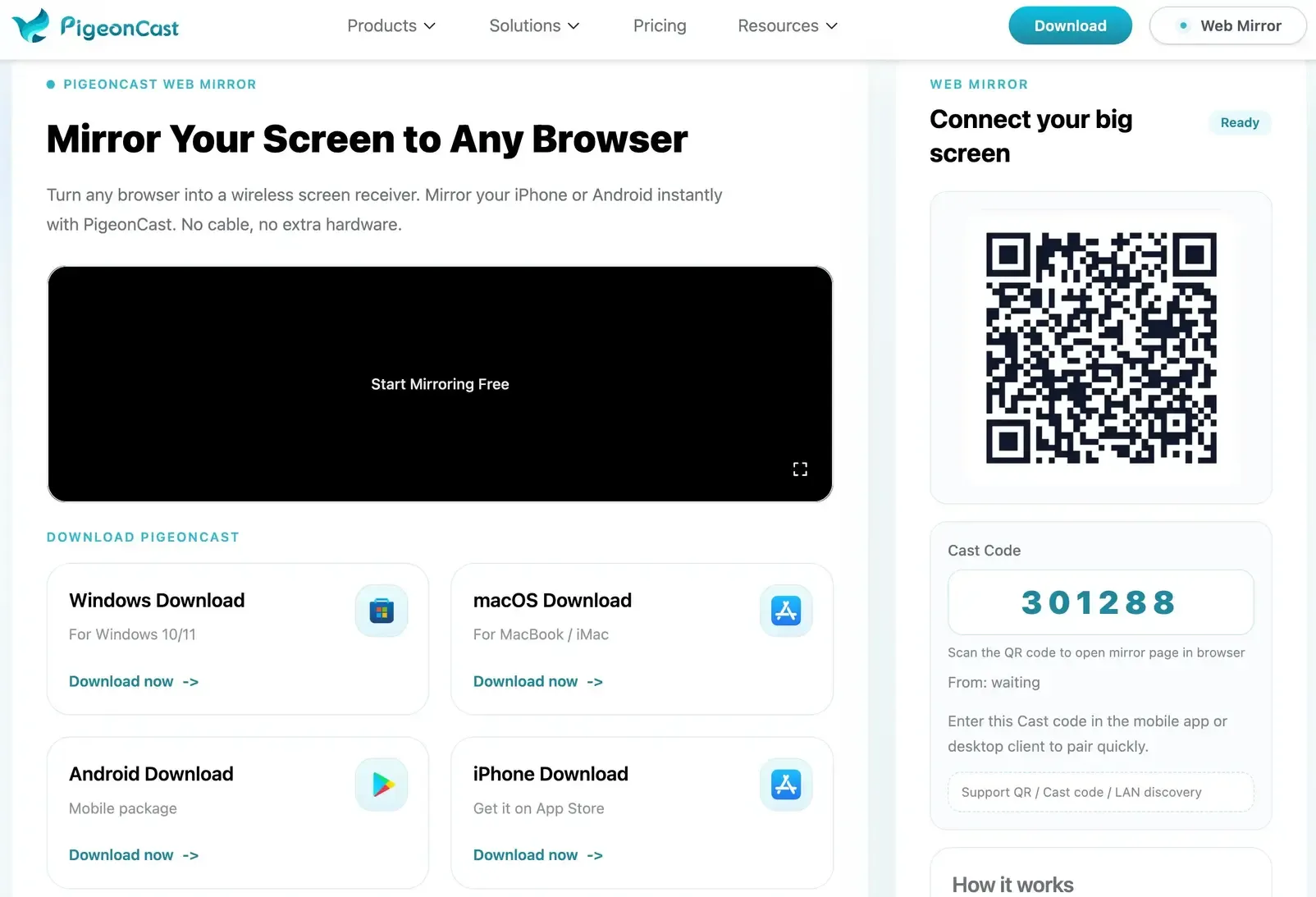
PigeonCast allows you to mirror Android and iPhone screens to a Linux PC through a browser.
To start:
Step 1. Open PigeonCast Web Mirror on your Linux browser.
Step 2. Install PigeonCast on your Android device or iPhone.


Overall Rating:



Step 3. Open the app, switch to the Web Mirror tab.
Step 4. Scan the QR code or enter the connection code from your phone and tap Start mirror.
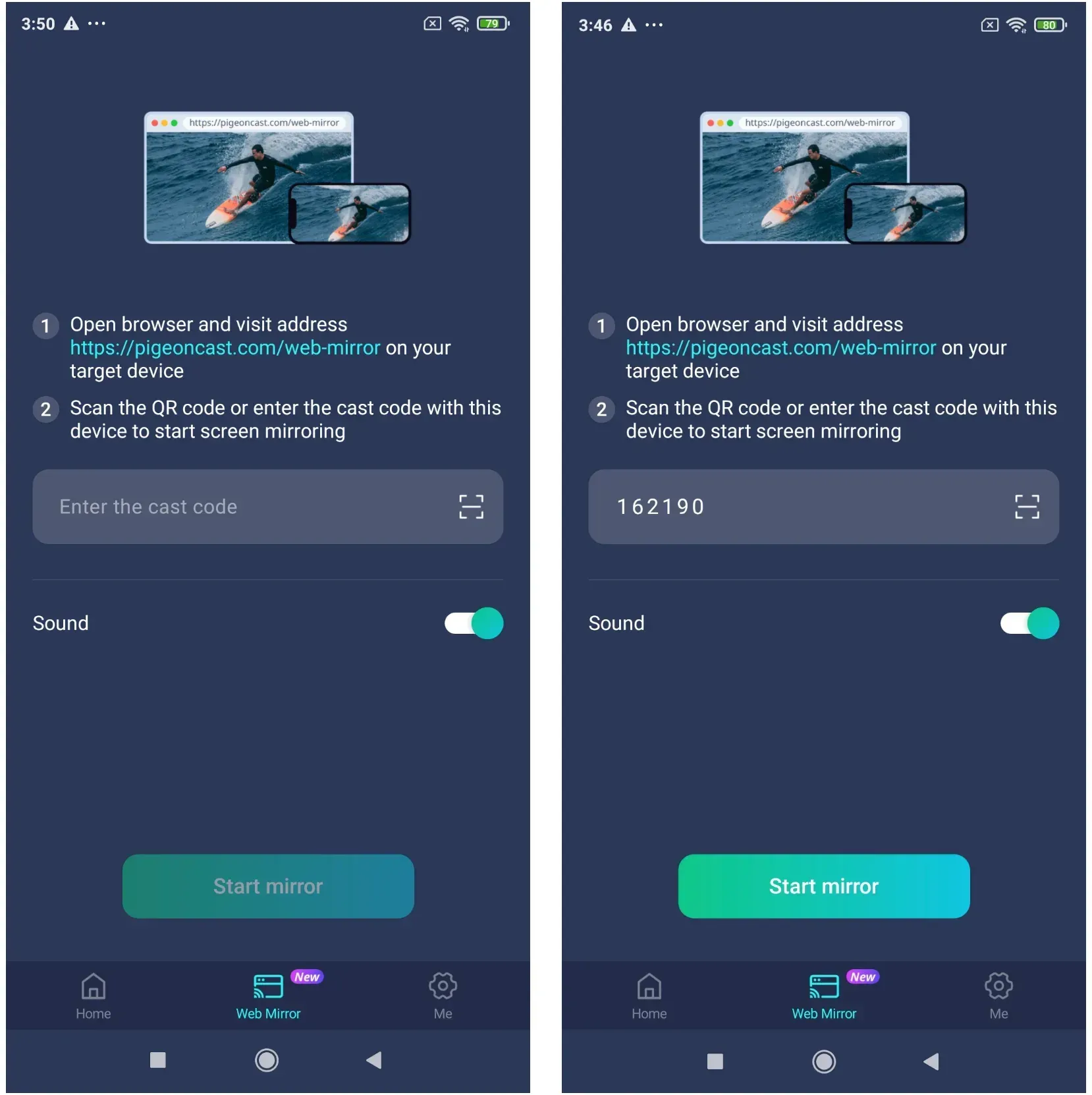
Step 3. Start mirroring your phone screen on the Linux computer.
This approach is better suited for mixed-device environments where you do not want to depend on one specific casting protocol.
AirPlay Linux Troubleshooting: Common Problems
Most AirPlay Linux problems happen because the selected tool does not match the actual goal.
| Problem | Possible Reason |
|---|---|
| Linux receiver does not appear on iPhone | Receiver software is not running or devices are not on the same network |
| Audio works but video does not | You may be using an audio-only tool such as Shairport Sync |
| iPhone cannot connect through Miracast tools | Miracast and AirPlay are different technologies |
| AirPlay connection is unstable | Network quality, hardware, or Linux compatibility issues |
| Video performance is poor | The Linux hardware or receiver setup may not handle the stream smoothly |
Conclusion
AirPlay on Linux is possible, but it is not a single built-in feature like AirPlay on Apple TV. The right approach depends on whether you want to mirror an Apple device, receive audio, or share content across different platforms.
For Apple-focused setups, tools like UxPlay and Shairport Sync can provide practical AirPlay receiving options on Linux. However, if your devices are not limited to Apple products, a cross-platform mirroring solution may offer a simpler and more consistent experience.
Before choosing a method, consider which devices you want to connect and whether you need a dedicated AirPlay receiver or a more flexible screen mirroring workflow.
AirPlay Linux FAQ
What is the best AirPlay receiver for Linux?
For screen mirroring, UxPlay is one of the most practical AirPlay receiver options for Linux. For audio-only playback, Shairport Sync is usually the better choice.
Does Ubuntu support AirPlay?
Ubuntu does not include built-in AirPlay receiver support, but you can use third-party tools such as UxPlay or Shairport Sync.
Can Linux receive AirPlay audio?
Yes. Tools like Shairport Sync allow Linux computers to receive AirPlay audio from Apple devices.
Can Linux replace an Apple TV for AirPlay?
Linux can provide some AirPlay receiver functionality through third-party software, but it does not offer the same native experience as an Apple TV.
Is AirPlay better than Miracast on Linux?
They solve different problems. AirPlay is mainly useful for Apple devices, while Miracast is designed for broader wireless display workflows.
Can I mirror Android to Linux?
Yes, you can mirror Android to Linux through a third-party screen mirroring app such as PigeonCast. Open PigeonCast Web Mirror in a browser, open PigeonCast on your phone, scan the QR code or enter the PIN code, and start screen mirroring.
Mia Clarke is a technology editor specializing in screen mirroring and casting solutions across multiple platforms. Mia provides clear, practical guides and in-depth insights to help users seamlessly connect their devices. Passionate about enhancing digital experiences, Mia is dedicated to keeping readers updated on the latest trends and tools in cross-platform screen sharing. Whether you’re looking to mirror your smartphone, laptop, or smart TV, Mia’s content delivers reliable, user-friendly advice to simplify your tech setup.