
Skype is a widely used tool for video calls, messaging, and online meetings. Many people rely on it for remote work, online classes, and technical support. Screen sharing is one of its most useful features, but it is not always obvious how to use it.
If you have ever searched for how to share screen on Skype, you are not alone. The steps vary by device, and the feature may behave differently on desktop, mobile, or the web. In this guide, you will learn how to screen share on Skype across Windows, macOS, iPhone, Android, and web browsers, along with system requirements and common fixes when screen sharing does not work.
System Requirements for Skype Screen Sharing
Before you start screen sharing Skype, it is worth checking whether your setup meets Skype's basic requirements. Many screen-sharing problems are not caused by Skype itself, but by outdated systems or unsupported versions.
Supported Devices and Operating Systems
Skype screen sharing works on most modern devices, as long as the operating system is up to date.
- Windows: Windows 10 or later
- macOS: macOS 10.13 or later
- iOS: iOS 13 or later
- Android: Android 8.0 or later
- Web browser: Latest version of Chrome or Edge
If your device runs an older system, the screen sharing option may be limited or unavailable.
Use a Supported Version of Skype
Using a recent version of Skype is still important, especially during the transition period. Microsoft continues to maintain Skype for compatibility and migration purposes. Running an outdated app can cause screen sharing to fail or stop unexpectedly during a call.
Internet Connection Requirements
Screen sharing depends heavily on your network quality.
- A stable Wi-Fi or wired connection is recommended
- An upload speed of at least 1.5 Mbps helps keep sharing smooth
- Faster speeds improve clarity, especially when sharing motion or video
If your connection struggles with video calls, screen sharing is likely to feel choppy or delayed.
How to Share Screen on Skype on Windows PC or Mac
Desktop devices offer the most complete screen-sharing experience on Skype. Whether you are using a Windows PC or Mac, you get more control over what you share and how it appears to others in the call. This is also where Skype screen sharing tends to be the most stable, especially for presentations, walkthroughs, or work-related discussions.
On a desktop, you can share your full screen or limit sharing to a single window. You can also choose between using the Skype app or running Skype in a web browser, depending on your preference for joining calls.
Option 1: Share Screen Directly from the Skype App
This is the most common and reliable way to share screen Skype on a desktop computer. The Skype app offers improved performance and fewer limitations compared to browser-based sharing, particularly during longer calls.
Once screen sharing starts, participants will see your screen in real time until you manually stop sharing or leave the call.
Here's how to share screen on Skype Windows 10 or macOS:
Step 1. Open Skype and start a call.
Step 2. Once connected, click the Share Screen button.

Step 3. Choose whether to share your entire screen or a specific window.
Step 4. Confirm your selection.
Note: System audio sharing is limited. Skype mainly shares visuals, not internal computer sound.
Option 2: Share Screen Using Skype on the Web
If you prefer not to install software, Skype also allows screen sharing through a web browser. This option is useful for quick meetings or when you are using a shared or temporary computer.
The browser version supports basic screen sharing, but some advanced features may not be available compared to the desktop app.
How to share screen on Skype:
Step 1. Open Skype in Chrome.
Step 2. Start or join a call.
Step 3. Click the Share Screen icon.
Step 4. Select a browser tab, window, or entire screen.
How to Share Screen on Skype on Android and iPhone
Screen sharing on mobile devices works well for simple tasks, such as showing messages, settings, or app screens. However, it behaves differently from desktop sharing and comes with a few important limitations.
On phones and tablets, Skype mirrors your entire screen rather than a single app window. This makes mobile screen sharing better suited for quick explanations rather than detailed presentations.
How to screen share on Skype on Android phone or iPhone:
Step 1. Open the Skype app and start a call.
Step 2. Tap the three dots during the call.
Step 3. Select Share Screen.
Step 4. Confirm when prompted.
Your phone screen will be mirrored to other participants. However, mobile Skype screen sharing does not include system audio. Others will see your screen, but they will not hear app sounds or videos. This is worth keeping in mind if you plan to share media or content that relies on sound.
Bonus: A Free Cross-Platform Screen Sharing Tool
Skype works well for meetings, but it is not designed for every screen-sharing scenario. If you need to share your screen across different devices or display it on a TV or another computer, a cross-platform tool can help.

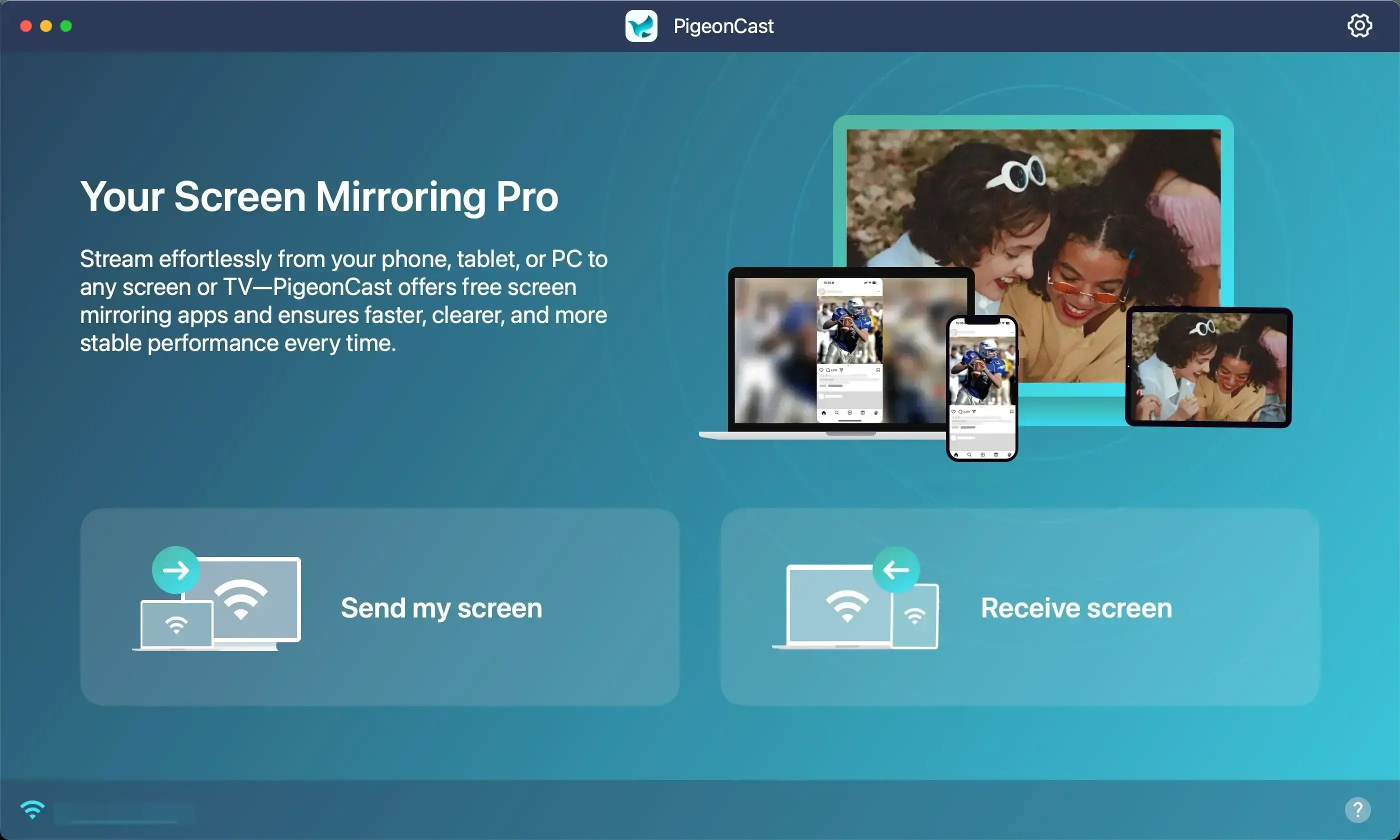
PigeonCast is an example of a lightweight screen-sharing solution that works across systems. It allows you to mirror screens between phones, tablets, computers, and TVs without being locked into a single platform.
This can be useful when:
- You want to show your screen outside a Skype call
- You need consistent screen sharing across devices
- You want high-quality audio or video streaming
- Skype screen sharing feels limited for your setup
It is not a replacement for Skype, but it complements it in more flexible sharing situations. If you want to try this approach, you can install PigeonCast on the devices you plan to use and follow the on-screen setup steps.


Overall Rating:



Step 1. Ensure your device is connected to the same Wi-Fi network as the other device you want to share screen with.
Step 2. Launch the PigeonCast app on your mobile phone or laptop.
Step 3. Follow the app instructions to connect to the target device.
Step 4. Once connected, choose Screen Mirror to share your device screen.
How to Solve Skype Screen Share Not Working
If Skype share screen not working, try these quick checks before reinstalling anything:
- Restart Skype and your device
- Check app permissions for screen recording
- Confirm your internet connection is stable
- Try switching from Wi-Fi to wired internet
On mobile, make sure screen recording permissions are enabled. On desktop, close other apps that may be using screen capture features.
Bottom Line
Skype screen sharing remains a useful feature for many everyday tasks, especially on desktop devices where control and stability are better. Once you understand how the steps differ between Windows, macOS, mobile devices, and the web version, sharing your screen becomes straightforward rather than confusing.
That said, it is important to recognize the current stage of Skype’s lifecycle. Skype is retiring for most users in May 2025, and Microsoft is gradually moving consumer users toward Teams Free. During this transition period, supported versions of Skype and Skype for Business can still handle screen sharing, but long-term reliance on Skype alone may not be ideal.
If you need simple, short-term screen sharing for calls, Skype still does the job. If you often share screens across devices, outside of calls, or across different platforms, a dedicated cross-platform tool can offer more flexibility. Choosing the right option depends less on the feature itself and more on how and where you need to share your screen.
How to Share Screen Skype FAQs
How do I share screen on Skype Windows 10?
Open Skype on your Windows 10 PC and start a call. Once the call connects, click the Share Screen button at the bottom of the call window. Choose whether you want to share your full screen or a specific window, then confirm to start sharing.
Can I share screen on Skype for Business?
Yes, Skype for Business supports screen sharing. However, its interface and settings differ from the consumer version of Skype. Many organizations are gradually moving from Skype for Business to Microsoft Teams, which offers similar screen sharing features with ongoing support.
Does Skype screen sharing include audio?
No, Skype screen sharing does not reliably include system audio. On desktop, some limited audio sharing may work in specific cases, but on mobile devices, only the screen visuals are shared. App sounds, videos, and system audio are not transmitted.
Why is Skype screen sharing not working?
When Skype screen sharing is not working, the most common causes include an unsupported Skype version, missing screen recording permissions, or an unstable internet connection. Restarting the app, updating Skype, and checking permissions usually resolve the issue.
Is Skype screen share free?
Yes, screen sharing on Skype is free for supported users. You do not need a paid subscription to share your screen during a call. However, some paid calling features are being phased out as Skype transitions toward retirement.
How to share a presentation on Skype?
To share a presentation, start a Skype call and use the Share Screen option. It is usually best to share a specific window, such as your presentation app, rather than your entire screen. This helps avoid distractions and keeps the presentation focused.
Why is Skype no longer free?
Skype itself is not entirely paid, but Microsoft has stopped offering new paid Skype features and is retiring Skype for most users in 2025. Free features like messaging, calls, and screen sharing are being transitioned to Microsoft Teams Free, which is now the primary platform moving forward.
Mia Clarke is a technology editor specializing in screen mirroring and casting solutions across multiple platforms. Mia provides clear, practical guides and in-depth insights to help users seamlessly connect their devices. Passionate about enhancing digital experiences, Mia is dedicated to keeping readers updated on the latest trends and tools in cross-platform screen sharing. Whether you’re looking to mirror your smartphone, laptop, or smart TV, Mia’s content delivers reliable, user-friendly advice to simplify your tech setup.