
Learning how to screen share on Discord mobile lets you show your apps, tutorials, or gameplay directly in a call. The feature works well on both iPhone and Android, and it allows you to collaborate or entertain your friends from your phone. This guide walks you through every step clearly and practically while explaining what to do if your Discord screen share refuses to work.
How to Screen Share on Discord Mobile
Screen sharing on Android or iPhone is simple once you know where the controls are. Here's how to share screen on Discord mobile:
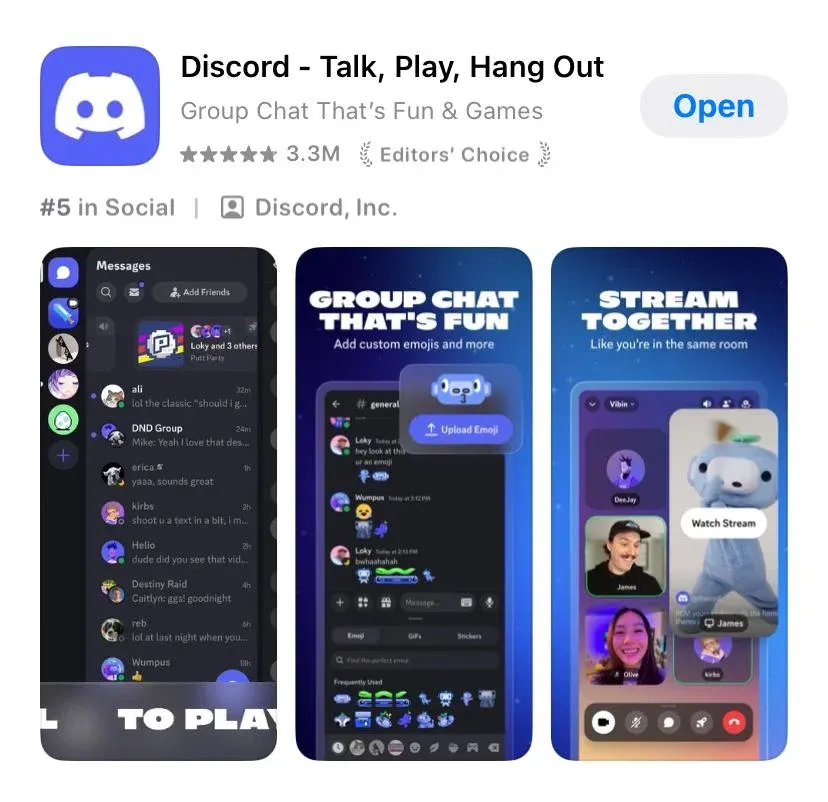
Step 1. Open the Discord app and join a voice call or voice channel that supports screen sharing.
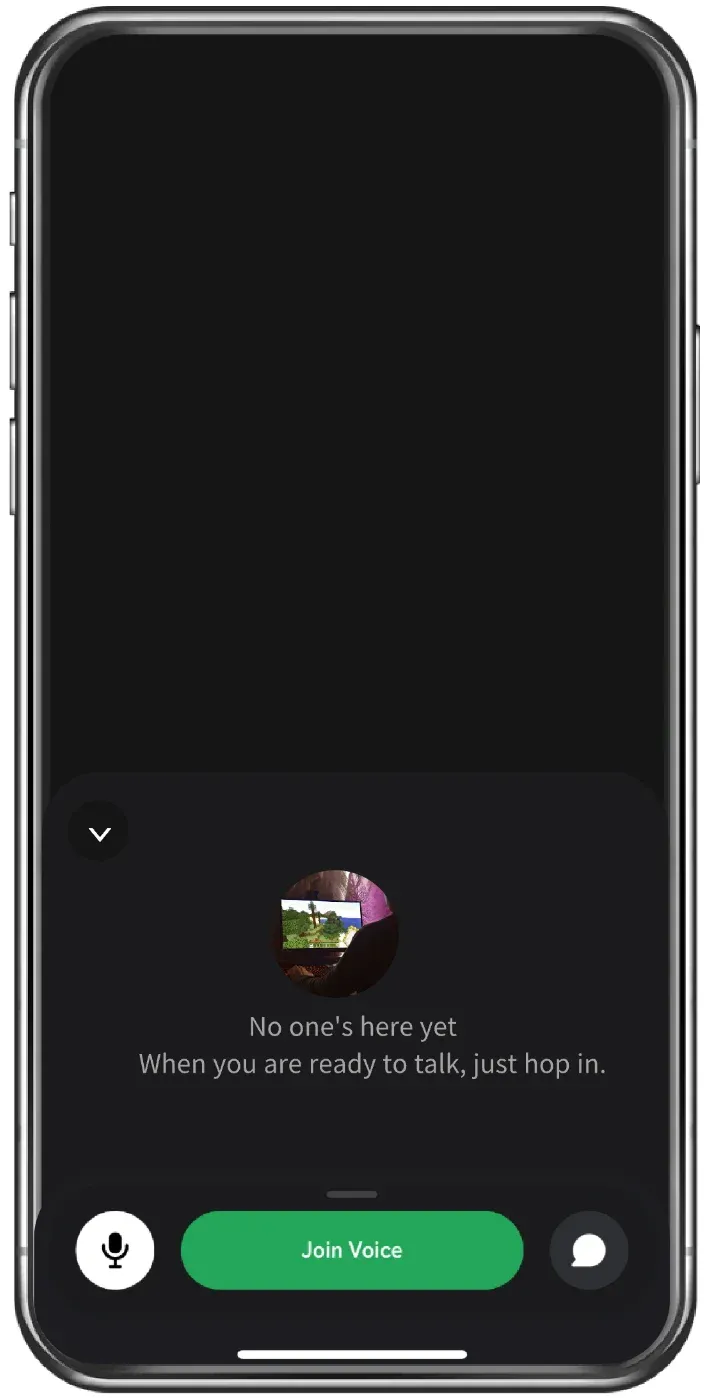
 Step 2. Tap the Join Voice icon at the bottom of the call interface.
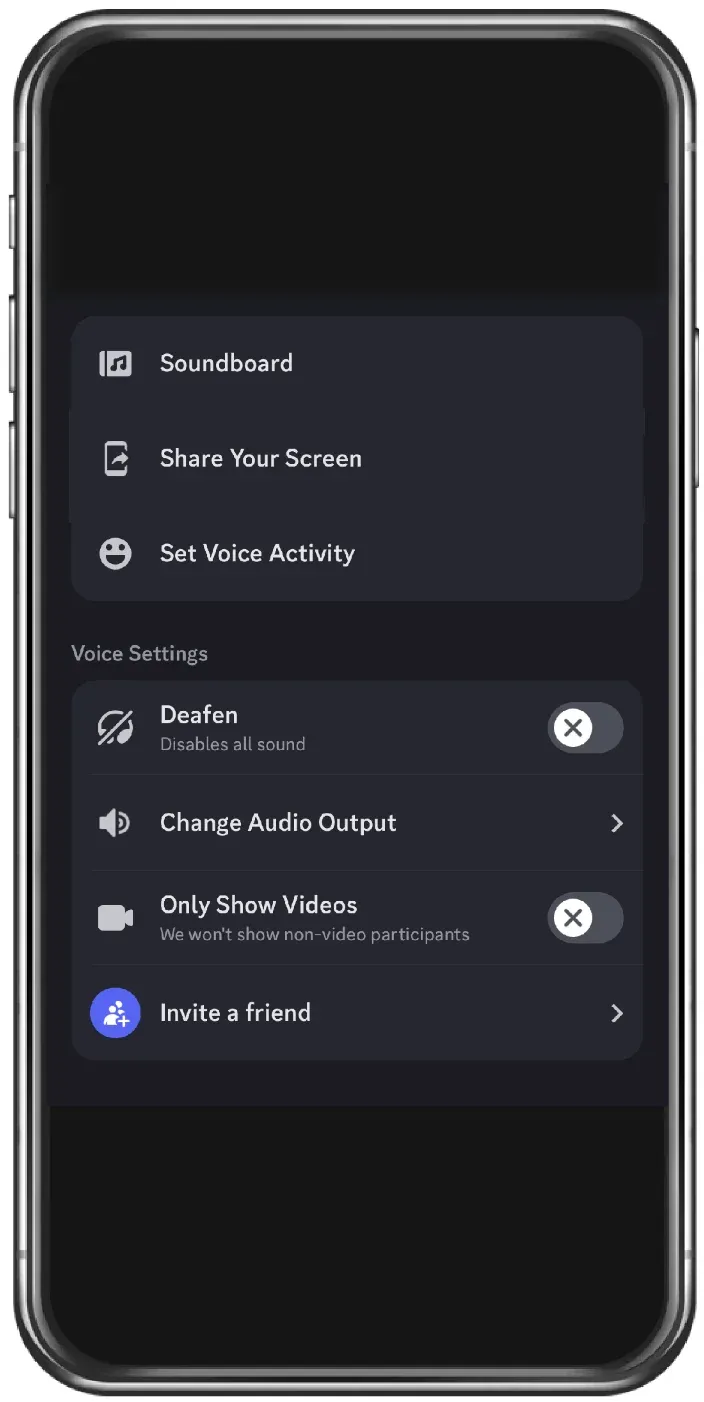
Step 3. Once you start a voice call or join a voice channel, swipe down from the bottom to open the menu.
Step 4. Tap the Share Your Screen option.
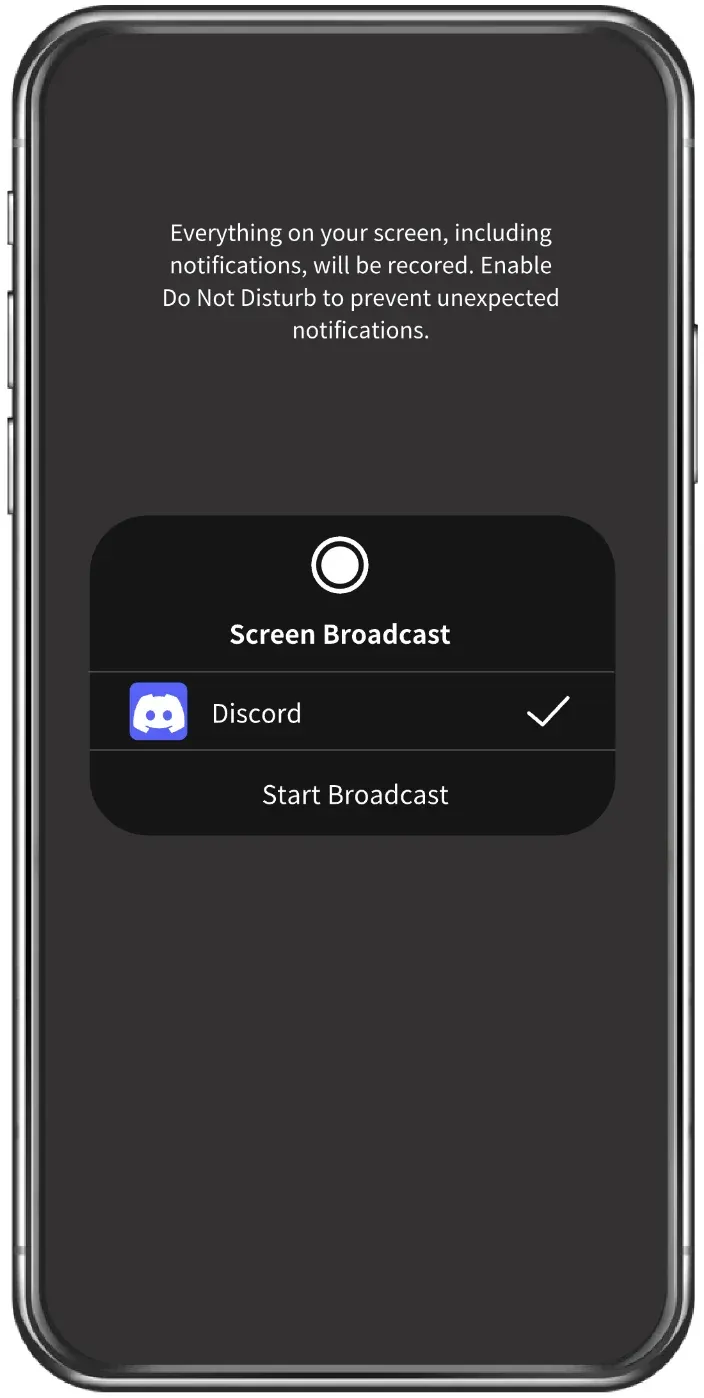
Step 5. Tap the Start Broadcast option on the pop-up Screen Broadcast window.
Step 6. Your home screen will appear. Open the game or app you want to show.
Step 7. Tap Stop Sharing when you are finished.
Why Can't I Screen Share on Discord Mobile
If your Discord screen share is not working on mobile, the cause is usually tied to permissions, network quality, or app restrictions. The issues are easy to identify once you understand how screen sharing behaves on iPhone and Android. Below are the most common problems, explained in a beginner-friendly way with practical solutions.
- Missing permissions on iPhone or Android
When Discord does not have the proper permissions, screen sharing either refuses to start or stops after a few seconds. This is one of the most common reasons why Discord screen share is not working.
Step 1. Open your phone's Settings.
Step 2. Go to Discord.
Step 3. Allow Microphone, Screen Recording, and Display over other apps (Android only).
Step 4. Restart Discord and join a call again.
Giving Discord full-screen access usually restores the sharing feature immediately.
- Black screen during screen sharing
If your viewers only see a black screen, you are likely sharing an app that blocks capture. Streaming services, movie platforms, and certain games prevent screen recording for copyright protection. This is the same reason some users think Discord screen share is not working, even though the feature is functioning normally.
Step 1. Return to the home screen.
Step 2. Open a different app that does not use DRM protection.
Step 3. Start screen sharing again.
Step 4. If the problem persists, try switching networks or restarting the Discord app.
You can also mirror your phone to a computer and share that display if you need to show restricted apps.
- Discord screen share no audio
Many users run into Discord screen share no audio on mobile. This often happens on Android, but iPhone users may experience it as well. The lack of audio usually comes from muted system settings or disabled voice permissions.
Step 1. Make sure Media Volume is not muted.
Step 2. Turn on Microphone audio inside the Discord call interface.
Step 3. For Android users, enable Internal Audio in system settings when possible.
Step 4. Close and reopen Discord to refresh your audio session.
If the audio still does not come through, switching to WiFi or restarting your phone often resolves stubborn audio issues.
- Weak or unstable Internet connection
Screen sharing depends heavily on network stability. Slow WiFi, crowded public networks, or switching between mobile data and WiFi can all cause freezing, blurry visuals, or total disconnection during a screen share.
Step 1. Move closer to your router or switch to a private WiFi network.
Step 2. Turn off VPNs, which may slow down Discord screen share.
Step 3. Avoid switching networks while sharing your screen.
Step 4. Restart the call to refresh your connection.
Better network conditions almost always result in smoother screen sharing on any device.
- Outdated Discord app version
If Discord screen share is not working consistently, check whether the app is up to date. Older versions may not support newer screen-sharing functions or may contain bugs that cause random failures.
Step 1. Go to the App Store or Google Play Store.
Step 2. Search for Discord.
Step 3. Tap Update if a new version is available.
Step 4. Reopen Discord and try screen sharing again.
Updating the app ensures you get improved performance, better audio handling and stronger compatibility with your device.
Free Alternative Way to Share Your Mobile Screen When Discord Isn't Working
If Discord mobile screen share still does not work or you want a smoother experience for long sessions, you can use an external mirroring method. A common approach is to mirror your phone to a TV or computer first and then share that screen through Discord on desktop.
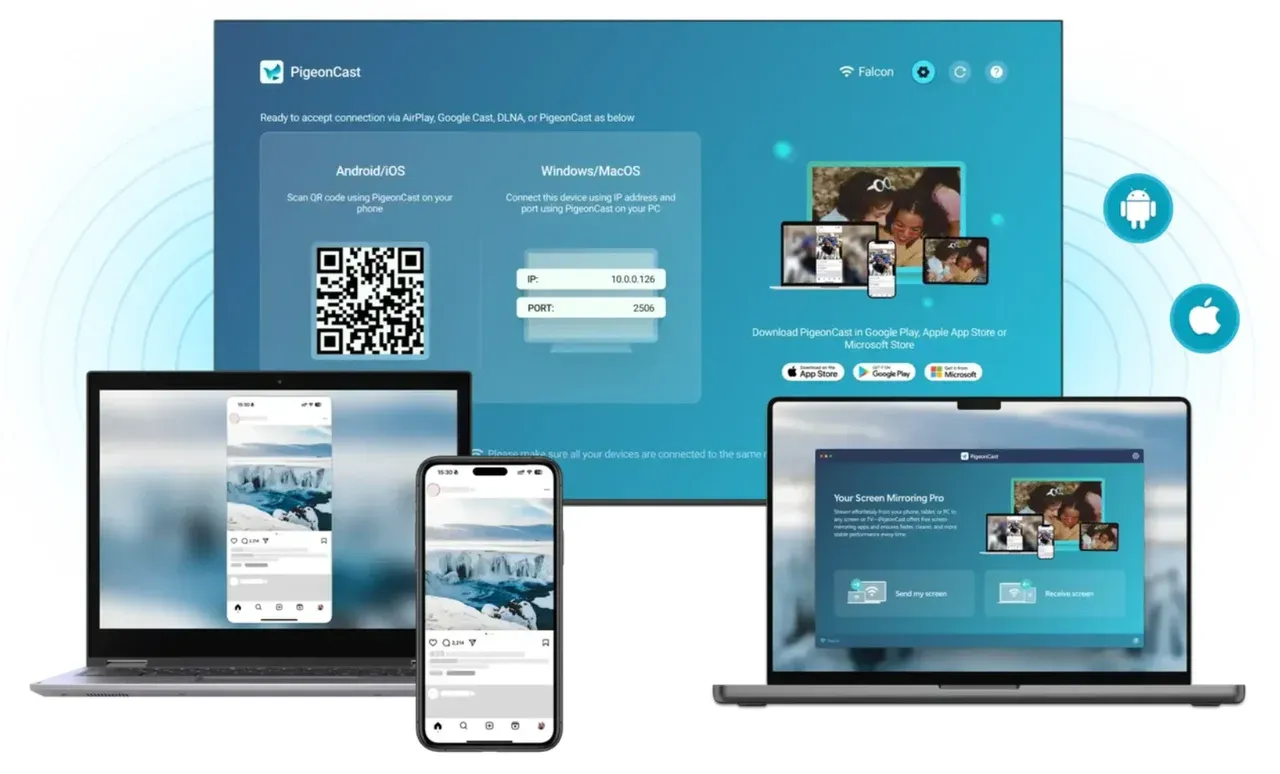
PigeonCast is a convenient option for this method because it mirrors iPhone or Android onto Windows, Mac, or even a TV with simple setup steps. Once your phone appears on a larger screen, you can open Discord on your computer and share the mirrored display. This helps avoid black screens, reduces lag, and improves the overall experience when Discord mobile behaves inconsistently.
This approach is helpful for users who need a stable connection during presentations, tutorials, or extended gameplay.
Try the free screen mirroring solution now:


Overall Rating:



Conclusion
Learning how to screenshare on Discord becomes straightforward once you understand the controls on both iPhone and Android. The mobile app offers smooth sharing for most everyday tasks, and most issues can be fixed by adjusting permissions or updating the app. When Discord screen sharing feels unstable or you need a more polished setup, mirroring your phone to a computer with PigeonCast gives you an alternative that works consistently. No matter which method you choose, you can enjoy a clear, reliable, and flexible screen sharing experience whenever you need it.
How to Screen Share on Discord Mobile FAQs
Why is my Discord mobile screen share showing a black screen?
Most black screen problems happen because certain apps protect their content. Try sharing your home screen or use an external mirroring tool as a workaround.
Does Discord mobile screen share include audio?
Audio works, but it may fail on Android when system settings mute app sounds. Make sure microphone audio is active inside the call.
Why can't I find the screen share button on Discord mobile?
If the Screen Share icon does not appear, you may not be inside a voice call. Join a call, and the option will show up at the bottom of the interface.
Can Discord mobile share my gameplay?
Yes, unless the game blocks screen recording. Many popular games allow it, but streaming apps usually do not.
How do I fix Discord screen share no audio on mobile?
Check microphone permissions, increase media volume, and enable Voice Activity inside the call settings.
Can I use another method if Discord mobile screen share does not work?
You can mirror your phone to a computer using PigeonCast and then share that display through Discord. This method is stable and works well when the mobile app has issues.
Mia Clarke is a technology editor specializing in screen mirroring and casting solutions across multiple platforms. Mia provides clear, practical guides and in-depth insights to help users seamlessly connect their devices. Passionate about enhancing digital experiences, Mia is dedicated to keeping readers updated on the latest trends and tools in cross-platform screen sharing. Whether you’re looking to mirror your smartphone, laptop, or smart TV, Mia’s content delivers reliable, user-friendly advice to simplify your tech setup.