
Ever searched for an app on your Google TV, only to find that it isn't available in the Play Store? Maybe the app isn't supported in your region, or the developer only offers an APK file. That doesn't necessarily mean you can't install it.
Learning how to sideload apps on Google TV gives you another way to access compatible Android apps outside the Play Store. You can download APK files directly to your TV or transfer them from a computer using a USB drive.
In this guide, we'll walk through both methods, explain the permissions you need, and help you troubleshoot common installation issues.
Can You Sideload Apps on Google TV and Android TV?
Yes. Most Google TV and Android TV devices allow you to install compatible apps using APK files, even when those apps aren't available in Google Play. However, some devices or software versions may restrict manual installations.
Google TV runs on the Android TV OS platform, so both systems follow a similar sideloading process. The main differences usually involve their settings menus, available file managers, and device-specific restrictions.
Sideloading can be useful when:
- An app isn't listed in Google Play. Some developers distribute their TV apps directly through their websites.
- An app isn't available in your region. You may be able to install a compatible APK, although regional service restrictions can still apply.
- You want to install a specific version. An official APK may provide access to an older or newer build.
- Your TV doesn't have Google Play. Certain Android-based TVs use alternative app stores or don't include Google services.
Before getting started, keep in mind that not every Android app is designed for a television. Mobile-only apps may require touch controls, display incorrectly, or depend on services your TV doesn't support.
What you'll need: A Google TV or Android TV device, an internet connection or USB drive, and an APK file from a trusted source.
How to Sideload Apps on Google TV Using Downloader
One of the easiest ways to sideload apps on Google TV is through Downloader by AFTVnews, which lets you enter a download URL and retrieve APK files directly on your TV.
This method is especially convenient if you don't want to use a computer or USB drive.
Step 1. Install Downloader on Google TV
First, you'll need an app that can download APK files.
- Turn on your Google TV and navigate to the Apps tab.
- Select Search and enter "Downloader by AFTVnews."
- Choose Downloader from the search results.
- Select Install, then open the app.
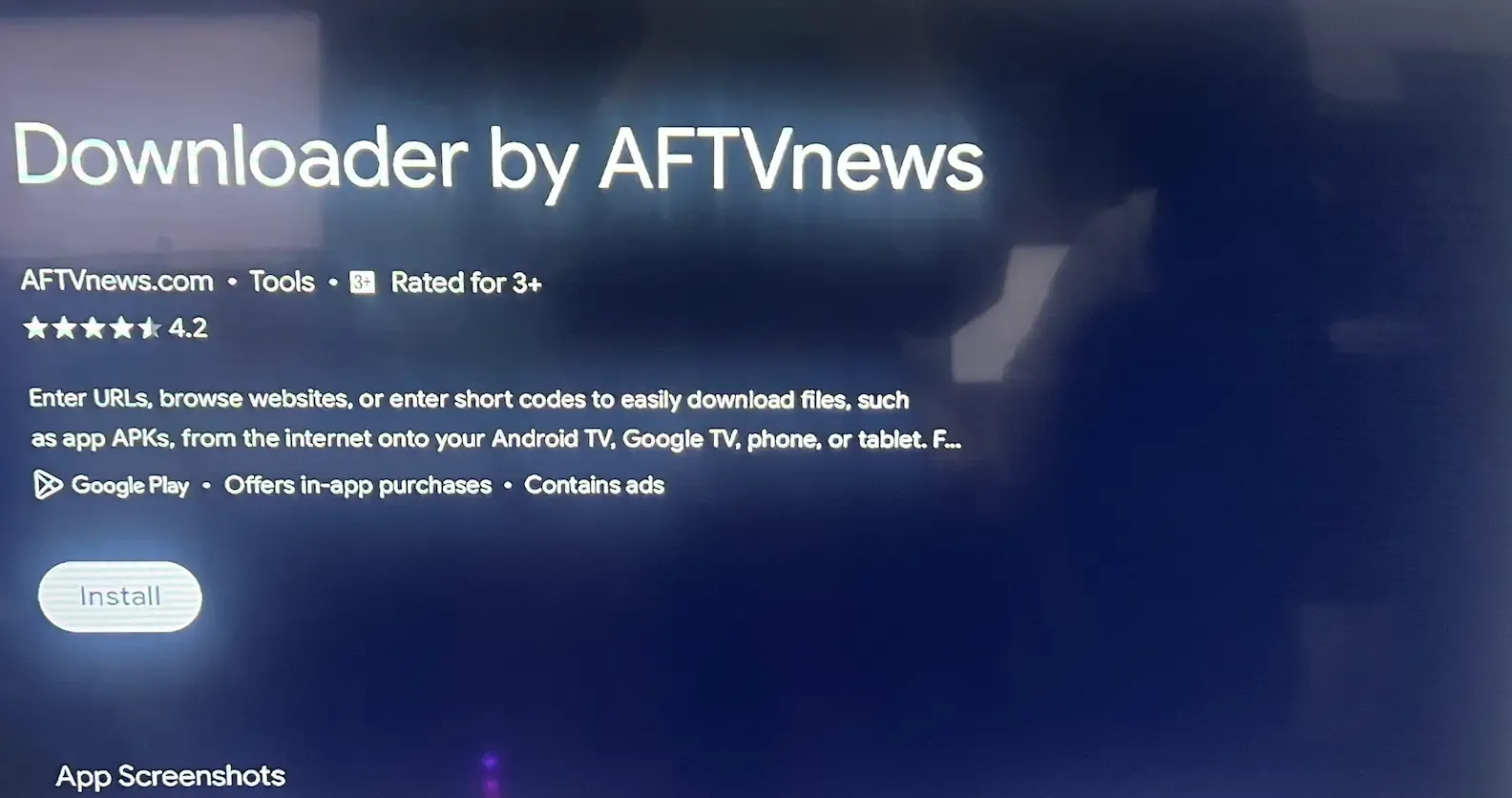
If Downloader isn't available on your device, you can try another compatible browser or download manager.
Step 2. Enable Developer Options
On some Google TV devices, you may need to enable Developer Options before the system allows third-party APK installation.
Here's how:
- Open Settings on your Google TV.
- Navigate to System > About.
- Scroll down to Android TV OS build.
- Press the Select button on your remote seven times.
- You should see a message indicating that Developer Options have been enabled.
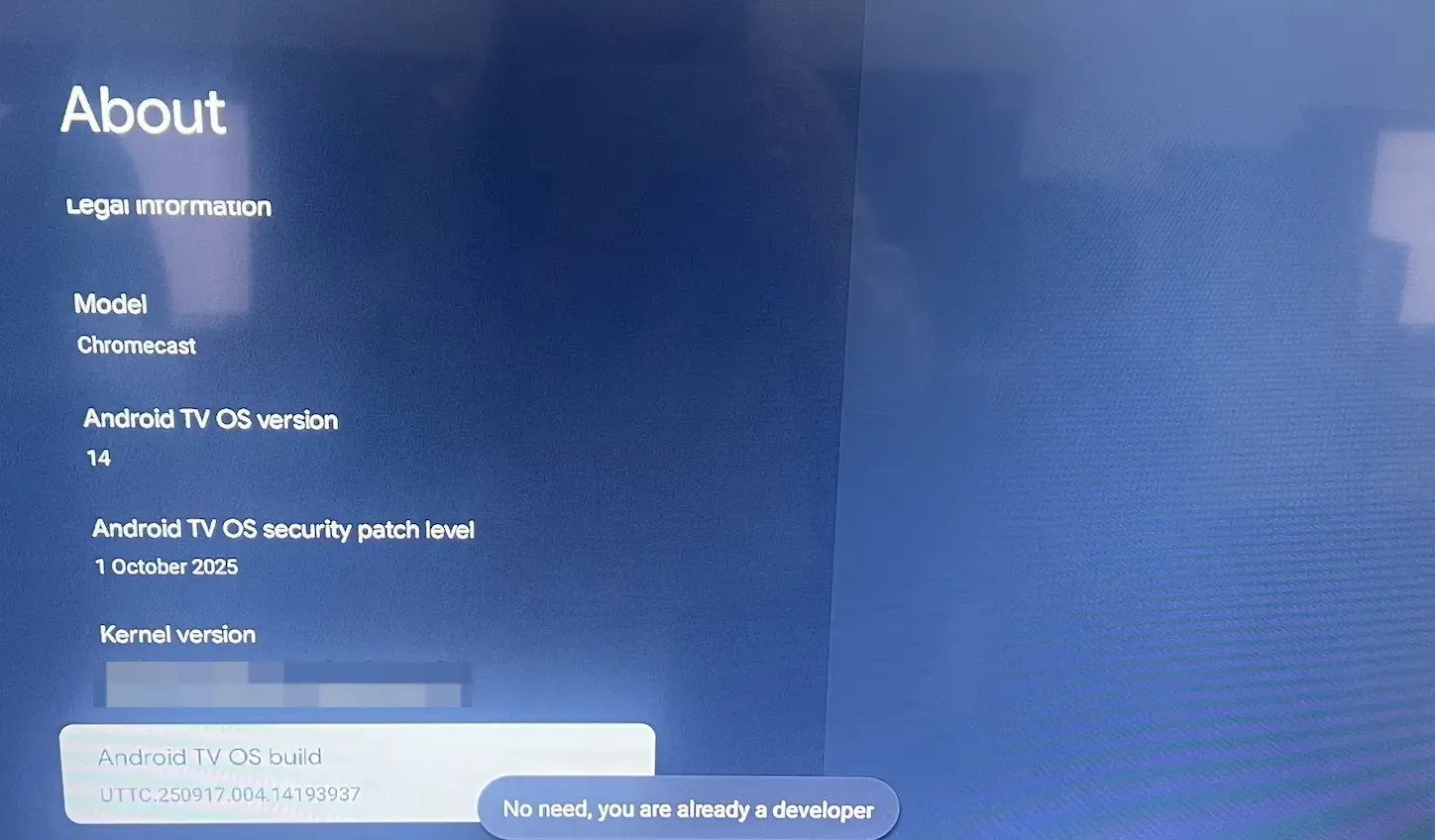
The exact settings path may vary by manufacturer. If your TV already allows installation from unknown sources, you can skip this step.
Step 3. Allow Installation from Unknown Sources
Android normally restricts apps from installing APK files without permission. You'll need to allow Downloader to install the file you download.
- Open Settings > Apps.
- Find Special app access > Install unknown apps, or the equivalent security menu.
- Select Downloader.
- Enable Allow from this source.
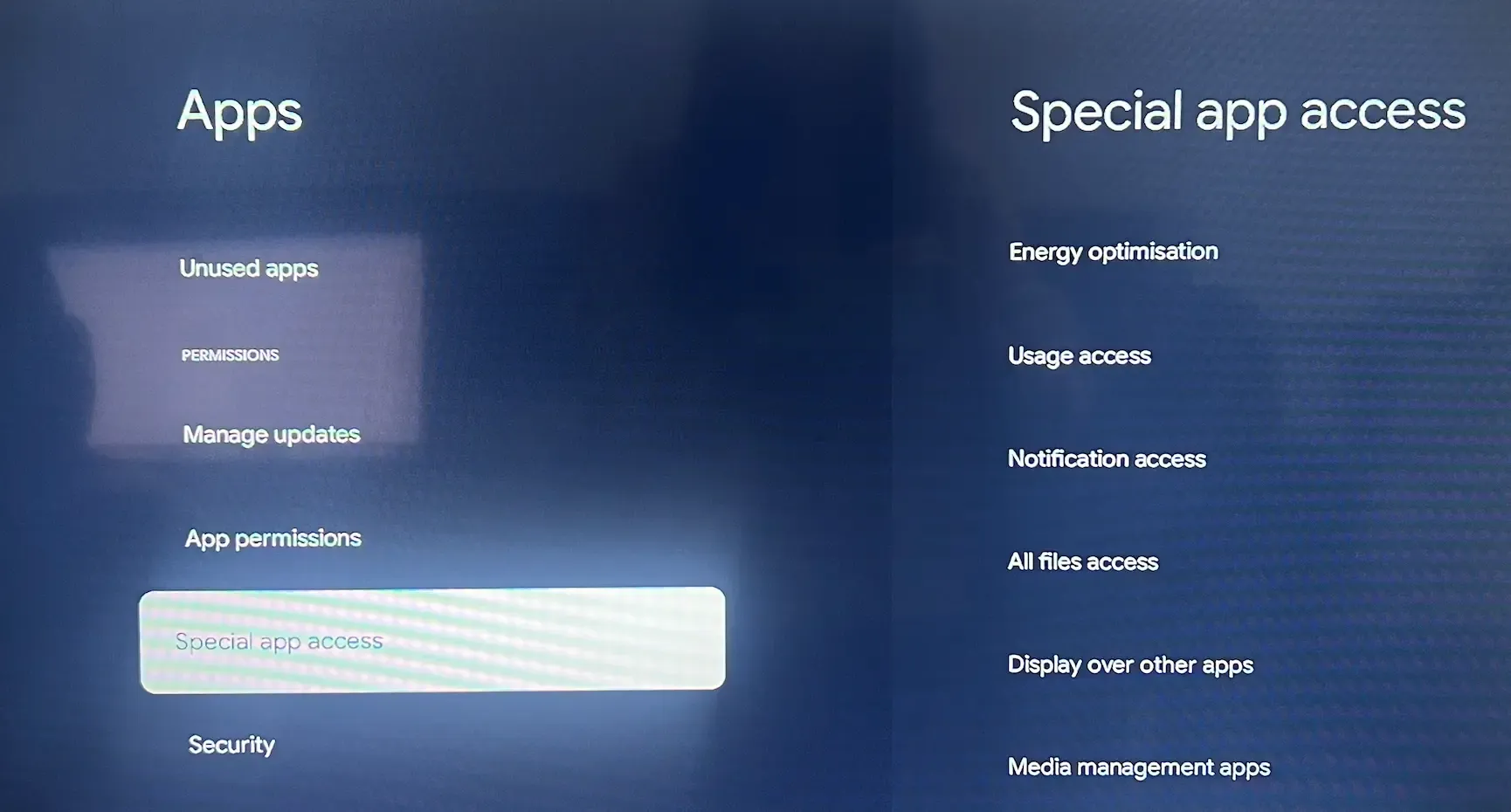
On some TVs, this option only becomes available after you attempt to install an APK. If you can't find it, return to Downloader and try opening your downloaded file first.
Security tip: Only grant this permission to a trusted installer. You can disable it again after finishing the installation.
[Suggested screenshot: Install unknown apps settings with Downloader selected.]
Step 4. Download and Install an APK
Now you're ready to install an app outside Google Play. Let's use PigeonCast, a free screen mirroring receiver app for Android TV, as an example.
- Open Downloader on your Google TV.
- Visit the PigeonCast APK download page and download the APK file.
- Once the download finishes, select Install.
- Follow the on-screen instructions to complete the installation.
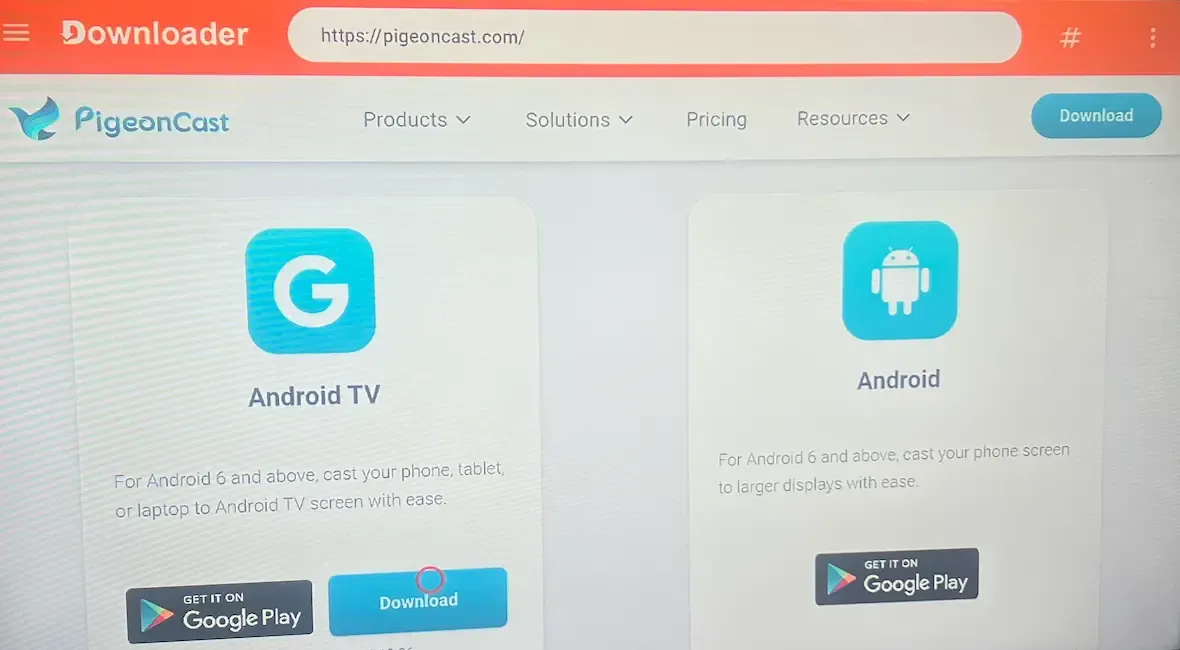
For any app, use its official page to access the current APK. If the page doesn't work correctly in Downloader, you can use the USB method below instead.
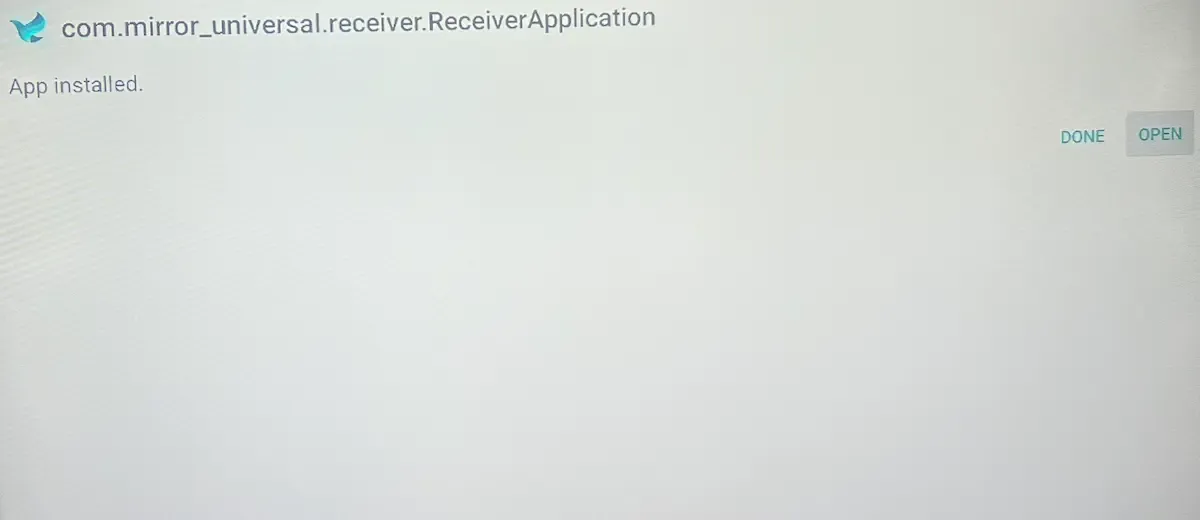
Once installed, select Open to launch the app, or find it in your TV's installed applications.
How to Sideload Apps on Android TV Using a USB Drive
If you prefer downloading files on your computer, using a USB drive is another straightforward way to sideload apps on Android TV.
This method is particularly useful when your TV doesn't have a convenient web browser, Downloader isn't available, or entering long URLs with a remote is frustrating.
You'll need a computer, a USB drive, and an Android TV that supports external storage and manual APK installation.
Step 1. Download the APK on Your Computer
Open a browser on your Windows PC or Mac and download the APK file from the app developer's official website.
Using PigeonCast as an example again, visit its Android TV APK download page and save the installation file to your computer.
Make sure the APK is compatible with your TV's Android version. Save it somewhere easy to find, such as your Downloads folder.
Step 2. Transfer the APK to a USB Drive
Next, move the installation file to your TV.
- Insert a USB flash drive into your computer.
- Copy the downloaded APK file onto the USB drive.
- Safely eject the drive from your computer.
- Connect it to an available USB port on your Android TV.
If your TV doesn't recognize the drive, check whether it supports the drive's file system. FAT32 is widely supported, although its maximum individual file size is 4 GB.
Step 3. Find the APK Using a File Manager
Open the file manager on your Android TV and navigate to the connected USB drive.
If your TV doesn't have a built-in file manager, you may need to install a compatible one from its available app store.
Locate the APK file you transferred and select it with your remote.
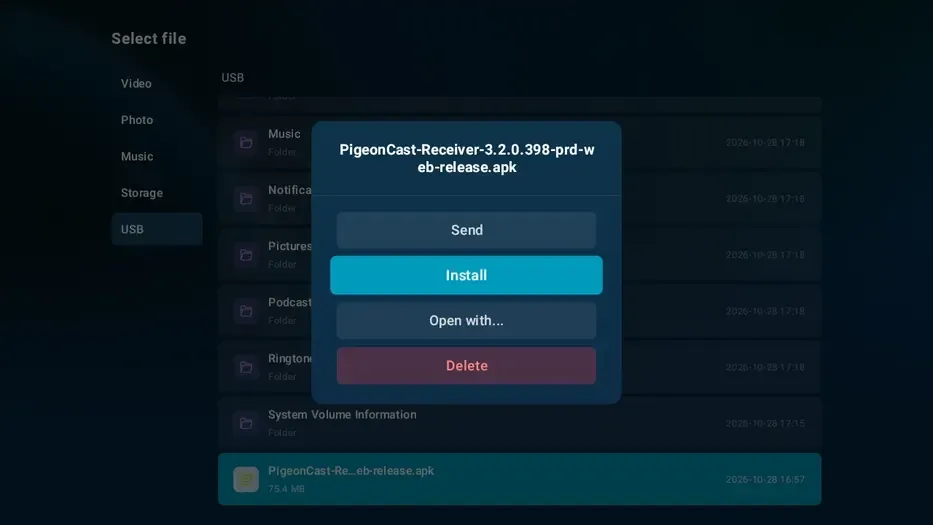
Step 4. Allow Installation and Install the APK
If this is your first time installing an APK through the file manager, Android may ask you to authorize the installation.
- Follow the prompt to open the installation permission settings.
- Enable Allow from this source for your file manager.
- Return to the APK file and select it again.
- Choose Install and follow the on-screen instructions.
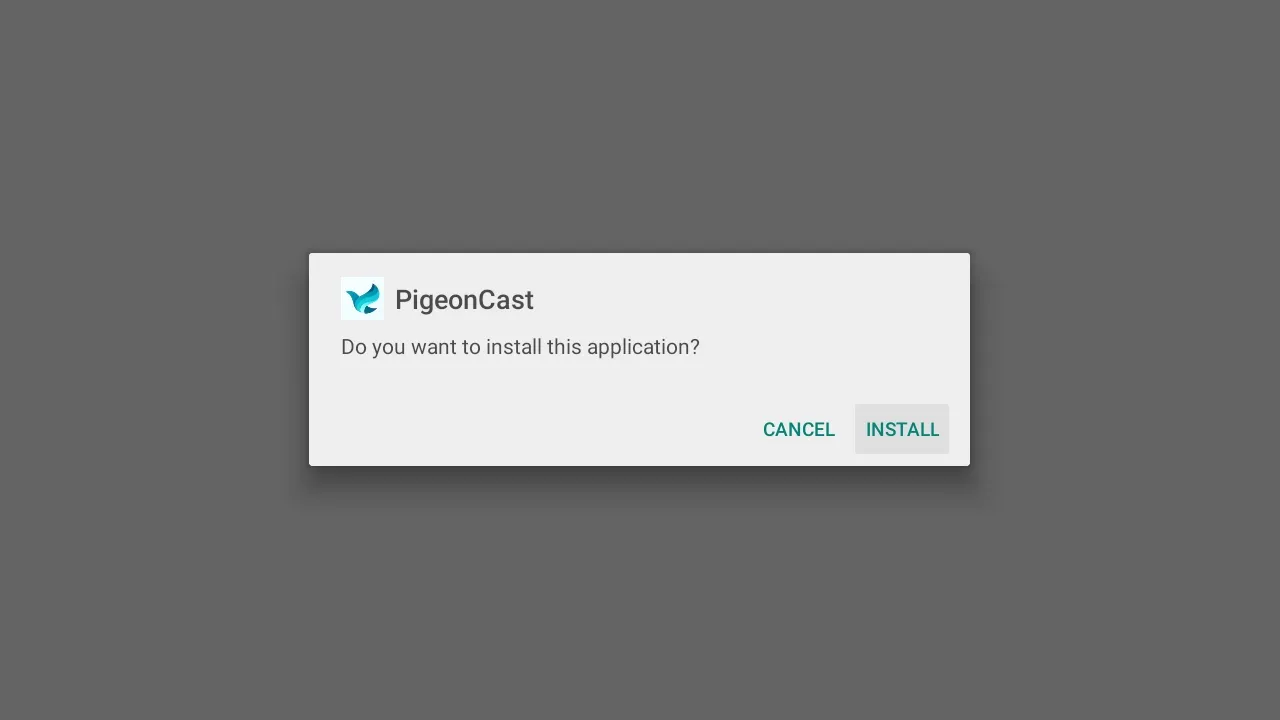
After installation, open the app from your TV's app list or installed applications menu.
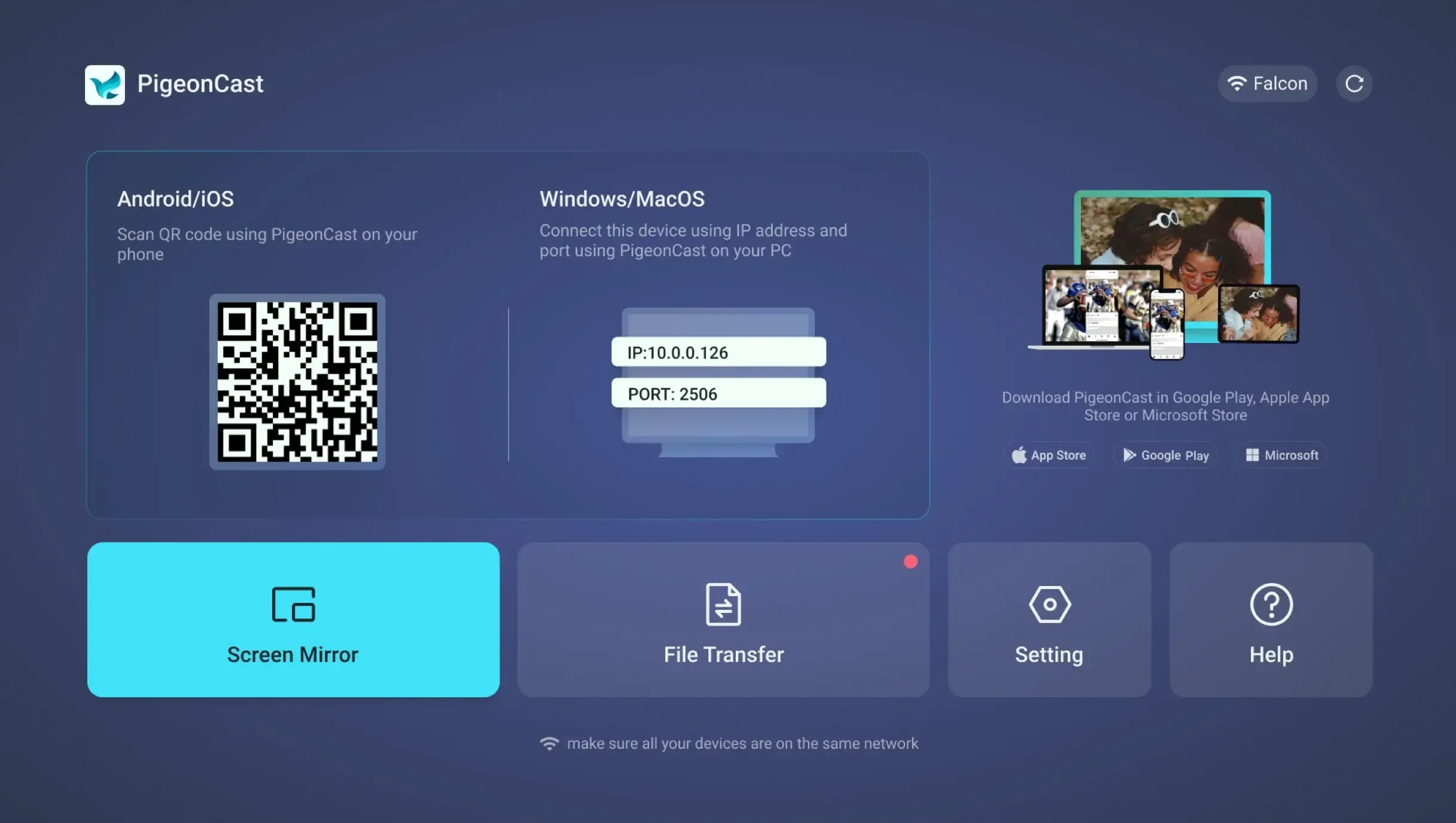
For example, once PigeonCast is installed, you can launch its TV receiver and connect a compatible phone or computer to begin screen mirroring. Keep both devices on the same Wi-Fi network and follow the connection instructions displayed in the app.
How to Fix Sideloaded Apps Not Working on Google TV
Even if you've followed the installation steps correctly, sideloading doesn't always go smoothly. Here are some common problems and how to address them.
1. Can't Find "Install Unknown Apps"
If your Google TV doesn't show the option to install unknown apps, the permission may be hidden until you attempt an installation.
Try these fixes:
- Enable Developer Options if your device requires them.
- Make sure Downloader or your file manager is already installed.
- Open the APK file and follow any permission prompt.
- Check Settings > Apps for Special app access or Security & restrictions.
Some manufacturers use different menu names or restrict this feature altogether.
2. "App Not Installed" or "Problem Parsing Package"
These errors often indicate a compatibility issue, incomplete download, insufficient storage, or conflict with an existing installation.
Start by checking whether the APK supports your TV's Android version and processor architecture.
If you've already installed the same app through Google Play, its signing certificate may differ from the downloaded APK. In that case, Android may reject the installation rather than overwrite the existing app.
You may need a compatible update package or a fresh installation. Be aware that uninstalling an existing app can delete its locally stored data and settings.
3. Sideloaded App Doesn't Appear on the Home Screen
Some apps install successfully but don't appear in your Google TV or Android TV launcher.
This often happens when an application wasn't designed specifically for television interfaces.
To check:
- Open Settings > Apps > See all apps.
- Find the application in the installed apps list.
- Select it and look for an Open option, if available.
If the app only supports touchscreen controls, it may still be difficult to use with a TV remote.
4. The App Opens but Immediately Crashes
An app that installs successfully isn't necessarily compatible with your TV.
It may require Google Play Services, unsupported hardware features, a different Android version, or permissions unavailable on your device.
Check the app developer's requirements and look for a dedicated Android TV version when possible.
5. The Sideloaded App Isn't Updating
Apps installed manually from APK files don't necessarily receive automatic updates through Google Play.
To update one, visit the developer's official website, download a compatible newer APK, and install it over your existing version.
For an in-place update, Android generally requires the same package name, compatible signing certificate, and an acceptable version code.
If the app provides its own update mechanism, follow the developer's instructions instead.
Final Thoughts
Knowing how to sideload apps on Google TV makes it easier to install compatible applications that aren't available in the Play Store.
If you want a quick installation without extra hardware, Downloader is often the most convenient option. If your TV doesn't support downloading APK files directly, a USB drive provides another practical way to install them.
Whichever method you choose, always download APK files from trusted sources and check device compatibility before installing.
Want to mirror your phone or computer to a bigger screen? Check out PigeonCast for Android TV and give it a try.
How to Sideload Apps on Google TV FAQs
What does it mean to sideload an app?
Sideloading means installing an application from outside your device's official app store. On Google TV and Android TV, this usually involves downloading an Android APK file and manually installing it using a browser, download manager, or USB drive. Sideloading can provide access to compatible apps unavailable through Google Play, but it's important to download files from trusted sources.
How to sideload more than 3 apps?
Google TV and Android TV don't generally impose a three-app limit on sideloaded applications. You can install multiple compatible APKs as long as your device has sufficient storage and permits manual installation.
If you can't install additional apps, check your available storage, installation permissions, and any restrictions imposed by your device or installation tool. You can also delete APK installer files after installation to free up space.
How to sideload apps on Roku TV?
Roku TV doesn't run Android, so you can't install standard Android APK files on it. Roku does provide a developer sideloading process for testing Roku applications, but it uses a different package format and isn't intended as a general Android app installation method.
Roku's developer sideloading system supports only one sideloaded development app at a time. Installing another replaces the previous one.
If you want to use Android apps on a Roku TV, connecting a compatible external Android TV or Google TV device may be a more practical option.
How to sideload apps on Firestick?
On Fire TV Stick models running Android-based Fire OS, you can usually sideload compatible APK files using Downloader or a similar tool.
The general process is to install a compatible downloader, enable the necessary installation permission, download the APK, and follow the installation prompts.
However, not every Fire TV device runs Android-based Fire OS. Some newer devices use Vega OS, which doesn't support standard Android APK sideloading in the same way. Check your exact Fire TV model before following an Android APK tutorial.
Mia Clarke is a technology editor specializing in screen mirroring and casting solutions across multiple platforms. Mia provides clear, practical guides and in-depth insights to help users seamlessly connect their devices. Passionate about enhancing digital experiences, Mia is dedicated to keeping readers updated on the latest trends and tools in cross-platform screen sharing. Whether you’re looking to mirror your smartphone, laptop, or smart TV, Mia’s content delivers reliable, user-friendly advice to simplify your tech setup.