
Want to show your screen to someone quickly using Facebook Messenger? The good news is, yes, you can share screen Messenger. Whether it's a funny meme, a document, or a short video, Messenger lets you share your screen without switching apps. But is it ideal for every situation? Let's explore when it works, when it doesn't, and how to do it right.
Can You Share Screen on Facebook Messenger
Yes, Facebook Messenger offers a screen sharing feature, allowing screen sharing on most devices, including Android phones, iPhones, Windows PCs, and Macs. Here's a quick overview:
| Device | How to Share | Notes |
|---|---|---|
| Android | In-call → Tap Screen → Start Sharing | Works in 1:1 or small group calls |
| iPhone | In-call → Share Screen → Start Broadcast | Audio can be shared using "Share Screen with Audio" |
| Windows PC | Messenger app or browser → Video Call → Screen | Can choose full screen or specific window |
| Mac | Messenger app or browser → Video Call → Screen | Works similarly to Windows |
When Messenger Screen Sharing Is Not a Good Choice
Facebook Messenger share screen functionality is straightforward but optimized for casual use rather than heavy-duty presentations. Avoid using Messenger when:
- You have more than two participants in a formal presentation
- You need highly stable audio-video sync
- You need to switch between devices often
- You plan to share your screen for extended periods
- Multiple platforms need to view the screen at once
How to Share Screen in Messenger on Phone
Step 1. Open the Messenger app and sign in to your Facebook account.
Step 2. Find the person you'd like to share screen with from your Friends list and start a video call.
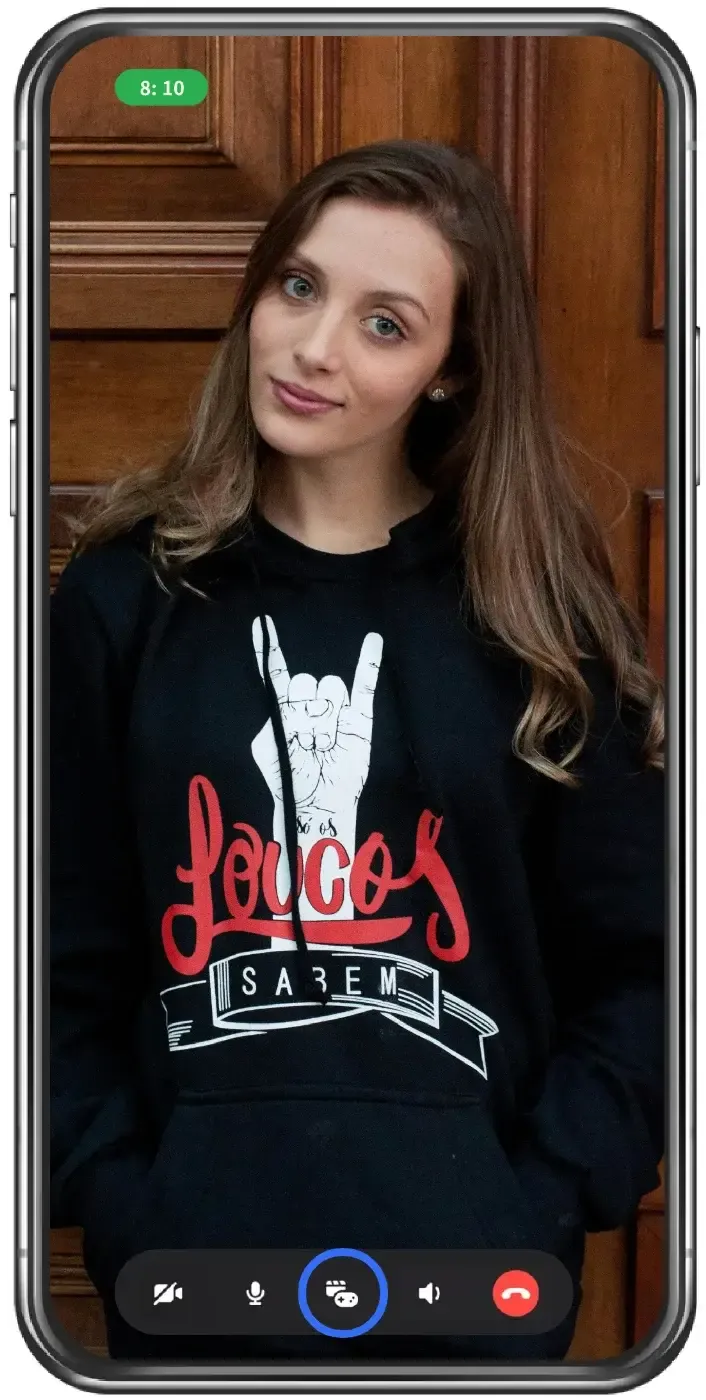
Step 3. Once the call is connected, tap the Watch, Share, Play icon at the bottom of the screen.
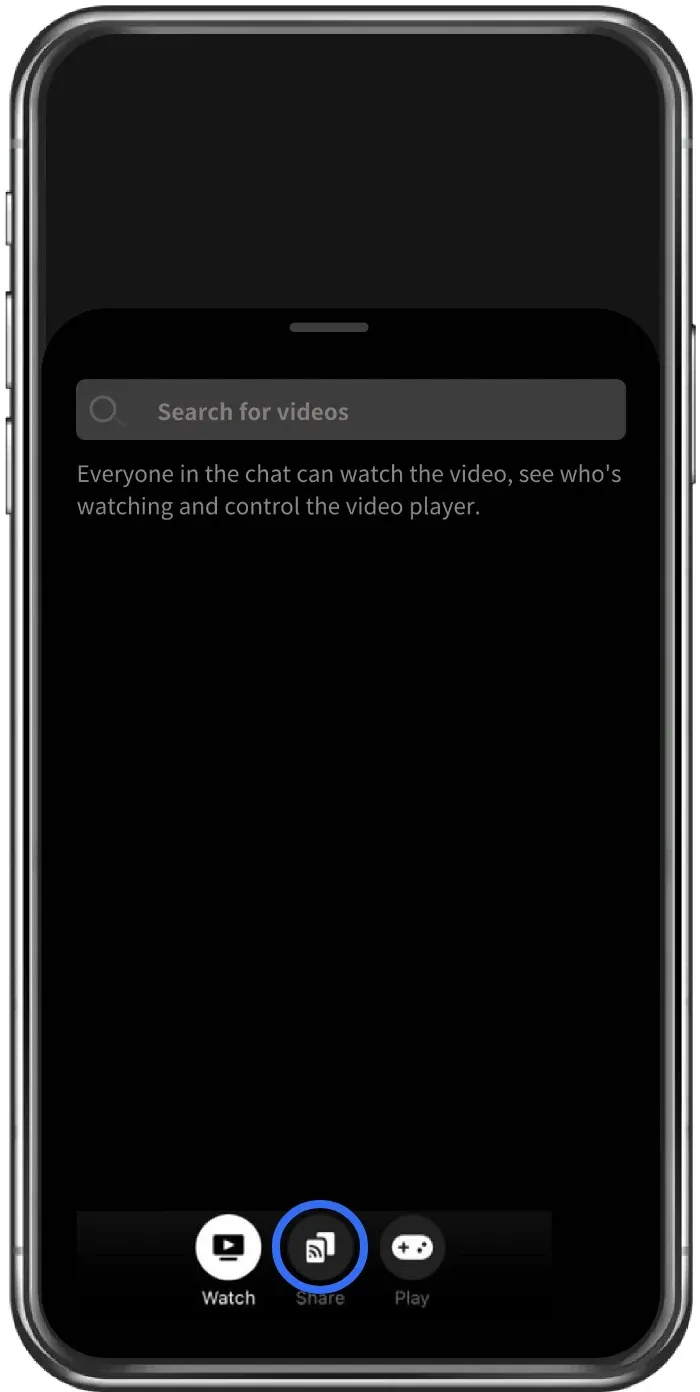
Step 4. Tap the Share icon from the button.
Step 5. Tap the Start Sharing option on the pop-up window.
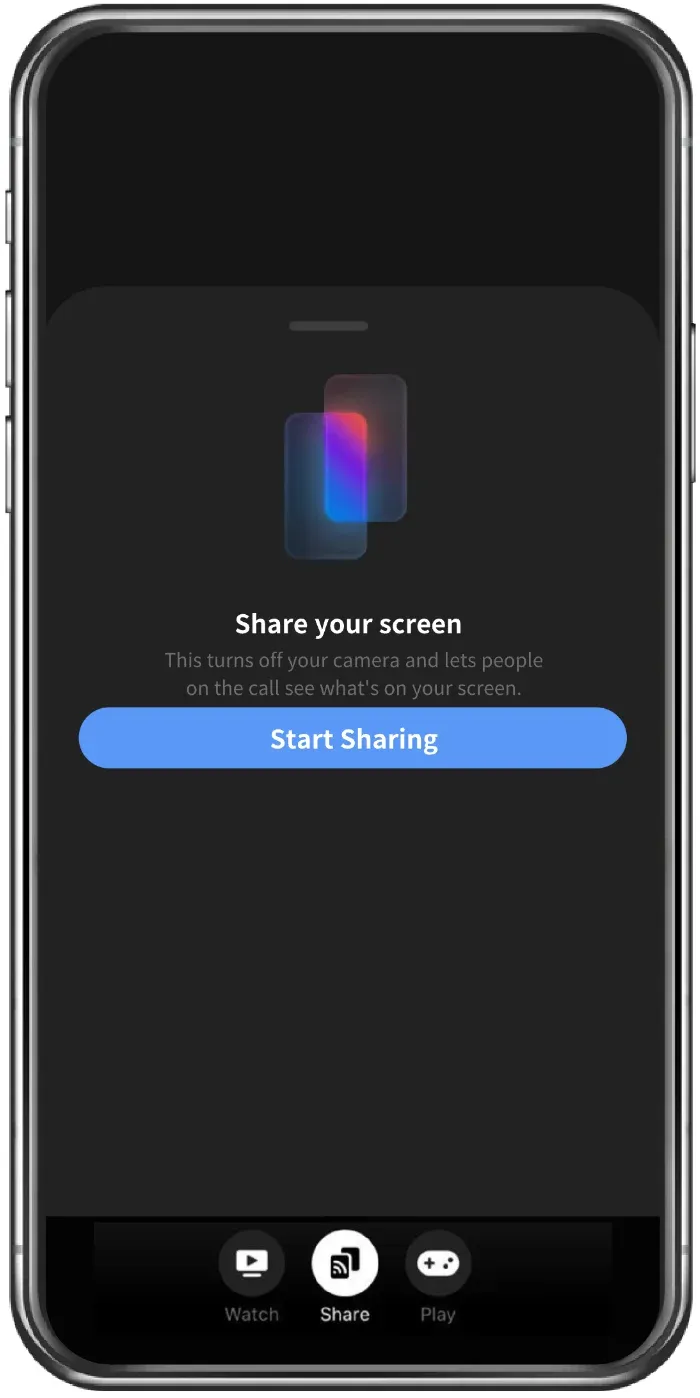
Step 6. Go with the onscreen instructions to start sharing your screen.
Step 7. Once you're done sharing your screen, go back to the Messenger app and tap the Stop Sharing option.
How to Share Screen in Messenger on Desktop
Step 1. Open the Messenger app on your Windows PC or Mac.
Step 2. Find the person you'd like to share screen with from your Friends list and start a video call.
Step 3. Tap the Screen share icon at the bottom of the screen.
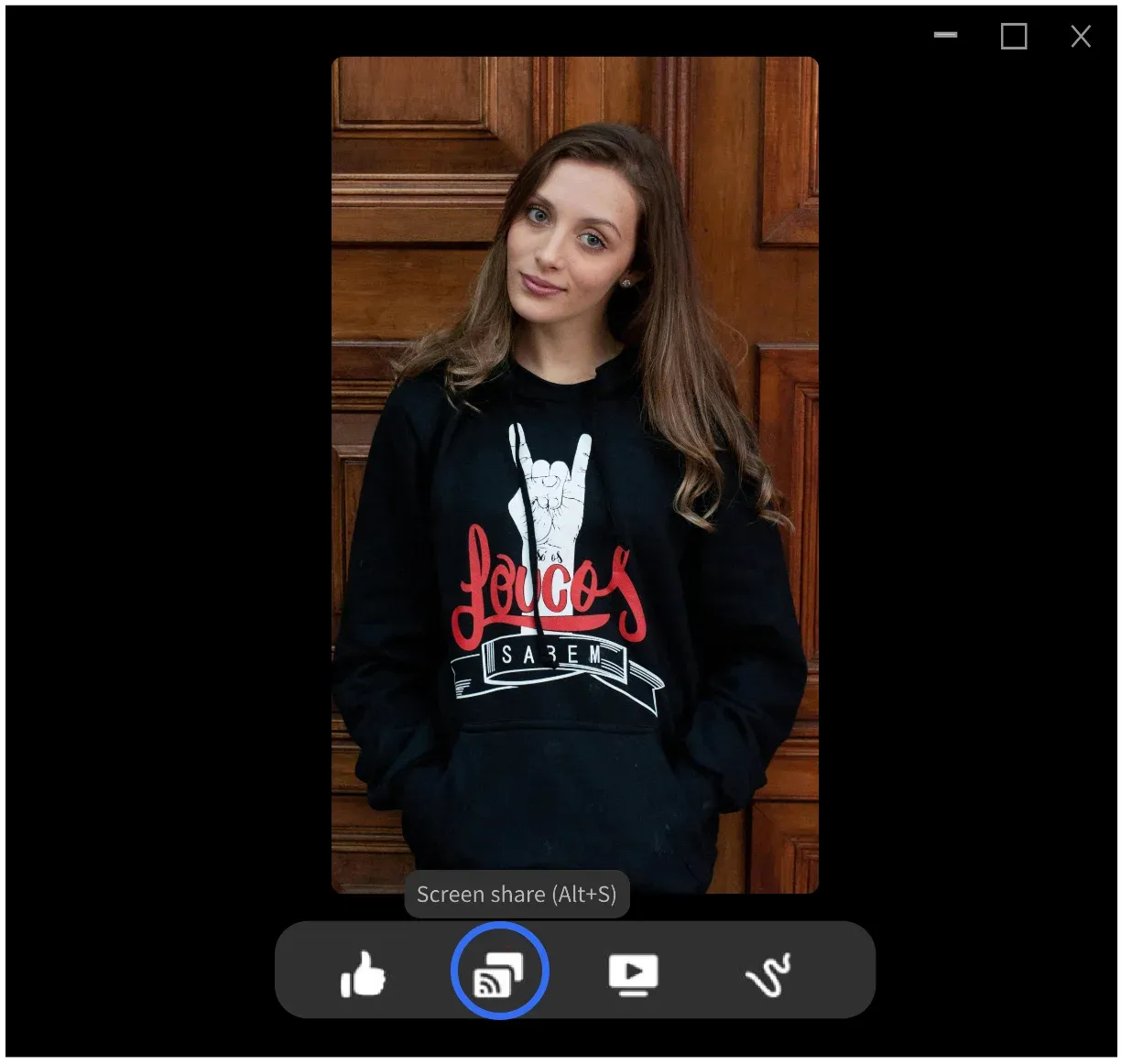
Step 4. Choose whether to share your entire screen or a specific app window.
Step 5. When you're done sharing, go back to the Messenger app and click the Stop sharing button.
Alternatively, you can screen share in Messenger on your computer through a web browser. Here are the steps:
Step 1. Go to the Messenger site on your PC.
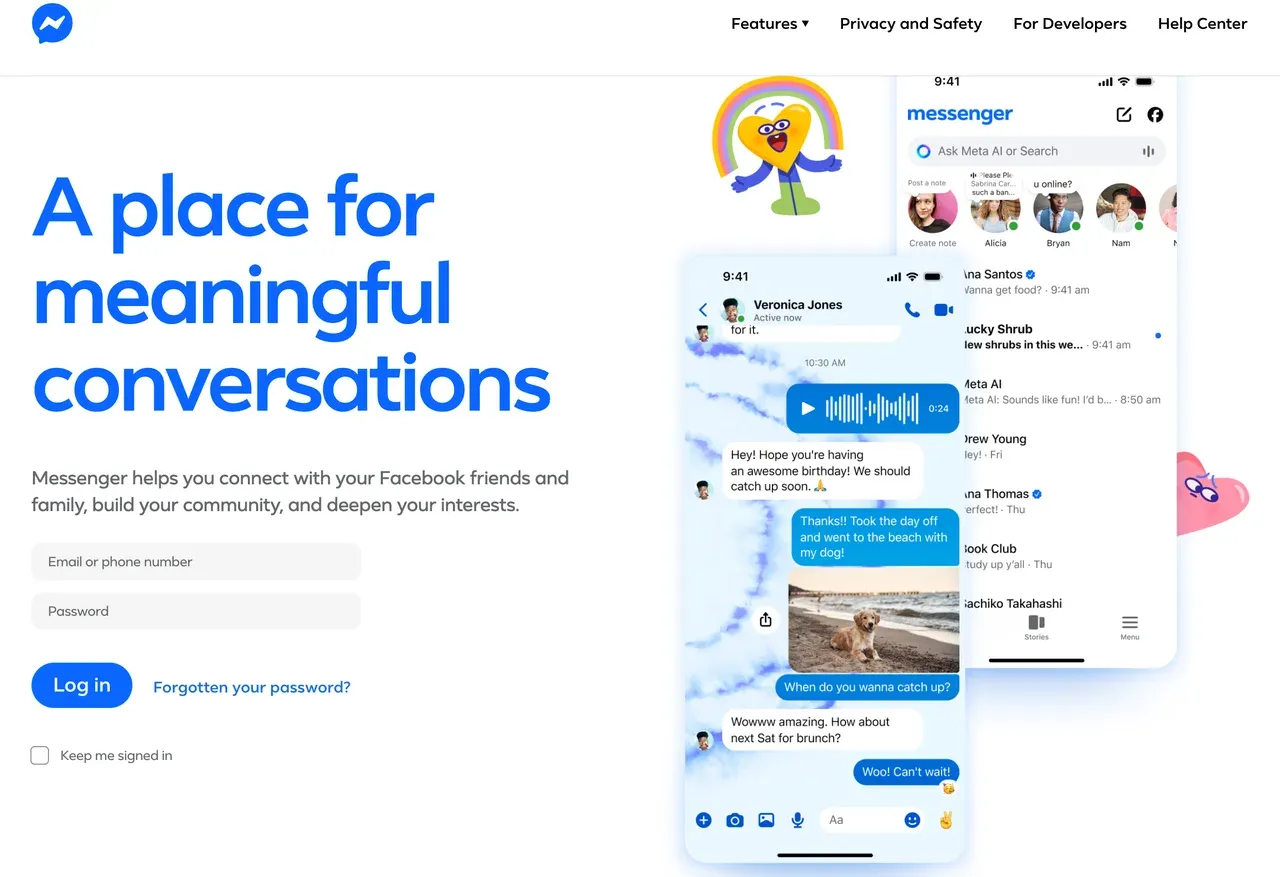
Step 2. Log in to your account and start a video call.
Step 3. Wait for the call to connect. Once connected, select the Screen share icon at the bottom of the video call tab.
Step 4. Choose to share a Chrome tab, window, or your PC screen and click the Share button.
Step 5. Allow onscreen prompts to start screen sharing.
Step 6. When you're done sharing your screen, click Stop sharing on the pop-up.
Quick Fixes for Messenger Screen Share Not Working
If Facebook Messenger share screen fails, check these common issues:
- The Messenger app is outdated
- You are not in an active video call
- Background restrictions or battery-saving mode is enabled
- System permissions block screen recording
- Your device may not support screen sharing
An Alternative When You Need Stable Cross-Device Screen Sharing
If you frequently present across devices or need reliable long-term sharing, Messenger may fall short. Consider a tool designed for multi-device screen sharing:
- Works without relying on a chat app
- Receivers handle the sync, reducing lag
- Supports multiple devices simultaneously
One option is PigeonCast screen mirroring app, which works on Android, iPhone, Windows, and Mac. This approach is ideal when Messenger's quick-share functionality isn't enough.
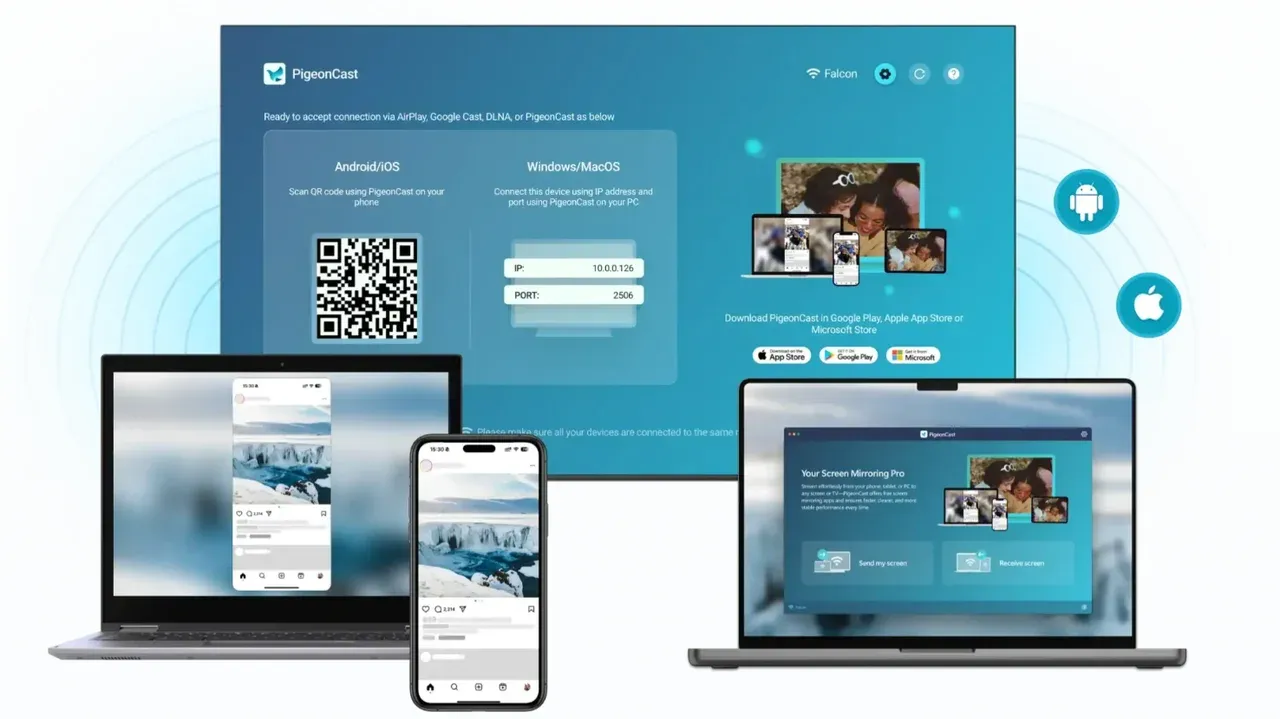
How to share screen with PigeonCast:
Step 1. Download and install PigeonCast from the app store on your device.


Overall Rating:



Step 2. Ensure your devices are on the same Wi-Fi network.
Step 3. Launch the PigeonCast app on your device and connect your devices with the app instructions.
Step 4. Once connected, mirror your device screen.
Step 5. Launch the app on your device, and it will appear on the other device simultaneously.
Final Thoughts
For quick previews or showing something on the fly, Facebook Messenger share screen is convenient. But for professional presentations or multi-device sessions, a more robust tool like PigeonCast is necessary. Remember: Messenger is for temporary displays, not sustained presentations.
Share Screen Messenger FAQs
How to share screen Netflix on Messenger?
You can share your screen while playing Netflix on Messenger, but results vary by device. On most phones, the video may appear as a black screen due to DRM restrictions. Even if the screen shows, audio is often muted. Messenger screen share is not designed for streaming protected content, so this works inconsistently at best.
Why can't I see the screen share option on Messenger?
This usually comes down to one of four reasons:
- You are not in an active video call
- The Messenger app is outdated
- Screen recording permission is blocked by the system
- Your device or OS version does not support the feature
Updating the app and checking system permissions solves the issue in most cases.
Does Messenger screen sharing include audio?
Yes, but only if audio sharing is supported on your device and enabled correctly. On iPhone, you must explicitly start screen broadcast and allow audio. On Android, system audio support depends on the OS version. Desktop sharing typically includes tab or system audio if selected.
Can multiple people see the shared screen?
Technically yes, but Messenger screen share works best in one-on-one calls. In group calls, video quality and sync often degrade as more people join. For anything beyond casual sharing, Messenger is not the most reliable choice.
Is Messenger screen sharing safe?
Messenger screen sharing uses the same encryption level as Messenger calls. That said, safety also depends on what you show. Once sharing starts, everything on your screen is visible in real time, so avoid opening sensitive apps or notifications during the session.
Can I share screen on Messenger internationally?
Yes. Screen sharing on Messenger works across countries as long as both sides have access to Messenger and a stable internet connection. There are no region-based restrictions on the feature itself.
Why does Messenger screen sharing lag on mobile data?
Screen sharing requires steady upload bandwidth. Mobile data networks often fluctuate, especially when switching between 4G and 5G. This leads to delayed visuals, dropped frames, or audio sync issues. Wi-Fi usually delivers a much smoother experience.
How to share screen in Messenger with audio?
To share screen in Messenger with audio, you must start a video call first. On iPhone, choose Share Screen and begin broadcast, making sure audio sharing is allowed. On desktop, select the correct tab or screen and enable audio if prompted. If audio is missing, the device likely does not support system sound sharing.
Mia Clarke is a technology editor specializing in screen mirroring and casting solutions across multiple platforms. Mia provides clear, practical guides and in-depth insights to help users seamlessly connect their devices. Passionate about enhancing digital experiences, Mia is dedicated to keeping readers updated on the latest trends and tools in cross-platform screen sharing. Whether you’re looking to mirror your smartphone, laptop, or smart TV, Mia’s content delivers reliable, user-friendly advice to simplify your tech setup.