
Streaming content from your phone to your TV is no longer just a futuristic idea, and it's covenient and accessible solution for anyone looking to enhance their entertainment experience. Whether you're watching movies, playing games, or giving a presentation, streaming from your phone to your TV opens up a world of possibilities.
But with so many methods available, how do you decide the best way to stream from your phone to your TV? In this guide, we'll explore how to stream from phone to TV with various methods, breaking down the pros and cons of each, so you can choose the right option for your needs.
Quick Overview: How Do I Stream From My Phone to My TV
If you're short on time and just need a quick fix, here are the most common methods for streaming from your phone to your TV:
- AirPlay (for Apple users): Stream wirelessly from iPhone to Apple TV or AirPlay-enabled TVs.
- Chromecast (for Android and iOS users): Stream via Chromecast-enabled apps like Google Home or YouTube to any Chromecast-enabled TV.
- Miracast (for Android users): Directly mirror your device's screen to a compatible TV, such as Roku TV, Samsung TV, or Fire TV.
- Third-party apps (like PigeonCast): Stream to a variety of devices (especially beneficial for cross-platform streaming) without needing built-in features.
Note: If you have a non-smart TV, you can easily upgrade it with a streaming device like a Roku Stick or Amazon Fire TV Stick. In just a few simple steps, you can transform your TV into a smart, big-screen hub for streaming.
How to Stream iPhone to TV Using AirPlay
AirPlay is a seamless option for Apple users, offering high-quality streaming with minimal setup. The only downside is that it's exclusive to Apple devices like iPhone or iPad, making it unsuitable for Android users.
How to stream from phone to TV using AirPlay:
Step 1. Check if your TV supports AirPlay. If yes, enable AirPlay on your TV.
Note: Apple TV and many modern smart TVs act as excellent AirPlay 2 receivers, allowing you to stream music, videos, photos, and mirror your screen from your iPhone or iPad.
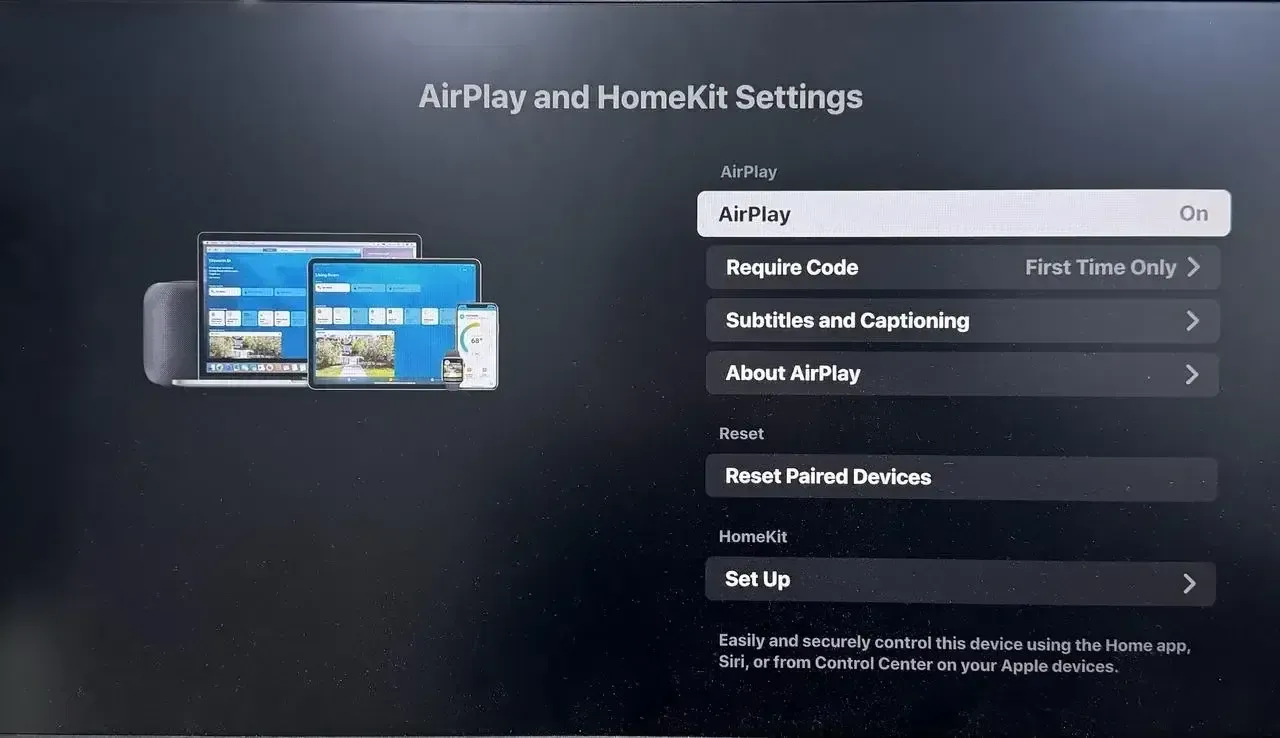
Step 2. Ensure both your phone and TV are connected to the same Wi-Fi network.
Step 3. Stream the screen, music, video, or photo from your iPhone to your TV.
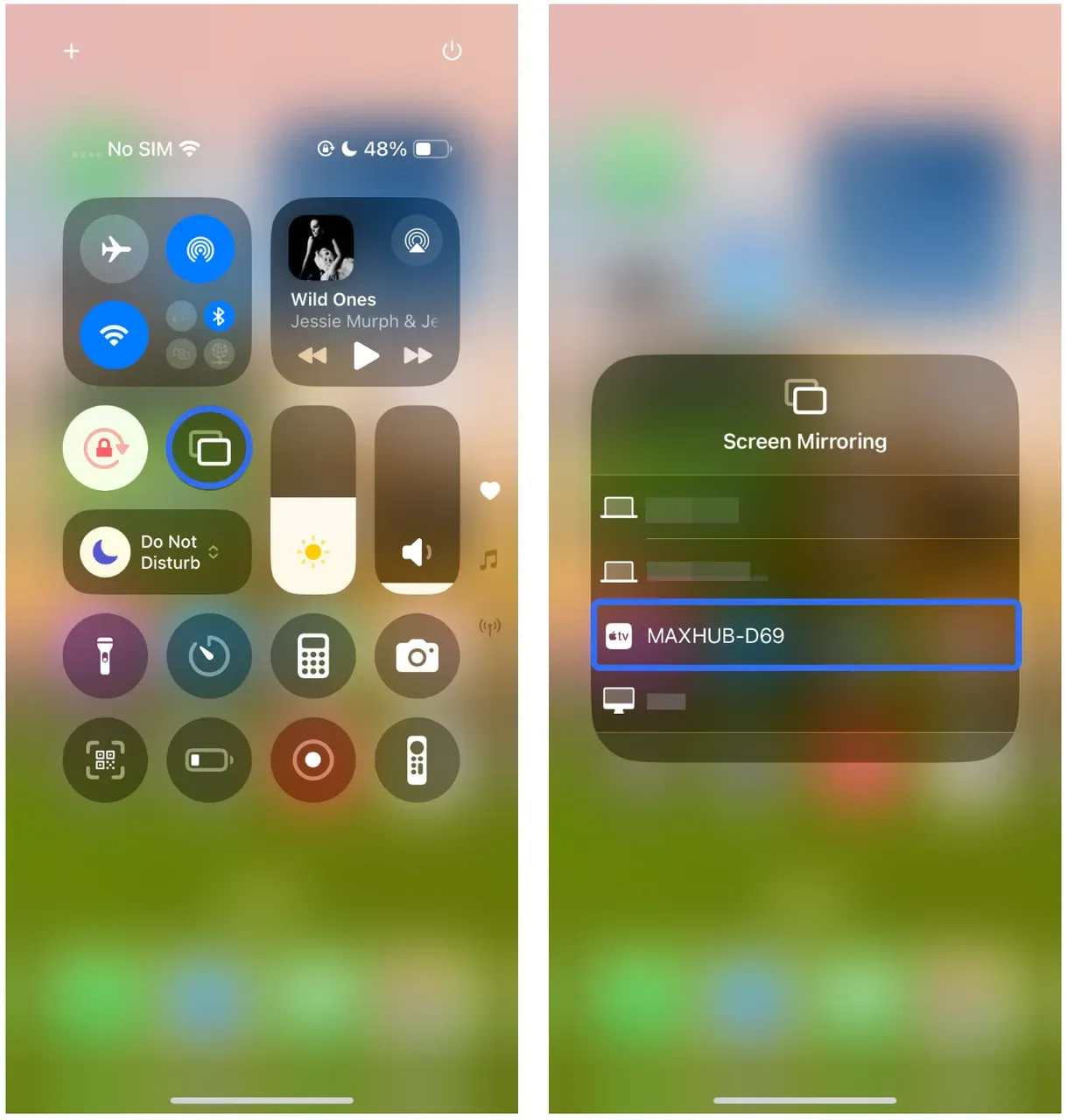
- Stream screen: Swipe down from the top right of your iPhone's screen to open the Control Center, tap the Screen Mirroring, and choose your TV from the list of available devices.
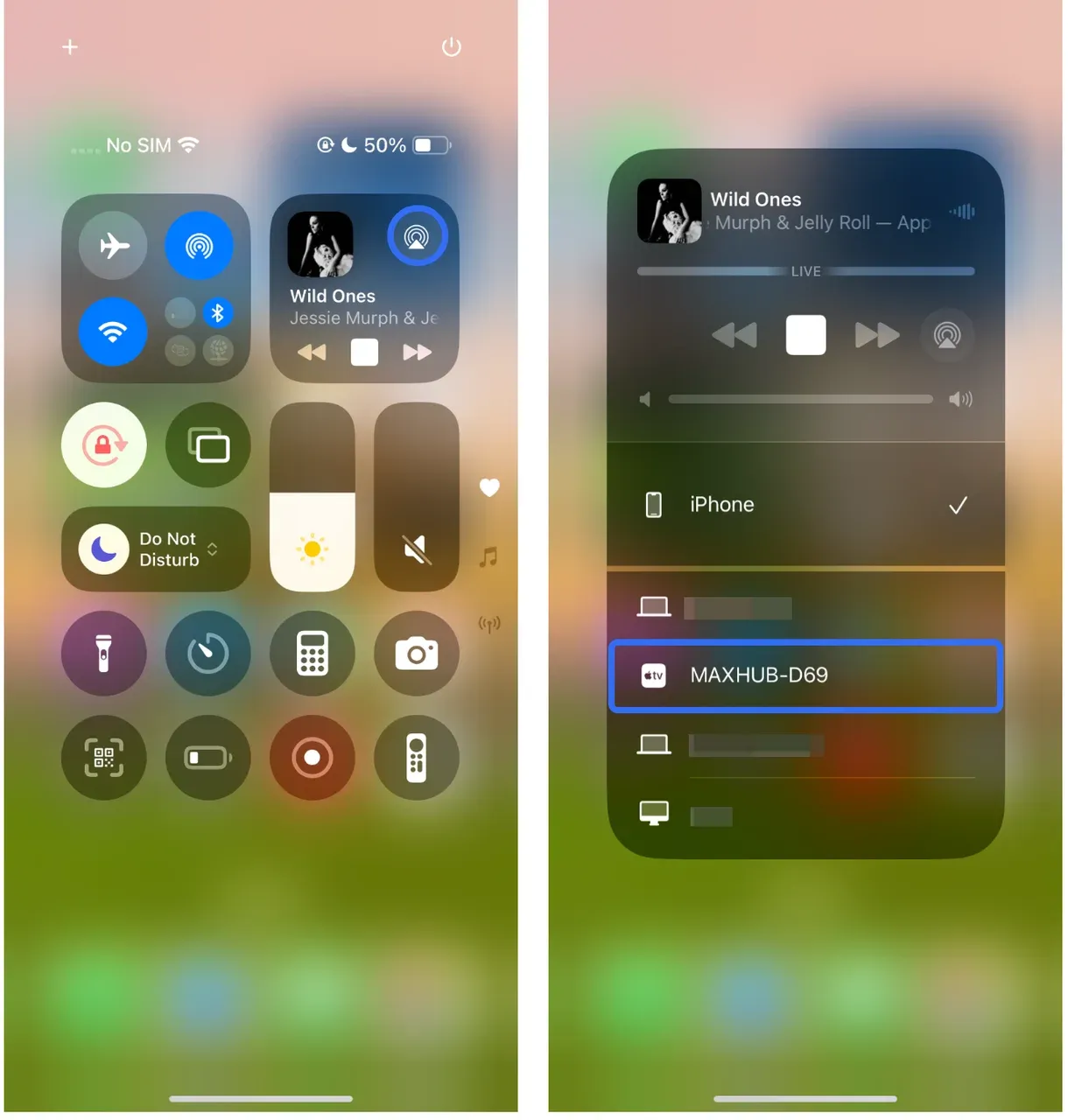
- Stream music: Play a song from Apple Music, access the Control Center, tap the AirPlay icon, and choose your TV from the list of available devices.
- Stream video/photo: Open the Photos app on your iPhone, browse the video or photo you want to stream, tap the Share icon at the bottom, choose the AirPlay option, and choose your TV from the list of available devices.
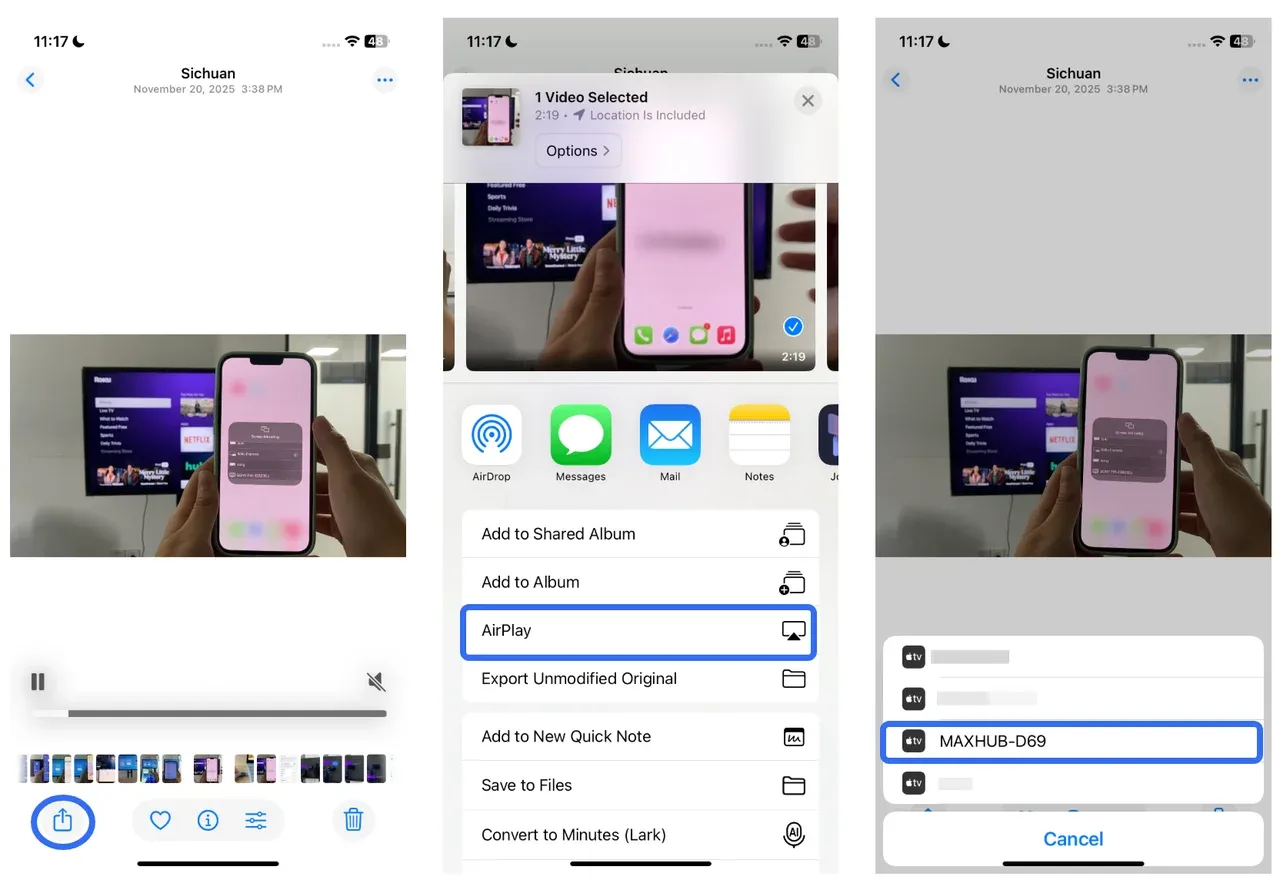
Step 4. Your iPhone content should now be mirrored or streamed to your TV.
How to Stream Android to TV Using Miracast
Miracast is a great option for those with Android devices or Windows PCs, as it allows direct screen mirroring without needing additional apps or devices. However, it may not be as user-friendly as AirPlay or Chromecast for some users.
How to stream from phone to TV using Miracast:
Step 1. Ensure your TV supports Miracast. If it doesn't, you may need a Miracast adapter.
Step 2. On your Android phone, swipe down from the top right of your phone's screen to open the Quick Settings, and tap Cast or Smart View.
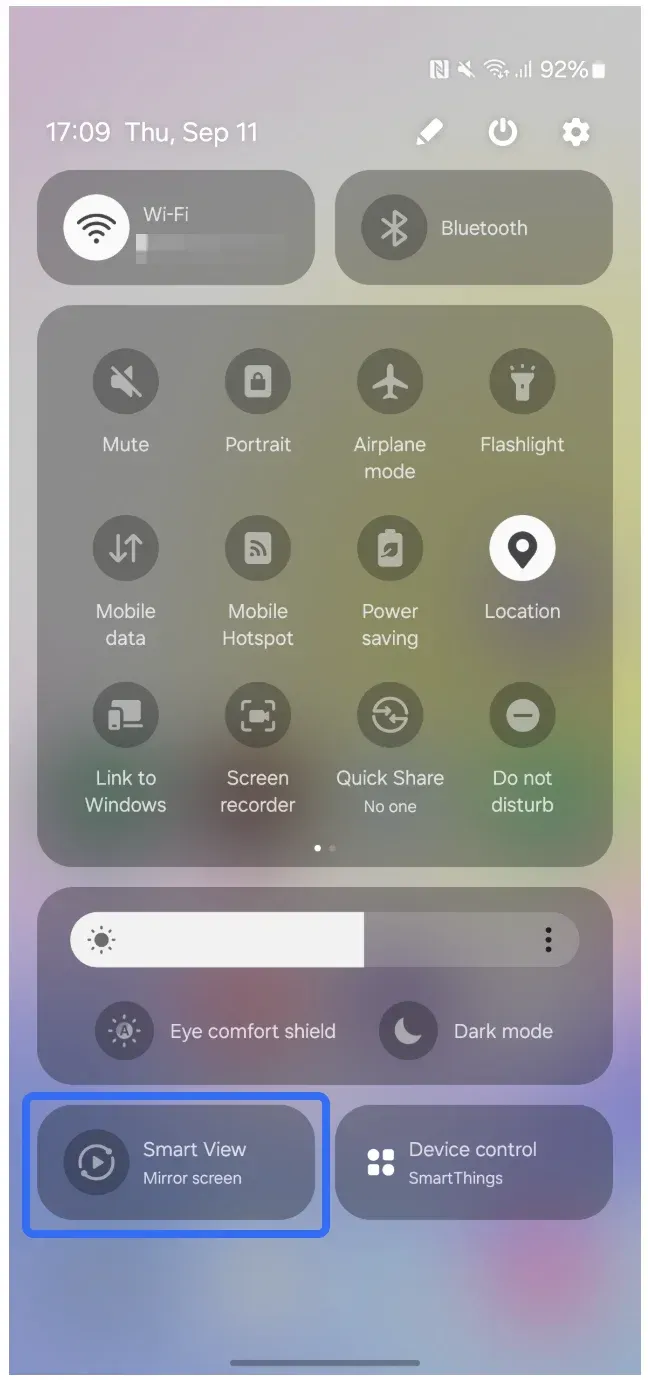
Step 3. Select your TV from the list of available devices.
Step 4. Once connected, your Android screen will appear on your TV.
How to Stream Phone to TV Using Chromecast
Chromecast is a versatile option for both iOS and Android users, supporting a wide range of apps and services. It's ideal if you already use Google services or have a mixed-device home.
How to stream from iPhone or Android phone to TV using Chromecast:
Step 1. Plug your Chromecast dongle into your TV's HDMI port and connect it to your Wi-Fi network using the Google Home app.
Step 2. Make sure your phone is connected to the same Wi-Fi network as your Chromecast device.
Step 3. Open an app like YouTube or Netflix, tap the cast icon, and select your Chromecast device.
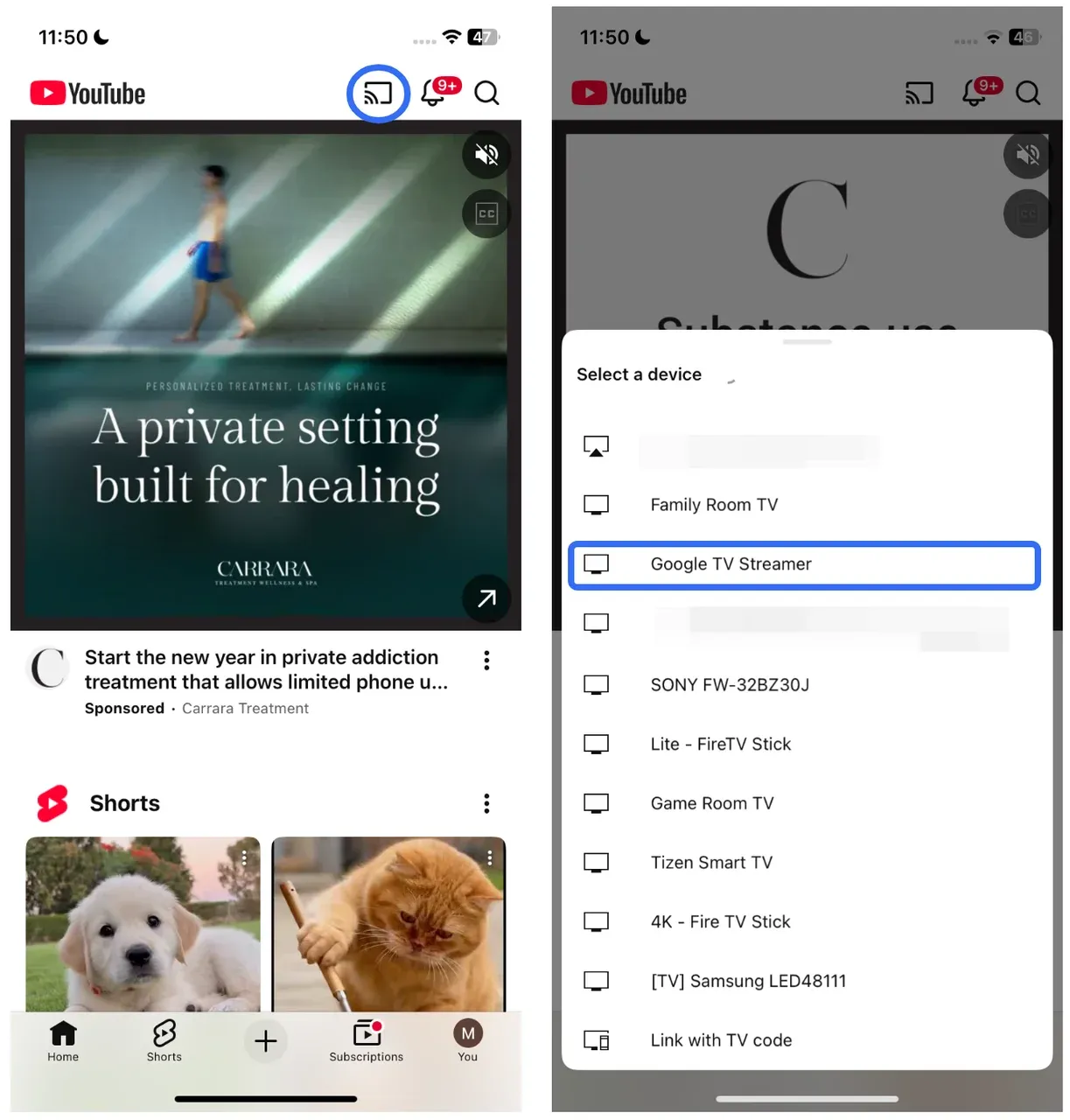
Note: You can also cast your entire Android screen by selecting Cast screen from the Google Home app. However, iPhones do not support screen mirroring via Google Home as Android phones do, and iPhones have other options, such as AirPlay or third-party screen mirroring apps like PigeonCast.
How to Stream Phone to TV Using Free PigeonCast App
Free screen mirroring apps like PigeonCast are excellent alternatives when your TV doesn't support native casting technologies. The third-party app is free, easy to use, and compatible with a wide range of devices, making it an ideal choice for users with diverse setups.
How to stream from my phone to my TV using PigeonCast? The process is simple:
Step 1. Install PigeonCast on your phone and your TV.
Note: PigeonCast is available on Android phones, iPhones, laptops, and many TVs that run Android TV, tvOS, and Fire OS.


Overall Rating:



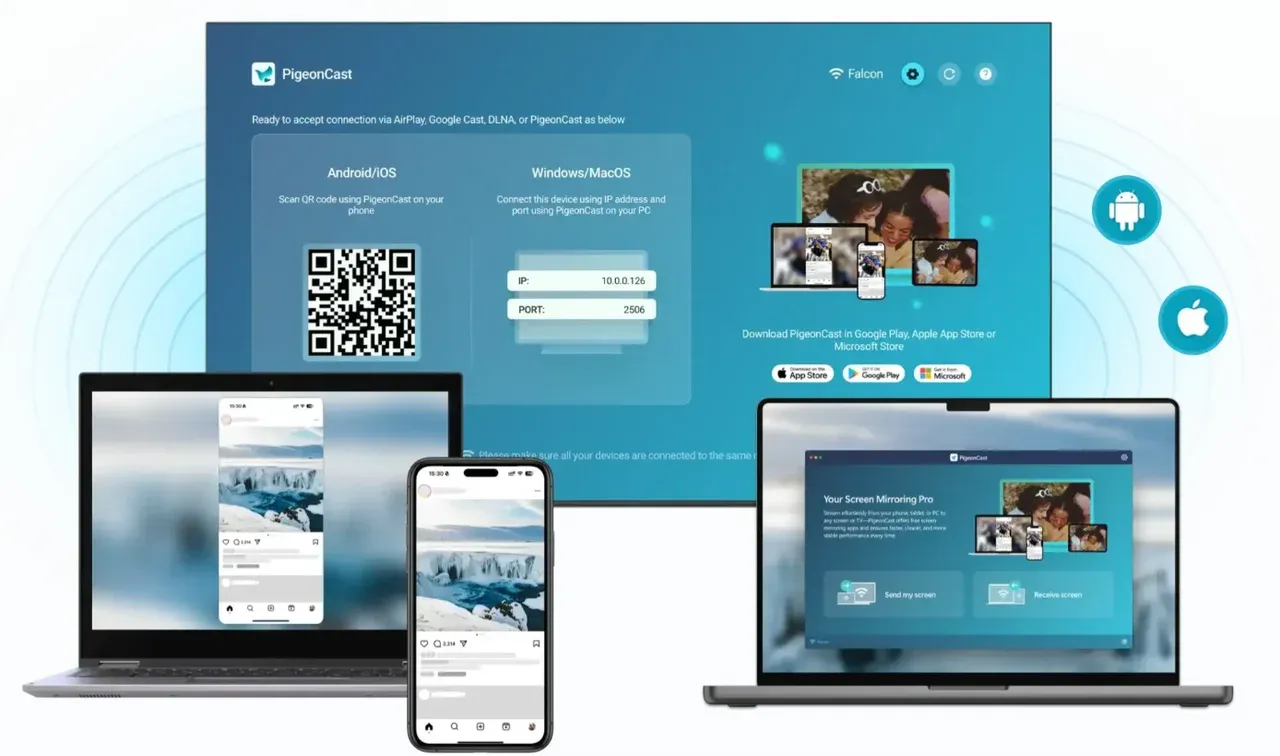
Step 2. Ensure that your phone and TV are on the same Wi-Fi network and launch the screen mirroring app on both devices.
Step 3. On your phone, choose your TV from the list of available devices or tap the Scan icon over the list and scan the displayed QR code on your TV.
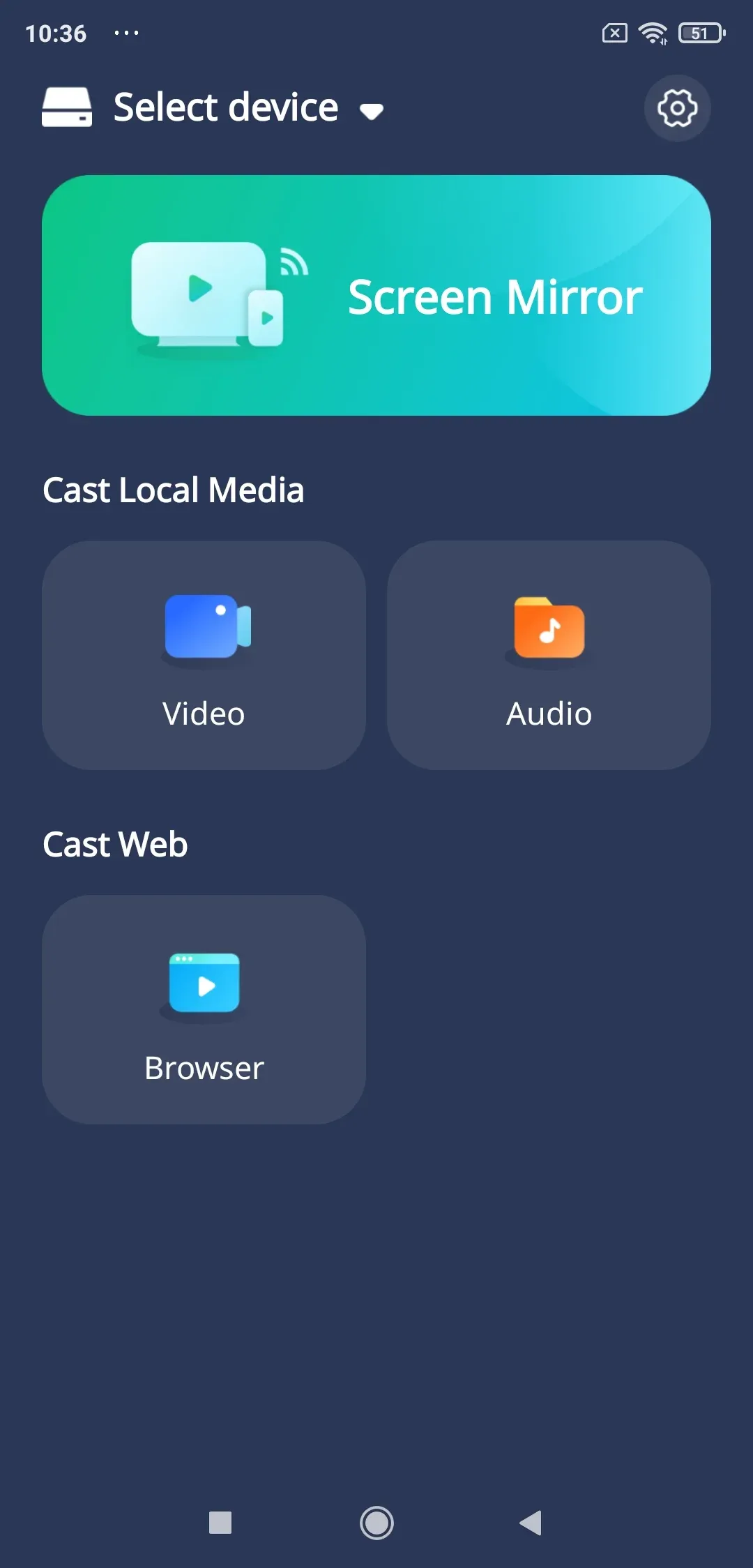
Step 4. Follow the on-screen instructions to start streaming. Whether you're streaming videos, games, or presentations, PigeonCast will allow you to stream from your phone to your TV.
Conclusion
There's no one-size-fits-all solution for streaming from your phone to your TV. The best method for you depends on your device, the features you prioritize, and how much effort you're willing to put into the setup. Whether you choose AirPlay for a smooth Apple experience, Chromecast for cross-platform support, Miracast for direct connections, or a third-party app like PigeonCast for flexibility, you have plenty of options.
With the advent of Wi-Fi 6 and 5G, phone-to-TV streaming is becoming faster and more reliable, offering improved performance and reduced latency. Additionally, the rise of voice-controlled streaming through Google Assistant, Siri, and Alexa makes it easier than ever to start a stream with just a command.
By considering your specific needs and following the detailed steps outlined in this guide, you'll be able to enjoy your mobile content on the big screen in no time. Whether for entertainment, productivity, or gaming, streaming from your phone to your TV is a powerful tool for enhancing your media experience.
How to Stream from Phone to TV FAQs
How to stream from phone to Roku TV?
To stream from your phone to a Roku TV, you can use the Roku mobile app or enable screen mirroring on your phone and Roku. Once both devices are on the same Wi-Fi network, follow the app instructions or access the mirroring feature in your phone's settings.
How to stream movies from phone to TV?
You can stream movies from your phone to your TV via methods like Chromecast, AirPlay, Miracast, or using apps like PigeonCast. Simply connect both devices to the same network and follow the corresponding steps for casting or mirroring.
How to stream from phone to TV with HDMI?
To stream from your phone to a TV with HDMI, use a compatible HDMI adpater for Android or iPhone. Plug the adapter into your phone and the TV, and switch the TV to the correct HDMI input.
How to stream from phone to TV without Wi-Fi?
If you don't have Wi-Fi, you can still stream using a wired connection (e.g., HDMI cable) or use Miracast (for compatible Android devices) to directly mirror your screen to your TV without requiring a network.
How to stream Netflix from phone to TV?
Stream Netflix from your phone to your TV using AirPlay, Chromecast, or screen mirroring through the Netflix app. Just tap the cast or mirror icon within the app to choose your TV.
What is the best app to stream from phone to TV?
Some of the best apps for streaming from phone to TV include PigeonCast, LetsView, AllCast, and Google Home (for Chromecast users). These apps support a wide range of devices and offer flexible streaming options.
Why is my phone not connecting to my TV?
If your phone isn't connecting to your TV, check the following:
- Both devices must be on the same Wi-Fi network
- Ensure screen mirroring or casting is enabled on both the phone and TV
- Restart both devices to refresh the connection
- Ensure the latest software updates are installed on both devices
Can I stream from my phone to TV while charging?
Yes, you can stream from your phone to your TV while charging. Just ensure that you're using a reliable power source for your phone and that it's not overheating during streaming.
How to stream content from my phone to a TV in a hotel room?
In a hotel room, streaming options might be limited. However, you can still use Chromecast or Apple TV (if available) via HDMI. Alternatively, use a mobile hotspot to connect your phone to the TV and stream content.
Can I stream from phone to multiple TVs?
Yes, it's possible to stream from your phone to multiple TVs if you're using AirPlay 2 (which supports multi-device streaming) or a Chromecast Ultra. This can be done by selecting multiple devices in the casting options.
Mia Clarke is a technology editor specializing in screen mirroring and casting solutions across multiple platforms. Mia provides clear, practical guides and in-depth insights to help users seamlessly connect their devices. Passionate about enhancing digital experiences, Mia is dedicated to keeping readers updated on the latest trends and tools in cross-platform screen sharing. Whether you’re looking to mirror your smartphone, laptop, or smart TV, Mia’s content delivers reliable, user-friendly advice to simplify your tech setup.