
TeamViewer screen sharing is one of the fastest ways to show your laptop screen to another person for support, training, or remote collaboration. If you want a clear beginner path, this guide shows exactly what to click on Windows and Mac, plus what to do when the session does not work.
This article is for non-technical users, small teams, and anyone who wants reliable remote sharing without spending hours on settings. You will learn:
-
What TeamViewer sharing does and when to use it.
-
The setup steps for Windows and Mac.
-
How to fix common connection and permission issues.
-
When to try an alternative flow.
What TeamViewer Screen Sharing Is and When to Use It
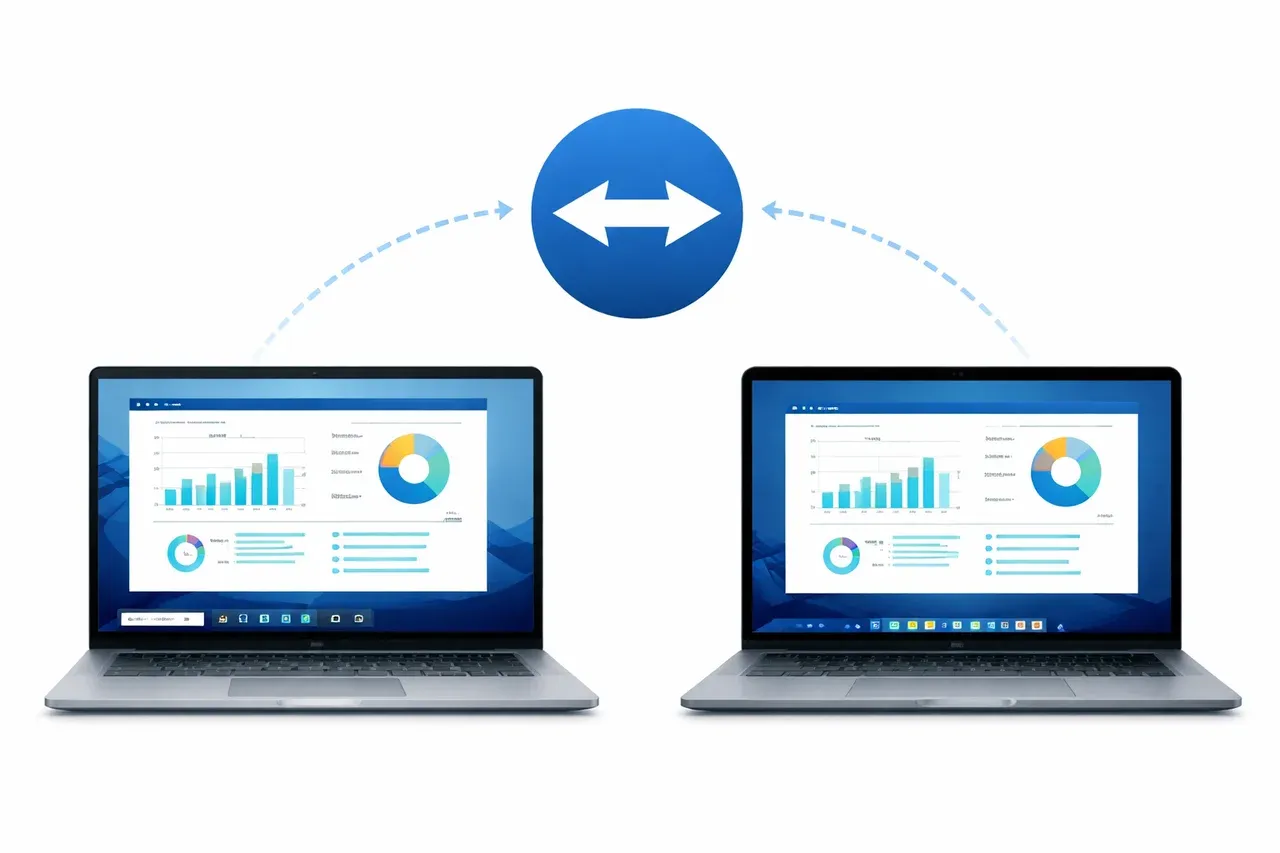
TeamViewer lets one device display its screen to another device over the internet. In practical terms, TeamViewer screen share means another person can see your desktop in real time so they can guide you or troubleshoot issues.
For most beginners, this works best in situations like:
-
Remote tech support for family or clients.
-
Software walkthroughs and onboarding calls.
-
Quick file or settings checks with a colleague.
-
Training sessions where the host needs to demonstrate live actions.
Use TeamViewer when you need cross-location help and both sides can install the app. If you only need a basic presentation, your meeting platform may be enough.
Prerequisites Before You Start TeamViewer Screen Sharing on Windows and Mac
Before you begin, do a short prep pass. This reduces failed sessions and saves time later.
-
Install TeamViewer from the official site on both devices.
-
Confirm both devices have stable internet, not public Wi-Fi with strict filters.
-
Sign in or confirm session ID and password sharing rules.
-
Grant required permissions when prompted.
-
Update the operating system and TeamViewer to the current versions.
If you are asking how to share screen on TeamViewer for the first time, permissions are the most common blocker.
Recommended order: run the normal setup, test a short session, then troubleshoot before switching tools.
How to Start TeamViewer Screen Sharing on Windows
The TeamViewer share screen Windows flow is simple once initial permissions are done.
-
Open TeamViewer on your Windows PC.
-
Under remote control or session panel, copy your TeamViewer ID.
-
Share your ID and temporary password with the trusted participant.
-
Ask them to connect from their TeamViewer client.
-
Accept connection prompts and choose view or full control mode.
-
Click the screen sharing toolbar options to optimize quality if needed.
For beginners, start with view-only mode in the first session. It keeps control in your hands while the other person can still guide you.
Windows tips:
-
Keep TeamViewer open in the foreground during first pairing.
-
Pause VPN or strict filter tools during testing.
-
Allow TeamViewer in Windows Firewall on private networks.
How to Start TeamViewer Screen Sharing on Mac
The TeamViewer share screen Mac process has one extra step because macOS requires explicit privacy permissions.
-
Install and open TeamViewer on your Mac.
-
Share your TeamViewer ID and session password.
-
When prompted, open System Settings, then Privacy & Security.
-
Enable Screen Recording permission for TeamViewer.
-
Enable Accessibility permission if remote control features are required.
-
Return to TeamViewer and reconnect.
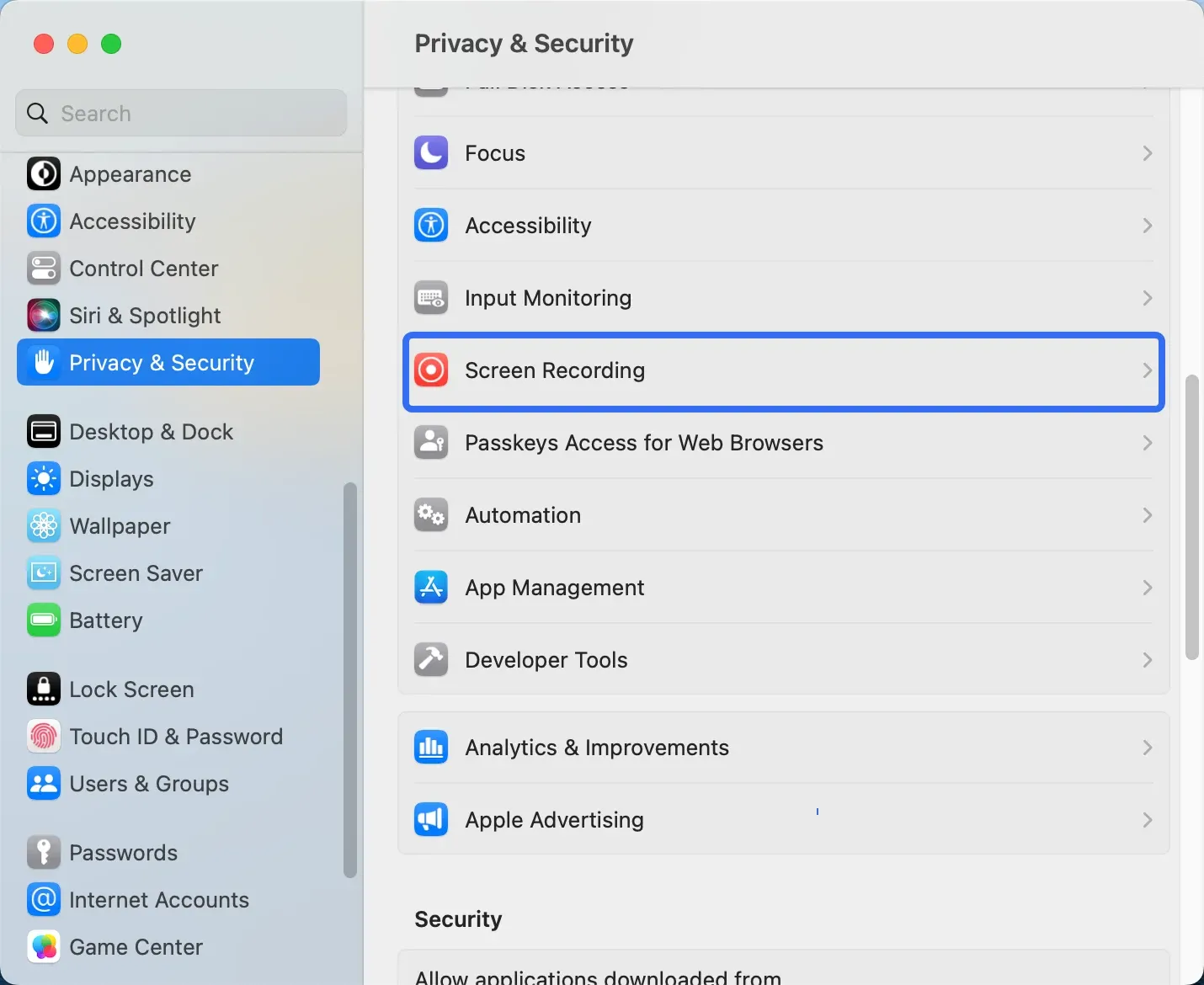
After permissions are enabled, quit and reopen TeamViewer once.
Mac-specific checks:
-
Confirm permission is granted to the current TeamViewer app version.
-
If the screen stays black, toggle Screen Recording off and on, then restart.
-
If audio is missing, verify output device and app-level permissions.
Common TeamViewer Screen Sharing Problems and Fixes
When TeamViewer screen sharing not working appears in search, the root cause is usually network stability, permissions, outdated software, or account mismatch.
Problem 1: Session Does Not Connect
Symptoms:
-
Connection timeout.
-
Repeated password errors.
-
Session request hangs.
Fixes:
-
Confirm both devices are online and can load normal websites.
-
Re-check TeamViewer ID and temporary password.
-
Restart TeamViewer on both sides.
-
Disable VPN briefly and test again.
-
Update TeamViewer to the latest release.
Problem 2: Black or Frozen Shared Screen
Symptoms:
-
Remote side connects but sees a black window.
-
Screen updates once, then freezes.
Fixes:
-
Lower display quality in TeamViewer session settings.
-
Close hardware-heavy apps such as games or video editors.
-
Re-grant screen recording permission on Mac.
-
Update the GPU driver on Windows.
-
Start a new session instead of reconnecting to the same stalled one.
Problem 3: Permission Denied or Limited Access
Symptoms:
-
You can see the screen, but cannot interact.
-
Control buttons are disabled.
Fixes:
-
Confirm that the host selected full control mode.
-
Check TeamViewer security settings for input restrictions.
-
On Mac, verify Accessibility permission.
-
On Windows, run TeamViewer as administrator if policy allows.
Problem 4: Lag, Delay, or Poor Image Quality
Symptoms:
-
Cursor delay and slow response.
-
Pixelated display during movement.
Fixes:
-
Switch to a stronger network or wired connection.
-
Turn off HD or high frame settings in session options.
-
Pause cloud sync, downloads, and streaming apps.
-
Ask both sides to close unused browser tabs and background apps.
Problem 5: Audio Issues During Screen Share
Symptoms:
-
Remote side hears no system sound.
-
Echo or doubled voice.
Fixes:
-
Check TeamViewer audio forwarding options.
-
Select correct microphone and speaker devices.
-
Use headset to avoid loopback echo.
-
Keep one app responsible for voice and mute duplicates.
Test one variable at a time so you can identify what fixed the issue.
Tip: Try Screen Share Your Laptop Screen with PigeonCast
If your TeamViewer share screen session keeps dropping or refusing to connect even after basic fixes, do not let the meeting stall. Switching to a direct screen mirroring method can keep your workflow moving.
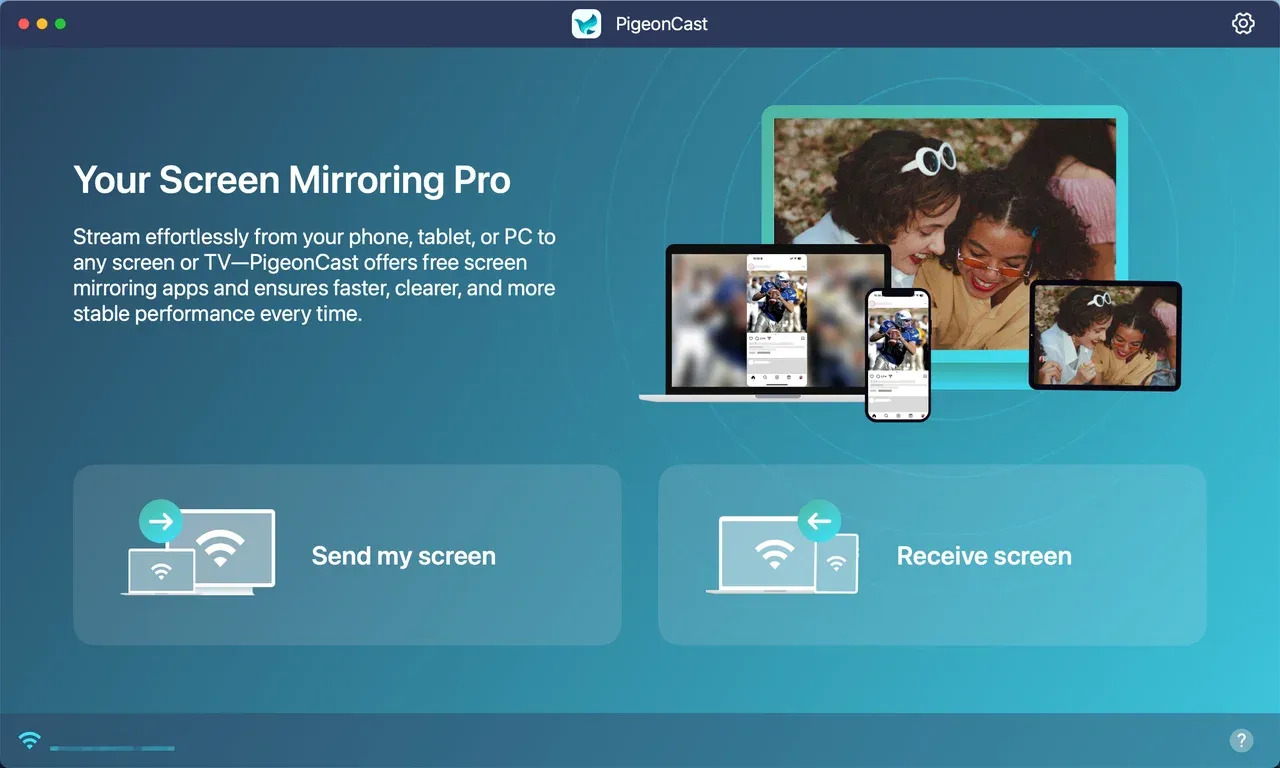
PigeonCast is a dedicated screen mirroring app that lets you mirror your Windows or Mac screen to another laptop or TV in high definition. Unlike remote control software, it focuses purely on stable screen transmission over your local network, which often means fewer interruptions during internal meetings or presentations.


Overall Rating:



How to mirror your laptop with PigeonCast:
-
Install and open PigeonCast on your laptop.
-
Make sure the receiver device is discoverable on the same network path.
-
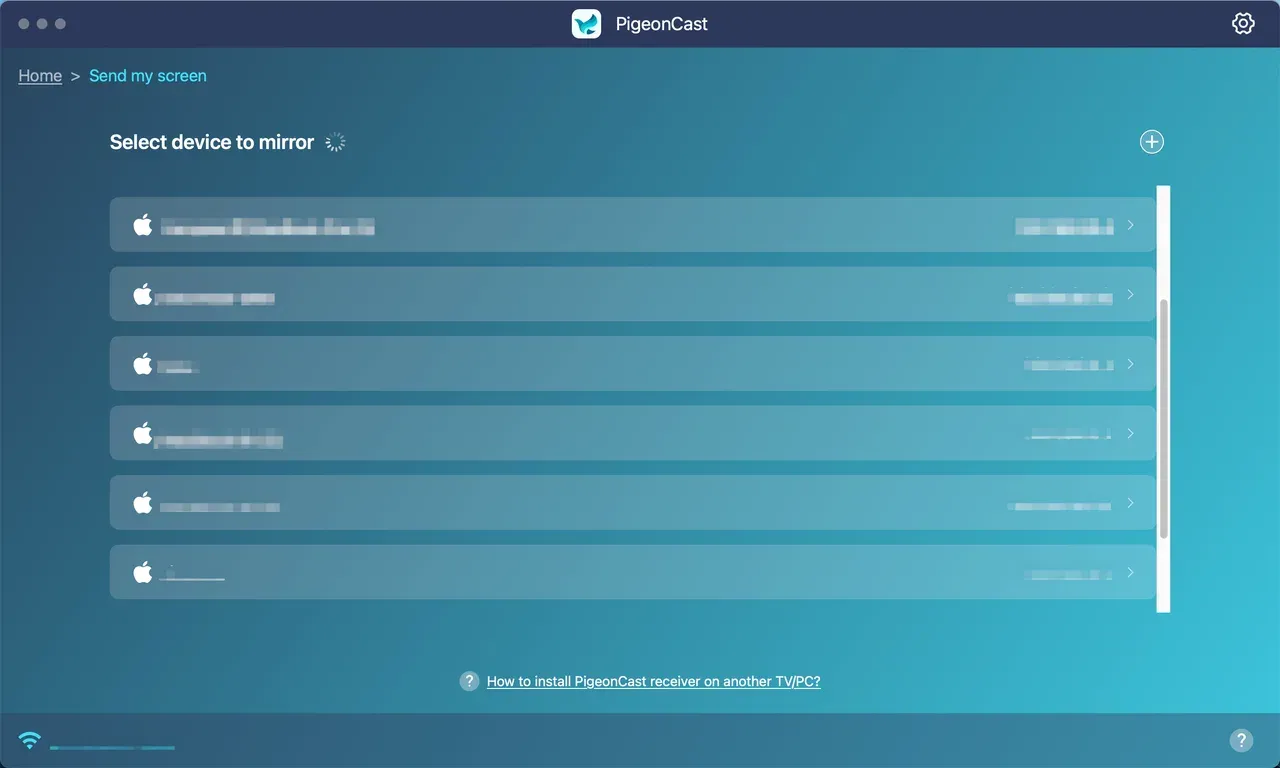
On your laptop, click Send my screen.
-
Choose the receiver device and start screen mirroring.
-
If you notice latency, lower the streaming quality slightly and retest.
If your goal is simply to share slides, dashboards, or a demo screen without remote control features, this lightweight app is often faster than continuing to troubleshoot a failing remote session.
Conclusion
TeamViewer screen sharing remains one of the easiest ways for beginners to get remote support on Windows or Mac. When permissions are configured correctly and both sides test the connection in advance, most sessions run smoothly.
The key is preparation, not troubleshooting under pressure. Enable the right access settings, confirm audio and screen permissions, and run a quick test before the real session starts.
If the connection still fails at a critical moment, switch to a simple method so work does not stop. Resolve the deeper TeamViewer settings later, when time is on your side.
TeamViewer Screen Sharing FAQ
Why does TeamViewer screen sharing show a black screen?
A black screen during TeamViewer screen sharing is usually caused by:
-
Missing screen recording permissions
-
Graphics driver conflicts
-
Hardware acceleration issues
-
macOS privacy restrictions
On Mac, recheck Privacy & Security → Screen Recording and confirm TeamViewer is enabled. On Windows, update your graphics driver and restart the application. If the issue persists, disable hardware acceleration inside TeamViewer settings and reconnect.
Why is TeamViewer screen sharing so slow?
Slow TeamViewer screen sharing is typically related to bandwidth limitations or network congestion.
Try this:
-
Close background downloads.
-
Switch to a wired Ethernet connection if possible.
-
Lower the session quality to optimize speed.
-
Avoid screen sharing 4K resolution when unnecessary.
For internal meetings on the same local network, a LAN-based mirroring method may feel noticeably smoother than remote routing through external servers.
Can I use TeamViewer screen sharing without installing software?
TeamViewer allows connections through QuickSupport, which reduces installation complexity on the remote device. However, full functionality still requires running the TeamViewer client or QuickSupport module.
For completely installation-free sharing, browser-based tools may be an alternative, but they usually offer fewer features and lower stability.
Why does TeamViewer disconnect during screen sharing?
Frequent disconnects during TeamViewer screen sharing often result from:
-
Unstable internet connection
-
Firewall or corporate network restrictions
-
Session timeout policies
-
Power-saving settings on laptops
Disable sleep mode during sessions and ensure both devices have stable internet. If using a corporate network, verify that TeamViewer traffic is not restricted.
Is TeamViewer screen sharing secure?
Yes, TeamViewer uses end-to-end encryption for remote sessions. However, security also depends on user behavior. For safer TeamViewer screen sharing:
-
Use strong, unique passwords.
-
Enable two-factor authentication.
-
Avoid sharing permanent access credentials unnecessarily.
-
Close the session immediately after support is complete.
Always verify the identity of the person connecting before granting control permissions.
Can multiple people join a TeamViewer screen sharing session?
Yes, TeamViewer supports multi-user meetings depending on your license plan. This is useful for training sessions, collaborative troubleshooting, or team presentations. Keep in mind that performance may decrease slightly as more participants join, especially on slower networks.
Does TeamViewer screen sharing include audio?
Yes, TeamViewer can transmit system audio along with screen sharing. Make sure the Share computer sound option is enabled before or during the session.
If audio does not transmit:
-
Check system output settings.
-
Confirm the correct audio device is selected.
-
Restart the session after adjusting sound settings.
Can I record a TeamViewer screen sharing session?
Yes, TeamViewer allows session recording for documentation or training purposes. You can enable recording from the session toolbar. Before recording, inform the other participant and confirm consent if required by company policy or local regulations.
Mia Clarke is a technology editor specializing in screen mirroring and casting solutions across multiple platforms. Mia provides clear, practical guides and in-depth insights to help users seamlessly connect their devices. Passionate about enhancing digital experiences, Mia is dedicated to keeping readers updated on the latest trends and tools in cross-platform screen sharing. Whether you’re looking to mirror your smartphone, laptop, or smart TV, Mia’s content delivers reliable, user-friendly advice to simplify your tech setup.