
To capture your phone screen on OBS, you need to bring your iPhone or Android screen to your computer first. OBS then records or streams that screen as a window, display, or video source. In this guide, you will learn the easiest ways to connect your phone to OBS, including wireless mirroring and HDMI capture for app tutorials, mobile gameplay, presentations, and live demos.
Before You Start: Choose the Right OBS Source
OBS captures what is already available on your computer, so your first step is to bring the phone screen to the desktop. Match your connection method with the right OBS source:
| Phone Screen Setup | Best OBS Source |
|---|---|
| Wireless mirroring to computer | Window Capture |
| Mirrored screen not detected correctly | Display Capture |
| HDMI adapter and capture card | Video Capture Device |
| Phone camera instead of phone screen | Video Capture Device |
Use Window Capture when the phone screen appears in a separate window. Use Display Capture only when OBS cannot capture that window properly.
Method 1. Capture Phone Screen on OBS with Window-Based Mirroring
Wireless mirroring only works well for OBS when the phone screen appears in a normal desktop window on your computer. If the receiver opens in full screen and hides your desktop, you cannot easily control OBS on the same computer. In that case, use a window-based receiver or switch to an HDMI capture card.
Step 1. Open a screen mirroring receiver on your computer and make sure it can show your phone screen in a movable desktop window, not in full-screen mode. You need to keep access to OBS while the phone screen is mirrored.
Step 2. Mirror your phone to that receiver. Before opening the OBS source settings, confirm that the phone screen stays inside a normal window on your desktop.
Step 3. Open OBS and go to Sources.
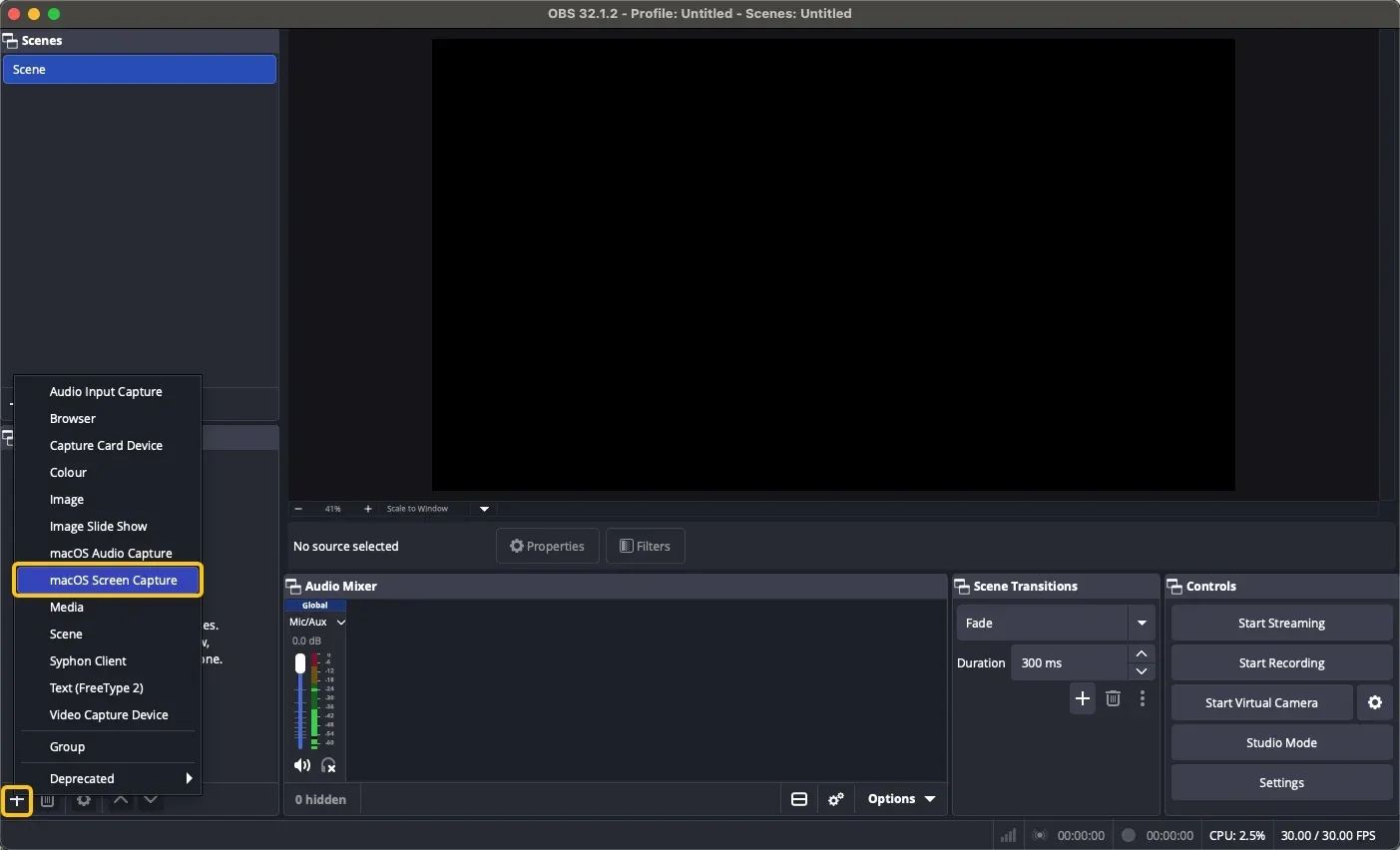
Step 4. Add the right capture source:
- On Windows, use Window Capture.
- On Mac, use macOS Screen Capture if available, then choose the mirrored phone window or app.
Step 5. Select the window, app, or screen area that shows your phone screen, depending on the capture options available in your OBS version.
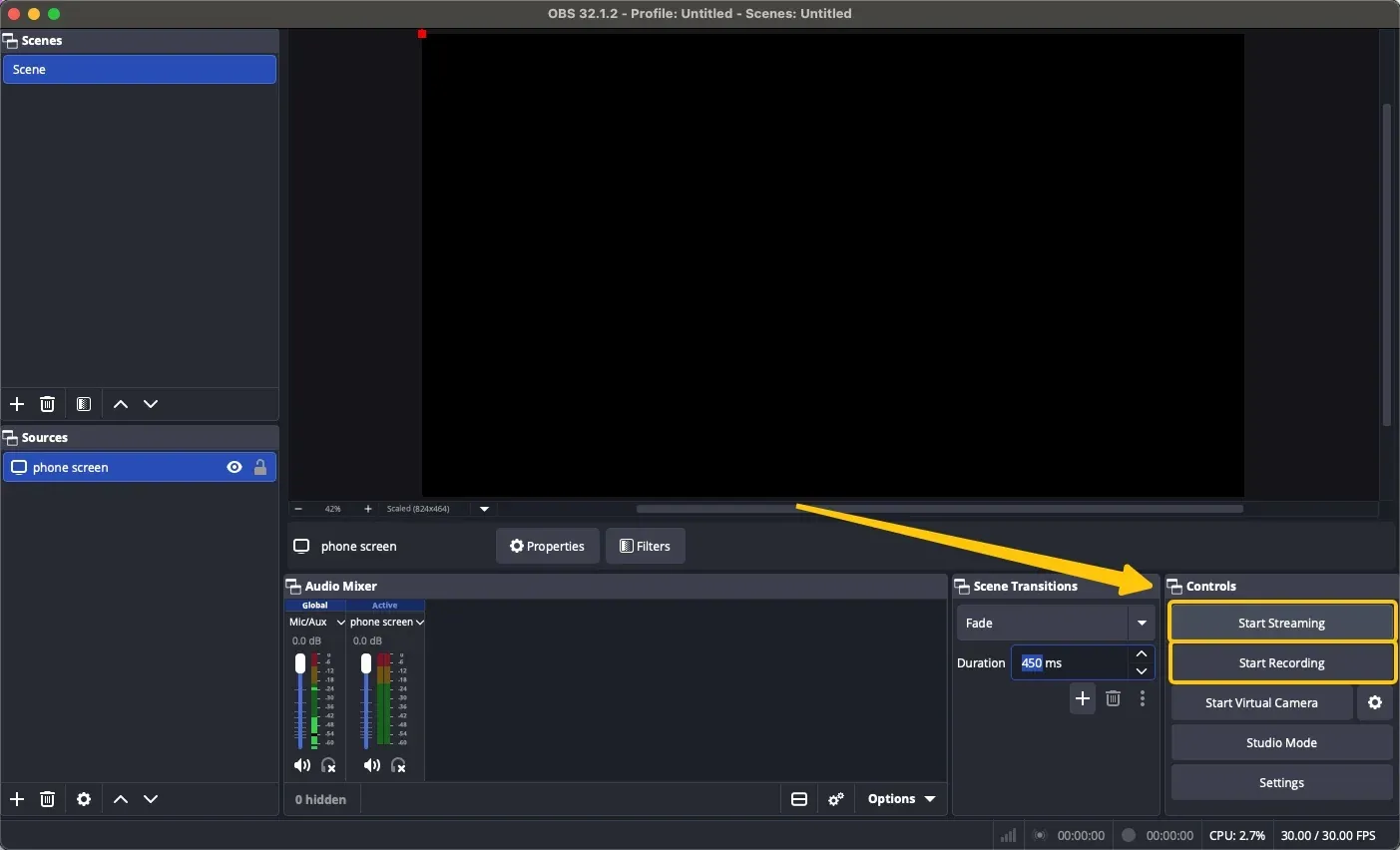
Step 6. Resize or crop the source in OBS, then click Start Recording or Start Streaming.
Need a Bigger Screen While Recording with OBS
If you are using OBS for a class, meeting, product demo, or live presentation, you may need to show your phone or computer screen on a TV while recording. PigeonCast can handle that big-screen display part of the setup.
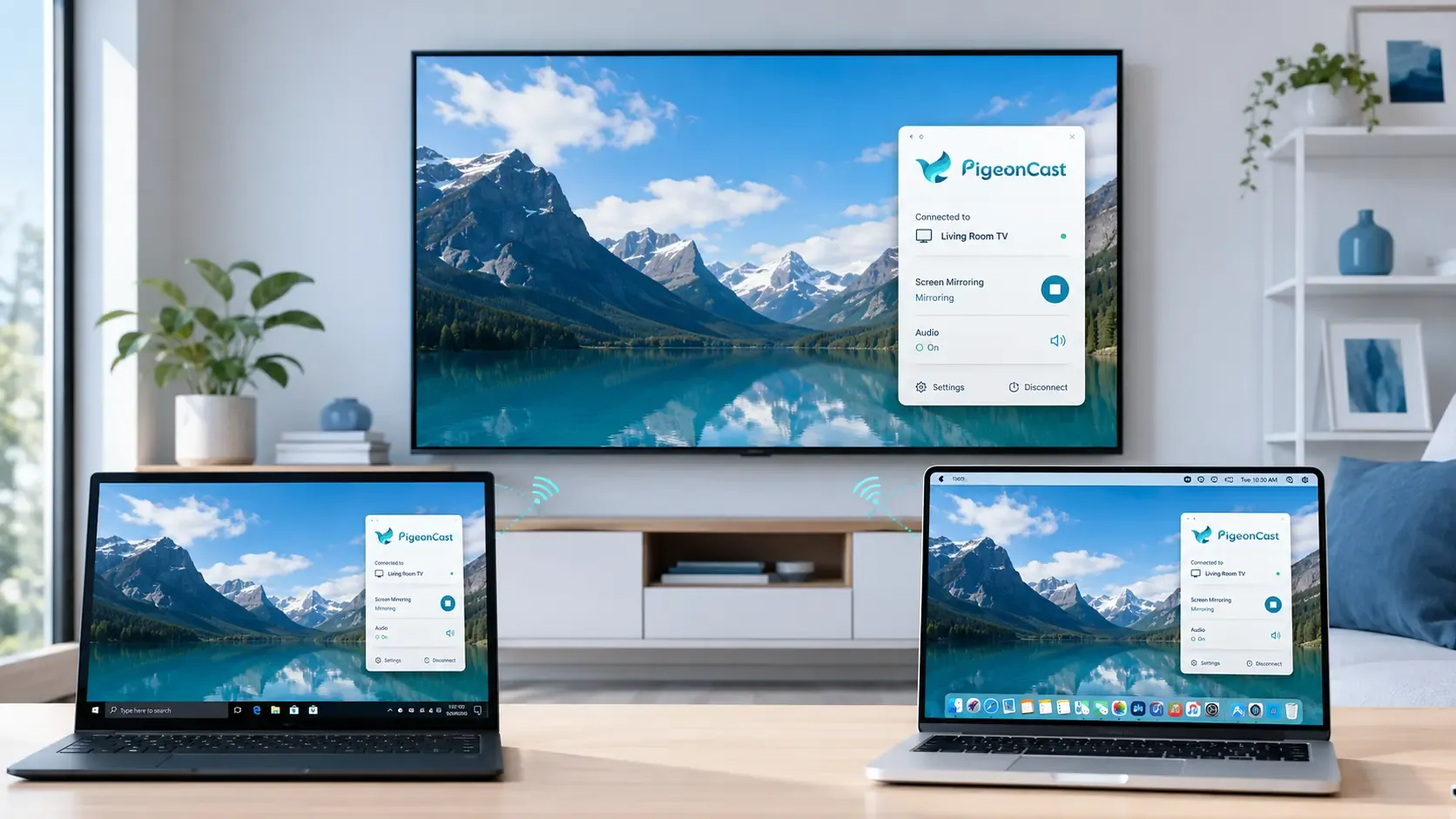
This free mirroring app lets you mirror or cast from iPhone, Android, Windows, and Mac to supported TV and large-screen devices. It works with common casting options such as AirPlay, Google Cast, and DLNA, so you can show app demos, browser pages, photos, videos, presentations, or PC content on a bigger screen.


Overall Rating:



For capturing a phone screen inside OBS on the same computer, use a window-based mirroring receiver or an HDMI capture card. For showing your phone or PC screen to an audience while you record or present, PigeonCast is a simple wireless option.
Method 2. Capture Phone Screen on OBS with an HDMI Capture Card
An HDMI capture card is a better option if you want a more stable connection for mobile gaming, long live streams, or fast-moving phone content. This setup needs extra hardware, but OBS can read the phone signal as a video device, which usually gives you lower delay than wireless mirroring. Before you start, prepare the right adapter for your phone:
| Phone Type | What You Need | Note |
|---|---|---|
| iPhone with Lightning port | Lightning to HDMI adapter, HDMI cable, capture card | Use an Apple-certified or reliable Lightning HDMI adapter for stable output. |
| iPhone with USB-C port | USB-C to HDMI adapter, HDMI cable, capture card | Works with newer USB-C iPhone models. |
| Android with USB-C video output | USB-C to HDMI adapter, HDMI cable, capture card | The phone must support DisplayPort Alt Mode or HDMI video output. |
| Android without USB-C video output | Wireless mirroring or another screen display tool | A USB-C to HDMI adapter will not show the screen if the phone has no video output support. |
| Older Android with Micro USB | MHL adapter, HDMI cable, capture card | Only works if the phone supports MHL. Many newer phones no longer use this. |
| Phone with Micro HDMI port | Micro HDMI to HDMI cable, capture card | Rare today, but some older phones and tablets have this port. |
For Android phones, check the device specs before buying an adapter. A USB-C port does not always mean the phone can send video through HDMI.
Step 1. Connect your phone to the correct HDMI adapter or cable for your device type.
Step 2. Connect the adapter or cable to the HDMI input port on the capture card.
Step 3. Plug the capture card into your computer through USB, then wait until the computer detects it.
Step 4. Unlock your phone and keep the screen awake. Allow screen output or trust the accessory if your phone asks for permission.
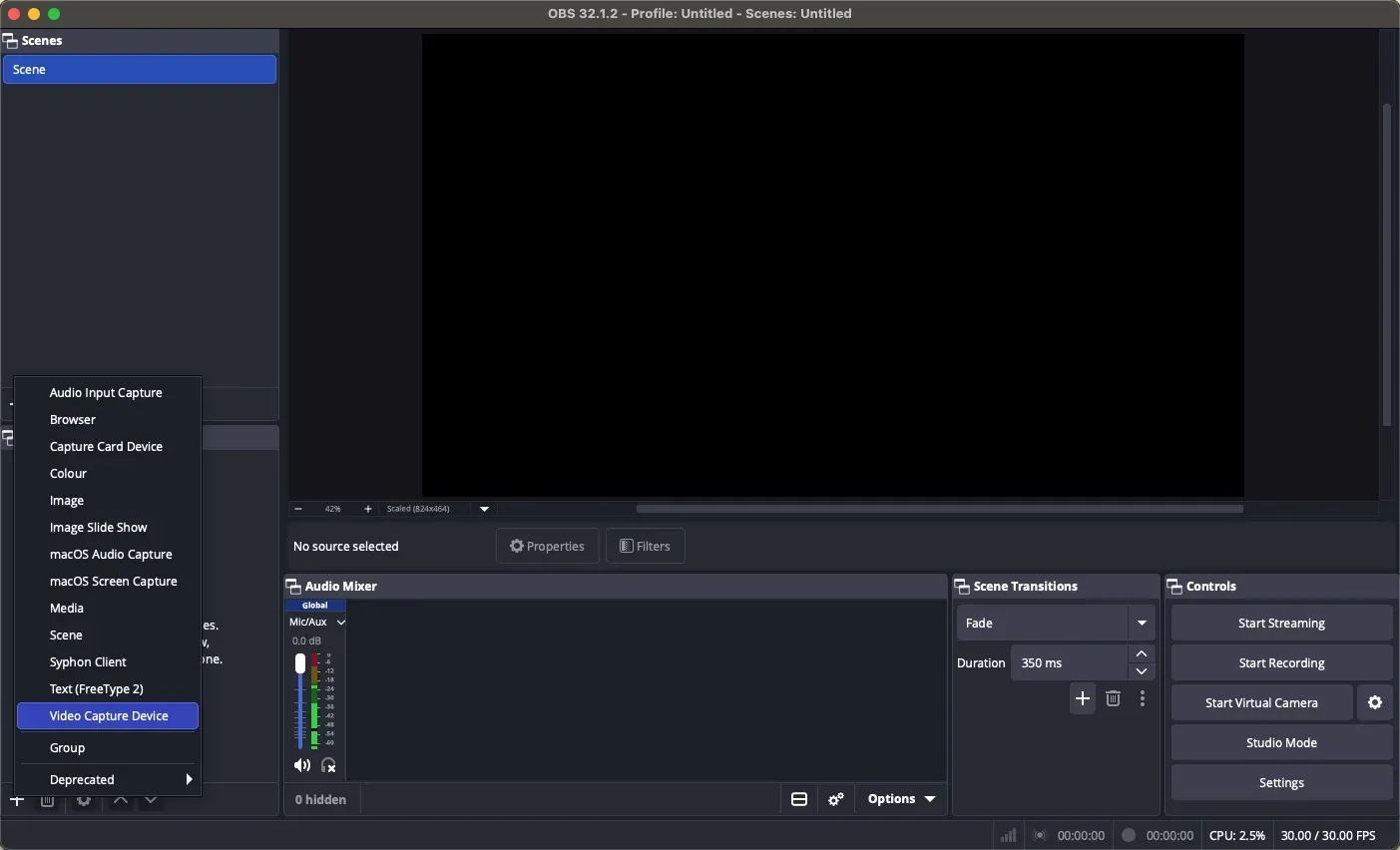
Step 5. Open OBS, go to Sources, click the + button, and choose Video Capture Device. Create a new source, name it Phone Capture Card, then click OK.
Step 6. Open the Device drop-down menu and select your capture card. Your phone screen should appear in the OBS preview.
Step 7. If the preview is black, check the HDMI adapter, cable, capture card input, and phone video output support.
Step 8. Set the resolution and frame rate if needed. Use 1920x1080 and 30 FPS for normal recording, or 60 FPS for smoother gameplay if your capture card supports it.
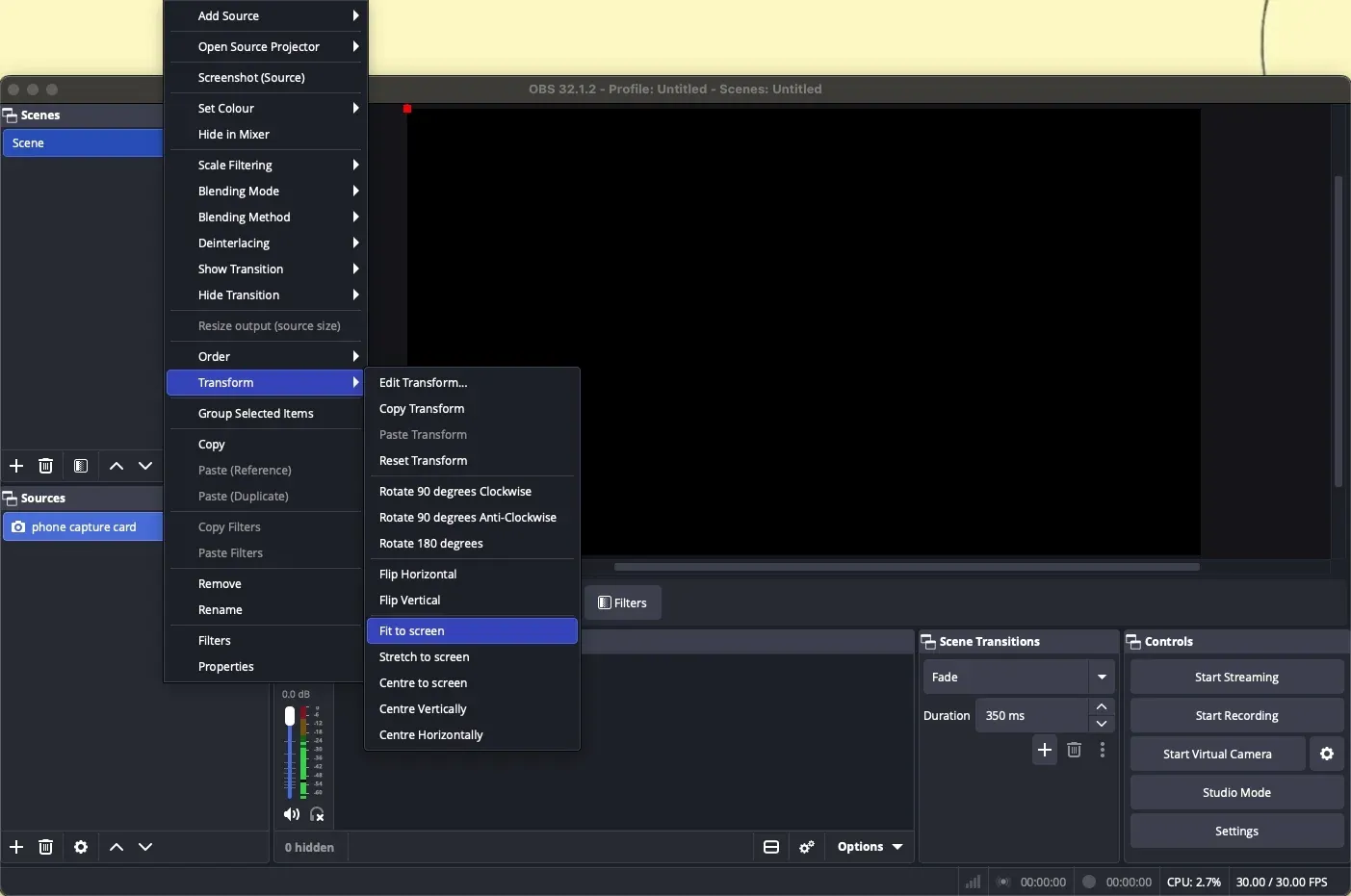
Step 9. Right-click the source, open Transform, and choose Fit to Screen to fill the OBS canvas.
Step 10. Check the Audio Mixer and make sure the capture card audio is active if you need phone sound.
Step 11. Click Start Recording or Start Streaming after the video and audio look correct.
Final Verdict
The right setup depends on how you want to use your phone screen in OBS. Wireless mirroring is easier for tutorials, app demos, presentations, and casual recording, while an HDMI capture card is better for mobile gaming, long streams, and lower-delay video. Once the phone screen appears on your computer, the rest is simple: choose the matching OBS source, adjust the screen size, check the audio, and start recording or streaming.
Capture Your Phone Screen on OBS FAQ
Can OBS capture my phone screen directly?
No. OBS usually cannot capture a phone screen as a direct built-in source. You need to send the phone screen to your computer first, then let OBS capture what appears on the computer. Common setups include:
- Wireless mirroring to your computer, then using Window Capture or Display Capture in OBS.
- HDMI adapter plus capture card, then using Video Capture Device in OBS.
- A desktop phone display tool, then capturing its window in OBS.
How do I get phone audio in OBS?
Phone audio depends on how the screen reaches your computer. OBS can only record the audio source it can detect. Try these checks:
- Look at the Audio Mixer in OBS and see whether any audio bar moves.
- If you use wireless mirroring, confirm that the mirroring app supports audio transmission to the computer.
- If you use an HDMI capture card, select the capture card audio source in OBS.
- If the capture card video appears but no sound plays, add an Audio Input Capture source and choose the capture card or related audio device.
- Make sure the source is not muted in OBS.
- Test with a short recording before starting a full stream.
Why is my phone screen black in OBS?
Your phone screen may appear black in OBS if the wrong source is selected, the mirrored window is minimized, or the capture card has no valid signal. First, check whether the phone screen is visible on your computer outside OBS. Try these quick fixes:
- Keep the mirrored phone window open on the desktop.
- Switch from Window Capture to Display Capture.
- On Mac, allow OBS screen recording permission in System Settings.
- If you use a capture card, check the HDMI cable, adapter, USB connection, and Video Capture Device source.
- Restart OBS and add the source again.
Is wireless mirroring good enough for OBS recording?
Yes, wireless mirroring is good enough for app tutorials, phone settings guides, mobile browsing, presentations, and casual screen recording. A small delay usually does not affect these types of content.
It may not be the best choice for mobile gaming, fast movement, or long live streams. For those cases, an HDMI capture card is usually more stable and gives lower delay.
Can I capture my phone screen on OBS with USB?
Yes, but only in some setups. OBS does not offer a universal USB phone-screen source, so your phone must first appear in a desktop tool or window. Once the phone screen is visible on your computer, you can add it to OBS with Window Capture or Display Capture.
Should I use Window Capture or Display Capture for my phone screen?
Use Window Capture first if your mirrored phone screen appears in its own window. It captures only that window, so your OBS scene looks cleaner and does not show other desktop content. Use Display Capture only when Window Capture does not detect the phone screen or shows a black preview.
Clara Rossi is an experienced technology editor and a seasoned expert in screen mirroring and casting technologies. With a keen eye for detail and a deep understanding of how to seamlessly connect devices, Clara excels at optimizing user experiences for effortless sharing and streaming. Whether you're seeking quick fixes or advanced tips, her expertise and responsiveness ensure that every query is met with a well-informed and efficient solution.