
Want to watch a movie, show photos, join a meeting, or present from your tablet on a bigger screen? How to connect tablet to TV with HDMI is a common question, and the good news is that HDMI gives you a stable picture without relying on WiFi. In this guide, you will learn the simple steps for iPad and Android, how to choose the right cable or adapter, switch the TV input, mirror your screen, and handle a few basic connection issues.
Can You Connect a Tablet to a TV with HDMI
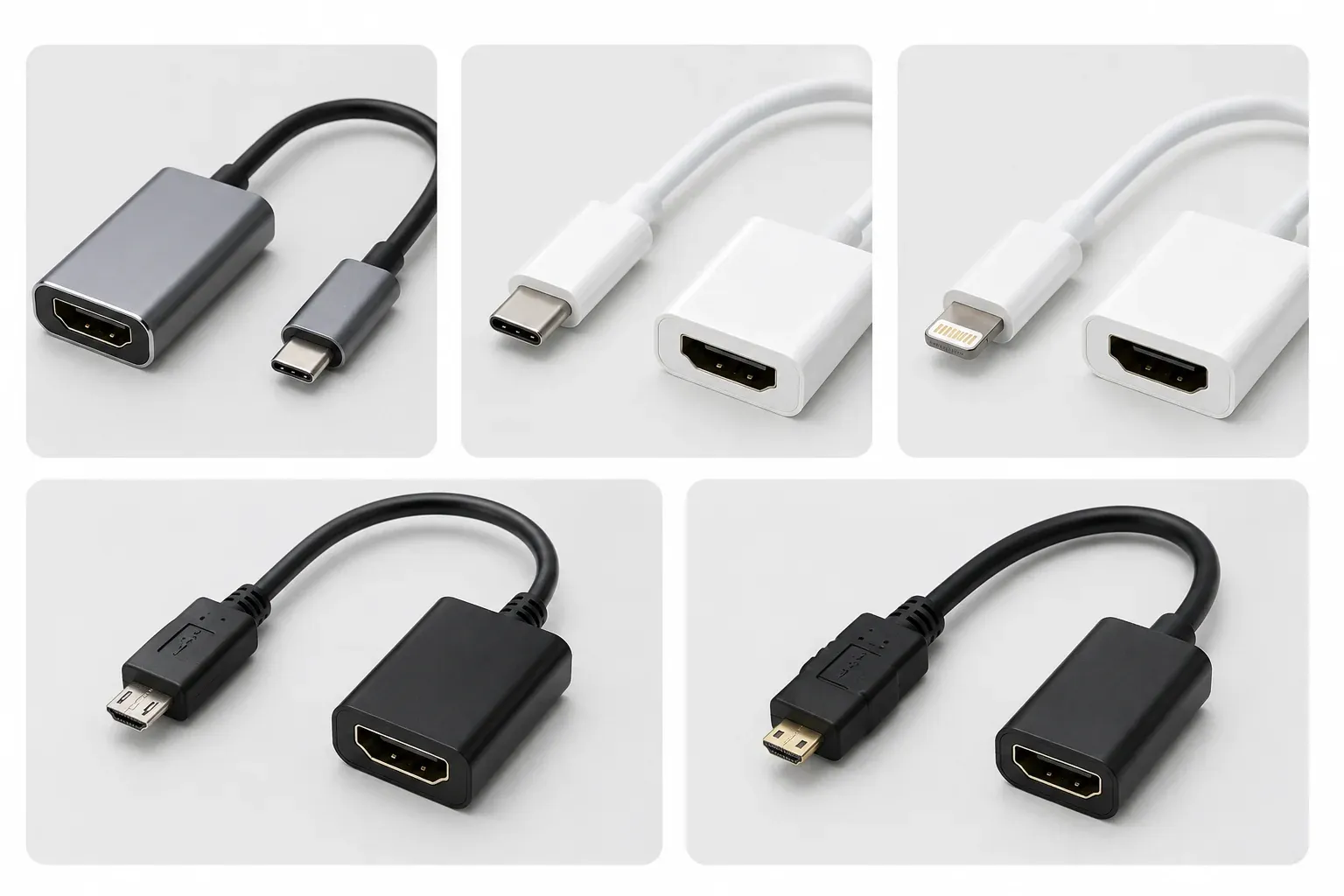
Yes, many tablets can connect to a TV with HDMI, but the key is using the right cable or adapter. Most tablets do not have a full HDMI port, so you need to check the charging port first and match it with a video output adapter. Here are the most common cases:
-
USB-C tablet: Use a USB-C to HDMI adapter, but make sure the tablet supports video output.
-
iPad with USB-C: Use a USB-C to HDMI adapter or a compatible digital AV adapter.
-
iPad with Lightning: Use a Lightning to HDMI adapter.
-
Android tablet with Micro USB: Check whether the tablet supports MHL before buying an HDMI adapter.
-
Tablet with Micro HDMI: Use a Micro HDMI to HDMI cable and connect it directly to the TV.
How to Connect Tablet to TV with HDMI
Once you know which adapter your tablet needs, the HDMI setup is simple. The main steps are the same for most iPad and Android tablets.
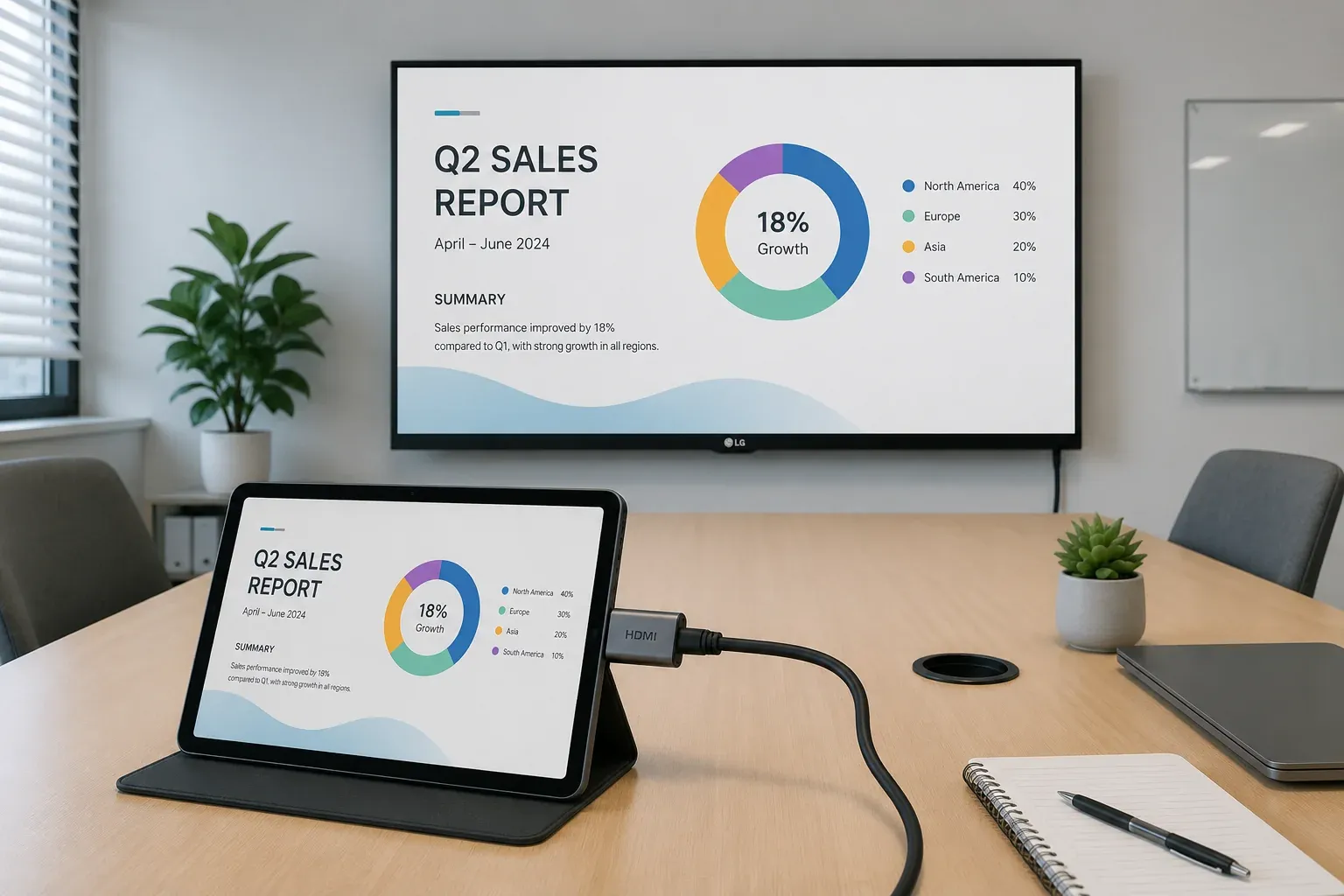
Step 1. Connect the USB-C, Lightning, Micro USB, or Micro HDMI end to your tablet.
Step 2. Plug one end of the HDMI cable into the adapter. If your tablet has a Micro HDMI port, use a Micro HDMI to HDMI cable instead.
Step 3. Connect the other end of the cable to an HDMI port on your TV. Remember the port name, such as HDMI 1 or HDMI 2.
Step 4. Use your TV remote to select the same HDMI input.
Step 5. Unlock your tablet and wait for the screen to appear on the TV. Some tablets mirror automatically, while others may ask you to allow the external display.
When HDMI Is Not Practical, Try Wireless Screen Mirroring
HDMI is a good choice when your tablet supports video output and you already have the right adapter. But it is not always the fastest setup. Some tablets do not support HDMI output through the charging port, some adapters only charge the device, and cables can be inconvenient if you want to sit away from the TV.
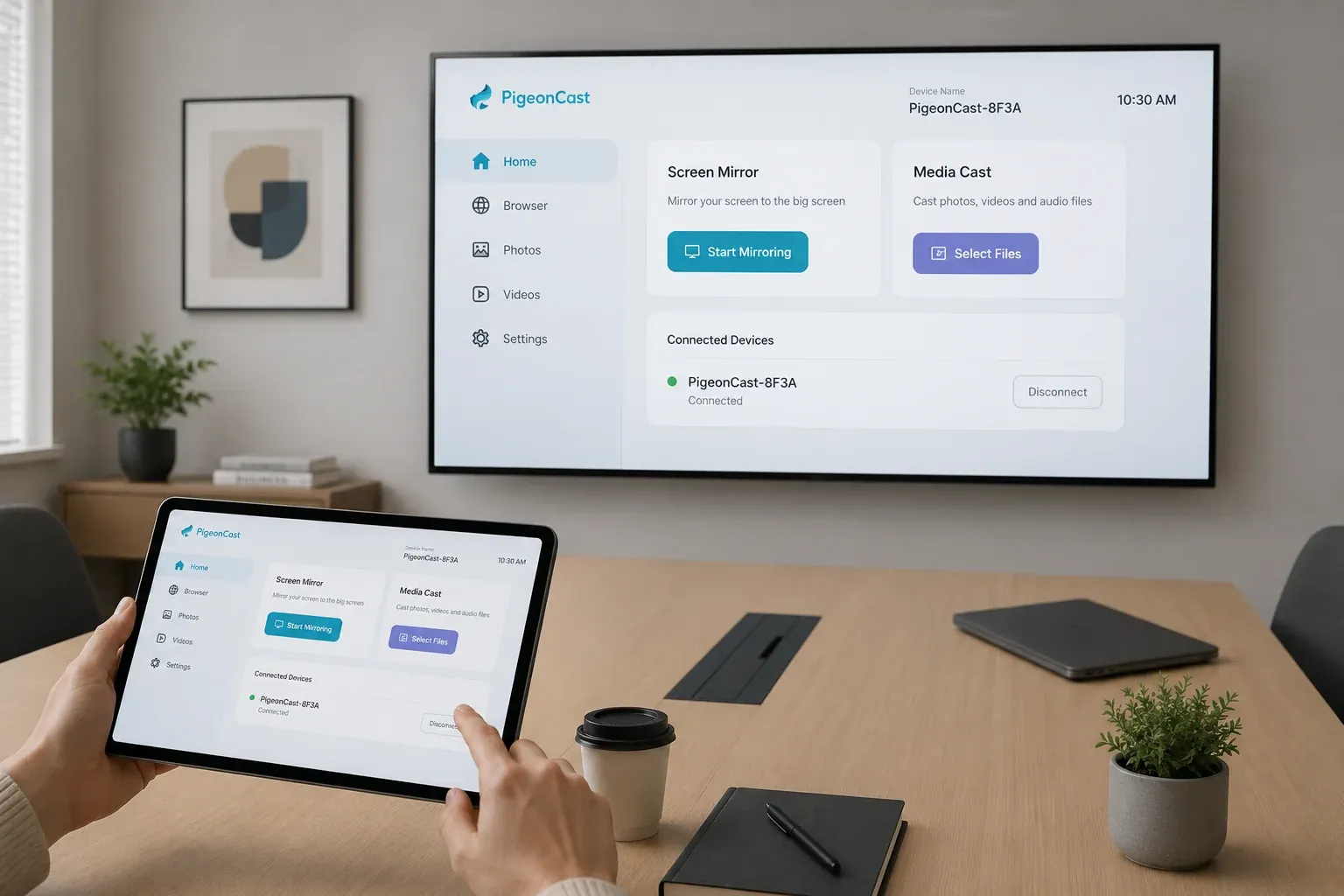
When a wired setup feels limited, PigeonCast gives you another way to mirror your tablet screen to a bigger display. It is a cross-platform screen mirroring and casting app for phones, tablets, computers, and TVs, with support for AirPlay, Google Cast, and DLNA. Instead of checking ports or carrying extra dongles, you can cast videos, photos, browser content, classes, meetings, and presentations over WiFi.


Overall Rating:



Step 1. Download and open PigeonCast on the tablet, phone, computer, or TV you want to use for casting or receiving.
Step 2. Make sure your tablet and TV, or receiver device, are on the same network.
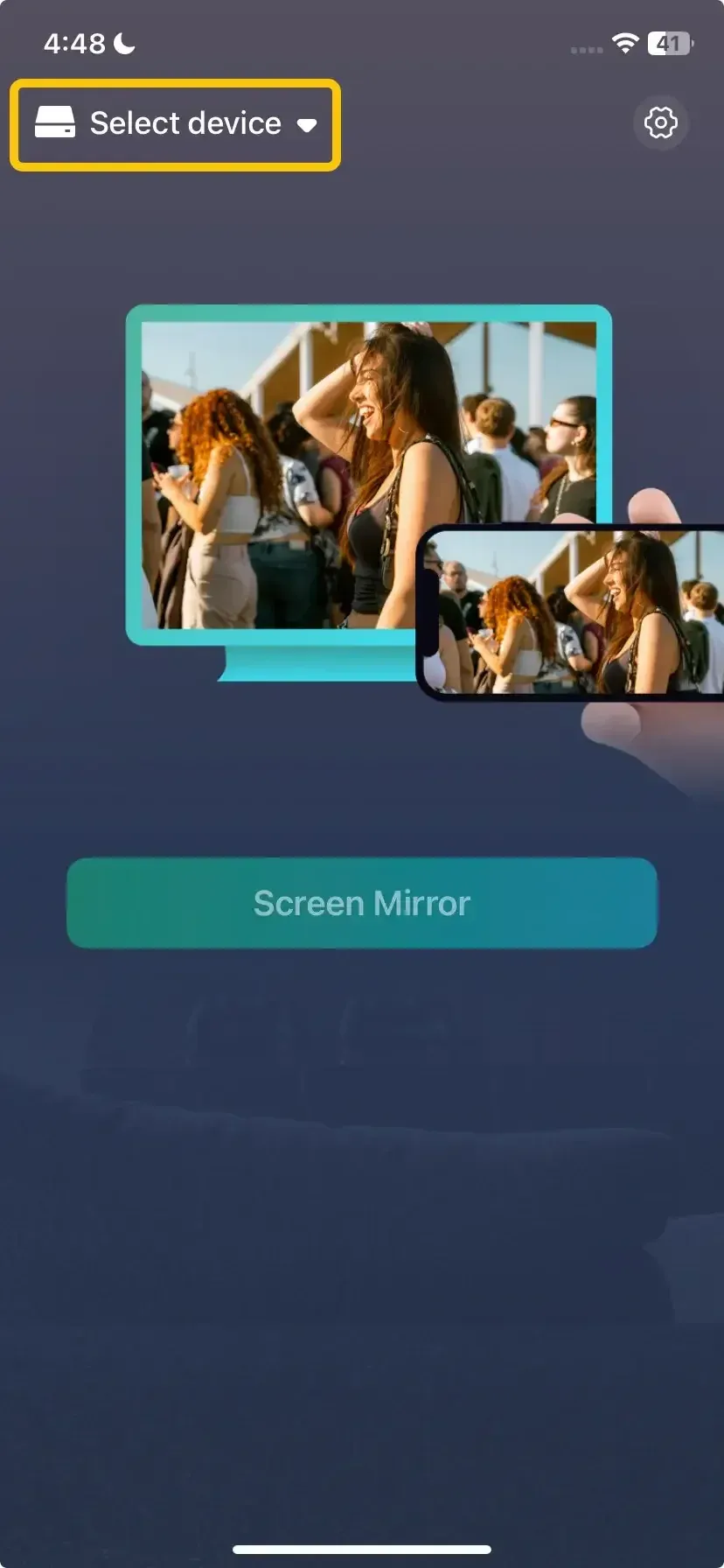
Step 3. Open PigeonCast, tap Select device, and choose the TV or receiving device you want to cast to.
Step 4. Enter the code or approve the pairing request to confirm the connection.
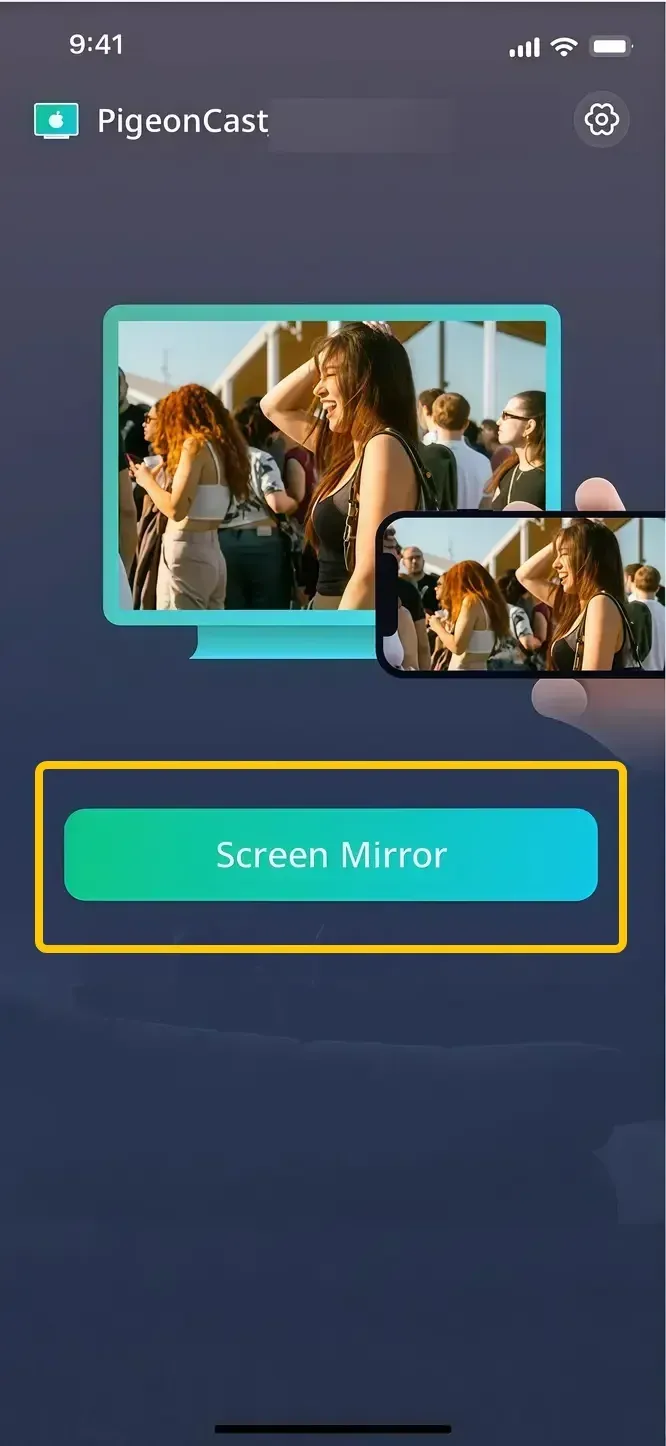
Step 5. When you finish the connection, tap Screen Mirror to mirror your tablet screen or cast videos, photos, browser pages, classes, meetings, and presentations to the bigger screen.
What to Do If Your Tablet Does Not Show on TV
If your tablet screen does not appear after connecting the HDMI cable, the problem is often the input source, adapter, or cable. Check these basic fixes first before replacing anything.
| Problem | What to Check | What to Do |
|---|---|---|
| No signal on TV | The TV may be on the wrong HDMI input. | Press Input or Source on your TV remote and select the HDMI port you used. |
| Black screen | The adapter may not support video output. | Use an HDMI adapter made for screen display, not only charging or data transfer. |
| Screen appears but no sound | The tablet or TV audio output may not switch correctly. | Turn up the TV volume and check the sound output on your tablet. |
| Screen keeps disconnecting | The HDMI cable or adapter may be loose. | Unplug both ends, reconnect them firmly, or try another HDMI cable. |
| Video app does not play on TV | Some apps may limit HDMI playback. | Try another app or check whether the app supports HDMI output. |
Wrapping Up
The right HDMI setup depends on your tablet port and whether the device supports video output. Once the adapter and TV input are correct, your tablet screen should appear on the TV without much extra setup. If HDMI depends on too many cables, ports, or adapters for your device, PigeonCast gives you a cleaner wireless way to mirror your tablet to a bigger screen.
How to Connect Tablet to TV with HDMI FAQ
Will HDMI show everything from my tablet on the TV?
In most cases, yes. HDMI usually mirrors your tablet screen, so the TV shows apps, photos, browser pages, documents, and home screen actions from the tablet. However, some streaming apps may block HDMI playback because of content protection rules. If the tablet home screen appears on the TV but one video app shows a black screen, the problem is likely from the app instead of the cable.
Does HDMI give better quality than wireless screen mirroring?
HDMI often gives a more stable picture because it uses a direct wired connection. It is a good choice for long video playback, slides, and situations where you do not want the screen to lag or disconnect. Wireless screen mirroring is usually more convenient because you do not need cables or adapters, but the quality can depend on your WiFi network, TV support, and the distance between devices.
Is HDMI good for gaming from a tablet to a TV?
HDMI is usually better for tablet gaming if you care about lower delay. Since the signal goes through a cable, your actions are more likely to appear on the TV faster than with wireless mirroring. Still, the result depends on the tablet, adapter, TV picture mode, and the game itself. For a smoother gaming experience, turn on Game Mode on your TV if it has one.
Can I use HDMI with a hotel TV or office TV?
Yes, as long as the TV has an open HDMI port and you can change the input source. The main issue is access. Some hotel TVs and office displays hide the HDMI ports, lock the input menu, or use a fixed display system. If the TV does not let you switch to the HDMI port, the cable may be fine but the TV setting may block the connection.
When should I use PigeonCast instead of HDMI?
Use PigeonCast when HDMI becomes inconvenient rather than helpful. For example, your tablet may not support wired video output, you may not have the right adapter, or you may want to sit away from the TV without a cable. PigeonCast is also useful when you switch between different devices, such as a tablet, phone, or computer, and want a cleaner way to mirror or cast content to a bigger screen over WiFi.
Can I charge my tablet while it is connected to the TV with HDMI?
Yes, but only if your adapter supports pass-through charging. Many USB-C and Lightning HDMI adapters have an extra charging port, so you can plug in power while sending the screen to the TV. This is useful for movies, online classes, meetings, or long presentations. If your adapter does not have a charging port, your tablet will run on battery during the HDMI connection.
Clara Rossi is an experienced technology editor and a seasoned expert in screen mirroring and casting technologies. With a keen eye for detail and a deep understanding of how to seamlessly connect devices, Clara excels at optimizing user experiences for effortless sharing and streaming. Whether you're seeking quick fixes or advanced tips, her expertise and responsiveness ensure that every query is met with a well-informed and efficient solution.