
If you are searching for how to cast PowerPoint to TV, you usually need one thing: your slides on a larger screen without wasting time on setup errors. The good news is that you can do this reliably with either wireless casting or a direct HDMI connection. This guide walks through both methods, explains which one to pick in real situations, and shows how to fix the most common failures before your meeting starts.
Can You Cast PowerPoint to TV
Yes. You can cast a PowerPoint presentation to a TV from a laptop or a phone, and you can do it wirelessly or with HDMI. Before you open Slide Show mode, confirm a few basics.

- A laptop with PowerPoint installed (Microsoft 365, 2021, or newer version).
- A TV that supports screen casting, Miracast, Chromecast, or AirPlay-compatible receiver mode.
- The same Wi-Fi network for both devices if you plan to cast wirelessly.
- A stable backup cable (HDMI or USB-C to HDMI adapter) in case wireless setup fails.
- Correct TV input source selected (HDMI 1/2/3 or screen mirroring mode).
Tip: test your presentation once before your actual presentation, especially if it includes videos. Slides with embedded videos can reveal compatibility or playback issues earlier than text slides, helping you avoid problems during the session.
How to Cast a PowerPoint to TV
Casting a PowerPoint presentation to a TV can make your slides easier for everyone to see during meetings, classes, or presentations. Depending on the device you are using, you can connect wirelessly or use a cable for a direct connection.
Quick & Easiest Method (Recommended)
How to cast a PowerPoint to a TV? Wireless casting can fail because TV menus differ by brand, office networks block discovery, or presenters switch between iPhone, Android, and Windows in the same room. A cross-platform tool can reduce that setup friction. The free PigeonCast screen mirroring app is built for this kind of mixed environment:
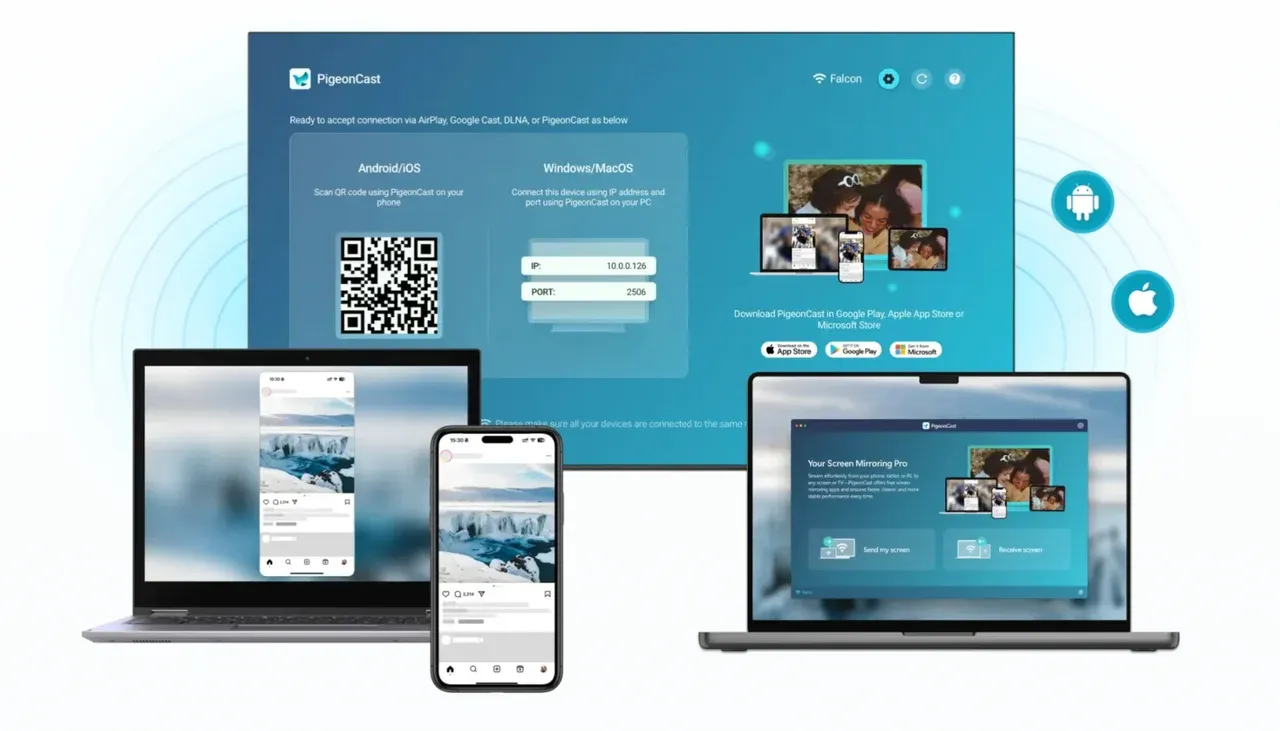
- Works across iPhone, Android, and Windows workflows.
- Supports AirPlay, DLNA, and Cast-style discovery paths.
- Gives one repeatable process instead of device-specific menu hunting.
Here's how to use PigeonCast to play PowerPoint on TV from your different devices:
Step 1. Ensure your sender device and TV are under the same wireless network.


Overall Rating:



Step 2. Install PigeonCast on your presentation device from the corresponding App Store.
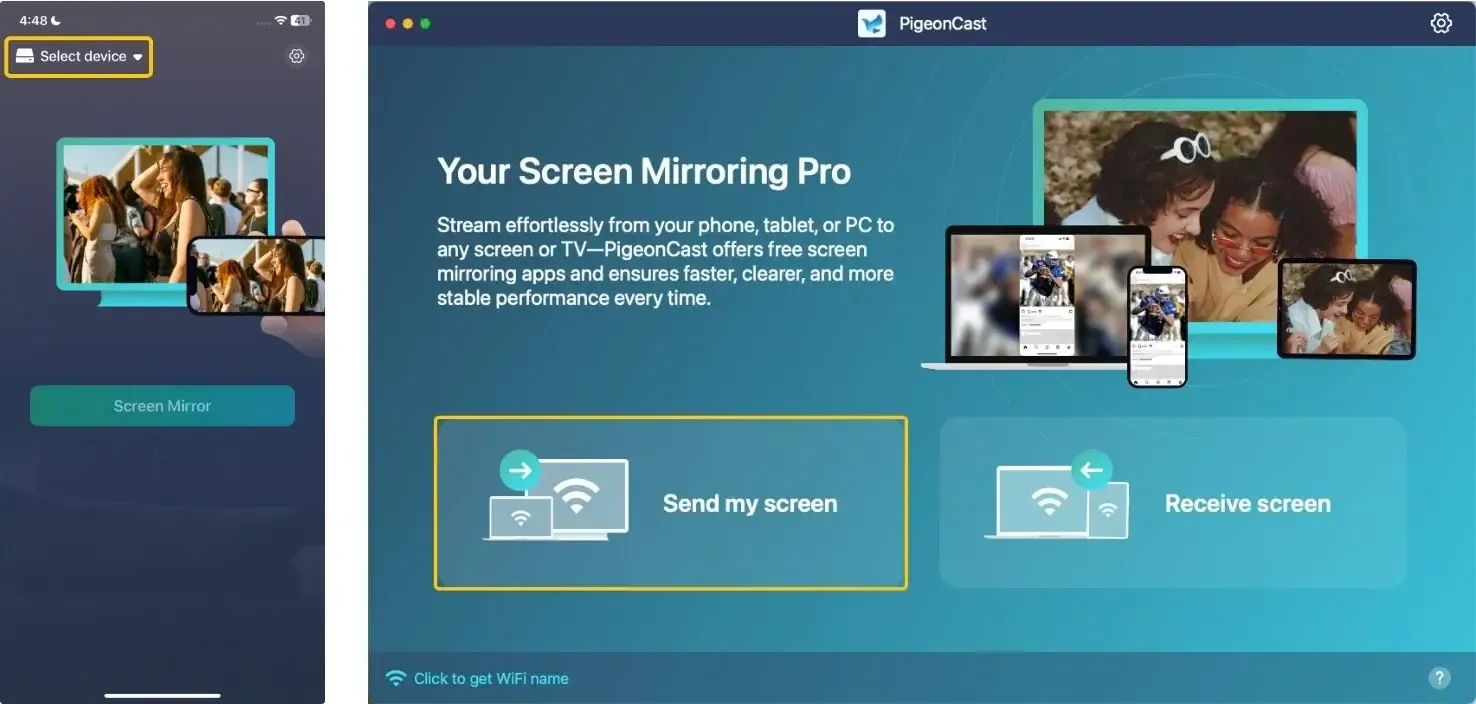
Step 3. Launch the app, click Select device or Send my screen from from detected devices.
Step 4. Enter the onscreen PIN code to confirm the pairing performance.
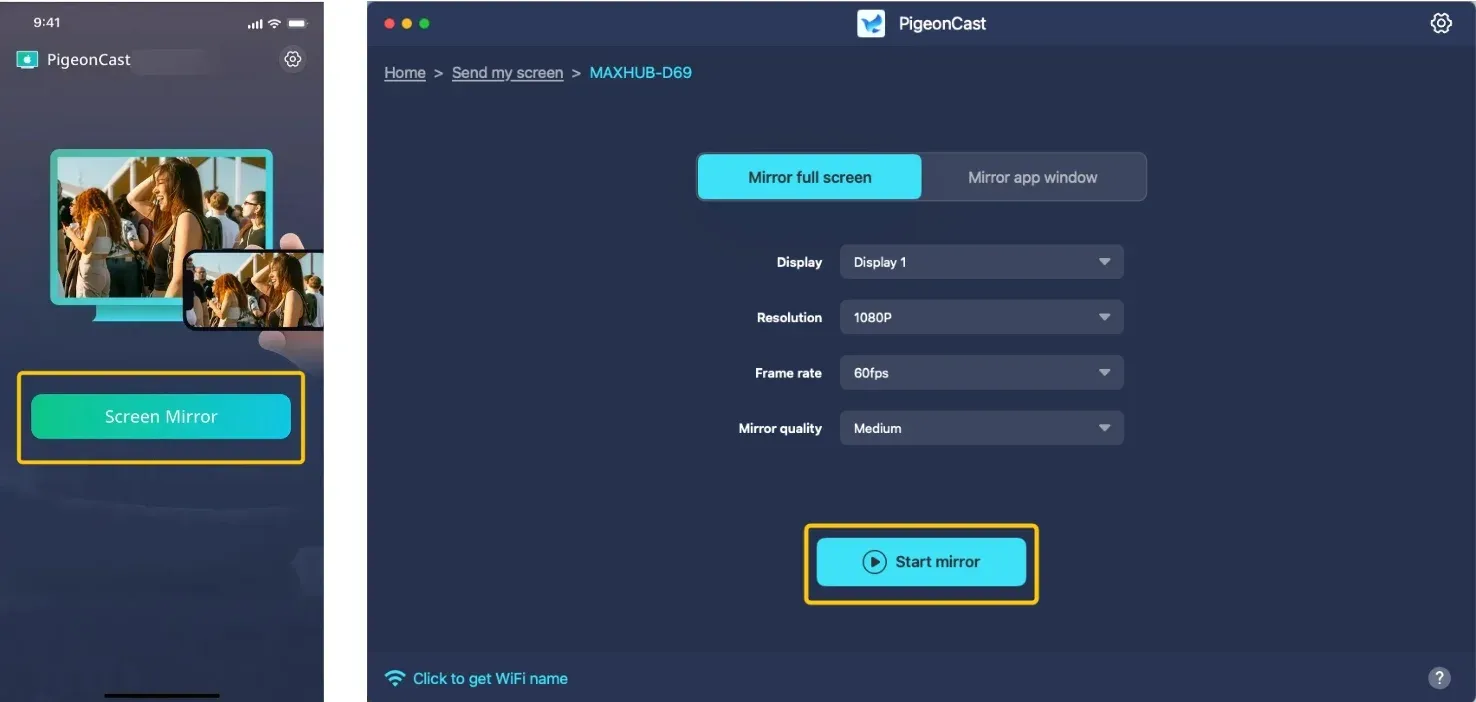
Step 5. Once you finish the connection, tap Start mirror or Screen Mirror to start mirroring and launch your PowerPoint slidshow.
Method 1. Cast PowerPoint to TV from Windows or Mac
If you are presenting from a Windows laptop or Mac, you can usually cast your screen to a smart TV using wireless screen mirroring. Most modern TVs support technologies like Miracast, Chromecast, or AirPlay, which connect your laptop to your TV without a cable. Here's how to cast PowerPoint from laptop to TV wirelessly:
- Cast PowerPoint from Windows
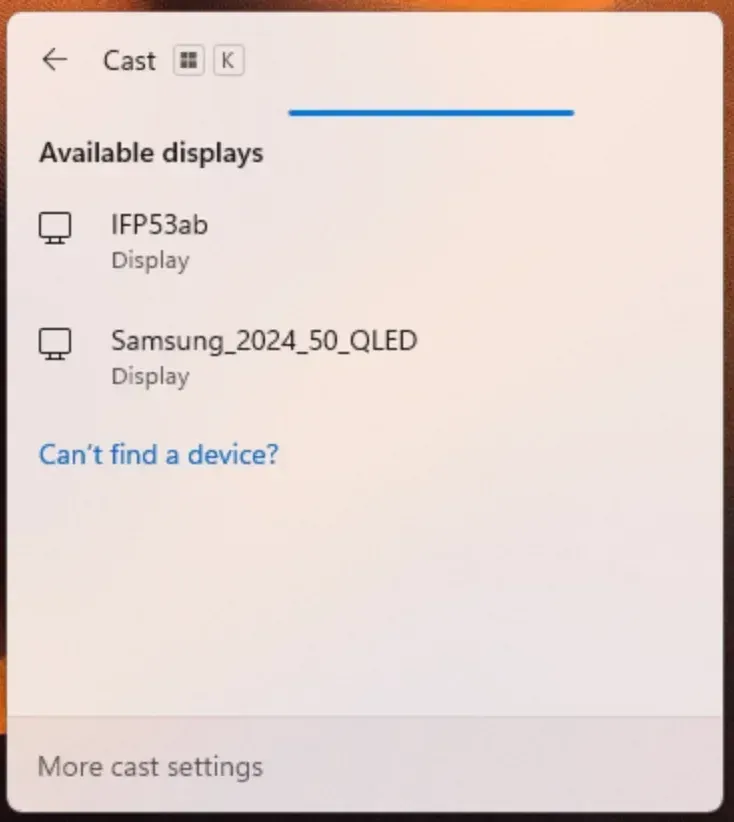
Step 1. Make sure your Windows laptop and TV are on the same network.
Step 2. Open your presentation in PowerPoint and preload media slides, so the first transition is smooth.
Step 3. Press Win + K to open the Connect menu, and select your TV in the device list.
Step 4. Open PowerPoint on your Windows and start your slideshow on the television screen.
- Cast PowerPoint from Mac
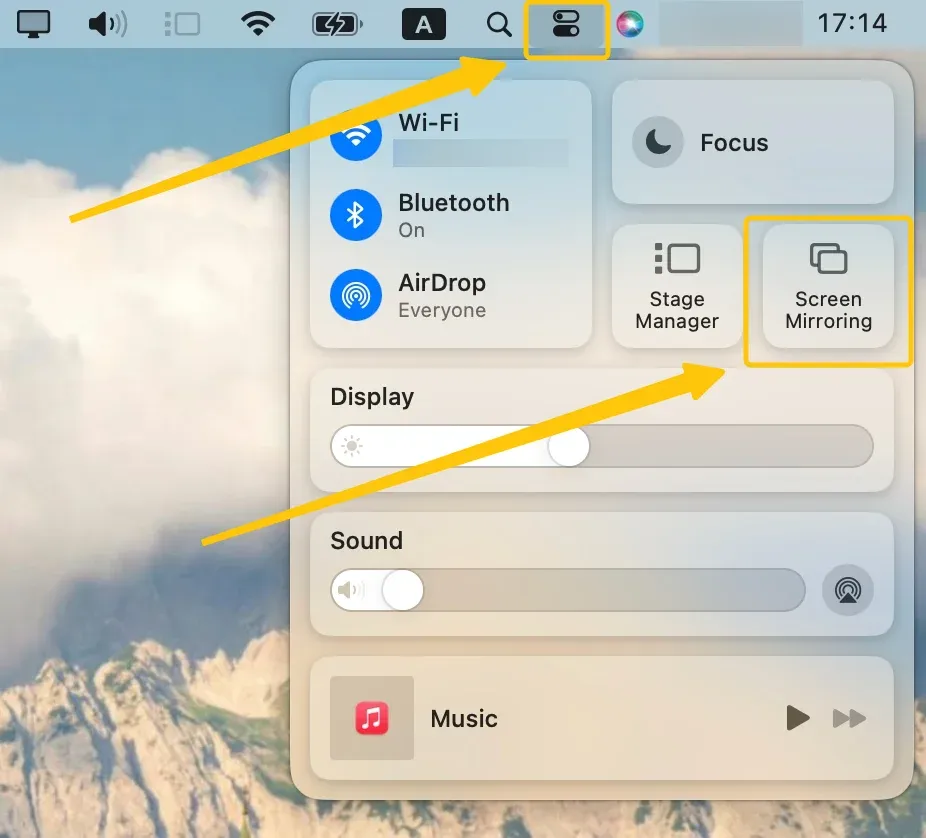
Step 1. Connect your MacBook and TV to the same WiFi network.
Step 2. Open your deck in PowerPoint and check that the slide theme and fonts render correctly before mirroring.
Step 3. Open Control Center > Screen Mirroring, pick your TV from the list to connect.
Step 4. Then confirm mirror mode in System Settings > Displays.
Step 5. Launch the PPT to mirror on your smart television screen.
Method 2. Cast PowerPoint to TV from iPhone or Android
If your PowerPoint file is stored on your phone, you can also cast it directly to a TV using your device's built-in screen mirroring feature. Both Android phones and iPhones support wireless casting, although the method may vary slightly depending on the device and TV model. Read on to check how to cast PowerPoint from phone to TV:
- Cast PowerPoint from Android
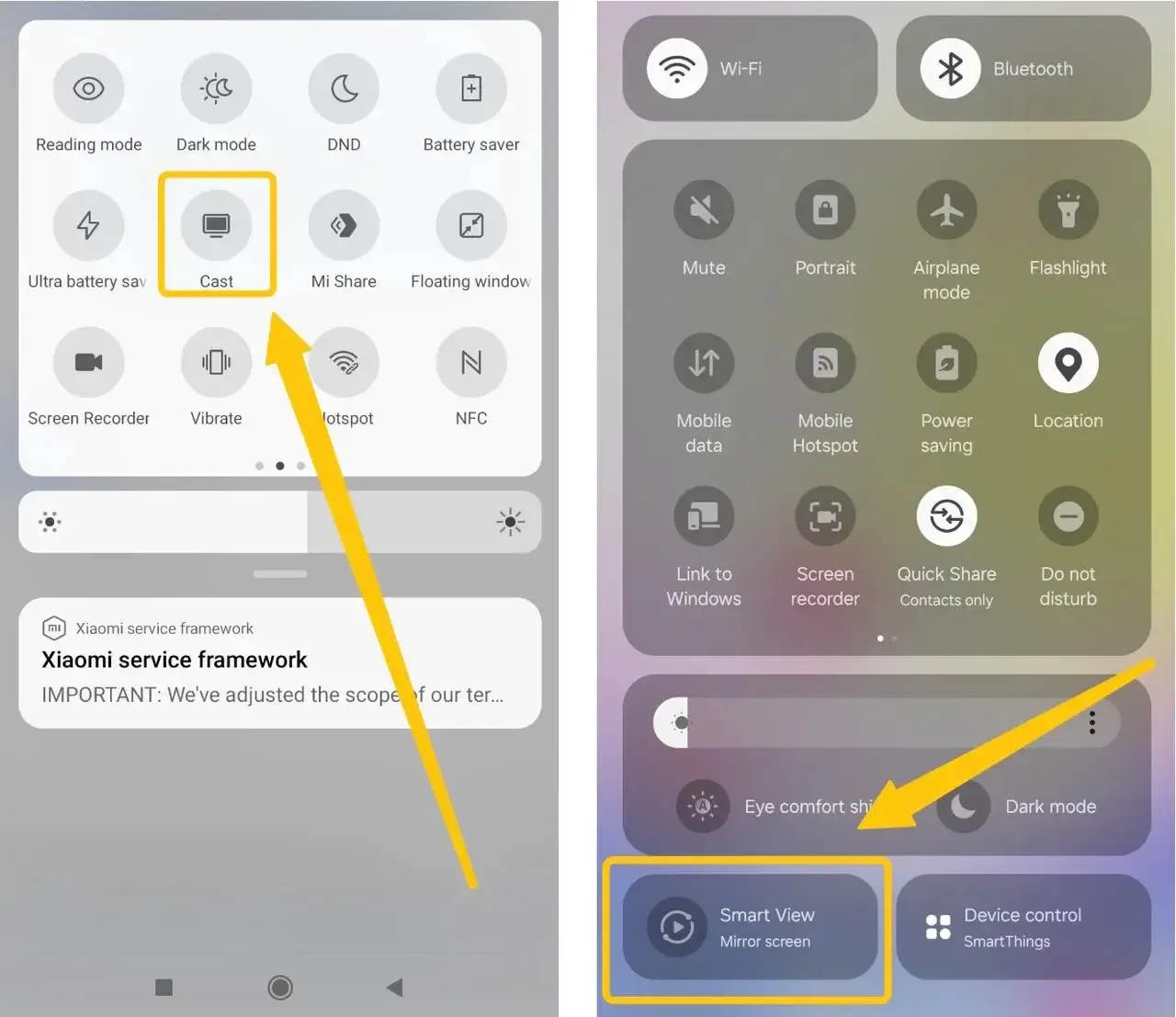
Step 1. Connect your Android phone and TV to the same Wi-Fi network to enable Cast discovery.
Step 2. Open the deck in the PowerPoint app and keep one test slide ready to confirm scaling.
Step 3. Open Quick Settings and tap Cast or Smart View depending on your phone brand.
Step 4. Choose your target TV from the device list, confirm connection, then start slideshow in PowerPoint.
- Cast PowerPoint from iPhone
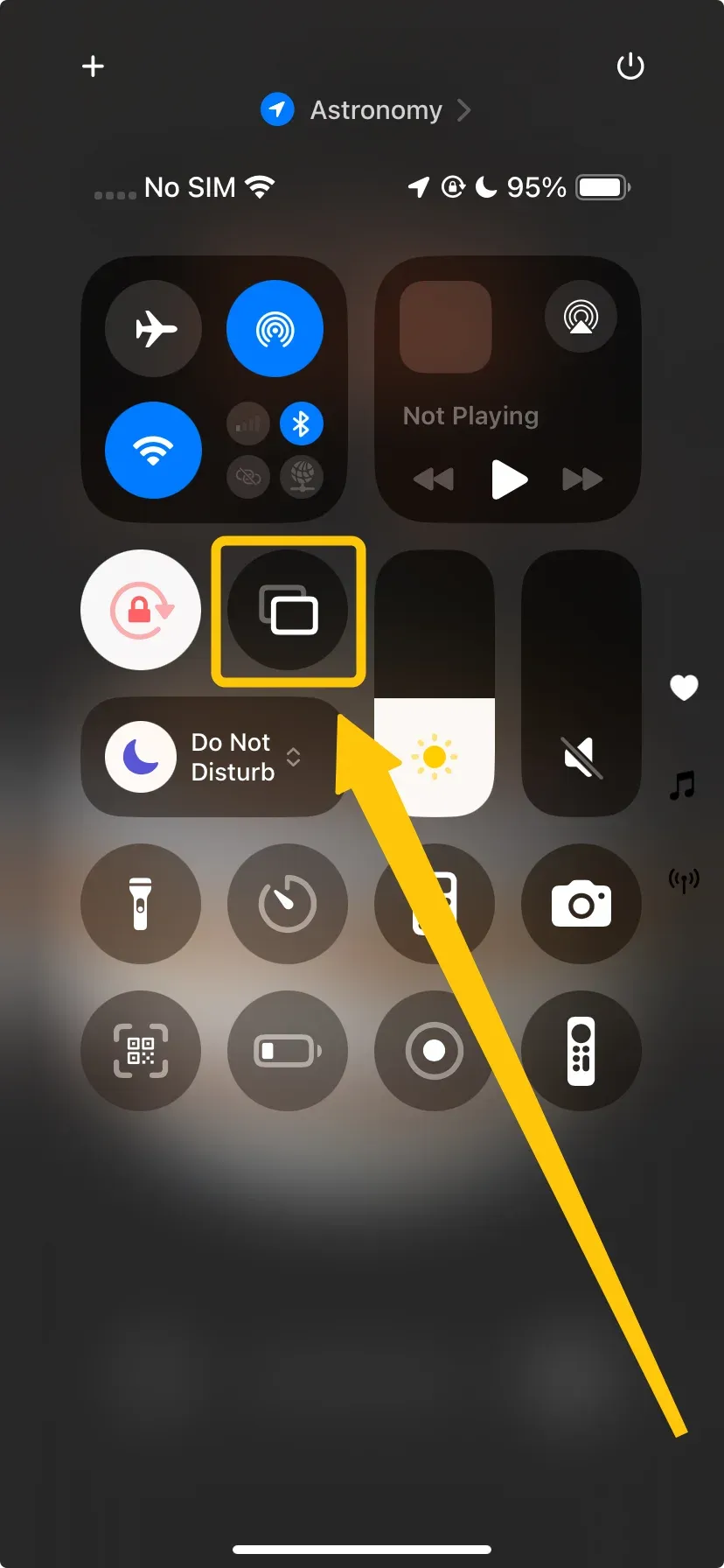
Step 1. Connect your iPhone and TV to the same Wi-Fi network so AirPlay discovery can work.
Step 2. Open the file in the PowerPoint app and rotate to landscape before starting slideshow.
Step 3. Open Control Center and tap Screen Mirroring.
Step 4. Select your TV or receiver, wait for connection confirmation, then run slideshow mode in PowerPoint.
If you are presenting in a meeting room or classroom instead of using a TV, the steps to screen mirror from iPhone to projector depend on whether the projector supports AirPlay, HDMI, Chromecast, or a receiver app.
Method 3. Cast PowerPoint to TV via HDMI
How to cast from PowerPoint to TV without WiFi network? If wireless casting is unavailable or unstable, using an HDMI connection is the most reliable option. This method creates a direct link between your device and the TV, so it does not depend on Wi-Fi or network settings.
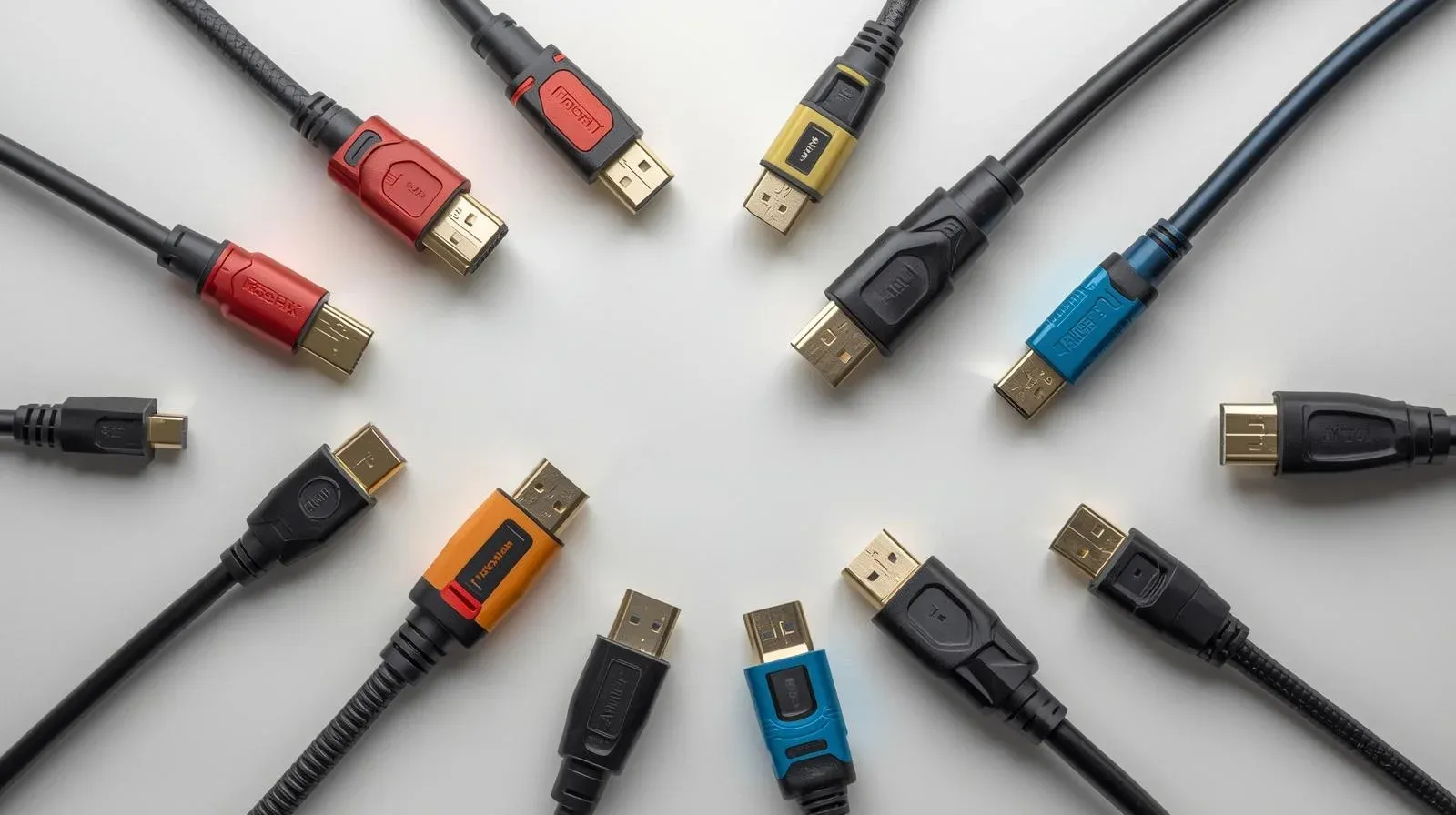
Step 1. If your laptop has no HDMI port, prepare a USB-C to HDMI or Thunderbolt to HDMI adapter before the session starts.
Step 2. Plug in the cable, confirm the connection is secure on both ends, and keep the laptop powered if battery is low.
Step 3. Open PowerPoint Slide Show and verify sound output is routed to TV speakers for video slides.
Step 4. Change the TV source to the matching HDMI port (for example HDMI 1 or HDMI 2). If screen appears cropped, adjust resolution on the laptop.
Once connected, your screen will appear on the TV immediately, making it a good choice for meetings, classrooms, or situations where you want a stable presentation without interruptions.
PowerPoint Not Showing on TV? Try These Fixes
Sometimes PowerPoint may not appear on the TV even after connecting your device. This is usually caused by display settings, connection issues, or temporary glitches. Try the fixes below to get your presentation showing correctly.
- TV Not Showing in the Cast List
If your TV does not appear in the casting list, first restart both devices (your laptop/phone and the TV). Then reopen the screen-casting menu and check that both devices are connected to the same Wi-Fi network. Also make sure screen mirroring is enabled on the TV.
- TV Displays No Signal Message
When the TV shows "No Signal", check the input source on the TV (for example HDMI 1, HDMI 2, or Screen Mirroring). If you are using a cable, confirm the HDMI cable or adapter is firmly connected. For wireless casting, stop the mirroring session and start it again.
- Casting Lag or Delay
Lag usually happens when the network is overloaded. Try closing unnecessary apps, pausing large downloads, or connecting to a 5 GHz Wi-Fi network instead of 2.4 GHz. If your presentation includes many animations or videos, switching to an HDMI connection can provide smoother playback.
- PowerPoint Video Has No Audio
If slides appear but there is no sound, check the audio output settings on your device. Make sure the TV is selected as the audio output device. Then replay the slide with audio or video to confirm the sound is routed correctly.
- PowerPoint Not in Full Screen
If the presentation does not fill the TV screen, change your display mode to Duplicate or Mirror Display. You may also need to adjust the screen resolution or disable TV overscan in the TV's picture settings so the slides fit properly.
Closing Words
How do I cast a PowerPoint to my TV? You can cast a PowerPoint presentation to a TV from a laptop or a phone using either wireless screen mirroring or a direct HDMI connection. Wireless methods such as Miracast, Chromecast, or AirPlay allow you to mirror your screen to a compatible smart TV over the same Wi-Fi network. If wireless casting is unstable or unavailable, connecting your device to the TV with an HDMI cable or adapter provides a more reliable way to display your slides on a larger screen.
How to Cast PowerPoint to TV FAQ
How to cast PowerPoint to Roku TV?
To cast PowerPoint to a Roku TV, you can use screen mirroring from your laptop or phone. First, make sure your Roku TV and device are connected to the same Wi-Fi network. Then enable Screen Mirroring on the Roku TV in Settings > System > Screen Mirroring.
- From Windows: Press Win + K, select your Roku TV from the device list, and start your PowerPoint slideshow.
- From Android: Open Cast or Smart View in Quick Settings and choose your Roku TV.
- From iPhone: Use AirPlay if your Roku model supports it, then mirror your screen and run the presentation.
How to cast PowerPoint to TV with Chromecast?
To cast PowerPoint to a TV using Chromecast, you can mirror your device screen through the Google Chrome browser or a compatible casting feature.
- Make sure your computer or phone and the Chromecast device are connected to the same Wi-Fi network.
- Launch Chrome and click the three-dot menu in the top-right corner.
- Choose Cast, then select your Chromecast or TV from the list of available devices.
- Select Cast Screen if you want to mirror your entire desktop.
- Open your PowerPoint file and start Slide Show mode. Your slides will now appear on the TV through Chromecast.
How to cast PowerPoint to TV from Mac?
You can cast a PowerPoint presentation from a Mac to a TV using AirPlay screen mirroring if your TV supports AirPlay or is connected to an Apple TV.
- Make sure your Mac and TV are connected to the same Wi-Fi network.
- Click the Control Center icon in the top-right corner of the menu bar, then select Screen Mirroring.
- Choose your AirPlay-compatible TV or Apple TV from the list of available devices.
- Open your PowerPoint file and enter Slide Show mode. Your slides will now appear on the TV while you control the presentation from your Mac.
How to Cast PowerPoint to TV from iPhone?
You can cast a PowerPoint presentation from an iPhone to a TV using AirPlay screen mirroring.
- Make sure your iPhone and TV are connected to the same Wi-Fi network.
- Launch the PowerPoint app on your iPhone and open the presentation you want to show.
- Open Control Center, tap Screen Mirroring, and select your AirPlay-compatible TV or Apple TV.
- Return to the PowerPoint app and start Slide Show mode. Your slides will appear on the TV while you control the presentation from your iPhone.
How to cast Google slides to TV?
You can cast Google Slides to a TV by mirroring your device screen or using a casting device such as Chromecast.
- Make sure your laptop or phone and the TV (or Chromecast device) are connected to the same Wi-Fi network.
- Open your Google Slides presentation in a web browser or the Google Slides app.
- Start screen casting:
- On Windows: Press Win + K and select your TV.
- On Mac: Use Control Center > Screen Mirroring and choose your TV.
- On Android: Open Cast or Smart View from Quick Settings.
- On iPhone: Open Control Center > Screen Mirroring and select your TV.
- Start Present mode in Google Slides. Your presentation will appear on the TV while you control the slides from your device.
Will PowerPoint work on a TV screen?
Yes, PowerPoint works well on a TV screen. You can display your presentation by casting your device screen wirelessly (using technologies like AirPlay, Miracast, or Chromecast) or by connecting your device to the TV with an HDMI cable.
How to cast PowerPoint to Apple TV?
You can cast a PowerPoint presentation to Apple TV using AirPlay screen mirroring from your laptop or iPhone.
- Make sure your Apple TV and device (Mac, iPhone, or iPad) are connected to the same Wi-Fi network.
- Launch PowerPoint and open the presentation you want to display.
- Start AirPlay mirroring:
- On Mac: Open Control Center > Screen Mirroring, then select your Apple TV.
- On iPhone or iPad: Open Control Center, tap Screen Mirroring, and choose your Apple TV.
- Enter Slide Show mode in PowerPoint. Your slides will appear on the TV while you control the presentation from your device.
Clara Rossi is an experienced technology editor and a seasoned expert in screen mirroring and casting technologies. With a keen eye for detail and a deep understanding of how to seamlessly connect devices, Clara excels at optimizing user experiences for effortless sharing and streaming. Whether you're seeking quick fixes or advanced tips, her expertise and responsiveness ensure that every query is met with a well-informed and efficient solution.