
Seeing a frustrating "No Signal" message? Before you worry about a dead graphics card or a broken TV, take a breath. In most cases, the hardware is perfectly healthy. The issue usually lies in a simple input mismatch, an outdated driver, or a Windows display setting. This guide provides a prioritized checklist to troubleshoot your PC not connecting to TV HDMI issues, starting with the easiest fixes to save you time and stress.
Why Is the PC to TV Connection Failing
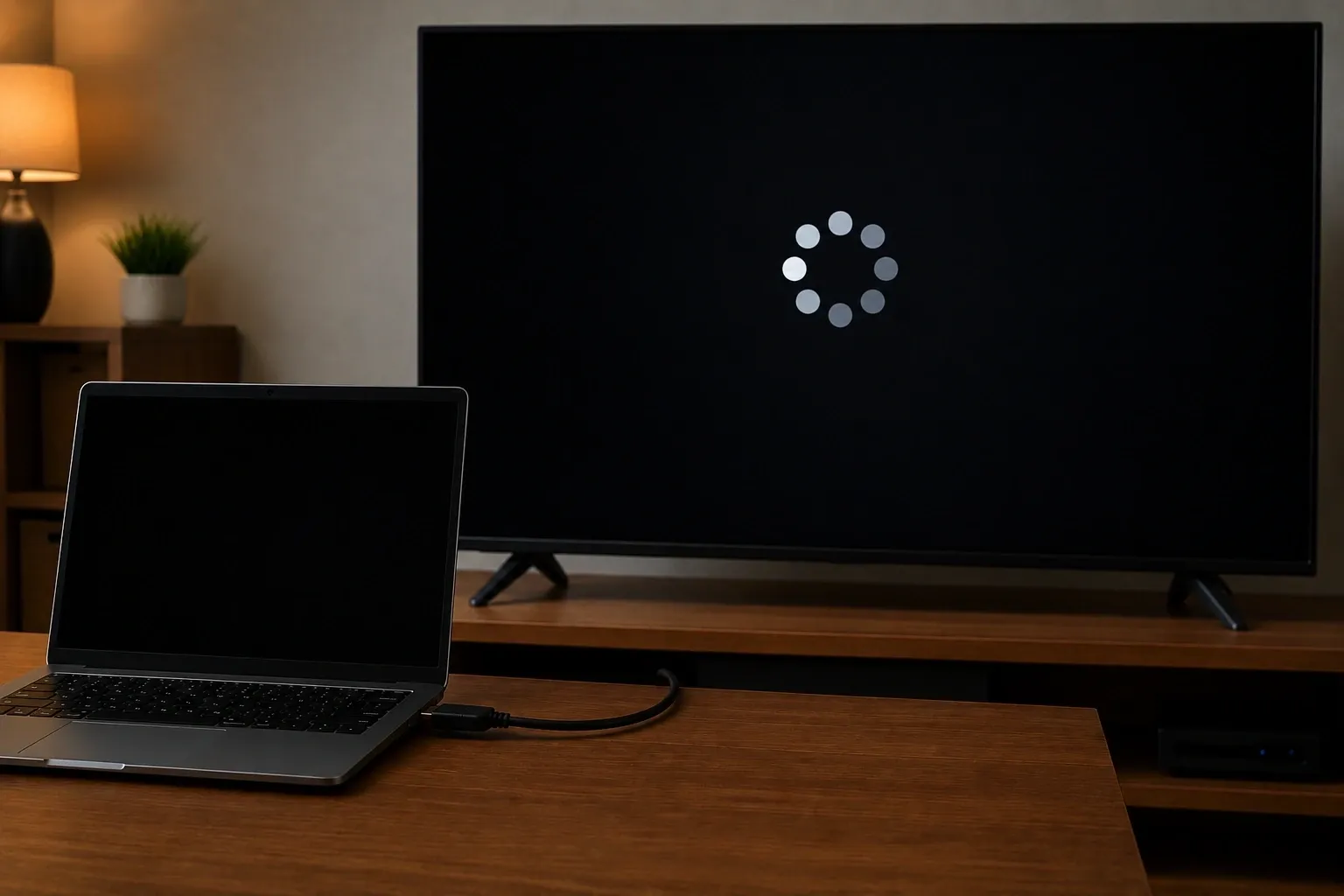
Understanding the root cause helps you pick the right fix. If your screen is staying black, it's usually due to one of these common communication breakdowns:
-
Failed Digital Handshake: HDMI devices must "introduce" themselves to each other. If this initial sync fails, the TV won't acknowledge the incoming signal.
-
Input Mismatch: It's easy to overlook, but the TV must be set to the exact port (e.g., HDMI 2) where the cable is physically plugged in.
-
Signal Incompatibility: If the PC outputs a resolution or refresh rate higher than the TV can handle, such as 4K at 120Hz on an older 1080p set, the image won't render.
-
Physical Obstructions: Dust buildup in the ports or a subtle bend in the cable connector can prevent a clean data flow.
-
Display Detection Sleep: Sometimes Windows fails to "wake up" the video output when the cable is connected, leaving the port inactive.
How to Fix Your PC Not Connecting to TV via HDMI
Now that you know what might be going wrong, let's get it fixed and mirror your PC to a TV over HDMI more reliably. Follow these troubleshooting steps in order. We start with the easiest hardware checks before moving into more advanced software adjustments.
Solution 1. Refresh the Connection Manually
Sometimes the two devices fail to "talk" to each other properly. A quick reset can force them to re-establish a digital connection.
-
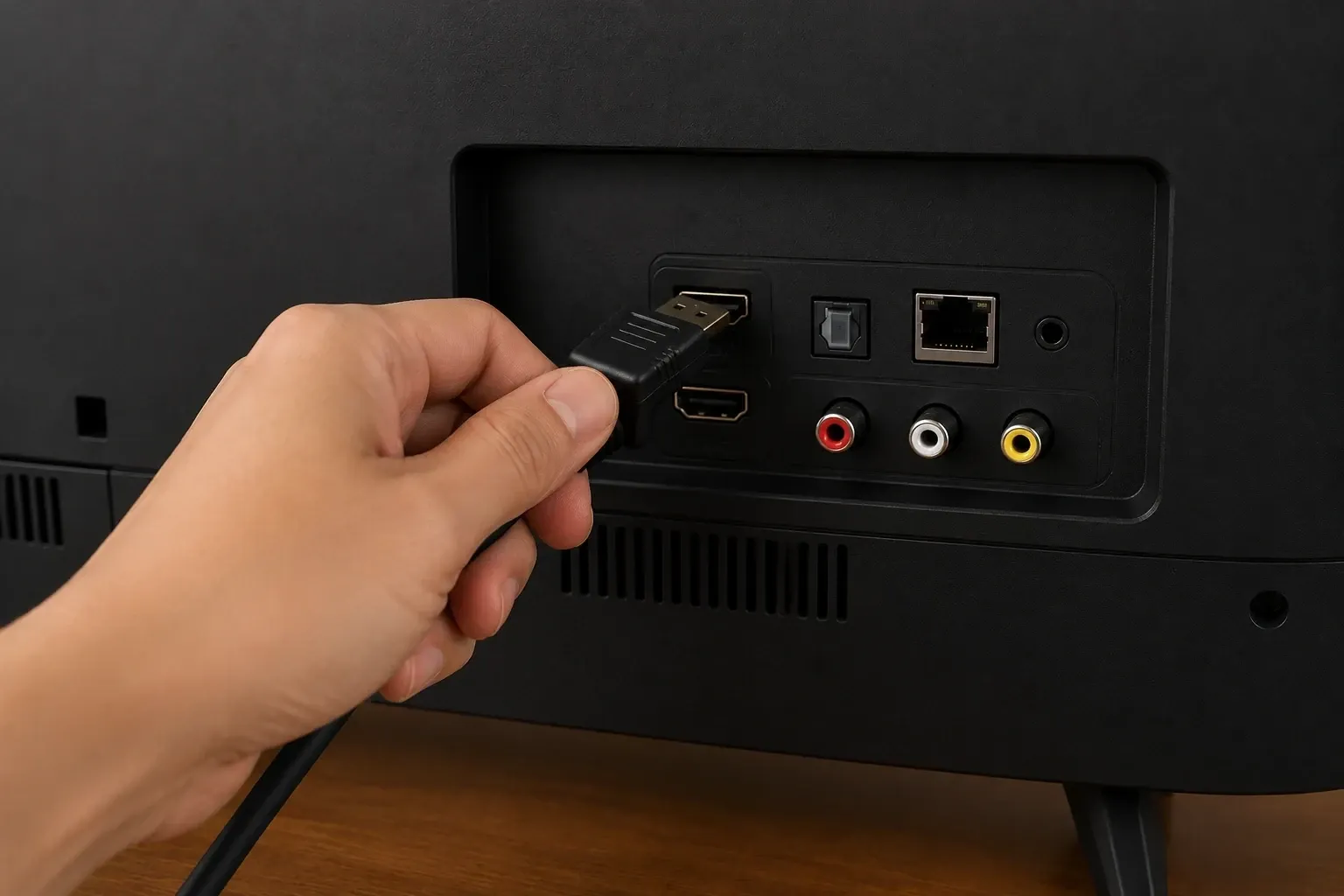
Reseat the Cable: Unplug the HDMI cable from both ends and plug them back in firmly to ensure a solid connection.
-
The 30-Second Power Cycle: Turn off both the PC and the TV. Unplug their power cords from the wall for 30 seconds, then reconnect and power them back up. This resets the HDMI controller chips.
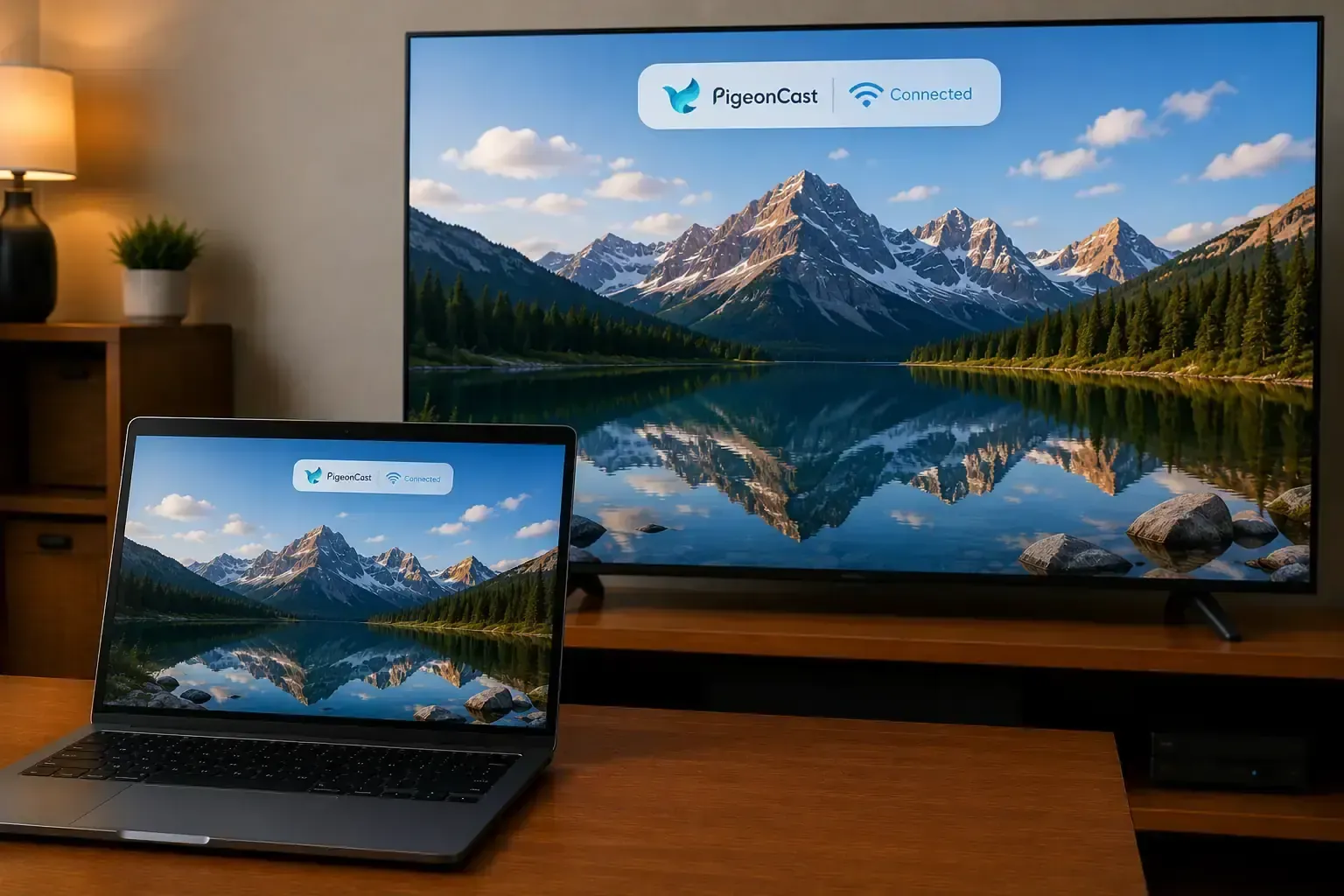
Skip the Cables with PigeonCast: If hardware troubleshooting feels like a waste of time, PigeonCast offers a modern way to connect. By bypassing physical HDMI ports entirely, this wireless tool beams your Windows screen directly to your smart TV over Wi-Fi. It supports high definition mirroring via AirPlay, DLNA and Google Cast, ensuring a stable connection without the stress of tangled wires or "No Signal" errors.


Overall Rating:



Solution 2. Match the TV's HDMI Input
It is easy to plug the cable into one port while the TV is searching for a signal on another.
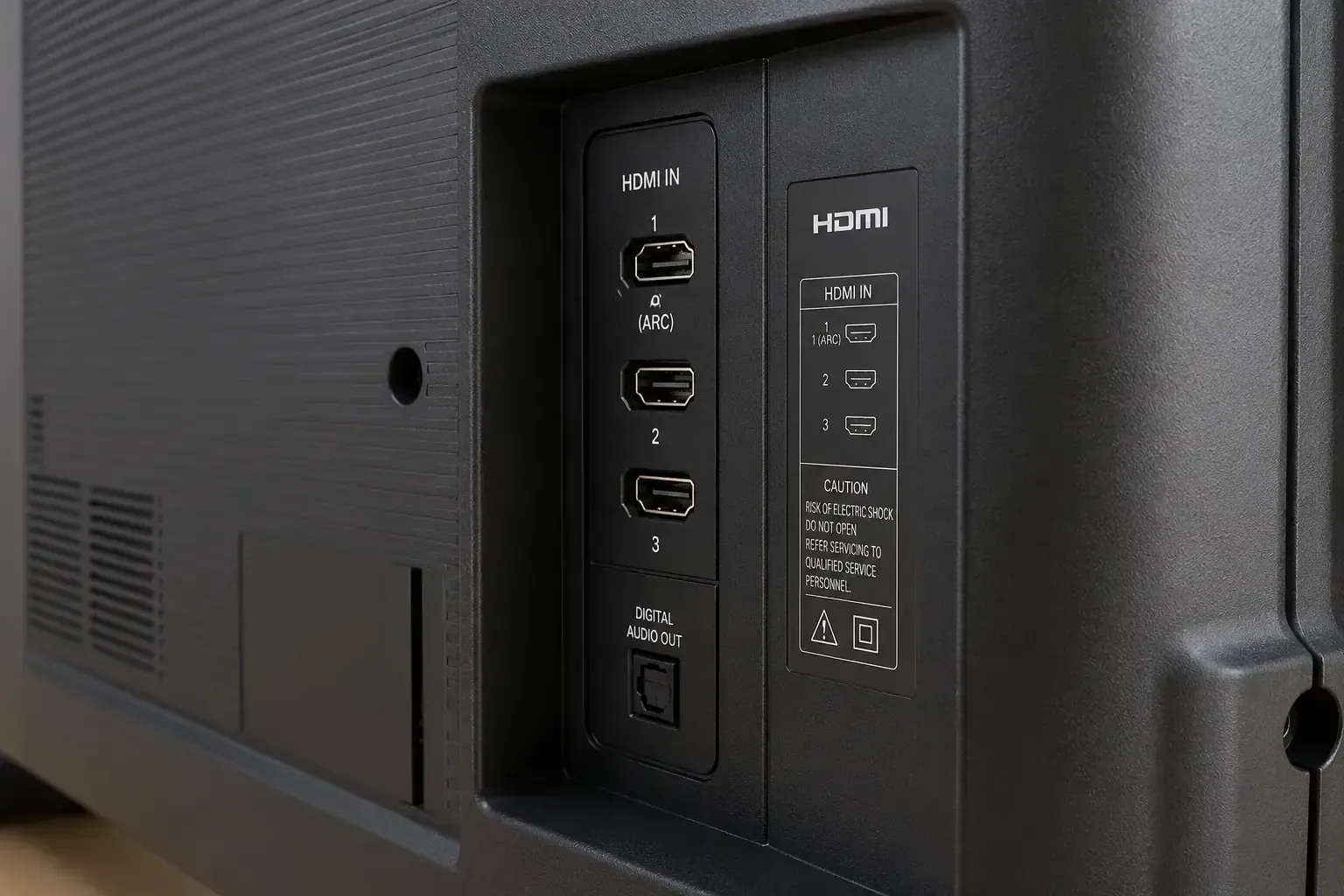
Step 1. Look at the back of your TV to see the specific label next to the port you used (e.g., HDMI 2).
Step 2. Use your remote's Source or Input button to toggle through the menu until you select the matching label.
If input labels match but the screen still shows no signal, check for deeper TV HDMI port issues.
Solution 3. Activate the Windows Display Menu
Your PC might be running perfectly, but Windows may have the external video output turned off by default.
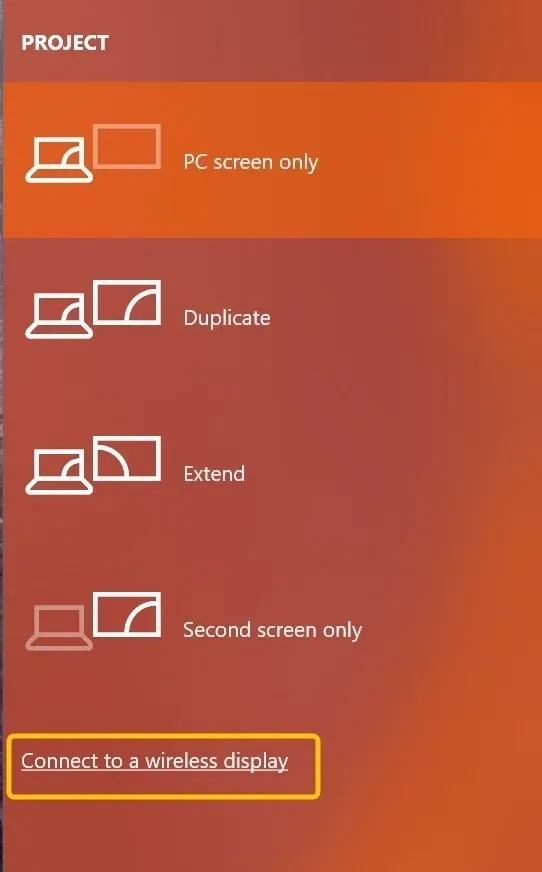
Step 1. Press the Win + P shortcut on your keyboard.
Step 2. Select Duplicate or Extend from the menu. If "PC screen only" is selected, your computer will not send a signal to the HDMI port, leading to the "No Signal" error on your TV.
Solution 4. Adjust Resolution and Refresh Rate
If your PC sends a signal that exceeds the capabilities of your TV, the screen will stay black. This often happens when attempting to push 4K at 120Hz to an older 1080p television.
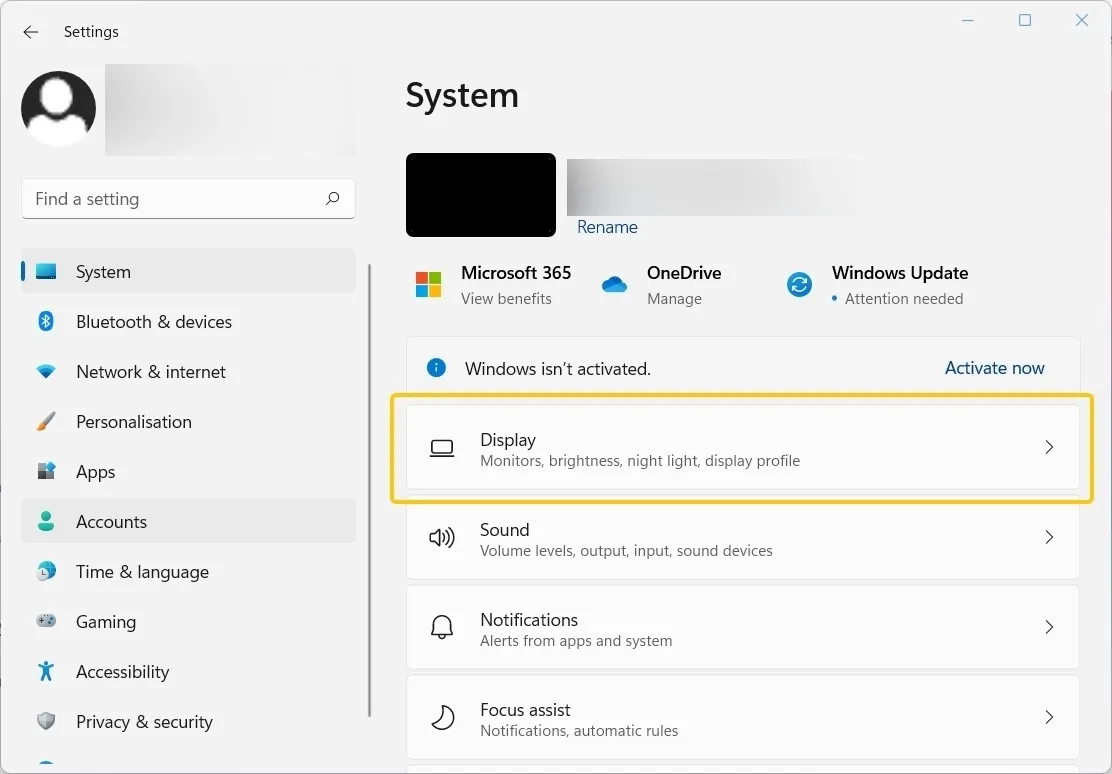
Step 1. Open Settings > System > Display on Windows.
Step 2. Select the box representing your TV (usually labeled as monitor 2).
Step 3. Lower the resolution to 1920 x 1080.
Step 4. Set the refresh rate to 60Hz. This is the universal standard for HDMI compatibility and should restore the image immediately.
Solution 5. Update Your Graphics Driver
The HDMI port is controlled by your graphics processing unit. If the driver is corrupted or outdated, the port may fail to output any video signal.
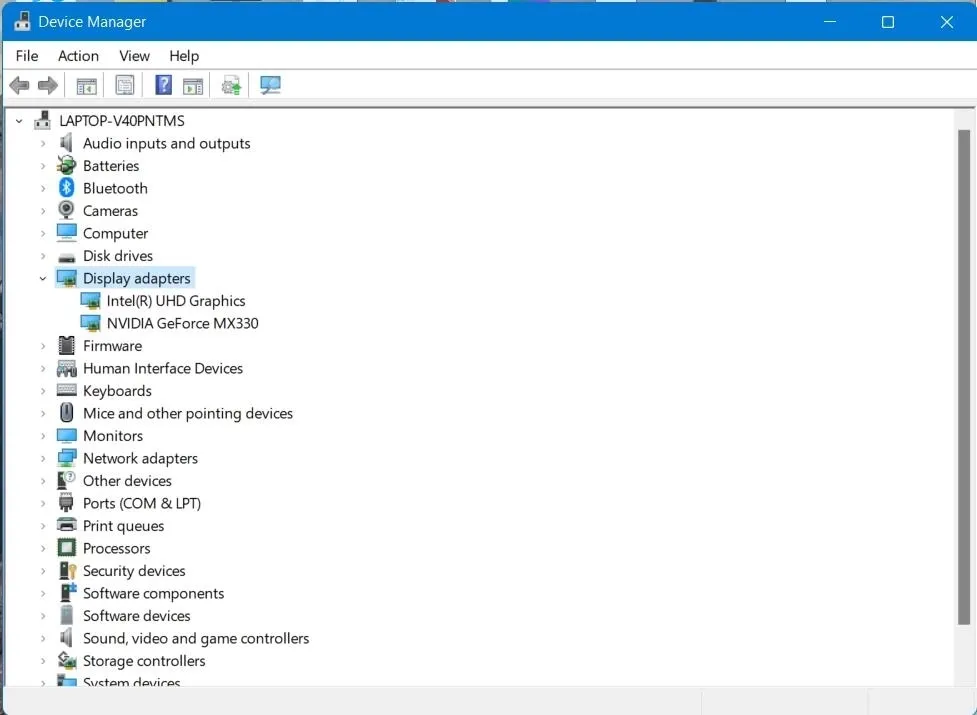
Step 1. Right-click the Start button and select Device Manager.
Step 2. Expand the Display adapters section, right-click your dedicated GPU, and select Update driver.
Step 3. Select the option to search automatically for drivers.
Step 4. Restart your PC after the installation to allow Windows to re-initialize the HDMI connection properly.
Solution 6. Perform a Hard Power Cycle
Sometimes the internal hardware controllers in your PC or TV can get stuck in an unresponsive state. A standard restart might not be enough to reset the HDMI detection logic.
Step 1. Turn off both the PC and the TV and unplug their power cables from the wall.
Step 2. Press and hold the Power button on each device for about 10 seconds to fully discharge any residual electricity.
Step 3. Reconnect the HDMI cable first, then plug the power cables back in.
Step 4. Power on the TV followed by the PC to force a fresh detection of the HDMI signal.
Solution 7. Disable HDMI CEC Settings
Many modern TVs use a feature called HDMI CEC to allow devices to control each other. Occasionally, this software protocol can glitch and block a PC from displaying correctly.
Step 1. Use your TV remote to enter the Settings or System menu.
Step 2. Look for options labeled HDMI CEC, Anynet+, or Bravia Sync.
Step 3. Try toggling this feature to Off and then back to On.
This simple reset in the TV software can often resolve "No Signal" issues without ever touching the internal PC hardware.
Final Thoughts
Whether you decide to fix your physical connection or switch to a wireless alternative like PigeonCast, the key is to stay patient and work through the solutions one by one. Most HDMI issues are easily resolved with a simple cable reset or a quick adjustment in your Windows settings. If the hardware continues to fail, moving to a wireless setup ensures you can get your content onto the big screen without any further technical frustration.
PC Not Connecting to TV HDMI FAQ
Why Does HDMI Work on One TV but Not Another?
-
Resolution and Refresh Rate Mismatches: Your PC may be outputting a signal that the second TV cannot render, such as a 4K resolution or a 180Hz refresh rate on a display that only supports 1080p at 60Hz.
-
HDCP Handshake Failures: Newer TVs often require stricter High bandwidth Digital Content Protection compliance, causing the video signal to drop if the cable or the PC port fails the security check.
-
EDID Communication Errors: The specific TV may fail to send its Extended Display Identification Data to your PC, leaving the computer unable to identify the correct video format to send.
-
HDMI Port Standards: One TV might have an older HDMI 1.4 port while your PC is trying to use HDMI 2.1 features, leading to a total loss of signal on the incompatible hardware.
-
Internal Hardware Sensitivity: Different TVs have varying tolerances for signal degradation, meaning a slightly damaged cable might provide enough data for one screen but fail to trigger an image on another.
How to connect PC to TV HDMI Windows 10?
To connect your Windows 10 PC to a TV using an HDMI cable, follow these steps to ensure the signal is detected and displayed correctly.
-
Plug one end of the HDMI cable into your PC and the other into an available HDMI port on your TV, noting the label like HDMI 1 or HDMI 2.
-
Use your TV remote to press the Source or Input button and select the specific HDMI port you used in the previous step.
-
Press the Win + P keys on your keyboard to open the projection menu and select either Duplicate or Extend to activate the external display.
-
Open Settings, navigate to System and then Display, select the TV screen icon, and adjust the resolution to match the native capabilities of your television.
-
Right click the Speaker icon in the taskbar, select Open Sound settings, and choose your TV from the output device list to ensure audio plays through the television speakers.
Can output resolution or refresh rate cause HDMI failure?
Yes, incorrect settings are a major cause of signal failure. If your PC sends data that your TV hardware cannot understand, the screen will stay black.
-
Resolutions that are too high, such as sending a 4K signal to an older 1080p television, will cause the TV to reject the input.
-
Refresh rates that exceed the display limit, like trying to force 144Hz on a standard 60Hz TV, will lead to an immediate "No Signal" error.
-
Using a high-speed refresh rate on an old HDMI 1.4 cable can overwhelm the wire's bandwidth and cause the connection to drop.
-
Specialized settings like HDR or Ultrawide aspect ratios may not be recognized by older TV processors, resulting in a blank display.
Why do I get video on TV but no sound?
When your TV displays the picture but remains silent, it is usually because Windows is still sending the audio signal to your computer speakers instead of the HDMI output.
-
Right click the Speaker icon in your Windows taskbar and select Open Sound settings.
-
Look for the Choose your output device dropdown menu at the top of the page.
-
Select your TV or the name of your HDMI connection from the list.
-
Ensure the Master volume slider is turned up on both your PC and your TV.
-
If the TV does not appear in the list, restart your computer while the HDMI cable is connected to force Windows to re-scan for audio hardware.
Do I need to update graphics drivers for HDMI issues?
Yes, updating your graphics drivers is a critical step because the HDMI port is physically controlled by your graphics card (GPU). If the driver is outdated, corrupted, or incompatible with a recent Windows update, the port may stop sending a signal entirely.
When should I suspect hardware damage?
Suspect hardware issues if you see physical wear on the cable, bent pins in the connectors, or if the port feels loose when you plug it in. If you have tried different cables and ports with no success, or if the screen shows flickering and static, the physical connection itself is likely failing.
Clara Rossi is an experienced technology editor and a seasoned expert in screen mirroring and casting technologies. With a keen eye for detail and a deep understanding of how to seamlessly connect devices, Clara excels at optimizing user experiences for effortless sharing and streaming. Whether you're seeking quick fixes or advanced tips, her expertise and responsiveness ensure that every query is met with a well-informed and efficient solution.