

If you want to know how to get Netflix Games on TV, start by checking where the game is meant to run. Some titles appear in the Netflix app on certain TVs and streaming devices, while many others are still phone-first games that are easier to put on a TV through screen mirroring or a cable.
A lot of people expect one Netflix Games button to cover everything. In practice, it may not. If the game appears in the Netflix TV app, try that first. If it does not, move to phone mirroring, a third-party screen mirroring tool, or HDMI or USB-C if delay matters to you.
How to Play Netflix Games on Smart TV: The Quick Answer
Start with the Netflix app on your TV or streaming device. If you see a Games row there, open it and check whether the title you want is available on the TV itself.
If the Games row is missing, or the game only exists on mobile, use one of these options instead:
- mirror the game from your iPhone or Android phone
- use a third-party screen mirroring app such as PigeonCast if the TV’s own casting is unstable
- use HDMI or USB-C if you want the most stable and responsive result
What matters is two simple questions:
- does your TV support Netflix TV games at all
- is the specific Netflix game you want available on TV or only on mobile
What Netflix Games on TV Means Right Now
Netflix Games started as a mobile feature, and that still appears to be the bigger part of the catalog. In late 2025, reports showed Netflix introducing a smaller set of TV-native party games on select TVs and streaming devices such as newer smart TVs, Roku, Fire TV, or Google TV devices. Those games are designed for living-room play and may use your phone as the controller after you scan a QR code on the TV.
That does not mean every Netflix mobile game suddenly became a TV game.
Some titles are made for the TV app. Some are made for phones and tablets. Some may look fine on a TV through mirroring but feel too slow for action-heavy play.
Method 1: Use the Netflix App on a Compatible TV or Streaming Device
This should be your first check because it is usually the simplest method when it works. If your TV or streaming device supports Netflix TV games, you can launch the game directly from the Netflix app without trying to mirror the entire phone screen.
Step 1. Open the Netflix app on your smart TV or streaming device.
Step 2. Look for a Games row or game section on the home screen.
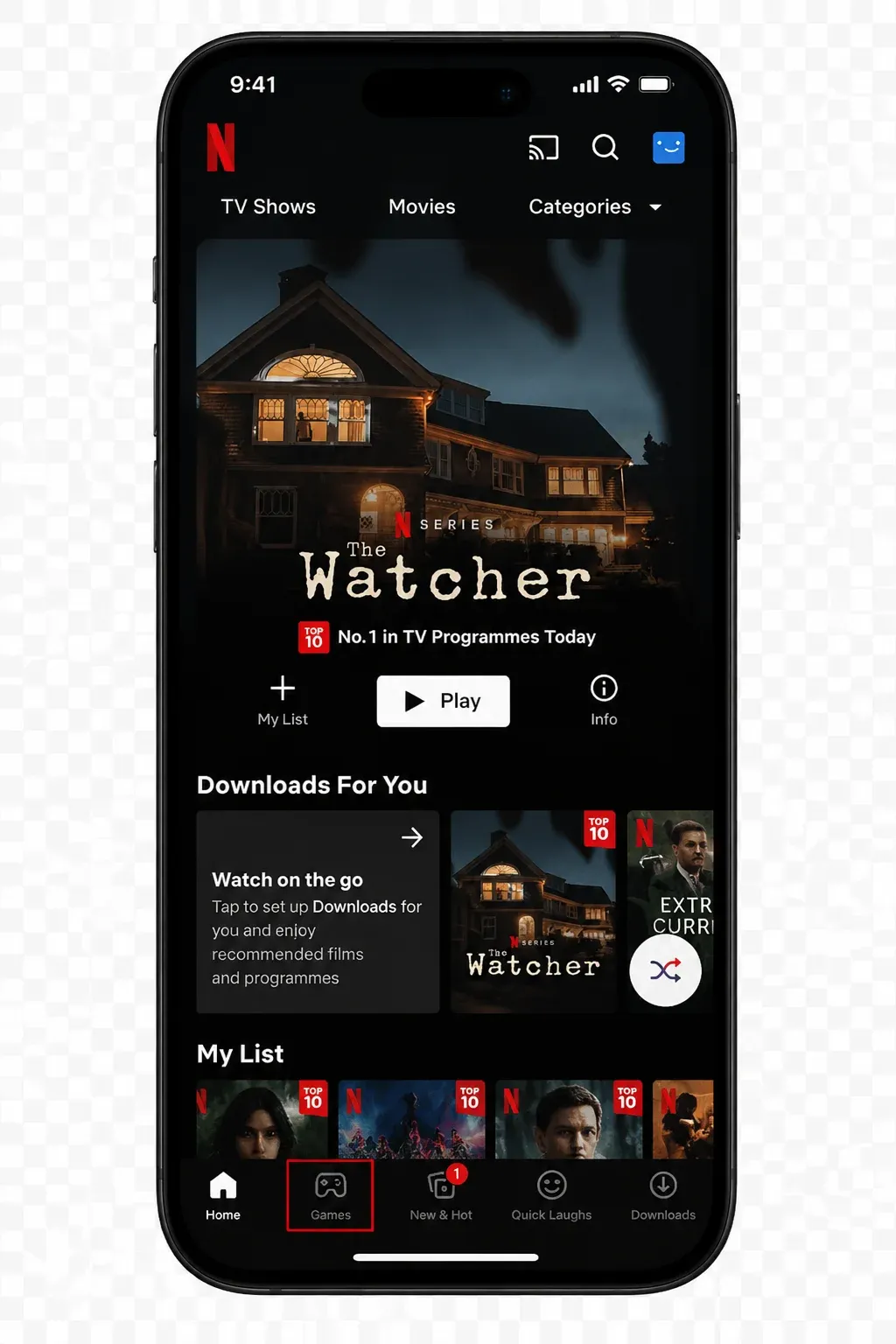
Step 3. Choose a supported game and open it.
Step 4. Scan the QR code on the TV with your phone if Netflix asks you to use the phone as a controller.
Step 5. Keep the phone signed in to the same Netflix account and follow the pairing prompt.
When this works, it can be the easiest option because the TV handles the game display directly and the phone only handles control input.
Where people get frustrated is assuming that a TV with Netflix video support also supports Netflix TV games. That is not always true. You may have a TV that streams shows perfectly but still does not show the Games row. You may also find that only a small set of titles appears there compared with what you see on your phone.
If the title you want is not listed in the TV app, move on. Do not spend twenty minutes digging through menus for a feature your device may not have.
Method 2: Mirror Netflix Games From iPhone or Android
If the game is mobile-only, screen mirroring is often the next thing to try. This puts your Netflix content on the TV, which means you are no longer waiting for Netflix to offer that game natively on the television.
This usually works better for slower games, puzzle games, card games, story games, and party-style titles. It usually works worse for games that depend on tight timing, fast movement, or precise reactions.
You can usually do this with built-in tools such as:
- AirPlay on iPhone or iPad
- Cast on Android or Google TV style setups
- built-in screen mirroring features on some TVs
Step 1. Put your phone and TV on the same Wi-Fi network.
Step 2. Open the TV’s receiving feature if your TV needs it.
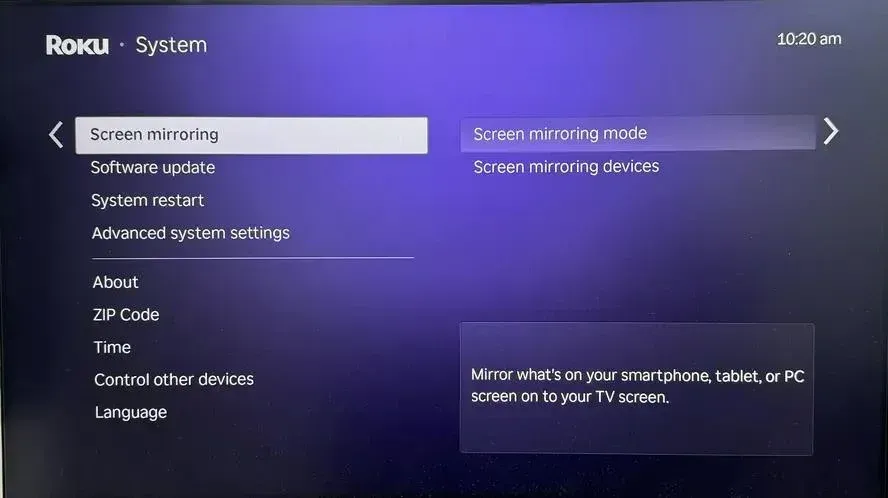
Step 3. Start screen mirroring from your phone.
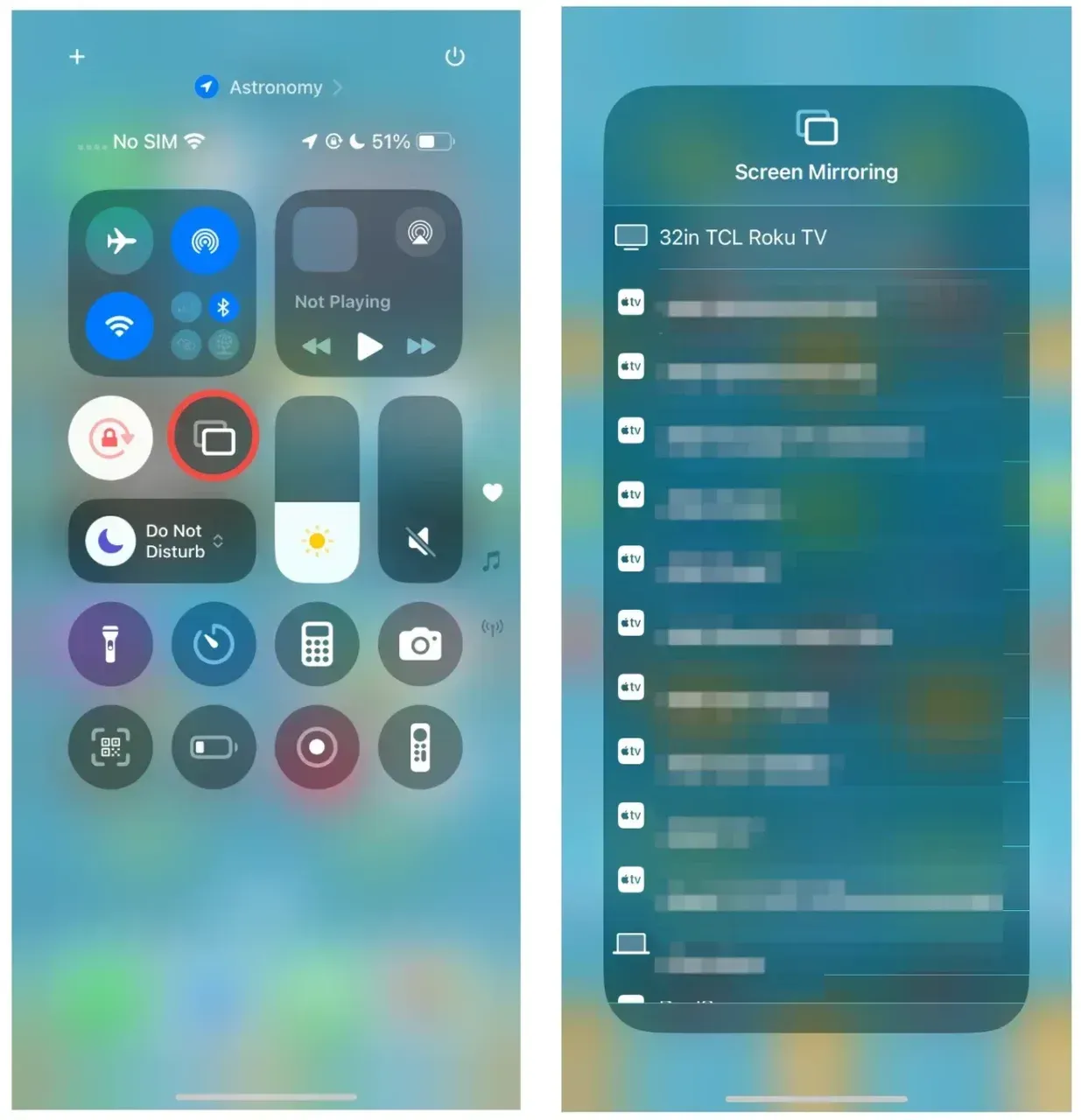
Step 4. Open the Netflix game on your phone.
Step 5. Test how the game feels, not just whether it appears on the screen.
That last part matters. A mirrored game can look sharp on the TV and still feel bad in your hands. The picture may arrive a fraction late, and that small delay is enough to make a racing game feel loose or a rhythm game feel off.
If you only want to get a mobile Netflix game onto a larger screen for casual play, mirroring is often good enough. If the image shows up but the controls feel slow, switch methods instead of trying the same setup over and over.
Method 3: Try a Third-Party Screen Mirroring App
A third-party screen mirroring app can help when the TV’s own casting is unstable, when different devices do not work well together, or when you want to try another tool besides AirPlay, Chromecast, or the TV’s built-in mirroring. PigeonCast is one example.
Step 1. Install a third-party screen mirroring app such as PigeonCast on the phone you want to use and open it.


Overall Rating:



Step 2. Install PigeonCast receiver app on your TV from the app store and open it.
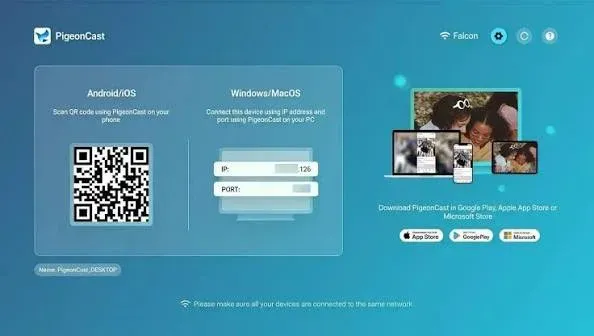
Step 3. Make sure both devices are on the same local network for the first test.
Step 4. Choose the receiver on your phone or scan the QR code using your phone.
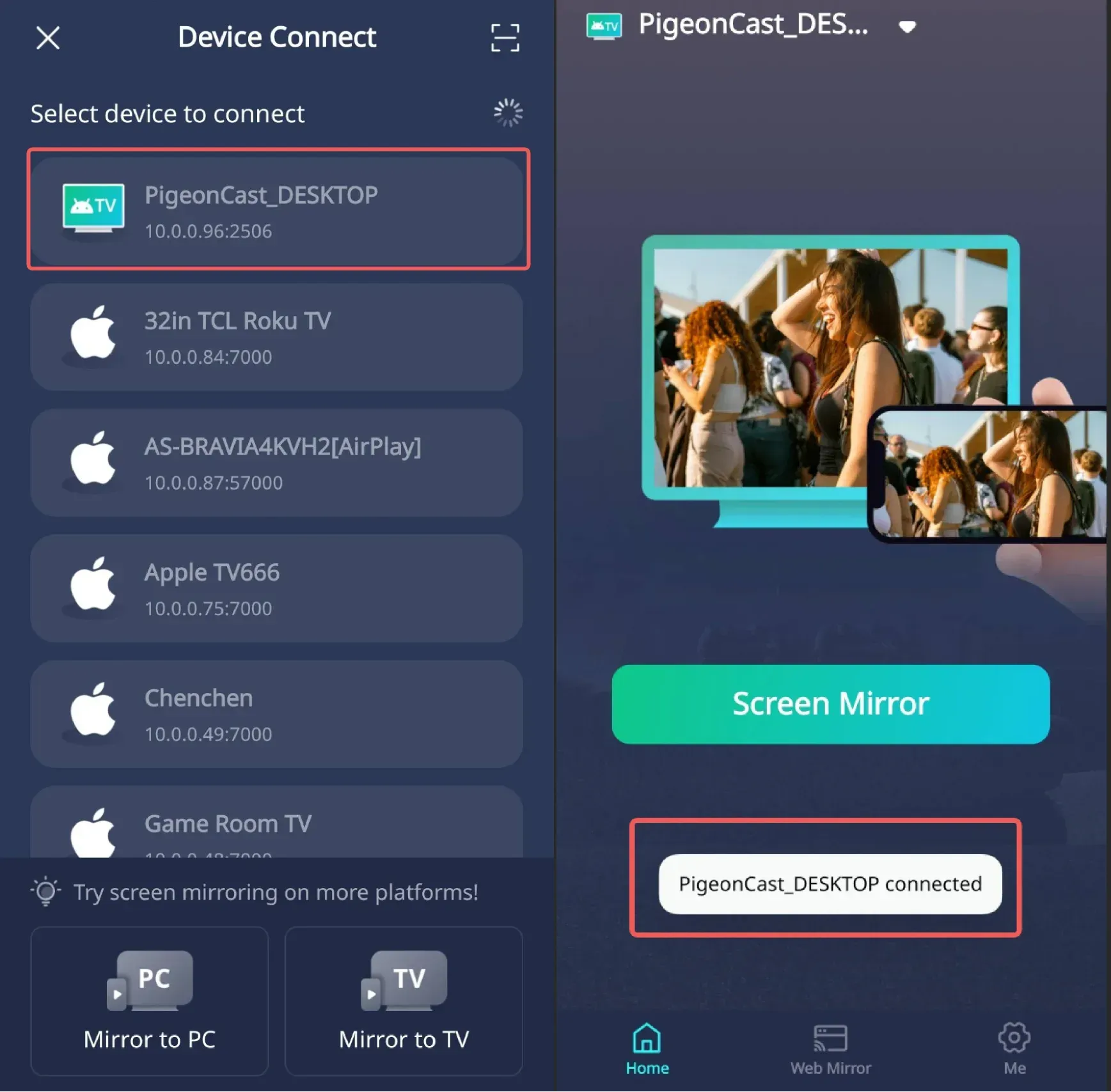
Step 5. Open the Netflix game on your phone and check how it feels on the TV.
Compared with AirPlay or Chromecast, a third-party tool may work better on some TVs and worse on others. Compared with HDMI, it is more convenient, but it can still have delay or occasional stutter.
Method 4: Use HDMI or USB-C for the Most Reliable Game Feel
If control feel matters more than convenience, this is often the strongest option.
A wired connection removes a lot of the uncertainty that comes with wireless mirroring. You are not depending as much on Wi-Fi quality, TV discovery, pairing glitches, or extra delay from screen duplication. That is why HDMI or USB-C video output is often the first thing to try for action-heavy games.
This option usually works better for racing games, action games, rhythm games, platformers where timing matters, and any game that felt fine on the TV visually but bad once you started playing
The setup depends on your phone:
- some Android phones support USB-C video output directly
- some iPhones and iPads can connect through the right adapter
- some devices need a dock or specific cable standard to output video properly
In practice, the steps are usually:
Step 1. Connect the phone to the TV with the right cable or adapter.
Step 2. Switch the TV to the correct HDMI input.
Step 3. Open the Netflix game on the phone.
Step 4. Turn on Game Mode on the TV if it is available.
Step 5. Judge the result by control feel as much as picture quality.
This is not the neatest living-room setup, but it is often the least disappointing one when the game demands quick reactions.
When Netflix Games Not Playing on TV
Here are the most common mismatches between expectation and reality:
Your TV does not show a Games row
This may mean your device does not support Netflix TV games yet, the feature has not reached that device, or Netflix is not exposing it in your region or setup. In that case, stop looking for a hidden switch and move to phone-based play instead.
The game exists only on mobile
Some Netflix games are still designed mainly for phones and tablets. If that is the case, you are not missing a setting on the TV. You simply need a different method, such as mirroring, a third-party screen mirroring tool, or HDMI.
The TV supports Netflix video but not Netflix TV games
This is a big one. A smart TV can support Netflix streaming for movies and shows and still not support the newer TV games feature. Video support and game support are not the same thing.
Mirroring works, but the controls feel slow
That usually means the connection succeeded but the play experience did not. For slower games, you may decide it is still fine. For anything faster, it is usually smarter to move to HDMI instead of trying endless minor fixes.
Troubleshooting Netflix Games on TV
If the basic methods above are not working, start with the issue you actually have instead of resetting everything at once.
Netflix does not show the Games row on TV
Check whether your TV or streaming device is updated, then restart the Netflix app. If the Games row still does not appear, assume that device does not support Netflix TV games for now and use a phone-led method instead.
The QR code will not pair with your phone
Make sure the phone camera opens the correct Netflix prompt and that the phone is signed in to the same account you are using on the TV. If pairing still fails, close the app on both devices and try again. If it keeps failing, move on to mirroring or HDMI instead of getting stuck there.
Your phone and TV are not connecting
Put both devices on the same Wi-Fi network and make sure local network permissions are allowed on the phone if your device asks for them. If the TV still does not appear, the problem may be with the TV’s receiver support rather than the phone itself.
The picture is on the TV, but the controls feel delayed
Try turning on Game Mode on the TV first. If that does not help enough, wireless play may simply be the wrong fit for that game. A cable is usually the cleaner answer at that point.
The game runs on the phone but not on the TV
That often means the title is mobile-only, or the TV does not support the Netflix Games feature you expected. It is not always a bug. Sometimes the game is simply not meant to launch natively on that device.
If you also run into casting-specific issues while testing video apps on the same TV, this guide on Netflix not showing Cast icon can help narrow down whether the problem is network-related or device-related.
Conclusion
The most practical answer to how to run Netflix Games on TV is to start with the Netflix app on the TV itself, because that is often the simplest option when the game supports it. But many Netflix games are still better understood as mobile games, not full TV games.
When that happens, choose the method based on how you plan to play. Mirroring is often enough for slower games. A third-party screen mirroring app such as PigeonCast may help when the TV’s own casting is unreliable or your household mixes device types. HDMI or USB-C is often the stronger choice when the game needs quick response and steady control feel.
Do not judge the setup only by whether the game appears on the screen. Judge it by whether it still feels good once you actually start playing.
How to Get Netflix Games on TV FAQ
Can you play Netflix Games directly on a smart TV?
Yes, some Netflix games can be played directly on a smart TV or supported streaming device. The catch is that only certain titles and certain devices support the newer TV games feature, so you should not assume the full mobile catalog will appear there.
Why do I not see Netflix Games on my TV?
The most likely reason is that your TV or streaming device does not support Netflix TV games, even if it supports normal Netflix video playback. App updates, device support, and game availability all matter, so missing games do not always mean something is broken.
Can I mirror Netflix Games from my phone to my TV?
Yes, in many cases you can mirror Netflix games from a phone to a TV. This works best for slower games that are not very sensitive to delay. If the game needs fast reactions, a wired connection usually feels much better than wireless mirroring.
Do all Netflix mobile games work on TV?
No. Some newer Netflix games are designed for TV play on supported devices, but much of the broader Netflix Games catalog is still built around phones and tablets. That is why some titles need mirroring or a cable instead of the TV app.
Why is there no Games tab on Netflix on my TV?
The Games tab may be missing because Netflix Games is only supported on select TVs and streaming devices. Even if Netflix works for shows and movies, game support is separate. If you don’t see it, your device likely isn’t supported yet. You can still play via phone and use mirroring or HDMI.
Mia Clarke is a technology editor specializing in screen mirroring and casting solutions across multiple platforms. Mia provides clear, practical guides and in-depth insights to help users seamlessly connect their devices. Passionate about enhancing digital experiences, Mia is dedicated to keeping readers updated on the latest trends and tools in cross-platform screen sharing. Whether you’re looking to mirror your smartphone, laptop, or smart TV, Mia’s content delivers reliable, user-friendly advice to simplify your tech setup.