
We've all been there: you've found the perfect movie on your iPhone, you tap the AirPlay icon, and... nothing. Or worse, you get the audio of a high-octane chase scene while staring at a pitch-black screen.
The short answer to "Can you AirPlay Netflix to TV?" is a frustrating "sometimes". While it works seamlessly for some Apple TV and AirPlay 2-compatible setups, many users hit a brick wall of DRM (Digital Rights Management) and app restrictions. Here is a deep dive into why this happens and how to actually get your show on the big screen.
How to AirPlay Netflix from iPhone and Mac
To successfully AirPlay Netflix to TV, you need a digital "handshake" between three players: your sending device (iPhone, iPad, or Mac), your receiving display (Apple TV or AirPlay 2 Smart TV), and Netflix's own strict security protocols.
If your hardware is compatible, follow these steps:
Step 1. Ensure your iPhone/Mac and TV are on the same Wi-Fi band (5GHz is preferred for 4K).
Step 2. Outdated Netflix apps or TV firmware are the first cause of handshake failures.
Step 3. Open Netflix on your device and start the video before tapping the AirPlay icon.
Step 4. Choose your Apple TV or AirPlay 2-compatible display.
Step 5. Give the stream about 60 seconds to "settle". AirPlay often starts in low resolution and scales up to HD or 4K once the connection stabilizes.
Why Does AirPlay Show a Black Screen on Netflix?
Netflix AirPlay black screen usually isn't a Wi-Fi problem; it's a DRM mismatch. Netflix uses high-level encryption to ensure content isn't being illegally recorded. If the TV or the receiver doesn't "prove" to Netflix that it is a secure, licensed device, the video signal is cut, leaving you with just the audio.
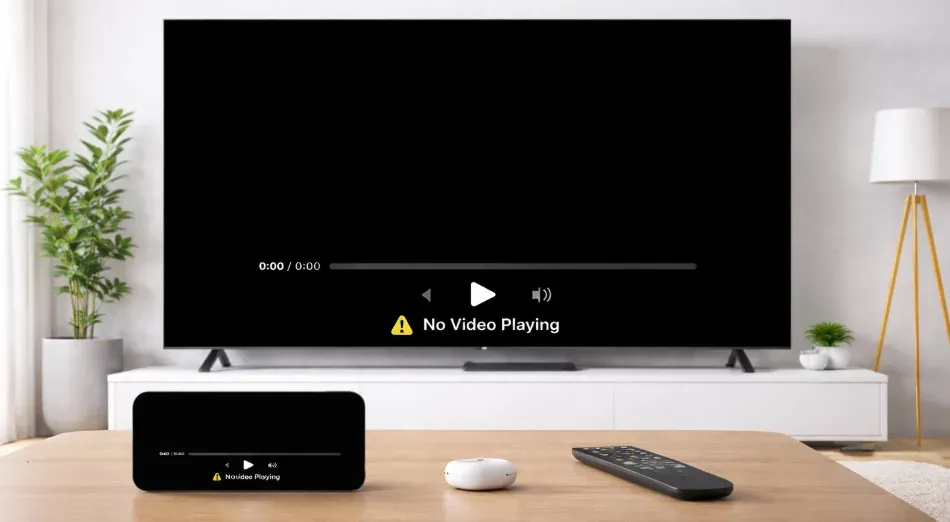
This is also where the confusion between AirPlay and Screen Mirroring begins. Standard AirPlay sends a video URL to the TV, while Screen Mirroring duplicates your phone's screen. Netflix often blocks the latter to prevent piracy, which is why your TV might show your phone's interface but turn black the moment the movie starts.
Troubleshooting Netflix AirPlay Not Working
Before you give up and settle for a 6-inch screen, it's important to understand that AirPlay failures are rarely "random". They are usually the result of a failed digital handshake. Try these steps to reset that connection:
Step 1: Toggle AirPlay in Your TV Settings.
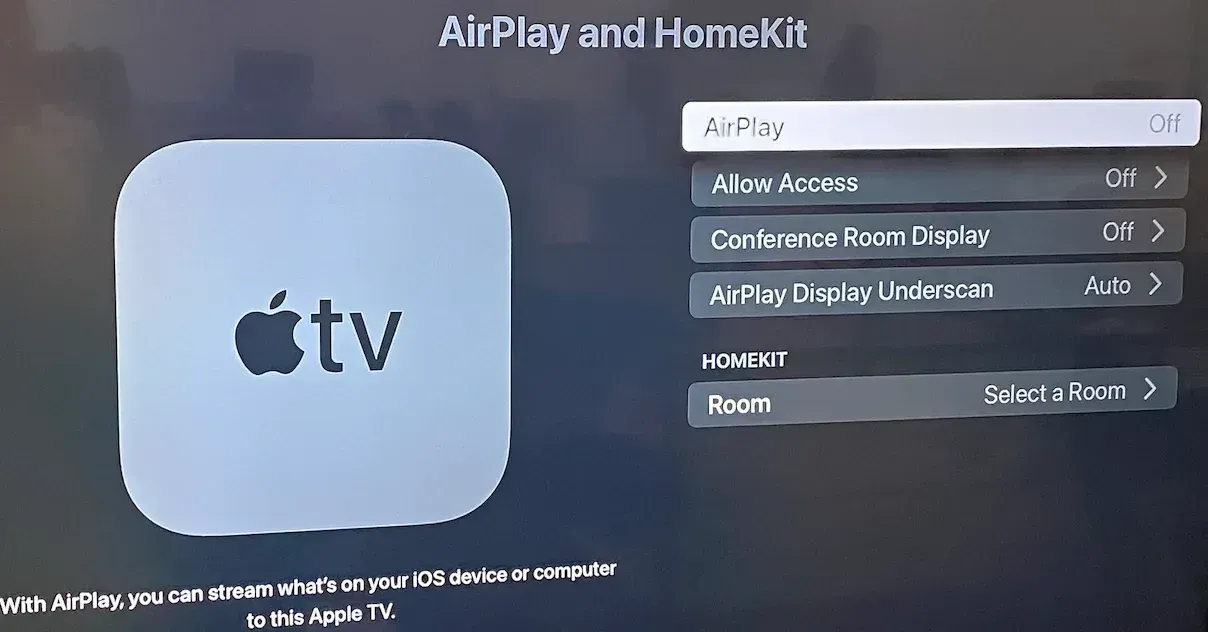
AirPlay relies on a discovery protocol called Bonjour. Over time, the "listener" service on your Smart TV can become unresponsive or "hang". By toggling the setting, you force the TV to broadcast its availability again, clearing out any stalled network requests that were preventing your iPhone from seeing the display.
So, turn AirPlay off and back on within your TV's service menu.
-
Go to the TV's Settings menu.
-
Find AirPlay and HomeKit.
-
Switch AirPlay to Off.
-
Switch AirPlay to On.
Step 2: Disable Active VPNs and Proxies.
Netflix is notoriously aggressive toward location-spoofing. When you use a VPN, your "virtual" IP address may not match the local IP handoff required by AirPlay. If Netflix detects a mismatch between your phone's encrypted tunnel and your TV's local connection, it will trigger a DRM (Digital Rights Management) block, killing the stream to protect licensing agreements.
Therefore, ensure all VPNs or custom DNS tools are turned off on both your sending device and your router.
Step 3: Clear the Cache with a Full Restart.
Streaming apps store "tokens" to remember your session. If a token becomes corrupted or expires during an AirPlay handoff, the video won't load. A full restart flushes the RAM (Random Access Memory) on your TV and generates a fresh security token, often resolving "Black Screen" issues where the audio plays but the video is stuck in a loop.
When running into the AirPlay Netflix not working issue, restart the Netflix app and perform a "cold boot" on your television (unplugging it for 30 seconds works best).
The Final Hurdle: Geographic Licensing.
If you've followed every step and the video still refuses to play, the issue is likely Regional Licensing. AirPlay cannot bypass "Geofencing". If a movie is licensed for your phone's apparent location but not for the hardware profile of your TV or receiver, Netflix will prioritize the stricter license and block the playback path entirely.
The Best AirPlay Alternative: Using PigeonCast for Better Compatibility
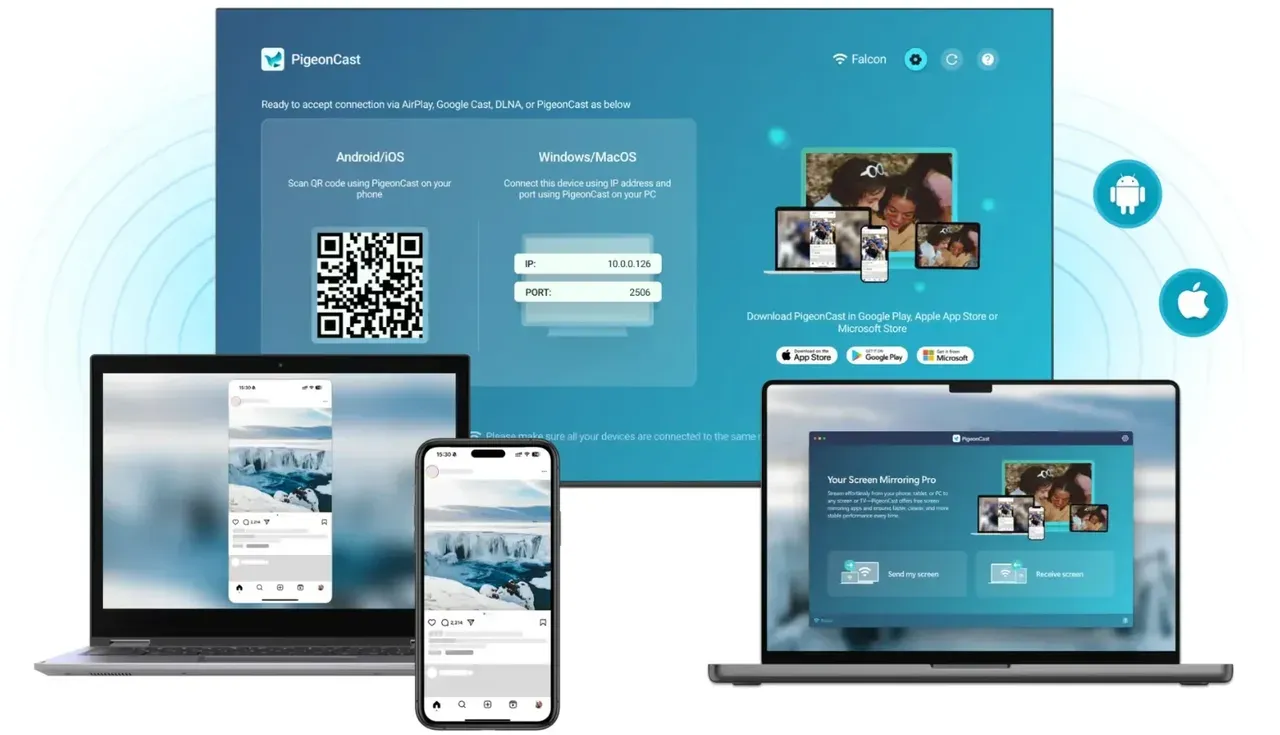
If you've tried every setting and Netflix still won't play, you likely need a more flexible bridge than Apple's native protocols. This is where PigeonCast comes in. It is a dedicated screen mirroring app that supports AirPlay but offers a more robust path for video data. It is specifically designed to help when:
-
Your Smart TV partially supports AirPlay but fails to hand off Netflix video.
-
You are experiencing the "audio-only" glitch on older receivers.
-
You need a more stable connection across different platforms without the standard Apple-only limitations.
By using an app like PigeonCast, you can often bypass the device-specific "handshake" errors that plague the default iOS menu, providing a much more reliable way to mirror your favorite shows to the big screen.
How to use PigeonCast for screen mirroring:
Step 1. Download and install PigeonCast from the app store on your phone, laptop, and TV.


Overall Rating:


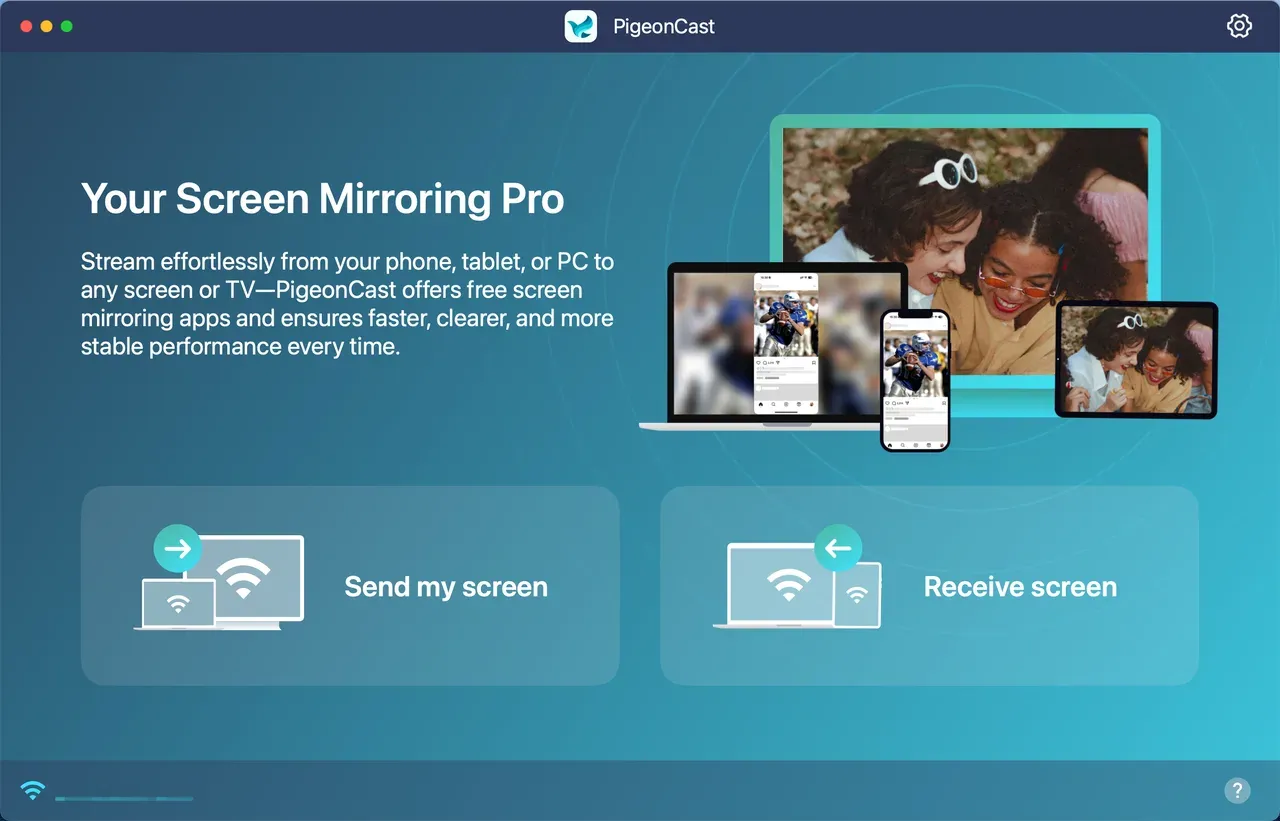
Step 2. Ensure your Apple device and TV are connected to the same Wi-Fi network.
Step 3. Launch the screen mirroring on both your devices.
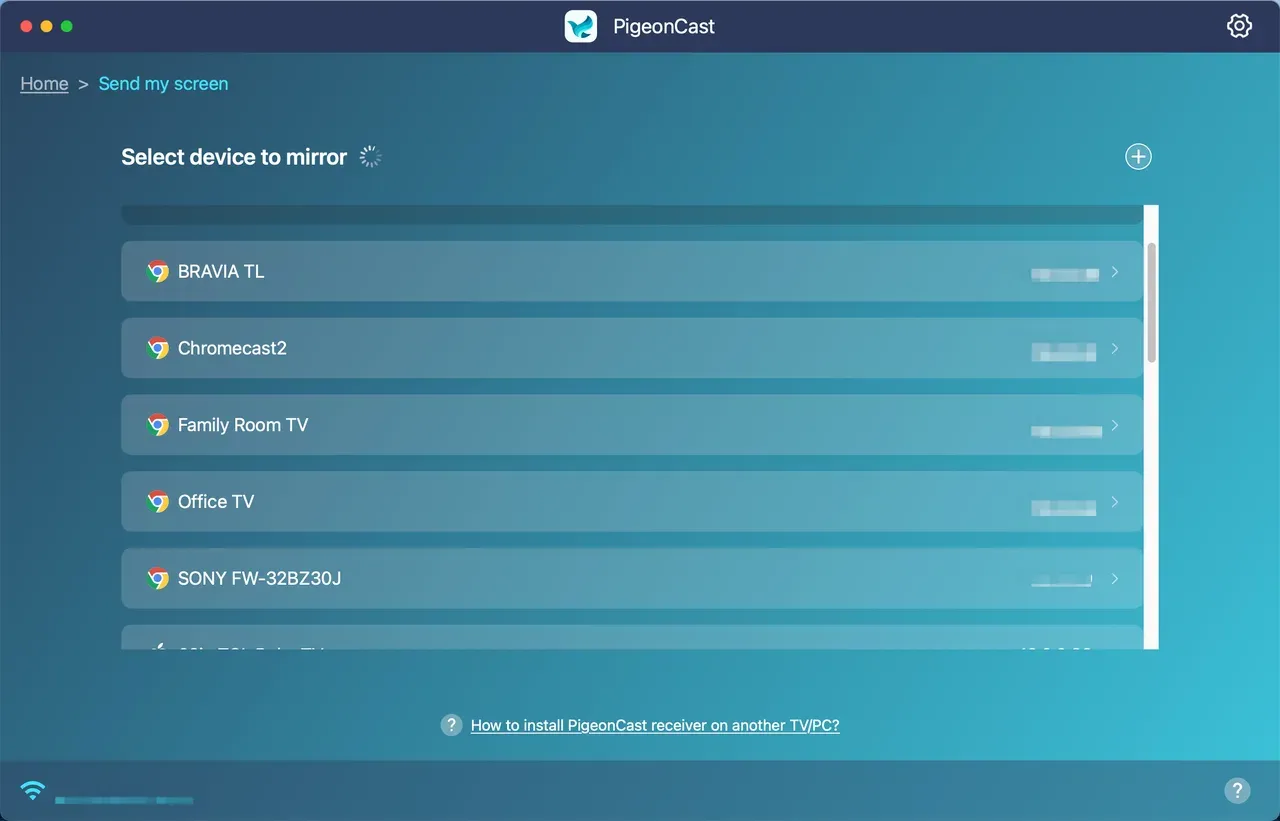
Step 4. On your phone or laptop, choose your TV from the device list.
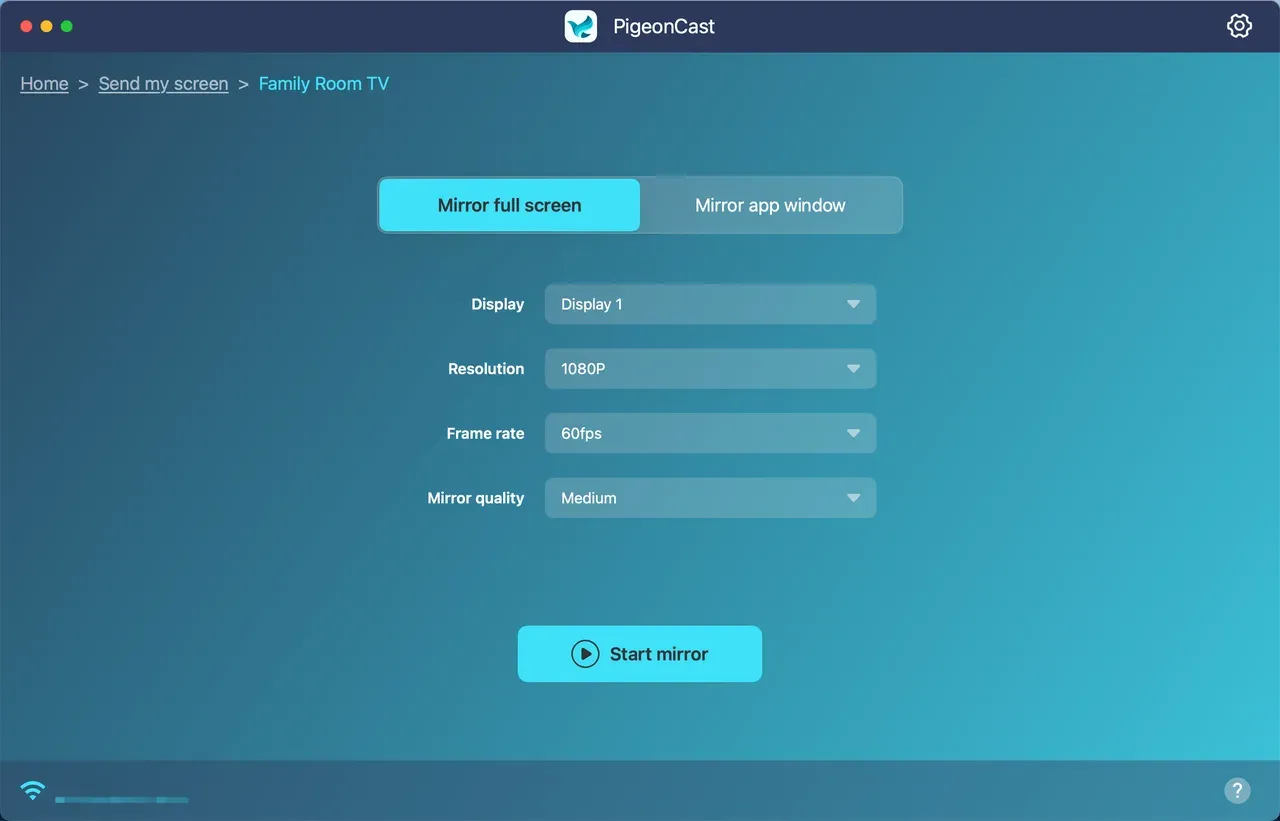
Step 5. Start mirroring.
Final Verdict
You can AirPlay Netflix from your Apple device. While AirPlay is convenient, it is a fragile bridge. If you have a modern Apple TV 4K and a brand-new iPhone, your experience will likely be flawless. For everyone else, the road is paved with compatibility warnings.
The Golden Rule: Use the native TV app first. If that's not an option, use a specialized tool like PigeonCast to stabilize the mirroring path. As a final fail-safe, a physical HDMI adapter will always bypass the wireless drama.
Can you AirPlay Netflix FAQ
Can you AirPlay Netflix from iPhone?
Yes, on some supported devices. But if the TV or AirPlay route is not compatible, the stream may fail or show audio only.
Can you AirPlay Netflix to Roku?
Only if the Roku TV supports AirPlay 2 and Netflix playback through that path. Many smart TVs work better with the built-in Netflix app.
Why is Netflix black on AirPlay?
A black screen usually means the video handshake failed. The most common causes are DRM restrictions, outdated firmware, or a mismatched display path.
Does screen mirroring work better than AirPlay?
Not always. Screen mirroring can trigger the same protection limits as AirPlay, and it may look worse than a direct app-based stream.
What should I do if Netflix still will not play?
Use the TV's native Netflix app or connect by HDMI. Those are the two most reliable fallback options.
Does AirPlay work for offline Netflix downloads?
Generally, no. Netflix's DRM usually requires an active internet check to authorize video output to a secondary screen.
Why is my AirPlay quality so blurry?
This is usually bitrate switching. If your Wi-Fi is congested, AirPlay drops resolution to prevent buffering. Moving your router closer or using a 5GHz connection usually fixes this.
Mia Clarke is a technology editor specializing in screen mirroring and casting solutions across multiple platforms. Mia provides clear, practical guides and in-depth insights to help users seamlessly connect their devices. Passionate about enhancing digital experiences, Mia is dedicated to keeping readers updated on the latest trends and tools in cross-platform screen sharing. Whether you’re looking to mirror your smartphone, laptop, or smart TV, Mia’s content delivers reliable, user-friendly advice to simplify your tech setup.