
Listening to music through your TV is one of the easiest ways to fill a room with sound without buying additional speakers. Modern smart TVs support a wide range of music services, including Spotify, YouTube Music, Apple Music, Pandora, Amazon Music, Tidal, and Deezer. Many TVs also include AirPlay, Chromecast, Bluetooth, USB playback, and HDMI connectivity, giving you multiple ways to stream audio from your phone, tablet, or computer.
Whether you want to play a relaxing playlist during dinner, stream a workout mix, host a party, or enjoy better sound through a connected soundbar, your TV can often serve as a surprisingly capable music player.
No matter whether you own a Samsung, LG, Sony, TCL, Hisense, Roku TV, Fire TV, or Android TV, this guide covers the easiest ways to play music on TV, explains which method works best in different situations, and helps you troubleshoot common audio problems when music will not play.
Quick Answer to Play Music on TV
- If you want to play music on TV, the easiest method is to use a built-in music app such as Spotify, YouTube Music, Apple Music, Pandora, or Amazon Music directly on your smart TV.
- If the app is unavailable, you can stream music from your phone using AirPlay, Chromecast, Bluetooth, or a screen mirroring app.
- For the most reliable connection, connect a computer with HDMI, while USB playback works well for locally stored MP3 files.
Most users get the best experience by starting with a native TV app and then switching to phone-based streaming when they want easier playlist control.
What You Need Before You Start
Before you try to play music on TV, check a few basics so you do not waste time on a method your setup cannot use.
Look at these points first:
- the device you want to control playback from, such as a phone, tablet, or laptop
- whether your TV supports AirPlay, Chromecast, Bluetooth, USB playback, or HDMI audio
- whether your phone and TV are on the same Wi-Fi network for casting
If your TV already has the music app built in, use that first. It is usually the fastest way to listen to music on TV because you do not need to connect another device.
Many modern TVs support several playback methods at the same time. For example, a Samsung Smart TV may offer Spotify Connect, Bluetooth audio, AirPlay 2, and USB playback simultaneously. Knowing which options your TV supports can save time and help you choose the most reliable setup.
If you regularly stream music, check whether your TV supports:
- Spotify
- YouTube Music
- Apple Music
- Amazon Music
- Pandora
- Deezer
- Tidal
The more services your TV supports natively, the less often you will need casting or screen mirroring.
The Easiest Built-In Ways to Play Music on TV
Built-in TV apps are the best starting point because they keep everything on one screen. Spotify and YouTube Music are available on many smart TV platforms, while Apple Music support continues to expand across Samsung, LG, Roku, and other major brands.
For most people, native apps provide the best balance of convenience, sound quality, and reliability. Instead of routing audio through another device, the TV connects directly to the streaming service. This reduces connection issues and allows playback to continue even if your phone is locked or leaves the room.
Step 1. Turn on the TV and open the app store or home screen.
Step 2. Look for the music service you want to use, such as Spotify, YouTube Music, Pandora, or Apple Music.
Step 3. Install the app if it is not already on the TV.
Step 4. Sign in to your account.
Step 5. Choose a playlist, album, or station and start playback.
If the TV does not offer the app you need, or the app feels slow, move to phone casting next.
How to Play Music From Phone to TV
Using a phone is often the most convenient option because it lets you browse playlists, search for songs, and control playback from anywhere in the room.
Popular apps such as Spotify, Apple Music, YouTube Music, SoundCloud, Pandora, and Amazon Music all support some form of TV streaming.
Start with AirPlay or Chromecast if available, then use Bluetooth or a screen mirroring app like PigeonCast when native casting is not ideal.
Use AirPlay or Chromecast
AirPlay and Chromecast are usually the best choices when you want simple control from your phone.
Popular music services work well with casting. Because playback often comes directly from the internet instead of your phone, battery usage is lower than full screen mirroring.
For long listening sessions, casting typically provides better stability and audio quality than Bluetooth.
Step 1. Connect your phone and TV, or your streaming device, to the same Wi-Fi network.
Step 2. Open the music app on your phone and start a song.
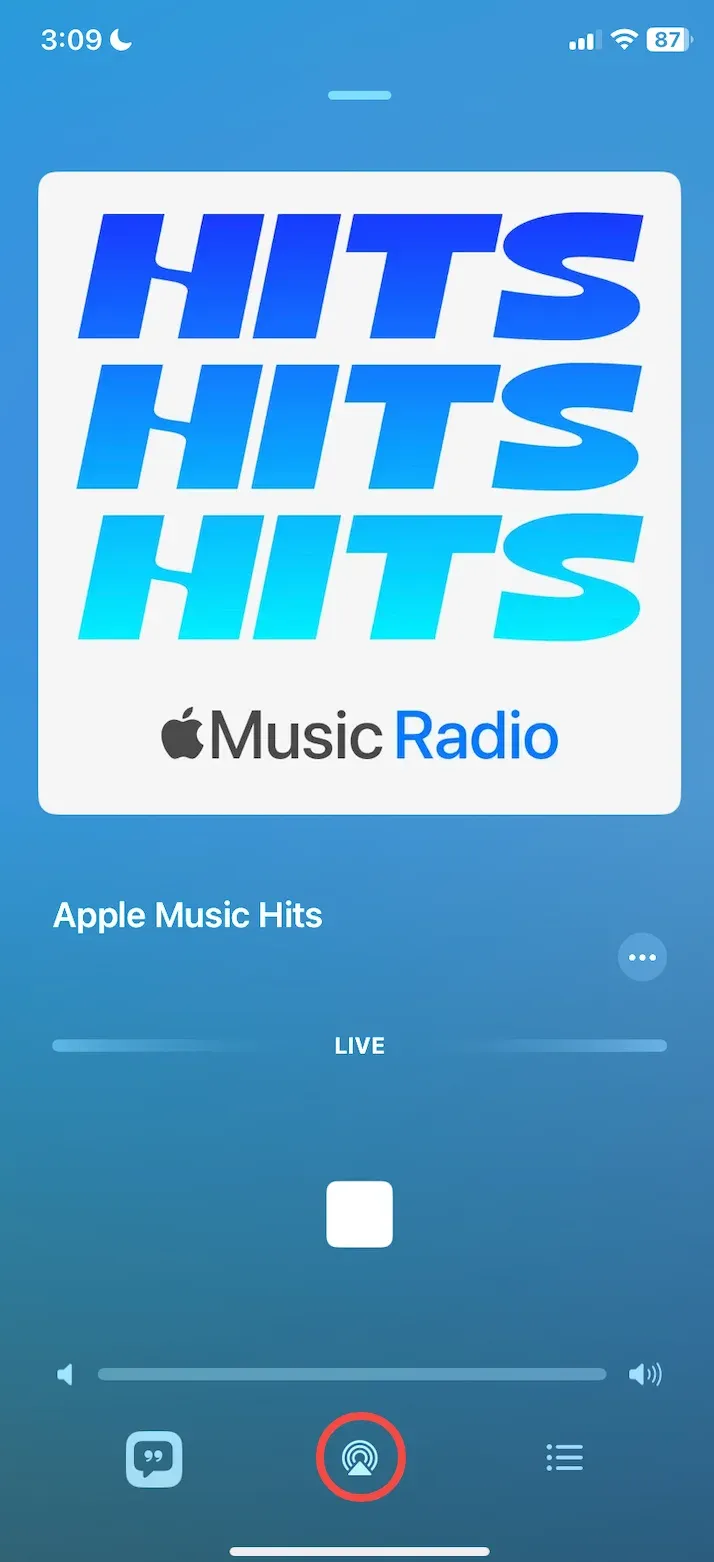
Step 3. Tap the cast or AirPlay button and choose your TV or streaming device.
Step 4. Raise the TV volume and confirm the audio output is set to the TV speakers or your connected sound system.
Step 5. Use your phone to pause, skip, or change playlists.
If your TV never appears after restarting both devices once, stop repeating the same troubleshooting steps. Switch to other methods instead.
Use Bluetooth for Quick Audio
Bluetooth is a good choice when you want to play music from phone to TV without dealing with Wi-Fi settings.
It is especially useful for casual listening. If you simply want to stream a playlist during dinner, listen to a podcast, or play background music during a gathering, Bluetooth pairing usually takes less than a minute.
Keep in mind that Bluetooth quality and stability vary between TV models. Newer televisions often provide better range and sound quality than older models.
Step 1. Open the Bluetooth settings on your TV and turn pairing mode on.
Step 2. Open Bluetooth settings on your phone.
Step 3. Select your TV from the list of available devices.
Step 4. Confirm the pairing request on the TV if prompted.
Step 5. Open your music app and start playback.
Bluetooth works well for casual listening, but it is not always the best long-session choice. If the audio cuts in and out or the TV disconnects after a short time, move to a wired option instead of pairing again.
Use PigeonCast for Flexible Phone-to-TV Streaming
If your TV does not support AirPlay, Chromecast, or the music app you want to use, PigeonCast offers an alternative way to stream content from your phone to a larger screen. It supports both Android screen mirroring and iPhone screen mirroring, making it a useful option when native casting features are unavailable or unreliable.
Unlike traditional casting methods that depend on specific protocols, PigeonCast focuses on screen sharing and browser-based playback, making it useful when native casting options are unavailable or unreliable.
This can be particularly helpful for users who want broader compatibility across different devices or who frequently encounter casting detection issues.
Step 1. Install PigeonCast on your phone and TV.


Overall Rating:



Step 2. Connect your phone and TV to the same Wi-Fi network.
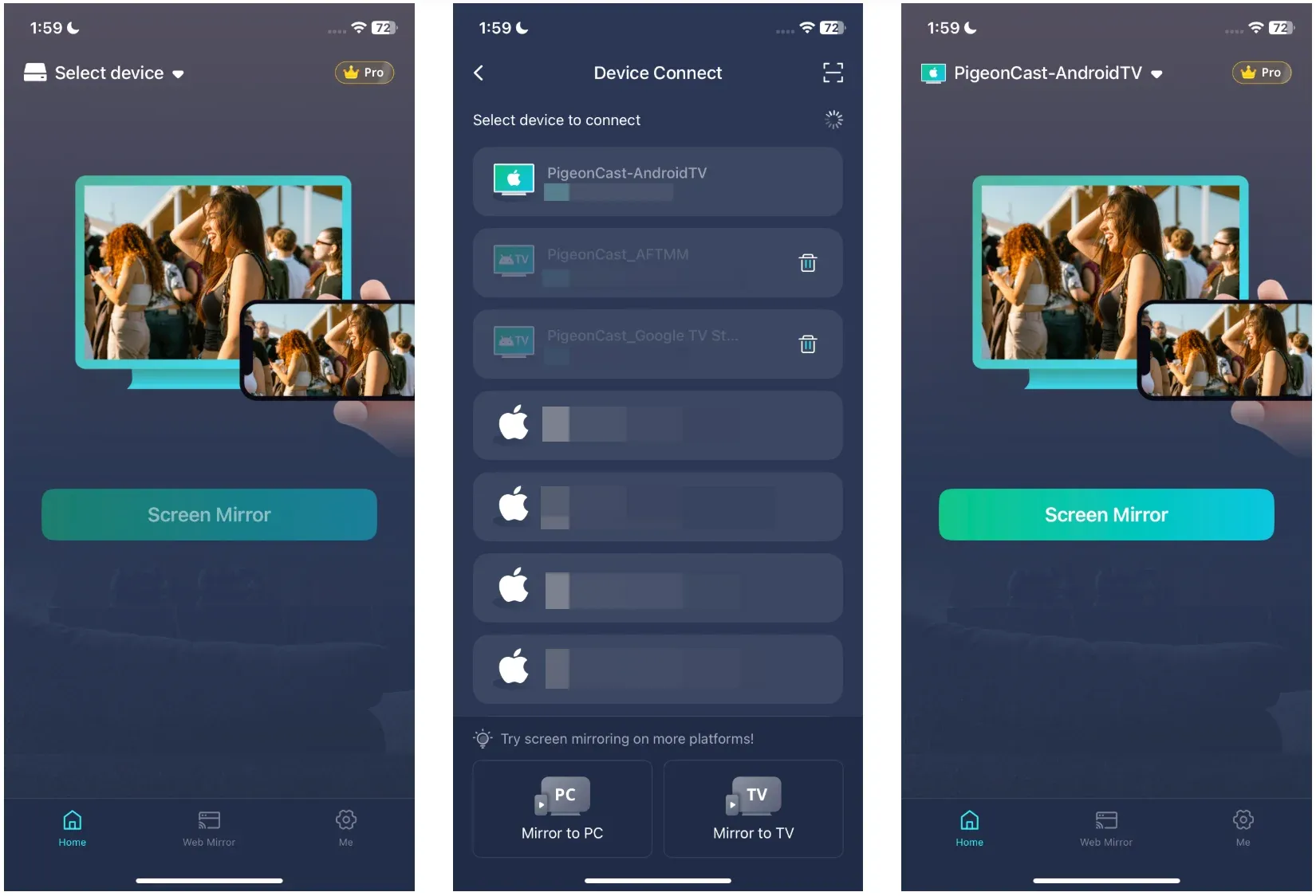
Step 3. Launch PigeonCast on your devices and choose your TV as the target device on your phone.
Step 4. Open the music app you want to use, start playback, and verify that audio is coming through the TV speakers.
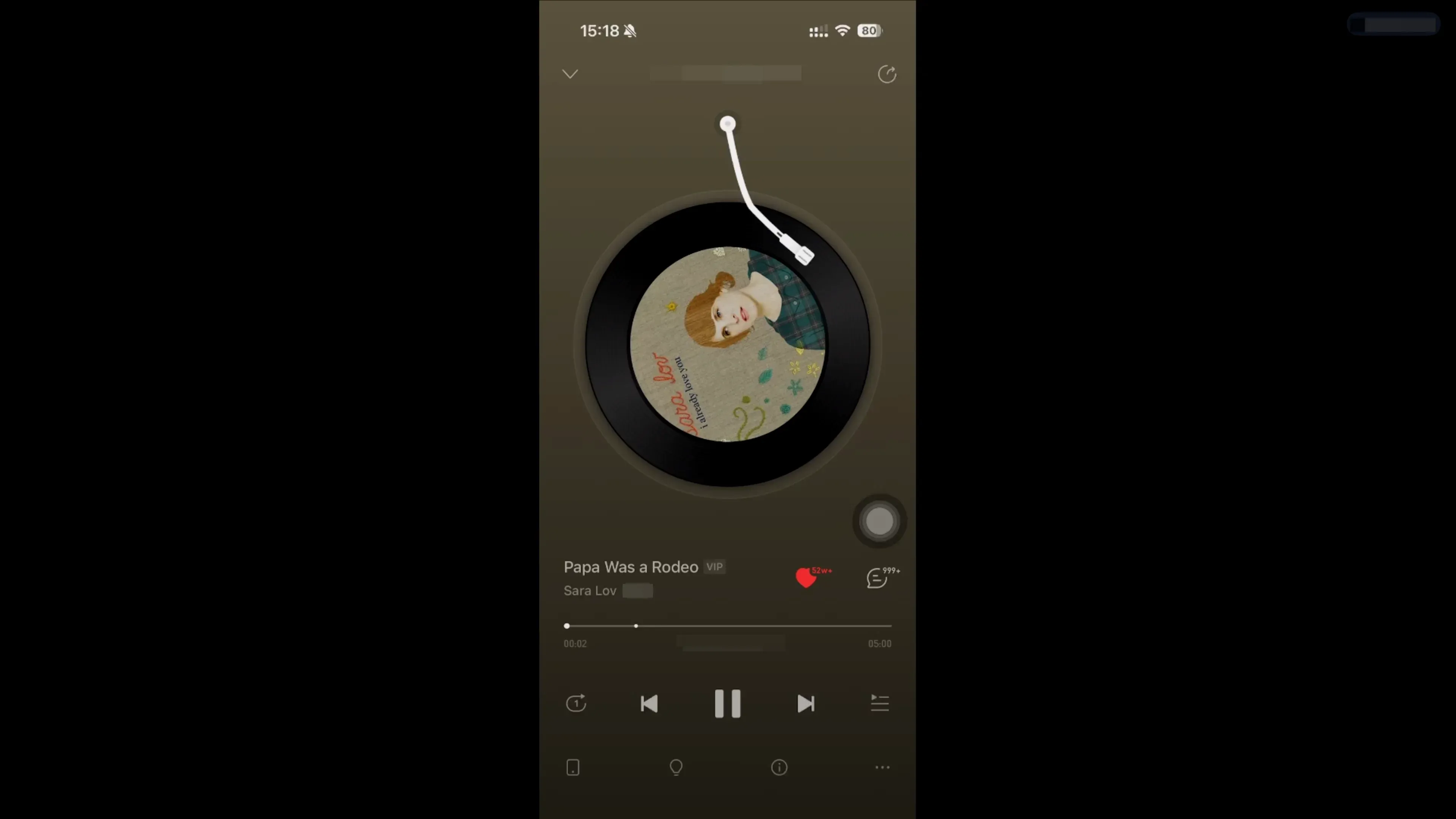
Step 5. Use your phone normally to manage playlists, albums, and volume.
PigeonCast is often best used as an alternative solution when standard casting methods repeatedly fail to detect your TV.
How to Play Music From a Computer or USB to TV
Wired and local file methods make sense when wireless audio keeps failing or when you already have music saved on a laptop or flash drive.
Use HDMI From a Computer
HDMI remains one of the most dependable ways to stream music to TV.
Whether you use Spotify Web Player, YouTube Music in a browser, Apple Music on Windows, or a local music collection, HDMI eliminates most wireless connection problems.
It is also useful for high-resolution audio playback because the connection is not affected by Wi-Fi congestion or Bluetooth interference.
Step 1. Connect your computer to the TV with an HDMI cable.
Step 2. Change the TV input to the matching HDMI port.
Step 3. On your computer, set the TV as the audio output device.
Step 4. Open your music app, browser, or local music player.
Step 5. Start playback and adjust the TV volume.
If you get video on the TV but hear no sound, the computer is still sending audio somewhere else. Open sound settings and switch the output manually to the TV.
Use a USB Drive
USB playback is useful when you have downloaded songs and want to play music on smart TV without another connected device. Many TVs can read common formats such as: MP3, AAC, WAV, WMA, and FLAC (on some models).
This method works particularly well for offline music collections, DJ playlists, and archived audio libraries.
Step 1. Copy your music files to a USB drive.
Step 2. Plug the drive into the TV's USB port.
Step 3. Open the TV's media player or file browser.
Step 4. Find the music folder and choose a song.
Step 5. Start playback and use the remote to skip or pause.
If your files do not appear, check whether the format is supported by your TV.
What to Do If Audio Will Not Play on the TV
Most sound problems come from the same small group of issues: the wrong output is selected, the TV is muted, the devices are on different networks, or the app itself is stuck.
Try these checks in order:
Step 1. Make sure the TV volume is up and mute is off.
Step 2. Check the TV audio output setting. If a soundbar, receiver, or Bluetooth speaker is selected by mistake, switch back to the TV speakers or the system you actually want to use.
Step 3. Restart the music app on your phone, TV, or computer.
Step 4. Restart the TV and the sending device.
Step 5. If you are casting, confirm both devices are on the same Wi-Fi network.
Step 6. If you are using HDMI, confirm the computer output is set to the TV.
Step 7. If you are using USB, try another audio file format.
When one method fails twice in the same way, switch methods instead of repeating the same test. For example, if casting keeps failing to find the TV, use Bluetooth for audio only or HDMI for a steadier connection.
Which Method Should You Use First?
The right method depends on whether you care most about convenience, control, or reliability.
| Method | Best choice for | Main drawback |
|---|---|---|
| Built-in TV app | Quick setup with no extra device | Limited by TV app support |
| AirPlay or Chromecast | Easy phone control | Requires Wi-Fi and compatible devices |
| Bluetooth | Fast audio-only listening | Can have delay or dropouts |
| PigeonCast | Flexible phone-to-TV streaming | Requires additional setup |
| HDMI | Reliable playback from a computer | Requires a cable |
| USB drive | Local music files | File support varies |
Here is the order I recommend:
- Use a built-in TV music app first.
- Use AirPlay or Chromecast for phone control.
- Try Bluetooth for quick audio playback.
- Use PigeonCast if standard casting is unavailable.
- Use HDMI for maximum reliability.
- Use USB for local music libraries.
Conclusion
Playing music on TV is easier than ever thanks to modern smart TV platforms and wireless streaming technologies.
For most people, the best starting point is a native music app such as Spotify, Apple Music, YouTube Music, Pandora, or Amazon Music. These apps usually provide the smoothest experience and require the least setup.
If you prefer controlling playback from your phone, AirPlay, Chromecast, Bluetooth, and PigeonCast all offer convenient alternatives. And when stability matters more than convenience, HDMI remains one of the most dependable solutions available.
The best method ultimately depends on the devices you already own. Once you understand what your TV supports, switching between music sources becomes quick, simple, and frustration-free.
Play Music on TV FAQ
Can I play music on a TV when the screen is off?
In some cases, yes. Certain smart TVs include a screen-off or picture-off mode that allows audio playback while disabling the display. Availability depends on the TV manufacturer and model.
Does playing music through a TV use internet data?
Yes, if you are streaming from services like Spotify, Apple Music, YouTube Music, Pandora, or Amazon Music. Music streaming uses significantly less data than video streaming because there is no high-resolution video involved.
Which TVs work best for music streaming?
Most modern Samsung, LG, Sony, TCL, Hisense, Roku TV, Fire TV, and Android TV models work well for music streaming. App support and audio quality matter more than the specific brand.
Is Bluetooth or Chromecast better for listening to music?
Chromecast is generally better because it offers a more stable connection and often better audio quality. Bluetooth is faster to set up but can be affected by range limitations and interference.
Can I control TV music playback from another room?
Yes. Services such as Spotify Connect, AirPlay, Chromecast, and many smart TV music apps allow remote control from your phone as long as both devices remain connected to the same network.
Why does my TV show album art but no sound?
This usually means playback is working but the audio output is set incorrectly. Check whether sound is being sent to a soundbar, Bluetooth speaker, receiver, or another output device.
Can I play downloaded music files on a smart TV?
Yes. Most smart TVs support USB playback for common audio formats such as MP3, AAC, WAV, and sometimes FLAC. Supported formats vary by manufacturer.
Do I need a smart TV to listen to music through my television?
No. Even older TVs can play music when connected to a computer, streaming device, smartphone adapter, or HDMI source. Smart TV features simply provide more convenient playback options.
Mia Clarke is a technology editor specializing in screen mirroring and casting solutions across multiple platforms. Mia provides clear, practical guides and in-depth insights to help users seamlessly connect their devices. Passionate about enhancing digital experiences, Mia is dedicated to keeping readers updated on the latest trends and tools in cross-platform screen sharing. Whether you’re looking to mirror your smartphone, laptop, or smart TV, Mia’s content delivers reliable, user-friendly advice to simplify your tech setup.