
Apple Music is a fantastic way to access millions of songs, albums, and curated playlists, but sometimes you may want to enjoy your music on a larger screen with better sound. Fortunately, there are several ways to play Apple Music on TV, whether you're using an Apple TV or exploring alternatives.
In this guide, we'll walk you through different methods of playing Apple Music on your TV, without needing an Apple TV, and how to set it up across various platforms. Let's dive into how to play Apple Music on TV.
Method 1: Install Apple Music App
If you have an Apple TV or smart TV, the most straightforward way to play Apple Music on TV is by downloading the Apple Music app directly from your TV's app store. However, not all smart TVs support this feature, so it's important to know which models are compatible.
Which TVs Support the Apple Music App?
Apple Music can be installed on Apple TV and a variety of smart TVs. Here are the models that support the app directly:
- Samsung Smart TVs: How to play Apple Music on Samsung TV? Samsung smart TVs from model years 2018, 2019, 2020, 2021, and 2022: N, R, T, A, and B series) support an Apple Music app.
- LG Smart TVs: Recent LG 4K models running a modern webOS version can have an Apple Music app.
- Sony Smart TVs: Many recent Sony Google TV / Android TV models can install the Apple Music app from the Google Play Store.
- Roku TVs: Can you put Apple Music on Roku? Yes, Roku streaming players and Roku‑branded smart TVs support a native Apple Music channel.
- Fire TV devices: Many Fire TV sticks, Fire TV boxes, and Fire TV Edition smart TVs support a native Apple Music app.
How to Get Apple Music on TV?
Step 1. Open the app store on your Samsung, LG, Sony, or Roku TV.
Step 2. Use the search bar to type in Apple Music and locate the official app.
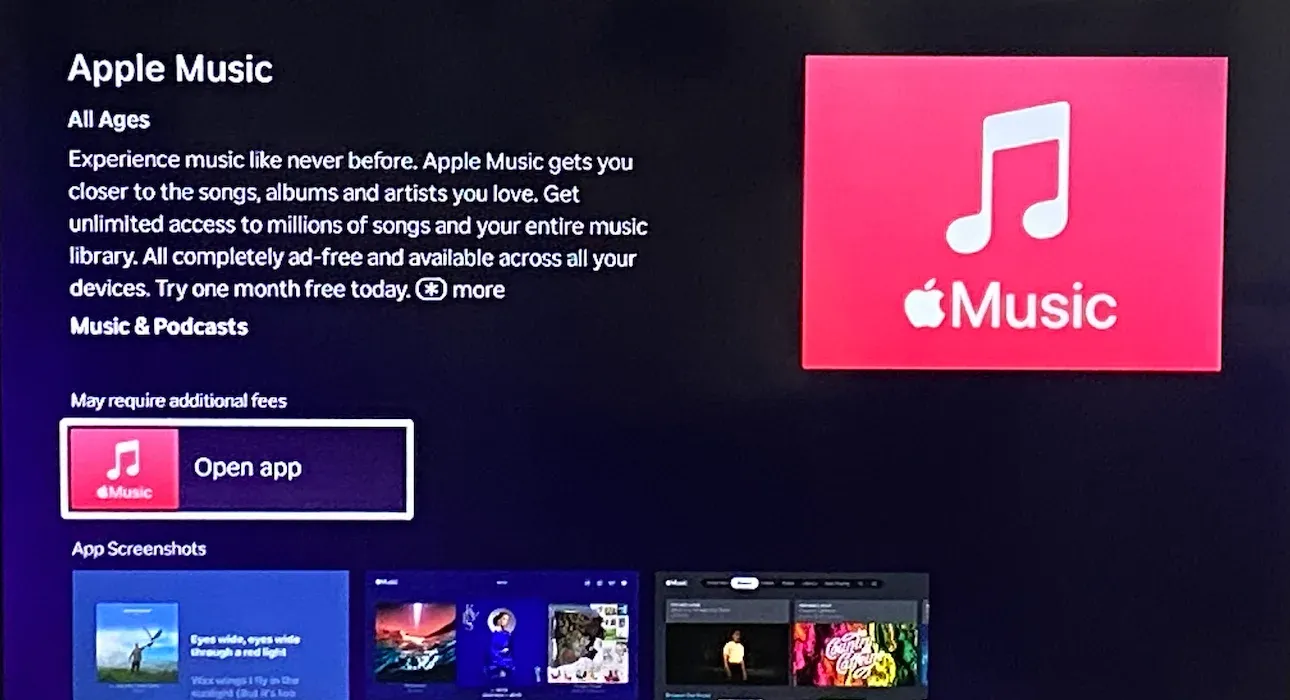
Step 3. Select the Apple Music app from the search results and choose Download or Install to add the app to your TV.
Step 4. Once the app is installed, open it and sign in using your Apple ID.
Step 5. Once signed in, browse your Apple Music library and start playing songs on your TV.
Method 2: AirPlay Apple Music to TV
If you have an Apple TV or an AirPlay-compatible smart TV, you can easily stream Apple Music to your TV without needing to install any additional apps.
This method is perfect for those who want to enjoy Apple Music on their TV but don't have the app installed, or for users who want a quick, seamless way to stream music without additional setup.
With AirPlay, you can wirelessly send music, podcasts, or albums from your iPhone, iPad, or Mac to your Apple TV or AirPlay-enabled TV.
How to Cast Apple Music on TV Using AirPlay?
Step 1. Ensure both your devices are on the same Wi-Fi network.
Step 2. Launch the Apple Music app on your Apple device and start what you want to listen to.
Step 3. Tap the AirPlay icon in the media player on the screen.
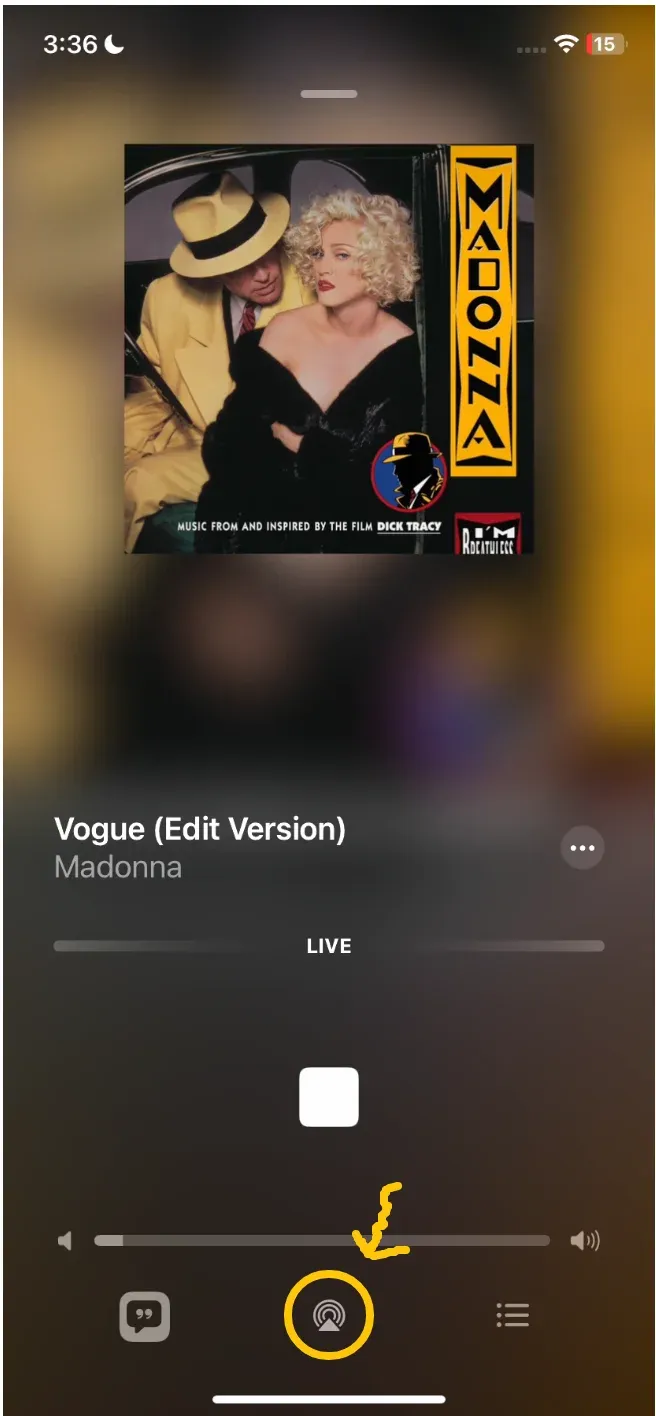
Step 4. Select your Apple TV or an AirPlay-compatible smart TV from the list.
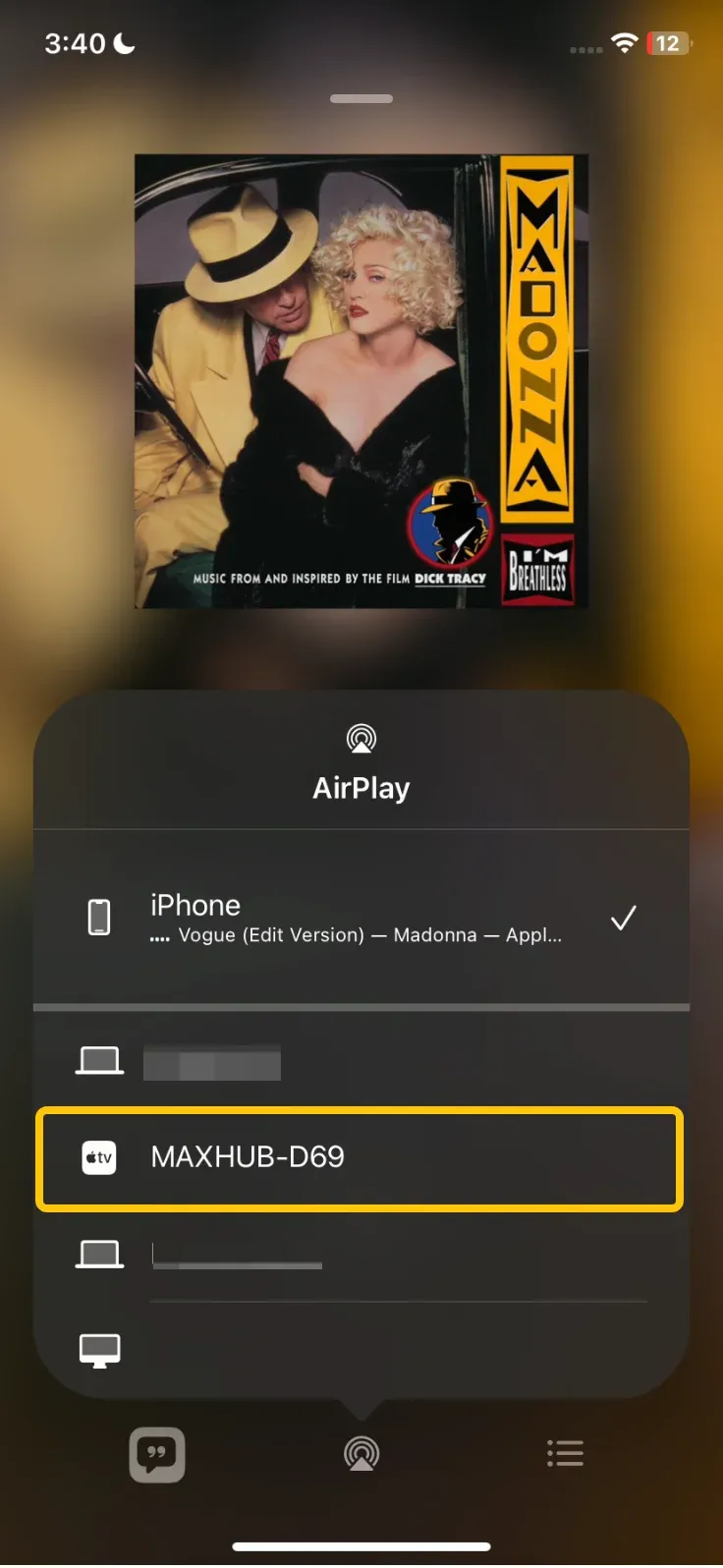
Once selected, your Apple Music will begin playing through your TV's speakers, providing a high-quality audio experience. The music will stream wirelessly without the need for any additional setup or installation.
Method 3: Chromecast Apple Music to TV
If you have a Chromecast or a TV with Chromecast built in, you can stream Apple Music directly to your TV from your Android device or computer.
One of the most convenient aspects of Chromecast is its ability to cast Apple Music from Android devices using the built-in Cast feature. You don't need any additional apps like Google Home, making the process even simpler.
How to play Apple Music on TV without Apple TV?
Step 1. Ensure both your devices are on the same Wi-Fi network.
Step 2. Tap the Cast icon from the Quick Settings on your phone and choose your Chromecast device.
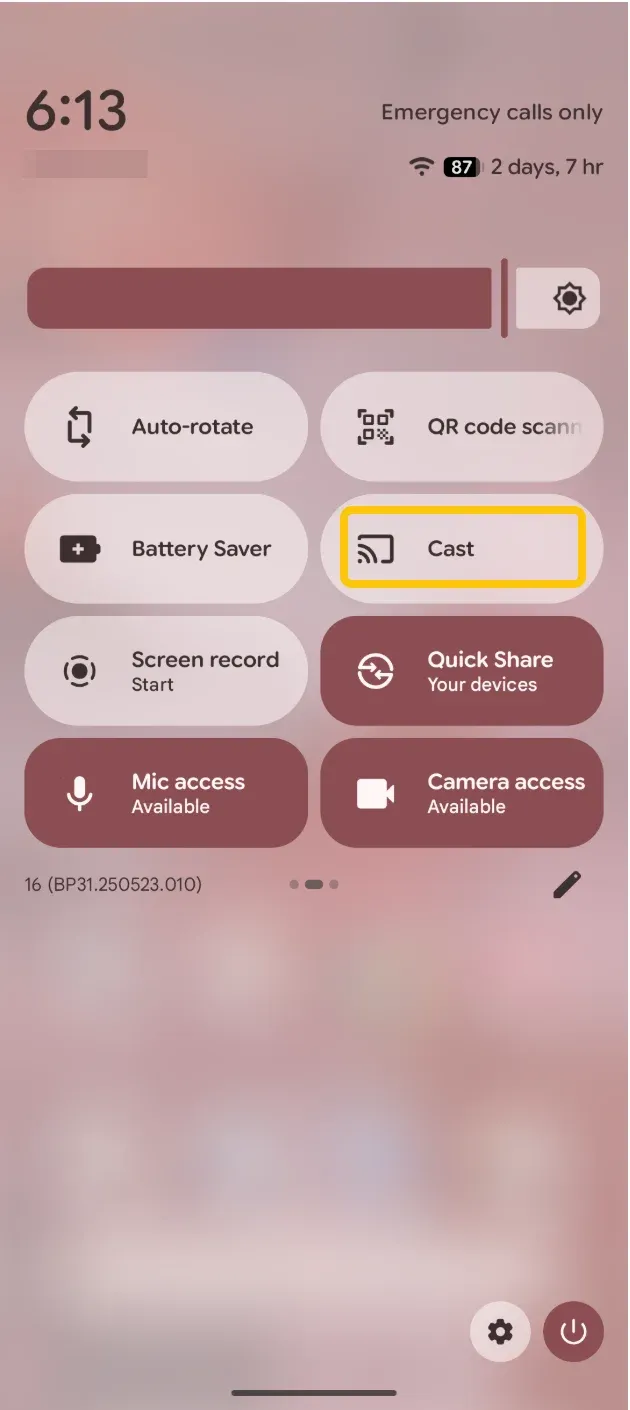
Step 3. Open the Apple Music app on your Android device and play what you want to listen to.
Once your Chromecast is connected, your Apple Music will start playing through your TV's speakers or any connected audio system. Enjoy a better listening experience.
Method 4: Use the PigeonCast App
If you're looking for a versatile, free solution to play Apple Music on TV without needing AirPlay or Chromecast, PigeonCast is an option.
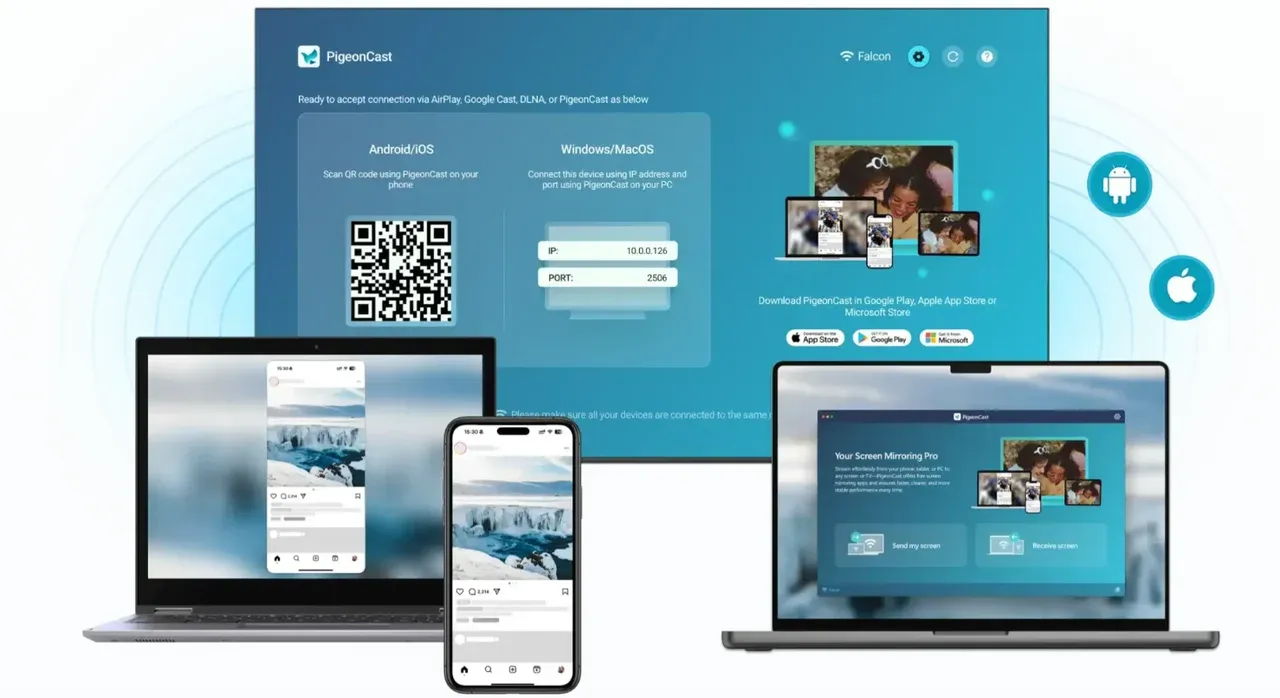
The third-party screen mirroring app eliminates the need to worry about which protocols your TV supports (AirPlay, Chromecast, etc.) by turning your TV into a universal receiver. Whether you're using Android TV, Fire TV, or a smart TV, PigeonCast offers a seamless way to mirror content from your phone, tablet, or computer to your TV and enjoy Apple Music without complicated setups.
How to connect Apple Music to TV Using PigeonCast?
Step 1. Go to the Google Play Store, App Store, or Amazon App Store to download and install PigeonCast on your TV and launch the app.


Overall Rating:



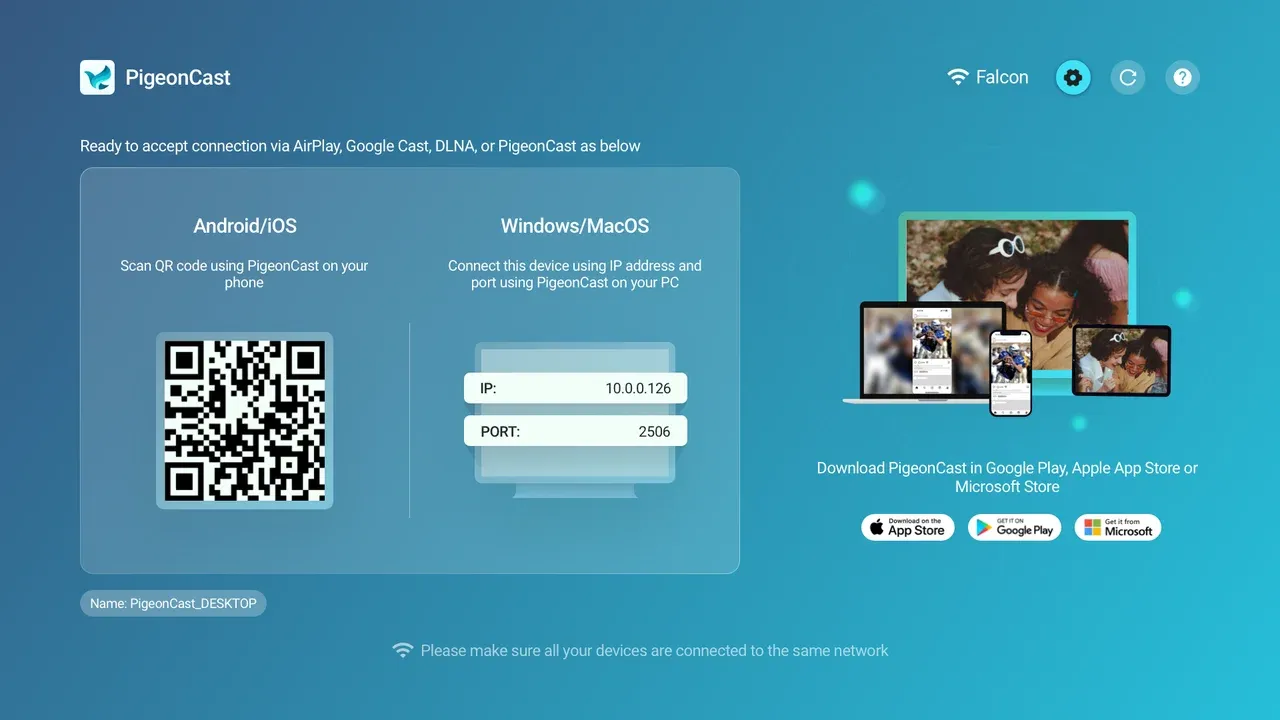
Step 2. Ensure your devices are on the same Wi-Fi network.
Step 3. Open the Apple Music app on your phone, tablet, or computer, and begin playing your favorite music, albums, or playlists.
Step 4. Tap the AirPlay or Cast icon on your phone or computer and choose your PigeonCast-enabled TV.
Step 5. Enjoy Apple Music on your TV.
Conclusion
Now that you know all the ways to play Apple Music on TV, you can choose the method that works best for your setup. Whether you're using an Apple TV, Chromecast, or AirPlay-enabled smart TV, there's a solution for everyone. For those looking for a versatile, no-fuss way to stream Apple Music, PigeonCast is an excellent free option that bypasses the need for specific protocols or expensive devices.
No matter the device or method you prefer, Apple Music on TV enhances your music experience with better sound quality and a more immersive atmosphere. Now you can enjoy your playlists, albums, and curated stations directly on your TV, with minimal hassle.
How to Play Apple Music on TV FAQs
How to play Apple Music on Amazon Fire TV?
You can download the Apple Music app on Fire TV Stick, Fire TV Cube, and other Fire TV devices through the Amazon Appstore. Once downloaded, log in with your Apple ID to start streaming Apple Music on your TV through Fire TV.
Can you get Apple Music on PS4?
Yes, Apple Music is available on both PS4 and PS5. You can download it directly from the PlayStation Store. Once installed, sign in with your Apple ID, and you'll have full access to your music library, playlists, and Apple Music's curated stations.
How to play Apple Music on Android TV?
Apple Music is available on some Android TV models via the Google Play Store. This includes NVIDIA Shield, Xiaomi Mi Box, and other Android-based TV boxes. You can download and use the app just like on any other Android device, and start streaming. Alternatively, you can install PigeonCast on your Android TV, then AirPlay Apple Music to the TV without trouble.
How to play Apple Music on Roku TV?
To play Apple Music on Roku TV, you can download the Apple Music app directly from the Roku Channel Store. Once installed, log in with your Apple ID, and you're ready to stream your favorite tracks to your TV.
Can you play Apple Music on Samsung TV?
Yes, Apple Music is available on Samsung Smart TVs. As long as your TV is from model years 2018 and newer, simply go to the Samsung Smart Hub and search for the Apple Music app. Once installed, sign in with your Apple ID and enjoy streaming.
Can I play Apple Music on my TV if it doesn't support the app?
If your TV doesn't have a native Apple Music app, you can still stream music using AirPlay or Chromecast (if your TV supports those technologies). Alternatively, using a versatile app like PigeonCast will turn your TV into a universal receiver, enabling you to stream Apple Music without compatibility concerns.
How do I get Apple Music from my iPhone to my TV?
If you have an Apple TV or AirPlay-compatible TV (or set up PigeonCast on your TV), you can wirelessly stream Apple Music from your iPhone. Simply open the Apple Music app on your iPhone, tap the AirPlay icon, select your TV, and your music will play on the big screen.
Mia Clarke is a technology editor specializing in screen mirroring and casting solutions across multiple platforms. Mia provides clear, practical guides and in-depth insights to help users seamlessly connect their devices. Passionate about enhancing digital experiences, Mia is dedicated to keeping readers updated on the latest trends and tools in cross-platform screen sharing. Whether you’re looking to mirror your smartphone, laptop, or smart TV, Mia’s content delivers reliable, user-friendly advice to simplify your tech setup.