
Apple Music works with Google Home. But it depends on where you live, which device you use, and how much patience you have with Google's ecosystem. Some users can connect Apple Music in two minutes. Others never even see Apple Music appear in the Google Home app.
This guide walks through how to link Apple Music to Google Home. The official way first. Then the alternatives that people actually use include casting and screen mirroring. If your goal is simply to play Apple Music on Google Home without spending an hour fiddling with settings, you are in the right place.
Can You Play Apple Music on Google Home?
Yes. Apple Music Google Home integration is officially supported. Google Assistant can access Apple Music as a music service, which means you can request songs, albums, and playlists using voice commands.
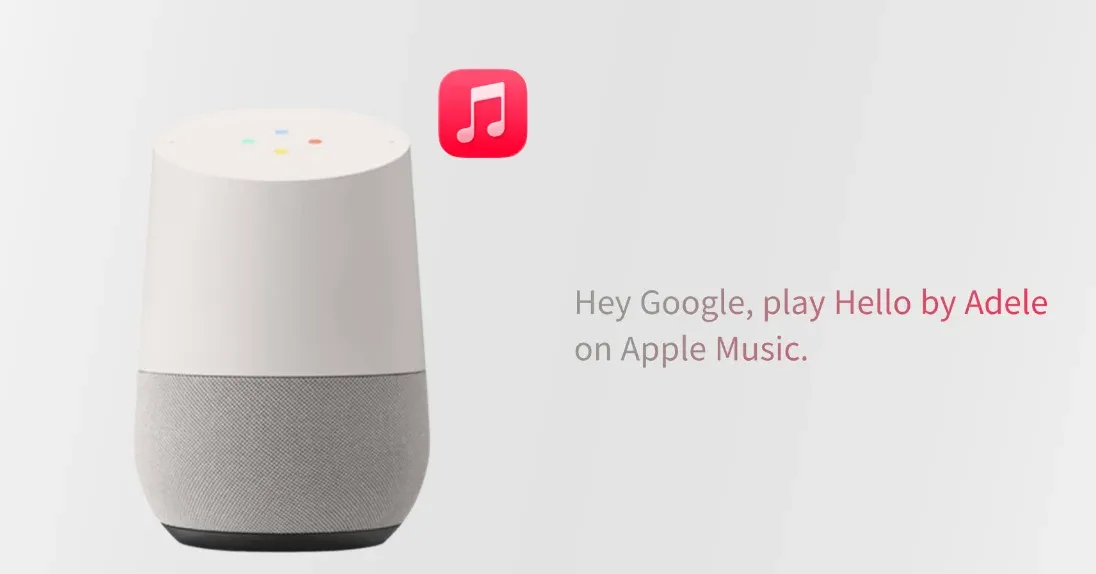
However, support does not mean universal availability. Apple Music may not appear in the Google Home app if:
- Your Google account region does not support the integration (the supported region includes the U.S., U.K., Australia, Canada, France, Germany, Japan, India, Mexico, and several others).
- Your Google Home app is outdated.
- Your Apple Music subscription is inactive.
- You are using a device setup that Google considers unsupported.
How to Link Apple Music to Google Home?
Here's the most straightforward method to get Apple Music working with your Google Home. Once set up, you'll have full voice control over your songs, playlists, and albums.
What you need before you start:
- An active Apple Music subscription
- A Google Home or Google Nest speaker or display
- The Google Home app on iOS or Android
- All devices connected to the same Wi-Fi network.
If none of these is missing, linking will fail or not appear at all.
How to connect Apple Music to Google Home:
Step 1. Open the Google Home app on your phone.
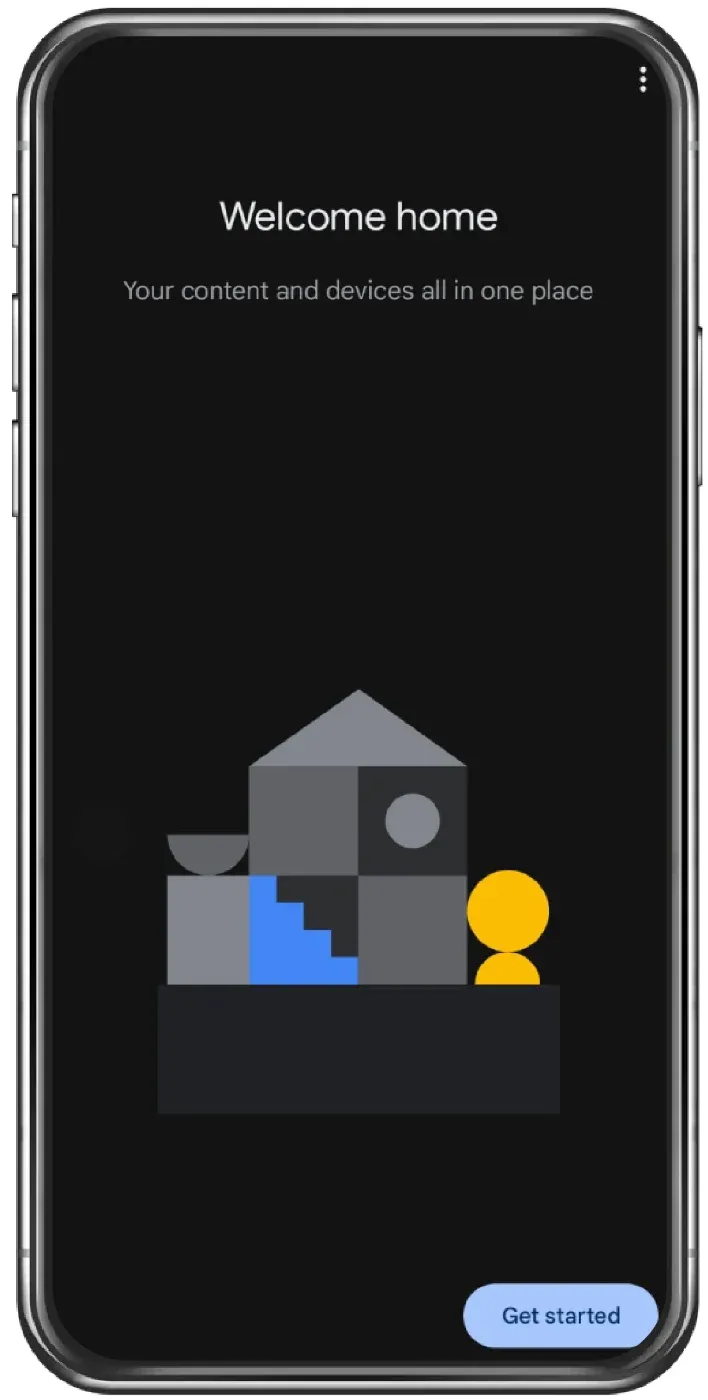
Step 2. Tap Settings, then choose Music.
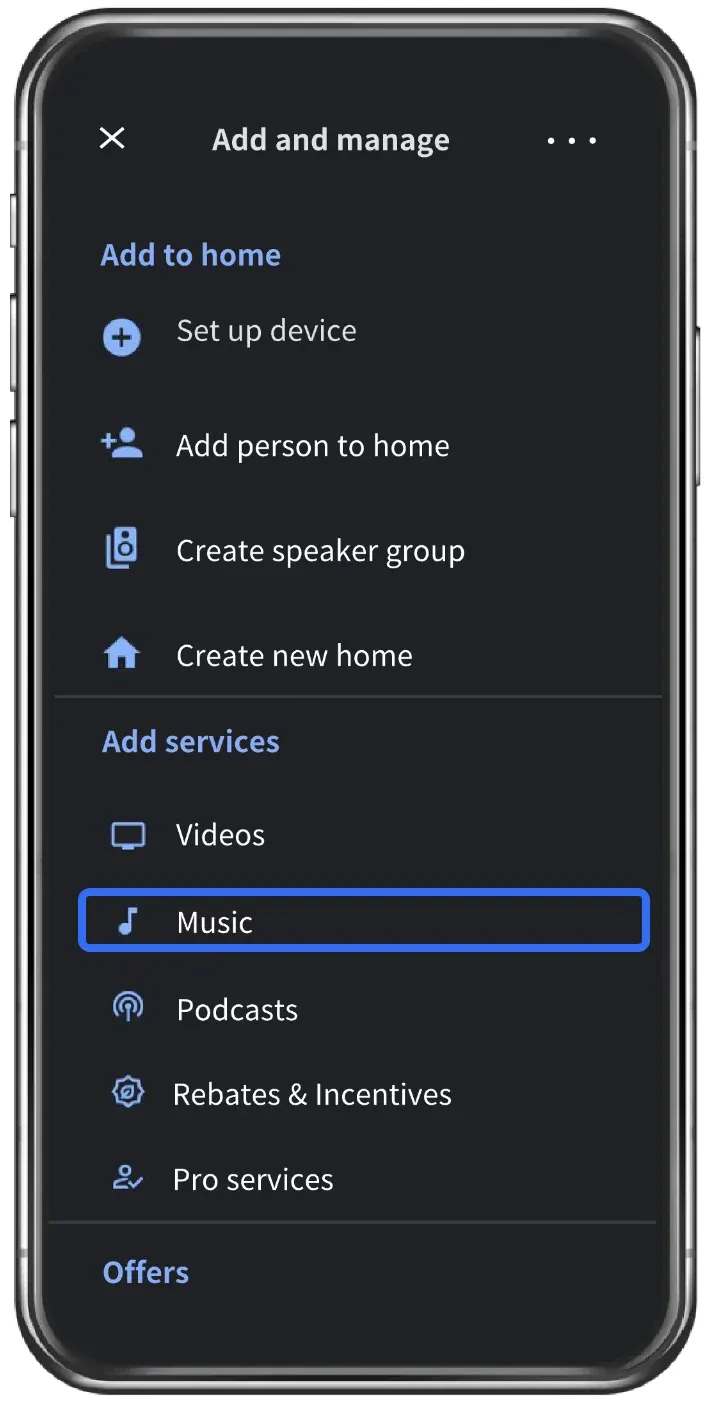
Step 3. Look for Apple Music under available services.
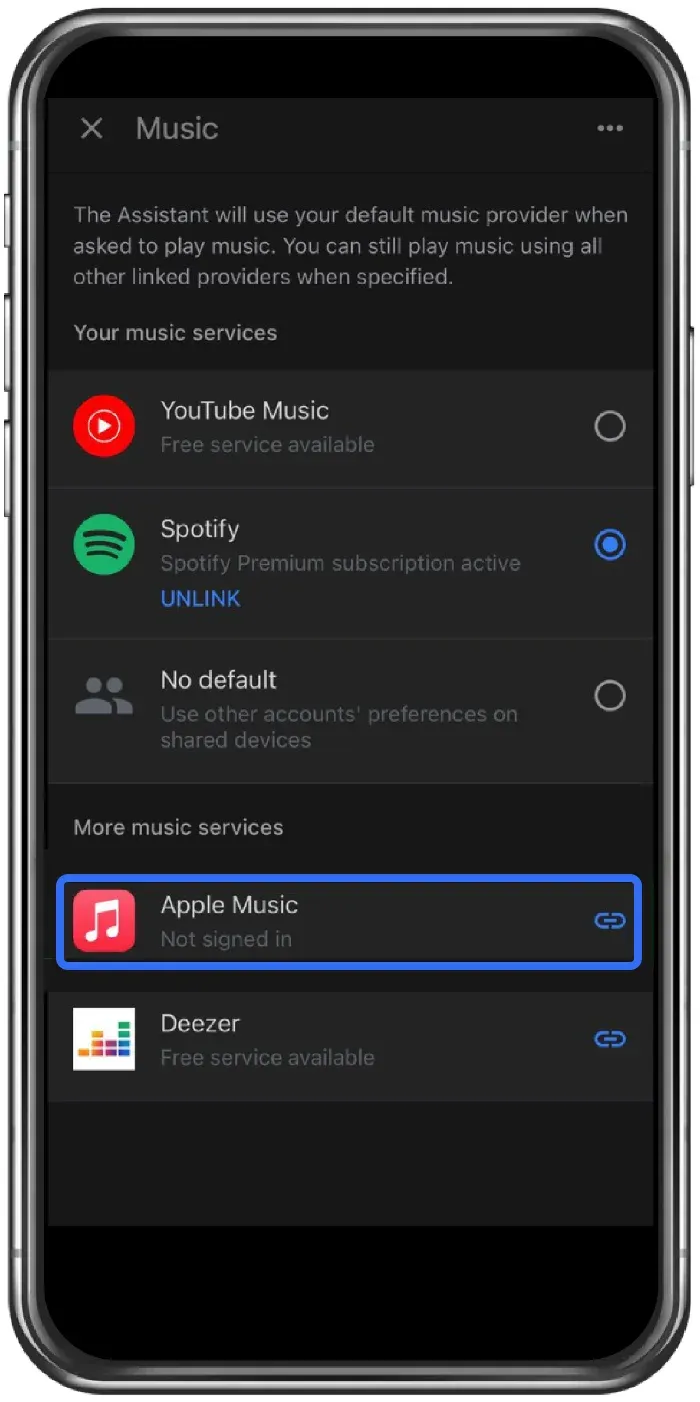
Step 4. Tap the Link icon, then tap LINK ACCOUNT, and sign in with your Apple ID.
Step 5. Confirm permissions and finish setup.
Once completed, your account is linked. This answers the core question of how to connect Apple Music to Google Home in the official way.
How to Play Apple Music on Google Home?
Google Home allows you to link up to 6 music services, including Spotify and Pandora. If you prefer Apple Music as your go-to music source, set it as the default. What's more, you will need to say "on Apple Music" every single time. That gets old fast.
How to set Apple Music as the default music provider:
Step 1. Open the Google Home app and go to Account > Settings.
Step 2. Under Services, find and select Music.
Step 3. Choose Apple Music and set it as the default music service.
Then, you can try some of these voice commands with your Google Home speaker:
| Contents or Controls | Commands |
|---|---|
| Play a specific song | "Hey Google, play Hello by Adele." |
| Play an album | "Hey Google, play the album Hello." |
| Play a playlist | "Hey Google, play my 'Bedtime Songs' playlist." |
| Play music by an artist | "Hey Google, play some music by Adele." |
| Play by genre | "Hey Google, play some classic music.", "Hey, Google, play music for cooking." |
| Control playback | "Hey Google, pause/resume/stop/next song." |
| Control volume | "Hey Google, set volume to 8.", "Hey Google, volume up." |
| Find info | "Hey Google, what song is this?" |
Fixed: Apple Music Not Working on Google Home
If Apple Music does not work with your Google Home, some fixes are as follows:
- Restart the Google Home speaker
- Restart your Android phone or iPhone
- Confirm your phone and speaker are on the same Wi-Fi network
- Check that your Apple Music subscription is active
- Unlink and relink Apple Music in the app
When everything fails, the goal should change. Instead of forcing account integration, focus on output. You want the sound to play on your setup. Nothing more.
Here are the usual alternatives you can try:
- Bluetooth streaming
If the Apple Music option is not available in your Google Home app (due to regional restrictions), the Bluetooth method is the first alternative solution. It works for everyone, everywhere.
How to play Apple Music on Google Home using Bluetooth:
Step 1. Launch the Google Home app and tap Devices.
Step 2. Locate the device you would like to connect.
Step 3. Tap the device card menu and choose Settings > Paired Bluetooth Devices > Enabled Pairing Mode.
Step 4. Enable Bluetooth on your phone.
Step 5. Choose your Google Home from the available devices to pair.
Step 6. Once Bluetooth pairing is finished, launch Apple Music and play your favorite music.
The Apple Music audio will stream directly to your Google speaker.
- Android casting
If you are using an Android phone with Android 5.0 or newer, sending Apple Music to a Google Home is pretty straightforward. As long as the speaker supports Chromecast and both devices are on the same network, you can stream the sound directly from your phone.
How to cast Apple Music to Google Home from Android phone:
Step 1. Make sure your Android phone and Google Home are connected to the same Wi-Fi network.
Step 2. Open the Apple Music app on your Android device and play any song, playlist, or album you want to listen to.
Step 3. Tap the playback bar to open the full Now Playing view. Look for the Cast icon and tap it.
Step 4. Choose your Google Home from the available devices.
Step 5. Once connected, the audio output will switch from your phone to the speaker, and Apple Music will start playing through Google Home.
At this point, your phone acts as the controller while the speaker handles playback, which makes volume and track control feel instant and smooth.
Screen mirroring takes a different approach.
You play Apple Music on your phone or computer. Then you mirror the entire screen, including audio, to a TV or device connected to your speaker setup. No service linking. No regional checks.
This is especially useful if your audio routes through a TV connected to external speakers or soundbars.
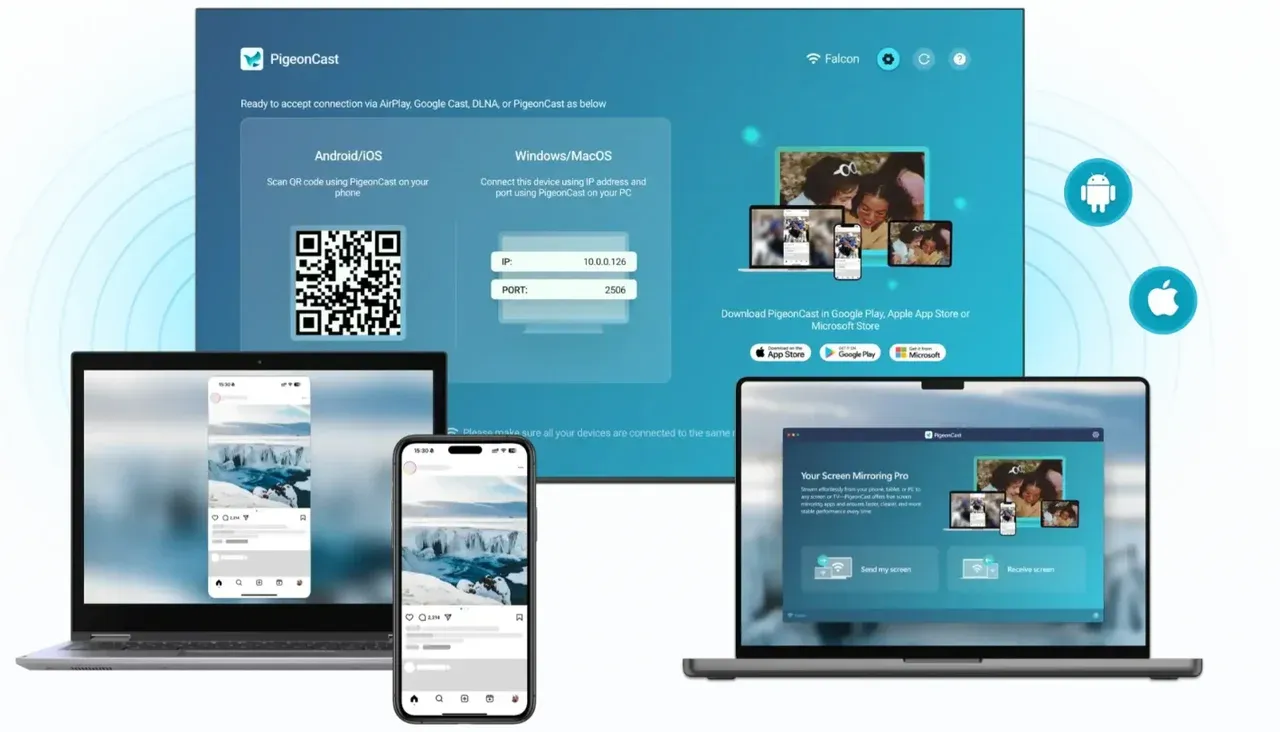
Tools like PigeonCast make this process simple and reliable:
- No need to link Apple Music to Google Home
- Works across iPhone, Android, Mac, and Windows
- Avoids Chromecast Apple Music limitations
- Ideal for Apple Music to Google TV or Android TV setups
How to stream Apple Music via PigeonCast:
Step 1. Download and install PigeonCast on your devices.


Overall Rating:



Step 2. Confirm your devices are on the same Wi-Fi network.
Step 3. Launch PigeonCast on your devices and follow the onscreen instructions to connect them and start screen mirroring.
Step 4. Launch Apple Music and play a song.
Step 5. Enjoy your song.
Final Thoughts
Apple Music does work with Google Home. That much is true. But whether it works smoothly depends on things most users cannot control: region, device combinations, app behavior, and how forgiving you are with Google's ecosystem.
If Apple Music shows up instantly in your Google Home app and voice commands respond the way you expect, great. The official integration is clean and convenient. If it does not, casting or screen mirroring skips the fragile part and gets straight to the result. Music playing on your speaker. No permissions loop. No missing services.
How to Link Apple Music to Google Home FAQs
Can I use Apple Music with all Google Home speakers?
Yes, Apple Music works with all Google Home and Google Nest speakers. Once linked in the Google Home app, you can use voice commands to play songs, albums, and playlists on any compatible speaker in your home.
Is Apple Music compatible with Google Home?
Apple Music is officially supported on Google Home devices in some regions. By linking your Apple Music account, Google Assistant can access your music library for seamless playback and voice control.
Does Google Home connect to Apple Music?
Yes. You can connect Apple Music to Google Home through the Google Home app. Once connected, you can ask Google to play specific tracks or playlists using commands like "Hey Google, play my favorite playlist on Apple Music."
How to cast audio to Google Home?
To cast audio, open the Apple Music app on your Android device, start playing a song, then tap the Cast icon and select your Google Home speaker. This method lets you stream music directly from your phone to the speaker.
How to AirPlay to Google Home?
Google Home does not support Apple's AirPlay natively. To stream Apple Music from an iPhone, you need to link your account through the Google Home app or use a third-party casting/mirroring solution like PigeonCast to play music reliably on Google Home.
How to connect iPhone to Google Home?
Install the Google Home app on your iPhone, open it, and follow the steps to link Apple Music. Make sure your iPhone and Google Home speaker are on the same Wi-Fi network to enable smooth playback and voice control.
Mia Clarke is a technology editor specializing in screen mirroring and casting solutions across multiple platforms. Mia provides clear, practical guides and in-depth insights to help users seamlessly connect their devices. Passionate about enhancing digital experiences, Mia is dedicated to keeping readers updated on the latest trends and tools in cross-platform screen sharing. Whether you’re looking to mirror your smartphone, laptop, or smart TV, Mia’s content delivers reliable, user-friendly advice to simplify your tech setup.