
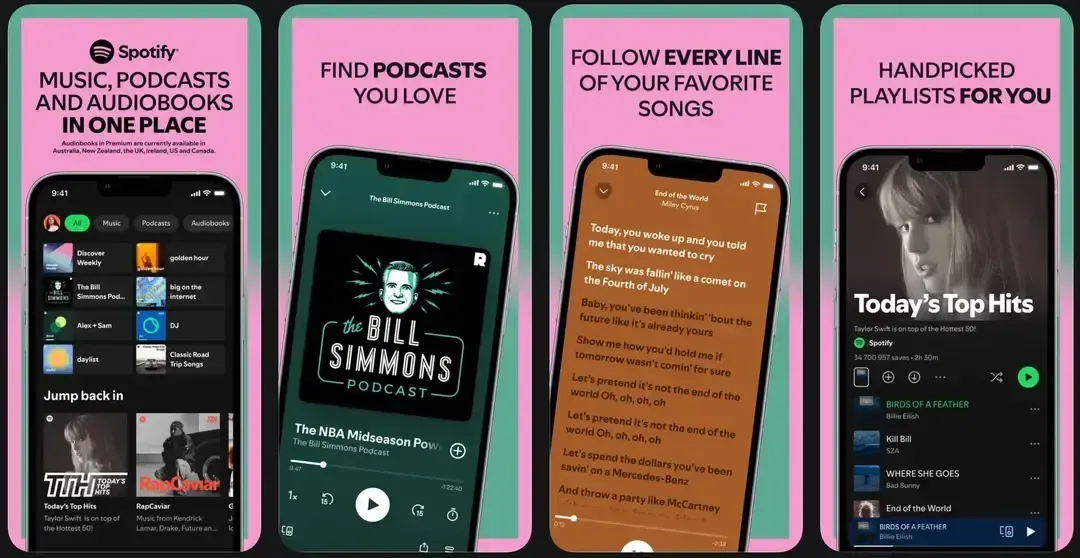
If you have ever tapped the device icon in Spotify and wondered what happens next, the short answer is simple: Spotify Connect lets you control playback from one device while the music plays on another compatible device. Instead of keeping the audio locked to your phone, tablet, or computer, you can send it to a speaker, TV, streaming device, or audio system that works with Spotify.
That is why the feature matters. It gives you a cleaner way to listen across rooms and devices without treating your phone like the actual speaker. In this guide, I will explain what Spotify Connect is, how it works, which devices usually support it, how to use it, what to do when Spotify Connect is not working, and when a different streaming method makes more sense.
What Spotify Connect Actually Is
If your main question is "What is Spotify Connect", think of it as a remote playback feature inside Spotify. One device, such as your phone or laptop, acts as the controller. Another device, such as a smart speaker or TV, acts as the playback target.
That distinction is important because Spotify Connect is not the same as a normal Bluetooth session. With Bluetooth, your phone usually stays in the middle of the audio path. With Spotify Connect, the target device handles playback more directly through Spotify after the connection is made.
It is also not the same as screen mirroring or general phone casting. You are not sending your whole display, every app sound, or your full phone interface to another screen. You are specifically controlling Spotify playback on a compatible device.
For everyday listening, that usually means:
- you can keep using your phone while music continues elsewhere
- you can move playback between devices more easily
- you do not have to mirror your full screen just to play music
- supported speakers and TVs can feel more seamless than a basic wired or Bluetooth-only setup
How Spotify Connect Works
Spotify Connect is easiest to understand when you break it into two roles:
- the controller device, such as your phone, tablet, or desktop app
- the playback device, such as a speaker, TV, or receiver that supports Spotify
When you connect to a device for the first time, Spotify says the devices generally need to be on the same Wi-Fi network. After that, you open Spotify, start playing something, tap the device picker, and choose where you want the audio to play.
In practical use, this creates a more flexible listening flow than many people expect. You might start music on your phone, move it to a living room speaker, and later switch it to a TV or desktop app without rebuilding the whole session from scratch.
This is also why Spotify Connect often feels different from old-school wireless audio. Your phone is mostly acting like a controller, not like a speaker cable replacement.
Which Devices Usually Work With Spotify Connect
There is no single short list that covers every brand and model forever, so it is more useful to think in device categories than in a giant catalog. When people search for Spotify Connect devices, they are usually trying to figure out whether their type of hardware is in scope at all.
Phones, Tablets, and Computers
The Spotify app on iPhone, iPad, Android, Windows, and Mac often works as the controller side of the experience. In some cases, these devices can also become playback targets if you are logged into Spotify on them.
This is one of the simplest Spotify Connect setups because you may already be using the devices that control playback every day.
Smart Speakers
Smart speakers are one of the most common reasons people use Spotify Connect in the first place. If a speaker has Spotify support built in, the app can often send playback there directly instead of relying on a separate Bluetooth pairing flow.
This category may include:
- voice-enabled smart speakers
- Wi-Fi speakers
- multi-room speakers
- brand ecosystems with native Spotify integration
TVs and Streaming Devices
Many smart TVs and streaming platforms can also work with Spotify, either through a built-in Spotify app or device-level Spotify support. In real-world use, though, TV compatibility is less uniform than speaker compatibility, which is why some people find that one television works cleanly while another does not show up at all. A TV may support the Spotify app without behaving like every other Spotify Connect target, so discovery and handoff can still vary by platform.
If your goal is audio only, Spotify Connect on a TV can still be useful. If your goal is broader media or device casting, it may not be the right tool by itself.
AV Receivers and Multi-Room Audio Systems
Spotify Connect also shows up on audio gear built for home listening setups, including some receivers, amps, and multi-room systems. This is where the feature becomes especially convenient because you can keep the listening experience inside one app instead of juggling multiple remotes and inputs.
Sonos is one example people ask about often. In normal use, Sonos Spotify Connect works as part of the wider Spotify ecosystem rather than as a completely separate feature. That means Sonos should be thought of as one supported device family inside the broader Spotify Connect experience, not as a different listening method altogether.
How to Use Spotify Connect
Once you understand the idea, the actual setup is short.
Step 1. Open Spotify and start playing a song, playlist, podcast, or album.
Step 2. Tap or click the Devices Connect icon near the playback controls.
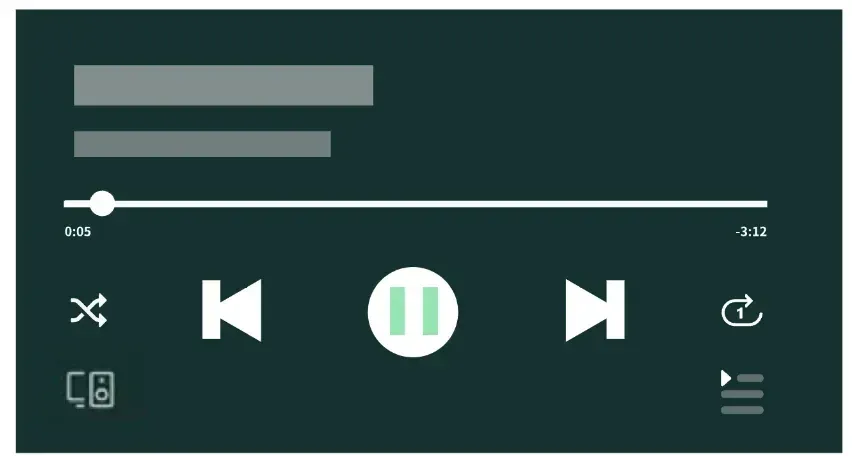
Step 3. Look through the list of available playback targets.
Step 4. Select the device where you want the audio to play.
Step 5. Use the same Spotify app to pause, skip, switch devices, or adjust playback from there.
For a first connection, it is still smart to make sure the controller device and the target device are on the same Wi-Fi network. If the device does not appear, the problem is usually discovery, account state, local permissions, or compatibility rather than a mysterious hidden setting.
Common Spotify Connect Problems and Fixes
Most Spotify Connect issues fall into a small set of patterns. If Spotify Connect is not working, the fastest way to solve it is to identify which pattern you are dealing with instead of trying random fixes in no order.
The Device Does Not Show Up
If the playback target is missing from the list, start with the basics:
- confirm the device actually supports Spotify Connect
- make sure Spotify is installed or available on that device if needed
- keep both devices on the same Wi-Fi for first-time setup
- make sure you are logged into the correct Spotify account
- on iPhone, confirm Spotify has Local Network permission
- on Android TV, check whether Spotify is allowed to display over other apps if device discovery behaves strangely
- if you are using the web player, remember that device visibility is more limited than in the full app
This is one of the most common reasons people assume Spotify is broken when the real issue is that the app cannot discover the target properly.
The Device Appears but Will Not Connect
This usually points to a network or software problem rather than a discovery problem. Spotify’s own support guidance starts with the simplest recovery steps:
- restart the Spotify app
- restart the speaker, smart display, TV, or receiver
- restart the phone, tablet, or computer running Spotify
- make sure the Spotify app is up to date
- make sure the target device software is up to date
- try reconnecting on the same Wi-Fi
- restart your Wi-Fi or test another network
If you are using a speaker ecosystem such as Sonos, this is also where Sonos Spotify Connect complaints usually show up. The device may be visible, but playback handoff still fails because the local network, app state, or device software is out of sync.
Playback Drops or Becomes Unstable
If audio starts and then cuts out, look at connection quality before assuming Spotify Connect itself is fundamentally broken.
Common causes include:
- weak Wi-Fi
- device roaming between access points
- overloaded home networks
- outdated firmware on the playback device
If the problem only happens on one target device, that device is often the better place to troubleshoot first.
Unfamiliar Devices Appear in the List
Sometimes people think Spotify Connect is malfunctioning when they actually see devices from a shared or previously shared network environment.
Spotify notes that this can happen if:
- you used Spotify on a shared network before
- you stayed logged into another person’s device
- your account is still linked through another manufacturer app
In that situation, log out of unfamiliar devices, sign out everywhere if needed, and review account access instead of repeatedly trying to reconnect.
How to Stream Music From Phone or PC to TV Without Spotify Connect
Spotify Connect is useful when the playback target supports Spotify well. But sometimes the setup is too limited. Your TV may not appear, the supported device list may not match your hardware, or you may simply want a more flexible way to stream from phone to TV without depending on Spotify-specific support.
That is where a broader casting tool makes more sense. If you want to stream music from phone to TV without Spotify Connect, PigeonCast is the cleaner recommendation because it is built around direct cross-device casting rather than around one streaming service’s device ecosystem.
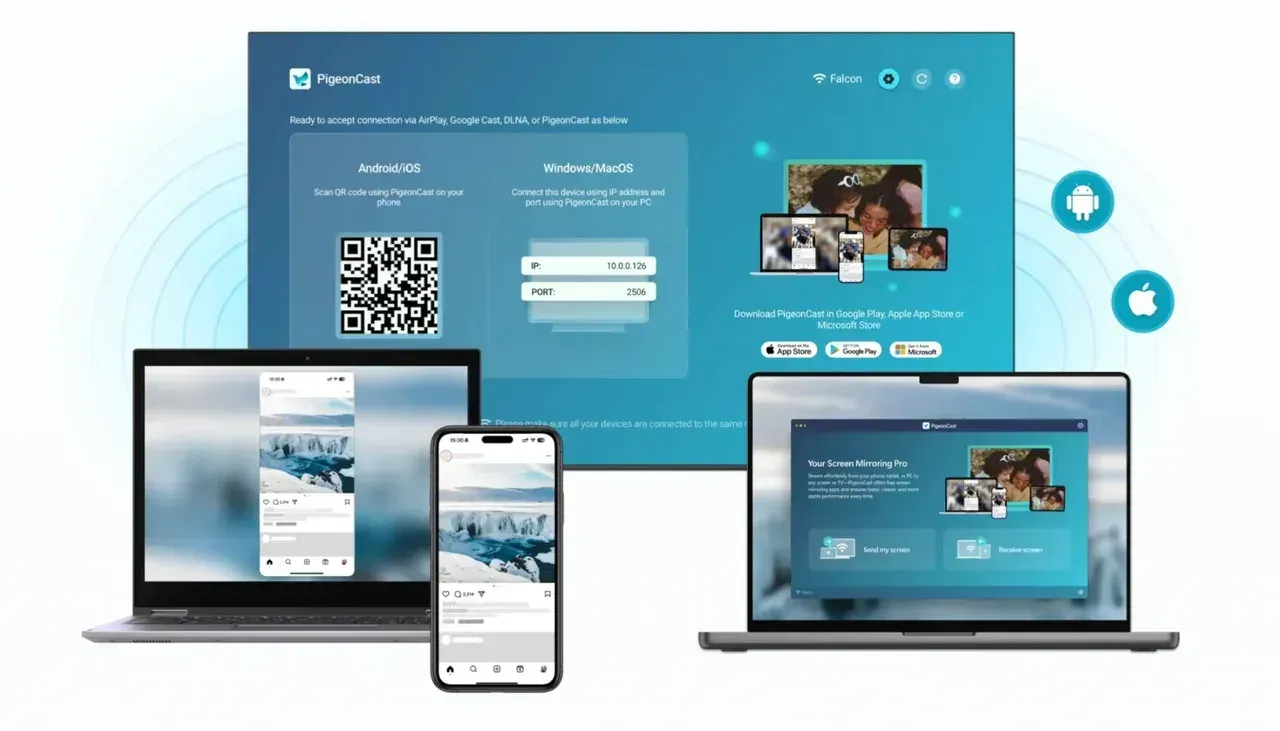
The general PigeonCast flow is straightforward:
Step 1. Install PigeonCast on the sending device and the receiving device if your setup requires it.


Overall Rating:



Step 2. Connect both devices to the same network.
Step 3. Open PigeonCast and choose the target TV or playback screen.
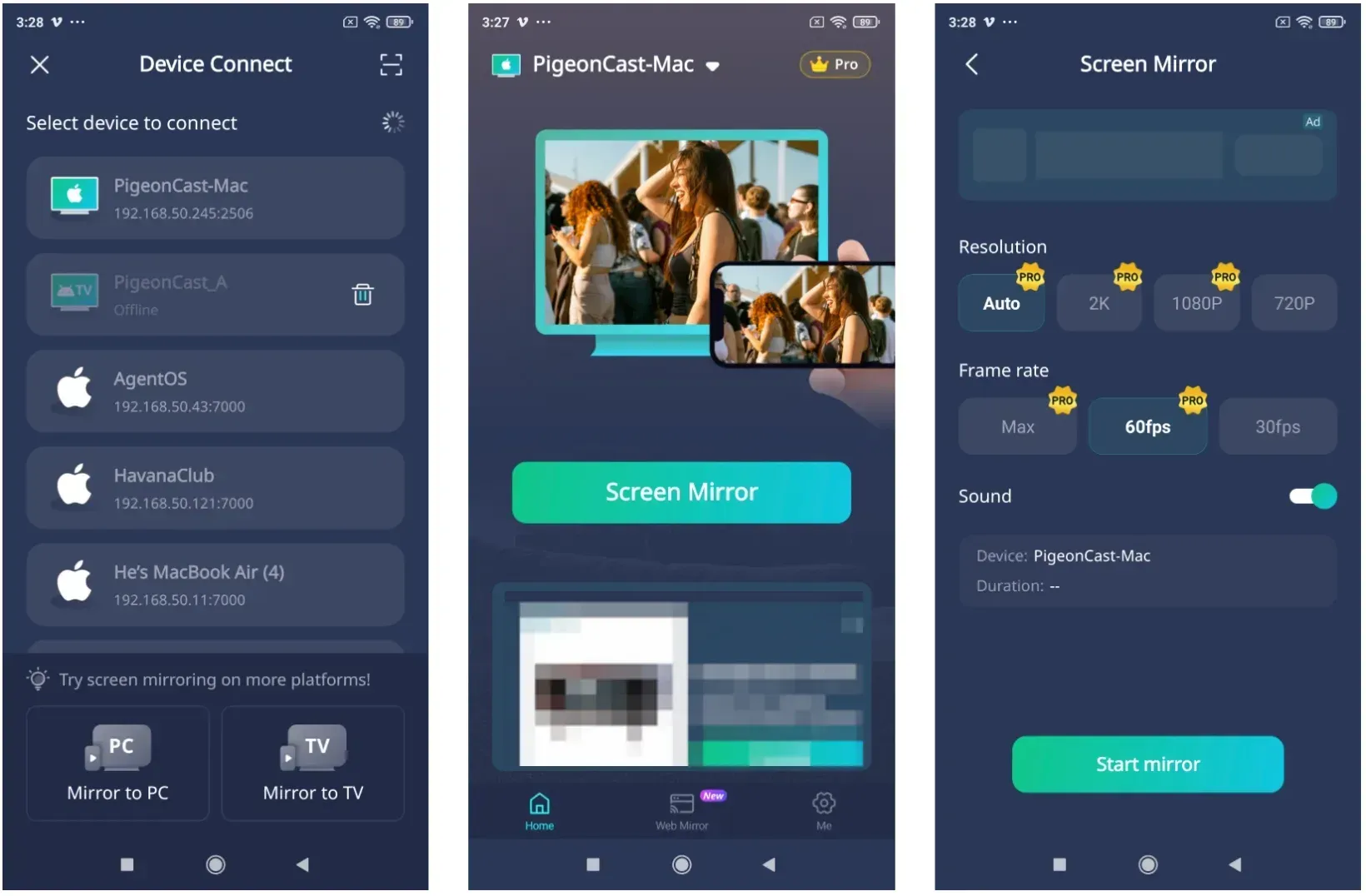
Step 4. Start casting your audio or media session from the phone.
This route is especially useful if your goal is broader media flexibility rather than only Spotify playback.
Spotify Connect vs PigeonCast
| Feature | Spotify Connect | PigeonCast |
|---|---|---|
| Primary use case | Play Spotify on compatible devices | Stream from phone to TV across broader device setups |
| Supported content | Spotify music, podcasts, and in-app playback | Broader phone-to-TV casting and media streaming |
| Device dependency | Requires Spotify-compatible playback devices | Less tied to Spotify-specific hardware support |
| Control method | Controlled inside the Spotify app | Controlled through a dedicated casting workflow |
| Best for | People staying inside the Spotify ecosystem | People who want more flexible phone-to-TV or PC-to-TV streaming |
If your only goal is to play Spotify on a speaker, receiver, or TV that already supports it well, Spotify Connect is usually the easier choice. If your real goal is wider device casting from your phone to a TV, PigeonCast is the more practical option.
Conclusion
Spotify Connect is best understood as a Spotify-specific playback control system, not as a general casting tool. Once that distinction is clear, the feature makes much more sense: it is convenient when you want to move Spotify listening across compatible speakers, TVs, and home audio devices without relying on a full Bluetooth-style connection every time.
For most people, the decision is straightforward. If your devices already support Spotify well, Spotify Connect is the cleanest way to keep music inside the Spotify ecosystem. If your TV does not support it properly, if discovery keeps failing, or if you want broader phone-to-TV streaming beyond Spotify alone, switching to a more flexible tool like PigeonCast is the better next step.
Spotify Connect FAQ
Does Spotify Connect need Wi-Fi?
For first-time connection to a speaker or similar playback device, Spotify says the devices generally need to be on the same Wi-Fi network. In practice, Wi-Fi is a core part of the normal setup flow.
Is Spotify Connect the same as Bluetooth?
No. Bluetooth and Spotify Connect can both send audio to another device, but Spotify Connect is built around Spotify-controlled playback on a compatible target device rather than a standard phone-to-speaker Bluetooth session.
What's the difference between Spotify and Spotify Connect?
Spotify is the streaming service and app you use to play music, podcasts, and other audio content. Spotify Connect is one feature inside that ecosystem. It lets you control Spotify playback on another compatible device, such as a speaker, TV, or receiver, instead of keeping playback only on the phone or computer in your hand.
Can I use Spotify Connect on Sonos?
Yes, if your Sonos setup supports Spotify correctly. In normal use, Sonos Spotify Connect is part of the wider Spotify listening workflow, so the experience depends on Spotify support, device state, and local network conditions.
Do JBL speakers have Spotify Connect?
Some JBL speakers do, but not every JBL speaker does. The answer depends on the specific model and whether it supports Spotify as a built-in playback target rather than only basic Bluetooth audio. If you are checking a JBL speaker, the safest approach is to confirm Spotify support in the speaker's official product documentation or app ecosystem before assuming Spotify Connect will appear.
Is Spotify Connect available on the free version?
Spotify support says Spotify Connect works for both Free and Premium users. In practice, the exact listening experience can still vary by device category and playback context, but the feature itself is not limited only to Premium accounts.
Why is Spotify Connect not working on my phone?
The most common causes are local network issues, missing device permissions, an outdated Spotify app, or a playback device that is visible but not connecting properly.
Can Spotify Connect stream all phone audio to a TV?
No. Spotify Connect is for Spotify playback, not for sending everything from your phone screen or every app sound to your TV. If you need broader media casting, a tool like PigeonCast is a better fit.
Mia Clarke is a technology editor specializing in screen mirroring and casting solutions across multiple platforms. Mia provides clear, practical guides and in-depth insights to help users seamlessly connect their devices. Passionate about enhancing digital experiences, Mia is dedicated to keeping readers updated on the latest trends and tools in cross-platform screen sharing. Whether you’re looking to mirror your smartphone, laptop, or smart TV, Mia’s content delivers reliable, user-friendly advice to simplify your tech setup.