
Want to enjoy your favorite music or podcasts on a bigger sound system? Audio mirroring makes it easy. With just a few taps, you can stream sound from your iPhone or Android directly to your TV, giving your listening experience an instant boost. In this guide, we'll show you the best ways to mirror audio on both iPhone and Android, introduce a top third-party option, and answer common questions.
How to Enable iPhone Mirroring Audio
If you want to enjoy your iPhone's music, podcasts, or other audio on a bigger speaker or TV, mirroring is the way to go. Using AirPlay, you can easily send sound from your device to any compatible Apple or smart device. Follow these simple steps to get your AirPlay mirroring share audio on a larger system in no time.
Step 1. Make sure your iPhone and the target device (Apple TV, AirPlay-compatible smart TV, or wireless speaker) are connected to the same Wi-Fi network.
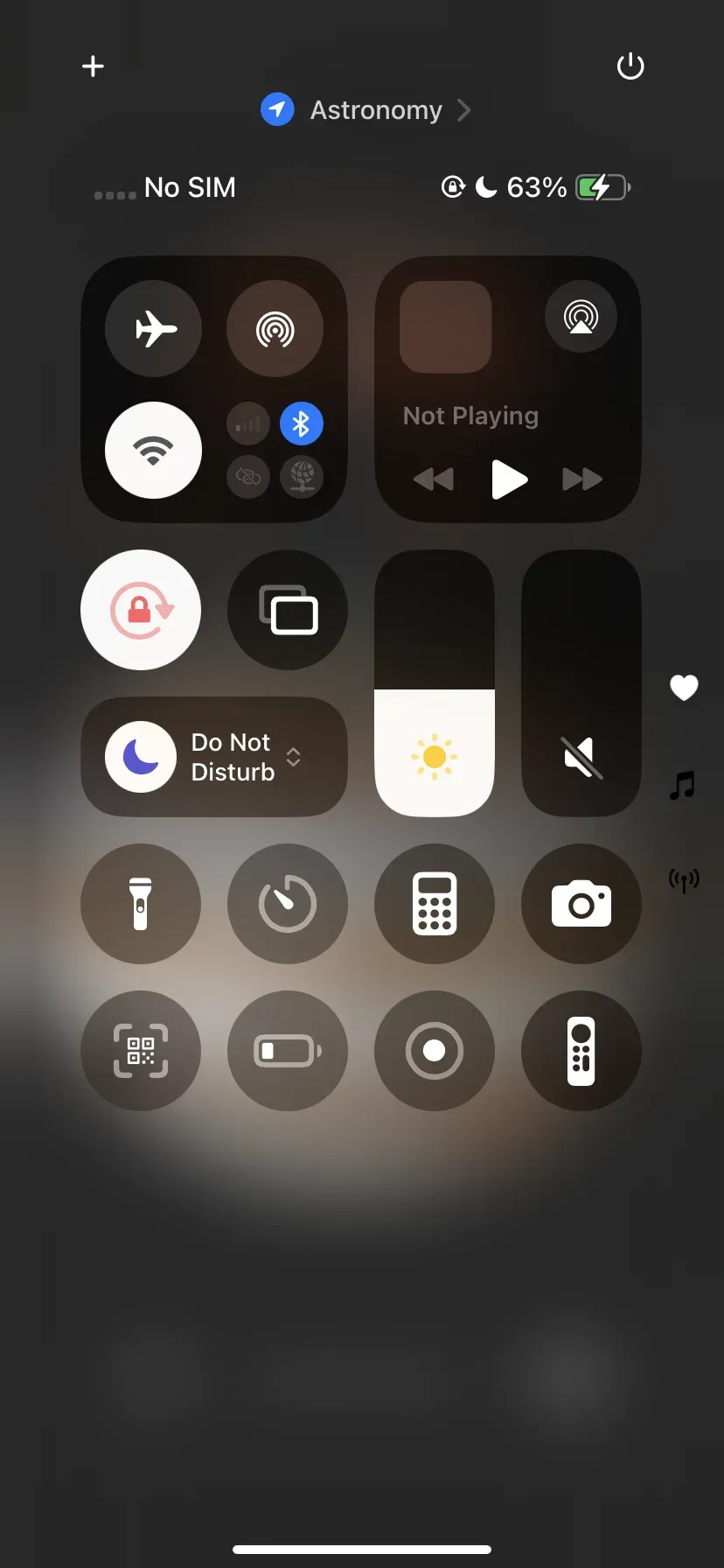
Step 2. Play an audio, such as music on your iPhone or iPad, and open Control Center.
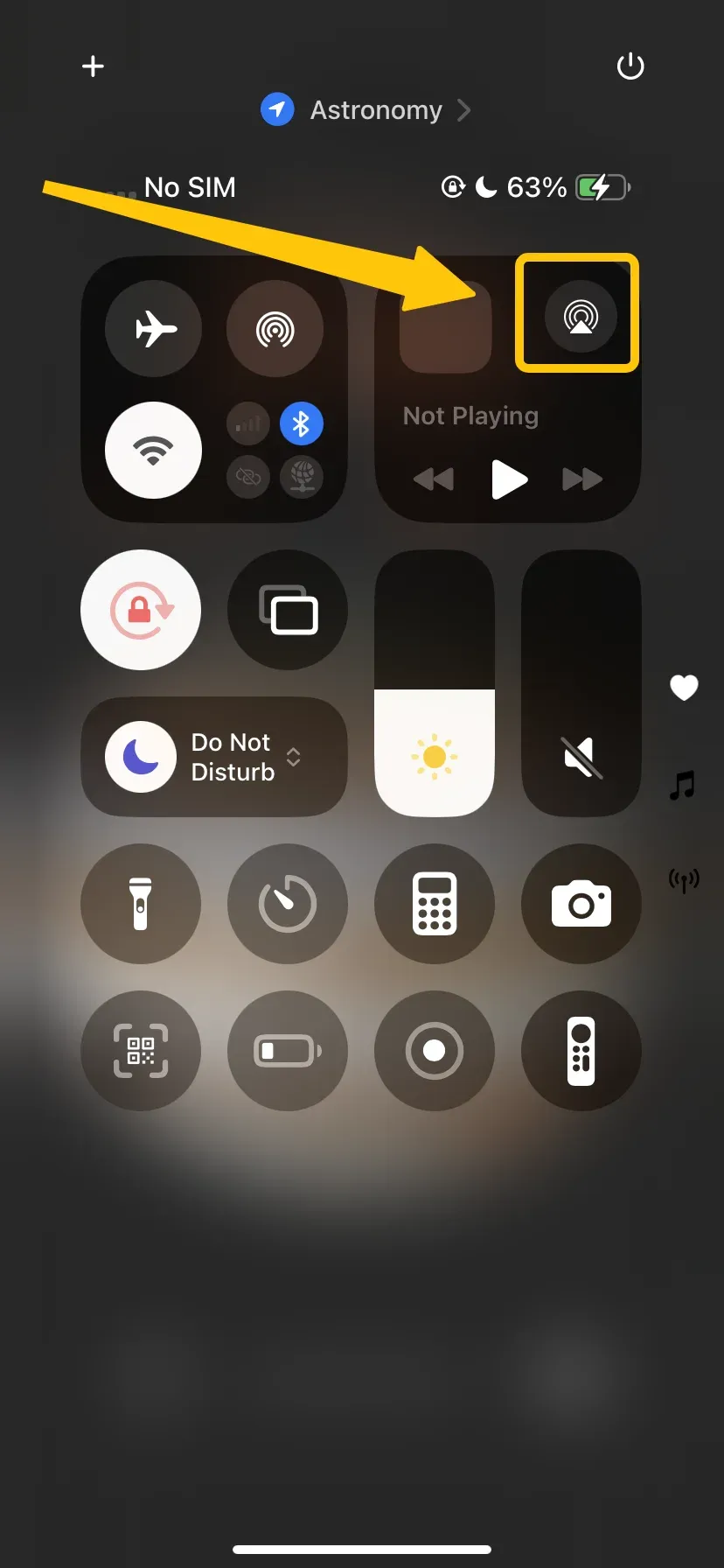
Step 3. Tap the AirPlay icon in the group of controls in the top-right corner.
Step 4. Choose your TV, speaker, or other audio device from the list. Your iPhone's sound will now play through the selected device.
How to Enable Android Audio Mirroring
To play audio from your Android device on a bigger speaker or TV, you can use Google Cast. By ensuring your device is on the same Wi-Fi network as your Chromecast or compatible speaker and using the Google Home app, you can quickly cast your audio. Follow these simple steps to audio share from your Android.
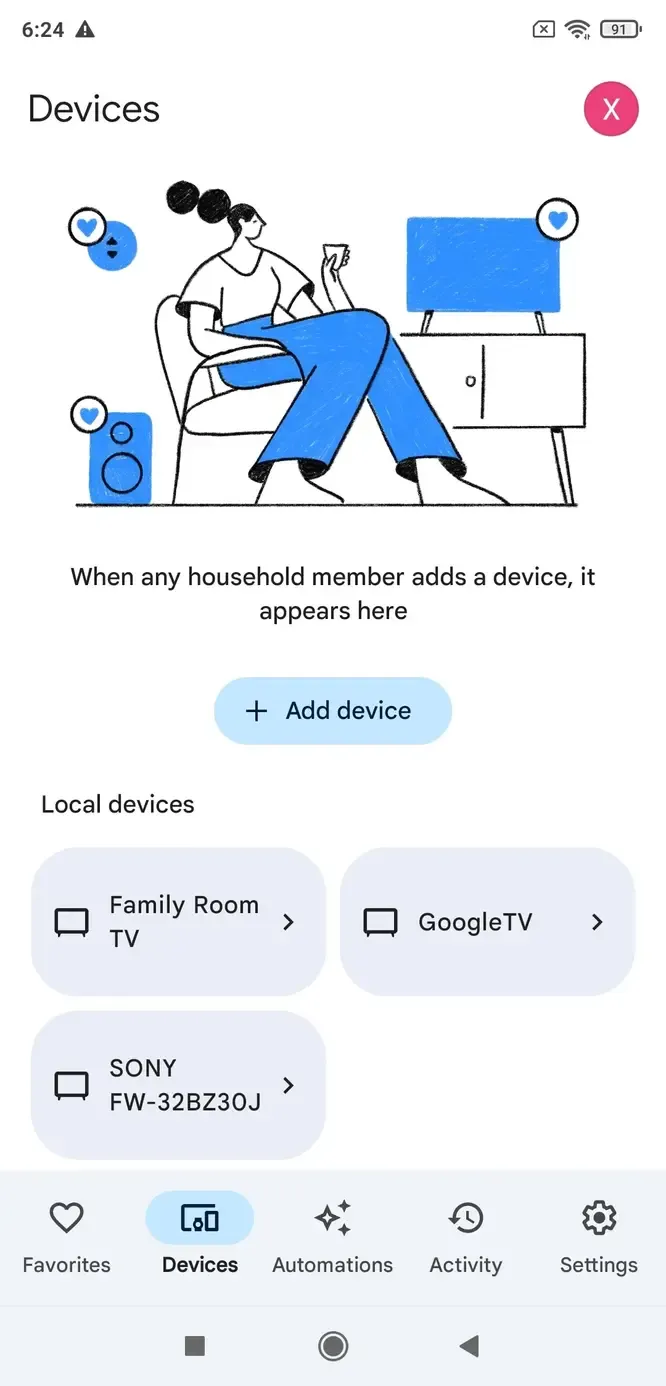
Step 1. Make sure that your Android or tablet is on the same Wi-Fi network as your Chromecast Audio or speaker that works with Google Cast.
Step 2. Open the Google Home app, and touch your device's tile.
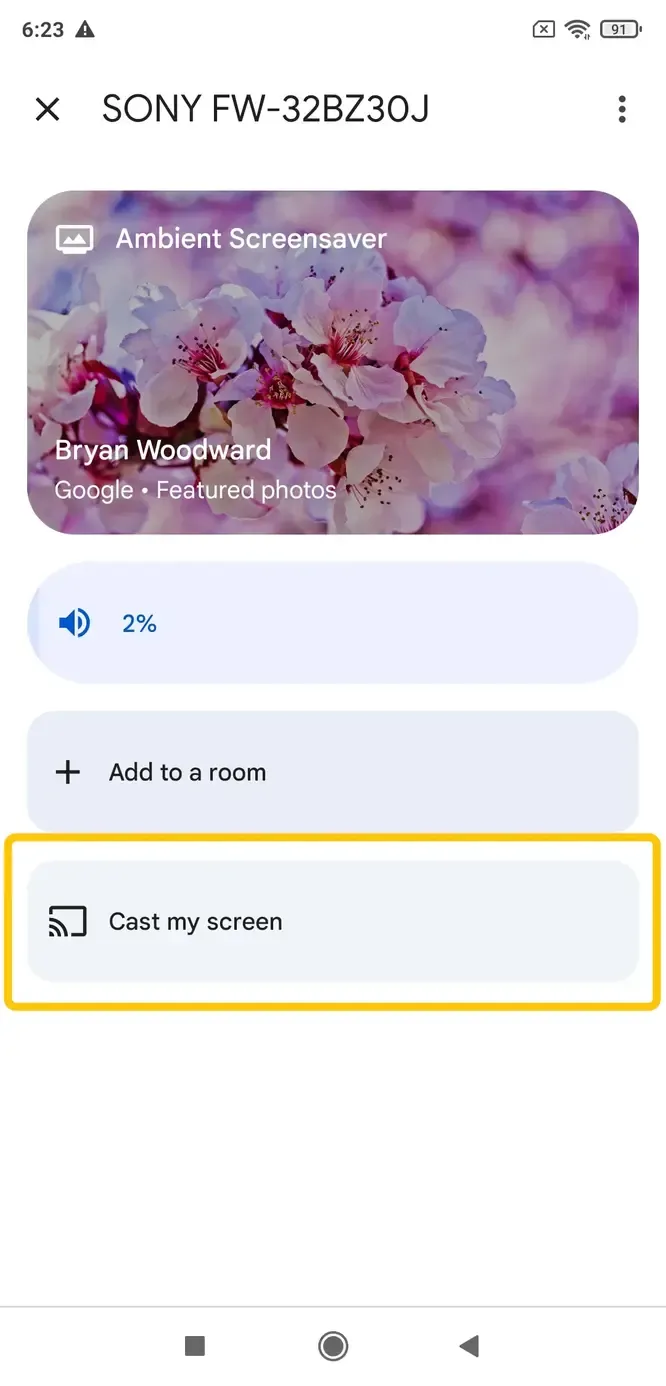
Step 3. Tap Cast my audio and then Cast audio.
Alternatively, you can use Android's built-in casting feature to stream audio over WiFi. This method provides a seamless, high-quality audio experience and makes it easy to control playback directly from your phone or tablet.
Step 1. Make sure both your Android device and the target device are connected to the same Wi-Fi network.
Step 2. Launch the app that plays your audio, such as Spotify, YouTube Music, Google Podcasts, or your default Music app.
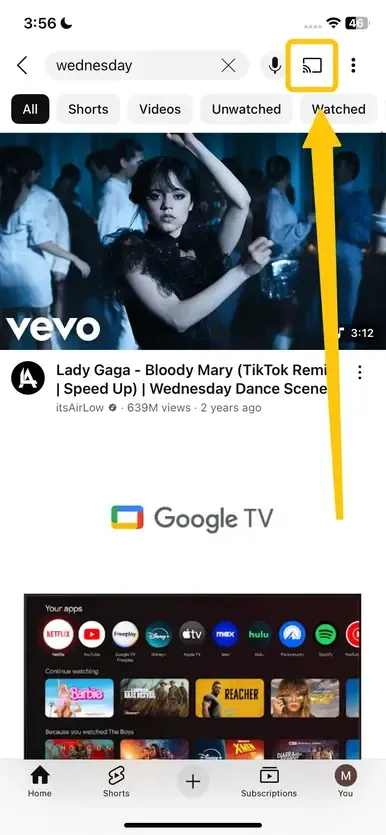
Step 3. Look for the Cast icon (a rectangle with Wi-Fi waves in the corner) within the app.
Step 4. Choose the device you want to play audio on. The audio will start streaming to the selected device.
Best Free Audio Screen Mirroring App for Your Phone – PigeonCast
Sometimes devices don't work smoothly together—for example, trying to mirror an Android phone to an Apple TV or an iPhone to a Windows PC. In these cases, a cross-platform solution can help. PigeonCast is a free reliable screen mirroring app that lets you cast audio and video from either iOS or Android devices to TVs or laptops without compatibility issues. Now let's check its simple setup for audio mirroring Android or iOS.

Step 1. Install the PigeonCast app on your iOS or Android mobile device and launch it.

PigeonCast Screen Mirroring

Official Download



Step 2. Ensure your mobile device and receiver device are covered by the same wireless network. (If you use a smart television, you should check whether the screen mirroring feature is enabled from the Settings > System > Screen Mirroring.)
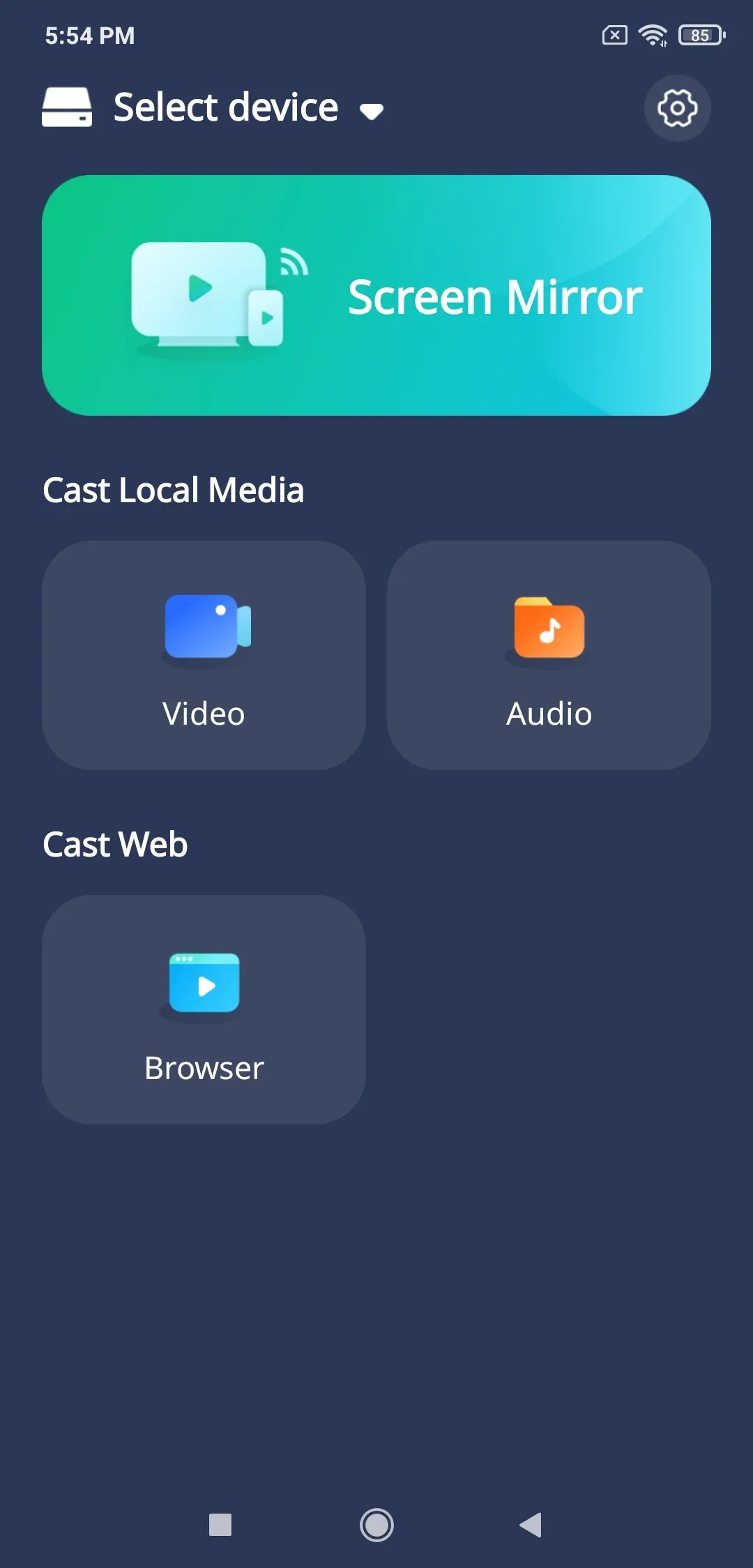
Step 3. Tap Select device on the app to choose your receiver device from the available list.
Step 4. Enter the PIN code to finish the connection.
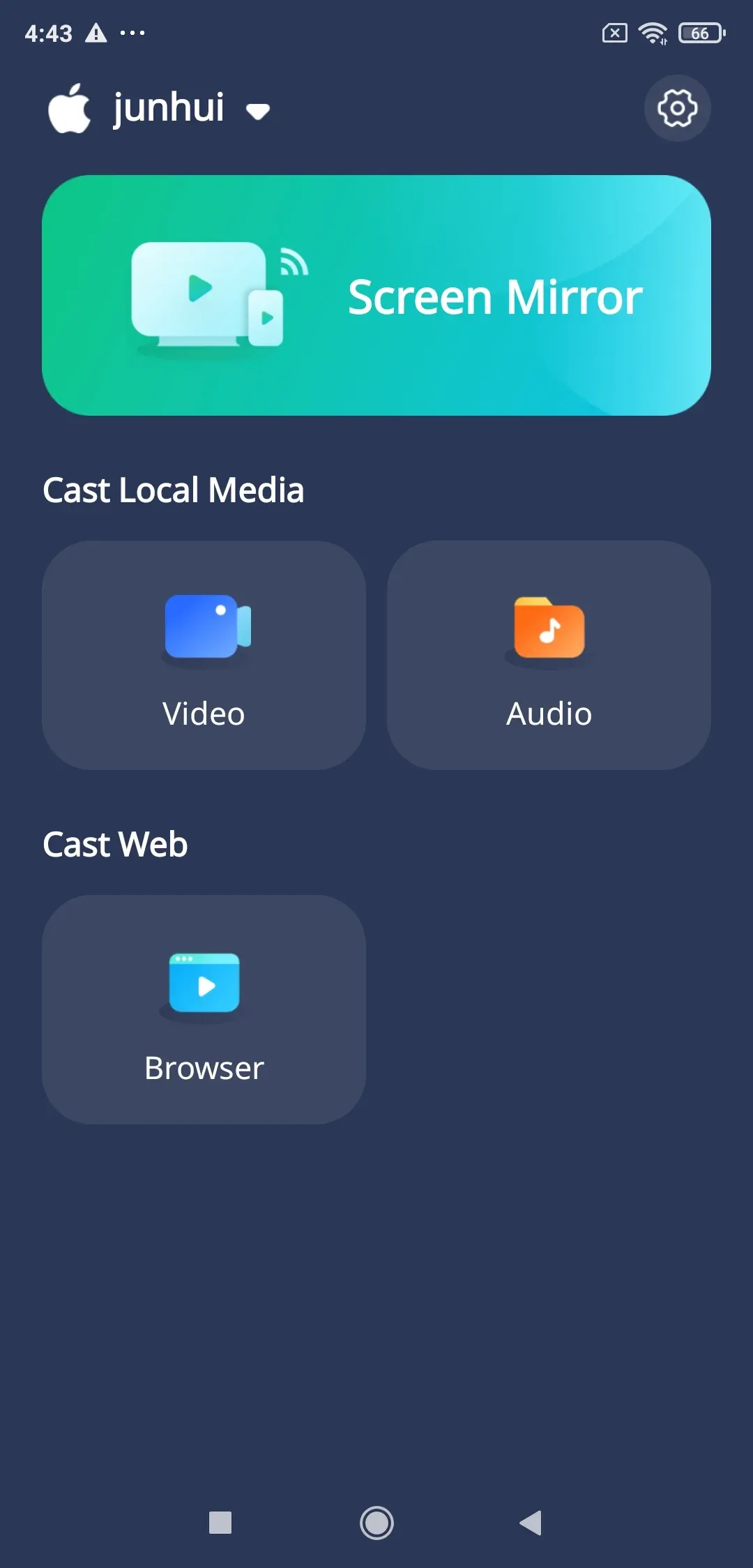
Step 5. On PigeonCast, tap Audio to choose your audio file, or cast your specific music app, or just mirror your whole screen to be connected to audio mirroring.
No Audio When Screen Mirroring
Even when real time audio streaming works perfectly visually, you may encounter issues with audio not playing on the target device. This can happen due to device settings, network issues, or app-specific restrictions. Understanding the common causes and solutions for screen mirroring audio not working to ensures a smooth and uninterrupted streaming experience.
- Volume Settings
Sometimes the audio is simply muted or too low on either the device you're mirroring from or the TV/speaker. Make sure to check the volume levels on both devices and ensure neither is muted. Adjust the volume to a comfortable level and test again.
- Audio Output Settings
Your device might not be sending audio to the mirrored screen correctly. Check the audio output settings on your phone, tablet, or computer, and make sure the sound is directed to the TV, speaker, or casting device rather than the device's internal speaker.
- App-Specific Restrictions
Certain apps, like Netflix or Hulu, may restrict audio when screen mirroring due to copyright protection. If audio isn't working, check the app's settings or try casting from a different app that allows full video and audio mirroring.
- Network Issues
A weak or unstable Wi-Fi connection can interfere with audio streaming. Ensure that both your device and the receiving device are connected to the same, stable Wi-Fi network. Restarting your router may also help improve connectivity.
- Outdated Software
Using older versions of your device's OS, the app, or the TV firmware can cause audio problems. Make sure your iOS, Android, macOS, or TV firmware is up to date to ensure full compatibility and smooth audio streaming.
- Mirroring Method Limitation
Not all screen mirroring methods transmit audio. If you're using a method that only sends video, you won't hear sound. Use a casting method that supports audio, like AirPlay, Chromecast, or a dedicated mirroring app, to ensure both video and sound are transmitted.
Wrapping Up
How to do audio mirroring to TV? Audio mirroring is a simple way to take your listening experience to the next level, whether you're relaxing with music, catching up on podcasts, or sharing audio with friends and family. iPhone users can rely on AirPlay, Android users have Google Cast, and for those tricky cross-platform situations, apps like PigeonCast make it easy to connect any device to almost any screen or speaker.
Audio Mirroring FAQ
Q: What is audio mirroring?
Audio mirroring is the process of wirelessly sending the sound from your phone, tablet, or computer to another device, such as a TV, speaker, or laptop. It lets you play music, podcasts, or any audio on a bigger sound system without needing cables.
Q: How do I turn off audio mirroring on Android?
To turn off audio mirroring on Android, swipe down from the top of your screen to open Quick Settings, tap the Cast or Screen Cast icon, and then select Disconnect or Stop Casting. This will end the audio mirroring and return sound to your phone's speakers.
Q: How to mirror audio from iPhone to TV?
To mirror audio from your iPhone to a TV, make sure both devices are on the same Wi-Fi network. Then open Control Center on your iPhone, tap the AirPlay icon in the media controls, and select your TV or compatible speaker from the list. Your iPhone's audio will now play through the selected device.
Q: Is audio mirroring secure?
Yes, audio mirroring is generally secure when using trusted devices and apps over a protected Wi-Fi network. Most modern casting and mirroring technologies, like AirPlay and Chromecast, use encryption to protect the audio data during transmission, preventing unauthorized access.
Q: How to stream audio to two Bluetooth devices?
To stream audio to two Bluetooth devices at the same time, you can use features like Apple's Audio Sharing on iOS or Samsung Dual Audio on certain Android devices. Alternatively, some Bluetooth transmitters and apps support dual audio streaming. Make sure both devices are paired and connected before enabling dual output.
Clara Rossi is an experienced technology editor and a seasoned expert in screen mirroring and casting technologies. With a keen eye for detail and a deep understanding of how to seamlessly connect devices, Clara excels at optimizing user experiences for effortless sharing and streaming. Whether you're seeking quick fixes or advanced tips, her expertise and responsiveness ensure that every query is met with a well-informed and efficient solution.