
If you have ever opened Spotify, spotted the Cast icon, and hesitated for a second, you are not alone. People search for Chromecast Spotify because they want music or podcasts to play on a bigger, better speaker or TV, without frustration.
This guide focuses on exactly that. Step-by-step instructions, real-world usage, and practical solutions for phones, computers, TVs, and Chromecast devices.
Can You Chromecast Spotify?
Yes. Spotify supports Chromecast via Google Cast with both free and Premium accounts.
Spotify officially supports Chromecast through Google Cast–enabled devices, so you don't need any extra plugins or settings to get started. Casting Spotify to Chromecast works on Android phones, iPhones, computers, smart TVs with Chromecast built in, and external Chromecast devices.
 (image from App Store)
Important: Your playback device and the Chromecast device must be connected to the same Wi-Fi network. If they're on different networks, Spotify won't be able to detect the Chromecast at all.
TV Without Chromecast Support?
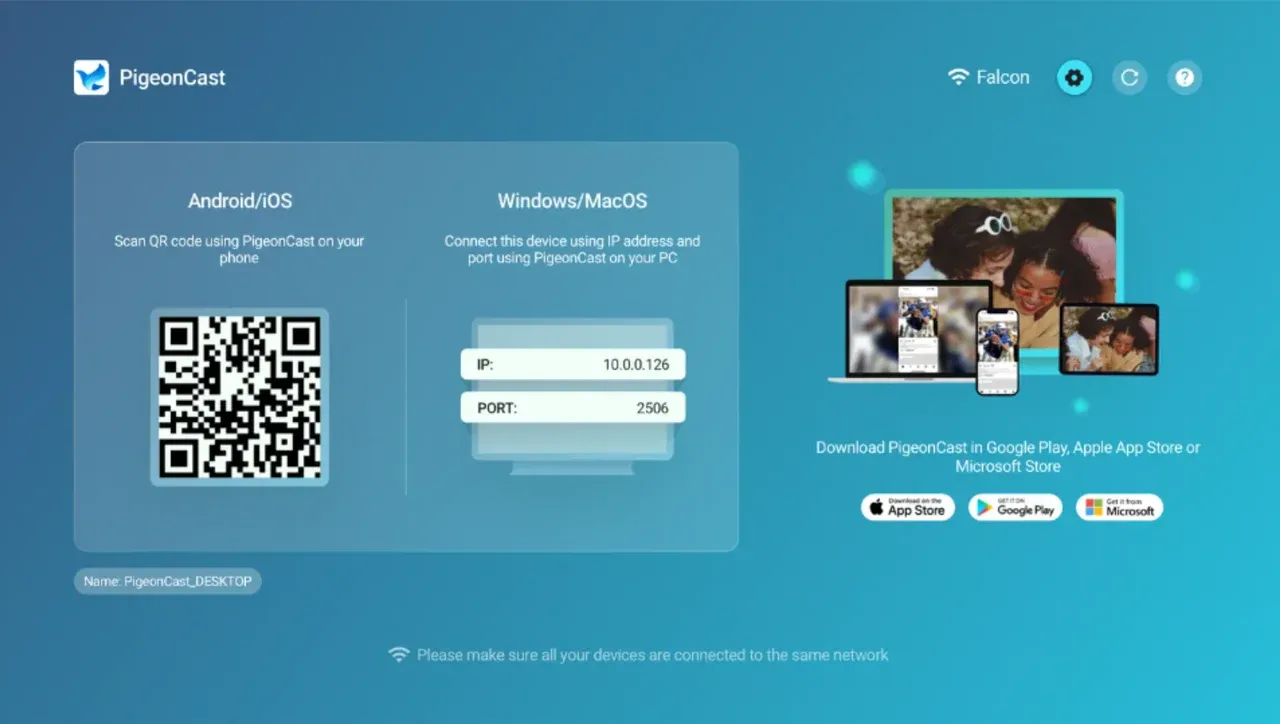
If your TV doesn't support Chromecast, free apps like PigeonCast allow you to cast Spotify from your phone or computer to almost any screen, making it a convenient alternative without extra hardware.


Overall Rating:



-
Go to the app store on your device.
-
Search for PigeonCast and download it.
-
Open the app and follow the onscreen instructions to start casting.
No Chromecast Icon on Spotify?
A common point of confusion is that Spotify doesn't always show a separate "Chromecast" icon. Instead, many users notice devices appearing under Spotify Connect, which makes it seem like Chromecast is missing.
Spotify Connect is a feature that allows compatible speakers, TVs, and audio systems to stream music directly from Spotify's servers. When you select one of these devices, your phone or computer acts only as a remote, and Chromecast is not involved.
When you select a Chromecast device or a TV with Chromecast built in, the streaming is handled by Google Cast. Your phone or computer simply tells the Chromecast what to play, while the control interface still looks like Spotify Connect.
That's why many users think Chromecast isn't showing up in Spotify. In reality, Chromecast is still there—it just appears inside Spotify's unified device list alongside Spotify Connect devices.
How to Chromecast Spotify from a Phone
Casting from a phone is the most common and reliable method. Spotify prioritizes mobile control, making this smooth and responsive.
How to Chromecast Spotify from iPhone or Android:
-
Open the Spotify app on your phone.
-
Start playing any song, album, or podcast.
-
Tap the Devices Connect icon at the bottom.
-
Select your Chromecast or TV from the list.
-
Audio will move to the TV or speaker instantly.
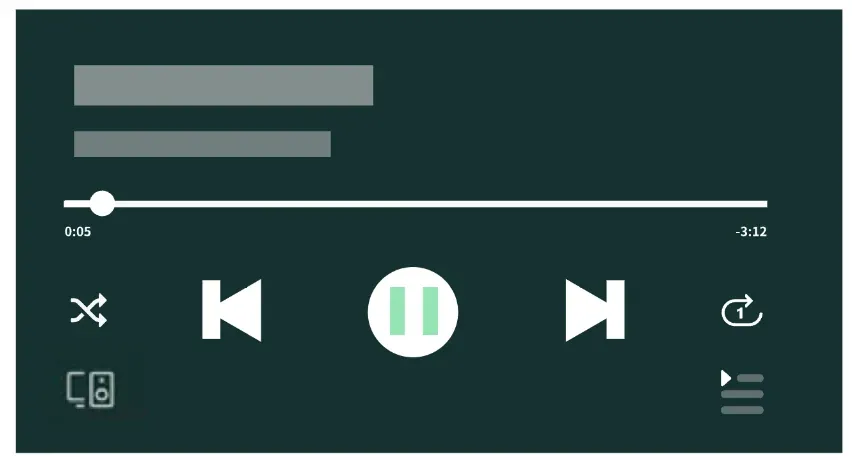
Your phone now acts as a remote. You can lock the screen, switch apps, or leave the room, and playback continues uninterrupted. This method is ideal if your TV is mainly acting as a speaker.
How to Chromecast Spotify From a Computer
Casting from a computer works, but it behaves differently from mobile casting.
Option 1: Using the Spotify Desktop App or Web Player
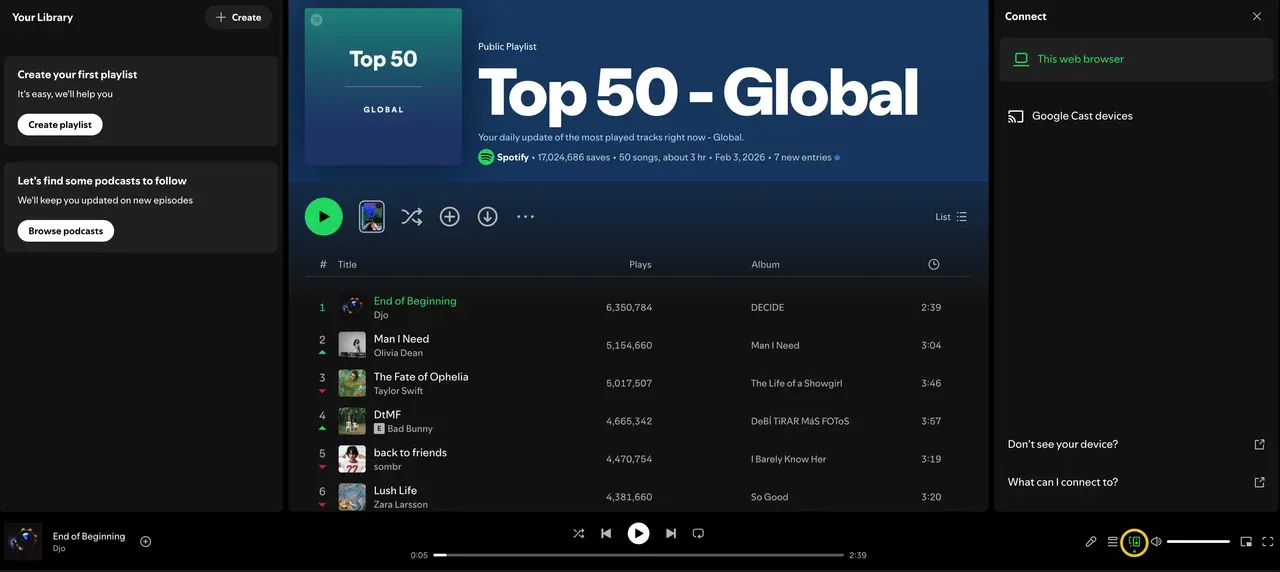
Here's how to cast Spotify to TV or other devices:
-
Open the Spotify app or go to the Spotify Web Player at https://open.spotify.com on your computer.
-
Start playing a song, album, or playlist.
-
Click the Spotify Connect icon in the Now Playing bar.
-
Choose your Chromecast-enabled TV or speaker (it may show with a Google Cast label).
The music now streams directly to your device; your computer acts only as a remote. This method is more stable than tab casting and keeps Spotify control consistent across devices.
Option 2: Casting Spotify Through Chrome
To cast Spotify to Chromecast from a PC:
-
Open Google Chrome on your computer.
-
Go to Spotify Web Player and play a track.
-
Click the three-dot menu in the top-right of Chrome and select Cast.
-
Choose your Chromecast device from the list.
-
Choose to mirror the Spotify tab.
This mirrors the browser tab rather than using Spotify Connect, so audio quality and responsiveness can be slightly weaker than native casting.
How to Fix Spotify Chromecast Not Working
Issue One: Chromecast Not Showing Up in Spotify
Many users encounter a common issue: Chromecast doesn't appear in Spotify's device list. Often, this is just a network or app-state problem.
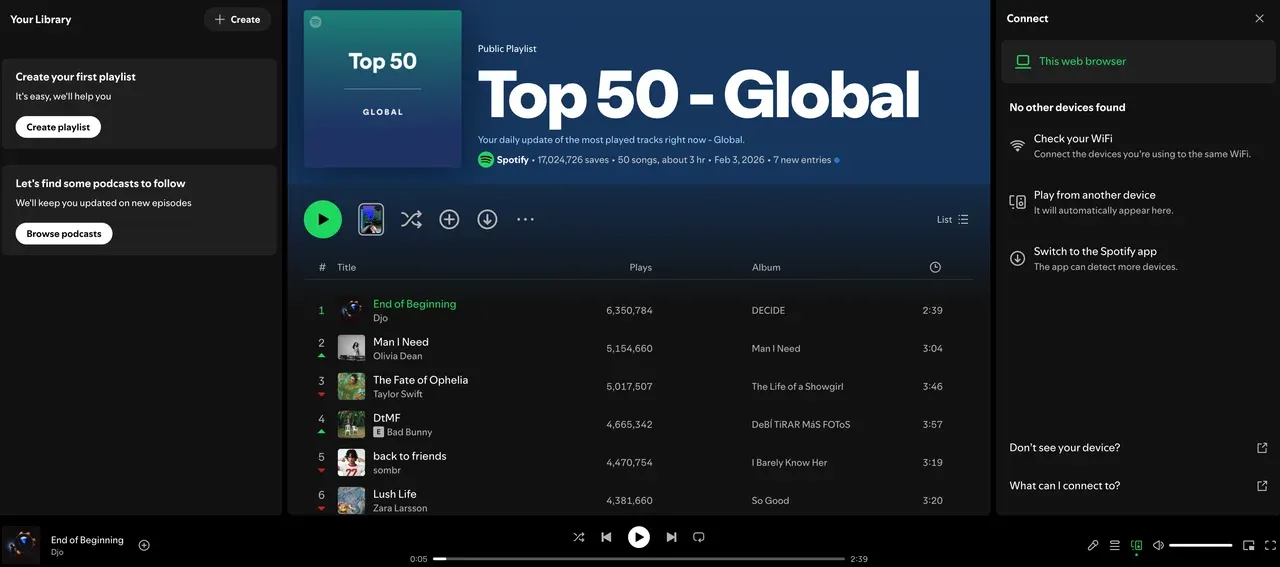
Why Chromecast doesn't show up:
-
Your phone or computer is on a different Wi-Fi network
-
The Spotify app hasn't refreshed its device list
-
The Chromecast or TV needs a quick restart
Common fixes include:
-
Confirm both devices are on the same WiFi network
-
Restart the Spotify app
-
Restart the Chromecast or TV
-
Turn Wi-Fi off and back on your phone
Nine times out of ten, this resets device discovery.
Issue Two: Connected but No Sound on TV
Spotify appears connected, but no audio comes through the TV or speakers.
Why Spotify connects but no sound:
-
Audio is routed to a different TV input or output
-
Another app is currently casting and holding the audio channel
-
Chromecast audio output is muted or set incorrectly
Common fixes include:
-
TV input and volume level
-
Whether another app is already casting
-
If the Chromecast audio output is muted
Issue Three: Spotify Free Cannot Control Playback
This is not a bug. It is a limitation.
With free accounts, Spotify restricts skipping and on-screen control when casting to TVs. Playback still works, but control feels delayed or locked. If casting is part of your daily routine, Premium is worth it purely for control stability.
Spotify Connect vs Chromecast
Many users confuse Spotify Connect and Chromecast. Here's a quick clarification:
-
Spotify Connect allows compatible devices to pull music directly from Spotify servers.
-
Chromecast uses Google Cast as the transport. Your phone or computer tells Chromecast what to play, and Chromecast streams the audio itself.
-
The Spotify interface looks similar for both, which is why you see Chromecast devices in the same device list as Spotify Connect devices.
If you see a device under Spotify Connect, it may or may not be Chromecast. The UI looks the same, but the streaming protocol is different.
| Aspect | Chromecast | Spotify Connect Device |
|---|---|---|
| Transport layer | Google Cast | Spotify Connect Protocol |
| Who streams the audio | Chromecast | Target device |
| Role of your phone/computer | Remote control | Remote control |
| Chromecast involved | Yes | No |
| UI experience | Spotify Devices list | Spotify Devices list |
Final Take
For most users, Chromecast remains the simplest and most reliable way to cast Spotify to your TV. You get responsive controls, stable playback, and a seamless mobile experience.
For unsupported devices or situations where Chromecast isn't available, PigeonCast offers a convenient and flexible alternative, letting you cast Spotify from phone or computer to virtually any screen.
With these options, playing Spotify on TV is no longer limited to native apps or hardware constraints.
Chromecast Spotify FAQs
How to get Spotify lyrics on TV?
Spotify lyrics can appear on your TV, but it depends on how you're casting.
-
If you cast Spotify to a TV using Chromecast, lyrics usually appear on your phone, not on the TV screen.
-
Some smart TVs and streaming devices support on-screen lyrics, but this feature is limited and varies by model.
-
If lyrics don't show on your TV, keep Spotify open on your phone and view lyrics there while the music plays on the big screen.
For full on-screen lyrics, screen mirroring solutions may work better than native Chromecast casting.
Why can't I cast Spotify to my TV?
This usually happens for one of a few reasons:
-
Your phone/computer and TV are not on the same Wi-Fi network
-
Spotify hasn't refreshed the device list yet
-
The TV doesn't support Chromecast or Spotify Connect
-
The Spotify app is outdated or stuck in the background
Restarting Spotify and reconnecting Wi-Fi fixes most cases. If your TV still doesn't show up, using a mirroring app like PigeonCast can bypass device detection entirely.
How to cast Spotify to TV from phone?
Casting Spotify from your phone is the simplest method.
-
Open the Spotify app on your iPhone or Android phone.
-
Start playing a song or podcast.
-
Tap the Devices icon at the bottom.
-
Select your Chromecast or TV.
-
Spotify will start playing on your TV instantly.
Your phone becomes a remote, and playback continues even if you lock the screen.
Does Spotify use Chromecast or Spotify Connect?
Both, depending on the device you choose.
-
Selecting a Chromecast or Chromecast-enabled TV uses Google Cast as the streaming method.
-
Selecting a speaker or TV that supports Spotify Connect natively streams directly from Spotify's servers, without Chromecast.
They appear in the same device list, which is why the experience feels similar.
Can I Chromecast Spotify without Wi-Fi?
No. Chromecast requires a Wi-Fi connection to stream Spotify. If you don't have access to a stable Wi-Fi network, screen mirroring over a local connection may work better than native Chromecast casting.
Can I use Spotify Free with Chromecast?
Yes, Spotify Free supports Chromecast. However, playback control is more limited compared to Premium. You may experience fewer skips and less responsive on-screen control when casting to TVs or speakers.
Can I cast Spotify to TV without Chromecast?
Yes. If your TV doesn't support Chromecast or Spotify Connect, you can still play Spotify on it using screen mirroring apps like PigeonCast, which mirror your phone or computer screen (and audio) directly to the TV.
Mia Clarke is a technology editor specializing in screen mirroring and casting solutions across multiple platforms. Mia provides clear, practical guides and in-depth insights to help users seamlessly connect their devices. Passionate about enhancing digital experiences, Mia is dedicated to keeping readers updated on the latest trends and tools in cross-platform screen sharing. Whether you’re looking to mirror your smartphone, laptop, or smart TV, Mia’s content delivers reliable, user-friendly advice to simplify your tech setup.