
If you need screen mirroring Sony TV with Samsung phone, start with Samsung Smart View on the same Wi-Fi network. Most Galaxy users can connect in a few minutes when device discovery is stable. Follow the setup order below, then switch quickly to the right fallback when the TV does not appear.
Pre-Check Compatibility Before You Mirror
Most Sony Android TV and Google TV models support Miracast-based screen mirroring and Chromecast-based casting, which makes it possible to mirror a Samsung phone without additional hardware.
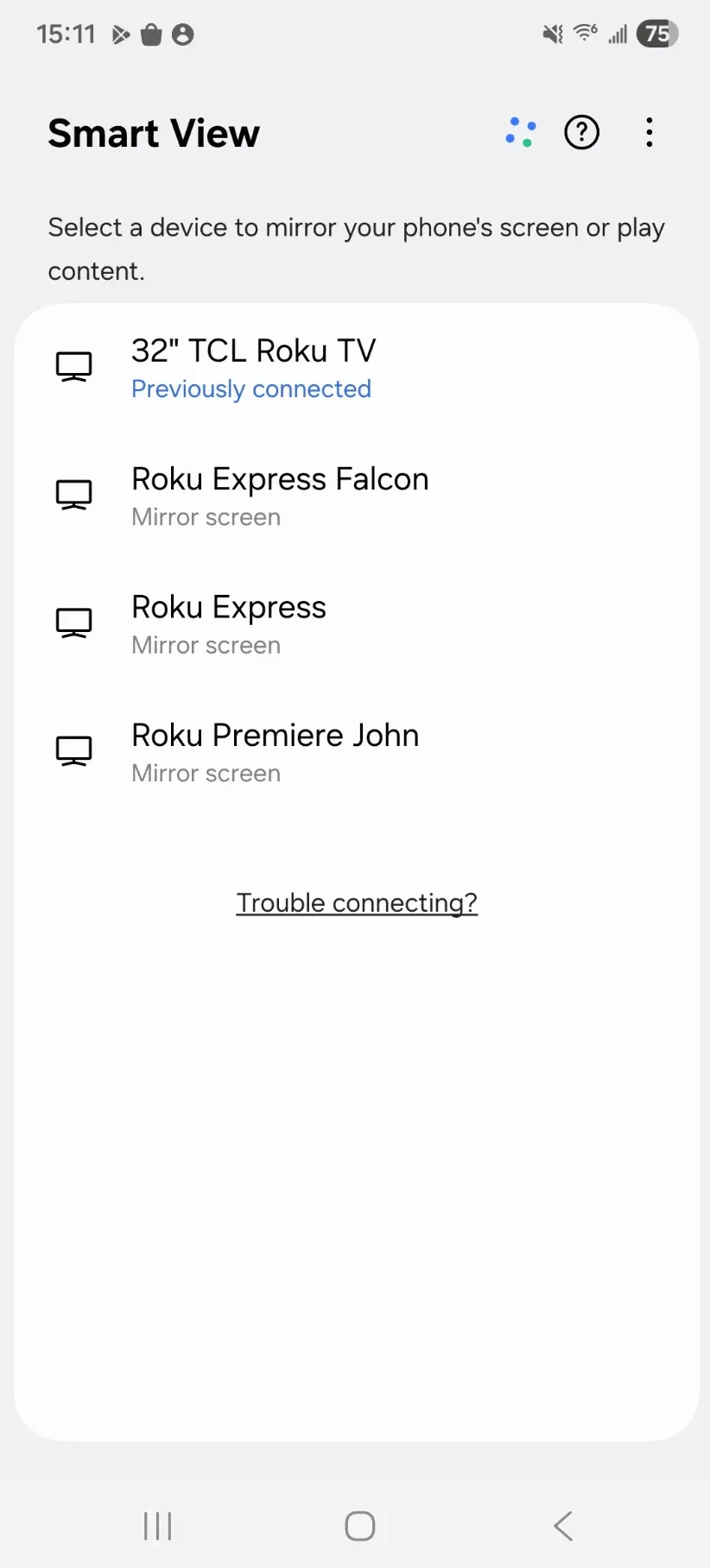
Connection failures usually start with network or version mismatches, not with Smart View itself (it is Samsung's built-in screen mirroring feature based on the Miracast protocol).
When a Samsung phone and Sony TV sit on different SSIDs or outdated firmware, discovery requests fail, and the TV never appears in the list. Confirm the baseline below first, then move to Smart View once compatibility is clean.
Use this checklist first:
-
Connect your Samsung phone and Sony TV to the same Wi-Fi network.
-
Connect both devices to the same Wi-Fi network, usually 5 GHz for stability.
-
On Sony TV, run system update at Settings > System > About > System software update.
-
On Samsung phone, update One UI and the apps you plan to cast.
-
Turn off VPN on your phone during device discovery.
-
Confirm your Sony TV input is not locked to a restricted HDMI-only profile.
Screen Mirroring Sony TV With Samsung Phone Using Smart View
After baseline checks pass, Smart View is the fastest full-screen route for most Galaxy phones. Smart View can fail when prior pairings are stale, so start with a clean connection attempt before trying alternatives. If the TV is still missing after one complete attempt, continue to the fallback options below.
Let's mirror Galaxy phone to Sony Bravia in a few steps:
Step 1. Swipe down twice on your Samsung phone to open Quick Settings.
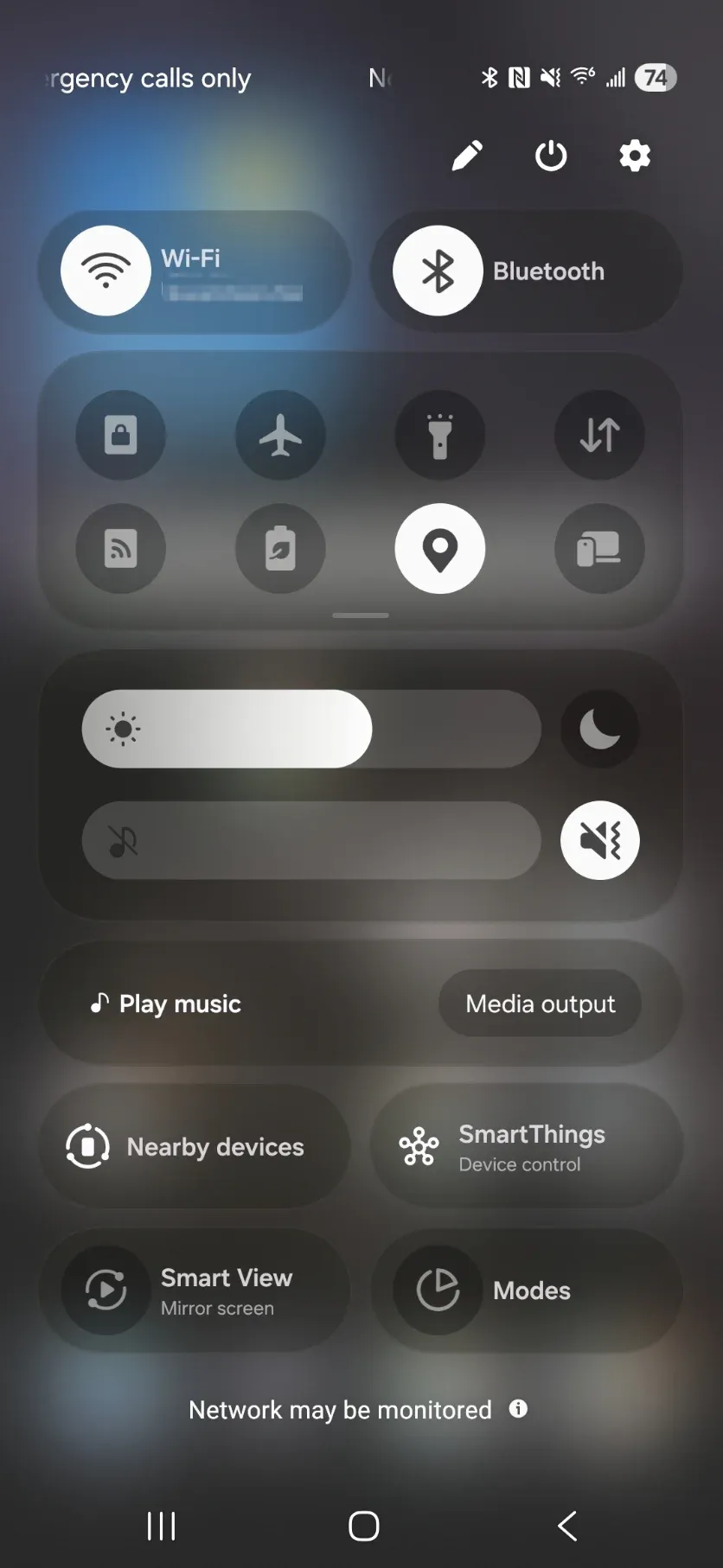
Step 2. Tap Smart View.
Step 3. Wait for the device list to appear, then select your Sony TV name.
Step 4. Accept the connection request on the TV screen.
Step 5. Choose full-screen mirror mode and rotate your phone if needed.
Troubleshooting When Sony TV Does Not Show Up
Sony TV not showing on Smart View? A Galaxy S23 user connected the phone to a 5 GHz SSID and the TV to a separate 2.4 GHz SSID. Smart View could not detect the TV until both devices joined the same SSID.
Besides SSID mismatch, VPN interference, or router isolation settings that block local traffic are the usual causes.
Apply the sequence below once, then switch to app casting or HDMI if discovery still fails.
Step 1. Restart devices in order: Samsung phone, Sony TV, then router.
Step 2. Reconnect both devices to the same Wi-Fi SSID and same band.
Step 3. Disable VPN, private DNS filters, or guest isolation on the network.
Step 4. Retry Smart View once.
Step 5. If still failing after one retry, switch to app casting or HDMI.
Alternative Methods When Smart View Is Not Stable
When Smart View fails, switching methods early saves time and avoids endless reconnect loops. Choose the option below based on whether you need full-screen control, stable media playback, or guaranteed output.
Option 1: Cast From Supported Apps
Use app casting when Smart View discovery is inconsistent but your streaming apps still detect the TV. App casting offloads playback to the TV and often reduces lag or battery drain on Samsung phones. Continue with these steps when video playback matters more than mirroring your full phone interface.
See how to cast to Sony TV from Android, like Samsung phone:
Step 1. Open a supported app like YouTube on your Samsung phone.
Step 2. Tap the Cast icon inside the app.
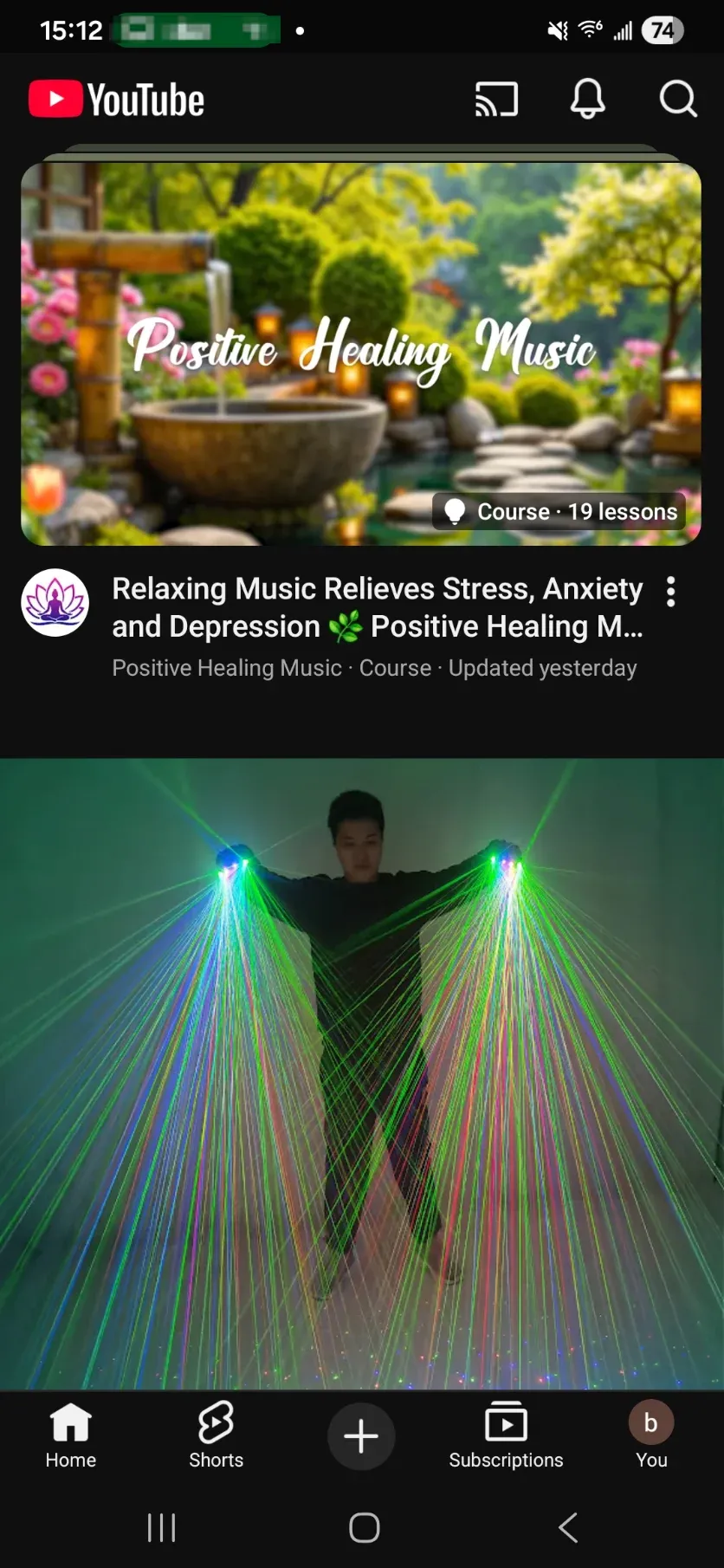
Step 3. Select your Sony TV.
Step 4. Start playback and use your phone as a controller.
Option 2: Use the PigeonCast Screen Mirroring App
Use a screen mirroring app such as PigeonCast when router isolation or managed networks block native discovery between the phone and TV. These apps use code or QR pairing, which can bypass broadcast discovery limits that prevent Smart View from listing devices.


Overall Rating:


Step 1. Open PigeonCast on your Sony TV side.
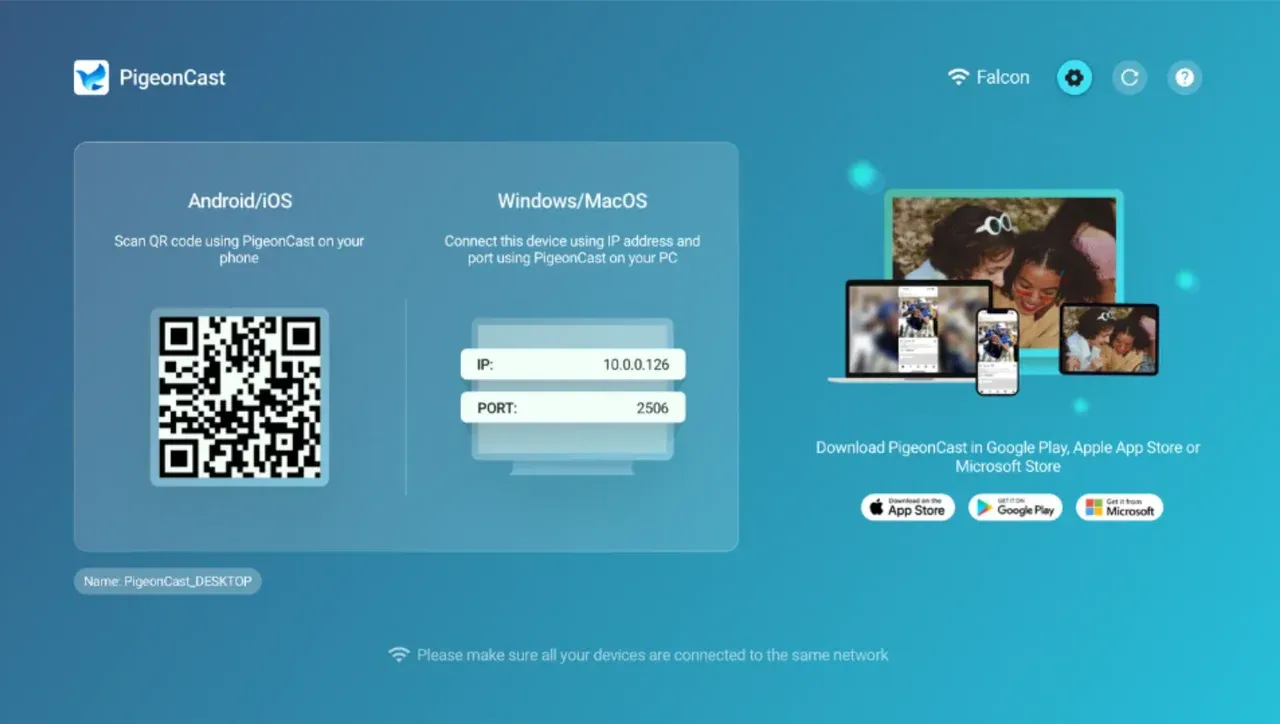
Step 2. Open PigeonCast on your phone.
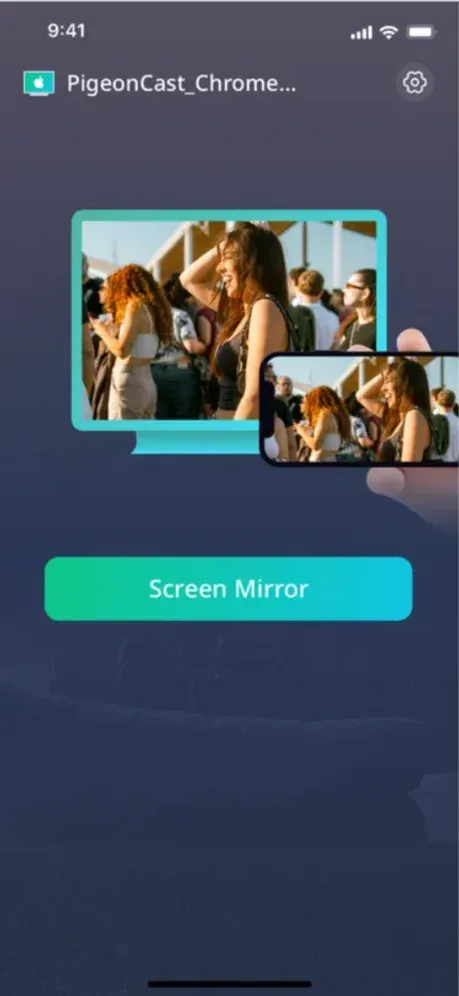
Step 3. Pair devices with a code or QR method provided in-app.
Step 4. Start mirroring and verify audio output route.
Option 3: HDMI Cable Fallback
Move to HDMI when wireless retries keep failing and you need predictable output now. A direct cable path removes Wi-Fi discovery from the chain, so setup becomes faster under deadline pressure. Use this option for meetings, demos, or hotel environments where wireless stability is low.
Step 1. Connect a USB-C to HDMI adapter to your Samsung phone.
Step 2. Connect HDMI cable from adapter to Sony TV.
Step 3. Switch TV input to the matching HDMI port.
Step 4. Unlock your phone and confirm display output.
What Is the Best Way to Cast Samsung Phone to Sony TV?
Method choice depends on your failure trigger and your immediate goal. Smart View is usually fastest when discovery works, while app casting is steadier for media playback, and HDMI is most reliable under deadline pressure. Use the table to pick once, then avoid repeated retries on a method that already failed.
| Situation | Best method | Why |
|---|---|---|
| Typical home setup | Smart View | Fastest full-screen setup on Samsung Galaxy phones |
| Video streaming apps | In-app cast | More stable playback and lower phone battery use |
| Restricted network | PigeonCast | Works when standard discovery fails |
| Mission-critical reliability | HDMI | Direct connection with minimal network dependency |
Conclusion
The fastest screen mirroring Sony Bravia Android path usually follows a simple order: confirm compatibility, try Smart View once, and switch quickly if discovery fails. For everyday home use, Smart View remains the first choice for Galaxy-to-Sony full-screen mirroring. When network restrictions block discovery, move to a screen mirroring app. When you need guaranteed output immediately, use HDMI.
Screen Mirroring Sony TV With Samsung Phone FAQ
Why is screen mirroring Sony TV with Samsung phone not working even though both devices are online?
Start by forcing both devices onto the same SSID and band, then disable VPN and retry Smart View once. Being online does not guarantee that your router allows local device discovery.
Do I need Chromecast to mirror a Samsung phone to Sony TV?
Check your Sony TV feature set first, then choose the matching path. Many Sony Android TV and Google TV models support mirroring or casting natively, while older models may need a screen mirroring app or HDMI fallback.
Is Smart View better than app casting?
Pick Smart View for full-screen sharing, then pick app casting when you mainly stream media. App casting often plays more smoothly because the TV handles playback directly.
Can I mirror without Wi-Fi?
Use a USB-C to HDMI adapter with a standard HDMI cable for the most stable no-Wi-Fi path. Cable output removes network discovery issues completely.
When should I stop troubleshooting and switch to HDMI?
Switch after one full troubleshooting cycle if Smart View still cannot detect the TV. For urgent meetings or support sessions, HDMI is usually the fastest path to predictable output.
Mia Clarke is a technology editor specializing in screen mirroring and casting solutions across multiple platforms. Mia provides clear, practical guides and in-depth insights to help users seamlessly connect their devices. Passionate about enhancing digital experiences, Mia is dedicated to keeping readers updated on the latest trends and tools in cross-platform screen sharing. Whether you’re looking to mirror your smartphone, laptop, or smart TV, Mia’s content delivers reliable, user-friendly advice to simplify your tech setup.