
If you need to know how to connect PC to Sony Bravia TV wirelessly, start with built-in casting before you install anything. For most people, Windows wireless display or Chrome casting works in minutes when both devices are set up correctly. This guide gives a clear order: check compatibility, try the fastest native path, then switch methods if discovery fails.
PC to Sony Bravia Wireless Setup Checklist Before You Connect
Before you start any casting method, this checklist removes the setup issues that usually block discovery and pairing. It matters because a correct network baseline is what makes PC to Sony Bravia wireless connection stable across Miracast, Chromecast, or a screen mirroring app.
Complete these quick checks first, then move to Method 1 for the fastest full-screen setup path.
-
Put your PC and Sony Bravia TV on the same Wi-Fi network.
-
Keep both devices on the same Wi-Fi band (2.4 GHz or 5 GHz) during setup.
-
Restart the TV and PC once if either has been online for many hours.
-
Update Sony Bravia firmware in Settings > System > About > System software update.
-
Update Windows and Chrome on your PC.
-
Turn off VPN on your PC during device discovery.
Method 1: Connect Windows PC to Sony Bravia Wirelessly with Miracast
Want to mirror your entire Windows desktop with minimal app limitations? Try Miracast.
For many users, this is the most direct way to connect Windows to Sony Bravia wirelessly for meetings, browsing, and local files. Follow the steps exactly, then switch methods quickly if the TV never appears in the Windows device list.
Step 1. On your Sony Bravia TV, open the input menu and select the screen mirroring or wireless display input (name varies by model).
Step 2. On Windows 11, press Win + K and wait for the TV name to appear. On Windows 10, use Action Center > Connect.
Step 3. Select your Sony Bravia TV from the list.
Step 4. Accept the pairing request on the TV if prompted.
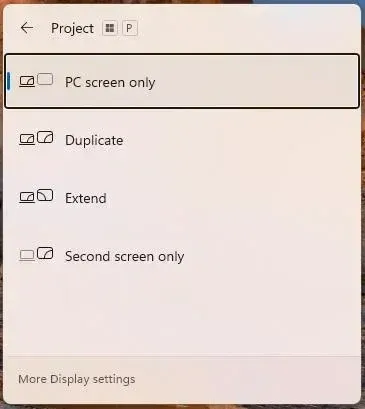
Step 5. Choose display mode with Win + P (Duplicate for mirror, Extend for second screen).
Miracast on your PC sends your whole Windows display directly, so app support is broad, and setup is simple. If your TV never appears in Win + K after one restart cycle or Win + K doesn't work, move to Method 2 instead of repeating scans.
Method 2: Connect Windows PC to Sony Bravia TV Wirelessly with Chromecast
This method is better when your main goal is browser streaming instead of full desktop control. If your TV uses Google TV or Android TV, Chromecast from PC to Sony TV can be smoother for web video and tab playback. Start with tab casting for reliability, then use full-screen casting only when needed.
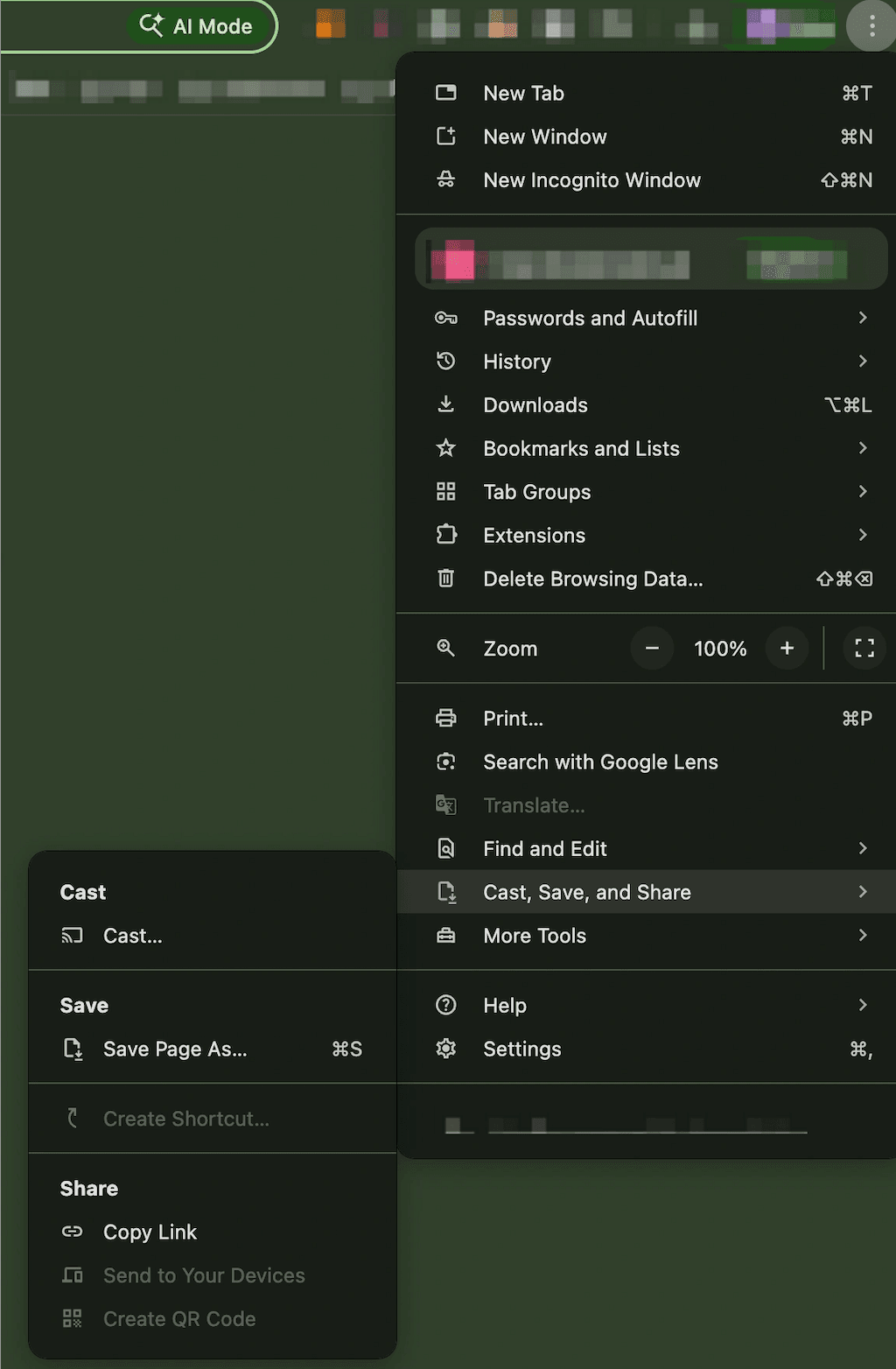
Step 1. Open Chrome on your PC and click the three-dot menu.
Step 2. Select Cast, save, and share then choose Cast....
Step 3. Pick your Sony Bravia from the device list.
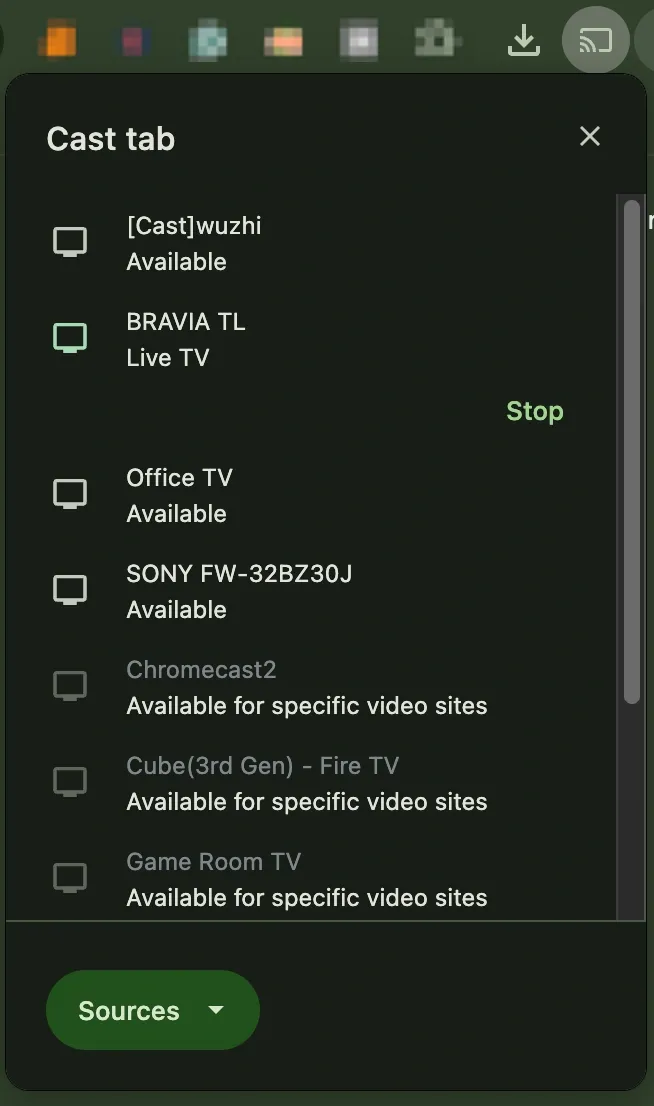
Step 4. In Sources, choose Cast tab for a single browser tab or Cast screen for your entire desktop.
Step 5. Start playback and keep Chrome open while casting.
Chromecast is app- and browser-friendly, and it handles streaming services better than generic mirroring in many setups. However, if desktop audio is missing, latency is too high for meetings, or you get the error of Chromecast available for specific video sites, try other methods for lower interaction delay.
Method 3: Connect Windows PC to Sony Bravia TV Wirelessly with PigeonCast
When native discovery fails repeatedly, a guided pairing path helps you connect without relying on auto-detection. PigeonCast, a screen mirroring app, is useful in offices, shared housing, or managed networks where devices cannot always broadcast reliably.
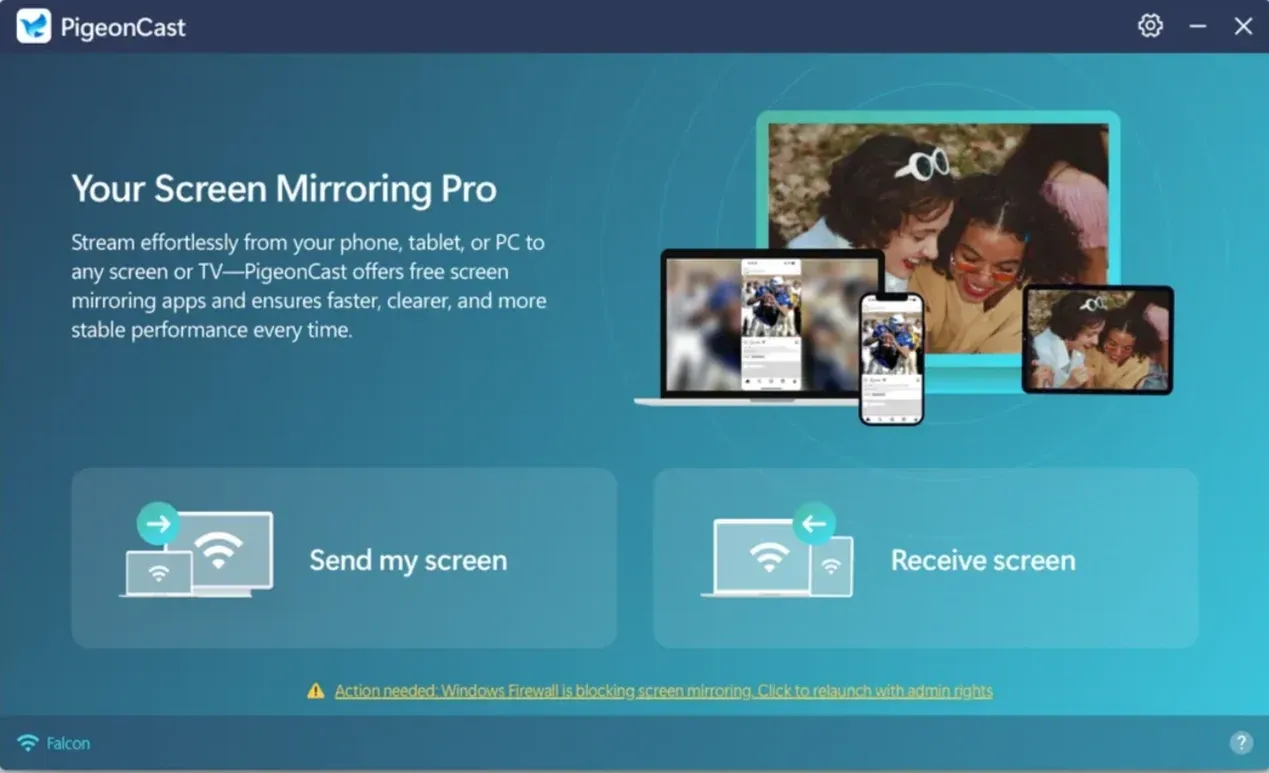
Step 1. Open PigeonCast on your PC and Sony Bravia TV.


Overall Rating:


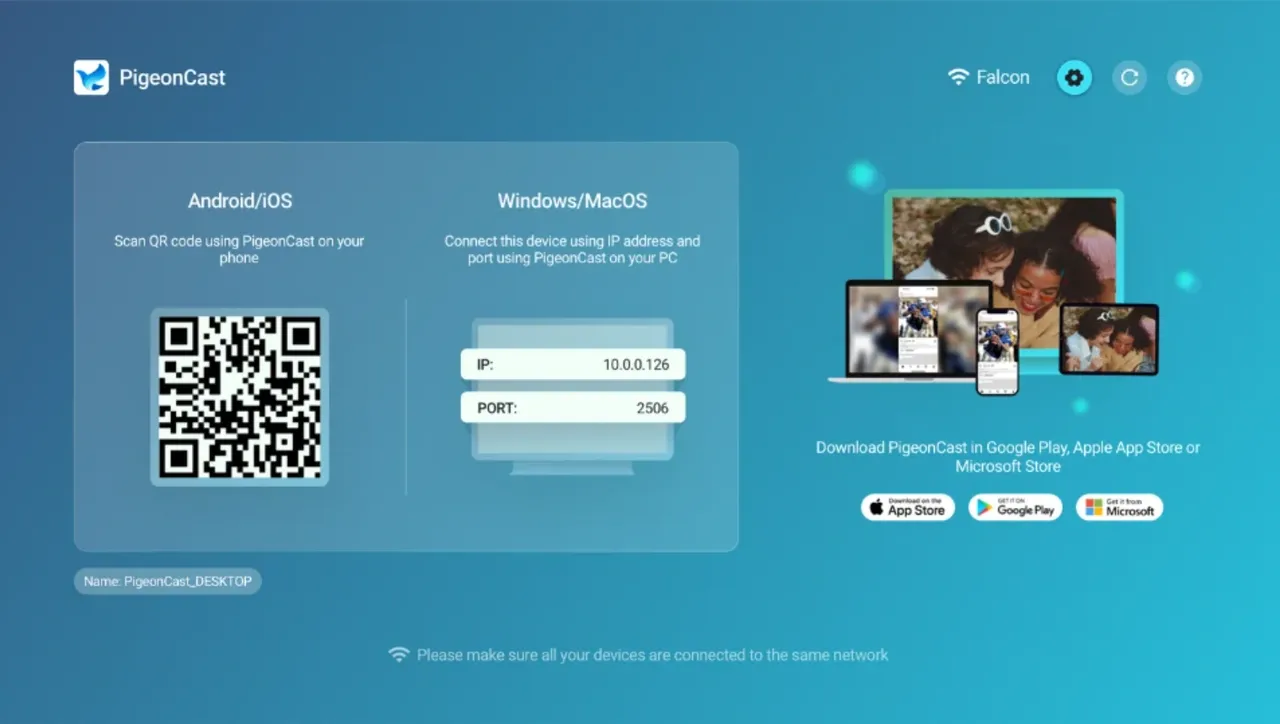
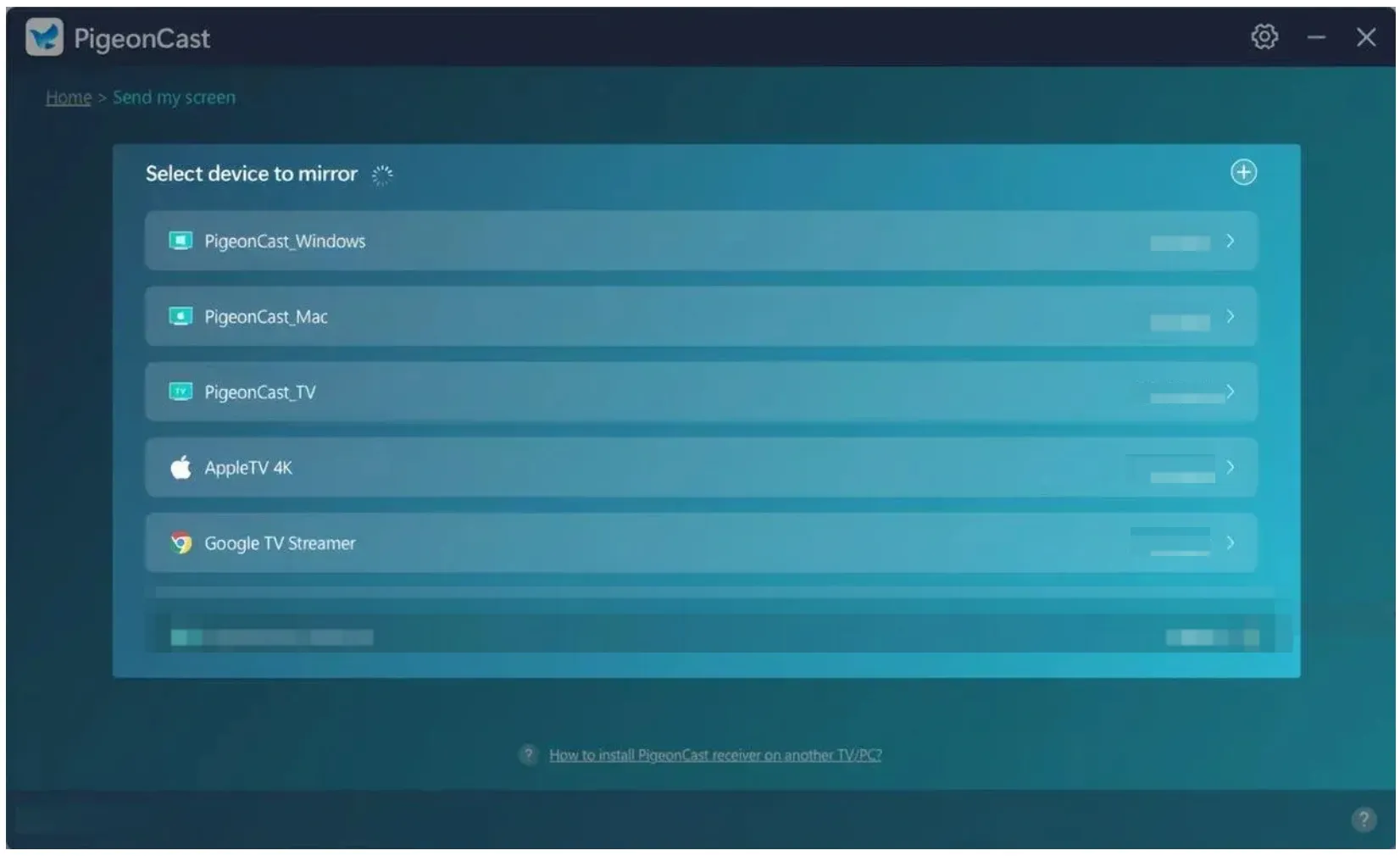
Step 2. Click the Send my screen option on your PC and choose your Sony TV from the list.
Step 3. Click the Start Mirror option, and your PC screen appears on your TV.
Fix Sony Bravia Not Showing Up on Windows or Chrome Cast
If your TV does not appear, run this sequence to isolate the real cause instead of guessing. These checks target the most common reasons behind Sony Bravia not showing up on Win + K and missing Chrome cast targets. Complete the list once from top to bottom, then retry the method that matches your use case.
-
Restart devices in this sequence: TV, router, then PC.
-
Reconnect both devices to the exact same SSID and band.
-
Disable VPN, proxy, and guest network isolation.
-
On TV, turn screen mirroring off and on once.
-
On Windows, remove old wireless display pairings and reconnect.
-
In Chrome, update and retry casting from a new tab.
If your TV appears but stutters, lower resolution on the PC temporarily and reduce background downloads.
If the connection still fails after completing the checklist once, switch to Method 3. A cross-platform screen mirroring app is often the most reliable option when compatibility issues persist.
Best Way for PC to Sony TV Wireless Screen Mirroring by Scenario
Choosing the right method first saves time and avoids repeated troubleshooting loops. The best way to connect PC to Sony Bravia TV wirelessly depends on whether you need full desktop control, browser video, or recovery from unstable discovery. Match your situation to the table, run one focused test, and switch quickly if it fails.
| Situation | Best first method | Why |
|---|---|---|
| Full desktop mirror for meetings | Miracast (Win + K) | Fast full-screen control |
| Streaming from browser sites | Chromecast in Chrome | Better tab and media behavior |
| TV appears and disappears randomly | PigeonCast | Works in constrained discovery environments |
| Frequent lag on crowded Wi-Fi | Miracast with reduced resolution | More predictable for desktop tasks |
Rule of thumb: test one method for two minutes, then switch. Repeating the same failed path rarely fixes root causes.
The End
To connect PC to Sony Bravia TV wirelessly with the least friction, use a fixed decision path instead of random retries. Start with the checklist, run Miracast for desktop mirroring, then move to Chromecast for browser-heavy viewing. I recommend one complete attempt per method and immediate switching when discovery or performance remains unstable.
How to Connect PC to Sony Bravia TV Wirelessly FAQ
Why is my Sony Bravia not showing up on Win + K menu?
The usual causes are different Wi-Fi bands, outdated TV firmware, or network isolation settings. Confirm both devices are on the same SSID and band, then restart TV, router, and PC in that order.
Is Miracast or Chromecast better for PC to Sony Bravia wireless connection?
For full desktop mirroring, Miracast is usually better. For browser-based streaming, Chromecast is often smoother. Choose based on your main use case instead of forcing one method for everything.
Can I connect a PC to Sony Bravia wirelessly without internet?
You still need local network connectivity for most wireless methods. Internet is not always required for local mirroring, but both devices must still reach each other on the same network.
How do I reduce lag when casting from PC to Sony Bravia?
Close heavy downloads, lower PC output resolution, and keep both devices on 5 GHz Wi-Fi when available. For meetings or interactive use, Miracast with reduced resolution is usually more responsive.
Does Sony Bravia support wireless display from all Windows PCs?
Not all Windows PCs support Miracast hardware acceleration, especially older devices or some desktop Wi-Fi chipsets. On Windows, check wireless display capability in system settings and update graphics plus network drivers before testing again. If Miracast is unsupported, use Chromecast from Chrome or a screen mirroring app like PigeonCast.
Why can I cast a Chrome tab but not my full desktop?
Tab casting and desktop casting use different source modes, and desktop capture can fail when permissions or graphics paths are restricted. In Chrome, reopen Cast..., switch Sources to Cast screen, and confirm capture permissions when prompted. If full-screen cast still fails, restart Chrome and test with one monitor connected first.
Do I need Bluetooth enabled to connect PC to Sony Bravia wirelessly?
Bluetooth is not required for the video stream itself, but some discovery and pairing flows behave better when Bluetooth remains on. Keep Bluetooth enabled during initial setup, then test with it off after connection is stable.
The key requirement is still shared Wi-Fi network access between your Windows PC and Sony Bravia TV.
What should I do if audio plays on PC instead of TV?
After connecting, open Windows sound output settings and select the Sony Bravia device as your playback target. Then reconnect the cast session and verify that app-level audio output is not locked to local speakers.
If audio still stays on PC, disconnect, restart the TV, and retry with Miracast first because it often handles full system audio more consistently.
Mia Clarke is a technology editor specializing in screen mirroring and casting solutions across multiple platforms. Mia provides clear, practical guides and in-depth insights to help users seamlessly connect their devices. Passionate about enhancing digital experiences, Mia is dedicated to keeping readers updated on the latest trends and tools in cross-platform screen sharing. Whether you’re looking to mirror your smartphone, laptop, or smart TV, Mia’s content delivers reliable, user-friendly advice to simplify your tech setup.