
Wireless HDMI sounds simple: take the HDMI cable out of the equation and send the same picture to your TV wirelessly.
In practice, there is a little more to understand before buying one. Most wireless HDMI products come as a transmitter and receiver pair, and things like device compatibility, resolution, range, and latency can vary considerably between kits.
The good news is that setup is usually straightforward. Once you understand which part connects to your source device and which connects to your display, a wireless HDMI kit can be a convenient way to connect a laptop, game console, camera, or media player to a TV or projector without running a long cable across the room.
This guide explains what wireless HDMI is, how the hardware works, how to set it up, what devices it works with, and when a screen mirroring solution may be a better choice.
What Is Wireless HDMI?
Wireless HDMI is a way to send video and audio from an HDMI source to a display without running an HDMI cable all the way between them.
Instead of one long cable, you normally use two small devices:
- a wireless HDMI transmitter, usually called the TX
- a wireless HDMI receiver, usually called the RX
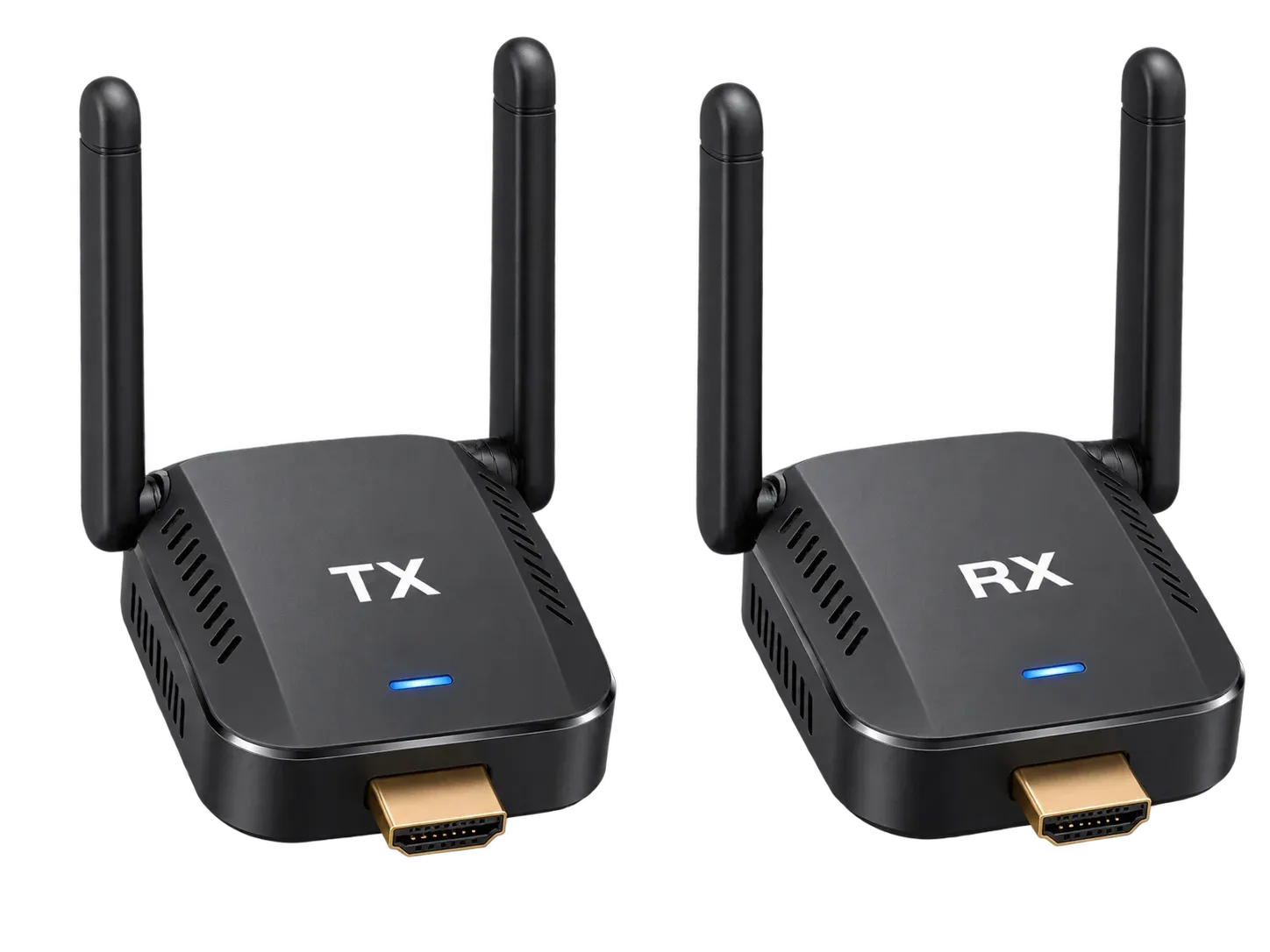
The transmitter connects to the device producing the picture, such as a laptop or game console. The receiver connects to the TV, monitor, or projector where you want that picture to appear.
You can think of the wireless connection between the TX and RX as replacing the middle section of a normal HDMI cable.
With regular HDMI, the connection looks like this: Laptop → HDMI cable → TV. With wireless HDMI, it becomes Laptop → Transmitter → wireless connection → Receiver → TV.
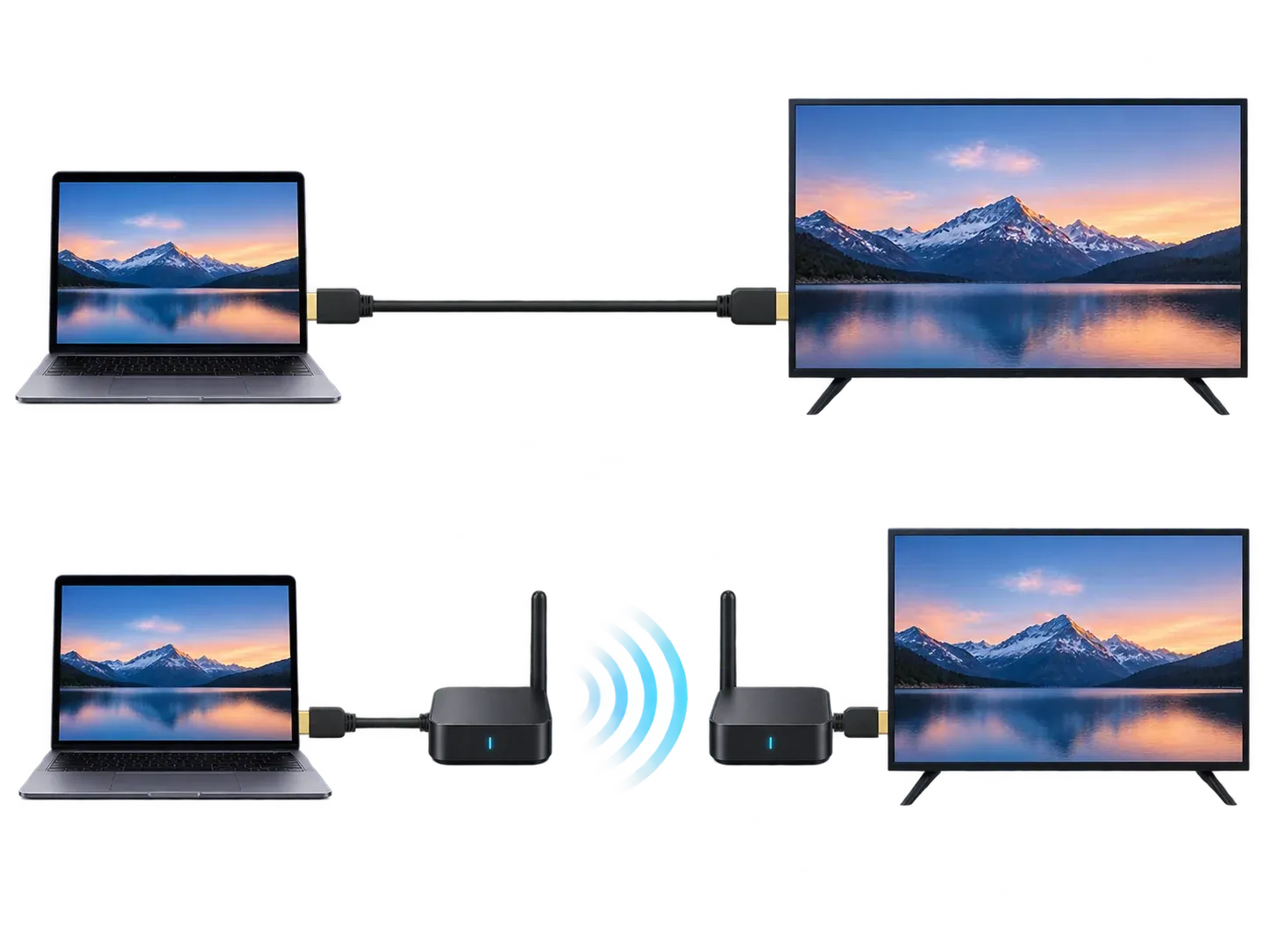
That basic design is why wireless HDMI can also work with displays that have no smart features at all. The TV does not necessarily need AirPlay, Google Cast, Miracast, or even an internet connection. It mainly needs a compatible HDMI input.
What Does a Wireless HDMI Kit Include?
A basic consumer kit usually comes with one transmitter, one receiver, USB or USB-C power cables, sometimes a short HDMI cable, and occasionally USB-C, Mini HDMI, or Micro HDMI adapters.
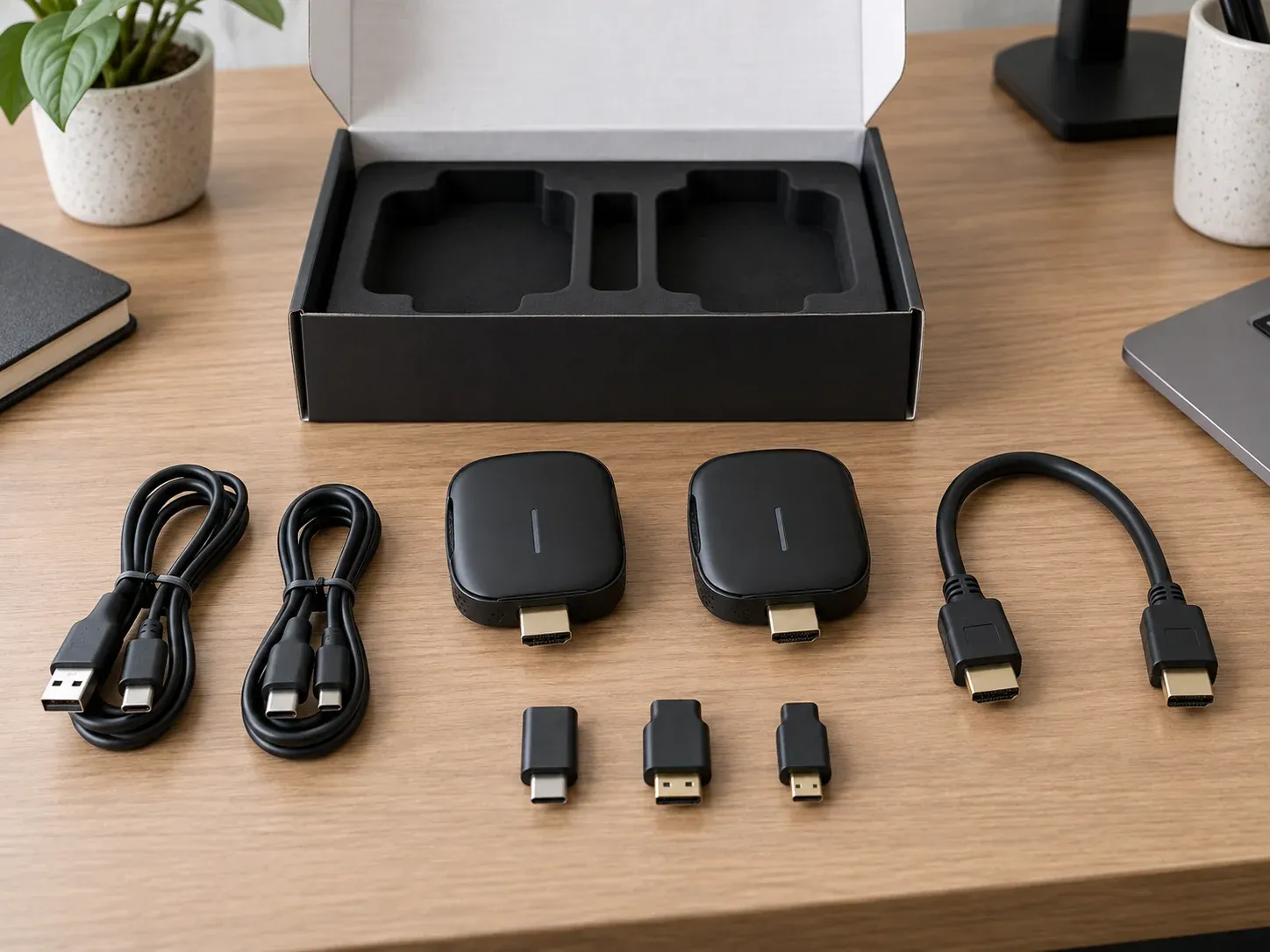
The exact design varies. Some transmitters look like oversized HDMI dongles and plug directly into a laptop. Others are small boxes connected with a short HDMI cable. Receiver designs vary in the same way.
More advanced systems may also include external antennas, HDMI loop-out ports, multiple receivers, remote-control extensions, or dedicated power adapters.
That is why two products both described as “wireless HDMI” can look quite different.
Wireless HDMI Transmitter vs. Receiver
The easiest way to remember the difference is: TX sends. RX receives.
The transmitter goes on the source side. Typical source devices include Windows PCs and laptops, MacBooks, game consoles, cameras, Blu-ray players, set-top boxes, and media players.
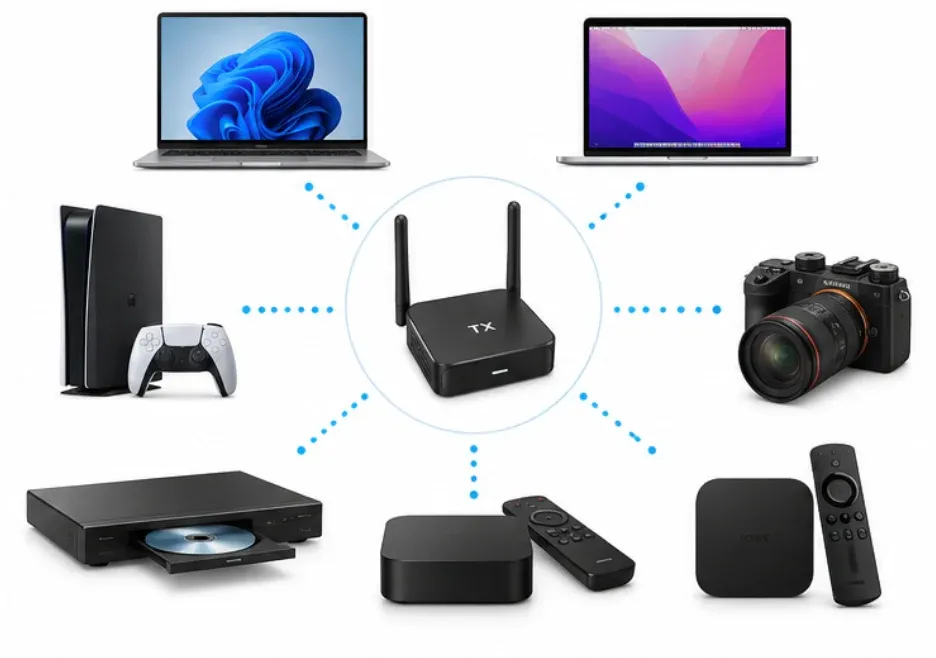
The receiver goes on the display side. Typical receiving displays include TVs, monitors, projectors, and presentation displays.
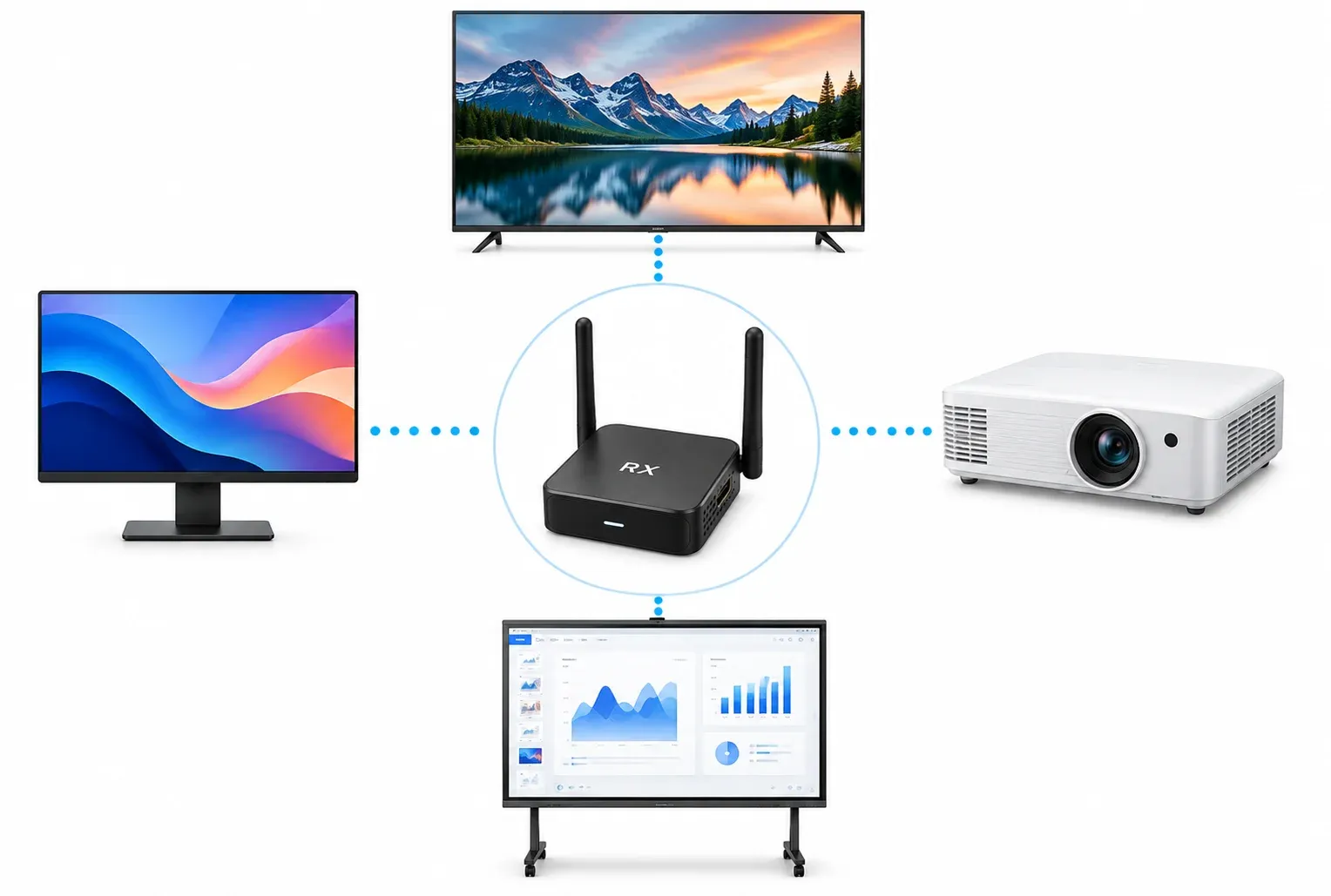
One common mistake is plugging the transmitter into a TV simply because the TV has an HDMI port. Most HDMI ports on TVs are inputs, meaning they receive video rather than send it.
If you want to transmit what is playing on one TV to another TV, the first TV would need an actual video output. Most consumer TVs do not provide one.
How Does Wireless HDMI Work?
A wireless HDMI transmitter takes the video and audio signal from your source device and sends it directly to the receiver. The receiver then passes that signal to the TV or projector through HDMI.
Most consumer kits create their own direct wireless connection, so they do not need to join your home WiFi network. You normally do not need to enter a WiFi password, install an app, or connect both devices to the same router.
Different kits may use 2.4GHz, 5GHz, 60GHz, or proprietary wireless systems, so range, interference, and latency can vary by model.
How to Set Up Wireless HDMI
Most wireless HDMI systems are easier to install than their product listings can make them look.
The exact process varies by model, but the basic connection is usually the same.
Step 1. Check the Video Output on Your Source Device
First, look at the device you want to transmit from.
A desktop PC, game console, camera, or older laptop may have a standard HDMI output. In that case, an HDMI transmitter is usually straightforward.
Newer laptops and phones may only have USB-C. This is where you need to be more careful.
A USB-C port does not automatically mean that the device can send video through it. The port must support video output, such as DisplayPort Alt Mode or another compatible display standard.
That matters particularly with Android phones and inexpensive laptops. Two devices can have physically identical USB-C ports while only one of them supports an external display.
If your device cannot output video from that port, plugging in a USB-C wireless HDMI transmitter will not magically add the capability.
Step 2. Connect the Wireless HDMI Transmitter
Plug the transmitter into the video output on your source device. For example, Laptop HDMI OUT → Wireless HDMI TX.
If the transmitter uses a separate HDMI cable, connect the cable between the laptop and transmitter.
Some transmitters also need USB power. In that case, connect the supplied power cable to the laptop, a USB charger, or another power source recommended by the manufacturer.
Step 3. Connect the Receiver to the TV or Projector
Connect the RX to an HDMI input on the receiving display. For example, Wireless HDMI RX → TV HDMI 1.
Again, many receivers need USB power even though the video itself is delivered through HDMI.
You may be able to power the receiver from a USB port on the TV. If the connection is unstable, however, using the supplied wall adapter can sometimes be more reliable because not every TV USB port provides the same amount of power.
Step 4. Select the Correct HDMI Input
Turn on the TV or projector and switch it to the HDMI input where the receiver is connected.
If the receiver is connected to HDMI 2, for example, choose HDMI 2 from the TV's input menu.
A surprising number of “no signal” problems come from simply having the display set to the wrong HDMI input.
Step 5. Wait for the Transmitter and Receiver to Connect
Pre-paired kits usually connect automatically.
You may see a startup screen or connection message for a few seconds before your source device appears on the display.
If nothing happens, checkn whether both units have power, whether the TV is on the correct HDMI input, whether the transmitter is connected to a real video output, or whether the TX and RX need to be paired manually.
Some products also include a pairing or reset button.
Step 6. Choose Mirror or Extend Mode
When using a computer, the operating system still controls how the second display behaves.
You can normally choose between Mirror / Duplicate (The TV shows the same thing as your computer screen.) or Extend (The TV becomes a second desktop, giving you additional screen space.).
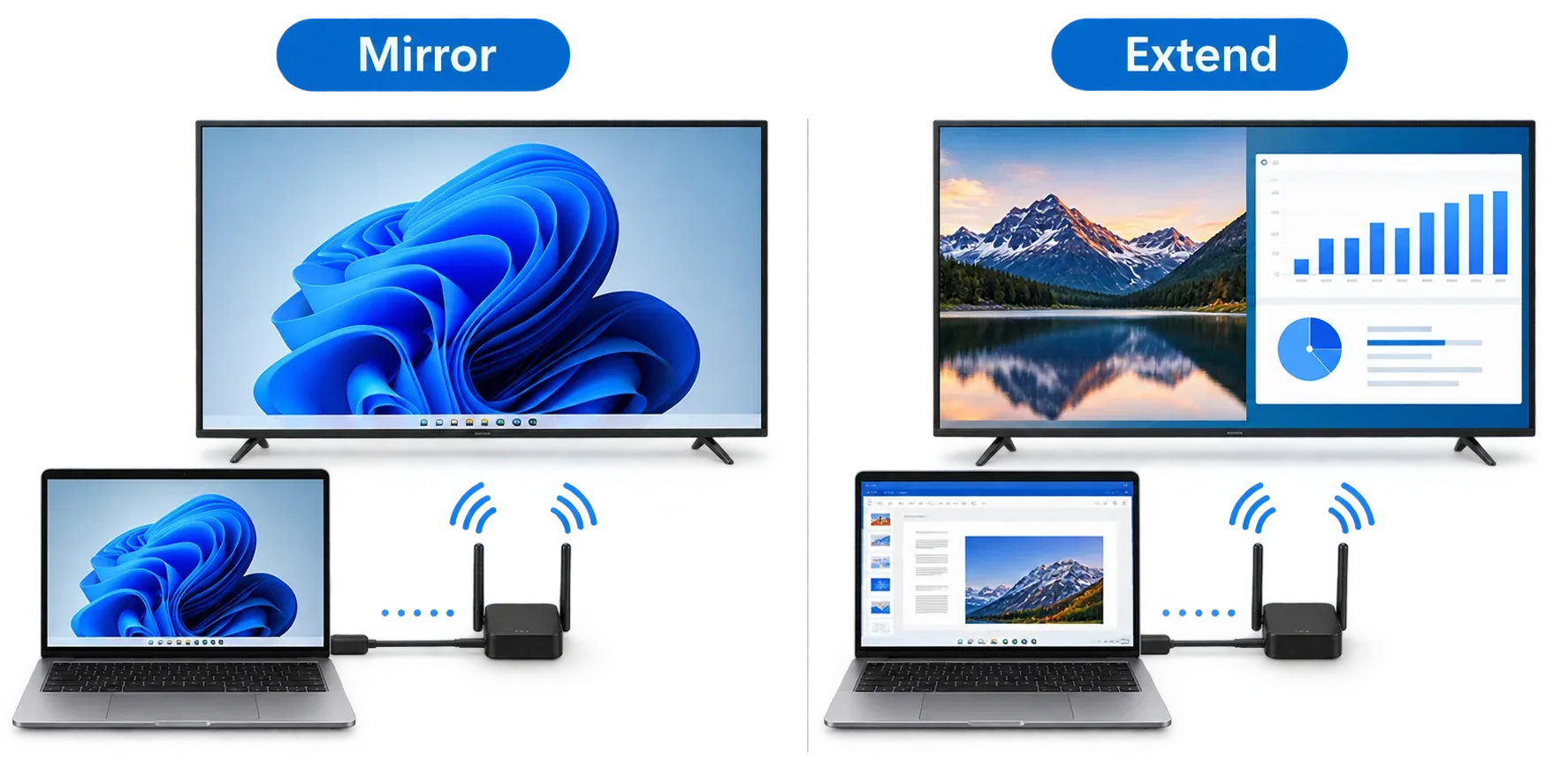
Wireless HDMI does not usually create these display modes itself. It behaves much like a physical external monitor connection, while Windows or macOS controls the display arrangement.
Will Wireless HDMI Work With Your Devices?
Wireless HDMI is broadly compatible because HDMI itself is widely used, but that does not mean every source device works with every transmitter.
The most important question is whether the source device can provide a compatible video output.
| Device | Usually Works? | What to Check |
|---|---|---|
| Windows laptop | Yes | HDMI or video-capable USB-C |
| Desktop PC | Yes | HDMI output from the PC or graphics card |
| MacBook | Usually | USB-C/Thunderbolt video output and suitable transmitter |
| PS5 / Xbox | Usually | HDMI transmitter compatibility |
| Blu-ray player | Usually | HDMI output and HDCP support |
| Cable / set-top box | Usually | HDMI output and content protection compatibility |
| Camera | Often | HDMI, Mini HDMI, or Micro HDMI output |
| iPhone | Depends | Model, port type, and transmitter/adapter |
| Android phone | Depends | USB-C video output support |
| TV as the source | Usually not | Most TVs have HDMI IN rather than HDMI OUT |
Can You Use Wireless HDMI With a Phone?
Sometimes, but phones require more compatibility checking than laptops and game consoles.
For newer USB-C iPhones and compatible Android devices, a USB-C transmitter may work if the phone supports video output and the wireless HDMI kit supports that device.
Older iPhones may require an appropriate Lightning video adapter before connecting to an HDMI transmitter.
Android is less predictable because USB-C alone does not tell you whether external display output is supported.
Before buying a transmitter specifically for a phone, check the phone's display-output capabilities rather than relying only on the connector shape.
For casual phone-to-TV mirroring, software screen mirroring is often easier because it does not require the phone to provide a wired-style HDMI output.
How Well Does Wireless HDMI Perform?
This is where product differences become much more important.
Basic setup is similar across many kits, but image quality, range, connection stability, and latency can vary substantially.
A $50 compact dongle and a professional wireless video system may both appear under the phrase “wireless HDMI,” yet they are not designed for the same job.
Resolution: Look Beyond the 4K Label
One of the easiest wireless HDMI specifications to misunderstand is 4K support.
A product may advertise 4K compatible, 4K input, 4K decoding, 4K pass-through, 4K output, or 4K wireless transmission. These do not necessarily mean the same thing.
For example, a transmitter may accept a 4K signal from your laptop but send only 1080p at 60Hz wirelessly to the receiver. That is why a specification, such as 4K input, 1080p wireless output, should not be treated as true 4K wireless transmission.
Current consumer products illustrate this distinction clearly. Some kits promote 4K decoding while specifying 1080p60 as the actual output, whereas newer and more expensive systems advertise genuine 4K60 transmission.
If 4K matters to you, look specifically for the terms, such as wireless transmission resolution or output resolution, rather than relying on a large “4K” badge on the box.
Refresh rate also matters. 4K30 and 4K60 are noticeably different specifications, particularly when displaying motion. Audio is usually transmitted alongside the video signal, but support for surround-sound formats can vary by kit, so check the audio specifications if you use a home theater setup.
Latency: Wireless Does Not Mean Zero Lag
Every wireless HDMI system introduces some amount of processing.
The signal may need to be processed or compressed by the transmitter, sent wirelessly, and processed again at the receiver.
As a result, claims such as “zero latency” should be treated carefully.
For watching a movie or showing slides, a small delay is often irrelevant.
For moving a mouse around a presentation, you may notice it slightly but still find it perfectly usable.
For gaming, latency becomes much more important because what you see on screen affects when you press a button.
Real-world tests of wireless video systems also show why one latency number should not be generalized across every setup. Resolution and bitrate can change the delay, and measured end-to-end latency can be higher than a manufacturer's headline specification.
A useful practical rule is:
- Movies and video: latency usually matters very little.
- Presentations: normally acceptable with a decent kit.
- Casual gaming: depends heavily on the device.
- Competitive gaming: wired HDMI remains the safer choice.
Users shopping specifically for gaming repeatedly raise this issue because even systems marketed as low latency cannot remove every stage of wireless video processing.
Wireless Range: The Number on the Box Is Not the Whole Story
Wireless HDMI products commonly advertise distances such as 30 ft, 50 ft, 100 ft, 165 ft, or 300+ ft. But the important phrase is often hidden beside the number: line of sight.
A 100-foot line-of-sight rating generally describes a relatively open path between the transmitter and receiver.
Your home is different. Walls, floors, furniture, nearby wireless devices, and the position of the TX and RX can all reduce practical range.
This means a kit rated for 100 feet may work very well across a large room but perform less reliably through several walls.
Some newer long-range systems specifically provide separate ratings for open-air transmission and transmission through walls, which is much more useful than one headline distance.
If your TV and source device are in different rooms, look for reviews that actually test through-wall performance rather than relying entirely on the advertised maximum.
Can Wireless HDMI Play Protected Streaming Content?
Content protection is another specification worth checking, particularly if you plan to use wireless HDMI with streaming boxes, Blu-ray players, cable receivers, or subscription video services.
Many protected video sources use HDCP, a form of copy protection built into HDMI connections.
For the full chain to work correctly, the source, transmitter, receiver, and display need to handle the required version properly.
If one part of the chain does not, you may see a black screen, an HDCP error, reduced resolution, or video that refuses to play.
For ordinary desktop presentations, this may never matter. For home entertainment, it is worth checking before buying.
Is Wireless HDMI Worth It? Pros and Cons
Wireless HDMI is useful because it behaves much more like replacing an HDMI cable than joining a casting ecosystem.
That makes it particularly appealing for projectors, older TVs, conference rooms, and setups where the source and display stay in roughly the same places.
Advantages of Wireless HDMI
- No long HDMI cable across the room: This is the most obvious benefit. It can save you from running a cable across the floor, through a wall, or around furniture.
- Usually no home WiFi setup: Most TX/RX kits connect directly, so your router does not need to sit between the two devices.
- Works with non-smart displays: An older television or projector can still receive the picture as long as it has the right video input.
- Often plug and play: Many kits arrive pre-paired and require little more than connecting and powering the two units.
- Useful for fixed source-to-display setups: A desktop PC connected permanently to a projector is a good example. Once installed, you may rarely need to touch the wireless HDMI system again.
Disadvantages of Wireless HDMI
- You have to buy extra hardware: Unlike built-in AirPlay or casting, there is always physical equipment involved.
- The transmitter and receiver may need power: This adds more cables around each end of the connection.
- Performance varies widely between products: Two devices labelled “4K wireless HDMI” may deliver very different output resolution, range, and latency.
- Phone compatibility can be less straightforward: Phones may depend on USB-C video output or adapters.
- Long range often comes with conditions: Maximum range figures commonly assume open line of sight.
- It is still wireless: A direct connection can avoid some of the unpredictability of a busy home network, but radio interference, walls, and distance still matter.
Wireless HDMI Options for Different Uses
If the advantages of wireless HDMI fit your setup, the next step is choosing a kit that matches how you actually plan to use it.
There is no single specification that makes one wireless HDMI system better for everyone. A home theater setup may benefit from true 4K60 output and support for protected content, while a conference room may care more about range and easy switching between computers.
Here are a few types of wireless HDMI systems worth considering.
For 4K Home Entertainment: Nyrius Phoenix Home True 4K60
If picture quality is the priority, the Nyrius Phoenix Home True 4K60 is one of the more complete current options.
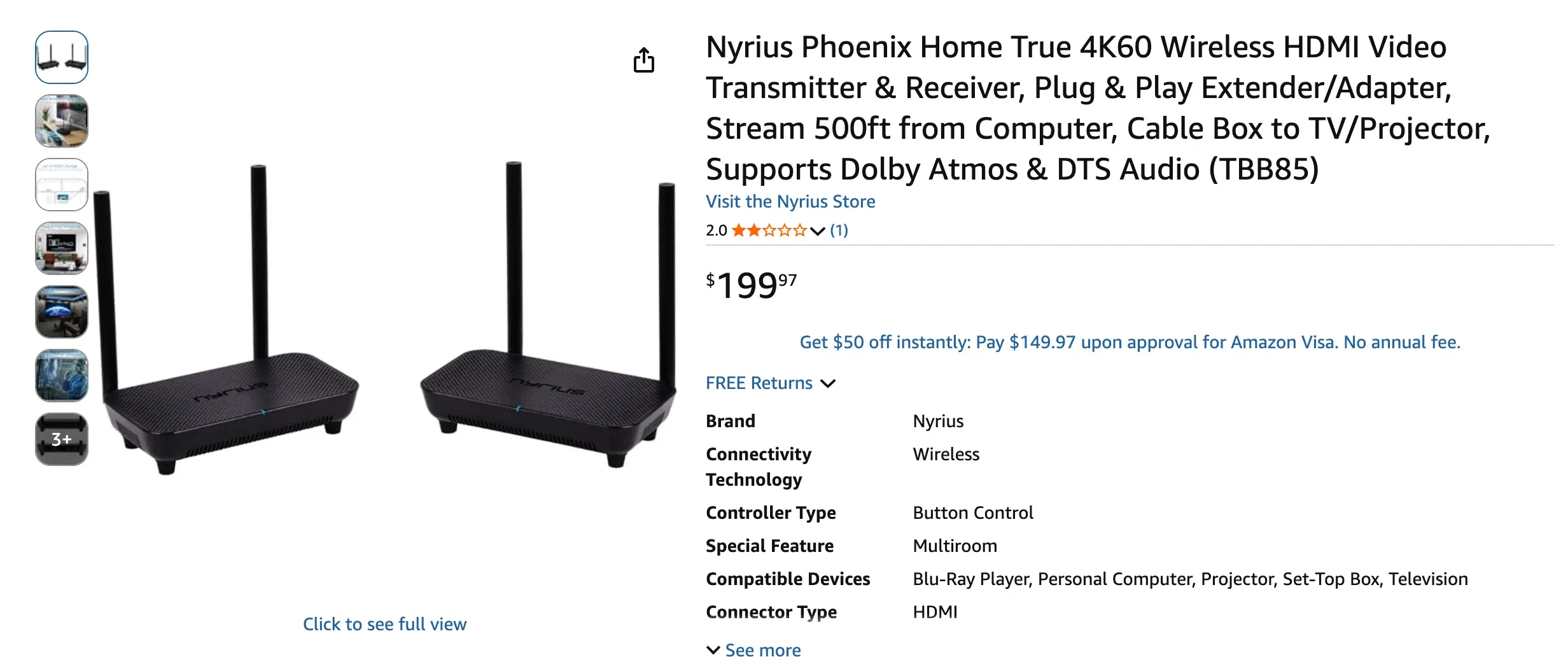
Unlike many inexpensive products that accept a 4K source but transmit only 1080p, the Phoenix Home supports 4K at 60Hz wireless transmission. It also supports Dolby Atmos, DTS, and 7.1-channel audio, making it better suited to a full home entertainment setup than a basic presentation dongle.
Its advertised range is also unusually long: up to 500 feet in open space and around 75 feet through walls and floors. WIRED's hands-on testing found setup straightforward and reported stable performance with streaming, gaming, and laptop use.
That makes it a better fit for situations such as:
- sending an Apple TV, Blu-ray player, or game console to a TV across the room
- connecting equipment located in another room
- keeping a wall-mounted TV setup free of long HDMI cables
- preserving 4K60 rather than dropping the wireless output to 1080p
It is more hardware than most people need for basic laptop presentations, but the extra capability makes more sense when the wireless link is becoming part of a permanent home theater setup.
For USB-C Laptops and Phones: llano S9 Pro
If your main source devices use USB-C rather than full-size HDMI, a compact USB-C system can be easier to carry and set up.
The llano S9 Pro, for example, plugs its transmitter directly into a compatible USB-C source and connects its receiver to the HDMI port on the TV. The TX and RX pair automatically, with no app or home WiFi connection required.
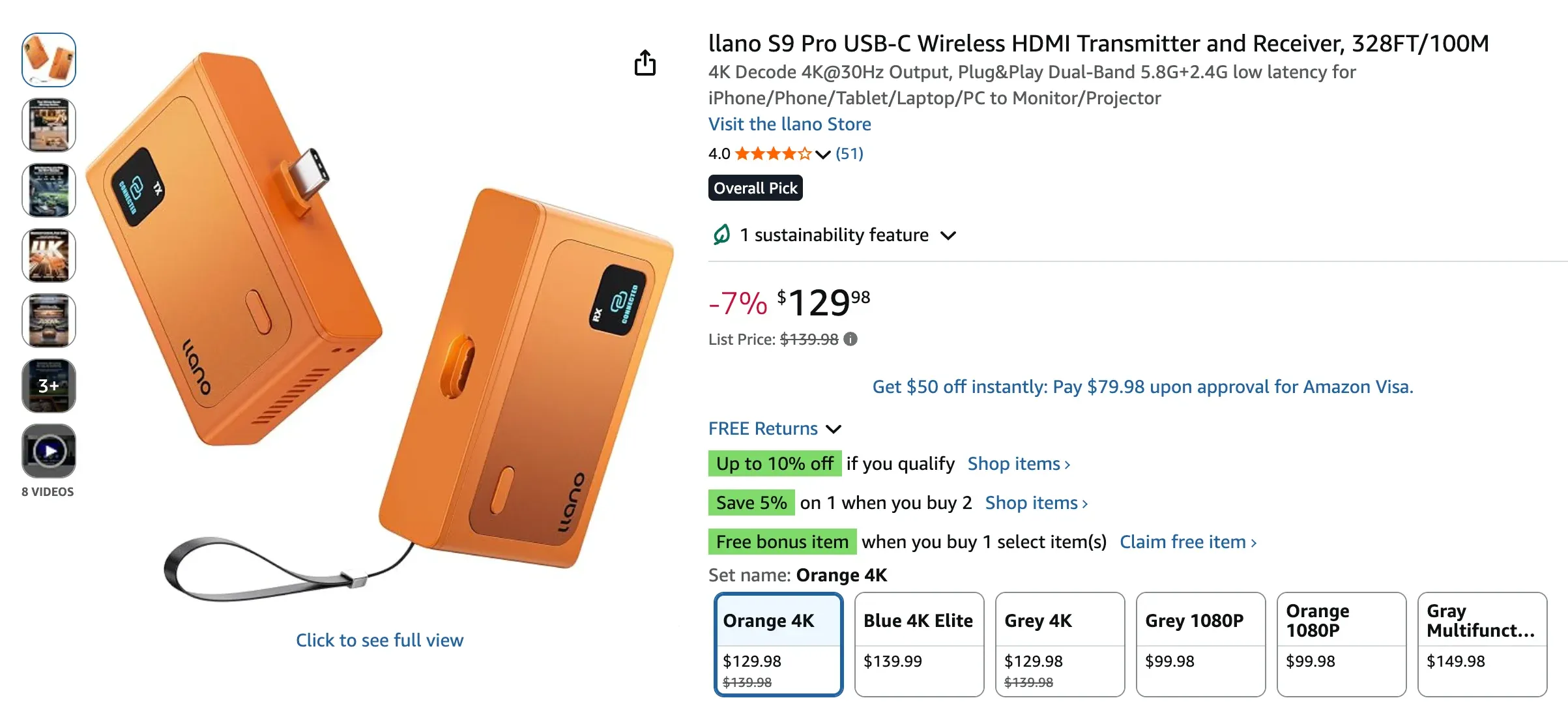
It accepts a 4K source, although its direct wireless output is 1080p at 60Hz, which is an important distinction if you are comparing it with true 4K wireless systems.
This type of kit makes more sense for USB-C laptops, compatible newer iPhones, Android phones that support USB-C video output, portable presentations, and travel or temporary TV setups.
The important word here is compatible. A USB-C connector alone does not guarantee that a phone or laptop can output video, so check the source device before choosing this type of transmitter.
Before You Buy
Before choosing a wireless HDMI kit, check:
- Connector: HDMI or video-capable USB-C
- Output resolution: not just input resolution
- Refresh rate: 30Hz or 60Hz
- Range: line-of-sight or through-wall
- Latency: especially for gaming
- HDCP: if you plan to watch protected content
- Power: whether TX and RX need separate USB power
These are the same specifications that explain why one kit may work well for a projector but be a poor choice for gaming or 4K home theater.
Wireless Screen Mirroring Without Extra Hardware
A wireless HDMI kit is useful when you want to replace a physical HDMI connection. But if your real goal is simply to put a phone or computer screen on a TV, you may not need a transmitter and receiver at all.
Many modern devices already include some form of wireless screen sharing.
| Option | Works Best For | Dedicated TX/RX Kit |
|---|---|---|
| AirPlay | iPhone, iPad, and Mac | Usually no |
| Google Cast | Supported apps, Chrome, and Google devices | Usually no |
| Miracast | Compatible Windows PCs and wireless displays | Usually no |
| Cross-platform mirroring app | Mixed phones, computers, and TVs | Usually no |
These solutions approach the problem differently from wireless HDMI. Instead of taking the physical video output from one device and sending it to a receiver, they use software and supported wireless protocols to share the screen or content.
Use Built-In Casting When Your Devices Already Support It
If your devices already work within the same ecosystem, the built-in option, such as AirPlay, Google Cast, or Miracast, is often the simplest place to start.
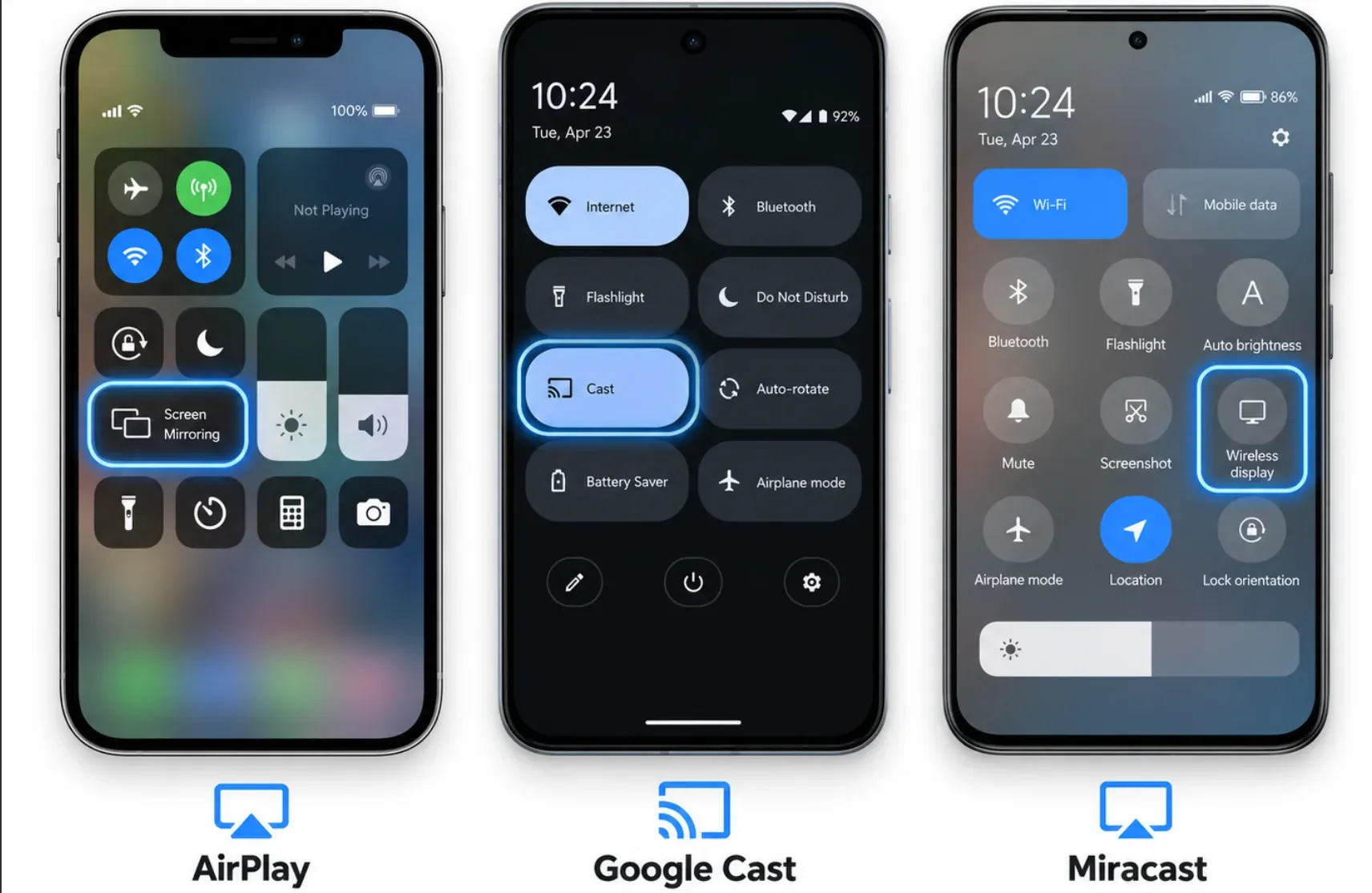
An iPhone or Mac can use AirPlay with a compatible TV or Apple TV. Google Cast works well when you want to send supported video, music, browser content, or other media to a Chromecast or Google Cast-enabled TV.
Windows devices may also use Miracast with compatible wireless displays. Miracast creates a Wi-Fi Direct connection, so it does not necessarily require the screen to communicate through your home router.
For a single ecosystem, these built-in options can remove the need to buy additional hardware.
The limitation becomes more obvious when the devices change.
You may have an iPhone today, a Windows laptop tomorrow, and an Android device the next time someone wants to share a screen. Different protocols do not always work with one another, even when every device involved supports some form of wireless display.
Use PigeonCast for a Cross-Platform Setup
If you regularly move between different device types, a cross-platform screen mirroring solution can be more practical than relying on one built-in protocol.
PigeonCast is designed for this type of setup. It supports screen mirroring across iPhone, Android, Windows, Mac, TVs, and other supported receiving devices, so you are not tied to a single Apple, Google, or Windows mirroring method.
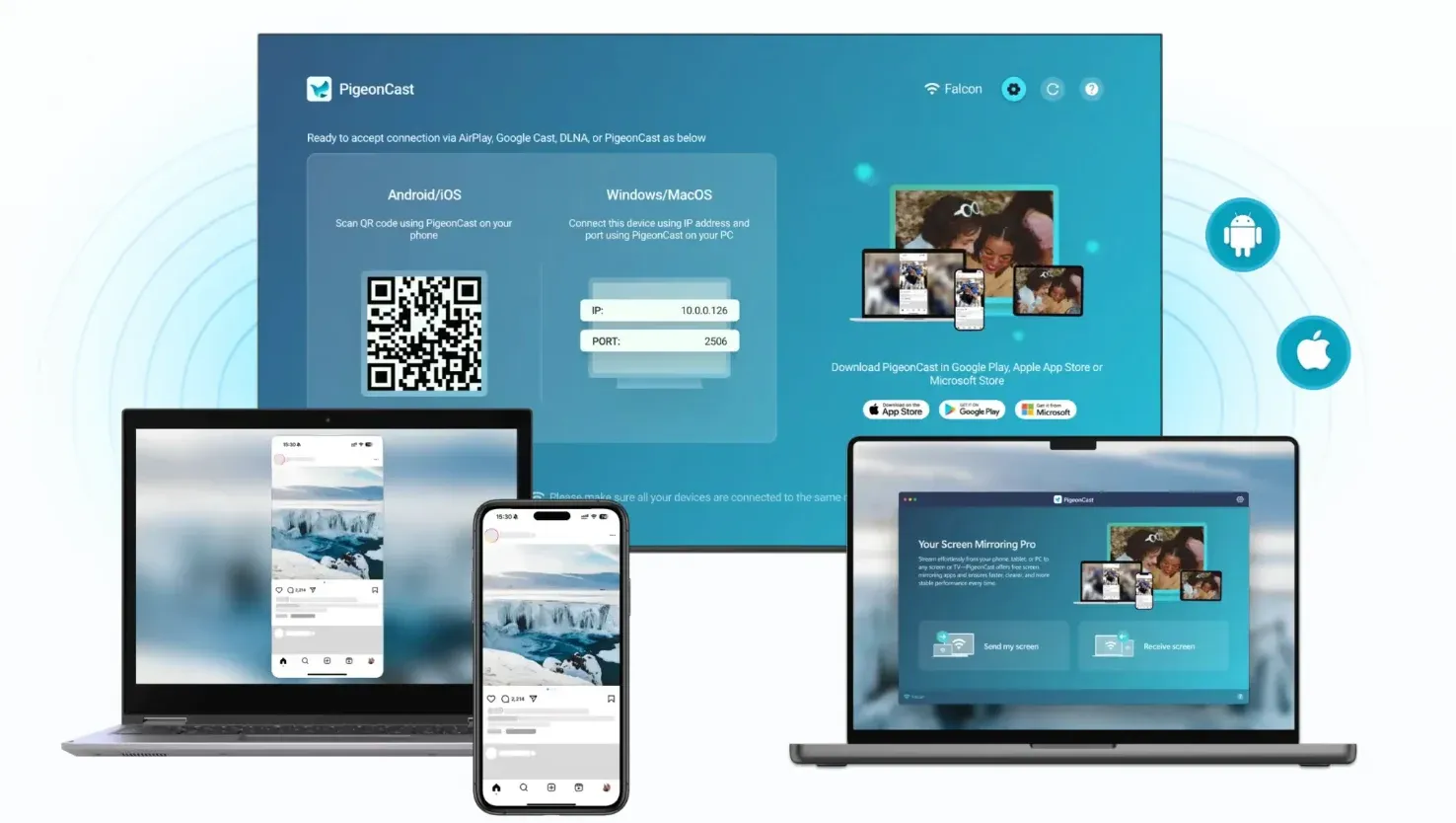
Instead of keeping a dedicated wireless HDMI transmitter connected to one source, you can switch between compatible devices as needed.
That makes more sense for situations such as:
- sharing an iPhone screen and a Windows laptop with the same TV
- moving between personal and work devices
- presenting from different computers in a meeting
- mirroring to a TV without carrying a separate TX/RX kit
- using a browser-based receiver on supported setups
PigeonCast can also support up to 4K screen mirroring where the devices and connection allow it, which makes software mirroring a more practical option for high-resolution displays than older low-resolution casting setups.
How to Mirror With PigeonCast:
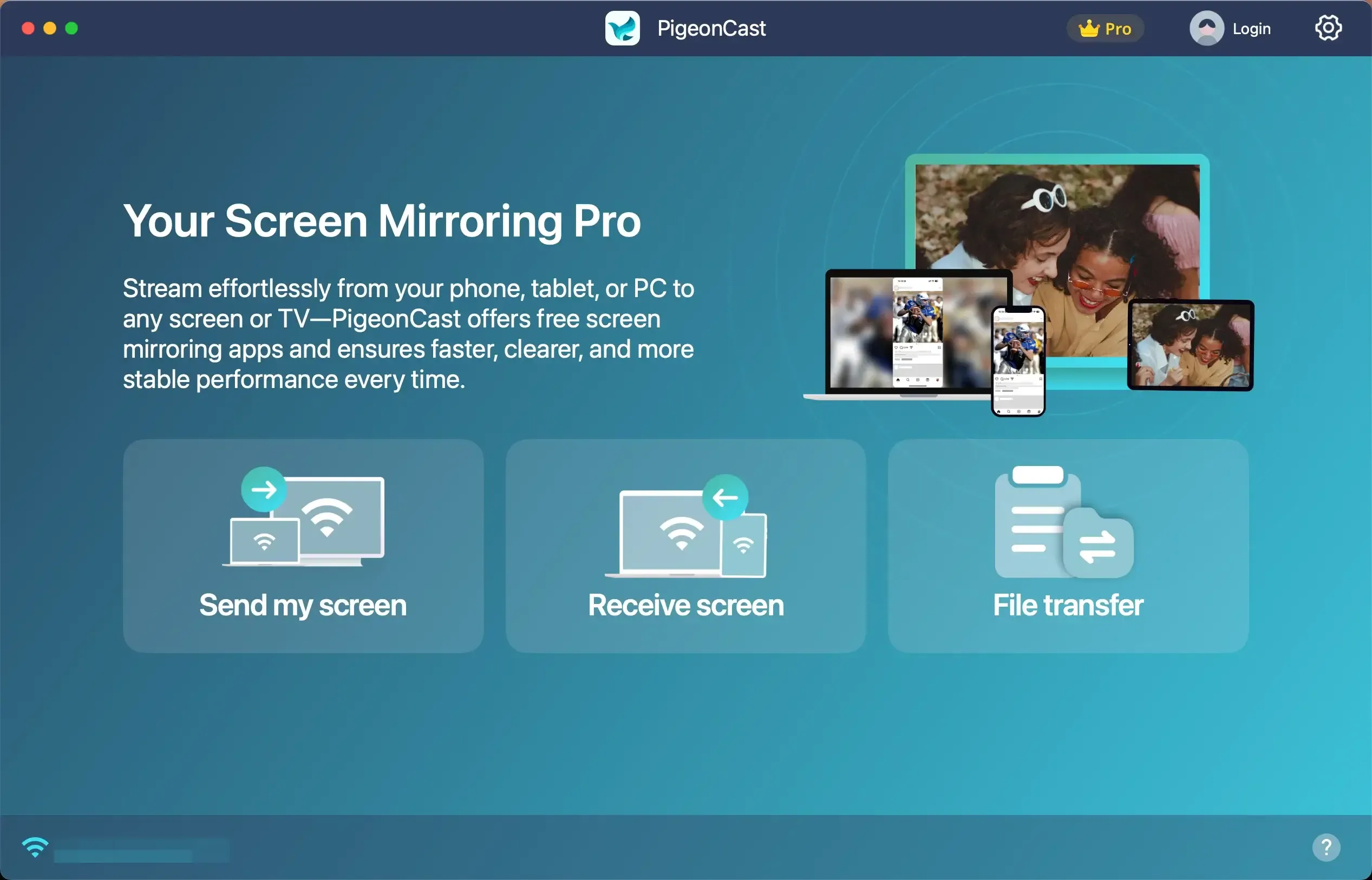
Step 1. Open PigeonCast on the device you want to mirror from and on the receiving TV or supported device.


Overall Rating:



Step 2. Make sure both devices are connected to the same WiFi network, then connect them using the QR code or available device connection option shown in PigeonCast.
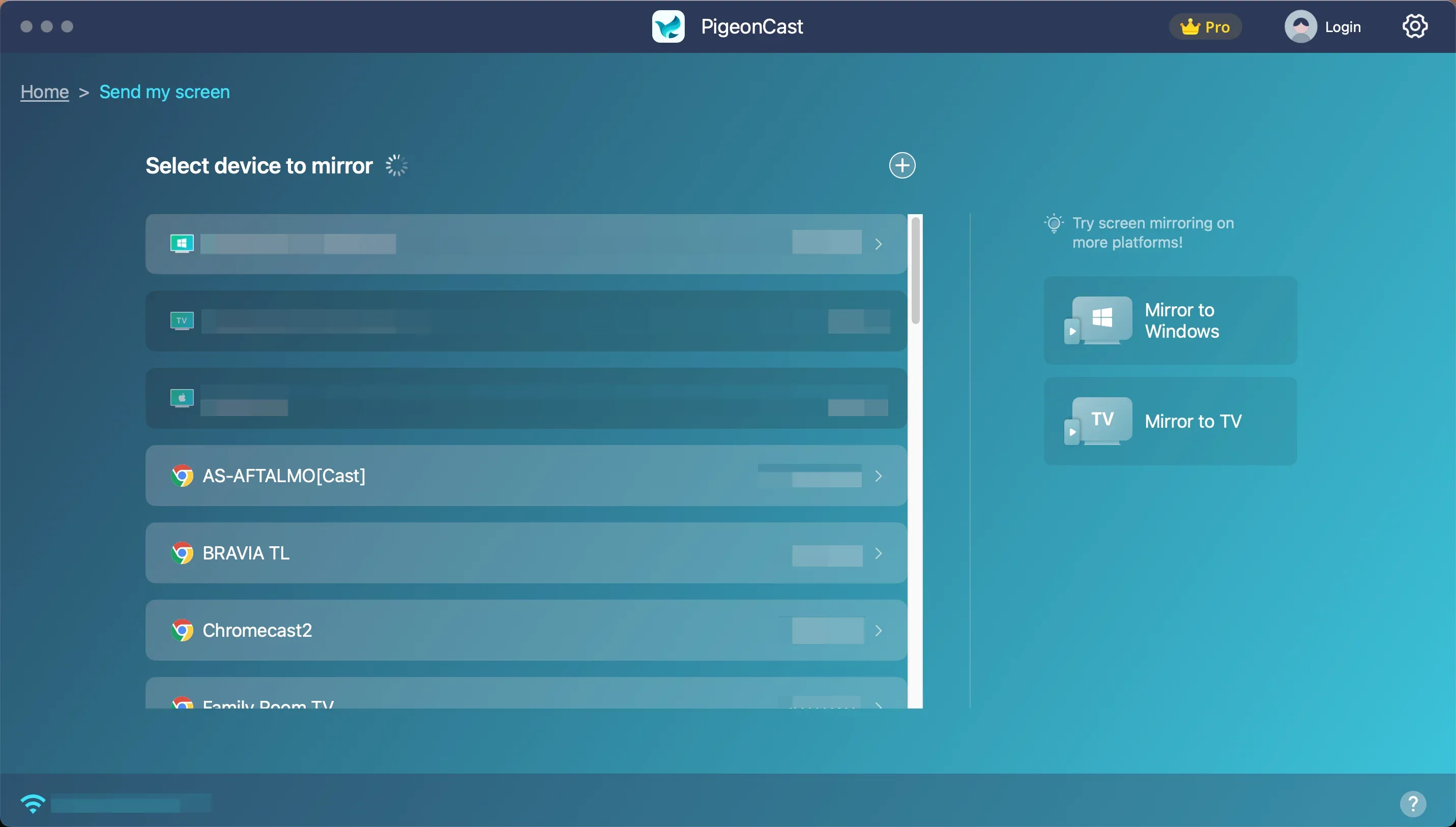
Step 3. Start screen mirroring from the sender device. Once connected, your phone or computer screen will appear on the receiving display.
There is still an important distinction: software mirroring is not a direct replacement for wireless HDMI in every situation.
If you are connecting a game console, Blu-ray player, camera, or another device whose main output is HDMI, a wireless HDMI kit is usually the more appropriate tool.
But if the source is mainly a phone or computer and your priority is being able to share different screens without carrying extra hardware, software mirroring is often the simpler route.
Final Words
Wireless HDMI makes the most sense when you can point to a physical HDMI cable and say, “I want to remove this.”
The transmitter and receiver keep the basic source-to-display relationship intact while moving the signal wirelessly between the two ends. That is especially useful for projectors, wall-mounted TVs, AV equipment, and other fixed setups where routing a long cable is inconvenient.
Screen mirroring solves a slightly different problem.
If the question is not “How do I replace this HDMI cable?” but rather “How do I get whichever device I'm using onto the bigger screen?”, a software-based solution can offer more flexibility and require less hardware.
Knowing which of those two problems you are actually trying to solve is more useful than simply choosing the product with the longest range or the biggest 4K label.
Wireless HDMI FAQs
Can One Wireless HDMI Transmitter Connect to Two TVs?
Some can, but not all. Basic kits usually pair one transmitter with one receiver. Multi-receiver systems can send the same source to two or more displays, but you should check how many RX units the system officially supports before buying additional receivers.
Can Wireless HDMI Work Without Internet?
Yes. A typical wireless HDMI transmitter and receiver can work without an internet connection because the two units communicate directly. Your source device may still need internet access for whatever content you are watching, but the wireless HDMI link itself generally does not.
Can Wireless HDMI Extend a Laptop Screen?
Yes, in most cases. A wireless HDMI receiver usually appears to your laptop like a normal external display, so you can choose Duplicate/Mirror or Extend in Windows or macOS display settings. The exact options depend on your computer and the wireless HDMI kit, but extend mode is commonly supported.
Does Wireless HDMI Work With Any TV?
Wireless HDMI works with most TVs that have a standard HDMI input. The TV does not need to be a smart TV or support AirPlay, Google Cast, or Miracast because the wireless receiver handles the connection. You may also need a nearby USB port or power outlet to power the receiver.
Can I Use Wireless HDMI With a Projector?
Yes. Projectors are actually one of the most practical uses for wireless HDMI, especially when the projector is ceiling-mounted or located far from the laptop. As long as the projector has a compatible HDMI input and the receiver can be powered nearby, the setup works much like connecting to a TV.
Can You Send One TV to Another TV?
Usually not. Most TVs have HDMI inputs rather than HDMI outputs, so they cannot send the picture currently displayed on the TV to a wireless HDMI transmitter. If the content comes from a cable box, console, or media player, connect the transmitter to that original source instead.
Mia Clarke is a technology editor specializing in screen mirroring and casting solutions across multiple platforms. Mia provides clear, practical guides and in-depth insights to help users seamlessly connect their devices. Passionate about enhancing digital experiences, Mia is dedicated to keeping readers updated on the latest trends and tools in cross-platform screen sharing. Whether you’re looking to mirror your smartphone, laptop, or smart TV, Mia’s content delivers reliable, user-friendly advice to simplify your tech setup.