
Zlink screen mirroring is a practical way to show your phone screen on a supported display, usually in a car head unit or an external infotainment system. If your device and display support the same mirroring path, setup is usually quick. If they do not, the problem is almost always compatibility, network pairing, or the wrong connection mode. Follow my blog to figure out how to connect phone to Zlink successfully and solutions for connection issues.
What Zlink Screen Mirroring Is
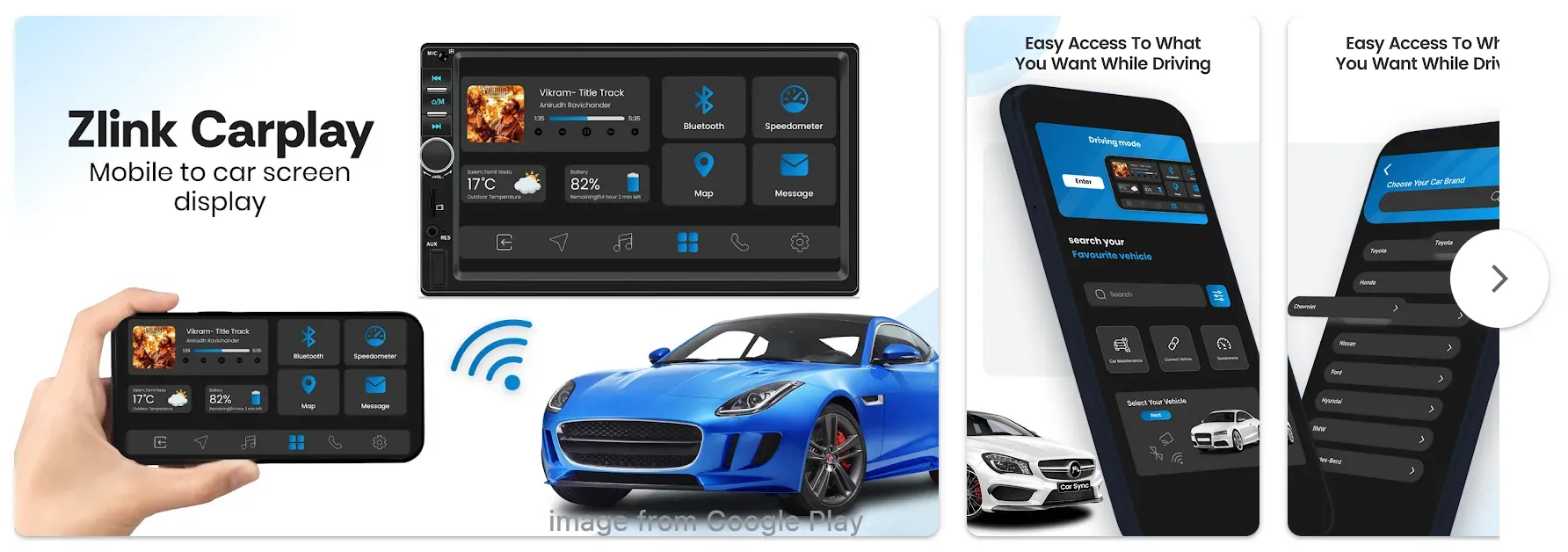
Zlink screen mirroring is a car screen mirroring solution that connects your phone to a vehicle head unit or infotainment system. It typically works through CarPlay (for iPhone) or Android Auto (for Android), acting as a bridge between your device and the display.
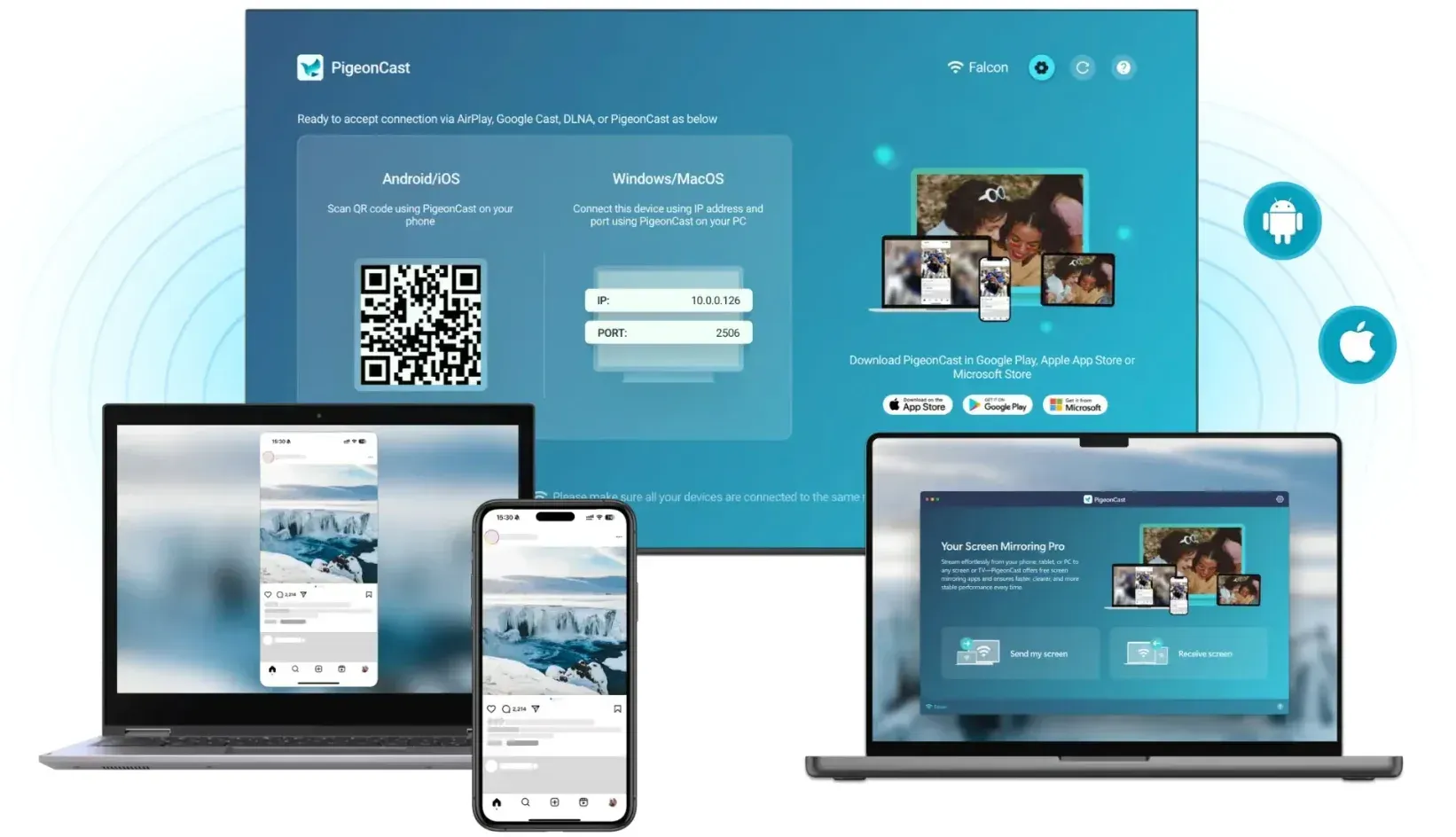
However, Zlink is not a universal screen mirroring app. Unlike tools such as PigeonCast, which support more flexible wireless display setups, Zlink depends heavily on:
-
Head unit compatibility
-
Firmware support
-
Matching connection protocols
This is why many users searching for "Zlink screen mirroring not working" are actually facing compatibility limitations rather than app errors.
Tip: In cases where Zlink cannot meet your needs, switching to a more flexible screen mirroring solution like PigeonCast is often the fastest path to a stable connection between a phone and a PC or TV.


Overall Rating:



What to Check Before Zlink Screen Mirroring Setup
Before learning how to use Zlink screen mirroring, make sure your setup meets the basic requirements.
- Confirm compatibility:
Compatibility is the part most people skip, and it is usually where the problem starts. A mirror session can only succeed when the phone, the display hardware, and the software version all agree on the same method.
-
Check whether the head unit supports your phone type through the Zlink app.
-
Match iPhone use cases with CarPlay support and Android use cases with Android Auto support.
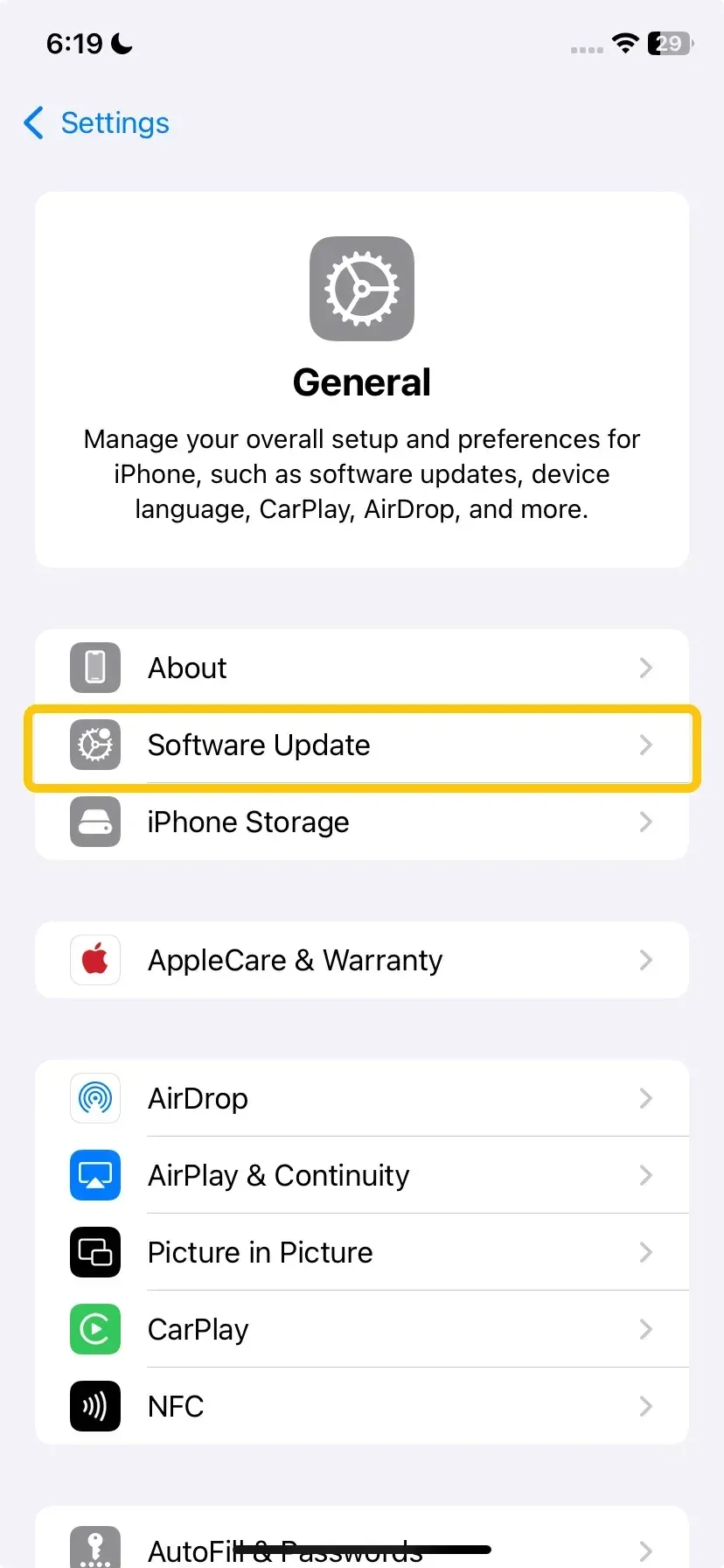
- Update software once
Outdated systems often cause hidden connection issues, even if pairing seems to work at first.
-
Install the latest stable iOS or Android update.
-
Update the head unit firmware if the vehicle maker or installer provides one.
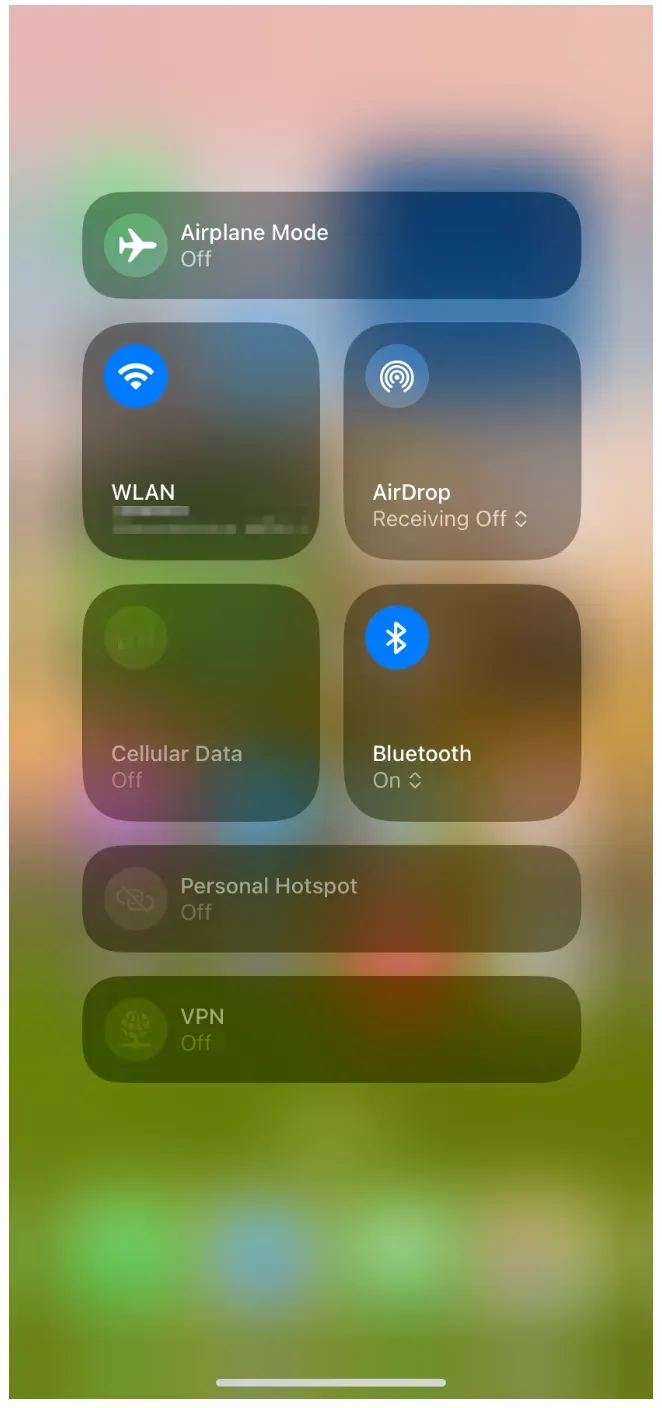
- Turn on the required radios
Zlink wireless display setup depends on stable communication between devices, which requires both Bluetooth and Wi-Fi.
-
Enable Bluetooth.
-
Enable Wi-Fi.
-
Keep the phone unlocked during the first connection.
- Review phone permissions
Missing permissions can block projection even when the device is detected.
-
Allow projection, location, and nearby device permissions when prompted.
-
Disable battery restrictions for the connection app if the phone offers that setting.
- Clear old sessions
Old or conflicting pairings can interfere with new connections and cause repeated failures.
-
Forget the car on the phone if it was paired before.
-
Remove old phone profiles from the head unit if they are no longer needed.
How to Set Up Zlink Screen Mirroring on iPhone and Android
The iPhone and Android flows are similar, but the prompts are not the same. If the pairing completes but the display never becomes stable, finish the setup check first.
Zlink Mirror iPhone to Car Screen
This is the standard method for mirroring an iPhone to your car screen with Zlink.
Step 1. Start the car and open Zlink on the head unit.
Step 2. Turn on Bluetooth and Wi-Fi on your iPhone.
Step 3. Keep the phone unlocked while the head unit searches for it.
Step 4. Select the car or CarPlay entry when it appears.
Step 5. Accept the prompts for CarPlay, contacts, and notifications.
Step 6. Wait for the connection to stabilize before opening maps, music, or other supported apps.
Once CarPlay is connected, you can start using compatible apps from the car display. If you're specifically trying to watch Netflix on Apple CarPlay, keep in mind that video playback has additional restrictions compared with navigation or audio apps.
For the first-time setup, the main thing to watch is timing.
Zlink Mirror Android Phone to Head Unit
This flow works for most devices, including Zlink screen mirroring on Samsung phone models.
Step 1. Open Zlink on the head unit and choose the Android connection flow.
Step 2. Turn on Bluetooth and Wi-Fi on the Android phone.
Step 3. Keep battery optimization off for the connection service during setup if the phone allows it.
Step 4. Accept Android Auto or projection prompts when they appear.
Step 5. Confirm that audio, voice input, and steering-wheel controls are responding.
Step 6. Test the connection once before opening music or navigation apps.
Fixes for Zlink Connection Failed and Disconnecting Issues
When Zlink screen mirroring not working happens, the fastest path is to diagnose the symptom first. A black screen, no sound, or repeated disconnects each point to a different cause, and the fix depends on which one you are seeing.
-
No device found:
-
Turn Wi-Fi and Bluetooth off and on again.
-
Make sure the phone and display are on the same network path if the setup depends on it.
-
Restart the head unit and try again.
-
-
Black screen or frozen image:
-
Switch from the mirrored app to the home screen and back.
-
Disable screen rotation lock or display overlays that may interrupt capture.
-
Test another app to rule out app-specific video protection.
-
-
Audio works but the picture does not:
-
Check whether the app or video source blocks external video playback.
-
Lower the resolution or refresh the session.
-
Reconnect after closing background apps that may be interfering.
-
-
Connection keeps dropping:
-
Move the phone closer to the head unit.
-
Remove VPNs, hotspot conflicts, and aggressive battery optimization.
-
Update the display firmware if an update is available.
-
-
Nothing works after several tries:
-
Switch to the alternate mirroring method supported by the device.
-
If wireless mirroring is unstable, use a wired path or a more reliable casting option.
-
Conclusion
Zlink screen mirroring can be a useful way to move content from a phone to a supported display, but it only works well when compatibility, pairing mode, and firmware are aligned. Start with the correct device path, confirm the unit supports your phone, and then test the setup step by step.
If the connection fails, do not keep repeating the same attempt. Use the symptom to decide whether you need a pairing fix, a compatibility check, or a fallback method. That approach gets you to a working result much faster than trial and error.
Zlink Screen Mirroring FAQ
Is Zlink screen mirroring the same on iPhone and Android?
No. The workflow is often different because iPhone and Android may use different wireless protocols. Start by checking which method your display supports, then follow the matching pairing path.
Why is Zlink screen mirroring black?
A black screen usually means the display session started, but video output is blocked or misconfigured. Check app permissions, firmware version, and whether the source app restricts external playback.
Can I use Zlink without Wi-Fi?
Sometimes, but it depends on the display and phone setup. Some systems rely on a local wireless link, while others need a specific network or direct pairing mode.
What should I do if my phone is detected but nothing appears on screen?
Restart both devices, confirm the correct mirroring mode, and test a simple app first. If detection works but video does not, the issue is usually in display permissions or compatibility, not discovery.
Does Zlink screen mirroring work with all cars and head units?
No. It only works on supported systems. Check the head unit model, firmware version, and supported mirroring protocol before assuming the app will work.
How do I make Zlink screen mirroring stay connected longer?
Keep firmware current, close background apps, avoid VPN conflicts, and use a clean one-device pairing setup. Stability usually improves when you remove extra wireless noise from the session.
What is the best first step if Zlink screen mirroring fails completely?
Confirm compatibility first. If the phone and display are not using the same mirroring standard, no amount of reconnecting will fix it.
Mia Clarke is a technology editor specializing in screen mirroring and casting solutions across multiple platforms. Mia provides clear, practical guides and in-depth insights to help users seamlessly connect their devices. Passionate about enhancing digital experiences, Mia is dedicated to keeping readers updated on the latest trends and tools in cross-platform screen sharing. Whether you’re looking to mirror your smartphone, laptop, or smart TV, Mia’s content delivers reliable, user-friendly advice to simplify your tech setup.