
If you are searching for Miracast Toyota Sienna, you are likely trying to answer one question: can I wirelessly mirror my phone or laptop to my car's screens?
The short answer: Yes, but only for certain passengers and specific devices. Toyota treats the front dashboard and the rear cabin as two different worlds. In the 2026 Toyota Sienna, Apple CarPlay and Android Auto dominate the front seat, while Miracast is reserved exclusively for the Rear Seat Entertainment (RSE) system.
This is why some owners find Miracast instructions in Toyota documentation while others see nothing useful in their main infotainment menus.
Quick Check: Does Your Sienna Have Miracast?
Before you spend an hour in your driveway, use this 30-second verification to see if your trim is equipped:
-
Look for the Remote: Open your center console or seat pockets. If you find a physical remote with a dedicated Miracast or Source button, your system supports it.
-
Check the HDMI Port: Look for an HDMI port (usually near the 120V outlet or on the side of the rear screen). If you have this, you have the Rear Entertainment package, which includes Miracast.
-
The "Driver's Rule": If you are trying to mirror your phone to the dashboard screen while driving, Miracast is not the solution. Toyota locks out video on the front screen for safety unless the vehicle is in Park.
Does Toyota Sienna Have Miracast?
Toyota Sienna Miracast exists in a limited, feature-specific way. It is not a full-car mirroring promise.
Two current source anchors explain the situation:
-
In Toyota's 2025 Sienna Multimedia Owner's Manual, Toyota documents Rear-Miracast for the rear seat entertainment system and says Miracast-compatible devices can stream video and audio to that system over Wi-Fi.
-
In Toyota USA's October 23, 2025 announcement for the 2026 Toyota Sienna, Toyota highlights wireless Apple CarPlay and Android Auto compatibility for Toyota Audio Multimedia, not Miracast as the main smartphone projection feature.
Support is tied to the rear entertainment hardware (standard on Platinum/Limited, optional on XLE/Woodland). Year, trim, and display role all matter.
How to Use Miracast in Toyota Sienna
If your Sienna includes the supported rear entertainment setup, how to use Miracast in Toyota Sienna is fairly straightforward.
Use this sequence:
Step 1. Verify your Sienna has the 11.6-inch 1080p Rear-Seat Entertainment Center.
Step 2. Access Rear-Miracast via the rear controls or the dedicated Miracast button on the remote. The screen will display the system's ID (e.g., Toyota_Sienna_RSE).
Step 3. On your Android phone or Windows laptop, look for Smart View, Cast, Wireless Display, or Screen Mirroring.
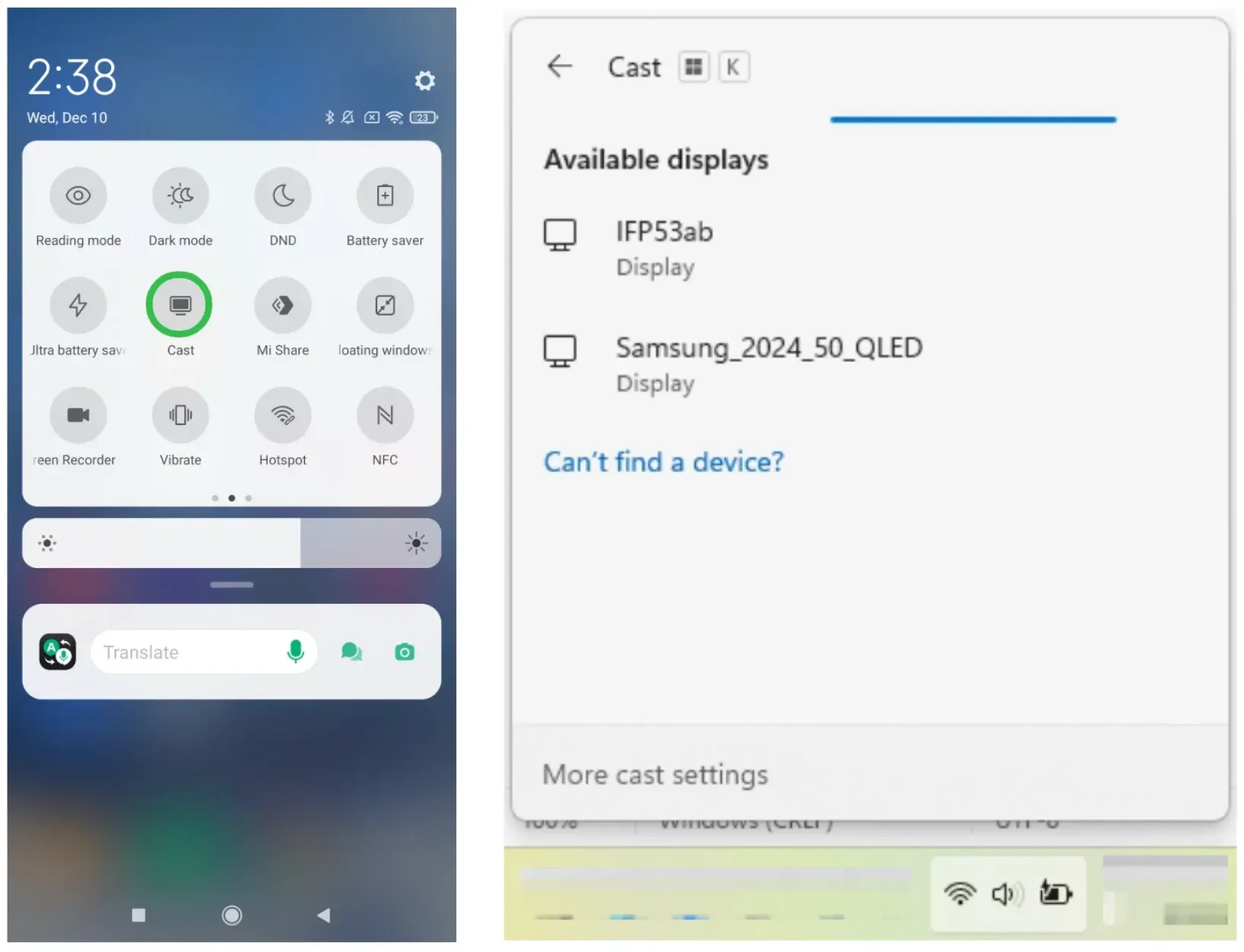
Step 4. Select the Sienna ID from your device list. If prompted on the Sienna screen, select Rrsystem to grant permission.
Step 5. If you experience "audio ghosting" (echoing between the phone and car), mute your device volume; the car's JBL system will handle the audio independently.
Miracast Toyota Sienna iPhone: What Actually Works
The short answer: Miracast for iPhone is not natively supported. iPhones use Apple's proprietary AirPlay protocol, while Toyota's rear system uses the Miracast (Wi-Fi Alliance) standard.
-
Front Screen: Use Apple CarPlay for navigation and music.
-
Rear Screen: Do not rely on third-party "Miracast for iPhone" apps, as they are often laggy. The most reliable path is using the Sienna's HDMI port with an Apple Digital AV Adapter. This bypasses wireless handshake issues and works 100% of the time.
Tip: You might be interested in the differences between AirPlay and Miracast.
Why Miracast for Toyota Sienna Often Feels Limited
Even when available, Miracast often feels narrower than people expect because:
- It is usually tied to the rear screen context
Toyota documentation points heavily toward rear entertainment use. That is very different from assuming the main dashboard screen works like a general-purpose wireless monitor.
- Device compatibility is narrow
Toyota's current manual language points to Miracast-compatible devices and specifically notes Android OS support, leaving Apple users in the dark.
- Toyota's current smartphone integration story moved elsewhere
On newer Sienna pages, Toyota emphasizes wireless CarPlay and Android Auto. That means Miracast is not the headline phone-projection experience for the vehicle as a whole.
How to Mirror Android or Windows for Free with PigeonCast
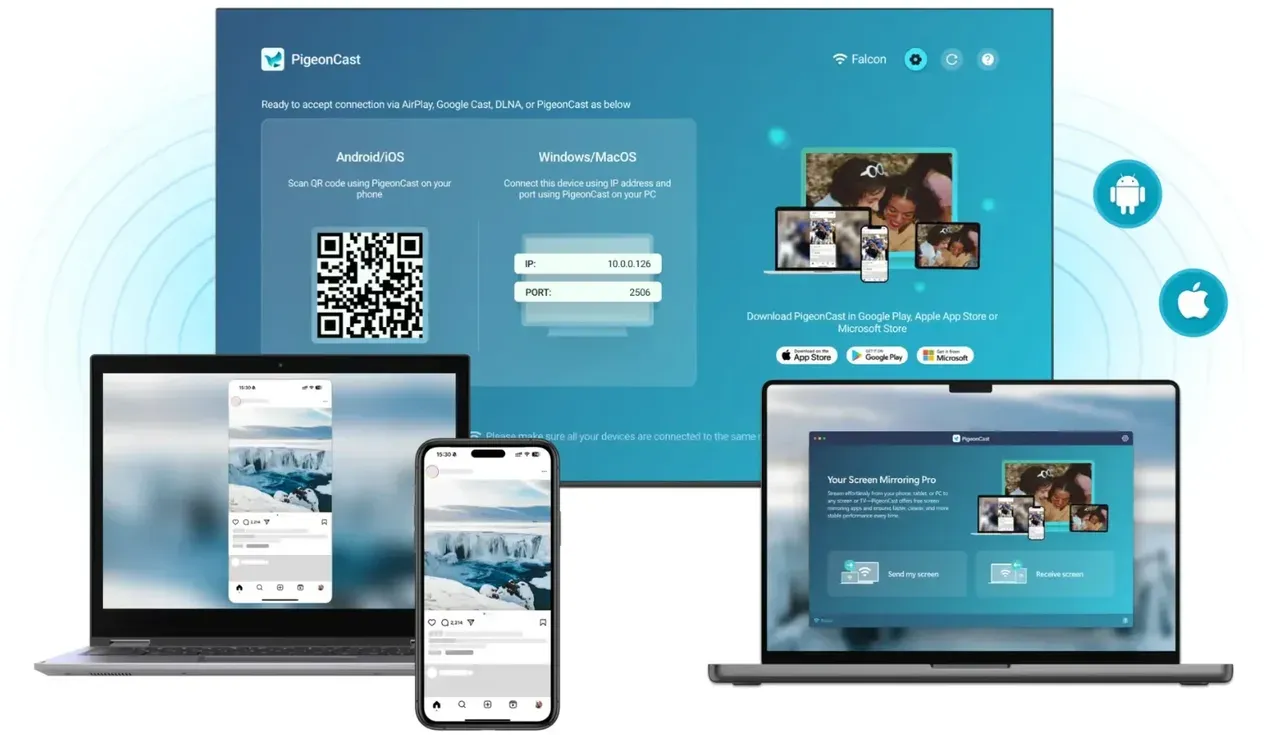
If your real goal is not car-based mirroring, but simply how to mirror Android or Windows for free on other screens outside the vehicle, PigeonCast is the cleaner recommendation.


Overall Rating:



Many users land here looking for Miracast, then realize what they actually need is broader:
- mirror an Android phone to a larger display
- mirror a Windows laptop without extra hardware complexity
- use a free screen mirroring app that is not limited to Toyota-specific rear entertainment support
| Goal | Best Path | Why? |
|---|---|---|
| Rear Video (Android/Windows) | Toyota Miracast | Native fit for the rear system. |
| iPhone use on the front display | Apple CarPlay | Native, safe, and wireless. |
| iPhone on the rear screen | HDMI Adapter | Most stable way to bypass AirPlay limits. |
| Mirroring outside the car | PigeonCast | Best for general cross-platform tasks. |
Conclusion
Miracast Toyota Sienna is real, but narrow. It mainly applies when your Sienna has the supported rear entertainment setup and you are connecting a Miracast-compatible Android or Windows device.
That is also why Miracast Toyota Sienna iPhone is such a common but frustrating search. iPhone users are usually looking for something Toyota Sienna Miracast is not designed to deliver natively. For front-screen iPhone use, think CarPlay. For broader free Android or Windows mirroring outside the car, think PigeonCast. For Sienna rear-seat Miracast, start with the supported rear entertainment system.
Miracast Toyota Sienna FAQ
Does Toyota Sienna have Miracast on every trim?
No. Toyota Sienna Miracast is not a whole-vehicle default across every trim. It depends on the rear entertainment setup and the specific multimedia equipment.
How do I use Miracast in Toyota Sienna?
Start by confirming your Sienna supports Rear-Miracast, open that function from the rear entertainment controls, enable Miracast on your Android or Windows device, and then connect to the Sienna system from the device list.
Is Toyota Sienna Miracast for the front screen or the rear screen?
Current Toyota documentation points to Miracast in the rear seat entertainment context, not as a universal front touchscreen mirroring feature.
What devices work best with Miracast for Toyota Sienna?
Android phones, Android tablets, and Windows devices are the most natural fit because Toyota's Miracast documentation references Miracast-compatible devices and Android support.
What should I use instead if my Sienna does not support Miracast?
Use CarPlay or Android Auto for native front-screen phone integration. If your goal is free Android or Windows screen mirroring outside the car, use a general tool such as PigeonCast instead.
How do I connect my iPhone to a Toyota Sienn
Connection methods vary depending on where you're using it:
-
Front screen (driver): The 2026 Sienna supports wireless Apple CarPlay. Go to Settings > Bluetooth & Devices > Add New Device, pair your iPhone, and select Use CarPlay when prompted. It will reconnect automatically afterward.
-
Rear entertainment screen: iPhones don't support Miracast. To play video, use an Apple Digital AV Adapter (HDMI) and connect it to the rear HDMI port. Some apps may also support DLNA streaming if both devices are on the same Wi-Fi.
What is MirrorLink on Toyota?
MirrorLink is an older, legacy connectivity standard that was designed to mirror a smartphone's screen onto the car's display before CarPlay and Android Auto became the industry standards.
Mia Clarke is a technology editor specializing in screen mirroring and casting solutions across multiple platforms. Mia provides clear, practical guides and in-depth insights to help users seamlessly connect their devices. Passionate about enhancing digital experiences, Mia is dedicated to keeping readers updated on the latest trends and tools in cross-platform screen sharing. Whether you’re looking to mirror your smartphone, laptop, or smart TV, Mia’s content delivers reliable, user-friendly advice to simplify your tech setup.