
Apple CarPlay is a game-changer for drivers, seamlessly bringing your iPhone's navigation, music, and messages to your car's dashboard. However, many users have one big question: "Can you watch Netflix on Apple CarPlay?" Whether you're waiting in your car during a long charging session or sitting in a parking lot, the idea of turning your infotainment system into a mini-cinema is incredibly tempting.
The short answer is: No, there is no official Netflix app for Apple CarPlay. Because Apple prioritizes driver safety, CarPlay is strictly designed to prevent video playback that could distract the person behind the wheel.
However, if you are looking for how to watch Netflix on Apple CarPlay, there are unofficial workarounds available. In this guide, we will explore the most popular methods, ranging from wireless adapters to screen mirroring, while keeping a close eye on safety and reliability.
⚠️ WARNING: SAFETY FIRST. Never attempt to watch video content while operating a vehicle. Distracted driving is extremely dangerous and illegal in most jurisdictions. Only use the methods described below when your vehicle is safely parked and the engine is off.
How to Watch Netflix on Apple CarPlay
While Apple doesn't provide a "Netflix button", tech-savvy users have found a few ways to bypass these restrictions. Below, we break down the practical methods to watch Netflix on car screen, along with the pros and cons of each.
Method 1: Use a Screen Mirroring Adapter
How to get Netflix on CarPlay? The most popular "non-jailbreak" way to watch Netflix on your car screen is by using a CarPlay AI Box or a wireless mirroring adapter. These are small USB devices that plug into your car's CarPlay port and trick the system into running a full Android interface or mirroring your iPhone.
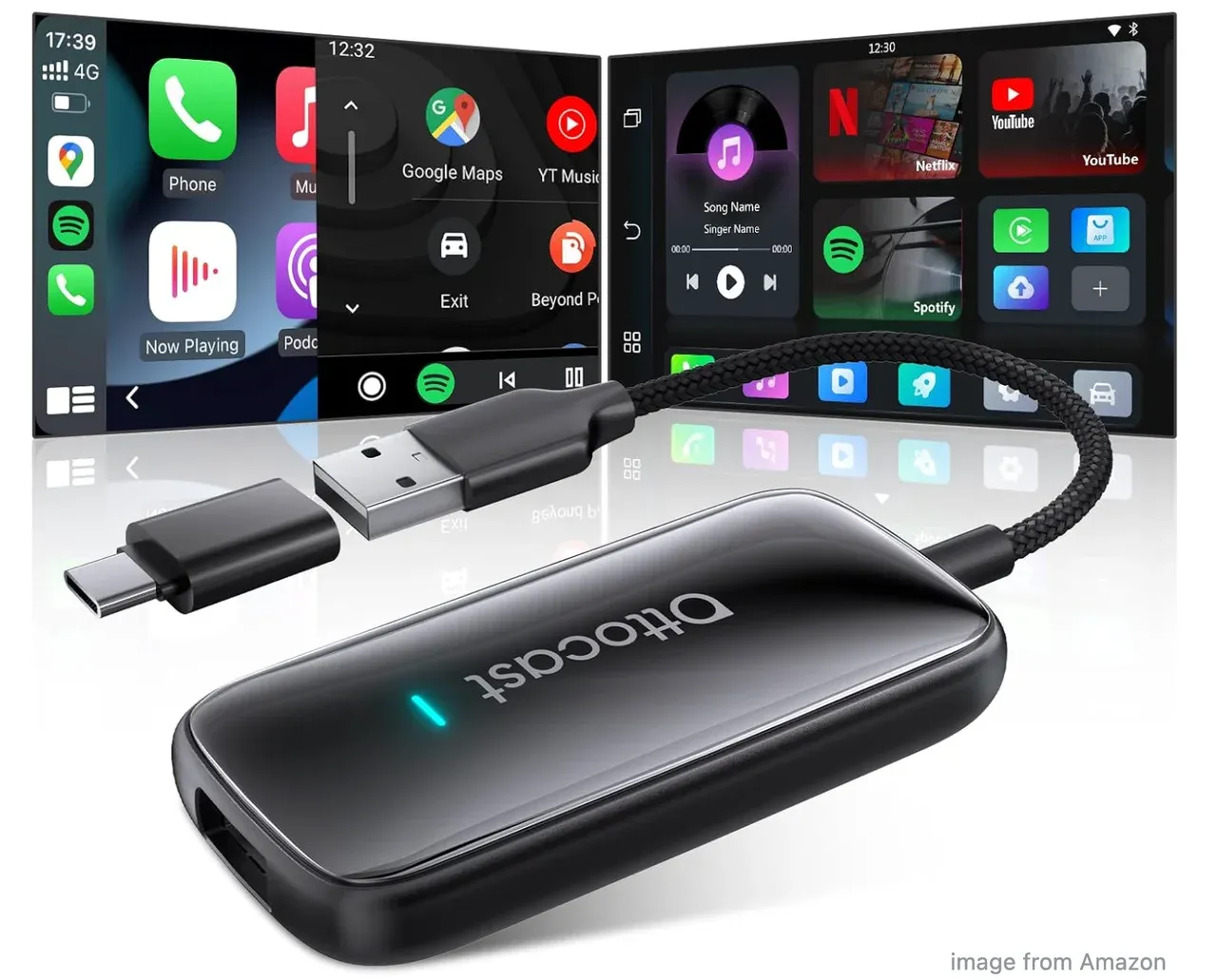
How to watch Netflix on CarPlay using it:
- Purchase a CarPlay AI Box: Look for reputable brands like Ottocast or Carluex that explicitly support video streaming.
- Plug and Play: Connect the device to your car's USB port (where you usually plug in your iPhone).
- Connect to Data: Link the adapter to your iPhone's Personal Hotspot or a car Wi-Fi connection.
- Open Netflix: Most of these devices come with Netflix pre-installed or allow you to download it from their own app store.
| Method | Pros: | Cons: |
|---|---|---|
| Screen Mirroring Adapter | No jailbreak required: Keeps your iPhone's security intact. Ease of use: Usually a simple plug-and-play setup. High quality: Often supports 1080p playback. | Cost: Quality adapters can be expensive ($100–$200+). Screen mirroring lag: You may experience a slight delay between the audio and video. Compatibility: Does not work with every car model; check your vehicle's compatibility first. |
Technical note: Screen mirroring apps like LetsView, AnyDesk, or ApowerMirror are sometimes used to mirror an iPhone screen to a car display and may provide better audio-video sync than basic adapters. However, these apps do not function inside Apple CarPlay unless the iPhone is jailbroken and installed through a jailbreak app store. As noted later, jailbreaking carries significant risks, and for most users, the trade-off is not worth the smoother playback.
Method 2: Save Netflix on a USB Drive
Some modern infotainment systems allow you to play media directly from a USB drive. While this isn't technically "through CarPlay", it is a reliable way to get Netflix to play on your car screen without third-party hardware.
However, this method is a bit of a "manual" workaround. Because you are bypassing the Netflix app entirely, you won't have access to your "Continue Watching" list or personalized recommendations. Additionally, safety locks are still active: most cars will disable the video feed the moment you shift into drive.
How to get Netflix on Apple CarPlay using this way:
- Download your favorite Netflix shows to your computer using an authorized downloader.
- Transfer the files (usually in .mp4 format) to a FAT32-formatted USB drive.
- Plug the drive into your car's media port.
- Select the "Media" or "USB" source on your car's screen.
Note: Most cars will automatically cut the video feed as soon as you shift out of "Park".
| Method | Pros: | Cons: |
|---|---|---|
| Save Netflix on a USB Drive | No Internet needed: Great for long trips in areas with poor cellular signal. Budget-friendly: Uses hardware you likely already own (a USB stick). High stability: No lag or buffering issues since the file is playing locally. | Preparation heavy: Requires multiple steps and a computer to set up. Added costs: Many high-quality Netflix downloader apps require a paid subscription. Incompletelibrary: Not all Netflix titles are available for download due to licensing. |
Method 3: Jailbreak Your iPhone (Not Recommended)
How to get Netflix to play on CarPlay? In the past, the primary way to get Netflix on Apple CarPlay was by "jailbreaking" your iPhone. This involves removing Apple's software restrictions to install unofficial apps like CarBridge or WheelPal.
Although this way offers some benefits, we don't recommend it:
| Method (Not Recommended) | Pros | Cons |
|---|---|---|
| Jailbreak Your iPhone | Native Integration: Apps appear right on the CarPlay home screen. Zero Hardware Cost: Relies entirely on software tweaks. Customization: Allows you to change the entire look of the CarPlay UI. | Security risks: Jailbreaking makes your phone vulnerable to malware and hackers. Warranty issues: It often voids your iPhone's warranty. System instability: These tweaks frequently crash or stop working after iOS updates. Safety: Bypassing safety locks is a major liability if the driver is tempted to watch while moving. |
For most users, the risks to your iPhone's security and the high chance of "bricking" your device make this method far more trouble than it's worth.
How to Screen Mirror iPhone to PC/TV?
If you find that the CarPlay workarounds are too glitchy or expensive, you might realize that you just want a larger screen to enjoy your shows while stationary. A safer and more flexible alternative is mirroring your iPhone to a laptop or a portable monitor inside your car.
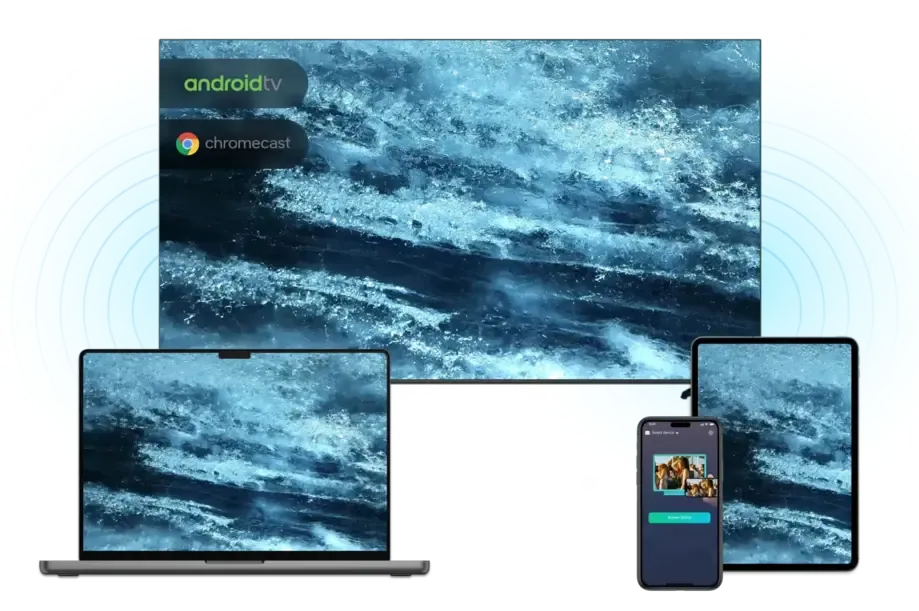
For this, we recommend PigeonCast for iOS screen mirroring. It is a powerful, safe tool designed to mirror your iPhone screen to a PC or TV with high stability and low latency.
How to use PigeonCast to watch Netflix on a bigger screen:


Overall Rating:



- Install PigeonCast on your iPhone and PC or TV device.
- Connect your iPhone and the receiving device to the same Wi-Fi network.
- Open PigeonCast on both platforms and follow the setup instructions.
- On your iPhone, choose your PigeonCast receiver from the list, tap Screen Mirror, and follow the onscreen instructions.
- Open Netflix on your iPhone and enjoy watching on the larger screen.
This is a fantastic "plan B" for campers or those who want a reliable cinema experience without messing with their car's internal computer system.
Final Take
While you can't officially watch Netflix on Apple CarPlay, workarounds like screen mirroring adapters do exist. However, these solutions have limitations and should only be used when parked and in compliance with local laws.
For most users, using tools like PigeonCast to mirror Netflix to a PC or TV provides a safer, more reliable viewing experience without compromising your iPhone's security or warranty.
Recommendation: Use CarPlay primarily for its intended purposes—navigation, music, and hands-free communication while driving. Save video streaming for when you're safely parked or at home using dedicated screen mirroring solutions.
How to Watch Netflix on Apple CarPlay FAQs
Is it legal to watch Netflix on Apple CarPlay while driving?
The answer is no in most countries and U.S. states. Traffic laws generally prohibit drivers from watching video content on any screen visible from the driver's seat while the car is moving. This behavior is usually categorized as distracted driving and can result in fines or penalties. Any video playback solution should be used only when the vehicle is fully parked, and the engine is not in active driving use.
How to get YouTube and Netflix on Apple CarPlay?
Because Apple does not officially allow video apps on CarPlay, users typically rely on indirect methods:
- External hardware: A CarPlay AI Box connects to your car's USB port and runs a standalone Android system that supports streaming apps.
- Screen mirroring solutions: Some users mirror their iPhone's display to the car screen using third-party adapters or wired solutions, provided the vehicle supports video input.
How to watch TV on CarPlay?
There is no native way to watch live television through CarPlay itself. However, with a CarPlay AI Box, you can install live TV streaming apps such as YouTube TV, Sling, or Hulu + Live TV. These devices operate independently of Apple CarPlay and display content through their own interface.
Can you watch Netflix on Apple CarPlay without jailbreaking?
Yes. Jailbreaking is not required. The most common non-jailbreak option is a CarPlay Multimedia AI Box. It plugs into your existing CarPlay port and allows Netflix to run on the adapter's system, meaning your iPhone remains unchanged and secure.
Why won't my CarPlay play Netflix?
This is intentional. Apple restricts video playback on CarPlay to reduce driver distraction. When your iPhone is connected, CarPlay prioritizes navigation and audio apps. Even if Netflix is open on your phone, the car display will continue showing approved apps like maps or music.
How do I mirror to Apple CarPlay?
CarPlay itself does not include built-in screen mirroring or AirPlay support. To mirror your iPhone display, you'll need a third-party wireless mirroring adapter. After connecting the adapter, you typically join its Wi-Fi network and enable "Screen Mirroring" from the iPhone Control Center.
Can you watch streaming on Apple CarPlay?
Not officially. While you can stream music from Spotify or Apple Music and podcasts, video streaming services like Netflix, Disney+, and HBO Max are blocked by Apple's safety protocols.
Is Netflix coming to Apple CarPlay?
It is highly unlikely. Apple's design philosophy for CarPlay is "Eyes on the Road, Hands on the Wheel." While iOS 18 introduced a "Video in the Car" feature for AirPlay, it requires specific automaker support and only functions when the vehicle is in park.
What can I watch on Apple CarPlay?
CarPlay is built for information and audio, not video. Supported categories include:
- Navigation apps: Apple Maps, Google Maps, Waze
- Audio apps: Spotify, Apple Music, Audible, Podcasts
- Communication tools: Messages, WhatsApp, phone calls, and voice-based Zoom
- Sports apps: Some apps display scores and offer live audio commentary
Are there any hidden features in Apple CarPlay?
There are no secret video tricks, but CarPlay does include a few underrated conveniences:
- Dual screenshots: Taking a screenshot on your iPhone also captures the CarPlay screen.
- Automatic car location: Apple Maps saves your parking location when you disconnect from CarPlay.
- ETA sharing with Siri: You can ask Siri to send your estimated arrival time to a contact while navigating.
Mia Clarke is a technology editor specializing in screen mirroring and casting solutions across multiple platforms. Mia provides clear, practical guides and in-depth insights to help users seamlessly connect their devices. Passionate about enhancing digital experiences, Mia is dedicated to keeping readers updated on the latest trends and tools in cross-platform screen sharing. Whether you’re looking to mirror your smartphone, laptop, or smart TV, Mia’s content delivers reliable, user-friendly advice to simplify your tech setup.