
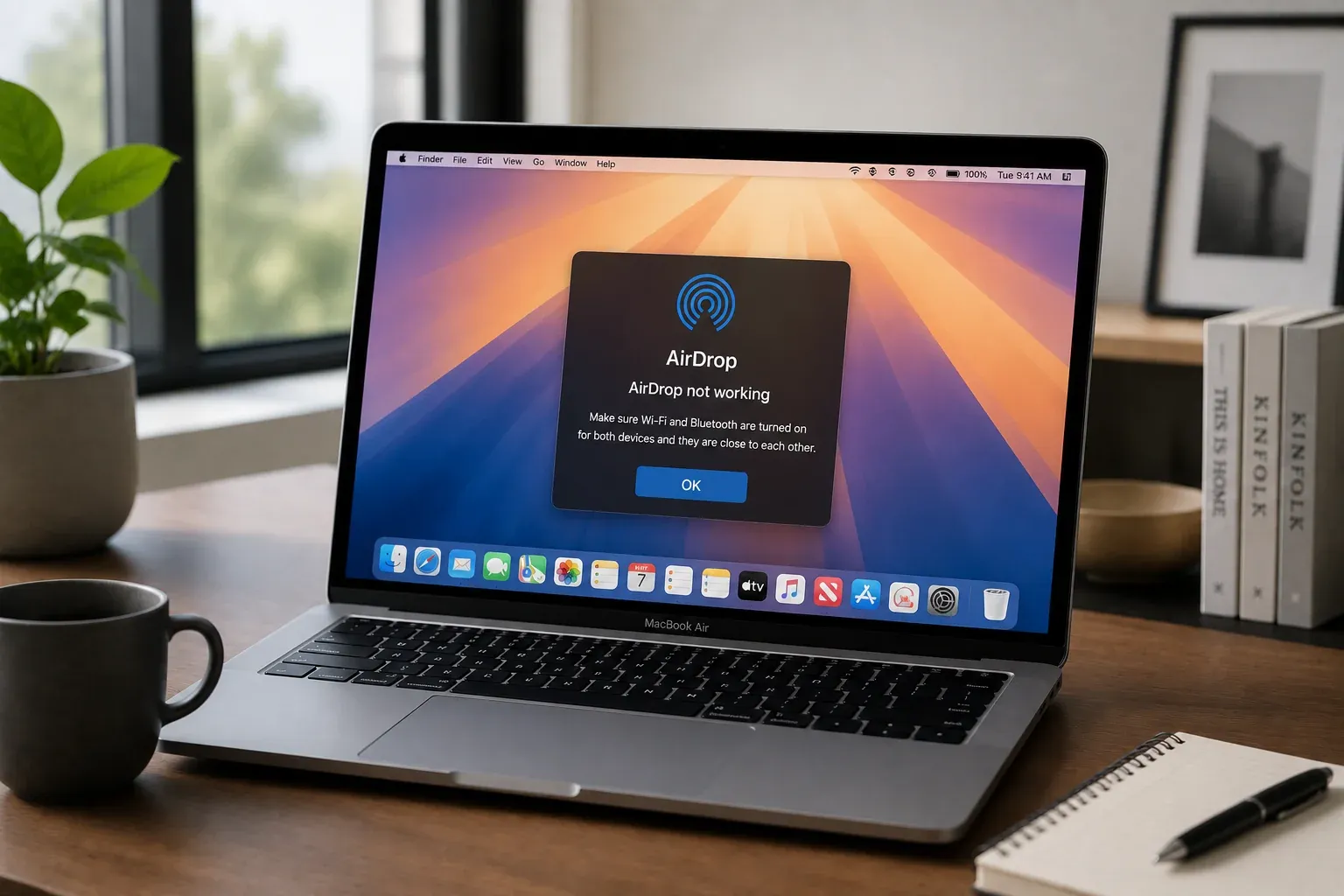
It is annoying to find AirDrop not working when you simply want to move a file or start a quick presentation. While many people confuse it with screen mirroring, both features often suffer from the same connection glitches and Apple ecosystem limits. Learning how to resolve these errors or choosing a more flexible tool will ensure you can share your screen with any device without the usual technical headaches.
Why Is AirDrop Not Working
Technical glitches can happen for several reasons even if your devices are brand new. While Apple designed this feature to be a seamless experience, several underlying factors can cause the connection to fail during a transfer.
-
Signal Interference: Bluetooth and Wi-Fi use similar frequencies and can often disrupt each other in crowded office spaces or areas with many active gadgets.
-
Network Settings: Features like a Personal Hotspot or a Virtual Private Network can create digital barriers that prevent your devices from establishing a direct link.
-
Visibility Restrictions: If your sharing preference is set to Contacts Only, a minor sync issue with iCloud can make your device invisible to others.
-
Ecosystem Barriers: The service is built on a proprietary protocol that only works between Apple products, which creates a total failure if you need to connect iPhone with a Windows PC or Android screen.
-
Software Version Mismatch: Running outdated firmware on one device can lead to a handshake error where the two systems speak slightly different versions of the same protocol.
How to Solve AirDrop Not Working
You do not have to settle for a broken connection or waste time guessing which setting is wrong. By following this systematic guide, you can quickly clear the most common software hurdles and get your devices communicating perfectly again.
Bonus: However, if you want to skip the tedious troubleshooting and just need to share content with a non-Apple device, PigeonCast offers a far more robust alternative. Unlike AirDrop, which is limited by proprietary hardware constraints, PigeonCast acts as a universal mirroring bridge supporting AirPlay, Google Cast, and DLNA protocols. This means you can effortlessly mirror your iPhone, Android, or PC screen to any Smart TV or computer in up to 4K resolution without worrying about "handshake" errors or ecosystem lock-in. It is the ideal "one-click" solution for professional presentations and home entertainment when native tools fail.


Overall Rating:



Fix 1: Adjust Discovery Settings
Sometimes the simplest reason for failure is that your device is invisible to others due to strict privacy settings or iCloud syncing delays. Switching to a more open visibility mode ensures that any nearby device can initiate a handshake without being blocked by your contact list filters.
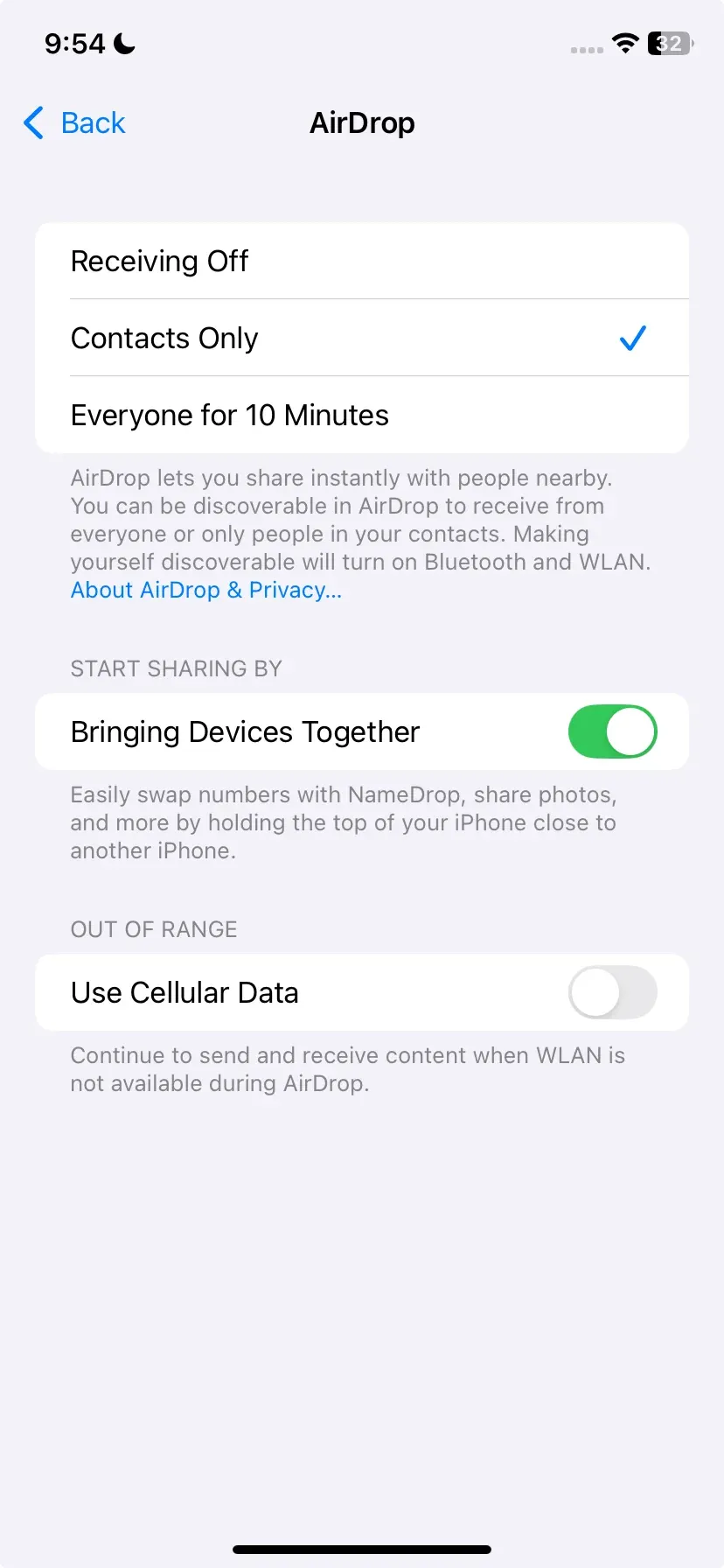
Step 1. Open the Settings app on your iPhone or iPad.
Step 2. Navigate to General and then select AirDrop.
Step 3. Change the setting to Everyone for 10 Minutes to ensure your device appears on the sender's screen immediately.
Fix 2: Refresh Network Radios
AirDrop relies on a complex coordination between Bluetooth and Wi-Fi which can occasionally become desynchronized or stuck. A quick toggle of these wireless radios forces the system to drop any glitched connections and broadcast a fresh signal to surrounding hardware.
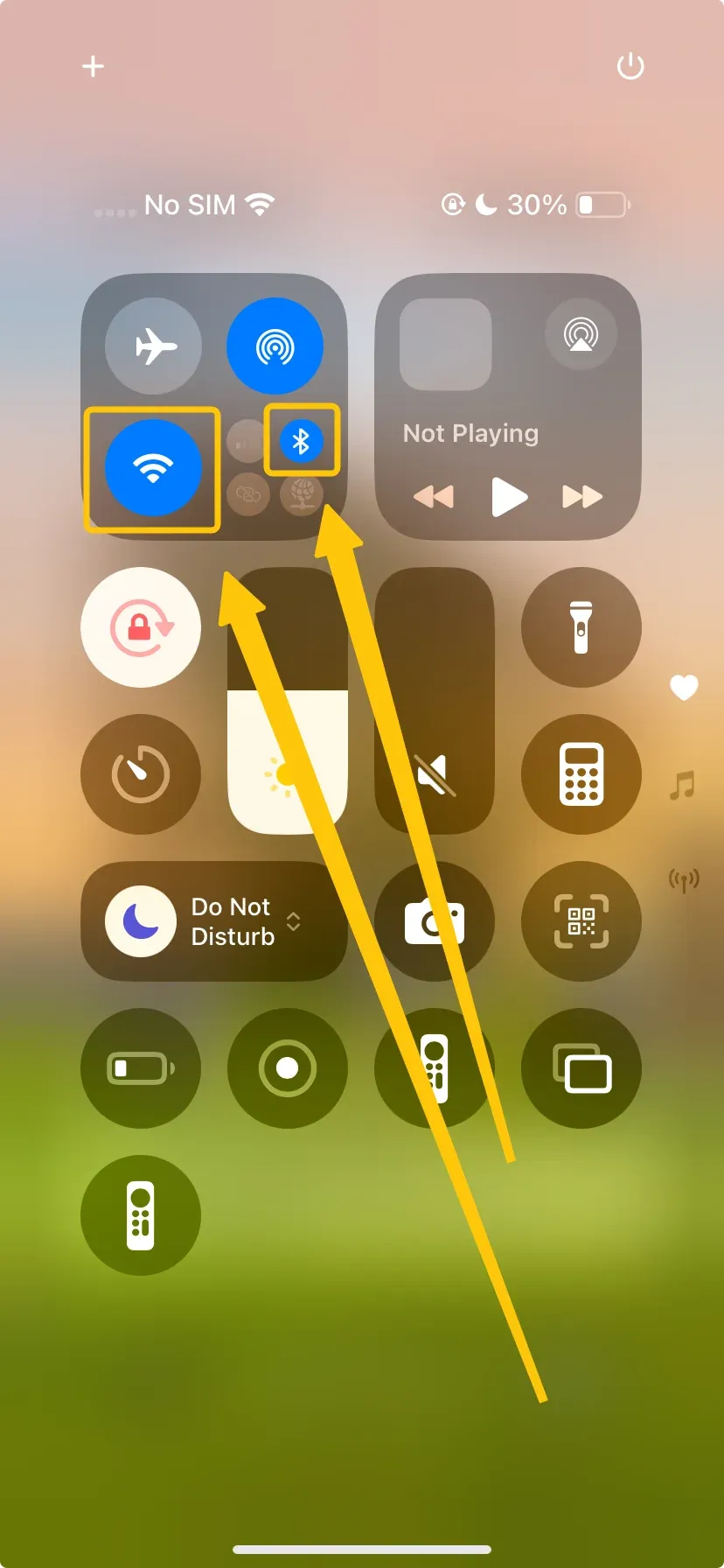
Step 1. Swipe down from the top right corner of your screen to open the Control Center.
Step 2. Tap both the Wi-Fi and Bluetooth icons to turn them off completely.
Step 3. Wait for about five seconds and then tap them again to restart the discovery process.
Fix 3: Disable Personal Hotspot
A common but overlooked conflict occurs when one device is acting as a Wi-Fi bridge for others through a Personal Hotspot. Since both services require exclusive control over the Wi-Fi antenna, having a hotspot active will automatically disable your ability to send or receive files.
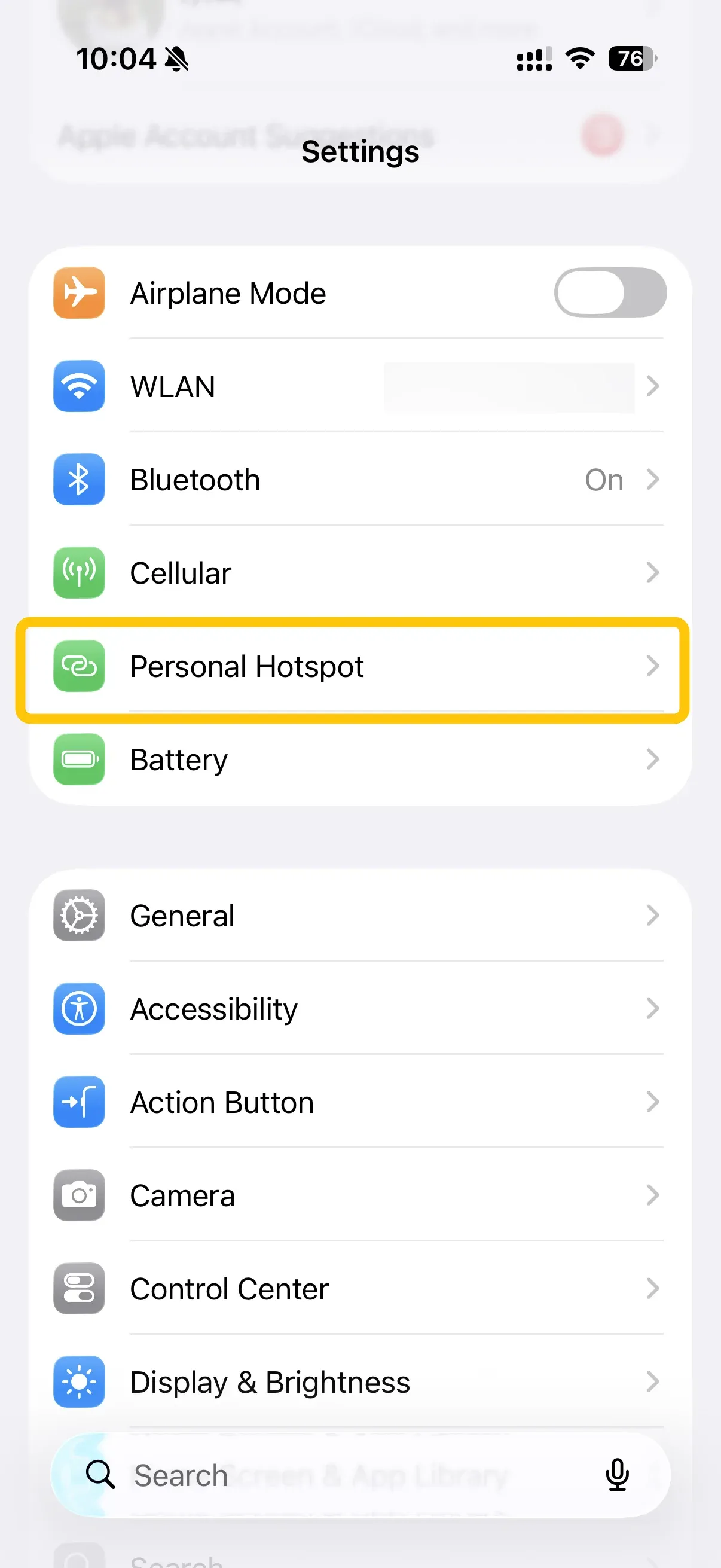
Step 1. Open the Settings app and tap on the Personal Hotspot section.
Step 2. Ensure the toggle for Allow Others to Join is turned off.
Step 3. Confirm that the green hotspot icon in the status bar has disappeared before trying to share again.
Fix 4: Verify System Compatibility
Outdated firmware is a frequent cause of "handshake" errors where two devices fail to communicate because they are using different versions of the transfer protocol. Keeping your operating system current ensures that you have the latest patches designed to fix known connectivity bugs.
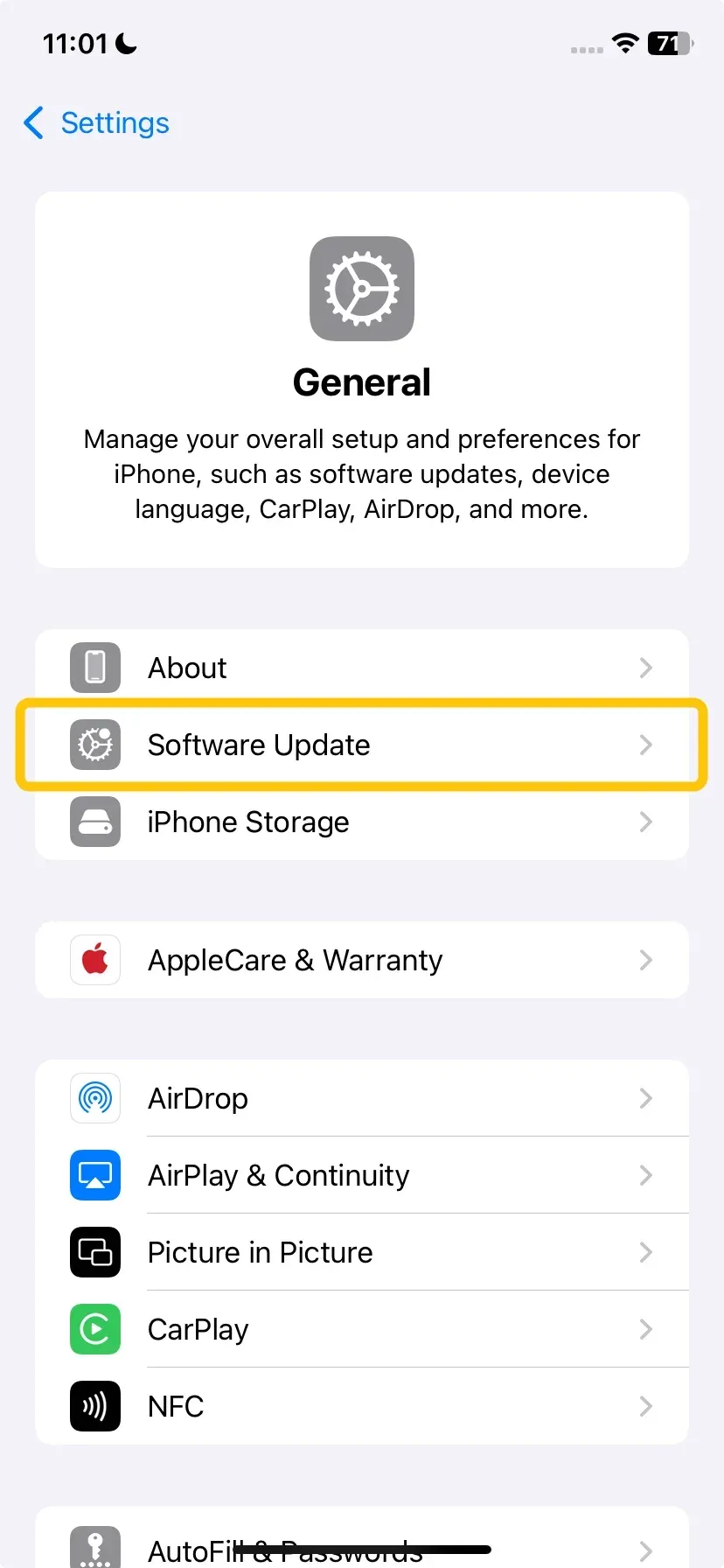
Step 1. Go to Settings > General > Software Update to check for any pending installations.
Step 2. Perform this check on both the sending and receiving devices to ensure they are fully compatible.
Fix 5: Reset Network Settings
If the connection remains broken after trying the basic fixes, there may be a deeper corruption in your device's network cache. Resetting these configurations clears out old Wi-Fi passwords and temporary data that might be interfering with the underlying AirDrop protocol.
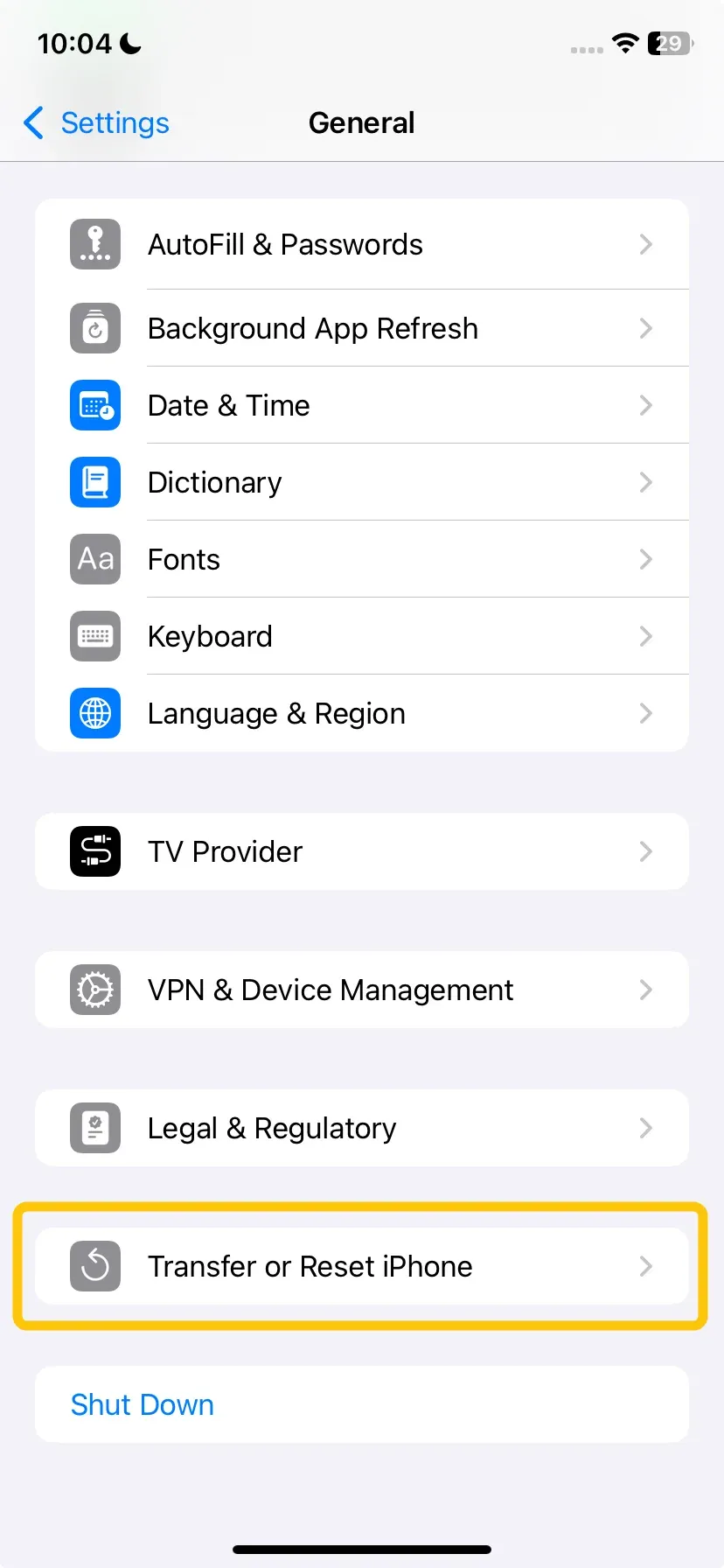
Step 1. Open Settings > General > Transfer or Reset iPhone.
Step 2. Tap Reset at the bottom of the screen and select Reset Network Settings.
Step 3. Enter your passcode to confirm and wait for the device to restart before rejoining your Wi-Fi network.
Best Practices for a Stable AirDrop Connection
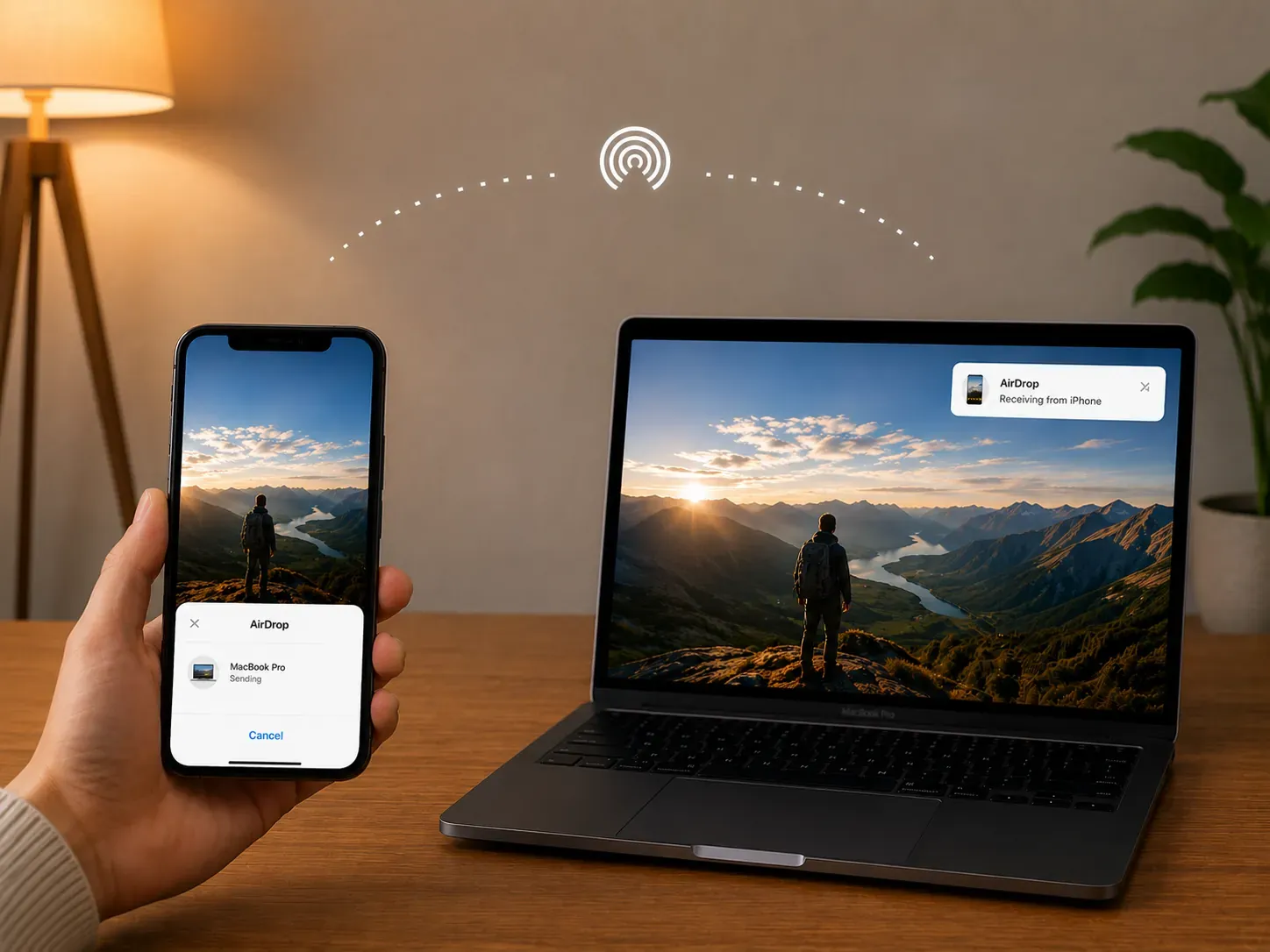
Fixing the settings is only half the battle when it comes to maintaining a reliable link between your hardware. Adopting a few simple habits can prevent future interruptions and ensure that your files transfer smoothly every time you initiate a request.
-
Maintain Close Proximity: While the technology has a decent range, staying within two meters of the other device reduces the risk of signal attenuation caused by walls or furniture.
-
Keep Both Screens Active: Ensure that neither device enters sleep mode during the transfer as a locked screen will often force the system to terminate any active peer to peer connections.
-
Remove Physical Obstructions: Thick metallic cases or magnetic accessories can interfere with the internal antennas and lead to slower transfer speeds or intermittent failures.
-
Manage Large Transfers: If you are sending high resolution videos or large folders, try to keep the devices stationary on a flat surface to avoid the slight signal fluctuations that happen when moving around.
-
Check iCloud Consistency: Ensure both devices are signed into active iCloud accounts if you prefer to use the Contacts Only setting as this helps the system verify identities more quickly.
Closing Words
To resolve AirDrop sharing failures, stop guessing and start with a systematic approach. Identify the specific point of interruption, apply the targeted fix, and avoid repetitive retries that waste time. If native stability does not return, transitioning to a flexible professional alternative is the most efficient way to bypass hardware limits and keep your workflow moving.
AirDrop Not Working FAQ
Why is AirDrop not working even when Bluetooth and Wi-Fi are on?
Beyond hardware status, several underlying software and environmental factors can silently block a successful connection.
-
Restrictive Visibility Settings: Your device may be set to "Contacts Only" while a sync issue prevents iCloud from recognizing the other user.
-
Device Lock State: If either the sending or receiving screen is locked, the system often terminates the discovery process automatically.
-
Network Protocol Conflicts: An active Personal Hotspot or VPN can occupy necessary wireless frequencies, creating a digital barrier.
-
Physical Distance and Obstructions: Being beyond the 9-meter range or having metallic cases can weaken the peer-to-peer signal.
-
Software Version Incompatibility: Differences in firmware versions can cause a "handshake" error during the initial connection phase.
When should I stop troubleshooting AirDrop?
Stop solving when basic fixes like refreshing radios and resetting network settings fail to restore the link. At this point, the issue likely involves deep-seated system bugs or hardware interference that simple menu adjustments cannot resolve, making it more efficient to switch to a reliable alternative.
Why is my AirDrop stuck on waiting?
AirDrop typically gets "stuck on waiting" when a connection handshake is initiated but cannot be completed. This stall usually happens for the following reasons:
-
Authentication Hang
-
Screen Sleep
-
Protocol Conflict
-
File Size Overhead
Can VPN affect AirDrop?
Yes, a VPN can interfere with the connection by altering how your device handles local network traffic. Many VPNs use strict firewall rules or "Kill Switch" features that block local discovery to ensure privacy, effectively cloaking your device from nearby peers.
Why is AirDrop failing after a system update?
A system update can reset wireless configurations or introduce temporary software conflicts that disrupt peer-to-peer sharing. If your connection fails immediately after an installation, it is likely due to these factors:
-
Settings Reset: Updates often revert visibility to Receiving Off, making the device invisible to others.
-
Authentication Hangs: New security protocols may require a fresh iCloud sign-in to re-verify your identity for sharing.
-
Background Indexing: Post-update system tasks can consume resources, causing the wireless "handshake" to time out.
-
Network Cache Conflicts: The update may have corrupted saved network data, requiring a reset of Wi-Fi and Bluetooth configurations.
-
Version Mismatch: If only one device is updated, older firmware on the other device may struggle to recognize new transfer protocols.
Why does AirDrop work once and then stop?
This "one-and-done" failure typically occurs when the initial transfer exhausts the temporary wireless handshake or triggers a software conflict. Common reasons include:
-
Cache Congestion: A successful transfer generates temporary network cache that may fail to clear, preventing the devices from initiating a second "handshake."
-
Power Management: After one use, the system may put the wireless radios into a low-power state or "sleep" mode to save battery, breaking discovery for subsequent attempts.
-
iCloud Timeout: The authentication token used to verify your identity can occasionally expire or hang after the first file is moved, requiring a settings refresh to re-establish trust.
-
Dynamic IP Conflicts: Since the connection relies on a temporary peer-to-peer network, the virtual addresses assigned to the devices can sometimes collide or fail to renew after the first session closes.
Clara Rossi is an experienced technology editor and a seasoned expert in screen mirroring and casting technologies. With a keen eye for detail and a deep understanding of how to seamlessly connect devices, Clara excels at optimizing user experiences for effortless sharing and streaming. Whether you're seeking quick fixes or advanced tips, her expertise and responsiveness ensure that every query is met with a well-informed and efficient solution.