

Can you AirPlay to Xbox? No. Xbox consoles do not natively support AirPlay, so you cannot select an Xbox directly from the AirPlay or Screen Mirroring menu on an iPhone, iPad, or Mac.
That does not mean you cannot mirror an Apple device to an Xbox, though. With a third-party receiver, you can use the Xbox itself as the screen receiving your phone.
Why Doesn't Xbox Support AirPlay?
AirPlay requires the receiving device to support Apple's AirPlay receiver technology. Xbox does not include that functionality, which is why an Xbox One, Xbox Series X, or Xbox Series S will not normally appear when you open Screen Mirroring on an iPhone.
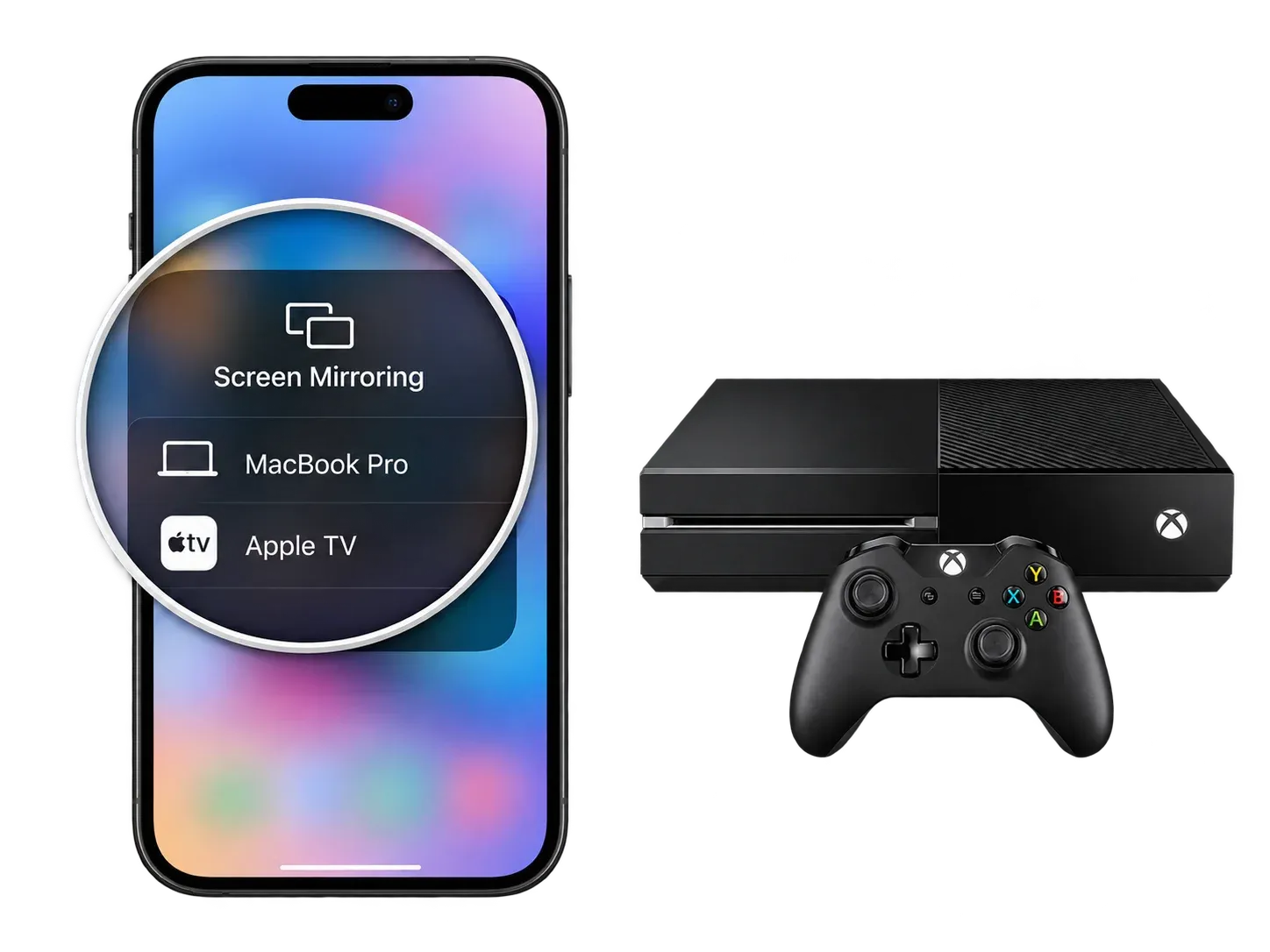
Xbox and Apple devices simply use different wireless display technologies. An iPhone relies primarily on AirPlay, while Xbox is not designed as a native AirPlay receiver.
For that reason, there is no AirPlay setting hidden somewhere in the Xbox menu that you can switch on.
If you still want to mirror an iPhone or iPad to Xbox, you need to give the Xbox another way to receive the screen. One convenient option is to use its built-in Microsoft Edge browser together with a browser-based receiver.
How to Mirror iPhone or iPad to Xbox with PigeonCast
You can use PigeonCast to turn the Microsoft Edge browser on your Xbox into a screen mirroring receiver.
This avoids installing a dedicated AirPlay receiver app on the console. Instead, you open the receiver in Edge and connect your phone directly to it.
Step 1. Open Microsoft Edge on Xbox
On your Xbox, go to: My Games & Apps > Apps > Microsoft Edge
Open Edge and visit the PigeonCast Web Mirror page.
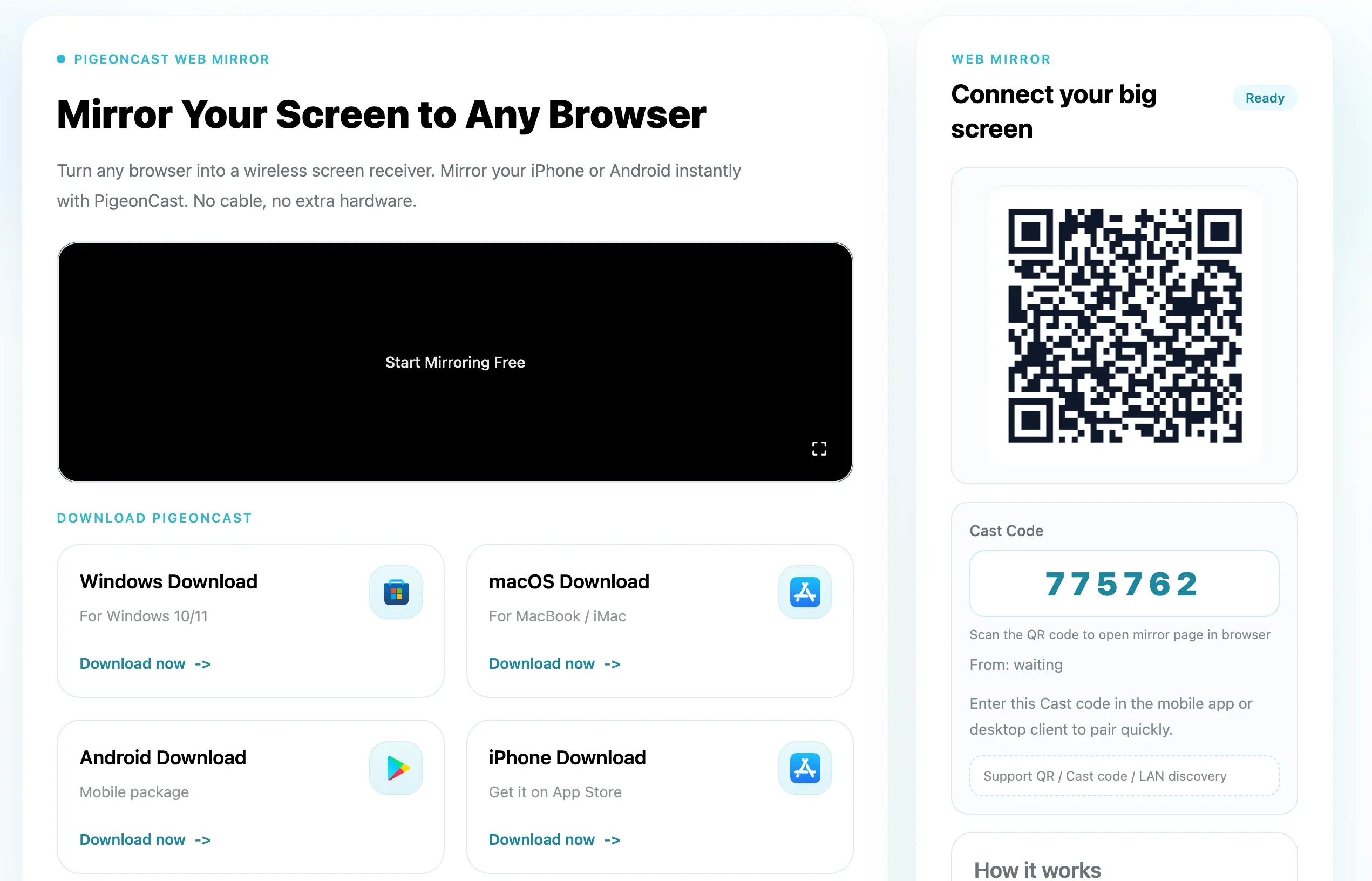
A QR code or PIN connection information will appear on the screen.
Step 2. Open PigeonCast on Your iPhone or iPad
Launch PigeonCast on your iPhone or iPad. PigeonCast is a screen mirroring app for iPhone and iPad, allowing you to connect to other devices like Windows PC, MacBook, Firestick, or Google TV wirelessly.


Overall Rating:


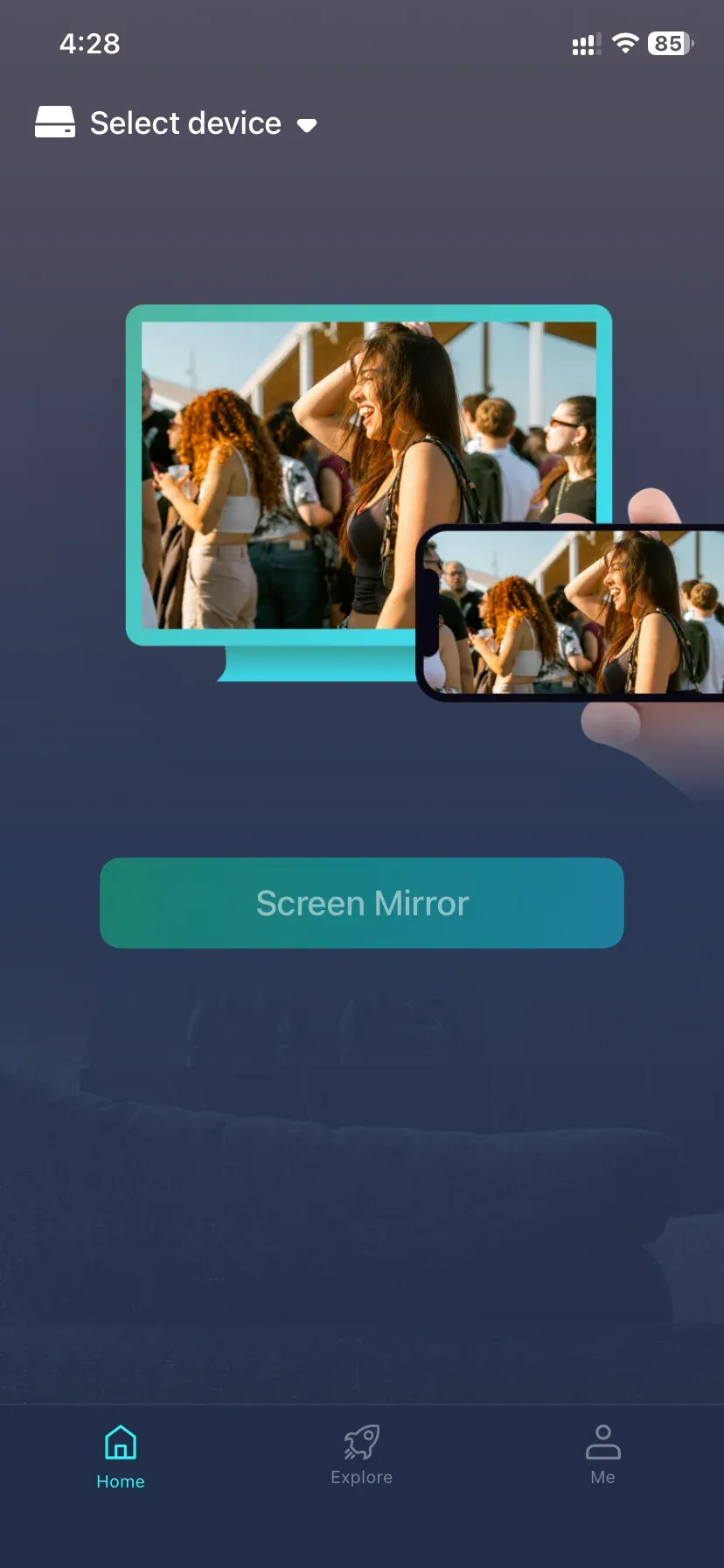
Connect your phone and Xbox to the same Wi-Fi network so they can communicate over the local network.
Step 3. Connect Your iPhone to the Xbox Browser
Switch to the Explore tab on PigeonCast app and tap Mirror to Browser.
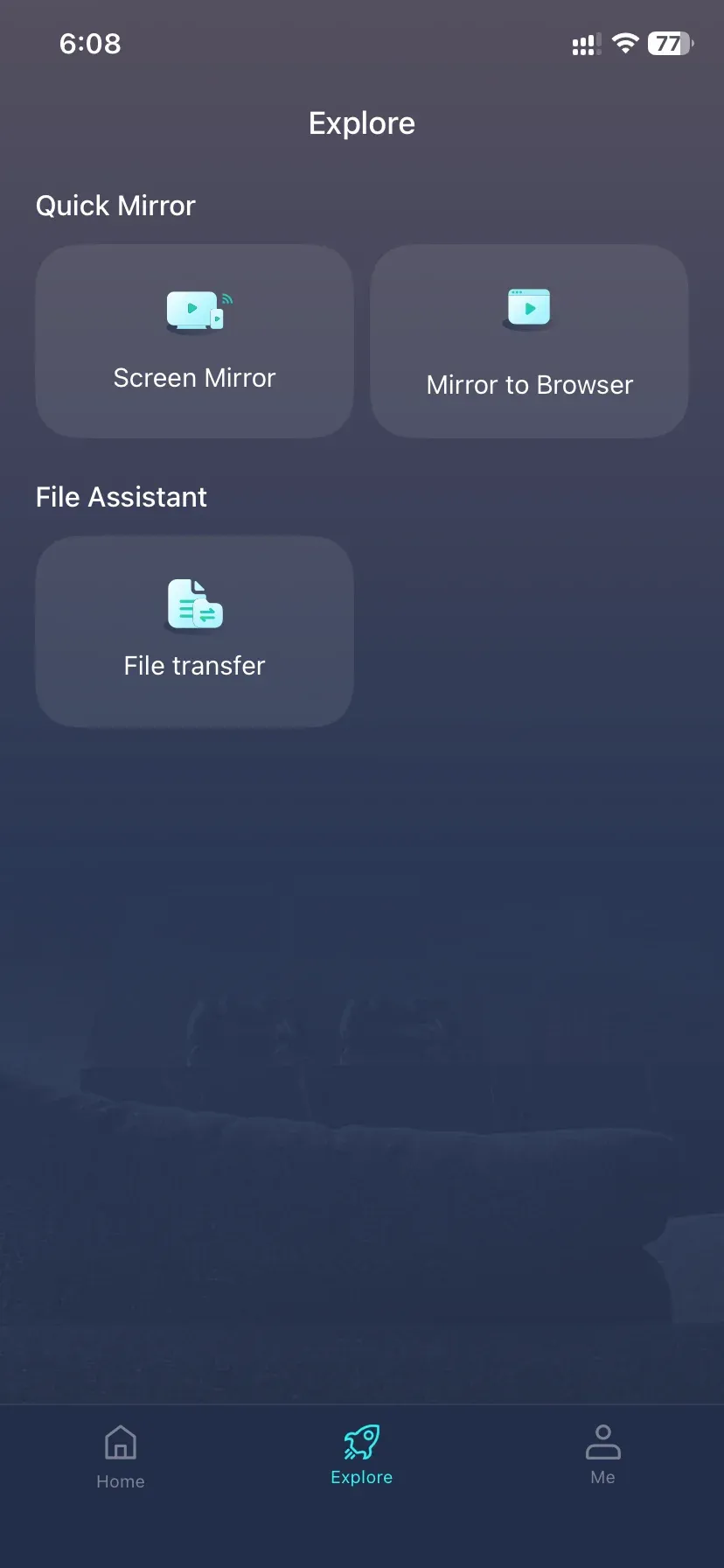
Scan the QR code shown in Microsoft Edge or enter the six-digit PIN code to connect your iPhone to Xbox.
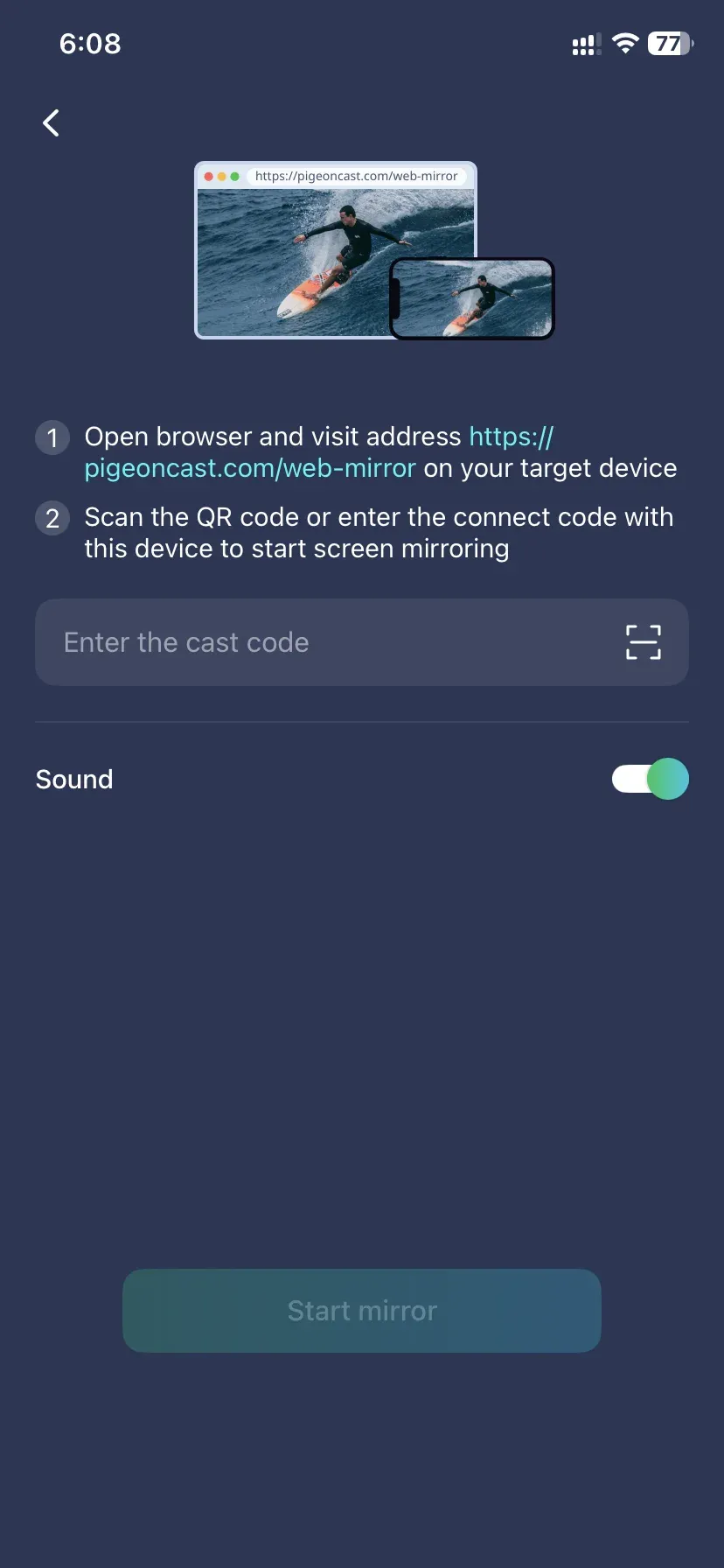
Once your devices are paired, select the screen mirroring option in PigeonCast and start the connection.
Step 4. Start Mirroring to Xbox
Your iPhone or iPad screen should now appear inside Microsoft Edge on the Xbox.
You can then open photos, websites, presentations, videos, or other content on your phone and view them on the TV connected to your Xbox.
Because this method uses PigeonCast rather than native AirPlay, you do not need the Xbox itself to support the AirPlay protocol.
Some DRM-protected streaming apps may restrict screen mirroring, so services such as subscription video platforms may display a black screen even when the connection is working correctly.
Conclusion
Xbox does not need native AirPlay support for you to put an iPhone screen on it.
Since modern Xbox consoles already include a browser, the browser itself can become the receiver. Open PigeonCast in Microsoft Edge, connect your iPhone or iPad, and the Xbox can effectively serve as the bridge between your phone and the TV.
It is a useful distinction to remember with screen mirroring in general: when two devices do not share the same casting protocol, changing the receiver is often easier than trying to make the protocols compatible.
AirPlay to Xbox FAQ
Can You Mirror iPhone to Xbox Without Apple TV?
Yes. You do not need an Apple TV to mirror an iPhone to Xbox, but because Xbox does not support AirPlay natively, you will need a third-party receiver app or a browser-based receiver such as PigeonCast Web Mirror.
Does Xbox Have a Mirror App?
Xbox does not include a built-in universal screen mirroring app, but third-party receiver apps are available in the Microsoft Store. Check whether the app supports your phone, computer, and the casting protocol you want to use before installing it.
Can You Do Screen Mirroring on Xbox One?
Yes, but the method depends on the sending device. Xbox One does not natively receive AirPlay from iPhone or iPad, so Apple devices require a compatible third-party receiver, while Android and Windows devices may have other casting options.
How Do I Mirror My Mac Screen to My Xbox Console?
You need an Xbox receiver app that specifically supports AirPlay or macOS screen mirroring, since Xbox cannot receive a Mac screen through native AirPlay. If wireless mirroring is not necessary, connecting the Mac directly to the TV with HDMI is usually simpler.
Can I Stream From My Phone to My Xbox One?
Yes. For full-screen mirroring, you need a compatible receiver on Xbox; for videos, photos, or music, a media-casting or DLNA-compatible app may be enough. iPhone users can also use a browser-based receiver such as PigeonCast through Microsoft Edge on Xbox One.
Mia Clarke is a technology editor specializing in screen mirroring and casting solutions across multiple platforms. Mia provides clear, practical guides and in-depth insights to help users seamlessly connect their devices. Passionate about enhancing digital experiences, Mia is dedicated to keeping readers updated on the latest trends and tools in cross-platform screen sharing. Whether you’re looking to mirror your smartphone, laptop, or smart TV, Mia’s content delivers reliable, user-friendly advice to simplify your tech setup.