
Mobile gaming has evolved far beyond small screens. Many popular titles today, including Call of Duty: Mobile, PUBG Mobile, Asphalt 9, Genshin Impact, Clash Royale, Monopoly Go!, Among Us, and Hearthstone, can be much more enjoyable on a larger display.
As someone who has tested mobile-to-TV setups across different devices, one thing becomes clear quickly: there is no single best method for every game. The ideal setup depends on your phone, your TV, your network quality, and, most importantly, the type of game you play.
For example, casual titles like Monopoly Go!, Candy Crush Saga, Uno!, and Hearthstone generally work well with wireless casting. But fast-paced games such as Call of Duty: Mobile, PUBG Mobile, Asphalt 9, and Beatstar are far more sensitive to input lag, making a wired connection the better choice.
If you're deciding how to play mobile games on TV, start by asking one question: Does your game require quick reactions? That answer will usually point you toward the right setup.
How to Play Mobile Games on TV: The Quick Answer
Here is the short version:
- Use AirPlay if you have an iPhone or iPad and your Apple TV or Smart TV supports AirPlay
- Use Google Cast if you have an Android phone and your TV supports Chromecast
- Use a screen mirroring app if your TV doesn't support AirPlay or Chromecast, if you're using devices from different ecosystems, or if you want a simple way to mirror your phone screen to a TV without extra hardware.
- Use HDMI or USB-C video output if low latency and responsive controls matter more than wireless convenience
There is no universal winner because mobile games do not all ask the same thing from the connection. A trivia game, card game, or turn-based strategy title can still feel great with a little delay. A racing game, rhythm game, shooter, or fighting game usually will not. The right choice depends on how much responsiveness your game demands.
What Matters Before You Put Phone Games on a TV
The first mistake is thinking that once the phone appears on the TV, the setup is solved. For gaming, that is only part of the story. A connection can be stable, the picture can look sharp, and the session can still feel wrong the moment the game asks for quick reactions.
Two things decide whether the result is actually worth using:
- how the phone sends the picture
- how much delay the full setup adds before the TV shows the action
That second point is where most disappointments start. The phone may not be the problem. The TV may not be the problem either. More often, the issue is the pileup: wireless traffic, screen duplication overhead, TV image processing, and a game that is less forgiving than it looked in the app store.
Screen mirroring vs direct casting
These terms are often treated as if they mean the same thing, but for gaming they do not.
- Screen mirroring copies the whole phone display to the TV
- Direct casting hands supported media over to the TV more directly, so the TV plays it and the phone behaves more like a remote
That second model works beautifully for movies and some video apps. It is much less helpful for most games because the TV needs to show exactly what your fingers are doing on the phone in real time. In practice, mobile gaming on TV is usually a screen-mirroring problem, not a pure casting problem.
This is why gaming exposes weaknesses that normal video never reveals. A streaming app can still look polished when the TV is doing more of the work. A game has to keep up continuously. If the image arrives just a little late, the controls start to feel soft, slippery, or detached even when the picture itself looks fine.
If you want the broader picture first, this guide on What is Screen Mirroring explains the difference more clearly.
Why delay matters so much for games
With video, a little delay often goes unnoticed. With games, even a small delay changes how the controls feel.
You notice it fastest in situations like these:
- you jump and the character lands a beat later than expected
- you steer in a racing game and the car feels loose
- you tap in a rhythm game and the timing never quite lines up
- you drag in a puzzle game and the movement feels sticky
That is why people sometimes say a setup "works" and then never bother with it again. The connection succeeded. The play experience simply was not comfortable enough to repeat.
As a practical rule:
- casual games often work well enough over wireless mirroring
- party games can still be fun with a small delay because the bigger screen matters more than perfect timing
- turn-based games are usually forgiving
- fast or competitive games are usually better with a cable
How to reduce screen mirroring lags? The guide Why Is Screen Mirroring Lagging give you some useful suggestions.
TV settings matter more than people expect
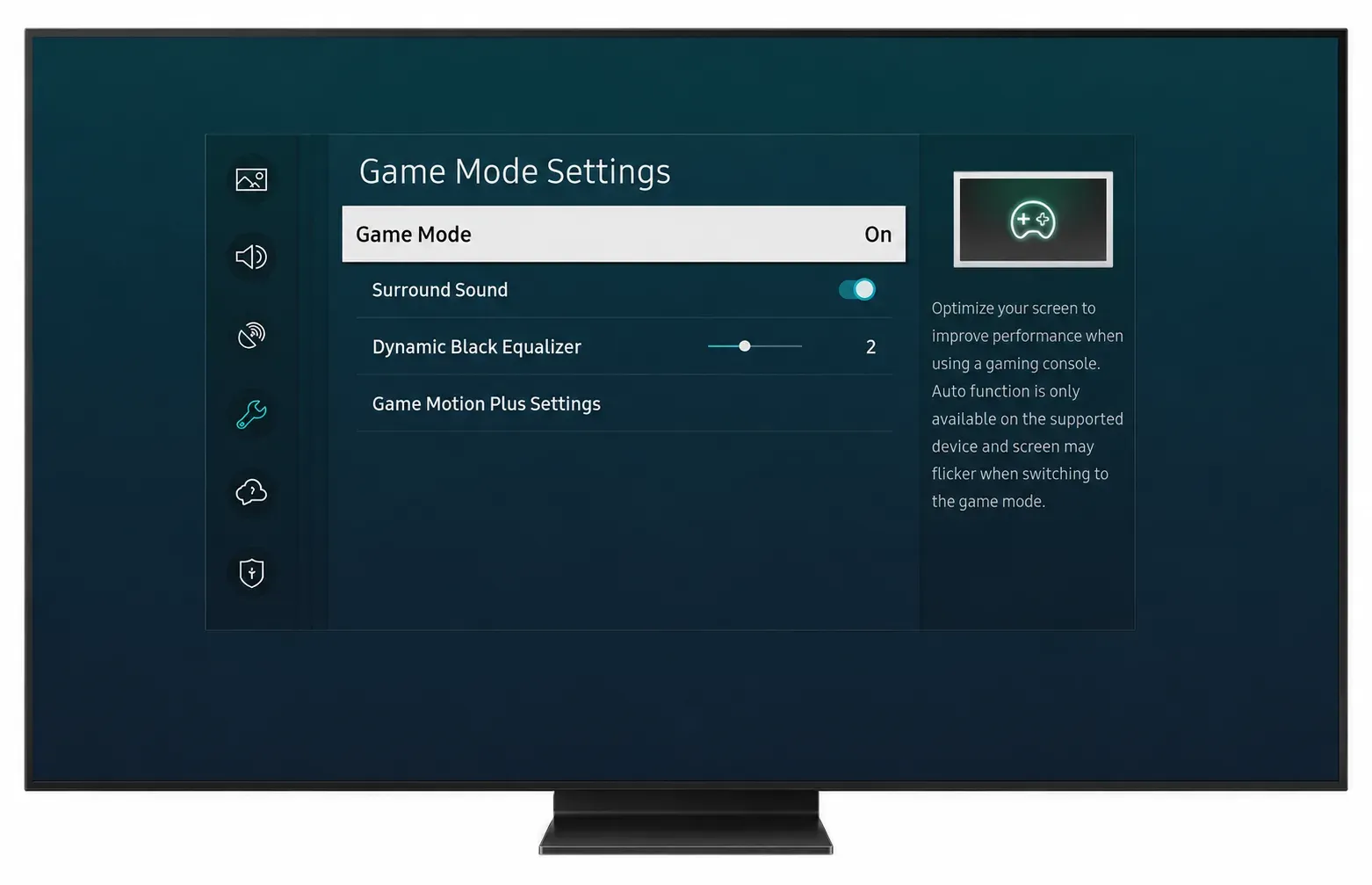
Many TVs add their own delay before they show the picture. Motion smoothing, noise reduction, sharpness processing, and other picture features may seem harmless in menus, but they can make games feel noticeably worse.
If your TV has Game Mode, use it. In many living-room setups, turning on Game Mode helps more than changing apps, restarting devices, or reconnecting Wi-Fi.
Method 1: Play iPhone Games on TV Using AirPlay
AirPlay is usually a good fit for slower games and for social play where the big screen is the main upgrade. It can still work for lighter action games, but results vary more than many people expect. One room can feel perfectly fine. Another room, with a busier network or a slower TV, can feel noticeably worse.
Games like board games, card games, puzzle games, party games, and turn-based strategy titles, tend to go well over AirPlay. Other games, however, like shooters, racing games, rhythm games, and sports games that depend on timing often feel weaker.
AirPlay is still the cleanest starting point for iPhone users when the TV or Apple TV already supports it.
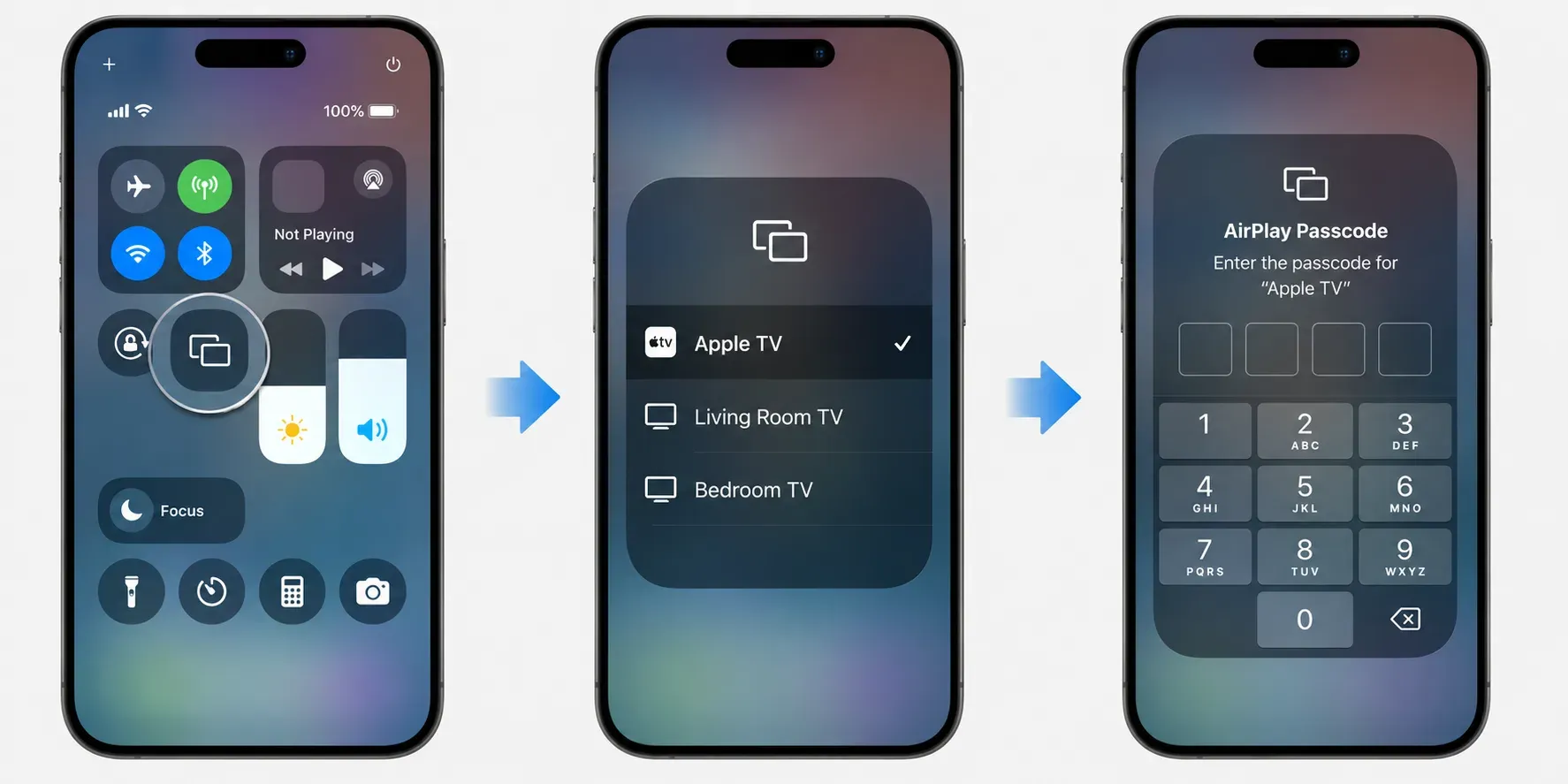
Step 1. Put the iPhone and TV on the same Wi-Fi network.
Step 2. Turn on AirPlay receiver on your smart television.
Step 3. Open Control Center on the iPhone and tap Screen Mirroring.
Step 4. Choose the TV or Apple TV from the list.
Step 5. Open the game and rotate the phone if the game is designed for landscape play.
If the session looks fine but the controls feel late, that usually means AirPlay is connecting properly and the weak point is delay, not discovery.
Method 2: Play Android Games on TV Using Chromecast
Chromecast-style mirroring is often good enough for casual gaming, especially when the TV is modern and the network is stable. Where people get disappointed is assuming that because Android finds the TV quickly, the game will also feel quick. Those are not the same test.
A few practical notes help here:
- if the TV takes a moment to wake the session up, wait before deciding it failed
- if your TV supports Game Mode, turn it on before judging the result
- if the phone gets hot during long sessions, performance can drop even when the connection stays active
For Android users, Chromecast is often the easiest living-room answer, but not always the sharpest one for serious play.
If you use Android and your TV has Chromecast built in, uses Google TV, or is connected to a Chromecast device, this is usually the first option to try.
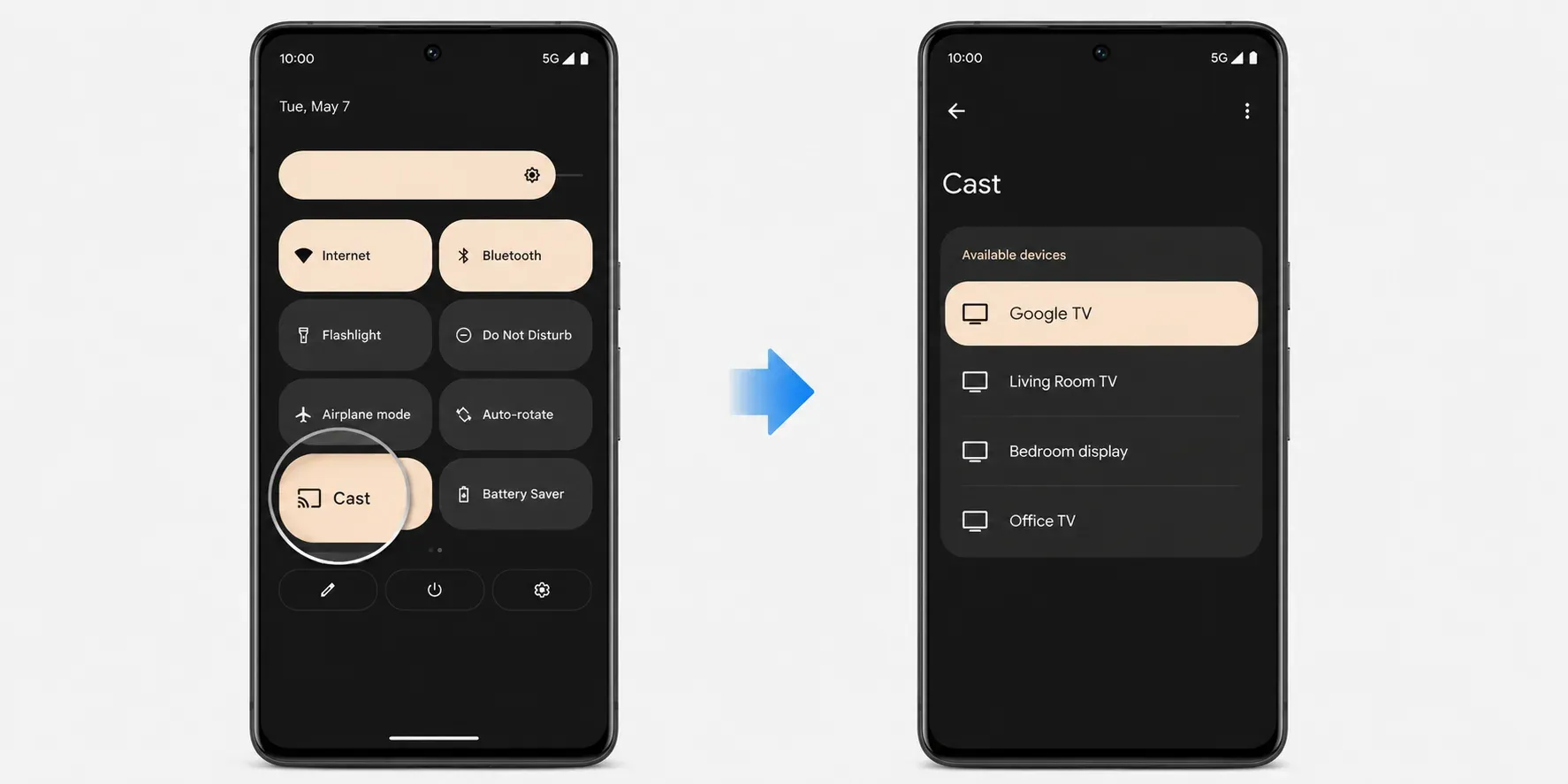
Step 1. Put the Android phone and TV on the same Wi-Fi network.
Step 2. Open the quick settings panel on the phone.
Step 3. Tap Cast on your phone.
Step 4. Choose the TV or streaming device.
Step 5. Start the game and judge the result by control feel, not just by whether the image appears.
Method 3: Play Android Games on TV Using Miracast
Miracast can be surprisingly good for mobile-to-TV streaming when both devices handle it well. It can also be inconsistent across brands. That is the tradeoff. In some homes it feels more direct than Chromecast. In others it is harder to discover, harder to reconnect, or more likely to drop in the middle of a longer session.
It is often worth trying when:
- your TV mentions Miracast support directly (you may the feature is named as Wireless Display, Screen Mirroring, or Smart View)
- the phone brand has strong built-in wireless display support
- you want full-screen duplication without relying on a streaming dongle
Step 1. Open the screen mirroring or wireless display feature on the TV.
Step 2. On the Android phone, open the matching casting or wireless display menu.
Step 3. Choose the TV from the available device list.
Step 4. Accept the connection if the TV asks for confirmation.
Step 5. Open the game and test both picture quality and input feel.
Method 4: Play Phone Games on TV Using PigeonCast
PigeonCast has a more specific advantage for game mirroring than most built-in TV options. It does not depend on only one transmission route.
Besides supporting AirPlay and Google Cast, it can use its own protocol when both sides have the software installed. That matters because gaming asks for something different from casual screen sharing: more real-time streaming behavior, lower lag, and a cleaner HD mirrored image that still lets you read small buttons, maps, and in-game text without the picture turning mushy.
Step 1. Install PigeonCast on the phone you want to use.


Overall Rating:



Step 2. Open the receiver side on the TV or on the device attached to the TV.
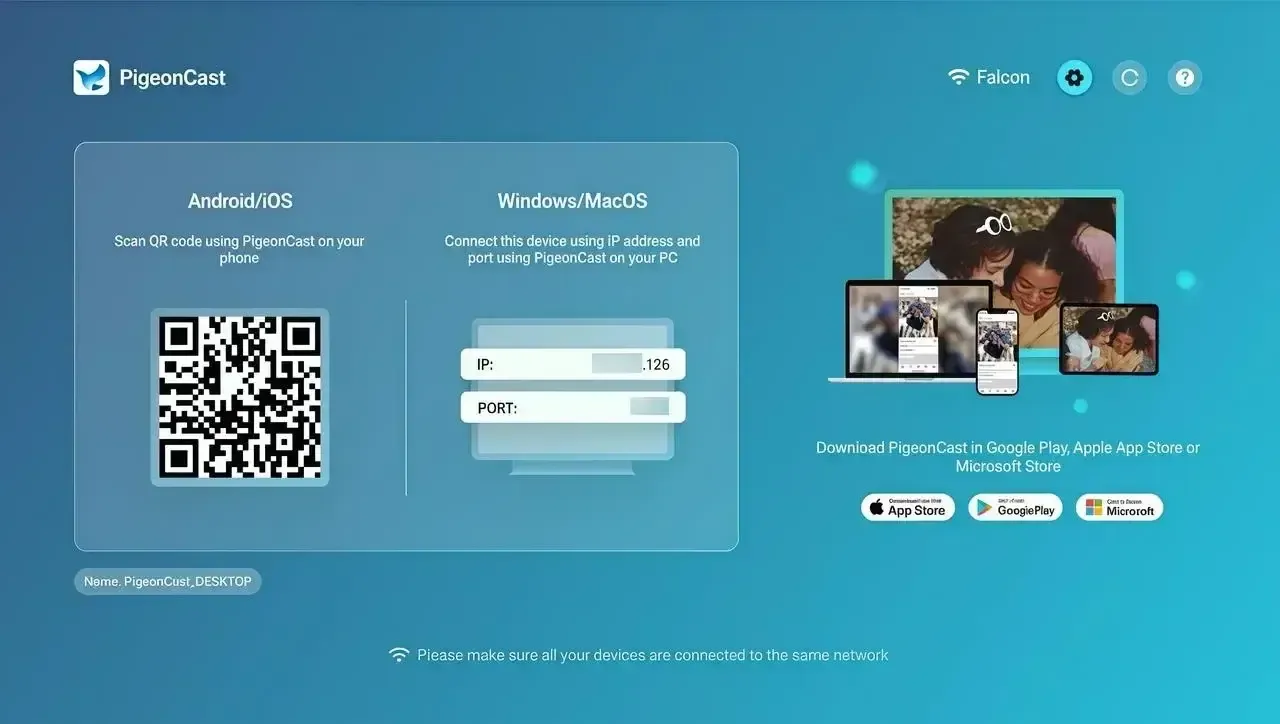
Step 3. Keep both devices on the same local network for the first test.
Step 4. Choose the TV inside the app and start screen sharing.
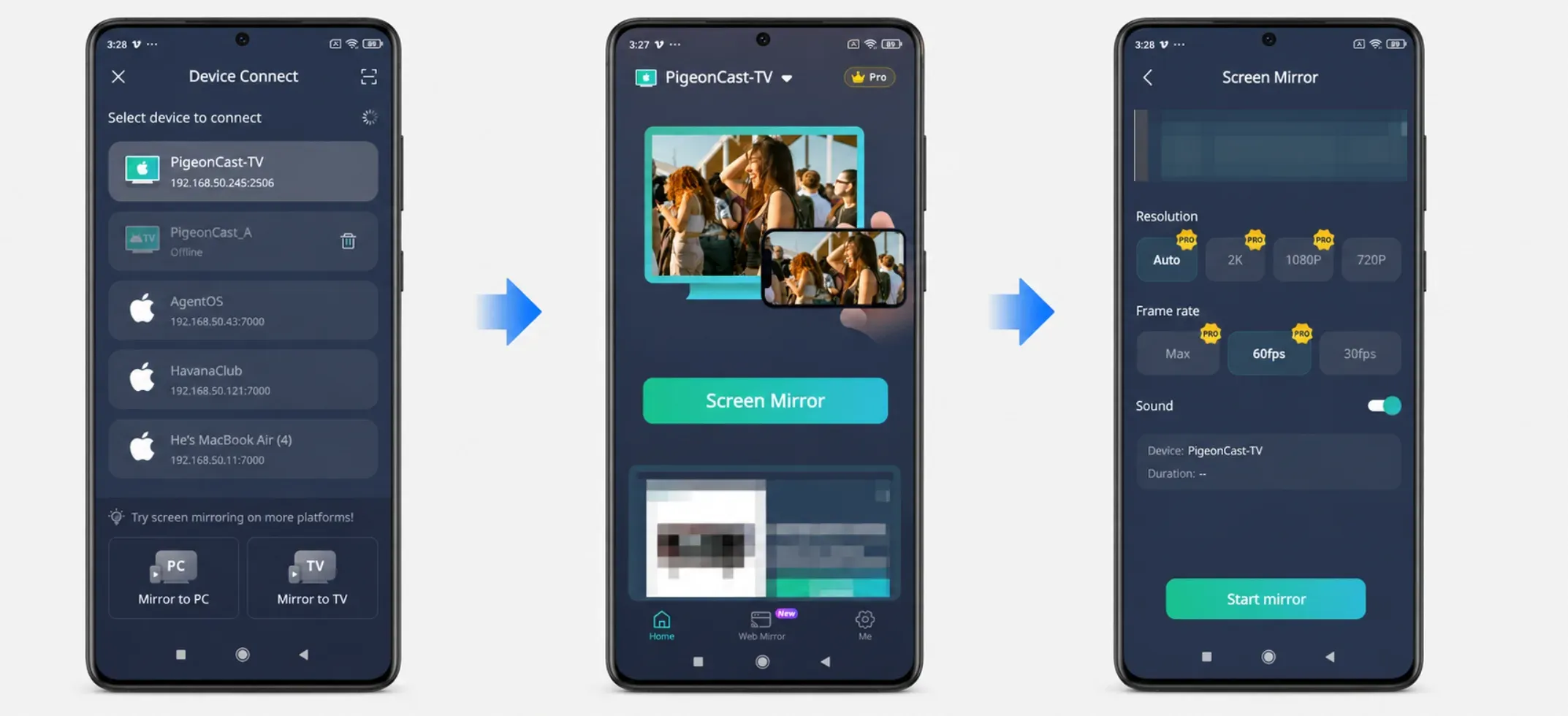
Step 5. Open the game and judge the session by control feel as well as picture quality.
PigeonCast tends to make more sense when:
- your home mixes iPhone and Android
- you switch TVs or streaming devices often
- you would rather use one app than keep relearning built-in menus
- the TV's native casting options work one day and feel awkward the next
- you want a game-oriented wireless setup that aims for more real-time streaming and lower lag
Method 5: Play Phone Games on TV Using HDMI or USB Cable
If low delay is the top priority, a cable is usually the strongest answer.
HDMI screen mirroring usually feels best for racing games, shooters, rhythm games, fighting games, and cloud gaming sessions.
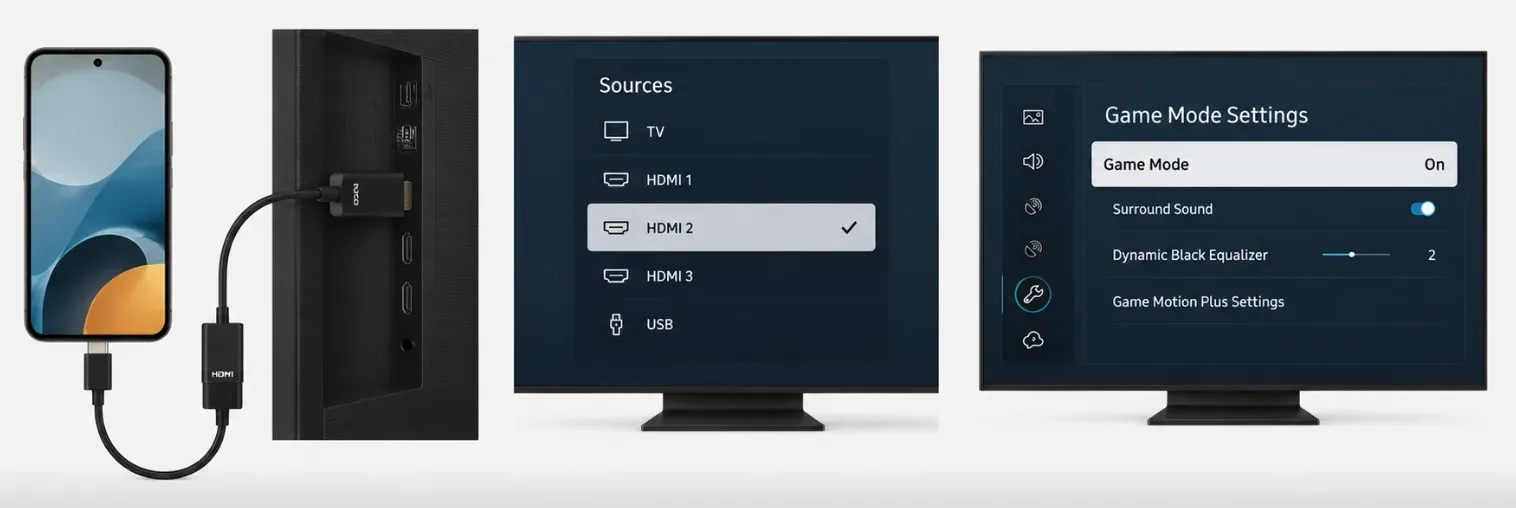
Step 1. Check what video-out option your phone supports.
- many Android phones use USB-C to HDMI
- many iPhones need the right Apple-compatible video adapter
Step 2. Connect the phone to the TV with the proper cable or adapter.
Step 3. Switch the TV to the correct HDMI input.
Step 4. Turn on Game Mode on the TV if it is available.
Step 5. Open the game and test how it feels after a few minutes of real play, not just in the opening menu.
It is less tidy than wireless sharing, but it usually asks the least from the network and from the TV's wireless stack. For people who actually want to keep playing rather than just prove that it works once, that matters.
Common Problems When Playing Mobile Games on TV
Most mobile-to-TV gaming problems are not caused by the game itself. In our testing, the weak point is usually somewhere between the phone, the wireless connection, and the TV's image processing pipeline.
The good news is that once you know what symptom you're seeing, it becomes much easier to identify the real bottleneck.
The game looks smooth, but the controls feel delayed
This is by far the most common complaint.
Many users assume the network is slow because the controls feel sluggish. In reality, the picture may already be arriving at the TV fast enough. The bigger issue is often display latency added by the TV itself.
On some televisions, standard picture modes can add 30–80 ms of extra delay through motion smoothing, noise reduction, dynamic contrast, and other image-processing features.
That may not sound significant, but consider a racing game running at 60 FPS:
- one frame = about 16.7 ms
- 50 ms equals roughly 3 frames of delay
- 80 ms equals nearly 5 frames
That is enough to make steering feel disconnected even when the image itself looks perfectly smooth.
The first thing we recommend is enabling Game Mode before changing anything else. In many cases, Game Mode produces a larger improvement than switching mirroring apps or upgrading your router.
If the controls still feel slow after enabling Game Mode, the next likely culprit is wireless transmission delay. Fast-action games tend to expose this immediately.
The picture quality drops during gameplay
A surprising number of users only test mirroring on the home screen, where everything looks sharp.
The real test begins once the game starts moving. Games generate constant screen changes, particle effects, camera movement, and UI updates. If the wireless connection cannot keep up, you may notice:
- blurry text
- compression artifacts around moving objects
- reduced sharpness during camera pans
- sudden drops in image quality
This often happens when:
- multiple people are streaming video on the same network
- the phone is connected through a weak Wi-Fi signal
- the router automatically moves devices between frequency bands
- older TVs or streaming devices struggle with high-bitrate mirroring
In our experience, switching from crowded 2.4 GHz Wi-Fi to a stable 5 GHz network usually produces a larger improvement than changing mirroring apps.
Audio and video gradually fall out of sync
This issue is less common but extremely noticeable.
You may hear:
- gunfire after seeing the shot
- engine sounds arriving slightly late
- rhythm-game music drifting away from visual cues
Unlike movies, games continuously generate new audio events. Even small timing inconsistencies become obvious.
If this only happens after 20–30 minutes of play, overheating may be involved.
During long gaming sessions, some phones reduce performance to manage temperature. The game continues running, but video encoding and wireless transmission can become less consistent.
A quick test is simple:
- Disconnect mirroring.
- Let the phone cool down.
- Reconnect and compare responsiveness.
If performance immediately improves, thermal throttling is likely contributing to the issue.
Everything works, but the experience still feels "off"
This is the hardest problem to diagnose because technically nothing appears broken.
The image is visible. The sound works. The connection remains stable. Yet the game somehow feels less enjoyable.
In many cases, the issue is simply that the chosen transmission method does not match the game genre.
For example:
| Game Type | Typical Tolerance for Latency |
|---|---|
| Card games | Very high |
| Turn-based strategy | Very high |
| Puzzle games | High |
| Party games | Moderate |
| Racing games | Low |
| Shooters | Very low |
| Rhythm games | Extremely low |
This is why some people conclude that "screen mirroring doesn't work for gaming" after trying one competitive title. The setup may actually be excellent for Monopoly Go!, Hearthstone, or Jackbox-style party games, which just isn't ideal for reaction-heavy gameplay.
Which Method Should You Choose for Mobile-to-TV Gaming?
At this point, the decision is less about compatibility and more about what kind of gaming experience you want.
Instead of asking "Which technology is best?", ask: "What level of responsiveness am I willing to trade for convenience?"
Use this quick rule:
| Situation | Best Choice | Why |
|---|---|---|
| iPhone + AirPlay TV or Apple TV | AirPlay | Fastest setup for casual gaming |
| Android + Chromecast or Google TV | Chromecast | Built into many Android-friendly devices |
| Android + strong wireless display support | Miracast | Can offer a direct wireless connection |
| Mixed devices in the same household | PigeonCast | Works across different ecosystems with one workflow |
| Racing, shooter, rhythm, or competitive games | HDMI or USB-C | Typically provides the lowest latency and most responsive controls |
If you are not sure where to start, try the easiest wireless option available on your devices first. If the game feels responsive enough, there is no reason to complicate the setup. If you consistently notice input delay, a wired connection is usually the next upgrade worth trying.
Final Words
Playing mobile games on a TV is easy to like in theory because the bigger screen sounds like a clear upgrade. In practice, the result depends on whether the connection still feels responsive once the game starts asking for timing.
For casual games, wireless options like AirPlay, Chromecast, Miracast, and PigeonCast can all be useful. For games that depend on quick reactions, a wired connection is usually the better answer. Once you judge the setup by feel instead of by whether it merely connects, the right choice becomes much easier.
How to Play Mobile Games on TV FAQ
Can I play my phone games on my TV?
Yes. Most mobile games can be displayed on a TV through AirPlay, Chromecast, Miracast, screen mirroring apps, or a wired HDMI connection. The best method depends on your phone, your TV, and how sensitive the game is to input lag. Casual games usually work well wirelessly, while competitive games often benefit from a cable.
How to mirror mobile games to TV?
Open the screen mirroring feature on your phone and connect to a compatible TV or streaming device. On iPhone, this is usually AirPlay. On Android, it may be Cast, Smart View, or Wireless Display. Once connected, launch the game normally and the TV will show the same screen as your phone. Alternatively, you can set up a screen mirroring app like PigeonCast on both sides for a smoother experience.
Can I use a controller when playing mobile games on a TV?
Yes, if the game supports external controllers. Many popular titles, including Call of Duty: Mobile and Asphalt 9, work with Bluetooth controllers. The controller connects to the phone, not the TV, while the TV simply displays the game. This setup often feels more comfortable for longer gaming sessions.
Is screen mirroring good enough for gaming?
Usually yes for casual games, but not always for competitive ones. Puzzle games, card games, and turn-based titles are generally forgiving of small delays. Fast-paced genres such as shooters, racing games, and rhythm games can expose latency more easily, making wired connections a better choice.
Do I need Wi-Fi to play mobile games on a TV?
For most wireless methods, yes. AirPlay, Chromecast, and many screen mirroring apps work best when both devices are connected to the same local network. If Wi-Fi is unavailable or unstable, a USB-C-to-HDMI or Lightning-to-HDMI connection can bypass the network entirely.
Why does my game look fine but feel laggy?
The delay is often coming from the TV rather than the phone. Features like motion smoothing and image enhancement can add noticeable input latency. Enabling Game Mode on the TV is often the quickest fix and can significantly improve responsiveness during gameplay.
Can I play online multiplayer mobile games on a TV?
Yes. Mirroring the display does not change how the game connects to its servers. As long as the game runs normally on your phone, online matchmaking, multiplayer modes, and cloud saves should continue working the same way while the image is shown on the TV.
Are some mobile games blocked from screen mirroring?
Occasionally, yes. Certain apps may limit screen sharing because of licensing, DRM, or technical restrictions. This is more common with video streaming services than games, but it can happen. If a game displays a black screen while mirroring, trying a different casting method or a wired connection may help.
Mia Clarke is a technology editor specializing in screen mirroring and casting solutions across multiple platforms. Mia provides clear, practical guides and in-depth insights to help users seamlessly connect their devices. Passionate about enhancing digital experiences, Mia is dedicated to keeping readers updated on the latest trends and tools in cross-platform screen sharing. Whether you’re looking to mirror your smartphone, laptop, or smart TV, Mia’s content delivers reliable, user-friendly advice to simplify your tech setup.