
Your Hitachi wireless display not working issue is usually fixable without a factory reset when you diagnose it in the right order. This guide helps you quickly identify where the process breaks and apply the matching fix for that stage, so recovery is faster and more predictable.
Why Hitachi Wireless Display Not Working Happens
Most cases fall into five cause groups: receiver visibility, network path, pairing state, firmware readiness, and transport load. The root causes below map to these groups:
- Receiver mode is off on the TV, so the phone cannot discover it.
- TV and phone are on different SSIDs or different network segments.
- Router policies like guest mode or AP isolation block local device discovery.
- Old pairing data on either side causes repeated handshake failure.
- TV firmware or built in receiver service is outdated and unstable.
- Power saving behavior pauses background discovery services.
- High Wi-Fi congestion causes unstable session quality after connection.
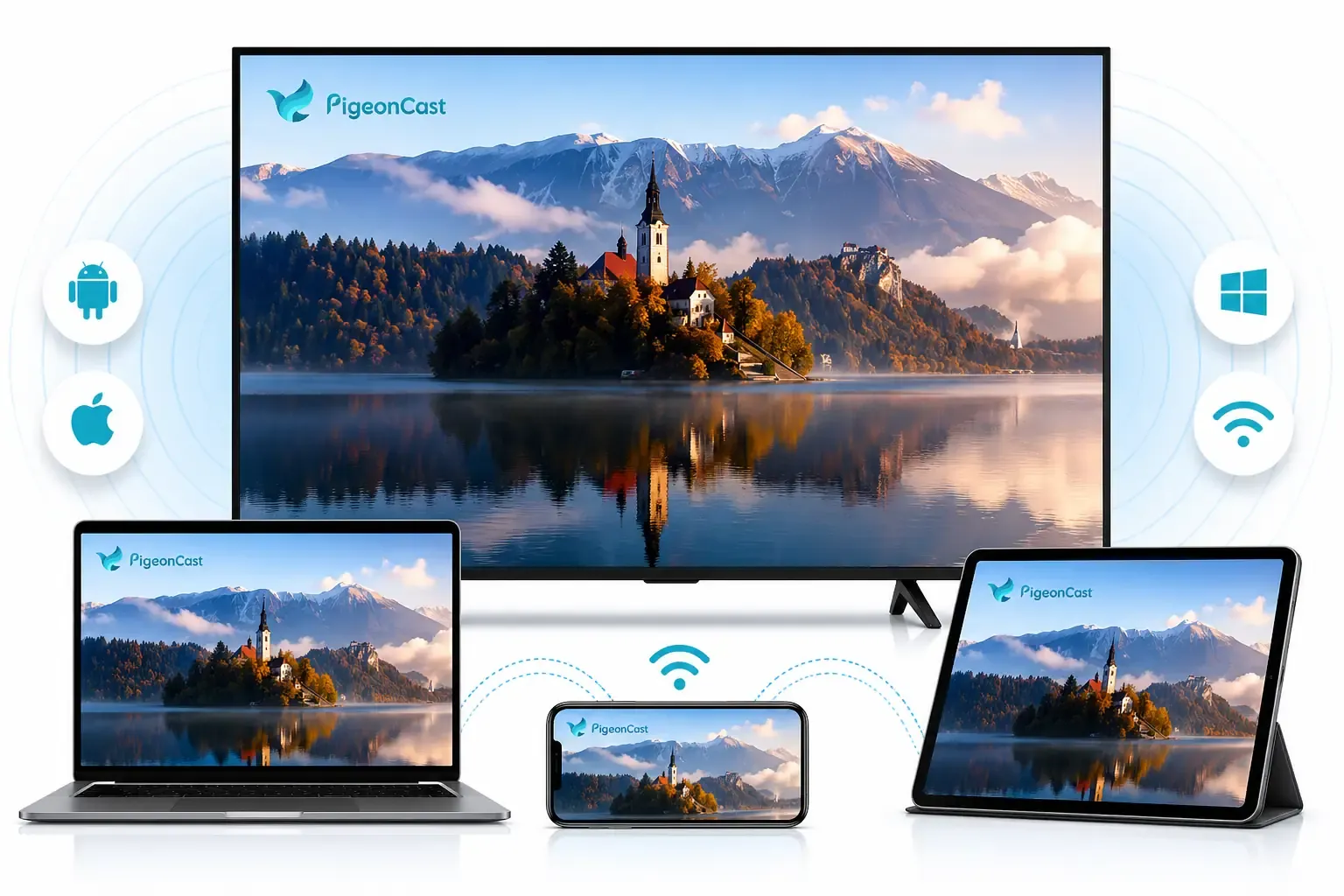
Tip: While you work through persistent casting issues, use PigeonCast as a temporary fallback to keep casting uninterrupted. It supports cross platform screen mirroring and media casting over AirPlay, Google Cast, and DLNA, so you can keep meetings or playback running and switch back to native casting after your Hitachi setup is stable.


Overall Rating:



How to Solve Hitachi TV Wireless Display Not Working
Follow this fix order: discovery first, network second, playback stability third. If discovery fails, check network and isolation. If playback fails after connection, tune transport quality before any reset.
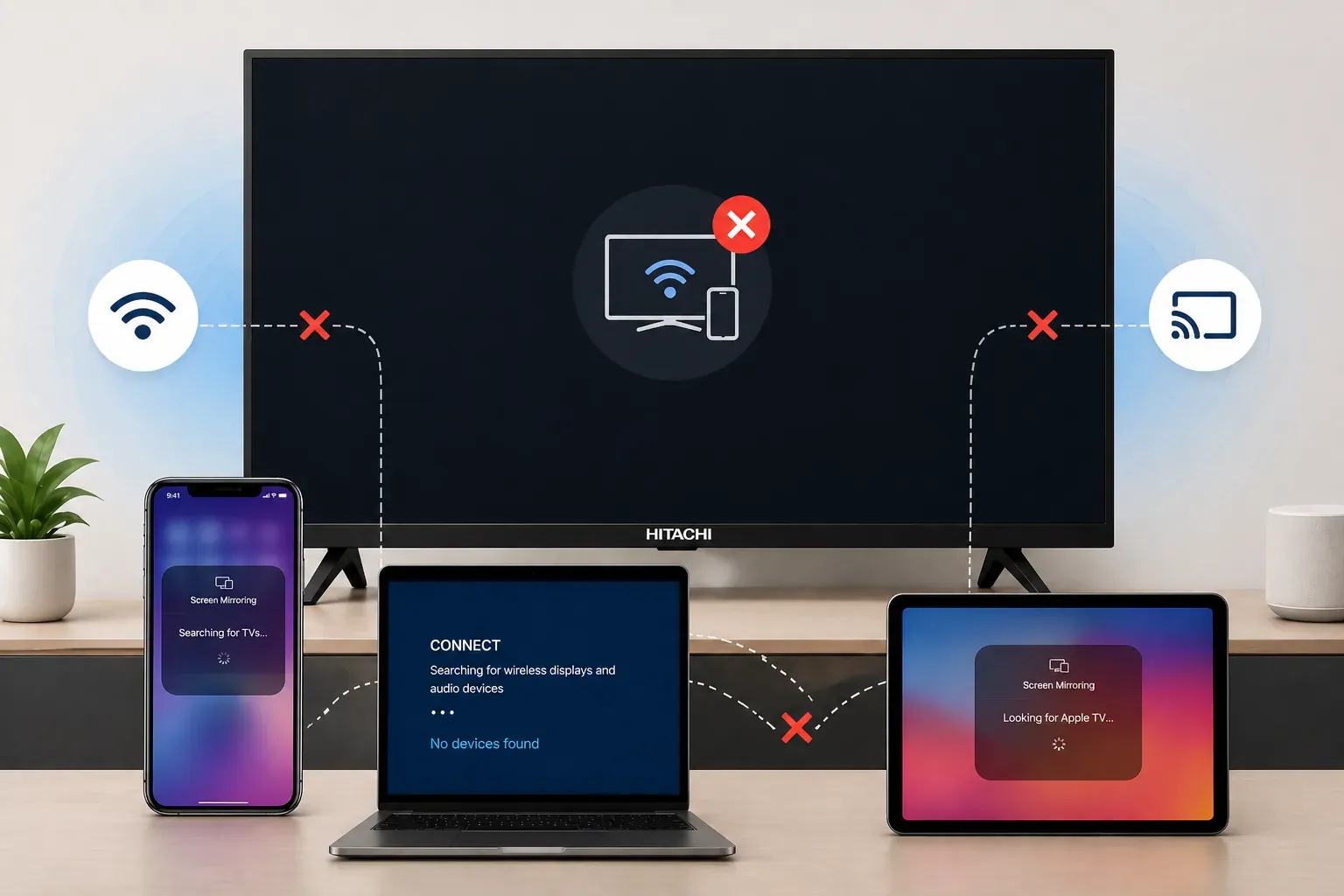
Fix 1. Turn On Screen Sharing on Your Hitachi TV
Before deeper changes, verify that the TV is actively ready to receive. A healthy result is simple: the TV appears in the phone cast or mirror list within 30 to 60 seconds.
Step 1. Confirm the TV and phone are on the same active Wi-Fi network, then open TV Input or Wireless Display and make sure Receiver Mode is active.
Step 2. On TV, go to Settings > Screen Sharing or Casting, enable Wireless Display Receiving, and set Permission Mode to allow incoming prompts.
Step 3. Start casting from the phone while keeping the Receiver Screen open, then record whether failure happens at discovery, handshake, or playback.
Fix 2. Connect TV and Phone to the Same Wi-Fi
When discovery is unstable, fix network alignment first. A healthy result is stable discovery across repeated scans, not occasional visibility.
Step 1. Check the exact SSID on both devices using Settings > Network.
Step 2. Move TV and phone to the same SSID, and keep both on the same band during initial testing for a stable Wi-Fi path.
Step 3. Temporarily disable mobile data fallback on the phone, then run a fresh cast scan.
If discovery is intermittent, you likely still have router isolation or signal instability.
Fix 3. Turn Off Guest Wi-Fi and Device Isolation
If both devices are online but invisible to each other, router isolation is the likely blocker. A healthy result is the TV appearing immediately after router reboot.
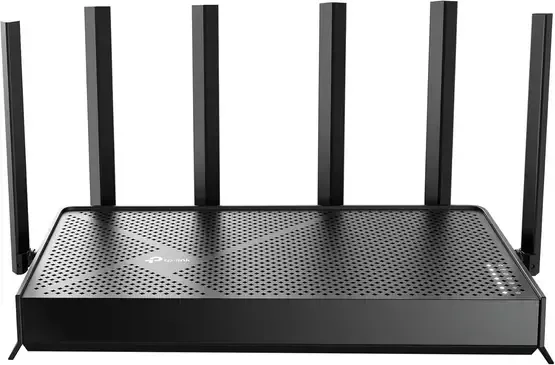
Step 1. Open Router Admin and confirm both devices are not on a Guest Network.
Step 2. In Wireless Settings, disable AP Isolation or Client Isolation.
Step 3. Turn off any Wireless Device Isolation rule, save changes, then reboot the router.
If router access is unavailable, test on a standard home network to confirm whether network policy is the blocker.
Fix 4. Restart Router, TV, and Phone in Order
Repeated connection failures in Hitachi TV wireless display setups often come from stale session state. A healthy result is the first reconnection attempt completing without repeated timeouts.
Step 1. Restart in this order: router > TV > phone.
Step 2. Wait until the router internet light is stable and the TV home screen is fully loaded.
Step 3. Retry casting before opening heavy background apps.
If the first attempt fails but second attempt succeeds consistently, stale session state may still exist. Continue to pairing cleanup.
Fix 5. Remove Old Pairings and Connect Again
Handshake loops usually point to old trust records on one side. A healthy result is a fresh pairing prompt and a clean handshake.
Step 1. On TV, open Device Management for mirroring or casting and remove blocked or remembered senders.
Step 2. On phone, remove the TV from cast history, then start a new pairing attempt.
Step 3. Accept the pairing prompt on TV immediately to complete handshake.
Step 4. If no prompt appears despite discovery, check Permission Mode on TV again and retry.
Fix 6. Update Your TV Software and Cast Feature
After OS or firmware changes, compatibility gaps are common. A healthy result is quick discovery and stable connection after reboot.
Step 1. Go to Settings > System > Software Update on TV.
Step 2. Install available firmware and receiver updates, then restart TV.
Step 3. Retest with a short mirror session before full playback.
Fix 7. Resolve Black Screen, Lag, or Audio Delay
If your TV is found and connected but the picture freezes or sound is delayed, the problem is usually connection quality during playback. A good result is five minutes of smooth video with matched audio. If only one app has playback problems while other apps work, the issue is likely app specific rather than a full TV casting failure, especially in black screen scenarios.
Step 1. Pause heavy internet use at home for five minutes, such as large downloads or cloud backup, then place the phone closer to the router and test again.
Step 2. Run this simple test order to find where failure starts: home screen mirror first, then a short local video clip, then a longer full screen video.
Step 3. Turn off battery saving on the phone, keep both TV and phone screens awake, then retest sound and picture sync.
Fix 8. Reset Network First, Factory Reset Last
Use this only after earlier fixes fail on multiple sender devices. A healthy result is discovery and session start returning after minimal reconfiguration.
Step 1. Reset network settings on the sender device, reconnect to Wi-Fi, then rerun discovery and handshake tests.
Step 2. If failures persist across multiple sender devices, back up TV preferences and perform factory reset.
Step 3. Reconfigure only essential settings first, then retest casting.
Conclusion
When Hitachi wireless display not working keeps interrupting your day, you can usually recover fast without a factory reset. Use the same winning order every time: receiver mode first, network path second, pairing cleanup third. Once you identify whether failure is discovery, handshake, or playback, fixes become quick and predictable. Save one known good setup profile so the next outage is a 5 minute fix, not another full troubleshooting cycle.
Hitachi Wireless Display Not Working FAQ
Why is my Hitachi speaker Bluetooth not working?
- The speaker is in normal playback mode, not Bluetooth pairing mode, so it is invisible during device scan.
- Another phone or tablet is auto connected in the background, and the speaker allows only one active connection at a time.
- Bluetooth permission is denied at the system level for your media app, so audio route handoff fails even after pairing.
- The phone cache contains old or corrupted pairing records with the same speaker name, causing repeat connection rejection.
- The speaker firmware is outdated and cannot maintain stable Bluetooth profiles with newer phone OS versions.
Why won't my Hitachi TV turn on after standby?
- The TV entered a partial standby lock state after a power fluctuation and did not complete the wake sequence.
- Remote batteries are weak, the IR window is blocked, or the remote is not paired correctly, so the power command never reaches the TV.
- HDMI CEC conflicts from connected devices repeatedly send sleep and wake signals, leaving the panel in an unresponsive state.
- System software froze during standby resume, especially after background app updates or interrupted firmware tasks.
- Power board protection was triggered by unstable voltage, extension strip overload, or surge protection behavior.
How do I use Hitachi wireless display correctly?
- On TV, open Settings > Screen Sharing or Casting and enable receiver mode.
- Connect TV and phone to the same Wi-Fi and keep both devices awake.
- Start casting on phone, choose the Hitachi TV, and confirm the prompt on TV.
- Test with the home screen first, then test video playback.
How do I reset a Hitachi TV screen safely?
- Perform a soft restart from TV power controls and wait for full reboot.
- If screen issues remain, run network reset and retest casting only.
- Back up key settings before factory reset.
- After factory reset, configure basics first and validate display behavior.
Why is Hitachi wireless display not working with iPhone?
- iPhone and TV are not truly on the same local Wi-Fi path, even if both show internet access.
- iPhone favors cellular data during weak Wi-Fi and breaks local discovery consistency.
- AirPlay discovery traffic is blocked by guest network design, router isolation rules, or strict firewall settings.
- The Hitachi model or TV OS build does not expose the expected iPhone compatible receiver behavior by default.
- The first trust prompt on TV was denied, timed out, or never confirmed, so subsequent attempts fail silently.
Why is wireless display not working even when devices are connected?
- Devices can complete discovery, but trust confirmation or permission handoff fails before session starts.
- Router allows discovery broadcasts but throttles or drops sustained media traffic under load.
- Codec, resolution, or frame rate negotiation fails after initial connect, causing black screen or immediate drop.
- Saved pairing cache conflicts with updated firmware behavior and creates repeated handshake loops.
- Wi-Fi channel interference introduces jitter and packet loss, which appears as lag, freeze, or audio delay.
Clara Rossi is an experienced technology editor and a seasoned expert in screen mirroring and casting technologies. With a keen eye for detail and a deep understanding of how to seamlessly connect devices, Clara excels at optimizing user experiences for effortless sharing and streaming. Whether you're seeking quick fixes or advanced tips, her expertise and responsiveness ensure that every query is met with a well-informed and efficient solution.