
Trying to get wireless display Hitachi working on your TV but not sure where to start? Many Hitachi models support screen mirroring from laptops and phones, and HDMI is always there if wireless doesn't cooperate. Read on to check what actually works on different devices.
Can You Screen Mirror on Hitachi TV
Yes, most modern Hitachi TVs (2012 and newer) support wireless display, allowing you to mirror screens from Android, Windows, iPhone, or Mac. However, the exact method depends on the model and system your TV uses.
Mirroring support on Hitachi TVs depends on the protocol:
-
Miracast: Supported on some older Hitachi smart TVs (mainly around 2012–2016) that include a built-in Screen Mirroring or Wireless Display option. This is the only case where native Miracast works.
-
Google Cast: Newer Hitachi TVs that run Android TV or Google TV (for example models sold in Europe/Asia under Vestel or similar platforms) use Google Cast instead of Miracast.
-
AirPlay: Hitachi TVs generally do not support AirPlay natively. AirPlay only works if you connect an external device such as Apple TV or use a compatible casting tool.
-
DLNA: Available on some older smart TV lines (mainly Vestel-based models), but limited to media streaming and does not support full screen mirroring.
How to Use Wireless Display on Hitachi TV
Getting wireless display to work on a Hitachi TV isn't always the same across devices. Android and Windows usually connect more directly when the TV supports Miracast, while iPhone and Mac often need AirPlay or a separate receiver.
Way 1. Screen Mirror Hitachi TV from Android
Android is usually the fastest way to mirror to a Hitachi TV, as most devices come with built-in casting features. It requires no extra apps and works directly over Wi-Fi.
Step 1. Access the Settings menu on your Hitachi TV and locate the Network or Display options to enable Screen Mirroring or Miracast.
Step 2. Connect both Android phone and your Hitachi TV to the same Wi-Fi network.
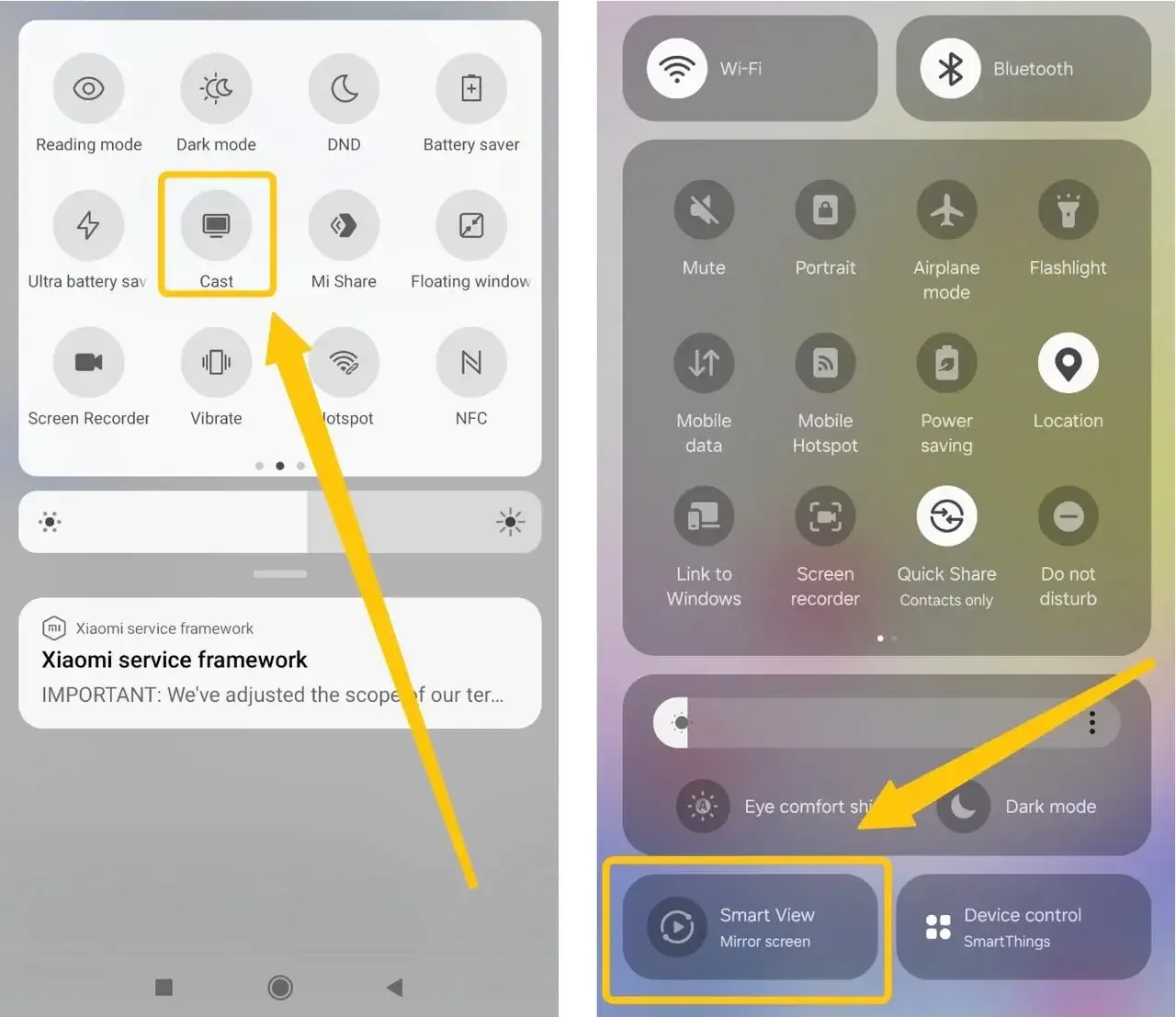
Step 3. On Android, open Quick Settings and tap Cast, Smart View, Screen Mirror, or similar.
Step 4. Select your Hitachi TV name from the device list, and approve the connection on the TV and test with a short video clip.
Way 2. Screen Mirror Hitachi TV from iPhone
iPhone can mirror to a Hitachi TV if the TV supports AirPlay or if you're using a compatible streaming device. Alternatively, you can try our free PigeonCast for Android TV app that work across AirPlay, DLNA, and Google Cast to get a more mirroring options.
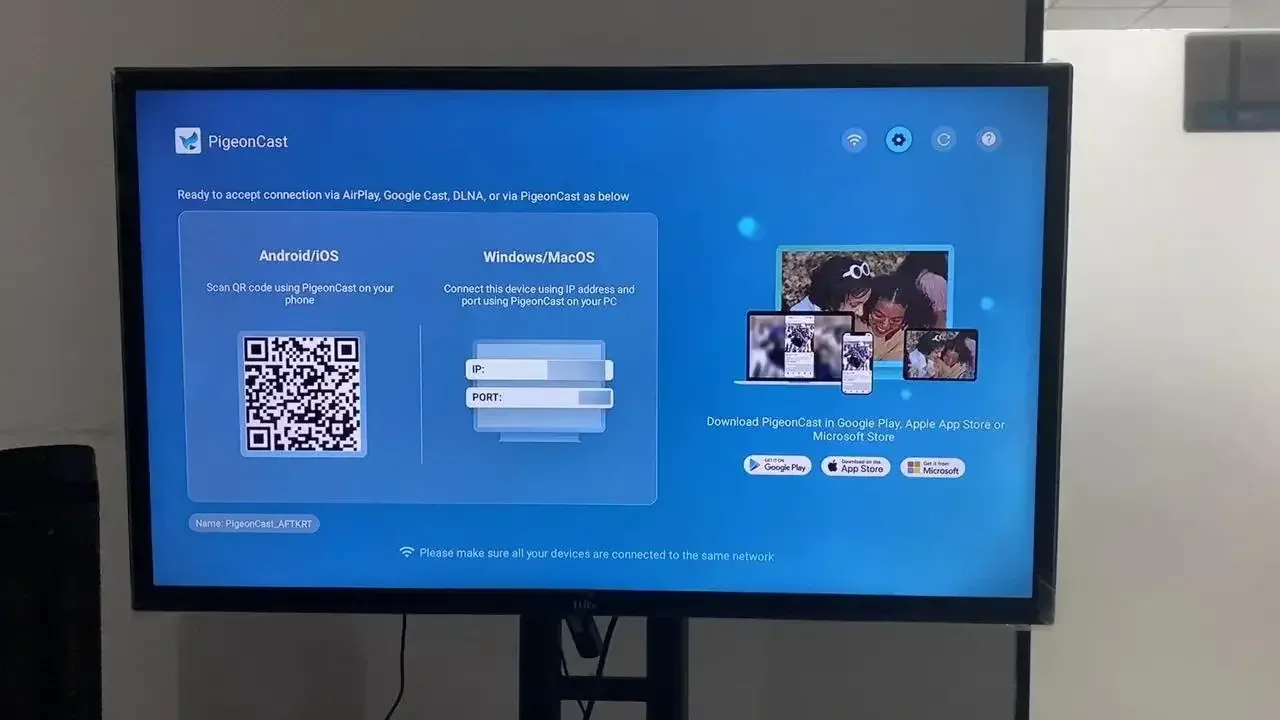
Step 1. Ensure your iPhone and Hitachi TV are on the same Wi-Fi network.


Overall Rating:



Step 2. Install PigeonCast on your iPhone and TV from the App Store and launch it.
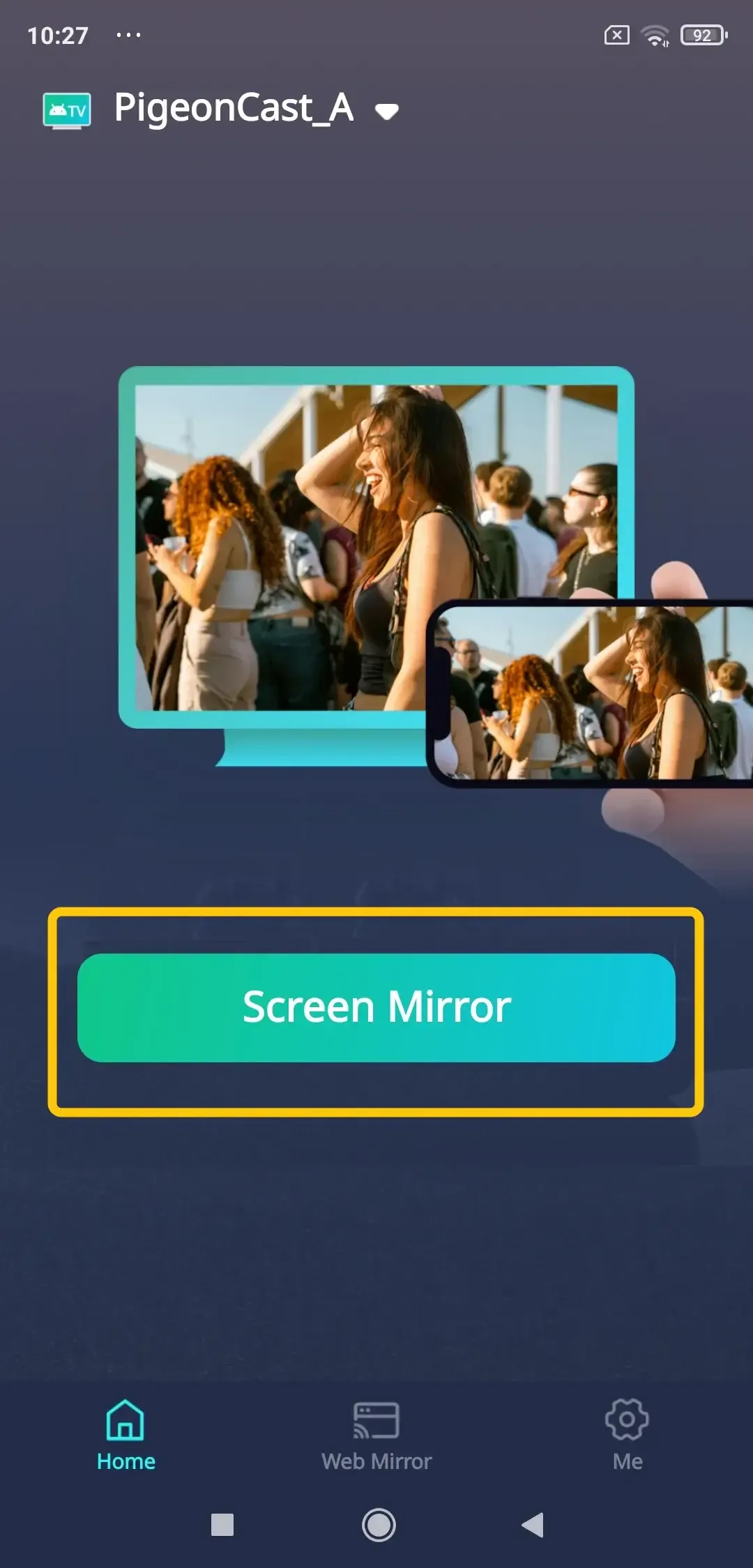
Step 3. Tap Select device to select your Hitachi TV or compatible device from the available list.
Step 4. Enter the onscreen code displayed on the TV to confirm your action.
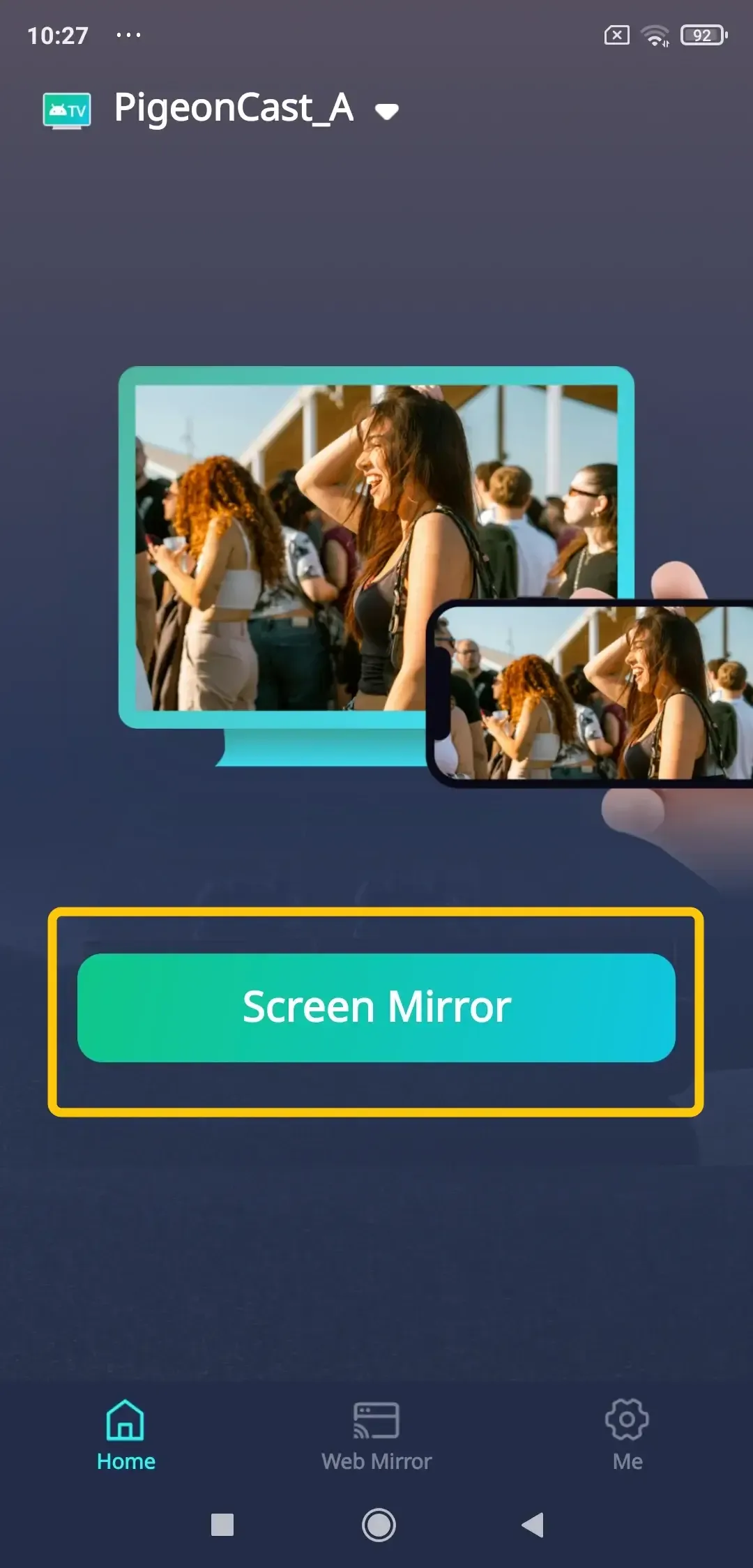
Step 5. Tap Screen Mirror to start mirroring activities on the smart television.
Way 3. Screen Mirror Hitachi TV from Windows
Windows uses Miracast for screen mirroring, enabling a direct connection without third-party apps. Both your PC and Hitachi TV must support Miracast for this feature to work.
Step 1. Turn on the cast or screen mirroring mode on your TV and keep it on the waiting screen.
Step 2. Make sure your Windows PC and TV are on the same network or within wireless display range.
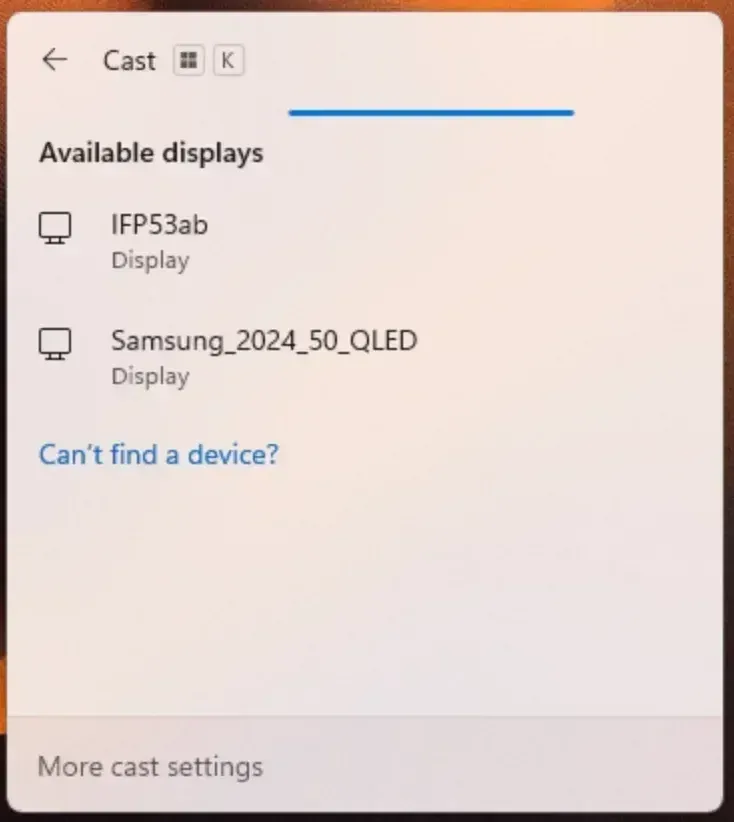
Step 3. Press Win + K and wait for your Hitachi TV to appear in the device list.
Step 4. Select your TV, then accept the pairing request on the TV if prompted.
Step 5. Play a video or audio file to confirm both picture and sound are working properly.
Way 4. Screen Mirror Hitachi TV from MacBook
MacBook also uses AirPlay for screen mirroring, which requires the TV or receiver to support AirPlay. If your Hitachi TV does not support it natively, you'll need an Apple TV, a compatible streaming device, or an AirPlay alternative app (PigeonCast) instead.
Step 1. Ensure your MacBook and Hitachi TV to the same Wi-Fi network.
Step 2. Connect AirPlay-comaptible streaming device to your Hitachi TV.
Step 3. Launch wireless display Hitachi from the Settings menu and activitate the feature.
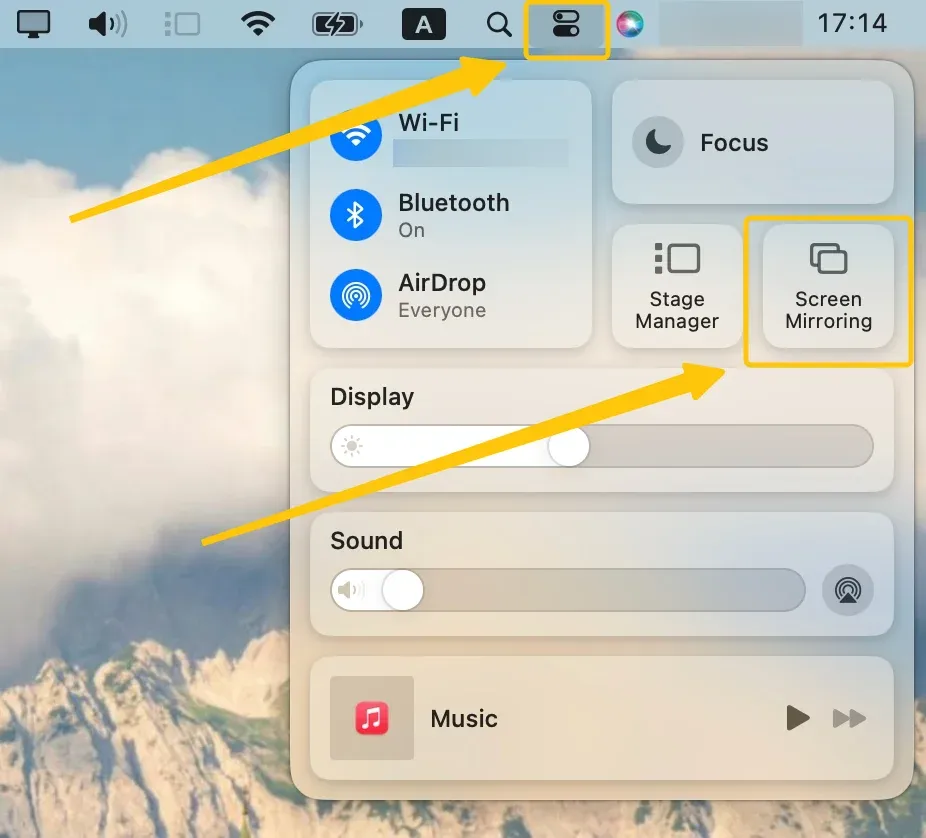
Step 4. On the Mac, open Control Center > Screen Mirroring to choose your device from the list.
Step 5. If prompted, enter the onscreen code to complete the connection.
How to Solve Hitachi Wireless Display Not Working
Wireless display issues can occur at different stages, such as device discovery, connection, or playback. Identifying where the process fails helps you apply the right fix without unnecessary troubleshooting.
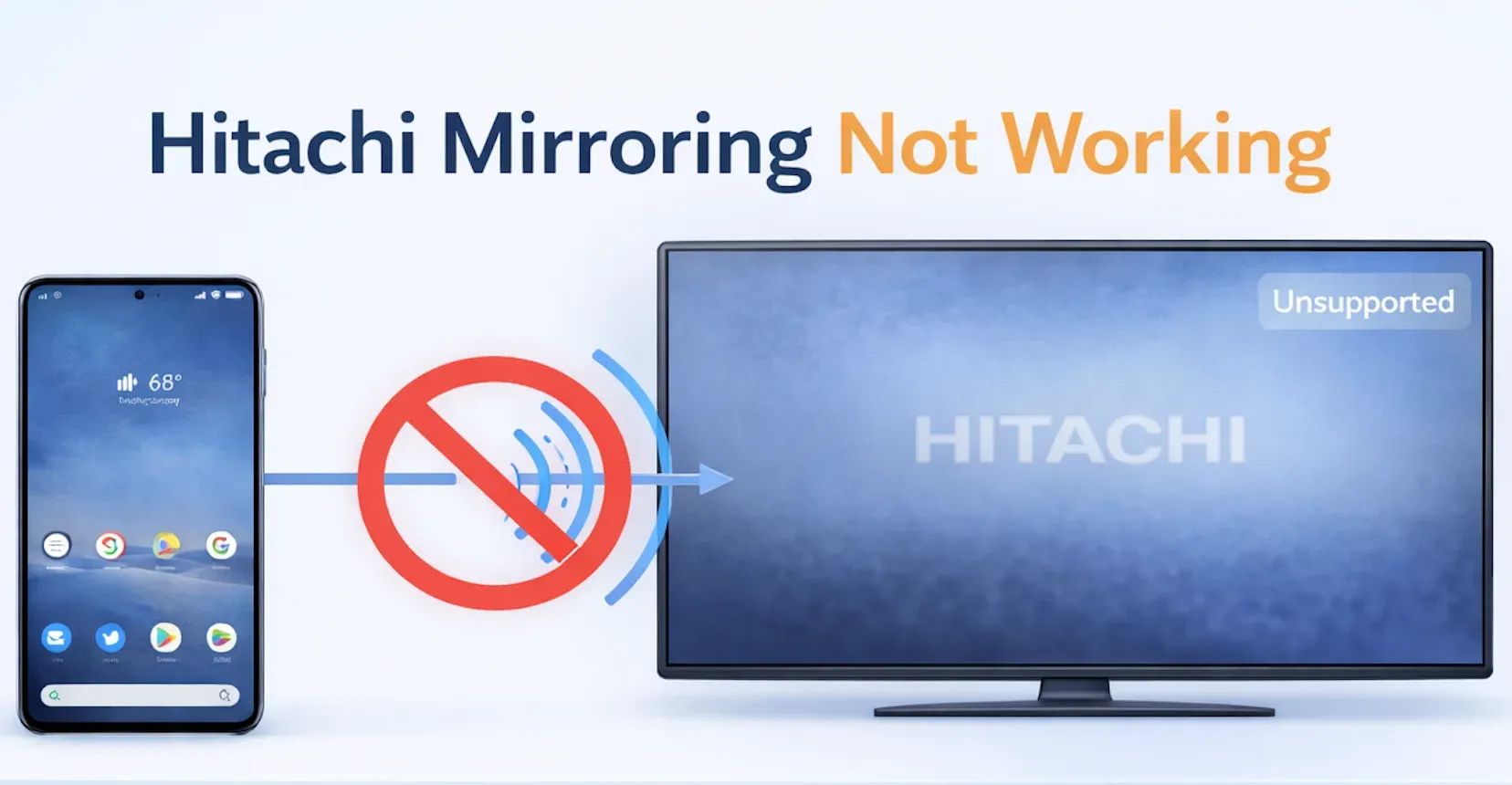
- TV not showing up
This usually means the TV is not in screen mirroring mode or not discoverable. Turn on the TV's cast or mirroring mode and keep it on the waiting screen, then make sure both devices are on the same Wi-Fi network and restart them if needed.
- Connection fails or disconnects
This is often caused by unstable network conditions or interference. Move devices closer to the router, ensure they are on the same Wi-Fi band, disable VPN, and reconnect.
- No sound on TV
The audio output may still be set to your device instead of the TV. Switch the audio output to the TV in system settings and reconnect the session.
- Screen lag or low quality
This usually happens due to limited bandwidth or high-resolution streaming. Lower the video resolution, stop background downloads, and switch to a less congested network or use HDMI if needed.
Final Verdict
Wireless display on Hitachi TVs depends mainly on the protocol your device and TV support, with Android and Windows offering the most direct connection via Miracast, while iPhone and Mac typically require AirPlay or a compatible receiver. If wireless setup becomes inconsistent, switching to HDMI or a dedicated casting device can provide a more stable and predictable experience.
Wireless Display Hitachi FAQ
Why does my Hitachi TV show up but fail to connect?
-
Unstable or weak Wi-Fi connection
-
Devices connected to different Wi-Fi bands (2.4GHz vs 5GHz)
-
Incomplete or incompatible support for Miracast or AirPlay
-
Temporary system glitches on the TV or source device
-
Background network interference or congestion
How to turn off wireless display on Hitachi TV?
-
Press Home or switch to another input to stop screen mirroring immediately.
-
On some models, go to Settings > Screen Mirroring and disable it if needed.
What is wireless display on Hitachi TV?
Wireless display on a Hitachi TV allows you to mirror or cast content from your phone, tablet, or computer to the TV screen without using cables, typically through technologies like Miracast or Google Cast.
Does every Hitachi TV support wireless display?
No, not every Hitachi TV supports wireless display. Support depends on the model, year, and operating system. Some older or basic models may not include screen mirroring, while others only support specific technologies like Miracast or Google Cast. In many cases, AirPlay is not built in and requires an external device.
Can I mirror iPhone to Hitachi TV without Apple TV?
Yes, but only if your Hitachi TV supports AirPlay or you use a compatible third-party casting app or receiver. Most Hitachi TVs do not support AirPlay natively, so in many cases an external device or app is required.
What is the fastest fix when Hitachi screen mirroring keeps failing?
Restart both your TV and device, then reconnect while ensuring they are on the same Wi-Fi network, as most issues are caused by temporary connection or network instability.
Clara Rossi is an experienced technology editor and a seasoned expert in screen mirroring and casting technologies. With a keen eye for detail and a deep understanding of how to seamlessly connect devices, Clara excels at optimizing user experiences for effortless sharing and streaming. Whether you're seeking quick fixes or advanced tips, her expertise and responsiveness ensure that every query is met with a well-informed and efficient solution.