
If you want to know how to cast Nintendo Switch to TV, the most useful answer is that a Nintendo Switch usually reaches a TV through the dock and an HDMI cable, not through the kind of wireless casting people use on phones. For most setups, the real solution is TV mode through the dock rather than AirPlay, Chromecast, or another native smart-TV casting path.
That distinction saves time because many people use the word "cast" to mean any way of getting a device onto a larger screen. With Nintendo Switch, the correct method depends on which console you have, whether you mean direct TV play or indirect relay viewing, and whether you are using a standard Switch, a Switch OLED, or a Switch Lite.
Can You Cast Nintendo Switch to TV?
The short answer is yes if by "cast" you mean getting Nintendo Switch on TV, but the supported method is usually the dock. If you mean direct wireless casting from the console itself to a smart TV, that is not the standard Nintendo-supported setup.
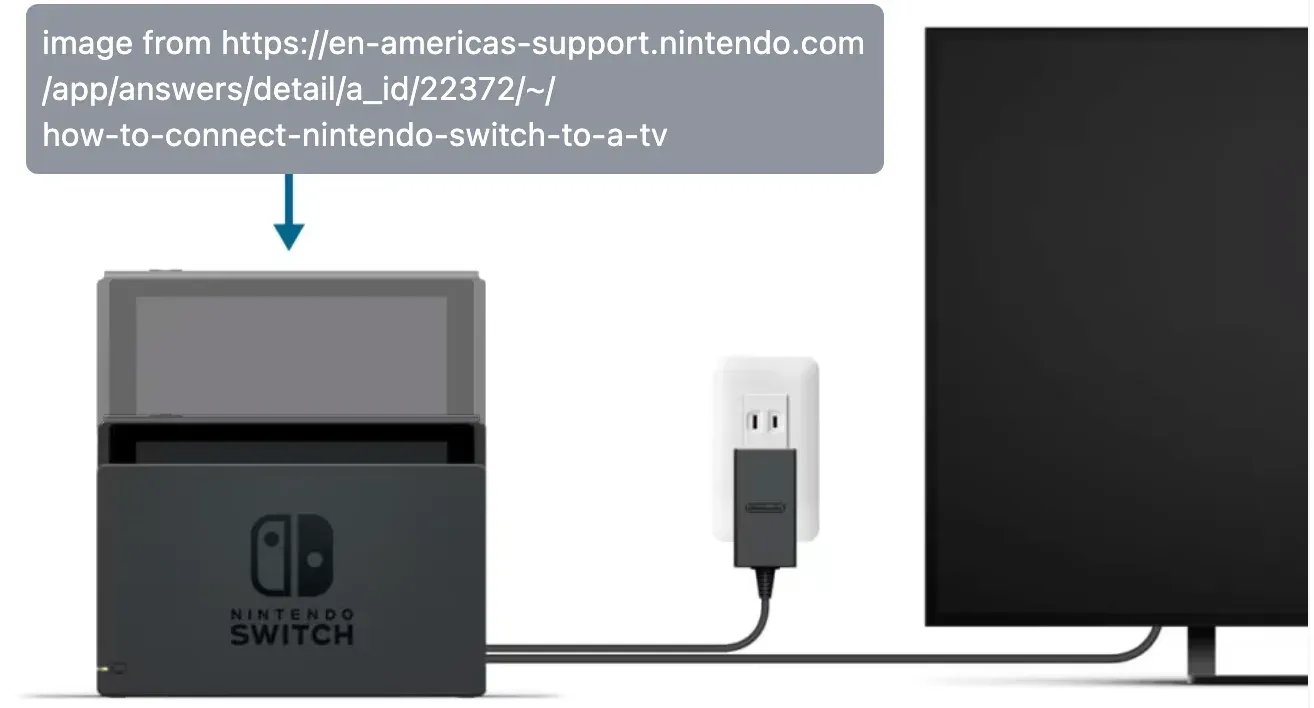
Nintendo Switch and Nintendo Switch OLED can connect to a TV through TV mode with the dock, power adapter, and HDMI cable. However, Nintendo Switch Lite does not support TV mode as it is built for handheld play.
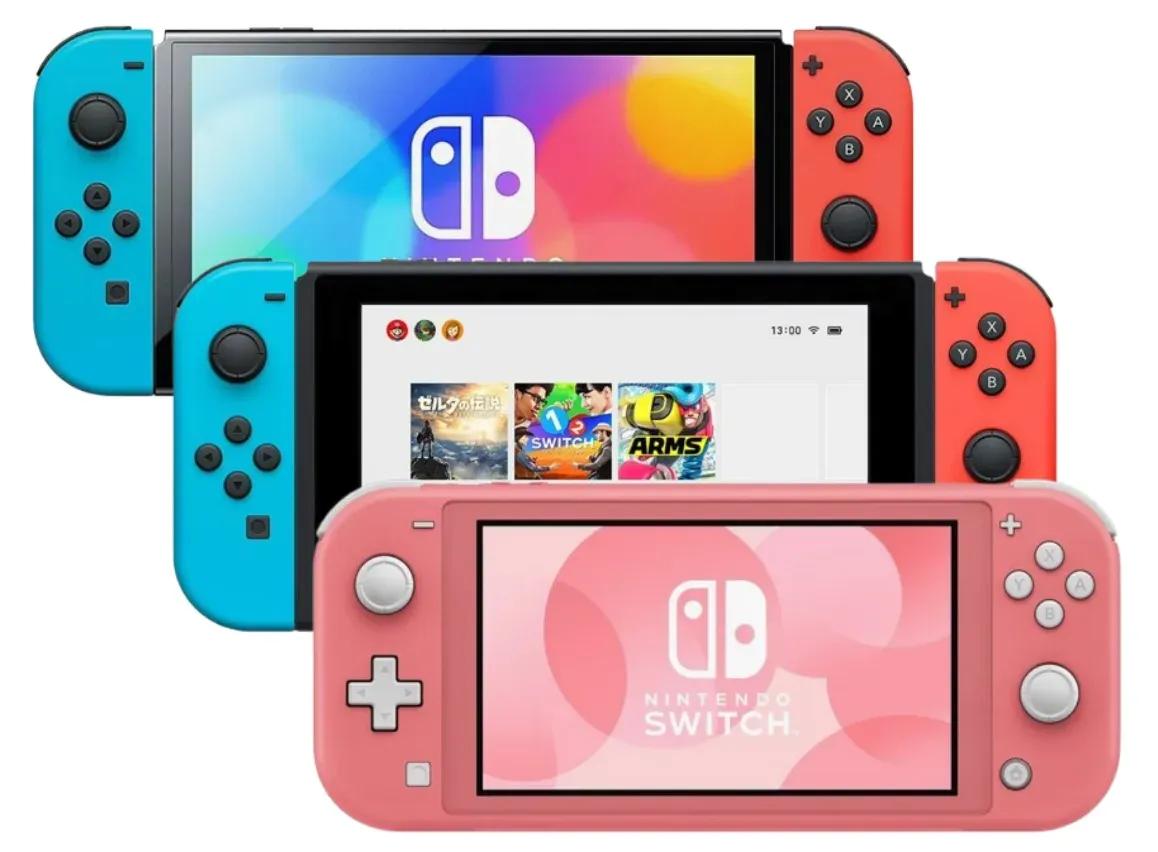
TV Mode via the Dock
For a regular Nintendo Switch or Switch OLED, TV mode is the normal way to play on a larger screen. The dock handles power and video output, and the TV receives the signal over HDMI.
Screen Mirroring From Another Device
Some people are not really trying to send the Switch itself to a TV. They are watching gameplay on a phone, tablet, laptop, or capture software window and want to send that second device to the TV. That can work, but the casting step happens from the second device, not from the Switch console.
This setup only makes sense when the gameplay feed is already visible on that phone or PC and you just want to move the second screen to a bigger display. In that case, the Switch sends gameplay to the viewing device first, and the phone or PC handles the final TV connection by screen mirroring or casting.
- On iPhone or Mac, that usually means Control Center > Screen Mirroring to an AirPlay-compatible TV or receiver.
- On Android phone, that goes through Quick Settings > Cast, Smart View, or Wireless Display.
- On Windows PC, press Win + K and choose the target device.
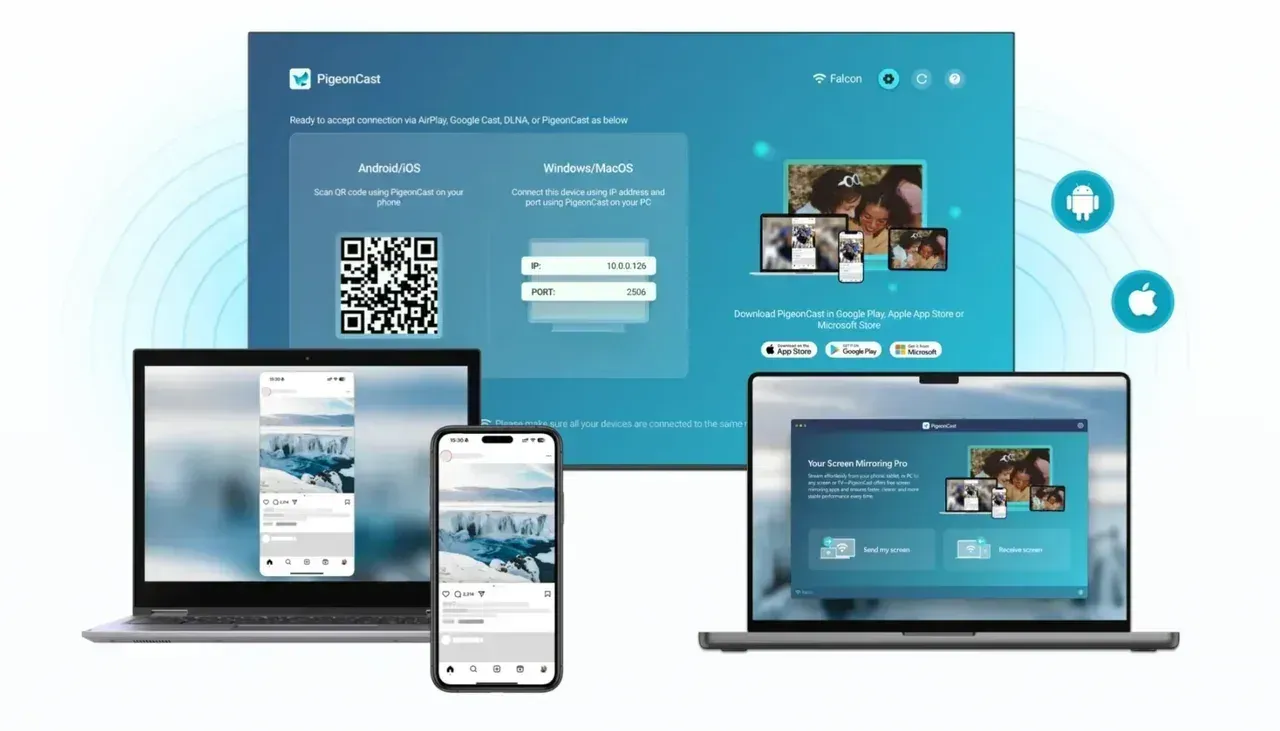
If you need an free app-based option for this relay step, PigeonCast is a reasonable backup, but it should stay secondary to the standard dock method.


Overall Rating:



Note: Wireless methods require the same Wi-Fi network connection on both devices.
Capture-Card or PC Relay Workflows
If you are streaming, recording, or routing gameplay through a computer, the setup changes again. In that case, the Switch feeds the dock or capture hardware first, and the TV display may come from the PC or another connected output rather than from the Switch alone.
How to Cast Nintendo Switch to TV With the Dock
For most people, this is the only method that matters. If you have a standard Nintendo Switch or Switch OLED, this is how to play Nintendo Switch on TV the normal way.
Before you start, you will need:
- a Nintendo Switch or Nintendo Switch OLED
- a compatible Nintendo Switch dock
- the Nintendo Switch AC adapter
- an HDMI cable
- an available HDMI port on your TV or monitor
If any of these pieces are missing, the console may charge without showing video, or it may fail to switch into TV mode properly.
Follow the official tutorial or the following steps to connect your Switch to TV.
Step 1: Connect Power to the Dock
Plug the Nintendo Switch AC adapter into the dock first, then connect it to a wall outlet. The dock needs proper power before it can reliably send video to the TV.
Step 2: Connect the Dock to the TV With HDMI
Connect one end of the HDMI cable to the dock and the other end to an open HDMI port on the TV. If your TV has multiple HDMI ports, remember which input number you used.
Step 3: Place the Switch in the Dock
Insert the console into the dock so it sits firmly in place. When the connection works correctly, the Switch screen turns off because the video is being routed to the TV.
Step 4: Select the Correct HDMI Input
Turn on the TV and switch to the HDMI input connected to the dock. If everything is connected correctly, you should see the Nintendo Switch on TV within a few seconds.
Why This Works Better Than a Wireless Workaround
This setup is more stable than trying to force a wireless fix. It gives you the native Nintendo experience, full TV mode support, and the least amount of delay for normal gameplay.
Why Your Nintendo Switch Is Not Showing on TV
If the dock method should work but the screen stays blank, the problem is usually simple. Start with the easiest checks first instead of assuming the console is damaged.
Check the HDMI Input First
Many failed setups come down to the TV being on the wrong input. Use the TV remote to cycle through HDMI sources and confirm you selected the exact port connected to the dock.
Confirm the Dock Has Proper Power
The dock should be connected to the Nintendo Switch AC adapter, not just a random USB-C charger. If the dock does not have the right power, the console may not enter TV mode correctly.
Inspect the HDMI Cable
If the cable is loose, damaged, or only partially inserted, the TV may show no signal. Remove the cable from both ends and reconnect it firmly before testing again.
Watch for Dock or Adapter Compatibility Problems
If you are using a third-party dock or a non-standard adapter, video output can become unreliable. If you can, test with the official dock and official power adapter before troubleshooting anything more advanced.
Reseat the Console in the Dock
Lift the Switch out of the dock and place it back in carefully. If the console does not sit correctly, it may charge without sending video output to the TV.
Conclusion
The practical answer to how to cast Nintendo Switch to TV is that most people should stop thinking in phone-casting terms and use the supported dock-and-HDMI setup instead. That is how Nintendo Switch and Switch OLED are designed to reach a TV, and it is still the simplest, most stable path for normal play.
How to cast Nintendo Wwitch lite to TV? If you use a Switch Lite, do not keep chasing a native TV mode that the hardware does not support. And if your setup involves gameplay already being viewed on a phone or PC, treat TV casting as a second-device relay workflow rather than as a built-in Nintendo Switch feature.
How to Cast Nintendo Switch to TV FAQ
Can you cast Nintendo Switch to a smart TV wirelessly?
Not as the standard Nintendo-supported setup. For most users, Nintendo Switch on TV happens through the dock and HDMI, not direct wireless casting from the console to the TV.
Why won't my Nintendo Switch show up on TV?
The most common reasons are the wrong HDMI input, missing dock power, a loose HDMI cable, a dock or adapter compatibility issue, or the console not sitting correctly in the dock.
Can Nintendo Switch Lite connect to a TV?
Nintendo says the Switch Lite does not support TV mode. If TV play is essential, you will need a standard Nintendo Switch or Switch OLED instead.
Do you need the official dock to play Switch on TV?
The safest answer is to use the official dock and official power adapter, especially when you are troubleshooting. Third-party accessories may work in some setups, but they are more likely to introduce compatibility issues.
Can you mirror Nintendo Switch through a phone or PC?
You can mirror or cast the phone or PC if that device is already showing the gameplay feed. That is different from the Switch itself wirelessly casting directly to the TV.
Mia Clarke is a technology editor specializing in screen mirroring and casting solutions across multiple platforms. Mia provides clear, practical guides and in-depth insights to help users seamlessly connect their devices. Passionate about enhancing digital experiences, Mia is dedicated to keeping readers updated on the latest trends and tools in cross-platform screen sharing. Whether you’re looking to mirror your smartphone, laptop, or smart TV, Mia’s content delivers reliable, user-friendly advice to simplify your tech setup.