
Checking your security cameras on a phone is convenient, but a small screen isn't always enough. Maybe you want to keep an eye on your front door from the living room, watch your driveway on a bigger display, or view multiple cameras without constantly picking up your phone.
The good news is that you don't necessarily need a long HDMI cable running from your CCTV system to your TV. Depending on your camera setup, you can use screen mirroring, a smart TV, wireless HDMI, or an IP camera streaming app.
This guide explains how to connect CCTV to TV wirelessly, with four practical methods for different cameras and TV setups.
Can You Connect CCTV to a TV Wirelessly?
Yes, you can connect CCTV cameras to a TV wirelessly, but the best method depends on your camera system and how you currently access its footage.
If you use a modern Wi-Fi security camera, such as a compatible Reolink, Ring, or Nest model, you may already be able to watch its live feed through a mobile app. In that case, displaying the footage on a TV can be as simple as mirroring your phone or using a supported smart TV integration.
Traditional CCTV systems work differently. They often use a DVR (Digital Video Recorder) or NVR (Network Video Recorder) to manage camera feeds. If the recorder has an HDMI output, a wireless HDMI kit can transmit its display to a television without a long cable.
Here's a quick way to identify which setup you have:
| CCTV Setup | Wireless TV Connection |
|---|---|
| Wi-Fi camera with a mobile app | Phone screen mirroring or compatible TV integration |
| Smart camera with Google Home or Alexa support | Compatible smart TV or streaming device |
| CCTV system with DVR/NVR | Wireless HDMI transmitter and receiver |
| IP camera with RTSP support | Compatible IP camera viewer or streaming receiver |
Keep in mind that wireless doesn't always mean cable-free. Cameras, recording equipment, and wireless receivers may still need power cables or short HDMI connections.
How to Connect CCTV to TV Wirelessly
Before choosing a method, check whether you can already view your camera footage on a phone, whether your TV supports casting, and whether your CCTV system uses a recorder.
If you're using a Wi-Fi camera with a mobile app, start with the first method. If you have an existing DVR/NVR system, wireless HDMI may be a better fit.
Method 1: Use a Security Camera App and Screen Mirroring
The simplest way to view CCTV on a TV wirelessly is often to mirror the screen of the phone you already use to check your cameras.
Most modern Wi-Fi security cameras have companion apps that let you view live footage, check recordings, and switch between cameras. If the video plays normally on your phone and the app allows screen capture, you can try displaying that same screen on a compatible television.
For example, PigeonCast supports cross-platform screen mirroring between phones, computers, and compatible TVs or receiving devices. It can be useful when you want to show your camera app on a larger screen without buying a separate wireless HDMI kit.
How to mirror CCTV footage to TV using PigeonCast:
Step 1. Open your CCTV camera's mobile app and make sure the live footage is playing correctly.
Step 2. Download PigeonCast on your iPhone or Android phone.


Overall Rating:



Step 3. Install PigeonCast on your TV or streaming device and launch the app.
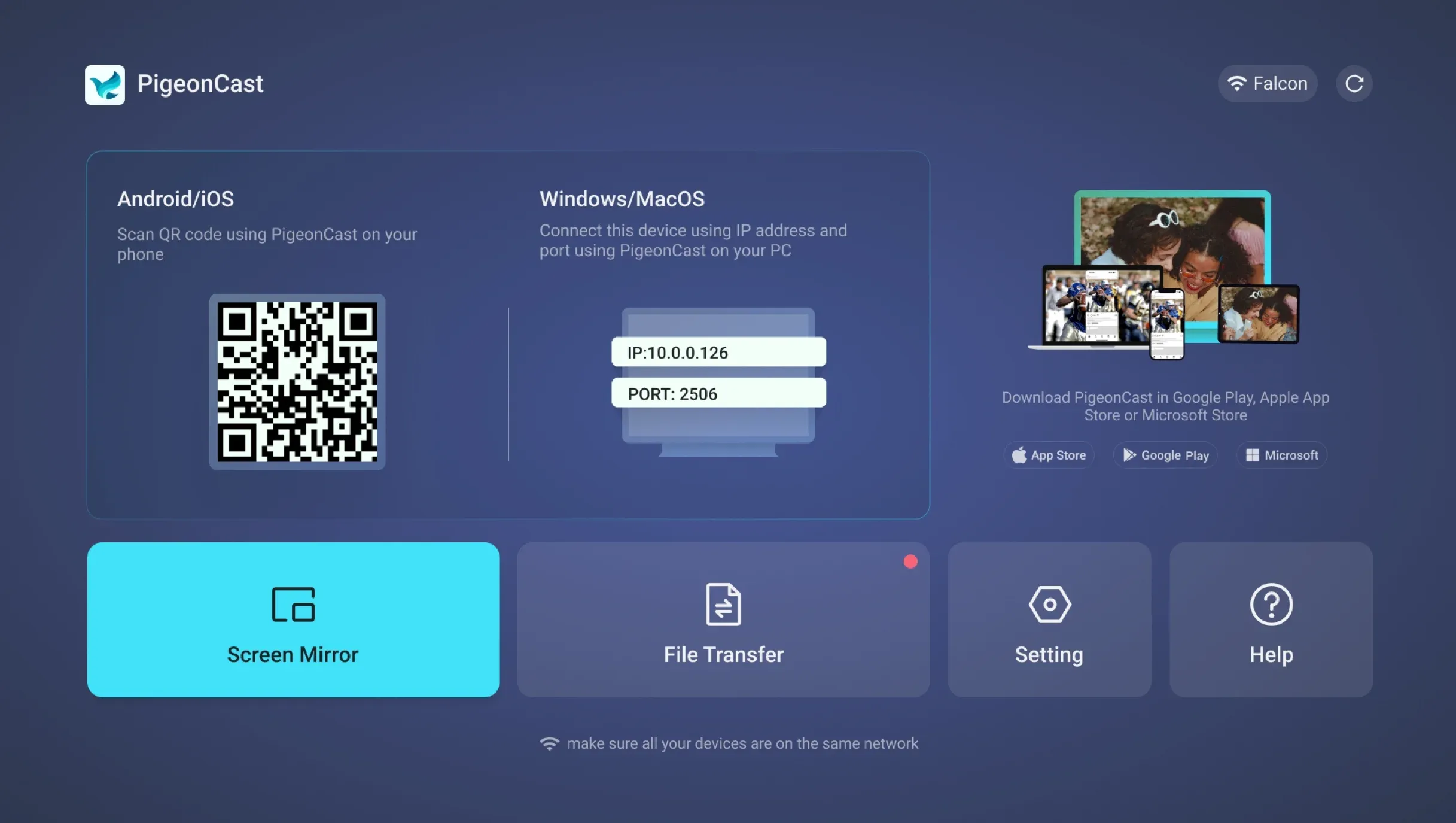
Step 4. Connect your phone and receiving device to the same local Wi-Fi network.
Step 5. Open PigeonCast on your phone and scan the QR code displayed on your TV for quick connection.
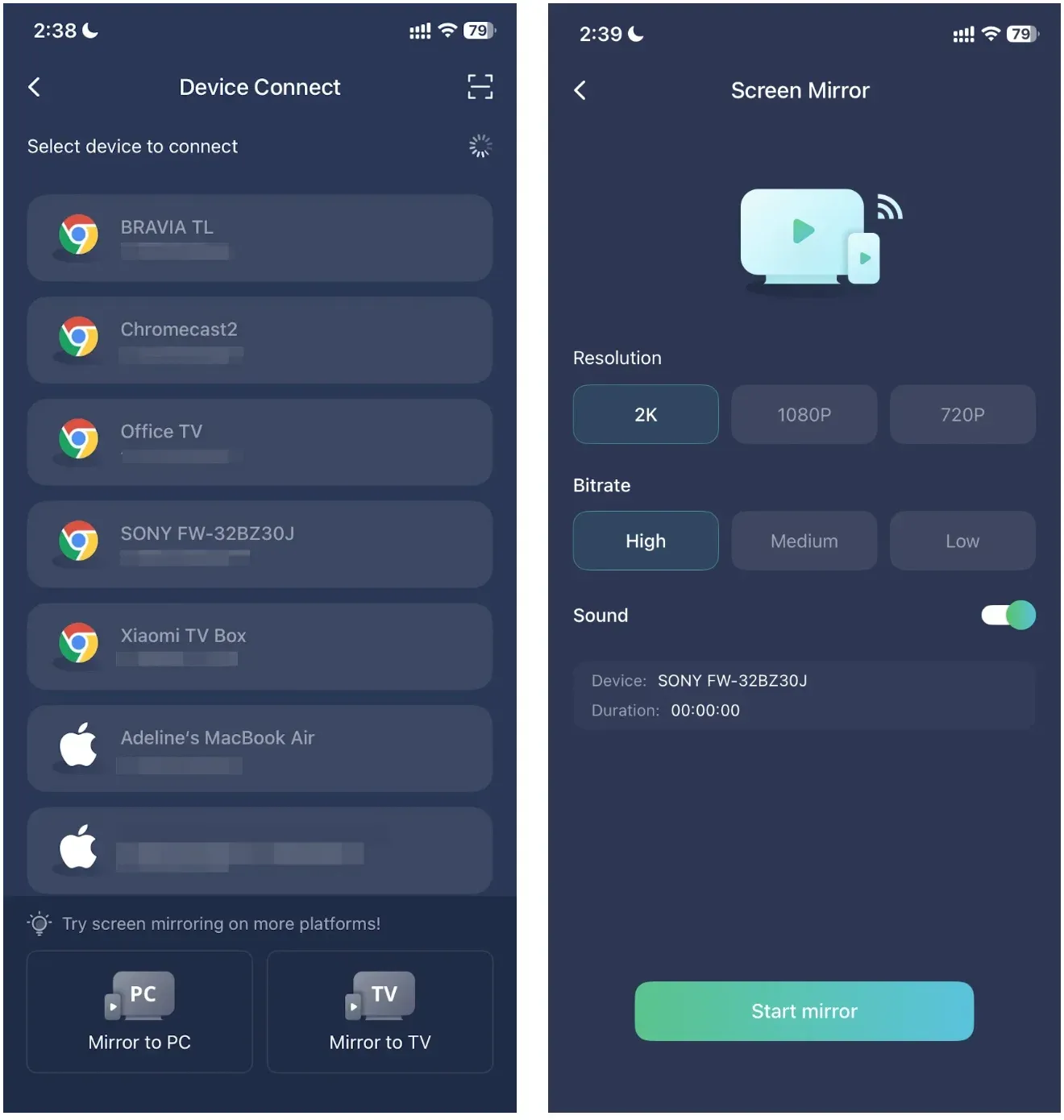
Step 6. Start screen mirroring or cast the CCTV camera's mobile app, then return to your security camera app.
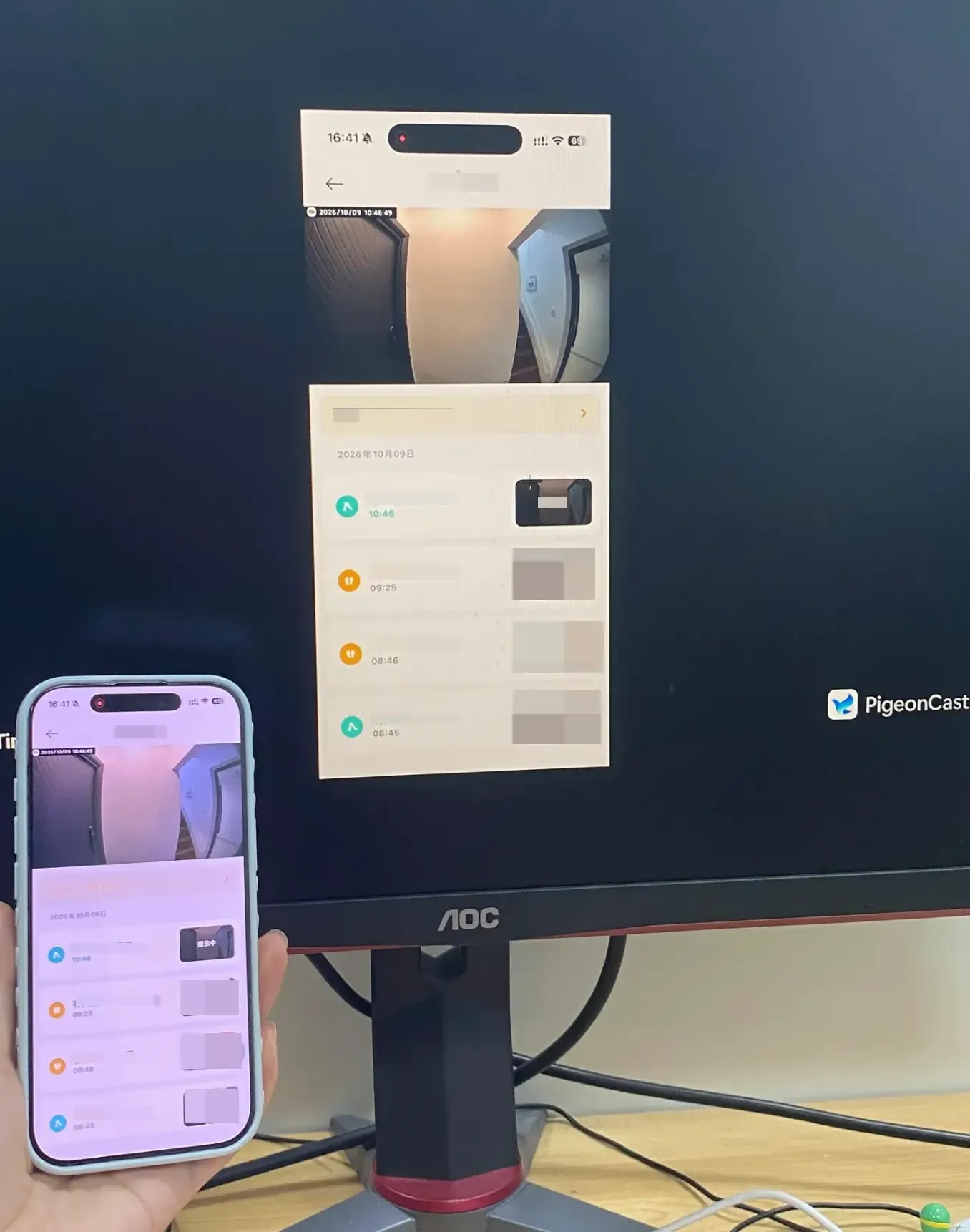
Your TV should display the camera app if the connection succeeds and the app permits screen capture. You can select a different camera or open a multi-camera view if your security app provides one.
This method is particularly useful when you want to check your cameras occasionally, show someone a recording, or watch the front door on a larger screen.
One important distinction: PigeonCast mirrors the screen showing your CCTV footage or cast the app screen. It doesn't connect directly to the security camera or replace your camera's recording software.
Screen mirroring can also introduce some delay, and certain security apps may restrict screen capture. For continuous monitoring, a dedicated camera viewer or direct video connection may be more suitable.
Method 2: Use a Compatible Smart TV or Streaming Device
Some Wi-Fi security cameras can display their live feeds on a smart TV without mirroring a phone. This usually works through an official TV app or a supported smart home integration.
For example, certain cameras work with Google Home, allowing users to view live feeds through compatible Chromecast or Google TV devices. Other models support Alexa integrations that can display footage on compatible Fire TV devices. The exact options depend on your camera model, TV platform, and manufacturer.
How to connect a compatible CCTV camera to Google TV:
Step 1. Install your security camera using its manufacturer's app and confirm that live viewing works.
Step 2. Open the Google Home app on your phone.
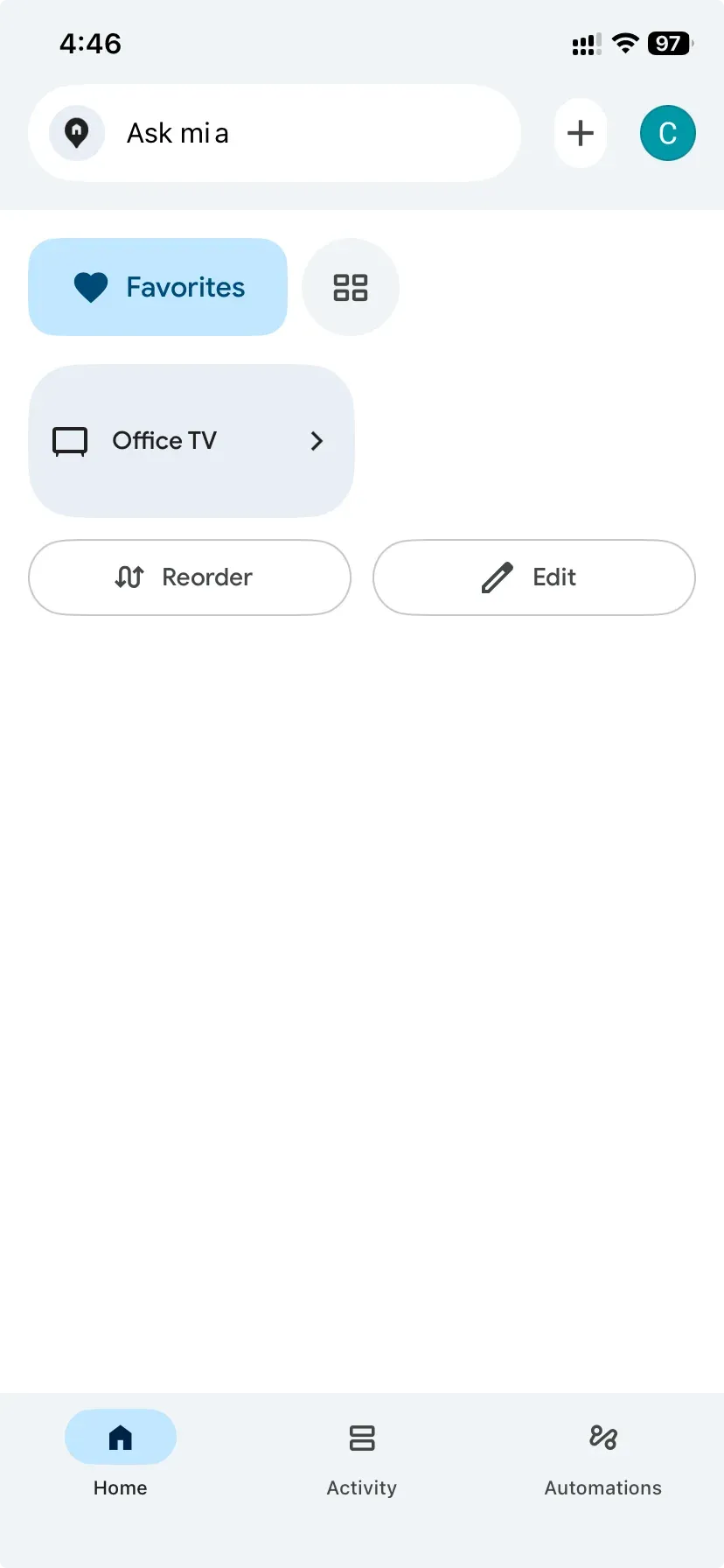
Step 3. Add your camera to Google Home, or link its manufacturer under Works with Google if supported.
Step 4. Make sure your compatible Google TV or Chromecast device is set up in the same Google Home household.
Step 5. Use a supported voice control device or remote and say something like, "Hey Google, show the front door camera on the living room TV."
Step 6. Wait for the camera's live feed to appear on your television.
Some camera systems also provide dedicated applications for Android TV, Apple TV, or other streaming platforms. If your manufacturer offers one, installing that app may be the most direct solution.
Not every smart camera supports Google Home or Alexa live viewing, even if it works with those platforms for other functions. Check your camera model's supported features before relying on this method.
Method 3: Connect a CCTV DVR/NVR Using Wireless HDMI
If your CCTV system uses a DVR or NVR, wireless HDMI is often the most practical way to display its existing camera feeds on a TV in another part of the room or building.
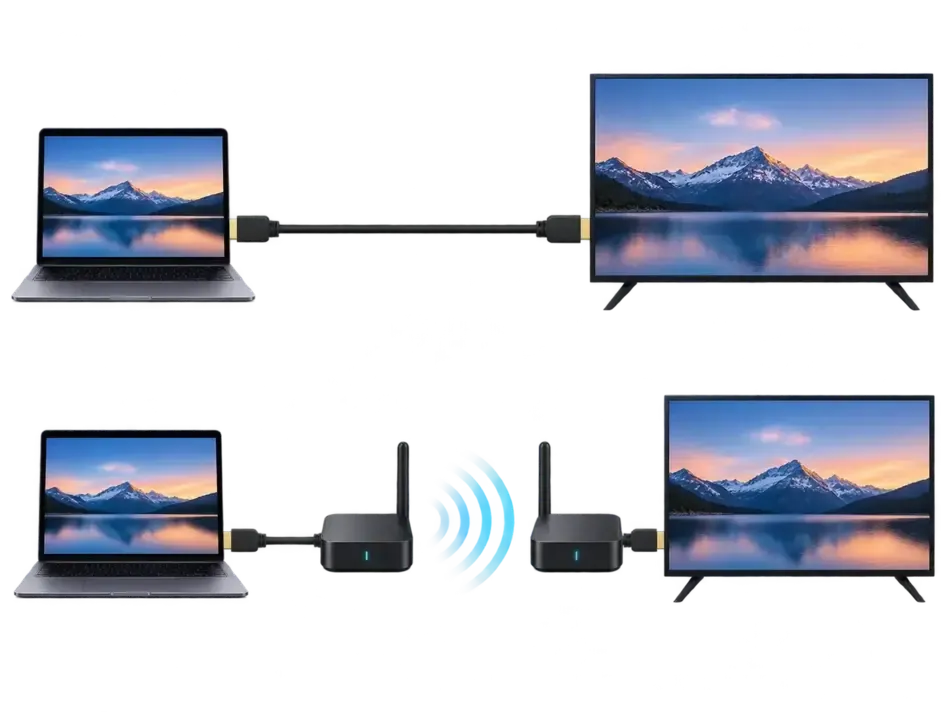
Instead of connecting the recorder directly to your television using one long HDMI cable, you use a wireless HDMI transmitter and receiver pair.
The transmitter connects to the DVR/NVR's HDMI output, while the receiver connects to an HDMI input on your television. The two devices communicate wirelessly, allowing the TV to display the recorder's video output.
How to connect a CCTV DVR/NVR to TV wirelessly:
Step 1. Make sure your DVR or NVR has an HDMI output and is already displaying your camera feeds correctly.
Step 2. Connect the wireless HDMI transmitter to the recorder's HDMI OUT port.
Step 3. Connect the wireless HDMI receiver to an available HDMI IN port on your TV.
Step 4. Connect power to both units if required.
Step 5. Turn on the recorder and television, then select the receiver's HDMI input on the TV.
Step 6. Pair the transmitter and receiver according to the manufacturer's instructions.
Once connected, the television should show the same CCTV interface that would normally appear through a direct HDMI cable.
This method is especially useful for displaying a multi-camera grid from a DVR/NVR, since the wireless link carries the recorder's complete video output rather than connecting to each camera separately.
However, the transmitter and receiver need a reliable wireless connection. Thick walls, long distances, and interference can affect performance. Some kits also require clear line of sight for the best results.
Method 4: Use an IP Camera Streaming Receiver
Some IP security cameras support standard video streaming protocols, such as RTSP (Real-Time Streaming Protocol). This makes it possible to open their live video feeds through a compatible network video player instead of relying on the manufacturer's mobile app.
For example, you can use VLC or a compatible IP camera viewer on an Android TV or another supported streaming device to access an RTSP feed.
This method requires more setup than phone screen mirroring, but it can be useful for cameras that provide direct access to their video streams.
How to view an IP camera on TV using RTSP:
Step 1 Check whether your IP camera supports RTSP streaming and whether the feature needs to be enabled.
Step 2. Find the camera's local IP address and RTSP stream details in its settings or manufacturer documentation.
Step 3. Install an RTSP-compatible video player, such as VLC, on a supported Android TV or streaming receiver.
Step 4. Open the player and select the option to open a network stream.
Step 5. Enter the RTSP URL provided for your camera, including authentication details if required.
Step 6. Start playback and check whether the live feed appears on your TV.
You may need to adjust the camera's video codec, resolution, or stream profile if the player cannot decode the video correctly.
This method works best when your camera explicitly supports RTSP or another protocol accepted by your chosen viewer. Many cloud-based or battery-powered security cameras don't expose a direct local video stream.
For privacy and security, keep the camera and viewer on a trusted network, protect your camera credentials, and avoid exposing its RTSP service directly to the public internet.
Which Wireless CCTV-to-TV Method Should You Choose?
The right connection depends less on your TV brand and more on how your security camera delivers its footage.
If you already watch your camera through a phone app, screen mirroring is a convenient place to start. For a permanent monitoring display, however, a direct TV integration, DVR/NVR output, or dedicated network viewer may offer a more suitable setup.
Here's how the four methods compare:
| Method | Best For | Main Limitation |
|---|---|---|
| Phone Screen Mirroring | Occasional live viewing and sharing camera footage | Phone may need to stay connected; possible delay |
| Smart TV / Streaming Device | Compatible smart home cameras | Depends on brand and model compatibility |
| Wireless HDMI | DVR/NVR systems and multi-camera monitoring | Requires additional hardware |
| IP Camera Streaming Receiver | IP cameras with accessible network streams | More technical setup and codec requirements |
If you want a quick setup without purchasing hardware, first check whether your TV supports screen mirroring. If you already own a DVR/NVR with several connected cameras, wireless HDMI may be a more direct solution.
Final Words
A security camera is only as useful as your ability to see what's happening. While your phone is great for quick checks and notifications, a larger TV screen can make it easier to follow activity around your home, keep an eye on a shop entrance, or view several cameras at once.
You don't need to replace your CCTV system to make that happen. A phone-based camera can often work with screen mirroring, a compatible smart camera may connect through your TV's ecosystem, and an existing DVR/NVR can send its display over wireless HDMI.
The best setup is the one that fits the equipment you already have and how often you need to watch it. For an occasional glance, a simple wireless connection may be enough. For monitoring that needs to stay on all day, reliability matters more than convenience.
CCTV to TV Connection FAQs
Can You Connect a CCTV Camera to a TV Without a DVR?
Yes, some CCTV and IP cameras can display footage on a TV without a DVR or NVR. If your camera supports a mobile app, you may be able to mirror its live feed to a compatible television. Cameras with direct HDMI output or supported IP streaming features offer other possibilities. However, traditional analog CCTV cameras may require a compatible converter or recording device.
Can You Connect CCTV to a Normal TV Without Smart Features?
Yes, but a non-smart TV generally needs additional receiving hardware. If your CCTV system has a DVR/NVR with HDMI output, a wireless HDMI receiver can connect to the TV's HDMI port. Alternatively, a compatible streaming stick can add smart features and support certain camera viewing apps or screen mirroring methods. Your TV must have a compatible video input for the equipment you choose.
Can You Watch Multiple CCTV Cameras on One TV?
Yes, provided your CCTV system or viewing app supports displaying several camera feeds simultaneously. DVR and NVR systems commonly offer split-screen layouts showing four, eight, or more cameras. If you mirror a phone app to your TV, the television will display whatever multi-camera layout the app provides. The number of cameras visible depends on your software, recorder, and display configuration.
Can CCTV Connect to a TV Without Wi-Fi or Internet?
Yes, depending on your equipment. A wireless HDMI transmitter and receiver can typically send video from a DVR/NVR to a TV without using Wi-Fi or an internet connection. Some IP cameras can also stream over a wired local network. However, cloud-based camera apps and remote viewing features may require internet access, even when the television and cameras are physically nearby.
Why Is My CCTV Camera Not Showing on My TV?
First, check whether the camera feed works in its original app or DVR/NVR interface. If it does, the problem may involve the TV connection, an unsupported streaming format, or the selected HDMI input. For wireless setups, confirm device compatibility and network connectivity. If you're using a streaming app, also check whether the camera allows third-party viewing and whether its video codec is supported.
Can You Use a TV as a CCTV Monitor 24/7?
Yes, although the suitability depends on the television and how the video reaches it. A DVR/NVR with HDMI output or a dedicated IP camera viewer is generally more appropriate for continuous monitoring than keeping a phone screen mirrored all day. Also consider power consumption, automatic sleep settings, screen retention, and whether your camera system can reconnect automatically after an interruption.
Can You Connect CCTV to Two TVs Wirelessly?
Yes, but you'll need equipment that supports more than one receiving display. Some wireless HDMI systems offer multiple receivers, allowing the same DVR/NVR output to appear on two televisions. Network-based viewing systems may also support multiple clients, depending on the camera software and connection limits. Not every wireless HDMI kit or screen mirroring app supports simultaneous output to multiple TVs.
Mia Clarke is a technology editor specializing in screen mirroring and casting solutions across multiple platforms. Mia provides clear, practical guides and in-depth insights to help users seamlessly connect their devices. Passionate about enhancing digital experiences, Mia is dedicated to keeping readers updated on the latest trends and tools in cross-platform screen sharing. Whether you’re looking to mirror your smartphone, laptop, or smart TV, Mia’s content delivers reliable, user-friendly advice to simplify your tech setup.