
If you're looking to mirror your iPhone to Android TV for free, you're in the right place. While Android TVs are more commonly paired with Android phones, it's entirely possible to mirror phone to Android TV seamlessly without breaking the bank.
This guide will explore how to mirror iPhone to Android TV for free and give you practical options to get your iPhone content on the big screen using wireless and wired solutions. Let's dive in.
Quick Fix to Free iPhone-to-Android TV Mirroring
There are several easy ways to mirror iPhone to Android TV for free, and the best method depends on your TV's compatibility and the devices you have.
| Method | Description | Why It's Effective |
|---|---|---|
| AirPlay (Built-in Support or 3rd-party app) | Some Android TVs (e.g., Sony, TCL) support AirPlay 2 natively. | Direct wireless streaming without extra devices or apps. Works seamlessly with supported TVs. |
| PigeonCast (Free App) | A third-party app for mirroring iPhone to Android TV wirelessly. | No need for external devices—just install the app and connect both devices to Wi-Fi. |
| HDMI Cable (Wired Solution) | Connect iPhone to Android TV using an HDMI cable and adapter. | Reliable, high-quality connection without Wi-Fi; requires a one-time purchase for the adapter. |
| Chromecast | Use Chromecast to wirelessly cast your iPhone to Android TV. | Great for those with a Chromecast device already; works well with iPhones via the supported app. |
Mirror iPhone to Android TV for Free Using AirPlay
AirPlay is a free Apple's wireless streaming technology that allows you easily mirror iPhone to Android TV. Many modern Android TVs from brands like Sony, TCL, and Hisense come with AirPlay 2 support, making it simple to stream content from your iPhone to the big screen.
However, AirPlay is not available on all models by default. If your TV supports AirPlay, the process is easy and requires no additional hardware. Here's how to connect iPhone to Android TV using AirPlay:
Step 1. Ensure that your iPhone and Android TV are on the same Wi-Fi network.
Step 2. On your Android TV, navigate to Settings > Apple AirPlay and HomeKit and toggle on AirPlay.
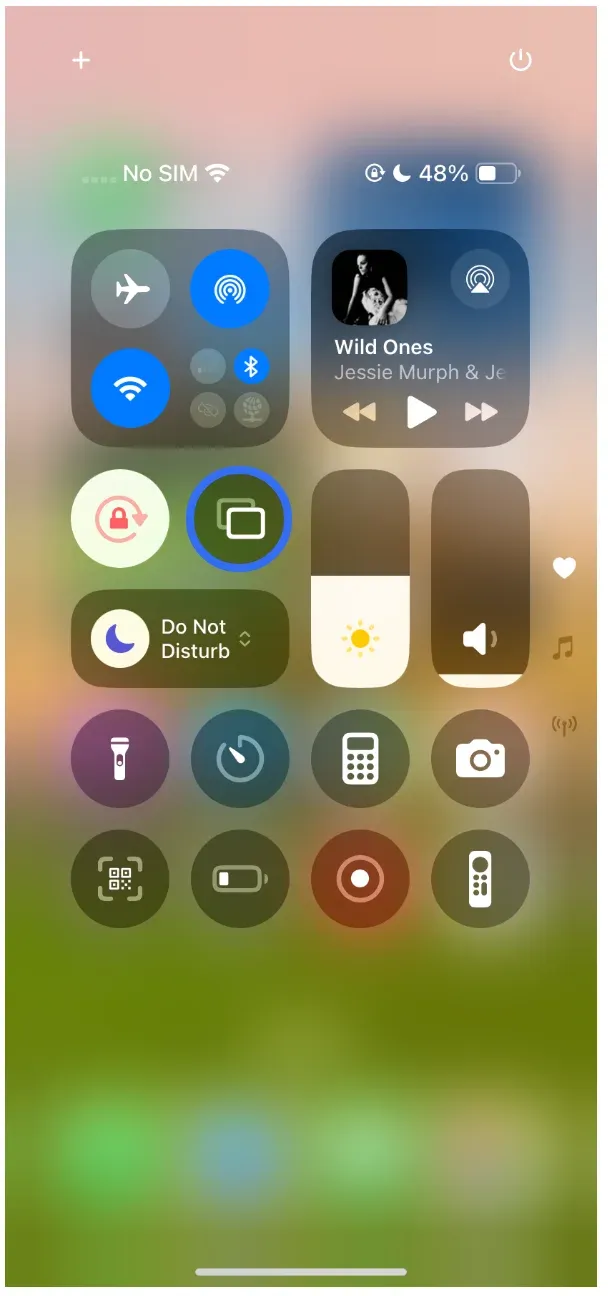
Step 3. On your iPhone, swipe into Control Center, tap Screen Mirroring, and select your TV from the list of available devices.
If your TV doesn't have native support for AirPlay, you can still mirror your iPhone by upgrading your TV's compatibility. You have two options:
- Use an AirPlay-compatible device: You can plug an Apple TV or any other AirPlay-compatible device into your TV via HDMI. This will allow you to use AirPlay functionality and easily cast iPhone to Android TV.
- Install a third-party app: If you prefer a no-cost solution, you can install an AirPlay receiver app such as PigeonCast from your TV's app store. These apps turn your TV into an AirPlay receiver, enabling wireless screen mirroring from your iPhone to your TV.
Mirror iPhone to Android TV for Free Using PigeonCast
PigeonCast is a free and user-friendly app that allows you to mirror your iPhone to Android TV wirelessly. Unlike AirPlay, PigeonCast doesn't require built-in support from your TV, making it a great option for TVs that don't offer AirPlay compatibility.
Here's how you can use PigeonCast to cast your iPhone to Android TV for free:
Step 1. Download the PigeonCast app from the App Store on your iPhone and from Google Play Store on your Android TV.


Overall Rating:



Step 2. Ensure both your iPhone and Android TV are connected to the same Wi-Fi network.
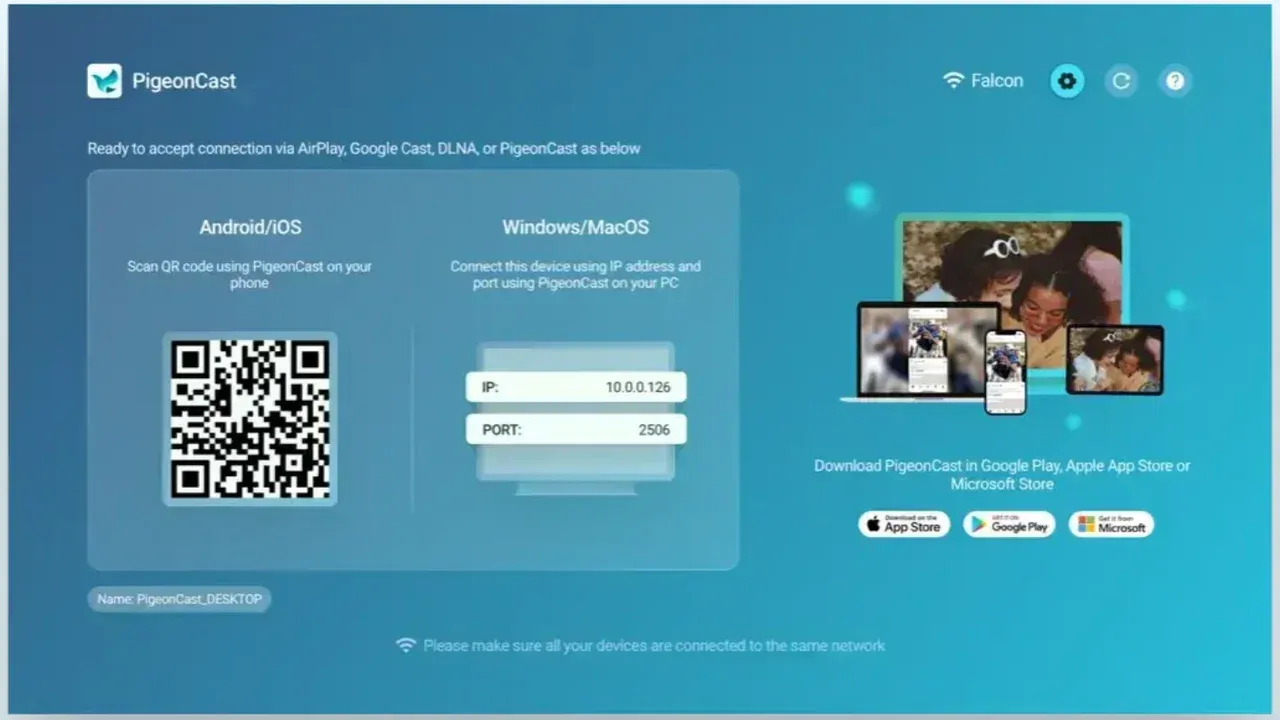
Step 3. Launch PigeonCast on your TV, and your TV is ready for receiving content from your iPhone.
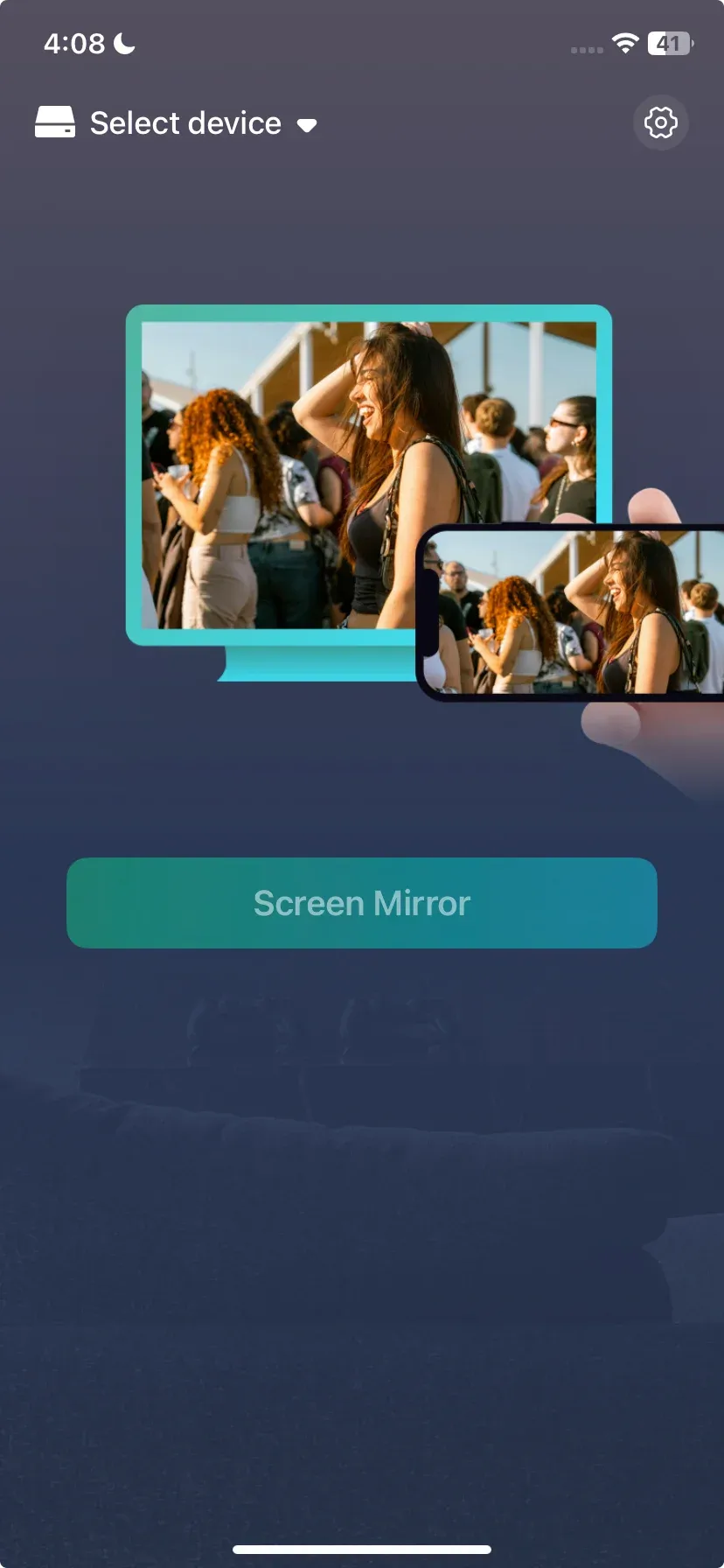
Step 4. Launch PigeonCast on your iPhone, select your TV from the list of available devices.
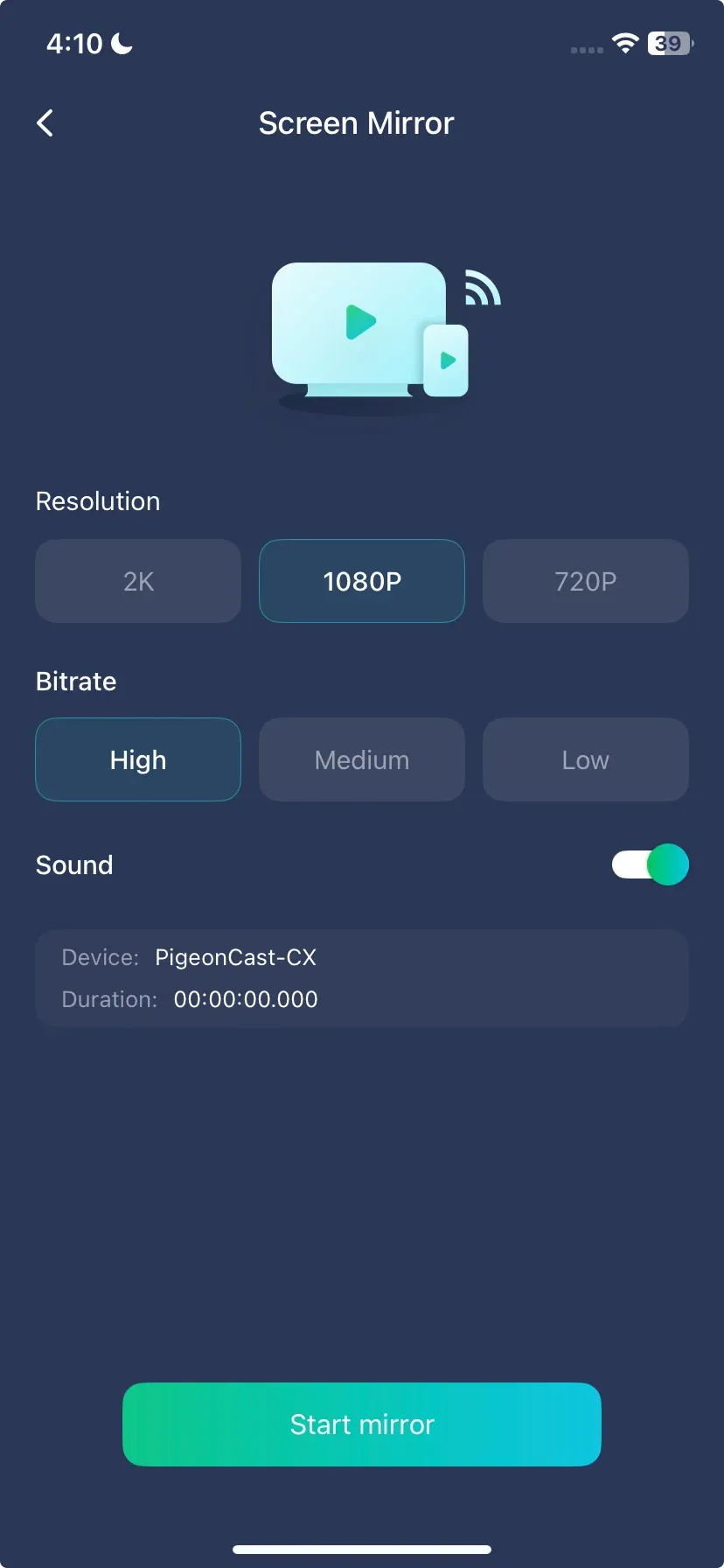
Step 5. Once connected, tap the Screen Mirror option, confirm the mirroring settings, and tap Start mirror.
Step 6. Your entire iPhone screen will be displayed on your TV.
This solution works seamlessly and provides a free, wireless screen mirroring experience without the need for additional devices or complicated setups.
Mirror iPhone to Android TV for Free Using HDMI Cable
If you prefer a wired connection to mirror your iPhone to Android TV, using an HDMI cable is a straightforward solution. This method guarantees a stable, lag-free experience, but it does require purchasing an HDMI adapter if you don't already have one.
How to mirror iPhone to Android TV using HDMI:
Step 1. Get the right HDMI adapter for your iPhone, such as Apple's Lightning Digital AV Adapter.
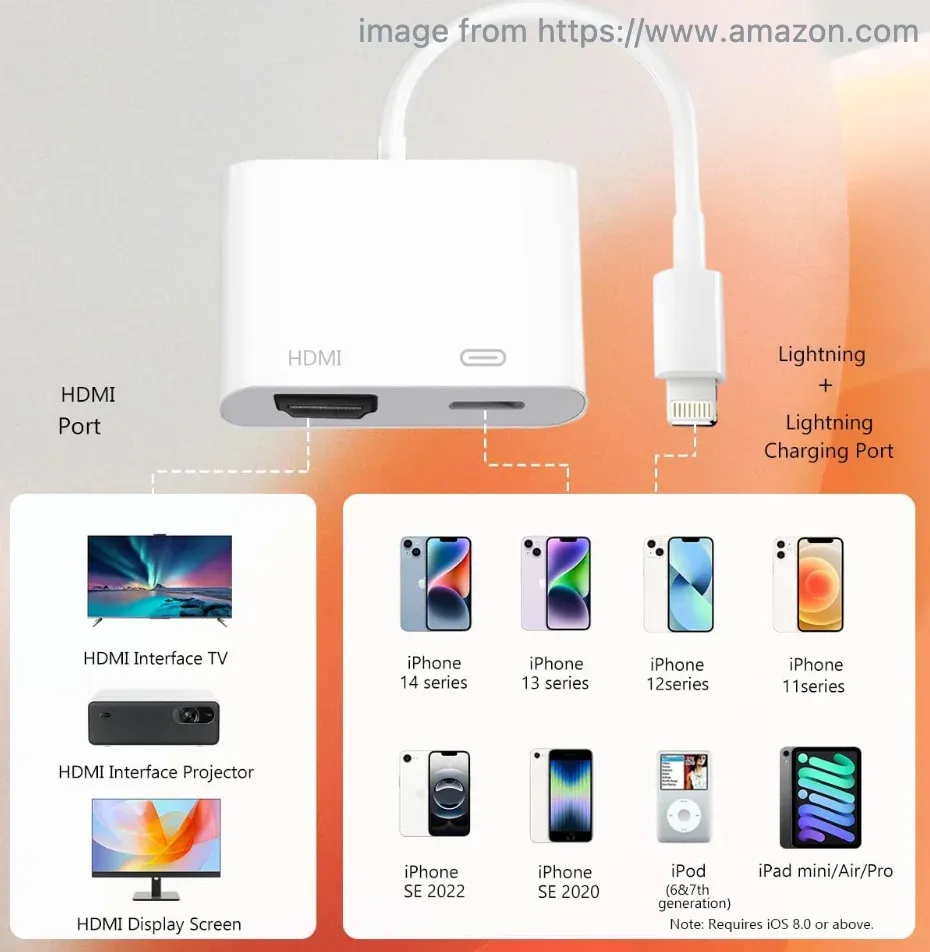
Step 2. Plug one end of the adapter into your iPhone's charging port.
Step 3. Plug the other end of the adapter into an HDMI cable, then connect the HDMI cable to an available HDMI port on your Android TV.
Step 4. On your TV, switch to the corresponding HDMI input to start seeing your iPhone's display on the big screen.
While this method requires a one-time purchase for the adapter, it's a reliable and free solution for mirroring your iPhone's content with no dependency on Wi-Fi.
Cast iPhone to Android TV for Free Using Chromecast
Many Android TVs today come with built-in Chromecast functionality, allowing you to mirror iPhone to Android TV without the need for additional hardware. This built-in feature is convenient, cost-effective, and simple to set up, especially since Chromecast is already integrated into the TV's system.
How to connect iPhone to Android TV wirelessly using Chromecast:
Step 1. Make sure your iPhone and Android TV are connected to the same Wi-Fi network.
Step 2. Open an app like YouTube on your iPhone, tap the Cast icon, and choose your Android TV.
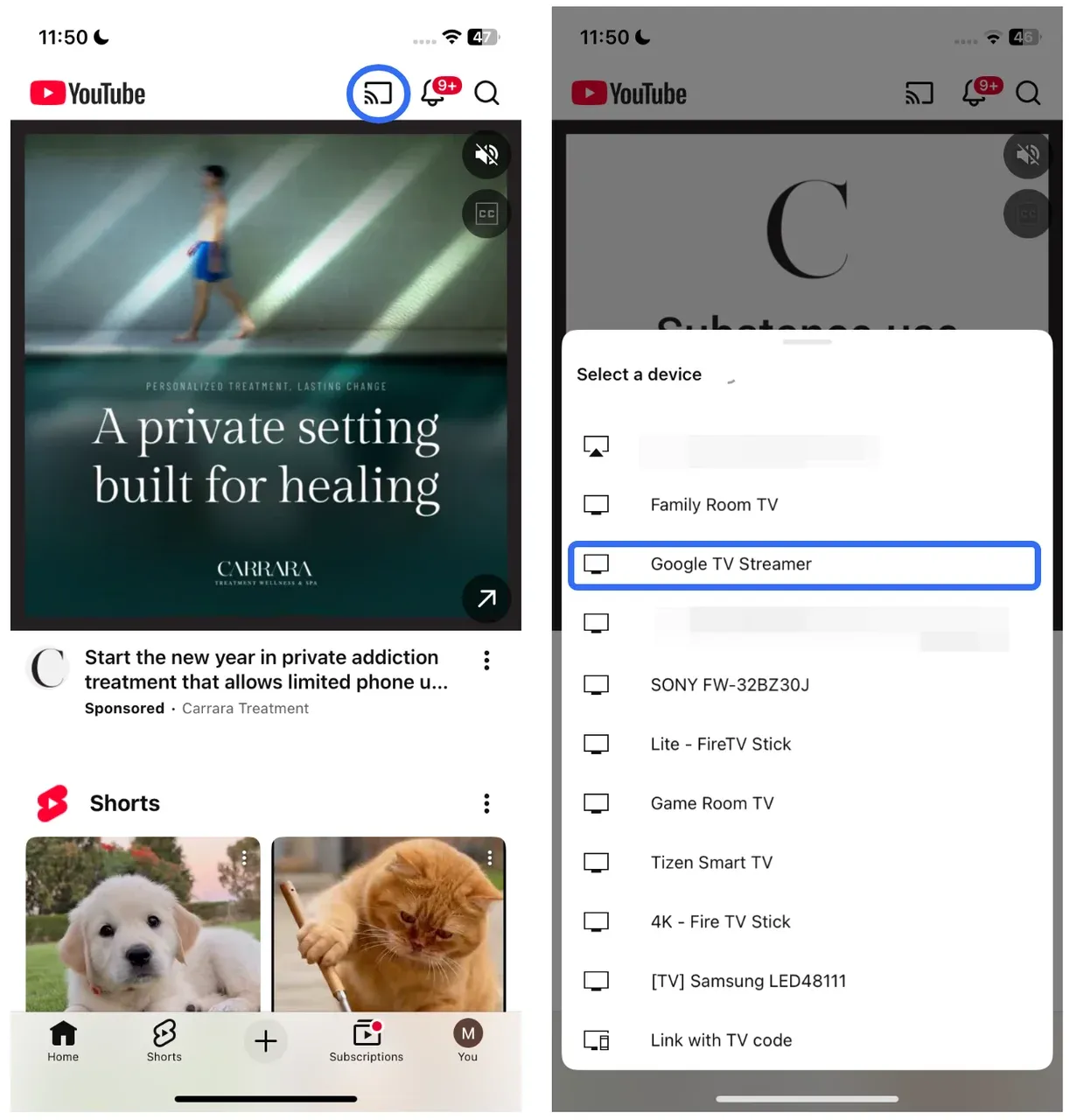
Step 3. Play a video from your iPhone, and it will play on the TV.
This solution allows you to wirelessly mirror your iPhone to Android TV for free, as long as you have an Android TV with Chromecast support built-in.
Closing Words
There are several free, reliable ways to mirror iPhone to Android TV depending on the devices you have. Whether you use AirPlay, PigeonCast, Chromecast, or even a wired HDMI connection, you have plenty of options to enjoy your iPhone content on the big screen.
By choosing the right method based on your TV's compatibility and available devices, you can start streaming your iPhone content on your Android TV without any added costs.
How to Mirror iPhone to Android TV for Free FAQs
Can I mirror my iPhone to my Android TV?
Yes, using methods like AirPlay, PigeonCast, and Chromecast, you can easily mirror your iPhone to Android TV for free.
Can you AirPlay to an Android TV?
Yes, if your Android TV supports AirPlay 2, you can directly mirror your iPhone’s screen. Otherwise, you can use third-party apps like PigeonCast or AirScreen to enable AirPlay.
Can an iPhone mirror to a non-Apple TV?
Yes, you can mirror iPhone to a non-Apple TV. As long as the TV supports AirPlay, or you install a third-party app like AirScreen or PigeonCast, you can stream your iPhone's display to almost any TV.
How can I mirror my iPhone to Android TV without using Wi-Fi?
You can mirror your iPhone to Android TV without Wi-Fi by using an HDMI cable. Simply connect your iPhone to the TV using a Lightning-to-HDMI adapter for a wired, stable connection.
Can I use PigeonCast to mirror iPhone to Android TV for free?
Yes, PigeonCast is a free app that allows you to mirror iPhone to Android TV wirelessly. Simply install the app on both your iPhone and Android TV, connect them to the same Wi-Fi network, and start streaming your screen.
How do I cast iPhone to Android TV without an Apple TV?
You can cast iPhone to Android TV without an Apple TV by using apps like PigeonCast, AirScreen, or Google Chromecast. These apps and devices enable iPhone-to-TV mirroring without needing any Apple hardware.
Is it possible to mirror iPhone to Android TV using Bluetooth?
No, screen mirroring via Bluetooth is not supported for iPhone to Android TV. Wireless mirroring requires either a Wi-Fi connection (e.g., AirPlay, Chromecast) or a wired connection (e.g., HDMI).
What's the easiest way to mirror iPhone to Android TV for free?
The easiest way is to use AirPlay if your Android TV supports AirPlay 2. If not, PigeonCast is a great free alternative that allows wireless screen mirroring without requiring additional hardware.
Mia Clarke is a technology editor specializing in screen mirroring and casting solutions across multiple platforms. Mia provides clear, practical guides and in-depth insights to help users seamlessly connect their devices. Passionate about enhancing digital experiences, Mia is dedicated to keeping readers updated on the latest trends and tools in cross-platform screen sharing. Whether you’re looking to mirror your smartphone, laptop, or smart TV, Mia’s content delivers reliable, user-friendly advice to simplify your tech setup.