
If you want to know how to repeat YouTube videos on TV, the short answer is yes, but the method depends on what your TV actually lets you do. On many TVs, repeating one YouTube video directly is inconsistent or missing. The most reliable choices are using a playlist, playing a saved video from a USB drive, or looping the video on another device and sending it to the TV.
That distinction matters because these are not all the same thing. A playlist keeps playback inside the YouTube app on your TV. USB playback moves outside YouTube and uses the TV's own media player. Screen mirroring keeps the repeat control on your phone, tablet, or computer while the TV shows the picture.
This guide focuses on those three methods so you can choose the one that fits your setup instead of hunting through menus that may not even exist on your TV.
How to Repeat YouTube Videos on TV: Quick Answer
Before you start, use this simple rule:
| Method | Best for | What to expect |
|---|---|---|
| Playlist in the YouTube TV app | People who want to stay inside YouTube on the TV | The cleanest built-in option when the TV app shows playlist repeat |
| USB playback | Offline use, store displays, waiting rooms, or repeated demo clips | Uses the TV's media player, not the YouTube app |
| Screen mirroring | Phones, tablets, or computers that already support loop controls | Repeat is handled on the sending device, not on the TV |
If your goal is to keep using the YouTube app on the TV, start with playlists. If you need offline playback, use USB. If you already have the video open on another device and want the TV to just display it, screen mirroring is usually the easiest answer.
How to Loop YouTube Videos on TV With Playlists
This is the first method worth trying because it keeps everything inside the YouTube app on the TV. Instead of asking the TV app to repeat one single clip, you create a playlist and turn repeat on for that playlist.
In most cases, it is easier to create the playlist on your phone or computer first. After that, you open the same account on the TV and play the list from there.
Step 1. Open YouTube on your phone or computer and create a playlist with the video you want to repeat.
Step 2. Add the same video once if you only want one clip to keep replaying, or add multiple videos if you want a longer loop.
Step 3. Open the YouTube app on your smart TV and sign in to the same account.
Step 4. Go to Library > Playlists, depending on how the app is labeled on your TV.
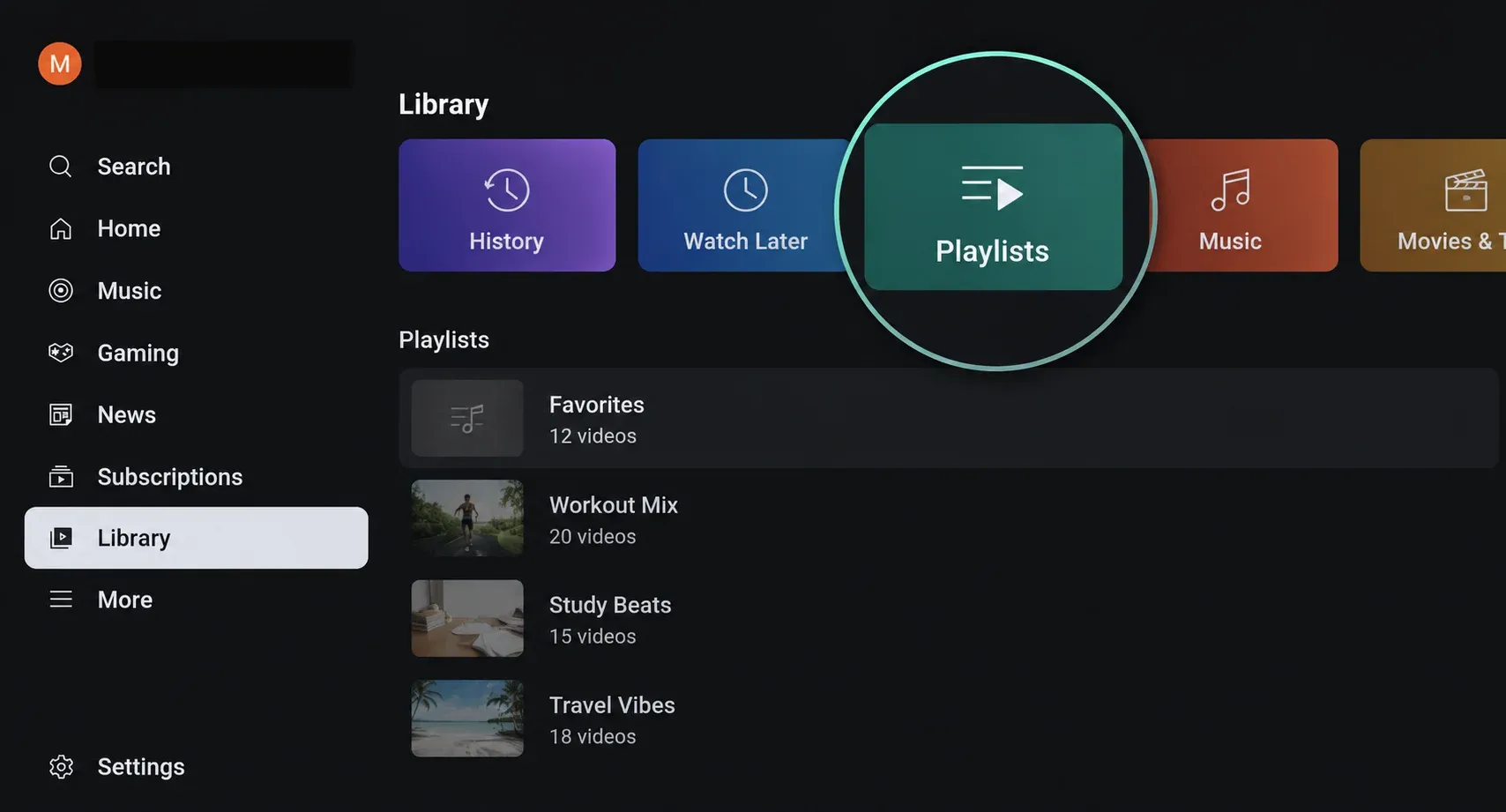
Step 5. Open the playlist you created and start playback.
Step 6. Look for the Repeat icon or playlist repeat control and turn it on.
This is usually the best answer when readers ask how to loop YouTube videos on tv without leaving the TV app. It feels cleaner than full-screen mirroring, and it does not require extra hardware. The only catch is that the YouTube interface can look different across TV brands, streaming boxes, and app versions, so the repeat control may not appear in the exact same place on every screen.
How to Loop YouTube Videos on TV Using a USB
This method is different from the playlist method because it is not using the YouTube app at all. Instead, you save the video legally, copy it to a USB drive, plug that drive into the TV, and use the TV's built-in media player to repeat it.
That makes it useful for places where stable internet is not the main concern, or where you want a video to keep playing with very little interaction. Think of store displays, lobby screens, kids' rooms, classrooms, or a short demo clip at an event.
Step 1. Make sure you have the legal right to download and use the video.
Step 2. Save the video file to your computer and copy it to a USB drive in a format your TV supports.
Step 3. Plug the USB drive into the TV.
Step 4. Open the TV's Media Player, USB, or Source menu.
Step 5. Select the video file and start playback.
Step 6. Open the playback controls and turn on Repeat, Repeat One, or the equivalent option if your TV offers it.
The important point here is simple: the repeat control belongs to the TV's USB player, not to YouTube. So if you are searching for repeat YouTube videos on Smart TV, this method only helps after the video has been saved and moved out of the YouTube app.
How to Loop YouTube Video on Smart TV While Screen Mirroring
If the TV app does not give you the repeat controls you want, screen mirroring is often the simplest way around that limit. In this setup, the loop is turned on from the sending device first, and the TV acts as the larger display.
That means you do not need to rely on the YouTube TV app to provide a repeat button. You can open the video on your phone, tablet, or computer, turn on loop there, and then mirror or cast the screen to the TV.
Step 1. Open the YouTube video on your phone, tablet, or computer.
Step 2. Turn on the repeat or loop control on that device. For example, you might loop the video inside a playlist, use browser playback controls, or repeat the video from the YouTube mobile interface if available.
Step 3. Connect the sending device and the TV to the same local network if your mirroring method requires it.
Step 4. Start screen mirroring or casting from the sending device to the TV.
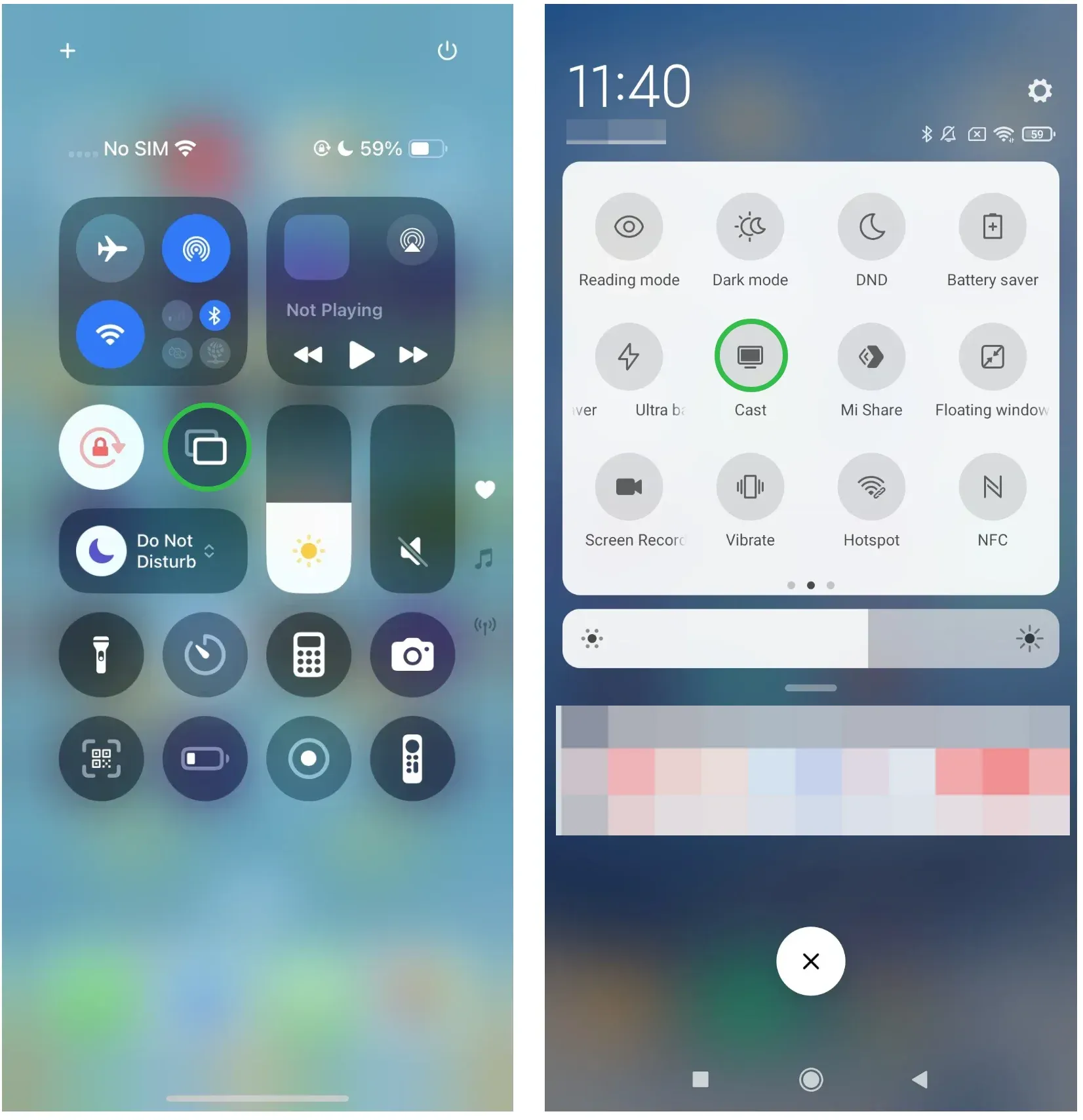
- On iPhone, enable Screen Mirroring from Control Center or use a screen mirroring app for iPhone
- On Android, enable Cast or Smart View from Quick Settings or use a screen mirroring app for Android


Overall Rating:



Step 5. Confirm that the TV is showing the mirrored screen and let the sending device control playback.
This approach makes sense when you want more control over playback than the TV app gives you. It is also useful when you switch between different TVs and do not want to rely on one brand's menu layout.
Why Is YouTube Repeat Missing on Some TVs?
Many people assume the TV version of YouTube should match the phone or desktop version feature for feature. In practice, that is not always true.
TV apps are often built around remote control navigation, simplified playback controls, and different interface layouts. On some devices, you may see repeat for playlists but not for a single video. On others, the control may be hidden, renamed, or absent altogether. A streaming stick, a Google TV box, and a TV with YouTube built in can all behave a little differently even if they are opening the same service.
That is why guides about how to repeat YouTube videos on TV can feel contradictory. People are often using different hardware, different YouTube app versions, and different input methods.
Final Thoughts
If you want the cleanest built-in option, use a playlist and repeat it from the YouTube TV app. If you need offline playback or a simple local loop for a display, use a USB drive and the TV's media player. If the TV app is too limited, loop the video on another device and mirror it to the TV using the built-in feature or a screen mirroring app.
All in all, the best method depends less on YouTube alone and more on how you are watching it.
How to Repeat YouTube Videos on TV FAQ
Can I repeat YouTube videos on TV without signing in?
Yes, but your options may be limited. Most playlist-based looping features require access to your YouTube account. If you do not want to sign in, screen mirroring from another device or using a USB drive is usually the easier workaround.
Will repeating a YouTube video use more internet data?
Yes. Every time the video streams again through YouTube, additional data is used. If you need the same content to play continuously for long periods, offline playback from a USB drive can help reduce internet usage.
Why does the repeat option appear on one TV but not another?
Different TVs and streaming devices often run different versions of the YouTube app. Manufacturers may also customize interfaces, which can affect where playback controls appear or whether certain features are available at all.
Can I keep a YouTube video looping all day on a TV?
Usually yes, as long as the playback method supports continuous repeat. However, some TVs, apps, or power-saving settings may interrupt playback after extended periods, so it is worth testing before relying on it for displays or events.
Does YouTube Premium make looping videos on TV easier?
Not necessarily. YouTube Premium adds benefits such as ad-free viewing and offline downloads, but repeat and playlist controls still depend largely on the TV app and device you are using.
Which method is best for digital signage or store displays?
USB playback is often the most reliable choice. Since it does not depend on internet connectivity or the YouTube app, it can provide more stable long-term playback for retail displays, waiting rooms, exhibitions, and similar environments.
Can I loop live streams or YouTube Shorts on TV?
Usually not in the same way as standard videos. Live streams are designed for real-time viewing, while Shorts often have different playback behavior depending on the device. Creating a playlist or using screen mirroring may provide more flexibility in these situations.
Mia Clarke is a technology editor specializing in screen mirroring and casting solutions across multiple platforms. Mia provides clear, practical guides and in-depth insights to help users seamlessly connect their devices. Passionate about enhancing digital experiences, Mia is dedicated to keeping readers updated on the latest trends and tools in cross-platform screen sharing. Whether you’re looking to mirror your smartphone, laptop, or smart TV, Mia’s content delivers reliable, user-friendly advice to simplify your tech setup.