
Finding how to watch Vimeo on TV requires matching your specific device setup with supported streaming paths that actually work. Beyond generic reboot advice, this guide provides the fastest route for iPhone, Android, and Windows users to connect to any smart screen. Our step by step breakdown tackles real technical hurdles so you can enjoy high quality video on any display instantly.
Can You Cast Vimeo to TV
Yes, you can absolutely cast Vimeo to your TV. As a premium platform for creators, portfolios, and business content, Vimeo ensures its high quality videos can reach any smart screen. Depending on whether you are using an iPhone, Android, or a Windows computer, you can choose from these primary playback technologies:
-
AirPlay: Best for iPhone and iPad users to stream directly to Apple TV or any AirPlay compatible smart TV.
-
Chromecast and Google Cast: The ideal route for Android and Chrome browser users to connect with Chromecast capable receivers.
-
Apple TV App Path: A dedicated experience for those using tvOS 18 or newer versions for seamless integration.
-
Browser Based Flows: Flexible casting options for Windows and Mac users through supported web browser setups.
How to Cast Vimeo to TV
Getting your favorite media onto the big screen is simple when you follow one dedicated path for your device. This focused approach prevents technical glitches and ensures that your streaming session remains stable from start to finish.
How to Cast Vimeo from iPhone to TV
You must ensure that your Apple TV or smart screen has AirPlay enabled and is logged onto the same Wi-Fi network as your iPhone or MacBook. Successful streaming relies on this handshake between devices and requires a stable connection to avoid typical playback errors.
Step 1. Connect your iPhone and your smart TV to the same Wi-Fi network.
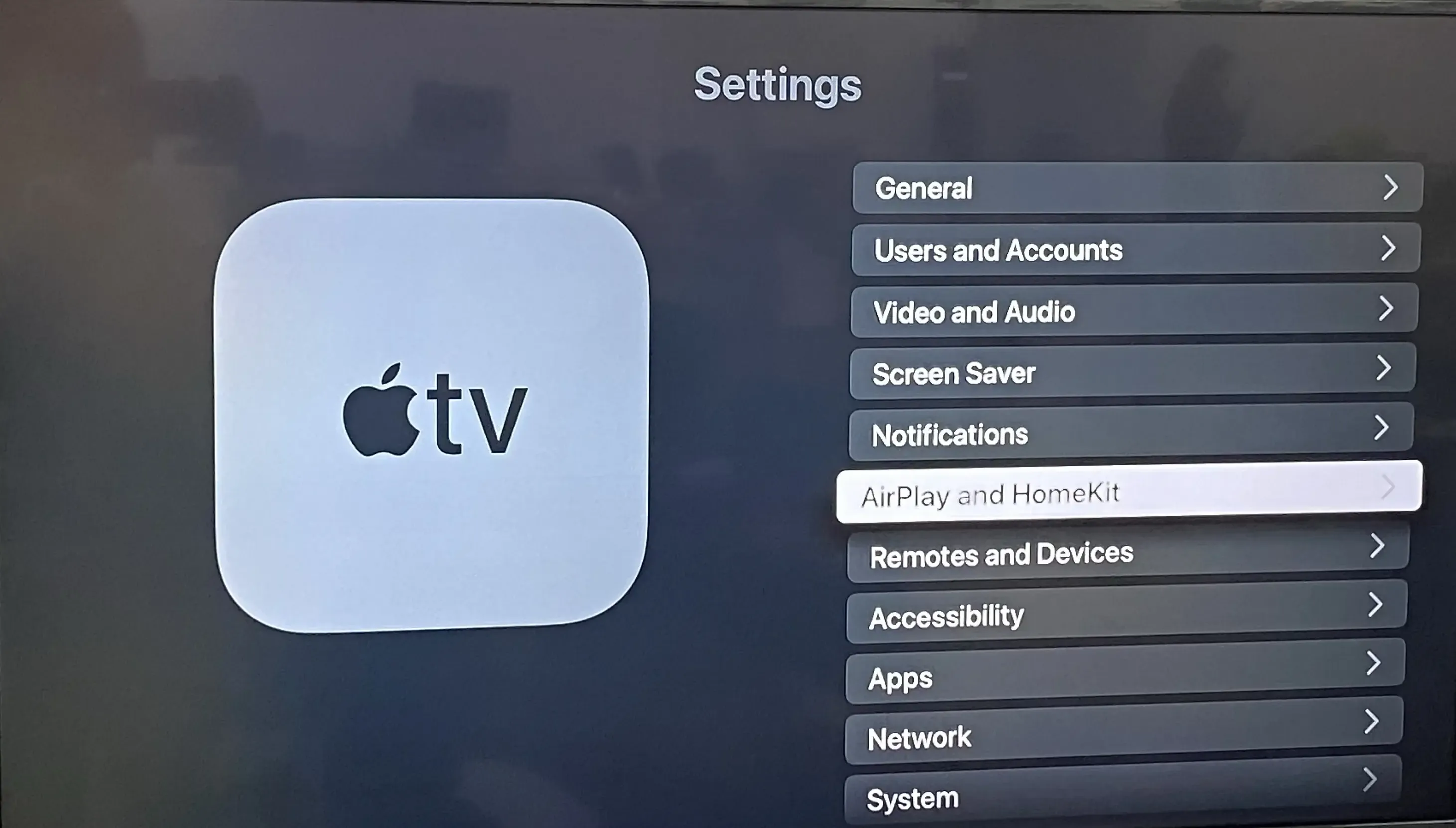
Step 2. Enable AirPlay on your TV from the Settings menu.
Step 3. Play the video in the Vimeo, and tap the AirPlay icon located in the player interface.
Step 4. Choose your target device from the list to start the high quality stream.
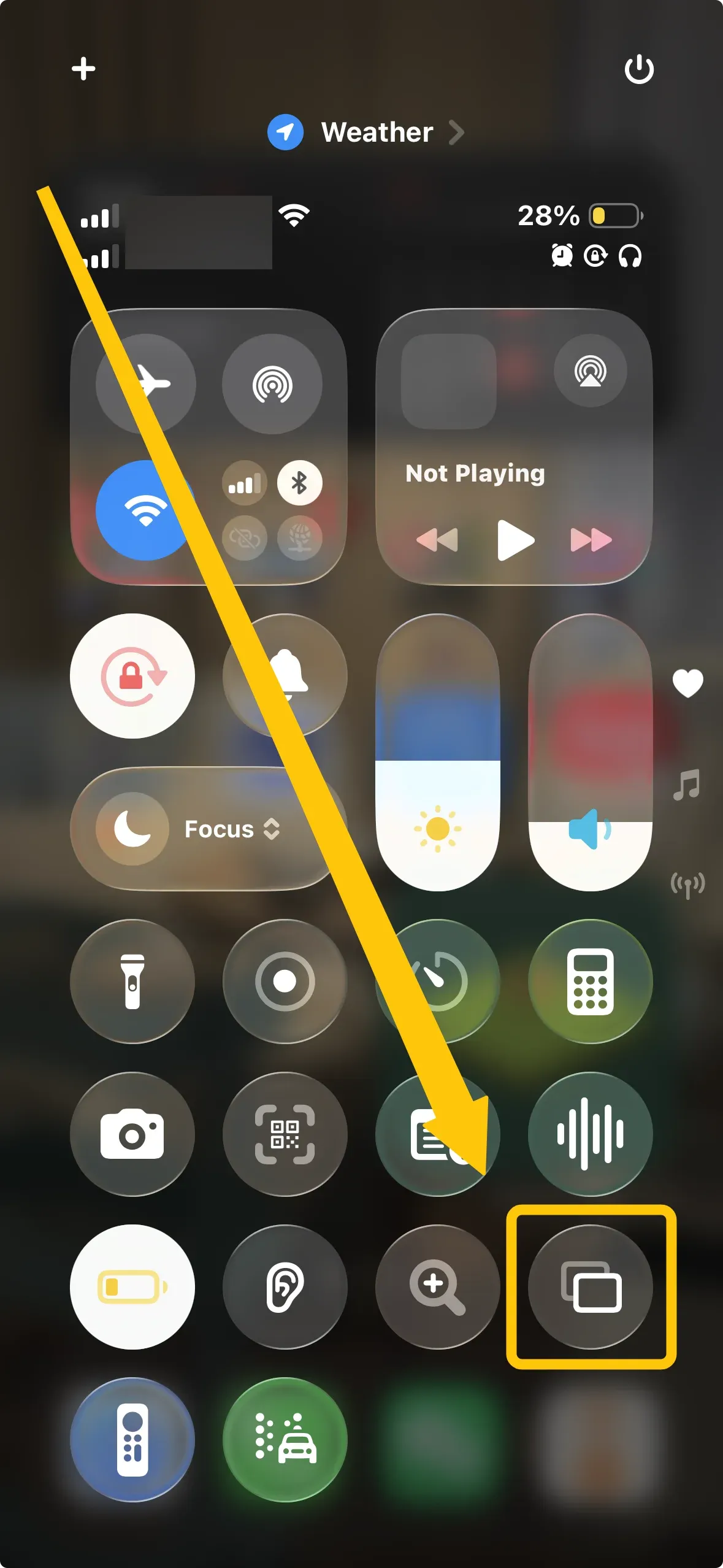
Alternatively, you can use Screen Mirroring in your iPhone's Control Center to mirror your whole screen to play the Vimeo on the smart television screen.
How to Cast Vimeo from Android to TV
You can vimeo cast to TV Android successfully if your television supports Chromecast or uses a universal wireless display protocol like Miracast. Most displays from Sony, Hisense, and TCL come with Android TV or Google TV built in for seamless casting.
Step 1. Ensure your Android device and your smart TV are on the same wireless network.
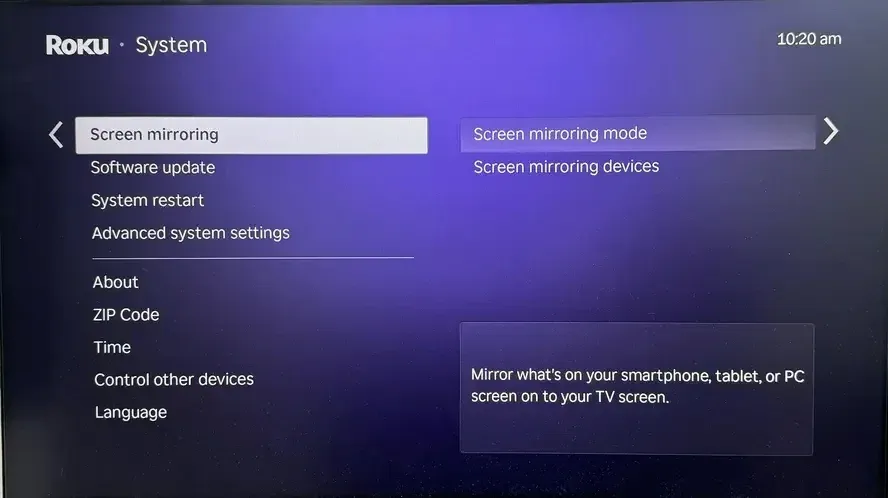
Step 2. Activate screen mirroring feature on your TV in the Settings menu.
Step 3. Launch the Vimeo app and find the Cast button located in the player interface.
Step 4. Select your television from the available devices to start the high quality stream.
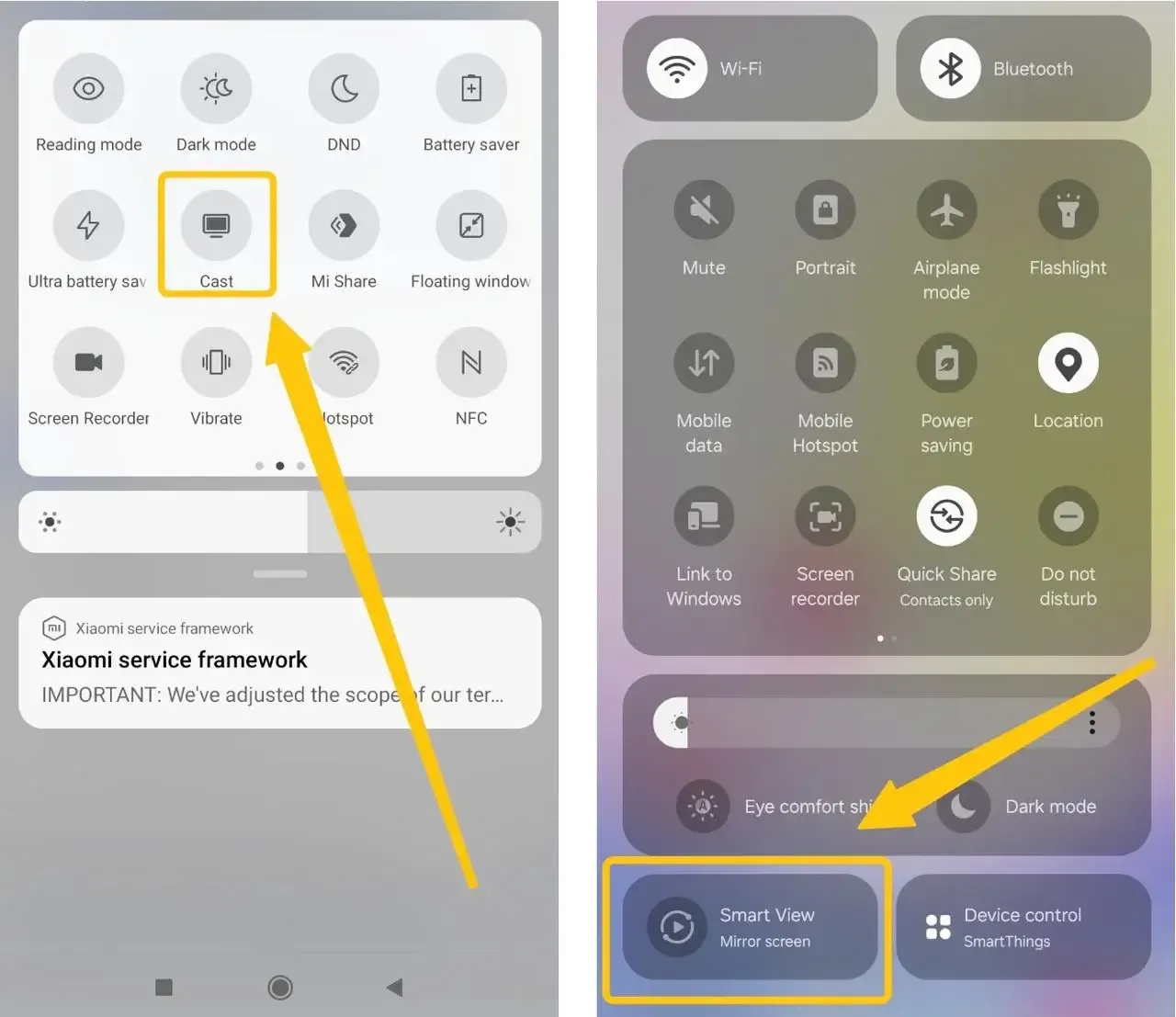
Alternatively, you can pull down your quick settings menu and tap Smart View or Cast to mirror your entire Android screen directly and stream Vimeo to TV.
How to Cast Vimeo from Windows to TV
You need to use a chromium based browser like casting from Google Chrome or Microsoft Edge to access native casting protocols from a laptop. Most modern smart screens from Samsung, LG, and Sony will appear as available targets once your computer and the display recognize each other through a shared local network. Here's how to play Vimeo on TV via web browser:
Step 1. Ensure your devices are covered by the same Wi-Fi network.
Step 2. Open Microsoft Edge or Chrome on Windows and navigate to the Vimeo website.
Step 3. Right click anywhere on the video page or click the three dots in the browser corner.
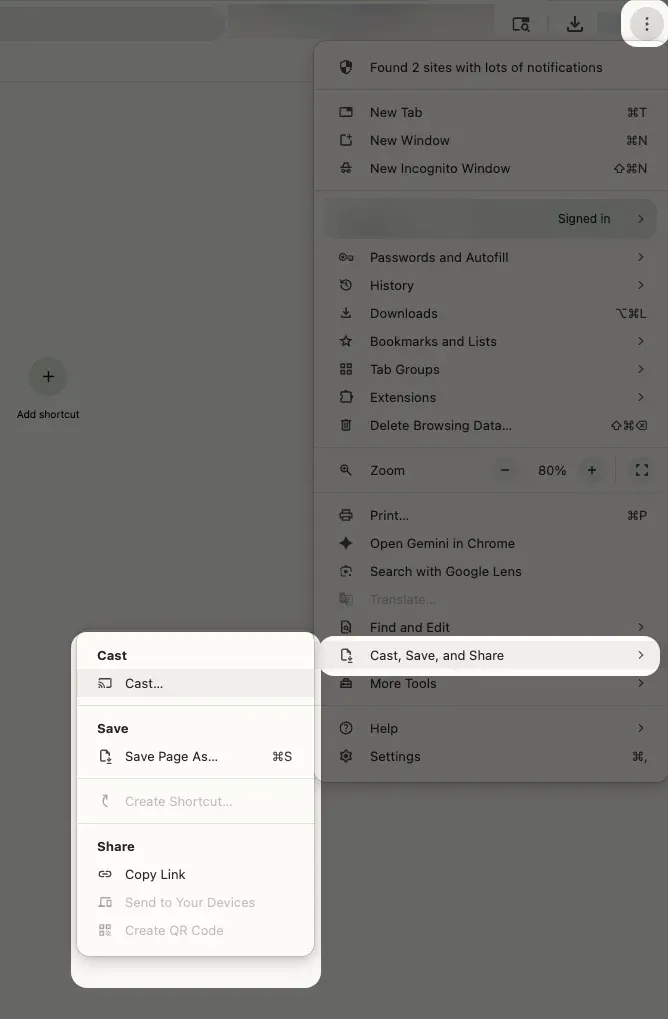
Step 4. Select the Cast option from the menu to scan for available smart screens.
Step 5. Pick your compatible device from the pop up window to send your browser tab to the TV.
Use PigeonCast for a More Stable Vimeo Experience
How to cast from Vimeo to TV? If you find that the native casting icons are missing or your smart TV is not supported, you can use free PigeonCast to bridge the gap. This powerful app turns your television or computer into a universal receiver that supports AirPlay, Google Cast, and DLNA all at once. By installing this tool, you can overcome hardware limitations and enjoy a crystal clear 4K stream from any device in your household.
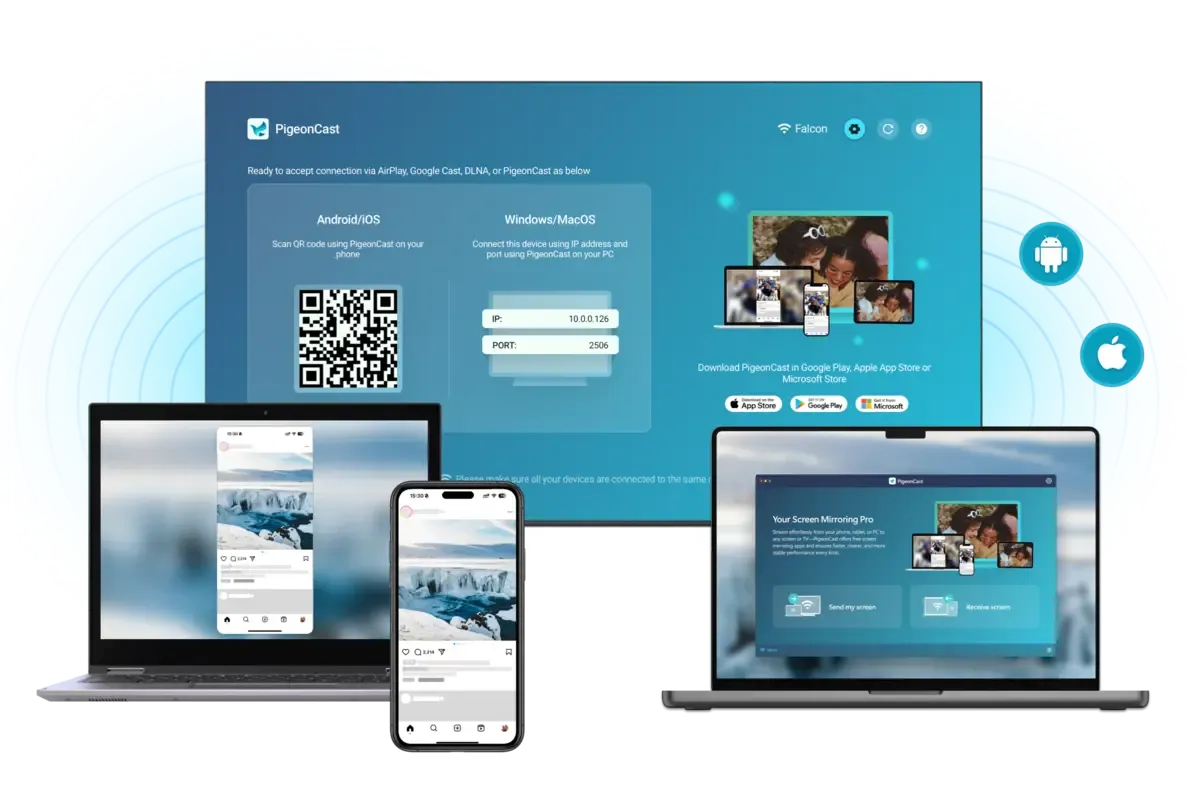
Step 1. Ensure your devices are under the same wireless network.


Overall Rating:



Step 2. Install PigeonCast on your mobile phone, tablet, or laptop from the app store.
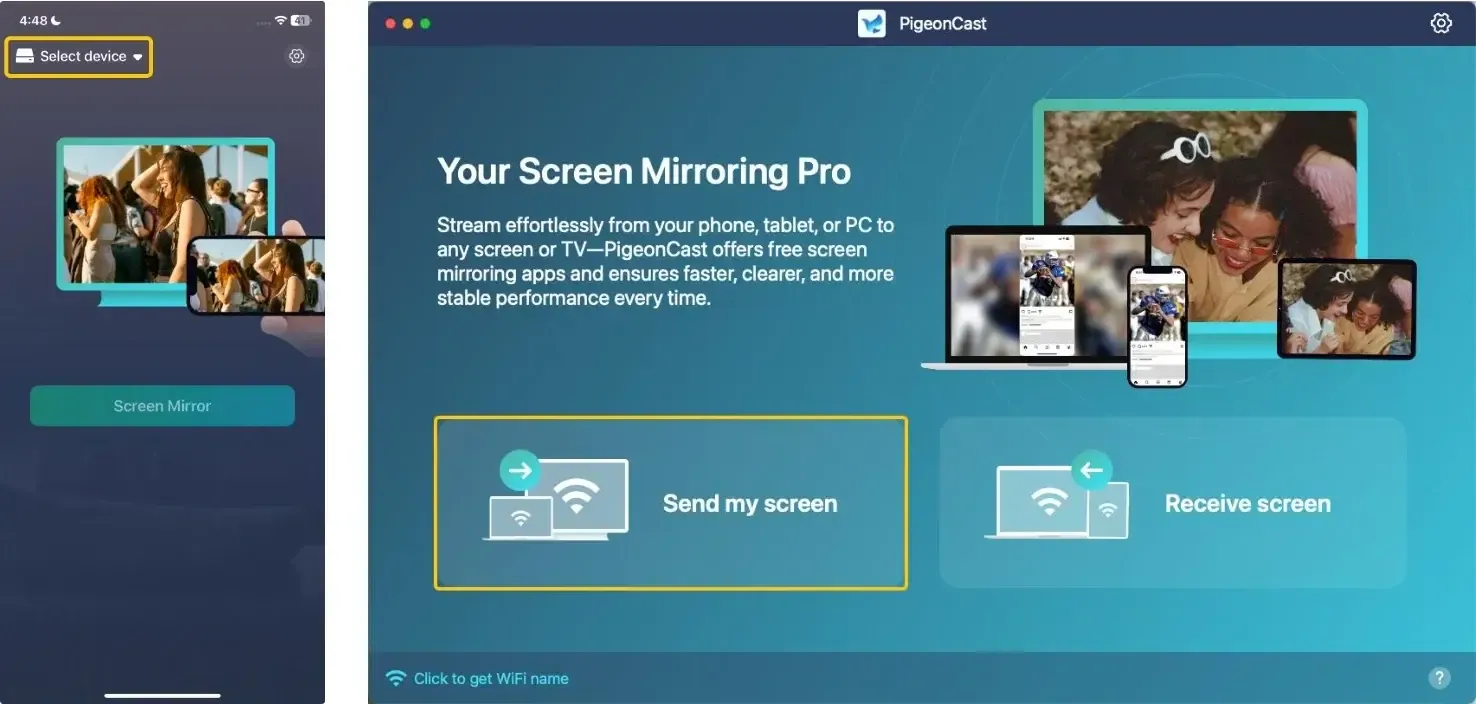
Step 3. Launch the app, tap Select device or Send my screen to choose your TV from the available list.
Step 4. Enter the onscreen PIN code to finish the connection.
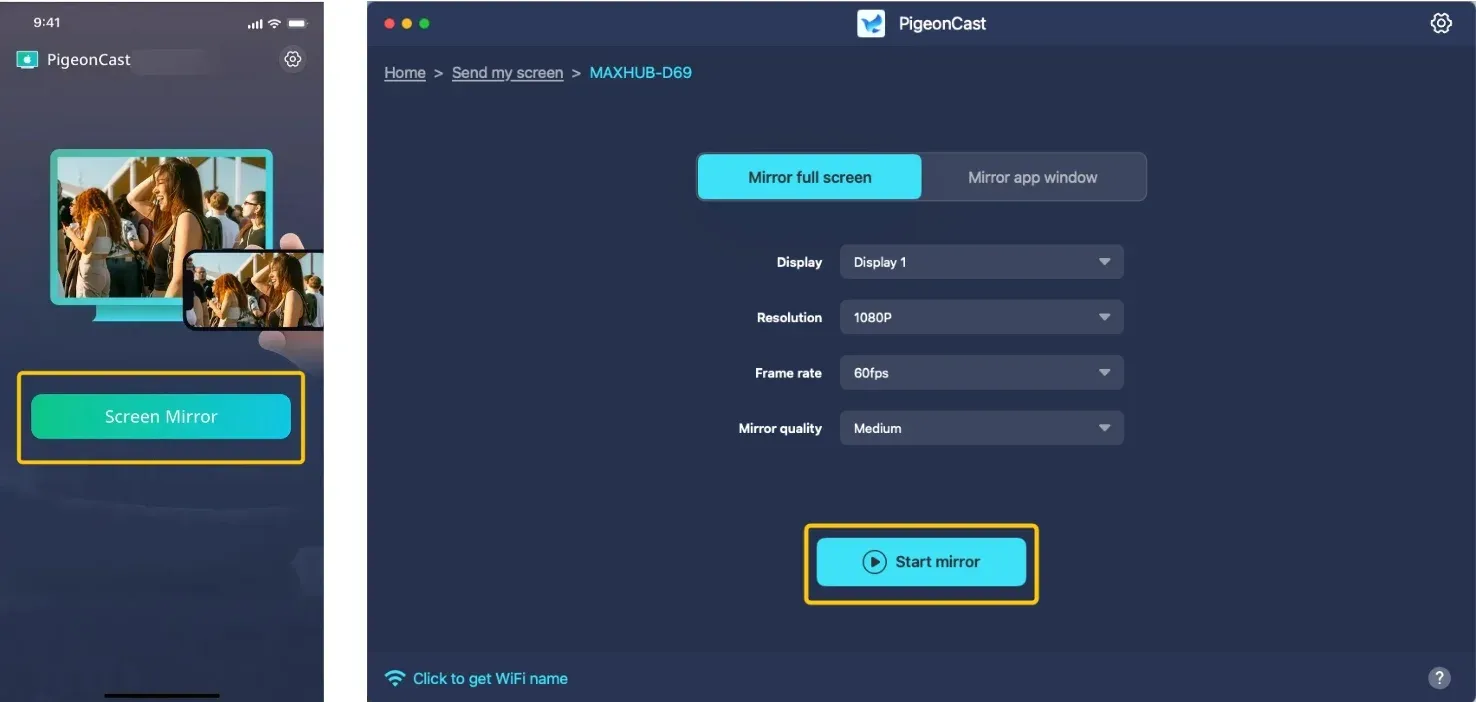
Step 5. Tap Screen Mirror or Start mirror to start your mirroring activities with Vimeo. If you use a laptop, you can choose whether to cast the full screen or only a single app window.
To Sum Up
How to cast a Vimeo video to TV? Finding the right way to watch Vimeo on TV simply requires matching your specific device with a compatible streaming path. Whether you choose native tools like AirPlay and Google Cast or a more versatile receiver like PigeonCast, you can now bypass technical hurdles and enjoy high quality video on any smart screen.
How to Watch Vimeo on TV FAQ
How to cast Vimeo to Samsung TV?
These are the most reliable and straightforward ways to watch Vimeo on a Samsung TV. To cast Vimeo to a Samsung TV, you can use one of these simple methods:
-
Use Chromecast (if supported):
-
Open Vimeo on your phone or computer.
-
Play the video you want, and click the Cast icon.
-
Select your Samsung TV (or Chromecast device connected to it).
-
-
Use Screen Mirroring (Smart View/AirPlay):
-
On your phone, enable Screen Mirroring (Android: Smart View, iPhone: AirPlay) and select your Samsung TV from the list.
-
Play the Vimeo video, and your screen will mirror to the TV.
-
-
Use a Browser on Smart TV:
-
Open the Internet browser on your Samsung TV and go to vimeo.com.
-
Log in and play your video directly.
-
-
Use HDMI (wired option):
-
Connect your laptop or phone to the TV with an HDMI cable.
-
Play the Vimeo video on your device, and it will display on the TV.
-
How to cast Vimeo to LG TV?
To cast Vimeo to an LG TV, you can use the following methods:
-
Screen Mirroring (AirPlay or Screen Share):
-
iPhone/iPad: Open Control Center > Screen Mirroring, select your LG TV (AirPlay-supported models).
-
Android: Use Screen Share/Smart View, choose your LG TV.
-
Play the Vimeo video on your device, then it will appear on the TV.
-
-
Use a Web Browser on LG TV:
-
Open the Web Browser app on your LG TV and go to vimeo.com.
-
Log in and play your video directly.
-
-
Use Chromecast (if available):
- If you have a Chromecast connected: Open Vimeo on your phone or computer. Tap the Cast icon and select your TV/Chromecast device.
-
HDMI Connection (wired):
- Connect your laptop or phone to the TV using an HDMI cable, and play the Vimeo video on your device to display it on the TV.
Why won't Vimeo cast to TV?
Vimeo may not cast to your TV for a few common reasons:
-
Vimeo does not support native casting on all devices
-
Incompatible TV or casting technology (Chromecast, AirPlay, etc.)
-
Devices not connected to the same Wi-Fi network
-
App or browser limitations
-
Outdated software or firmware
-
Weak or unstable internet connection
-
Video privacy, DRM, or playback restrictions
How to cast Vimeo to Fire TV?
To cast Vimeo on Fire TV, you can use these methods:
-
Screen Mirroring (Wireless)
-
Use Silk Browser on Fire TV
-
Use a casting app, such as PigeonCast
-
HDMI connection (wired)
How to solve Vimeo cast to TV not working?
-
Check Wi-Fi connection
-
Restart devices
-
Update apps and software
-
Use a supported method
-
Check device compatibility
-
Disable VPNs or restrictions
-
Test another video
-
Improve connection quality
How to Vimeo on Roku?
Since Roku does not have an official Vimeo app, these methods are the most reliable ways to watch Vimeo content. To watch Vimeo on Roku, you can use these methods:
-
Screen Mirroring
-
HDMI Connection (wired)
Clara Rossi is an experienced technology editor and a seasoned expert in screen mirroring and casting technologies. With a keen eye for detail and a deep understanding of how to seamlessly connect devices, Clara excels at optimizing user experiences for effortless sharing and streaming. Whether you're seeking quick fixes or advanced tips, her expertise and responsiveness ensure that every query is met with a well-informed and efficient solution.