
Since iPhones and PCs run on different operating systems, you can usually connect them directly using a USB cable. However, if you are facing the issue of your iPhone not showing up on PC, do not worry. There are several ways to fix it. In this guide, we will walk you through effective methods to reconnect your iPhone to your Windows computer.
How to Solve PC Not Recognizing iPhone
If your iPhone is not showing up on PC, it can be frustrating, especially when you need to transfer photos, videos, or back up your device. Fortunately, several practical solutions can help your Windows computer recognize your iPhone again. In the following section, we will guide you step by step on how to solve the issue of your Windows not recognizing iPhone.
Fix 1. Check Basic Connections
Before trying any software solutions, it is important to make sure the physical connection between your iPhone and PC is working properly. Start with these simple steps:
- Use the original USB cable: Third-party or damaged cables may charge your iPhone, but fail to transfer data.
- Try a different USB port: Some ports may not work properly or provide enough power. Avoid using USB hubs and connect your iPhone directly to the PC.
- Restart your devices: Turning your iPhone and PC off and on again can often resolve connectivity issues quickly.
Fix 2. Allow Your iPhone to Trust the Computer
How to fix iPhone not connecting to PC? Once you have confirmed that your cable and USB connection are working properly, the next step is to make sure your iPhone trusts your PC. Your iPhone will not appear on the computer unless you grant this permission.
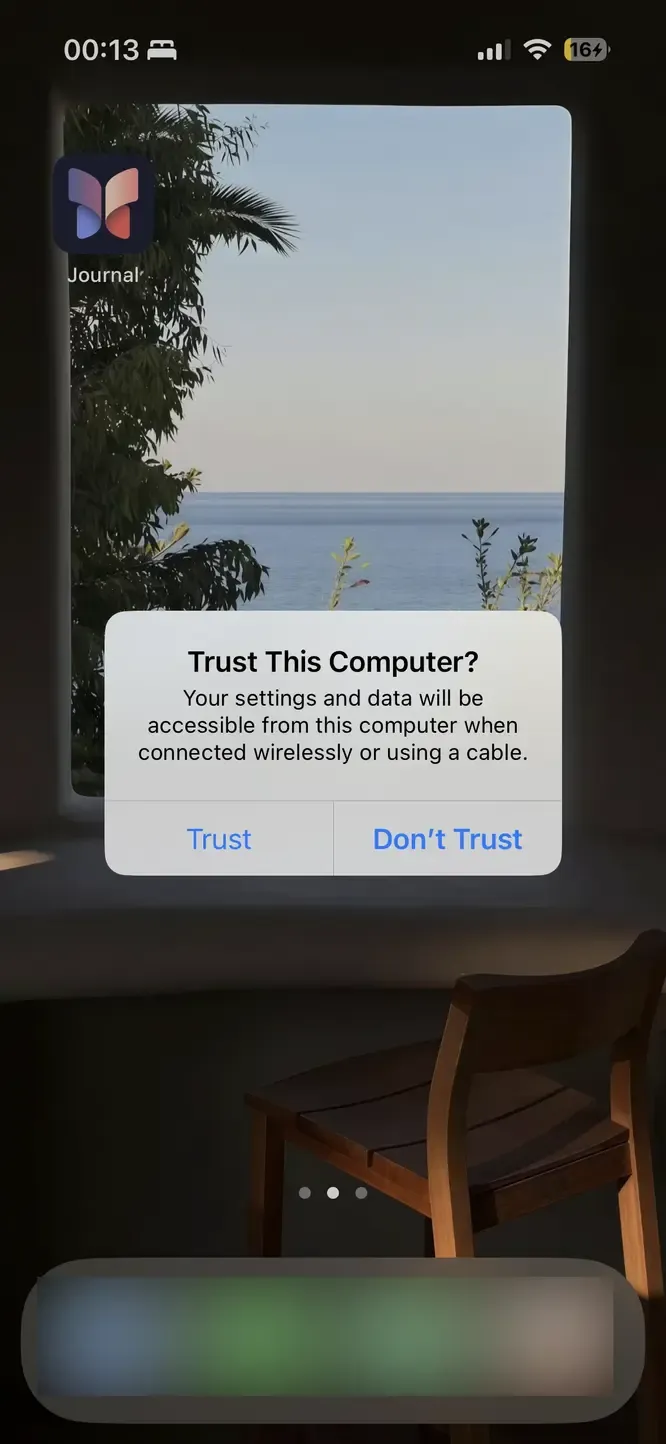
Step 1. Connect your iPhone to the PC using a USB cable.
Step 2. Unlock your iPhone and look for the Trust This Computer? prompt.
Step 3. Tap Trust and enter your passcode to confirm.
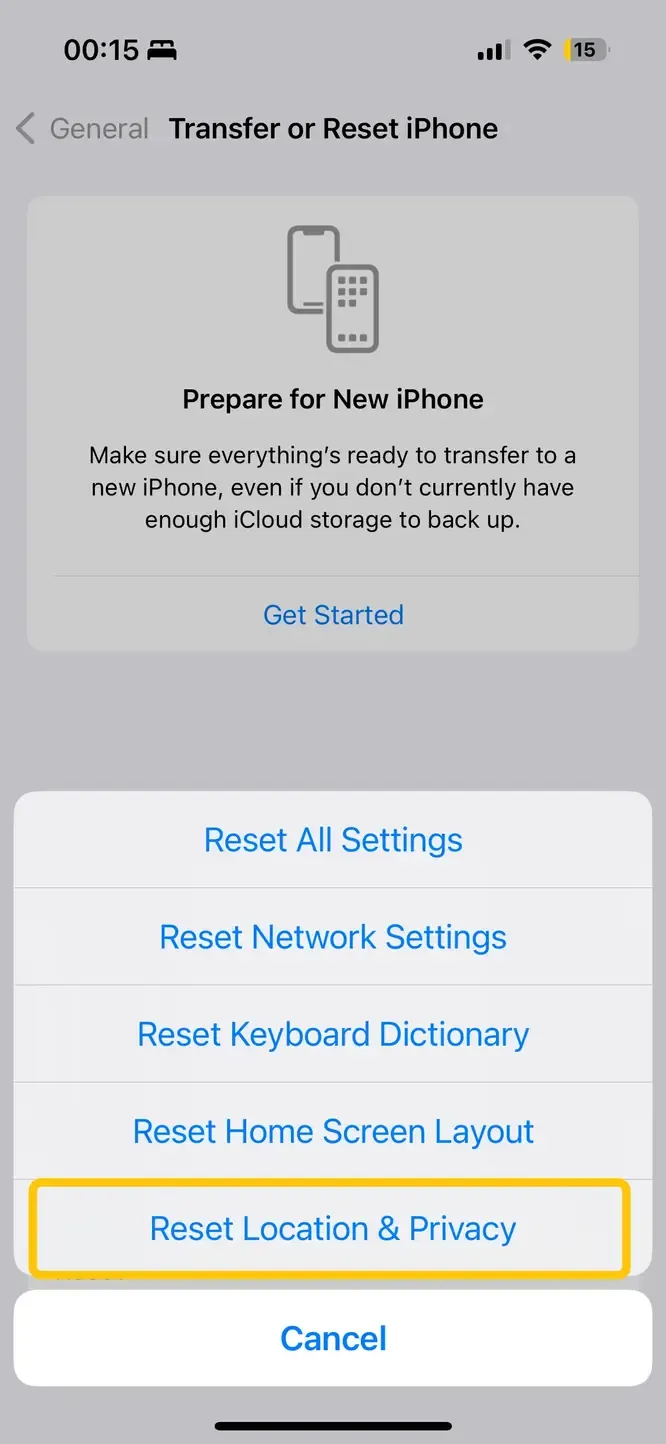
Tip: If the prompt does not appear, try unplugging and reconnecting your iPhone. You can also reset the trust settings by going to Settings > General > Transfer or Reset iPhone > Reset > Reset Location & Privacy.
Fix 3. Update iTunes (If Installed)
How to deal with iPhone not showing up on computer Windows 10? If your PC still does not recognize your iPhone after checking the connection and trust settings, the next step is to ensure iTunes is installed and up to date. iTunes provides the essential drivers that help Windows detect your iPhone.
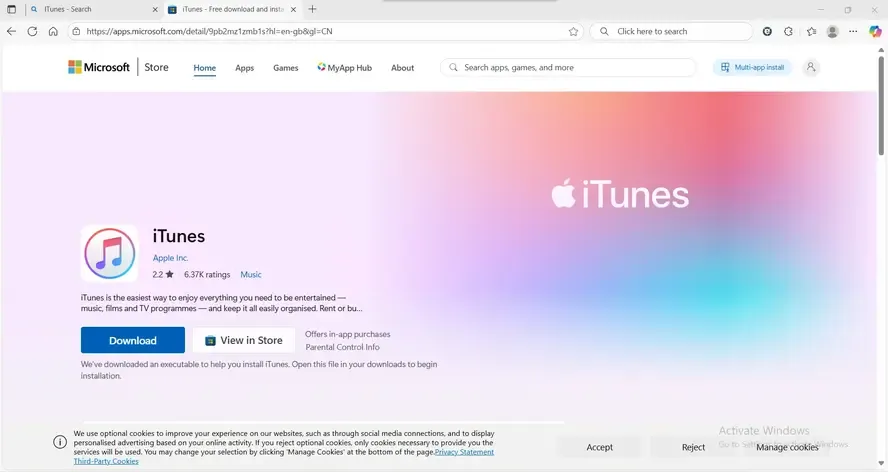
Step 1. Open iTunes and go to Help > Check for Updates.
Step 2. Install the latest version if an update is available.
Step 3. Restart your PC after updating to make sure the changes take effect.
Fix 4. Update Windows
After making sure iTunes is installed and up to date, the next step is to check your Windows system. If your iPhone is not showing up on computer Windows 10, running an outdated version of Windows can often be the cause. Keeping your system updated ensures compatibility and helps your PC detect your iPhone correctly.
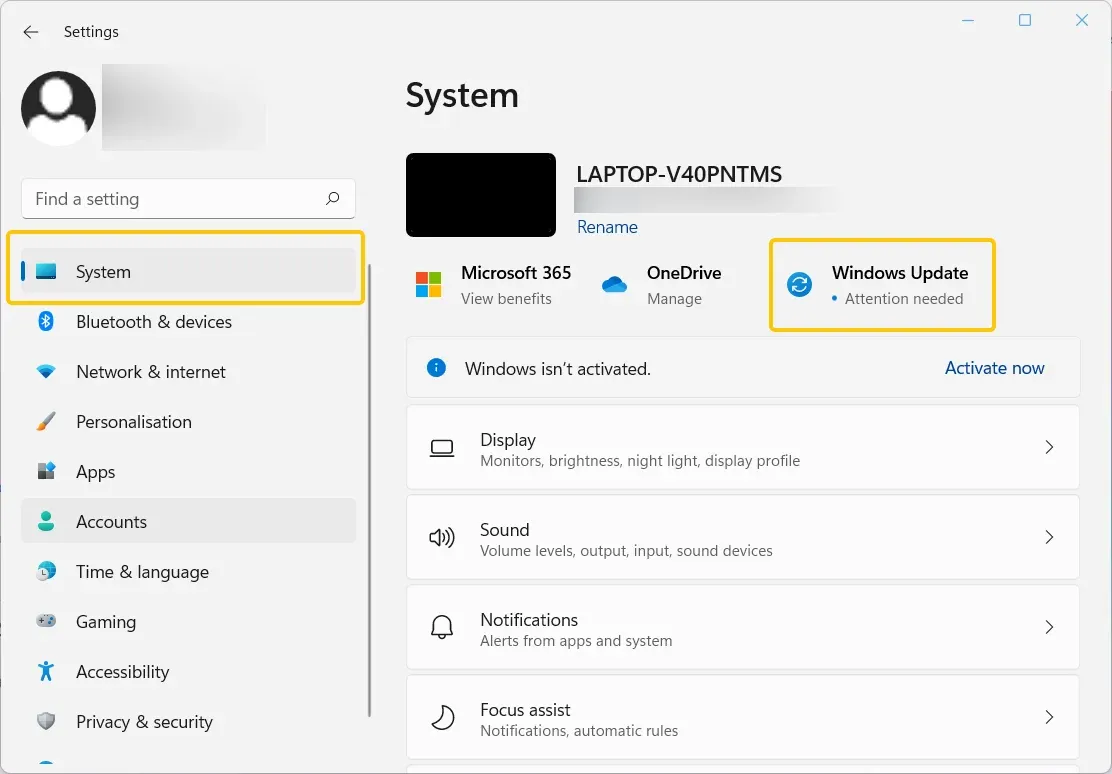
Step 1. Go to Settings > System > Windows Update.
Step 2. Click Check for updates and install any available updates.
Step 3. Restart your PC after updating to apply the changes.
Fix 5. Check Apple Mobile Device USB Driver
Even if iTunes is installed and your Windows system is up to date, your iPhone may still not appear in iTunes on Windows 11. Often, the culprit is the Apple Mobile Device USB Driver, which acts as the vital link between your iPhone and PC. Ensuring this driver is properly installed and functioning is key to solving the "iPhone not showing up in iTunes Windows 11" issue.
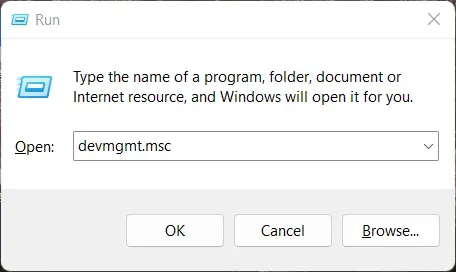
Step 1. Press Windows + R, type devmgmt.msc, and hit Enter to open Device Manager.
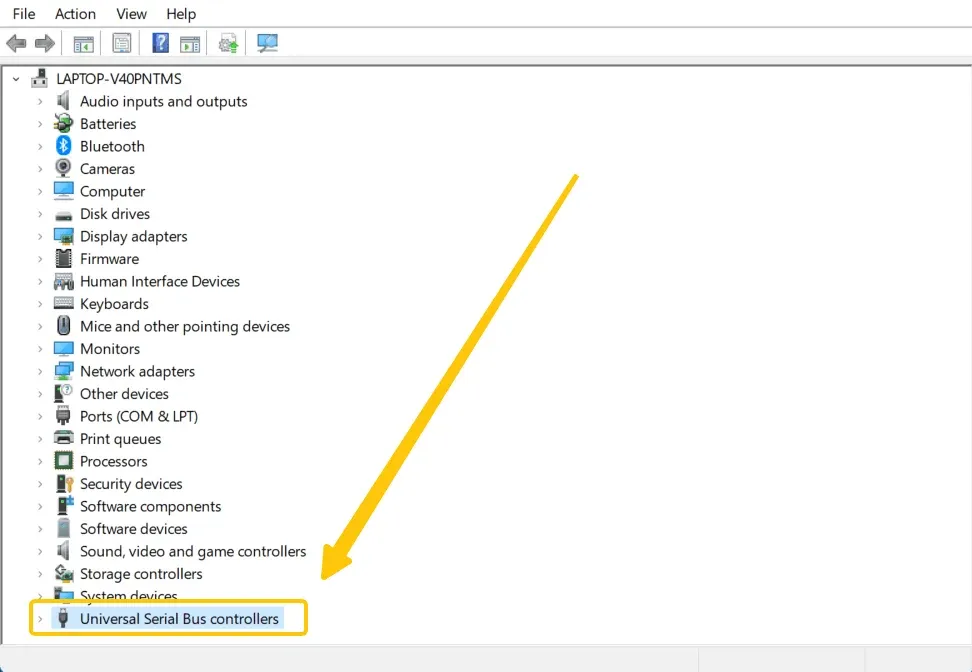
Step 2. Expand Universal Serial Bus controllers or Portable Devices.
Step 3. Look for Apple Mobile Device USB Driver.
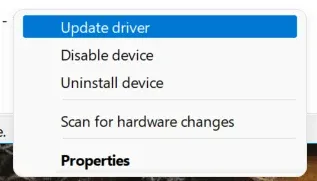
Step 4. If it is missing, right-click and select Update driver > Search automatically.
Step 5. If the driver shows an error, right-click and Uninstall, then reconnect your iPhone to reinstall it.
Fix 6. Restart Apple Mobile Device Service (AMDS)
If your computer not recognizing iPhone persistently after checking drivers, the problem could be with the Apple Mobile Device Service (AMDS). This background service manages the communication between your iPhone and Windows, and restarting it can often restore the PC doesn't recognize iPhone connection issues.
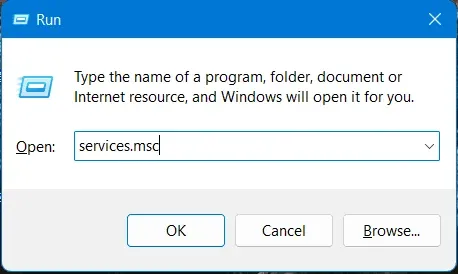
Step 1. Press Windows + R, type services.msc, and hit Enter.
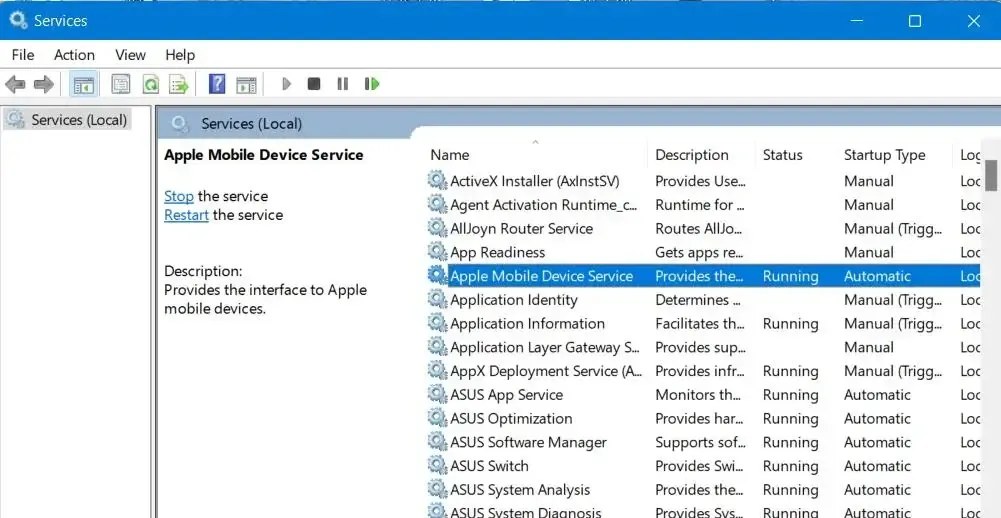
Step 2. Find Apple Mobile Device Service in the list.
Step 3. Right-click and select Restart.
Step 4. Set the Startup type to Automatic to ensure the service starts with Windows. Reconnect your iPhone.
Fix 7. Try Another PC or Device
If none of the previous steps have worked and Windows doesn't recognize iPhone, it is time to check whether the problem is related to your computer or the iPhone itself. Testing your device on another PC or trying a different iPhone on your computer can help pinpoint where the issue lies.
- Connect your iPhone to another PC: If it works, the issue is likely with your computer's software or drivers.
- Connect a different iPhone to your PC: If the second iPhone also doesn't work, the problem may be with your USB ports, cable, or other hardware.
Fix 8. Reset iPhone Settings (Optional)
If your PC still doesn't recognize your iPhone after trying all the previous steps, resetting your iPhone settings may help. This can resolve underlying network, privacy, or PC won't recognize iPhone issues that might prevent your device from connecting properly.
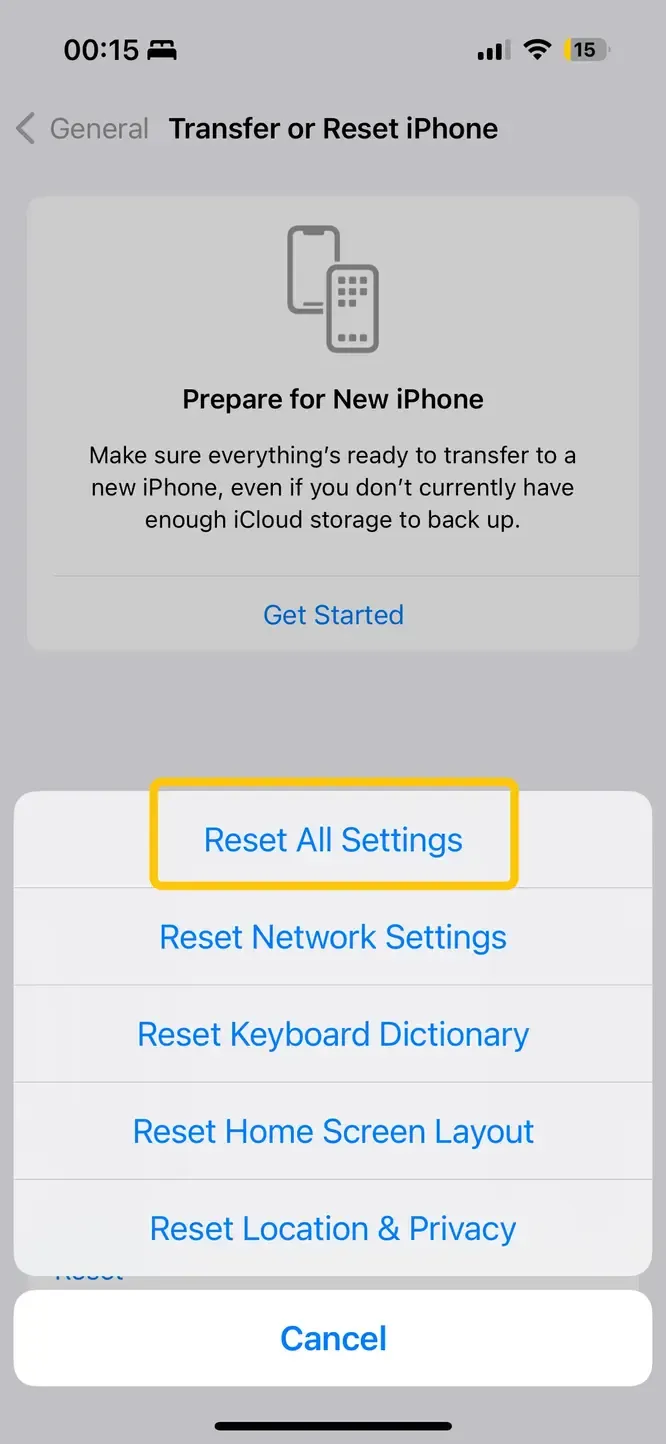
Step 1. Go to Settings > General > Transfer or Reset iPhone > Reset > Reset All Settings.
Step 2. Confirm the reset.
Tip: This process does not erase your data but will reset network, privacy, and connection settings, which can often fix problems preventing your iPhone from connecting to your PC.
Fix 9. Contact Apple Support
When your iPhone not recognized on PC issues still exist, the problem could be hardware-related. Contacting Apple Support or visiting a local Apple Store is the safest way to have the issue diagnosed and repaired.
Bonus: Connect Your iPhone to PC with PigeonCast
Alternatively, you might consider changing your approach by using a screen mirroring app to display your iPhone on a PC and easily share content. Apps like PigeonCast let you mirror your iPhone or iPad across different platforms without cables, giving you a larger, more immersive viewing experience.


PigeonCast Screen Mirroring

Official Download



Step 1. Ensure your iPhone and PC are connected to the same wireless network.
Step 2. Install PigeonCast on both your iPhone and PC.
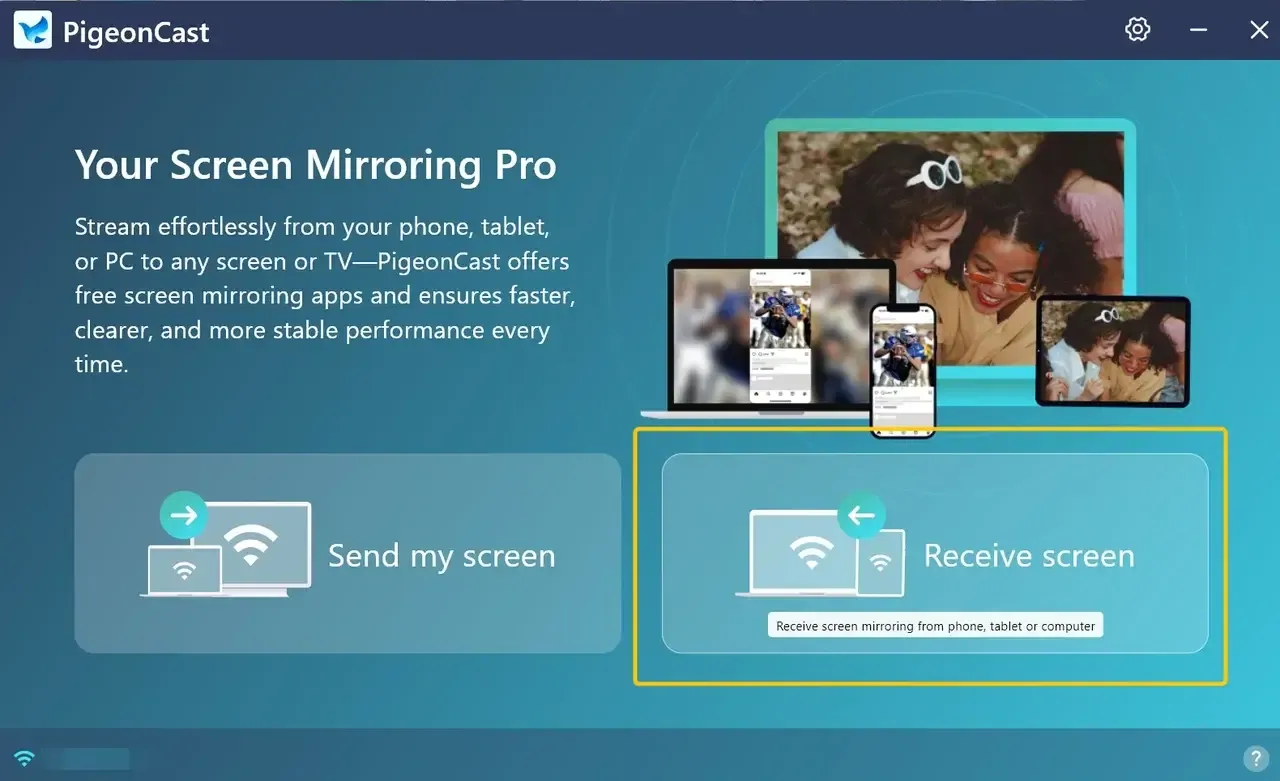
Step 3. Open Pigeoncast on Windows and click the Receive screen option, then your Windows is ready to receive content from your Apple device.
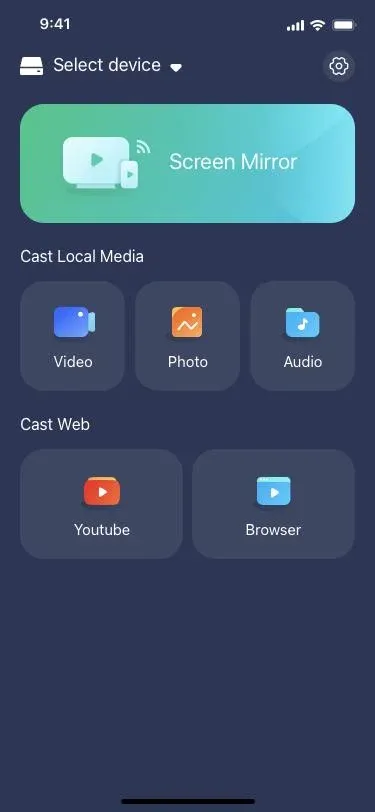
Step 4. Launch the PigeonCast app on your iPhone, tap Select device to choose your PC from the available list.
Step 5. Enter the onscreen PIN code to finish the pairing process.
Step 6. Once connected, you can see your iPhone's screen on your PC Screen.
To Sum Up
iPhone won't show up on PC? This is a common issue that can happen for a variety of reasons, from simple connection problems to software or hardware issues. Fortunately, there are multiple ways to get your iPhone recognized by your Windows computer. As an alternative, using a screen mirroring app like PigeonCast allows you to display your iPhone on your PC without cables, providing a convenient and immersive way to share content.
iPhone Not Showing Up on PC FAQ
Q: Why is my iPhone not showing up on my PC?
Here's a clear, professional list of reasons why your iPhone might not show up on your PC:
- Faulty or incompatible USB cable
- USB port issues
- iPhone not trusting the PC
- Outdated iTunes or Windows
- Apple Mobile Device USB driver problems
- Apple Mobile Device Service (AMDS) not running
- Hardware issues
- Network or privacy settings on iPhone
Q: Can I fix the "iPhone not showing up on PC" issue without iTunes?
You can fix your iPhone not showing up on a PC without iTunes by making sure the cable and USB port work, unlocking your iPhone, tapping "Trust This Computer", and checking that the Apple Mobile Device USB driver is installed and running. Once that's done, it should show up in File Explorer.
Q: Is it possible to mirror my iPhone on a PC without cables?
Yes! You can mirror your iPhone on a PC without cables using wireless solutions. Popular methods include:
- AirPlay to a PC app: Apps like PigeonCast, LetsView, ApowerMirror, or 5KPlayer let your PC act as an AirPlay receiver. Just connect both devices to the same Wi-Fi and start mirroring.
- Built-in features: On Windows 10/11, the "Connect" app can sometimes receive mirrored content from AirPlay apps if supported, though it's less reliable than dedicated apps.
Q: How do I get my iPhone to pop up on my computer?
To get your iPhone screen to appear on your computer, you can use screen mirroring tools. On a Mac, use AirPlay by selecting your Mac as the AirPlay receiver. On Windows or other devices, you can use third-party apps like PigeonCast, Reflector, ApowerMirror, or LetsView. Make sure your iPhone and computer are on the same Wi-Fi network for a smooth connection.
Q: How do I make my iPhone pictures visible on my computer?
To view your iPhone pictures on your computer, you can connect your iPhone via a USB cable and use File Explorer (Windows) or Photos/Finder (Mac) to access your photos. You can also enable iCloud Photos on your iPhone and computer to sync your pictures wirelessly across devices.
Clara Rossi is an experienced technology editor and a seasoned expert in screen mirroring and casting technologies. With a keen eye for detail and a deep understanding of how to seamlessly connect devices, Clara excels at optimizing user experiences for effortless sharing and streaming. Whether you're seeking quick fixes or advanced tips, her expertise and responsiveness ensure that every query is met with a well-informed and efficient solution.