
Want to mirror your Mac to an iPad instead of squeezing another monitor onto your desk? If you already use both Apple devices, Sidecar is usually the easiest way to do it.
Sidecar can either copy your Mac screen onto the iPad or turn the iPad into extra desktop space. That makes it useful for everything from showing someone a document beside you to keeping notes, references, or controls on a second screen while you work.
Below, we'll look at how to set it up wirelessly or over USB, how mirroring differs from extending, and what to check when your iPad refuses to appear.
What You Need to Mirror Mac to iPad
Before changing Wi-Fi settings or reconnecting cables several times, make sure your Mac and iPad can actually use Sidecar together.
Is Your Mac Compatible With Your iPad?
Sidecar requires a supported Mac running macOS Catalina 10.15 or later and a supported iPad running iPadOS 13 or later.
Compatible Macs include:
- MacBook Air introduced in 2018 or later
- iMac (Retina 5K, 27-inch, Late 2015)
- Other Mac models introduced in 2016 or later
Compatible iPads include:
- iPad Pro: all models
- iPad: 6th generation or later
- iPad mini: 5th generation or later
- iPad Air: 3rd generation or later
If you're unsure which model you have, check:
- Mac: Apple menu > About This Mac
- iPad: Settings > General > About
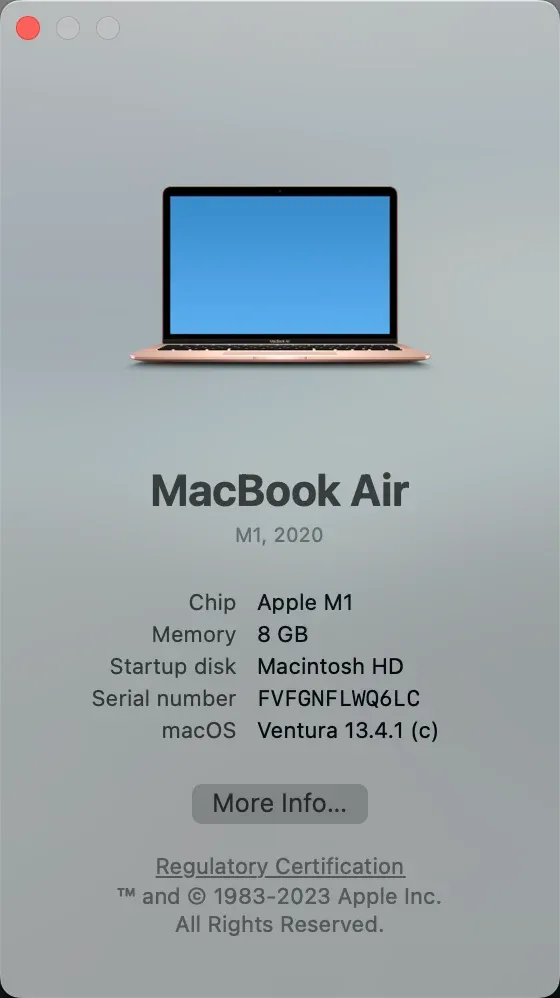
Compare the model and release year with the list above before troubleshooting the connection. If the hardware itself is not supported, updating the software or switching to a USB connection will not enable Sidecar.
What Settings Should You Check First?
For a wireless Sidecar connection, both devices need to be set up as part of the same Apple environment:
- Your Mac and iPad are signed in to the same Apple Account.
- Two-factor authentication is enabled for the account.
- Wi-Fi and Bluetooth are turned on.
- Handoff is enabled on both devices.
- The Mac and iPad are reasonably close to each other.
- Personal Hotspot is not active on the iPad.
- Internet Sharing is not enabled on the Mac.
You can find Handoff on a Mac under System Settings > General > AirDrop & Continuity. Depending on your macOS version, the wording may appear slightly differently. On iPad, go to Settings > General > AirPlay & Continuity and make sure Handoff is enabled there as well.
The important part is that both devices can discover each other. If they use the same Apple Account but one of these continuity features is disabled, your iPad may simply never appear as an available display.
How to Mirror Mac to iPad With Sidecar
Once your Mac and iPad meet the Sidecar requirements, you can connect them either wirelessly or with a USB cable.
Mirror Mac to iPad Wirelessly
Wireless Sidecar is the easiest option if you want a cable-free setup.
Make sure the iPad is unlocked and nearby, then:
Step 1. On your Mac, open System Settings > Displays.
Step 2. Click Add Display or the plus button.
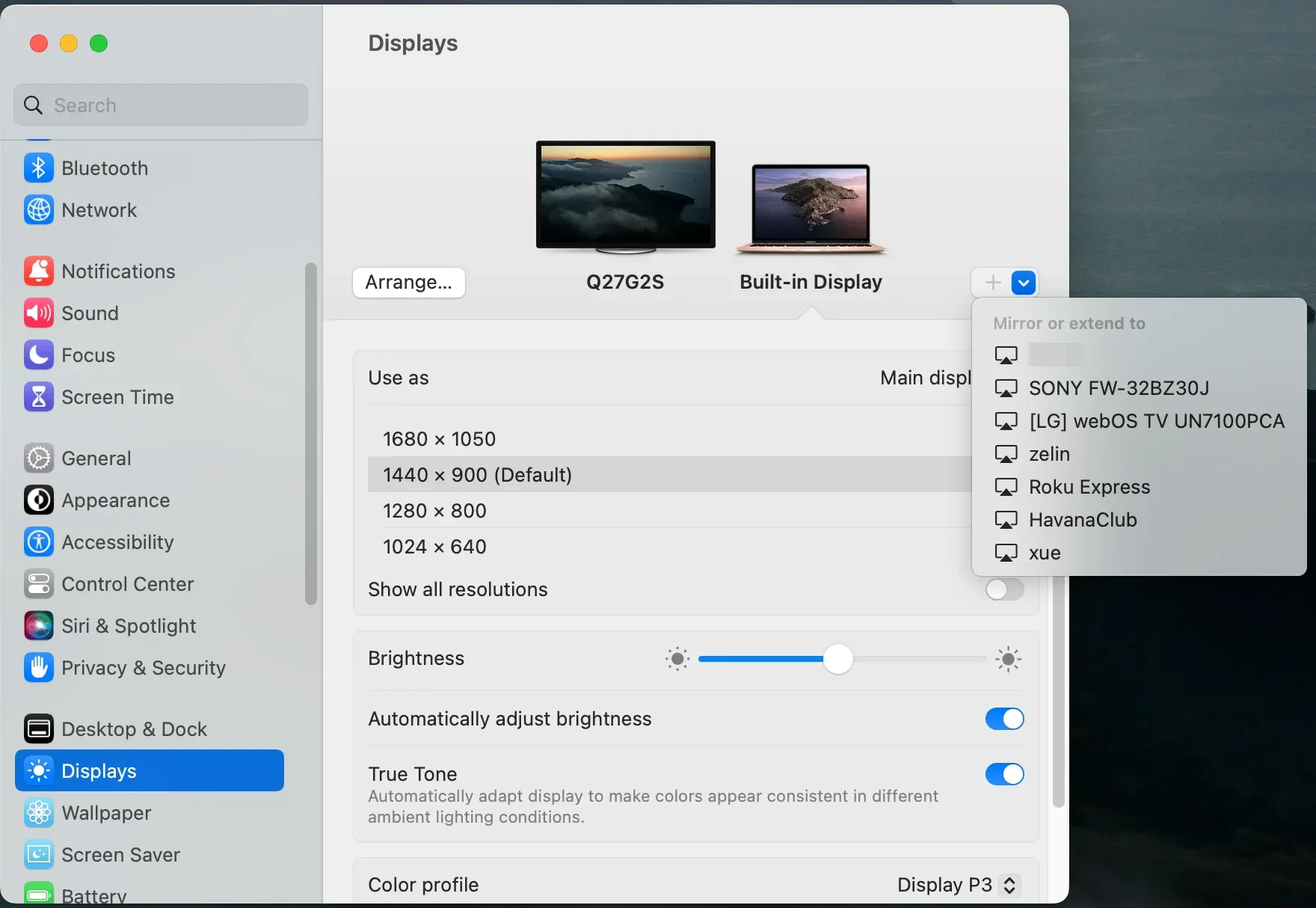
Step 3. Select your iPad from the list.
Step 4. Once connected, select the iPad and open Use as.
Step 5. Choose the option that mirrors your Mac display.
Your Mac desktop should now appear on the iPad.
You can also connect from Control Center > Screen Mirroring and select your iPad. This is usually faster once you've already used Sidecar before.
Mirror Mac to iPad With USB
If you prefer a wired connection, connect the iPad to your Mac with a USB cable that supports data transfer.
How to mirror mac to ipad with cable? The first time you connect them, approve any Allow or Trust This Computer prompts that appear.
Then go to System Settings > Displays, select the iPad, and choose the mirroring option under Use as.
USB is useful for longer sessions because it keeps the iPad powered and can be more stable than wireless Sidecar.
If the iPad charges but does not appear on your Mac, try another cable or USB port. Some cables provide power without supporting data transfer.
Mirror or Extend Your Mac Display?
After Sidecar connects, you can decide whether the iPad should mirror your Mac or work as a separate display.
Go to System Settings > Displays, select your iPad, and check Use as.
Choose mirroring when you want both screens to show the same content. This is useful for showing someone a document, presentation, or design while you continue working from the Mac.
Choose extended display when you want more workspace. Instead of showing the same content on both screens, you can use iPad as a second display for notes, reference material, previews, or other windows you don't need on your main Mac display.
If you choose extended display, open Arrange and position the iPad to match where it sits physically beside your Mac. For example, if the iPad is on the right side of your Mac, place it on the right in the display layout.
You can then drag windows across the edge of your Mac screen and onto the iPad.
You'll still mainly control Mac apps with your Mac's keyboard, mouse, or trackpad. Sidecar also supports some gestures, Apple Pencil interactions, and optional sidebar controls on the iPad.
When you're finished, open Control Center > Screen Mirroring on your Mac and deselect the iPad.
Why Can't You Mirror Mac to iPad?
When Sidecar does not work as expected, start with the symptom rather than changing several settings at once.
If the iPad does not appear at all, the problem is usually related to compatibility, account settings, or device discovery. If it connects but keeps dropping out, the issue is more likely related to connection stability.
iPad Doesn't Appear in Sidecar
Start with the basics:
- Confirm that both devices support Sidecar.
- Make sure they are signed in to the same Apple Account.
- Check that Wi-Fi and Bluetooth are enabled.
- Confirm that Handoff is turned on.
- Keep the Mac and iPad close together.
- Make sure Personal Hotspot on the iPad and Internet Sharing on the Mac are turned off.
Also check the iPad itself. Make sure it is awake, unlocked, and not waiting for a connection or approval prompt.
If the iPad still does not appear, try connecting it to the Mac over USB.
If Sidecar works over USB but not wirelessly, the devices are compatible and can communicate. You can then focus on Wi-Fi, Bluetooth, Handoff, or nearby wireless interference rather than the hardware itself.
Sidecar Keeps Disconnecting or Lagging
If Sidecar connects but feels unstable, you may notice delayed pointer movement, choppy screen updates, or repeated disconnections.
First, move the Mac and iPad closer together and test the connection again.
It can also help to reduce interference around your desk. USB hubs, external drives, and other nearby wireless devices can sometimes affect connection stability.
If the problem continues, try Sidecar over USB. A stable wired connection usually points to a wireless issue. If Sidecar remains slow or unreliable over both Wi-Fi and USB, restart both devices and check for available macOS and iPadOS updates before testing again.
USB Connection Not Recognized
If Sidecar does not work over USB, first check whether the iPad appears in Finder on your Mac. If Finder cannot see the iPad either, the Mac is not recognizing the device properly yet.
Try another USB port, a different cable that supports data transfer, unlocking the iPad before reconnecting it, checking for an Allow prompt on the Mac, and checking for a Trust This Computer prompt on the iPad.
A charging iPad does not necessarily mean the cable supports data transfer.
If you previously dismissed or rejected a trust prompt, disconnect the iPad and reconnect it. If the prompt still does not appear correctly, restart both devices.
Once the iPad shows up normally in Finder, return to System Settings > Displays and try connecting with Sidecar again.
When Sidecar Isn't the Right Screen Mirroring Option
Sidecar is built specifically for using an iPad as a display for a Mac. If you want to mirror to a different type of screen, you'll need another option.
For example, you may want to show your iPad on a TV, mirror your Mac to a TV, or share your Mac screen with a Windows PC. These are situations where PigeonCast can be more useful because it supports screen mirroring across different device types rather than only Mac and iPad.
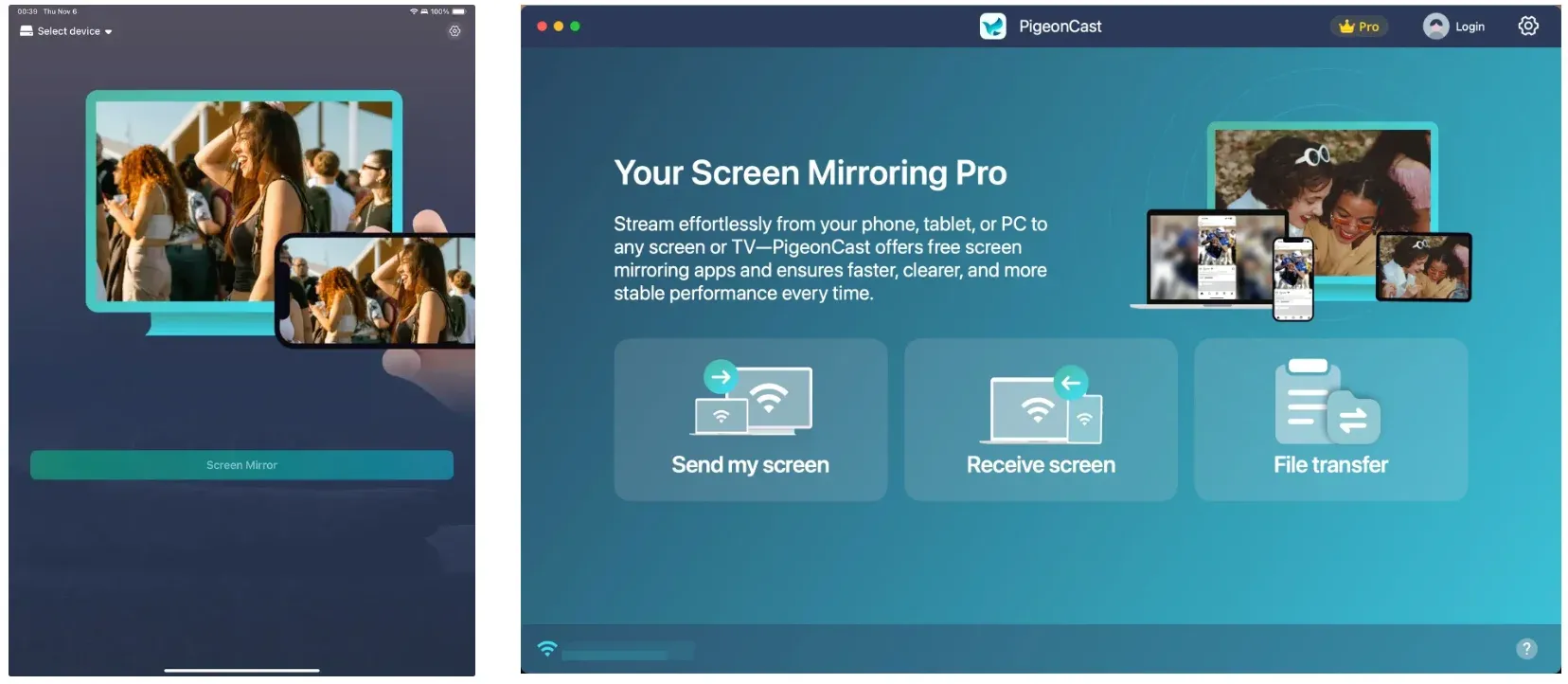
If you're sharing from an iPad, PigeonCast for iOS can mirror the screen to supported TVs and other compatible receivers.
If you're sharing from a Mac, PigeonCast for Mac can be used to mirror your desktop to supported TVs or a Windows PC without relying on Sidecar.


Overall Rating:


PigeonCast does not currently support Mac-to-iPad mirroring, so Sidecar is still the better choice for the setup covered in this guide. But when the receiving screen is a TV or computer instead of an iPad, PigeonCast gives you a broader range of device combinations.
Conclusion
Using an iPad as a Mac display is most useful when you stop thinking of Sidecar as a novelty and give the extra screen a specific job.
Sometimes that job is simple mirroring: someone beside you needs to see exactly what you're seeing. In other cases, the iPad works better as quiet extra space for the windows that don't need to stay in front of you all day.
The setup itself only takes a few steps. The bigger difference comes from choosing the right display mode and connection for the way you actually work.
If wireless Sidecar disappears into the background and simply works, use it. If a cable gives you a steadier setup at your desk, there's little reason to avoid it. A useful second screen is the one that reduces friction rather than adding another device to manage.
Mirror Mac to iPad FAQs
Can You Mirror Mac to iPad Without Sidecar?
Yes, but you need a third-party solution that specifically supports using an iPad as the receiver for a Mac screen. Not every screen mirroring app supports this direction, so check whether it can receive a Mac display on iPad and whether it offers mirroring, extended display, or both.
Can You Use AirPlay to Mirror Mac to iPad?
Not through Apple's normal AirPlay setup. An iPad is not designed to act as a standard AirPlay receiver for a Mac, so for Mac-to-iPad display sharing within Apple's ecosystem, Sidecar is the feature designed for the job.
Does Universal Control Mirror Your Mac Screen?
No. Universal Control lets one keyboard and pointing device work across nearby Macs and iPads, but each device still shows its own apps and desktop. Sidecar is the feature that actually turns the iPad into part of your Mac display setup.
Can You Use Different Apple Accounts With Sidecar?
No. Sidecar requires the Mac and iPad to be signed in to the same Apple Account, so borrowing someone else's iPad will not work unless both devices use the same account.
Can You Use iPad Apps While Sidecar Is Connected?
Yes. You can switch from Sidecar to an iPad app when needed, and the Sidecar session will pause temporarily. When you return to Sidecar, you can continue using the iPad as your Mac display without setting everything up again.
Can You Mirror Mac to More Than One iPad?
No. Sidecar supports one iPad at a time. Your Mac can still use other external displays, but it cannot run Sidecar with multiple iPads simultaneously.
Can You Mirror MacBook to iPhone?
Yes, but not with Sidecar or iPhone Mirroring. To mirror a MacBook screen to an iPhone, you need a third-party app that supports using the iPhone as a receiving display. Apple's iPhone Mirroring works in the opposite direction, showing and controlling your iPhone from a Mac.
Mia Clarke is a technology editor specializing in screen mirroring and casting solutions across multiple platforms. Mia provides clear, practical guides and in-depth insights to help users seamlessly connect their devices. Passionate about enhancing digital experiences, Mia is dedicated to keeping readers updated on the latest trends and tools in cross-platform screen sharing. Whether you’re looking to mirror your smartphone, laptop, or smart TV, Mia’s content delivers reliable, user-friendly advice to simplify your tech setup.