
Chromecast itself is a receiver; the device that started the cast (phone, tablet, or browser) is where you pause Chromecast or change playback. This guide explains how to control Chromecast from multiple sources, introduces third-party casting tools for simpler management, and lists practical fixes when pause or stop commands don't work.
How to Pause Chromecast
You normally pause playback from the app or tab that started casting. Below are the common and alternative ways to pause the Chromecast or stop a cast session.
Pause Chromecast on Phone or Tablet
Most Chromecast-enabled apps include play and pause buttons inside their casting interface:
Step 1. Open the app that's casting (YouTube, Spotify, Netflix, etc.).
Step 2. Tap the Cast icon to view the connected Chromecast.
Step 3. Tap the pause button in the media player.
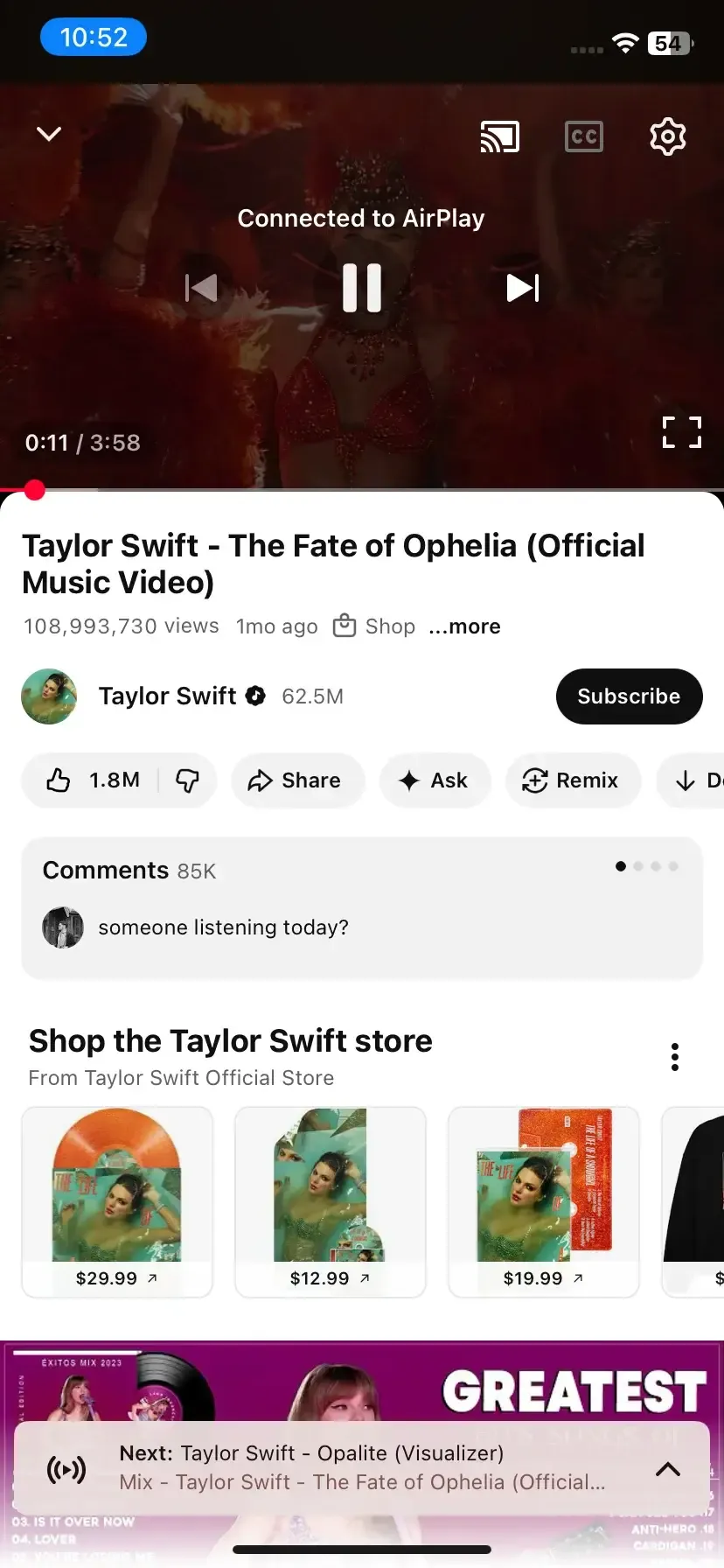 Step 4. Resume by pressing the play button in the same app.
Pause Chromecast on Computer
Google Chrome allows you to cast a tab or an entire screen to a Chromecast-enabled TV or device, and you can control Chromecast directly from the browser:
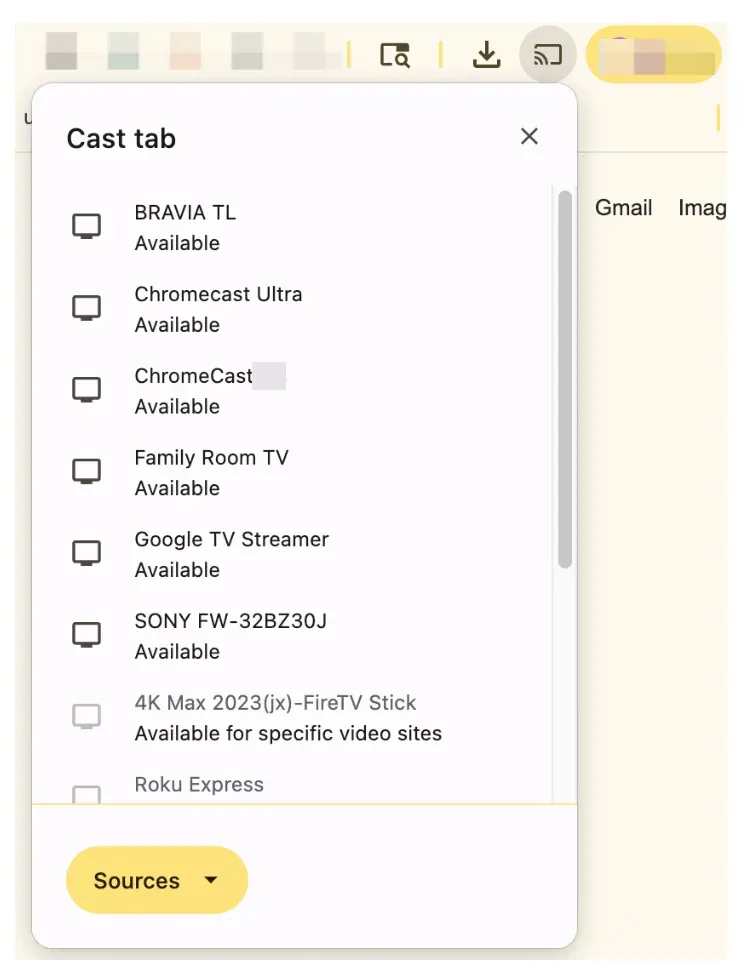
Step 1. In Chrome, click the Cast icon in the toolbar.
Step 2. Pause playback in the media player or tab.
Step 3. To end the session, choose Stop casting from the Cast menu.
If you close the tab or browser window, Chromecast may keep streaming independently, so always pause or stop before closing.
Pause Chromecast via Your Voice
If you prefer a hands-free way, you can use Google Home or Nest speakers to pause or resume Chromecast:
- Hey Google, pause the Chromecast.
- Hey Google, stop casting Chromecast.
This works if both devices are linked to the same Google account and Wi-Fi network.
Pause Chromecast on Third-Party Casting Tools
Some users prefer apps that centralize casting control or add extra features beyond Google's default options. Third-party tools like PigeonCast let you pause Chromecast without depending on app-specific controls.
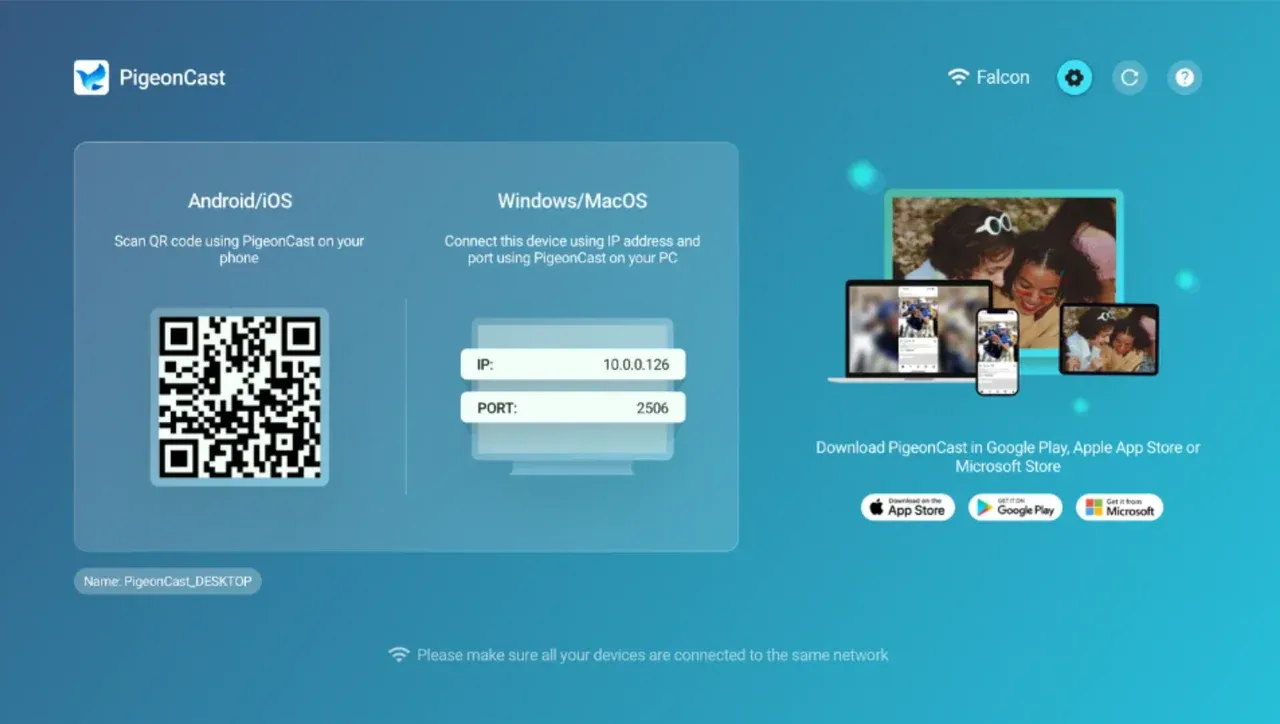

PigeonCast Screen Mirroring

Official Download



For example, with PigeonCast, you can:
- Mirror your phone or laptop to TV without external hardware and pause playback anytime.
- Control or stop streaming with one tap from an intuitive interface.
- Stream across Android, iOS, Windows, macOS, and smart TV, ideal if your devices use different systems.
Why You Can't Pause Chromecast
If pause doesn't respond, it usually means the control session has moved or disconnected.
- Lost Wi-Fi: Your device disconnected from the same network.
- Shared session: Someone else joined the same Chromecast and took control.
- Background app: The original casting app was closed or force-stopped.
- Unsupported app: Certain apps limit external control, requiring Google Home for playback commands.
If you can't pause Chromecast, try these simple fixes:
- Reconnect both devices to the same Wi-Fi network.
- Open Google Home and select your Chromecast to pause manually.
- Restart the app or refresh your Chrome tab.
- Unplug and reconnect Chromecast to reset connections.
- Stop other casting sessions that may override your commands.
- If nothing works, stop casting Chromecast and reconnect to start fresh.
Here are some small habits that ensure smoother Chromecast control:
- Keep all devices on the same Wi-Fi network.
- Use Google Home or third-party tools if casting controls disappear.
- Avoid closing the app or browser tab until playback stops.
- For multi-device homes, agree on who controls the cast to prevent conflicts.
Conclusion
To pause Chromecast or stop casting Chromecast effectively, always control from the original casting device or use Google Home for universal access.
If you want an even simpler experience, try PigeonCast — it offers a clean, intuitive interface to mirror or stream across devices, and lets you pause or stop playback with one tap. Whether you’re casting videos, photos, or browser tabs, PigeonCast keeps the process smooth and frustration-free.
Pause Chromecast FAQs
Can I pause Chromecast directly from my TV remote?
Most TVs don't support native Chromecast control, so the remote typically won't pause or stop casting. Use your phone, tablet, or computer, or manage playback in the Google Home app.
How can I stop casting Chromecast from my phone?
Open Google Home or the app you used to cast, tap your Chromecast device, and select Stop casting. This ends the session and frees up your TV for other devices.
Where is the Chromecast pause button?
There's no physical pause button on Chromecast. To pause Chromecast, you need to use the app or browser that started casting, or control it through the Google Home app. You can also ask Google Assistant to pause playback by saying "Hey Google, pause the Chromecast".
Why doesn't my Chromecast respond to pause commands?
This happens if the control device loses Wi-Fi, the app crashes, or another device has taken over. Reconnect your phone, reopen the app, or restart Chromecast to regain control.
Why does Chromecast pause by itself?
Chromecast may automatically pause when the network connection drops, when the casting device goes to sleep, or when another user takes over the session. Ensure both devices are on the same Wi-Fi during streaming.
Why does my streaming video keep pausing on Chromecast?
Frequent pausing usually points to an unstable Wi-Fi signal, low bandwidth, or background updates on your phone or TV. Try moving your router closer to the Chromecast, closing unused apps, or lowering the stream resolution to improve stability.
What's the easiest way to pause Chromecast on multiple devices?
Using a third-party app like PigeonCast makes it easy to pause the Chromecast, stop streaming, or mirror content across different devices without needing multiple controls.
Mia Clarke is a technology editor specializing in screen mirroring and casting solutions across multiple platforms. Mia provides clear, practical guides and in-depth insights to help users seamlessly connect their devices. Passionate about enhancing digital experiences, Mia is dedicated to keeping readers updated on the latest trends and tools in cross-platform screen sharing. Whether you’re looking to mirror your smartphone, laptop, or smart TV, Mia’s content delivers reliable, user-friendly advice to simplify your tech setup.