
Finding the right screen mirroring app for Sony TV depends on both your TV model and the device you want to connect. Some Sony TVs already support AirPlay or Google Cast, while others work better with a third-party app for full-screen mirroring from an iPhone, Android phone, Windows PC, or Mac. This guide compares five practical options, explains when an extra app is actually useful, and helps you choose the best setup for your devices.
Do You Need a Screen Mirroring App for Sony TV
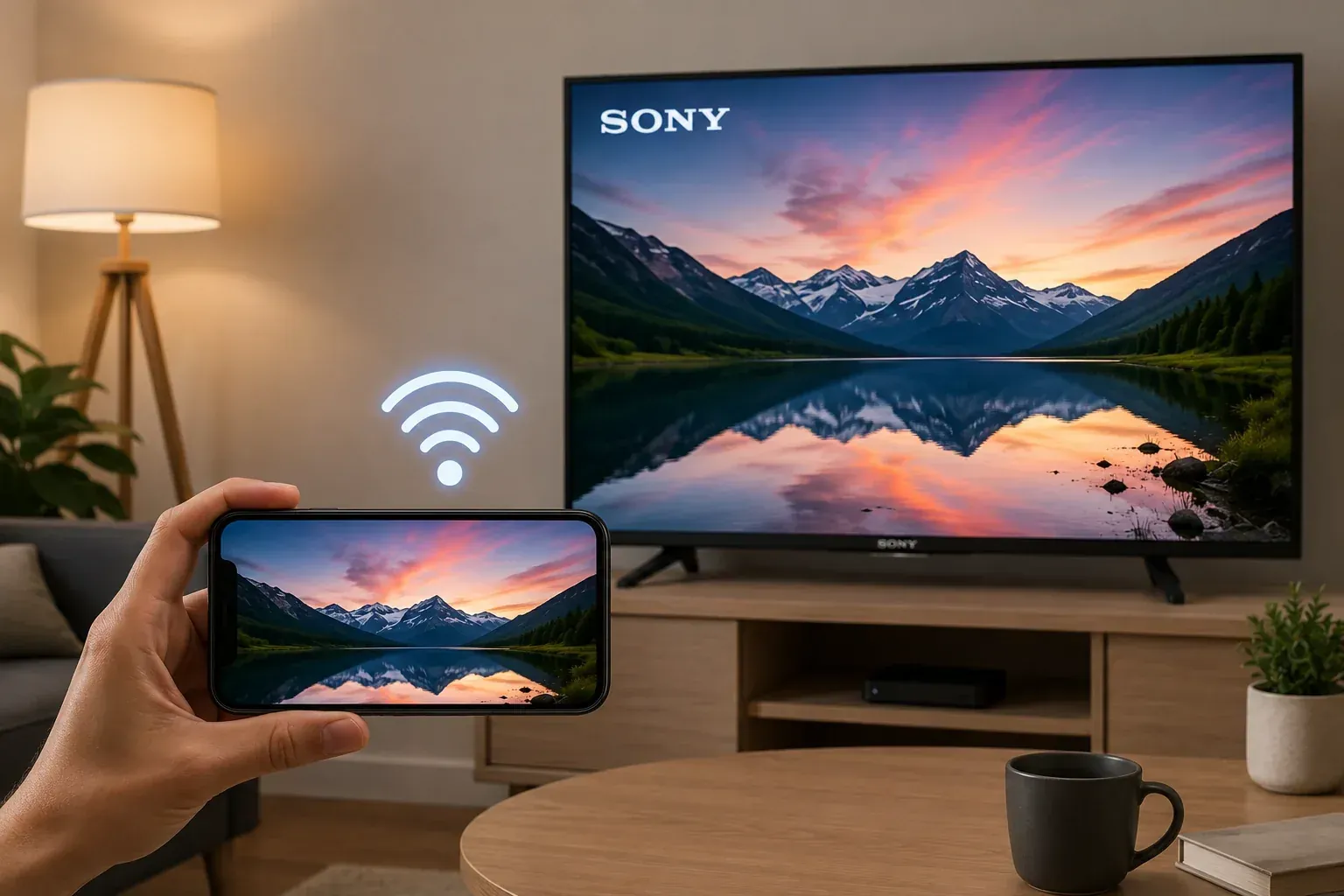
Not every Sony TV setup requires an additional mirroring app. Many Sony BRAVIA models already include Google Cast, AirPlay, or another wireless display option. However, the available features depend on your TV model, operating system, and the device you want to mirror.
When Sony TV Built-In Casting Is Enough
Your Sony TV’s built-in features may be sufficient when both devices already support the same connection method. Common examples include:
- Cast YouTube or another supported app from an Android phone through Google Cast.
- Use AirPlay to share an iPhone, iPad, or Mac screen with a compatible Sony TV.
- Select the Cast icon inside a supported streaming or media app.
- Send photos or videos through a built-in wireless display feature.
When a Third-Party Mirroring App Is More Useful
A third-party app becomes more useful when the built-in option does not support your device or the type of content you want to display. You may need one when you want to:
- Mirror your entire phone or computer screen instead of casting from one supported app.
- Connect Windows, Mac, Android, and iOS devices through one service.
- Display browser pages, documents, presentations, or apps that do not include a Cast button.
- Use the same mirroring method across several devices in your home or office.
- Replace a built-in connection that frequently fails to find the TV or disconnects during use.
The right choice should match both the sending device and the system running on your Sony TV. The following five apps cover different platforms, connection methods, and viewing needs.
5 Best Screen Mirroring Apps for Sony TV
These five options differ in platform support, connection method, additional tools, and pricing. The table below highlights the main reason to choose each one.
| App | Sending Devices | Main Difference | Pricing | Main Limitation |
|---|---|---|---|---|
| PigeonCast | iPhone, Android, Windows, Mac | Cross-platform mirroring with AirPlay, Google Cast, and DLNA; Laptop supports full desktop or single-window sharing | Free; $6.99/month; $19.99/year; $39.99 lifetime | Mirrors one device at a time |
| AirBeamTV | iPhone, iPad, Android, Mac | Provides separate apps for different TV brands, including Sony | On iPhone: $5.99/week, $29.99/year, or $59.99 lifetime | You may need another app when changing TV brand or device platform |
| ApowerMirror | iPhone, Android, Windows, Mac | Adds recording, annotation, Android control, and cross-network AirCast | LocalCast: $19.99/month, $39.99/year, or $59.99 lifetime | LocalCast and AirCast use separate memberships |
| Google Home | Android | Uses the Google Cast already built into compatible Sony TVs | Free | Does not provide full iPhone, Windows, or Mac mirroring |
| LetsView | iPhone, Android, Windows, Mac | Combines local mirroring, multi-device tools, PC control, and a separate Remote mode | Pro: $5.99/month, $29.99/year, or $49.99 lifetime | Pro and Remote are separate plans |
1. PigeonCast: Best for Cross-Platform Screen Mirroring
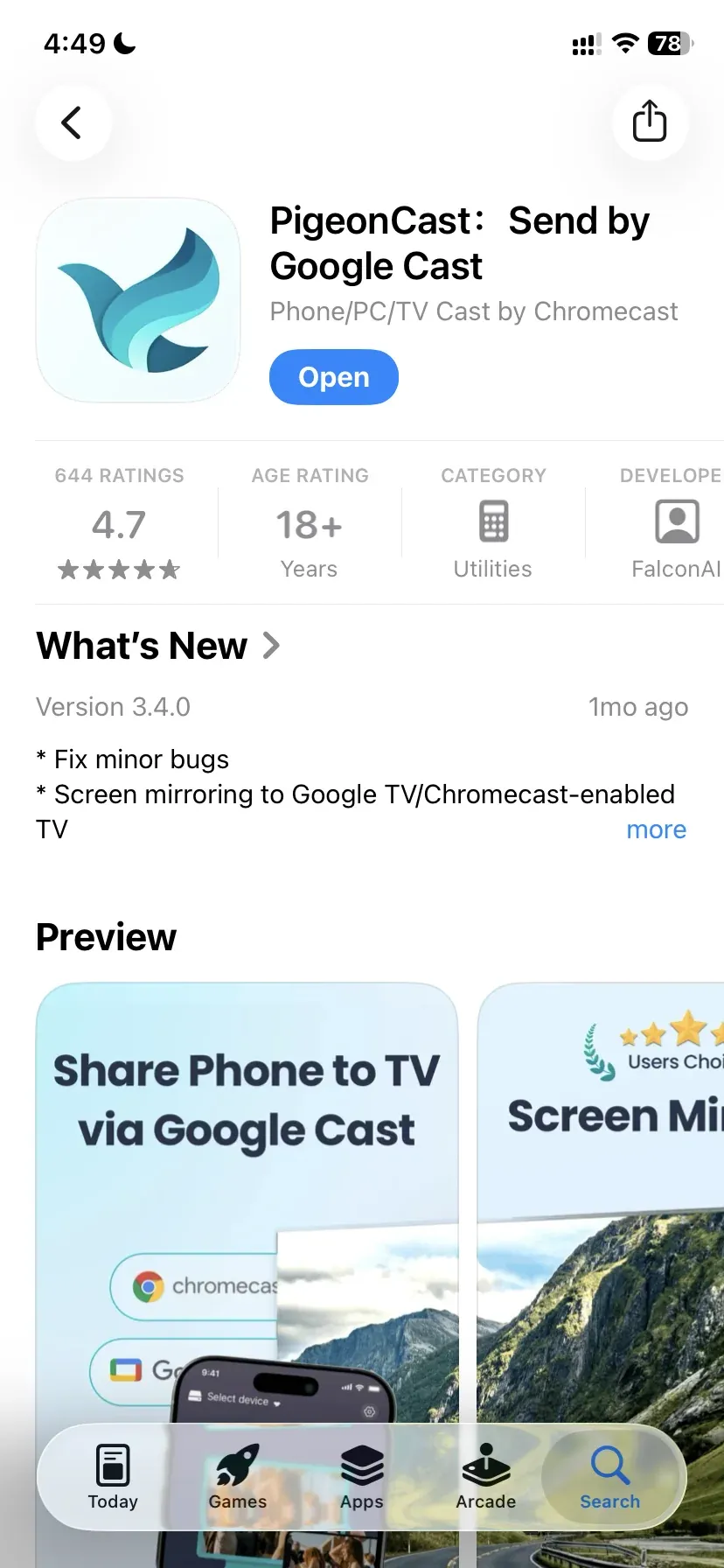
PigeonCast is the best choice if you want one screen mirroring app for iPhone, Android, Windows, and Mac. Instead of learning a different solution for each platform, you can keep using the same app across all of your devices.
-
Highlights:
-
- Supports AirPlay, Google Cast, and DLNA
-
- Works across iPhone, Android, Windows, and Mac
-
- Lets you share your entire laptop desktop or a single application window
-
- Displays browser pages, apps, photos, videos, documents, and presentations
-
Best for: You regularly switch between phones and computers, want to mirror more than just supported streaming apps, or need one solution for both home and work.
-
Pricing:
-
- Free: Up to 5 minutes of screen mirroring per session. You can start a new session at any time.
-
- Monthly: $6.99/month
-
- Annual: $19.99/year, including a 3-day free trial
-
- Lifetime: $39.99 (one-time purchase)
-
Limitations: Only one device can be mirrored at a time.
Here's how to use PigeonCast with a Sony TV:
Step 1. Connect your phone or computer and Sony TV to the same Wi-Fi network.


Overall Rating:



Step 2. Install PigeonCast on the phone or computer you want to mirror. If your Sony TV runs Google TV or Android TV, you can also install PigeonCast on the television.
Step 3. Prepare the receiving option on your Sony TV:
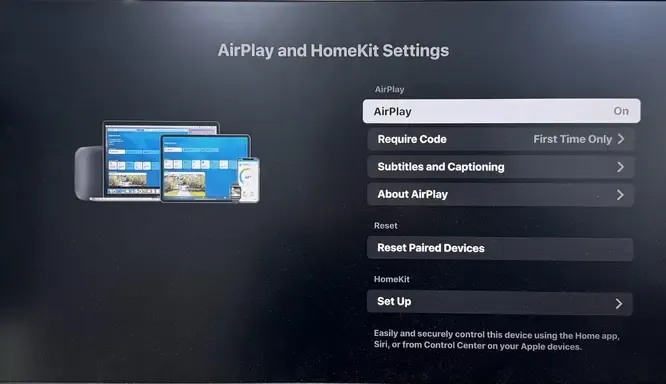
- For AirPlay: On your Sony TV, press the Input button on the remote and select AirPlay. Follow the on-screen instructions if you are opening it for the first time. You can also open Settings > Apple AirPlay and HomeKit and make sure AirPlay is turned on.
- For Google Cast: You normally do not need to enable it manually on a Sony Google TV or Android TV with Chromecast built in.
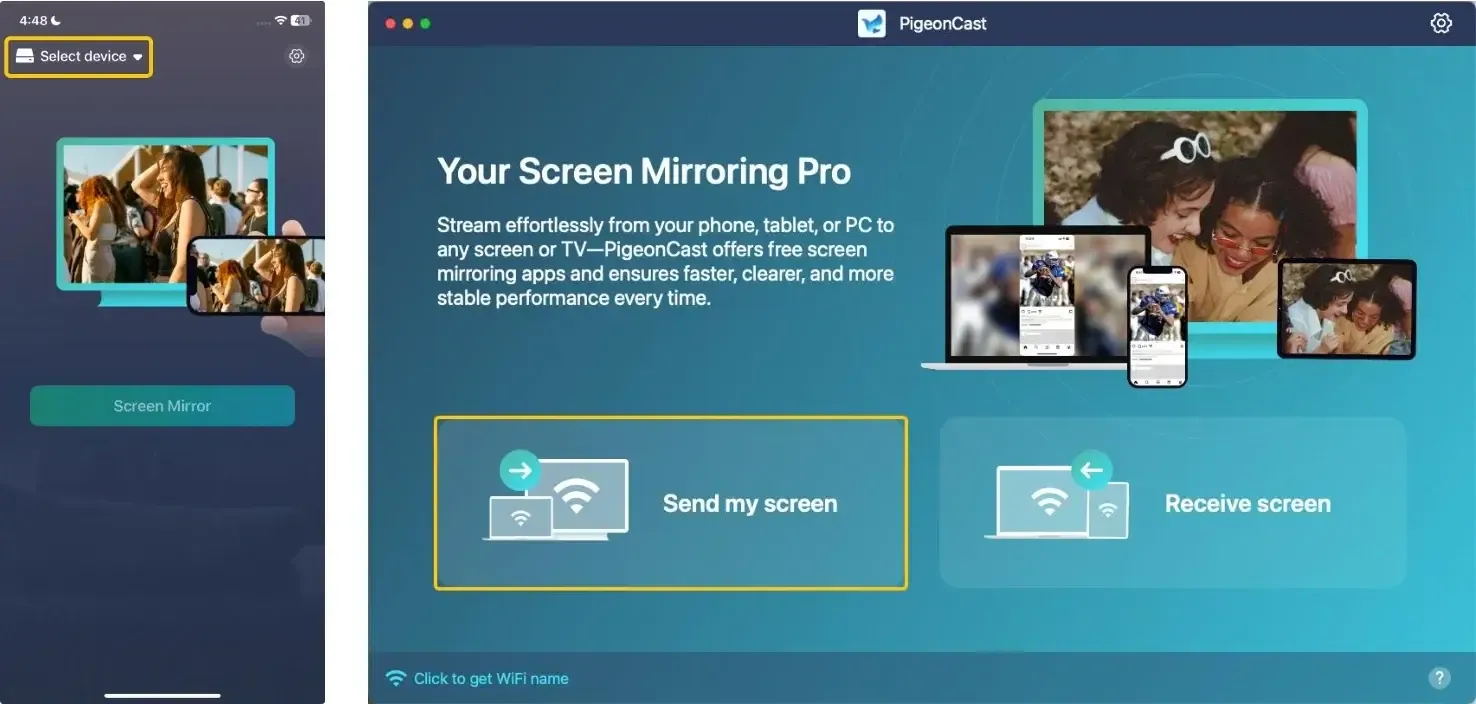
Step 4. Launch the app, tap Select device or Send my screen to choose your Sony TV from the device list.
Step 5. Enter the onscreen PIN code to confirm the pairing process.
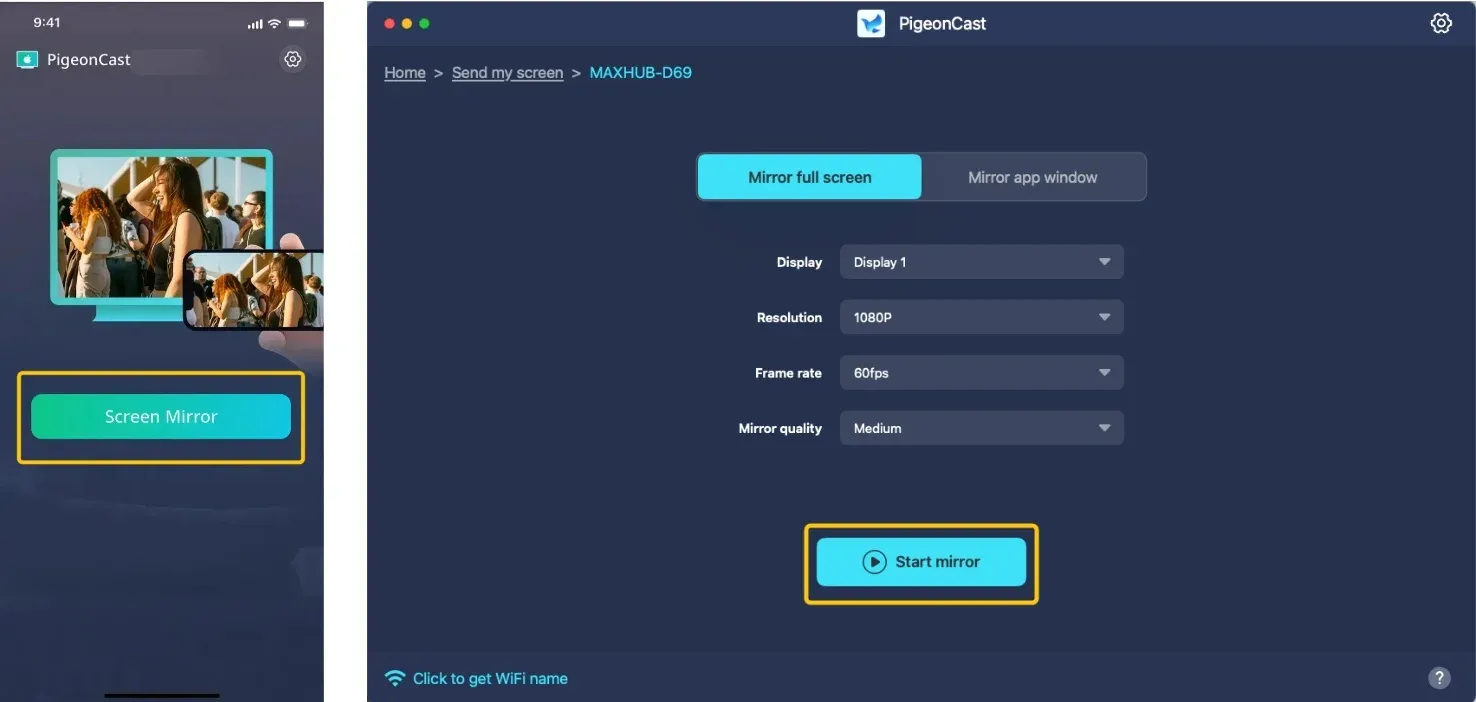
Step 6. When you finish the connection, tap Screen Mirror or Start mirror to start mirroring. If you use a laptop, you are allowed to choose to mirror the full screen or a single app window.
2. AirBeamTV
AirBeamTV offers separate screen mirroring apps for different TV brands. If you own a Sony TV, you download the Sony version instead of using one app for every television.
-
Highlights:
-
- Dedicated app for Sony TVs
-
- Separate apps for iPhone, iPad, Android, and Mac
-
- TV remote available on supported Sony TVs
-
- No HDMI cable or streaming hardware required
-
Best for: You mainly use one Sony TV and prefer an app designed specifically for that TV brand.
-
Pricing: The subscription options vary by platform. On iPhone, the Sony TV version currently offers:
-
- Weekly: 3-day free trial, then $5.99/week
-
- Annual: $29.99/year
-
- Lifetime: $59.99 (one-time purchase)
-
Limitations:
-
- You need a different AirBeamTV app if you switch to another TV brand.
-
- Wireless screen mirroring may introduce noticeable latency during games or other fast-moving content.
3. ApowerMirror
ApowerMirror combines local screen mirroring with recording, annotation, device control, and remote sharing tools. For Sony TV use, it works best with compatible Sony Android TV or Google TV models that can install the ApowerMirror TV app.
-
Highlights:
-
- Mirrors iPhone and Android devices to compatible TVs and computers
-
- Connects locally through Wi-Fi, PIN code, or QR code
-
- Includes screen recording, screenshots, annotation, and whiteboard tools
-
- Allows Android devices to be controlled from a computer
-
- Supports AirCast for mirroring between devices on different networks
-
Best for: You need more than basic TV mirroring, especially if you also want recording, annotation, remote sharing, or Android device control.
-
Pricing (LocalCast):
-
- Monthly: $19.99/month
-
- Annual: $39.99/year
-
- Lifetime: $59.99 (one-time purchase)
AirCast uses a separate membership and is intended for cross-network mirroring.
- Limitations:
-
- Your Sony TV needs to support the ApowerMirror TV receiver app for direct TV mirroring.
-
- LocalCast and AirCast are sold separately, which can make the pricing less straightforward.
-
- The extra tools make the app more complex than a basic TV mirroring solution.
4. Google Home
Google Home is mainly a smart home management app, but Android users can also use it to mirror their screen to a Sony TV with Google Cast.
-
Highlights:
-
- Mirrors an Android phone or tablet to a Google Cast-enabled Sony TV
-
- Works with Sony Google TV and Android TV models that have Chromecast built in
-
- Manages compatible TVs, speakers, and other Google Home devices in one app
-
- Does not require a separate receiver app on the TV
-
Best for: You use an Android device and your Sony TV already supports Google Cast.
-
Pricing: Free
-
Limitations:
-
- iPhone users cannot mirror their full screen through Google Home in the same way.
-
- It does not support Windows or Mac screen mirroring.
-
- Both devices must use the same Wi-Fi network.
5. LetsView
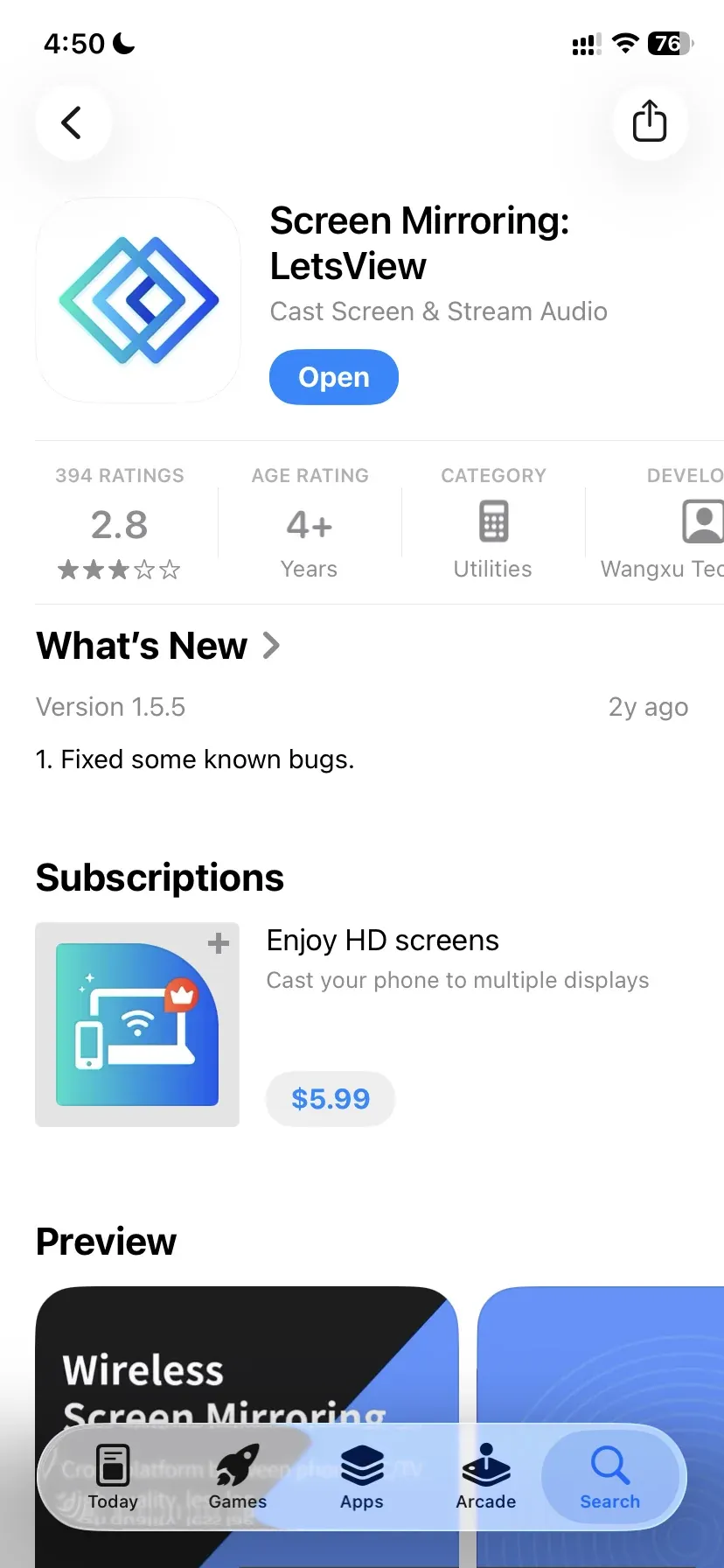
LetsView supports screen mirroring across iPhone, Android, Windows, Mac, and compatible TV devices. In addition to local mirroring, it offers a separate Remote mode for cross-network screen sharing and remote access.
-
Highlights:
-
- Supports phones, computers, and compatible TV devices
-
- Connects through device discovery, QR code, or the same Wi-Fi network
-
- Includes HD mirroring, screen recording, and multi-device connections
-
- Lets you control a computer from another supported device
-
- Offers a separate Remote mode for devices on different networks
-
Best for: You want a screen mirroring tool for presentations, classes, meetings, or multi-device use, and may also need remote access between devices in different locations.
-
Pricing (Pro):
-
- Monthly: $5.99/month
-
- Annual: $29.99/year
-
- Lifetime: $49.99 (one-time purchase)
Remote features use a separate plan.
- Limitations:
-
- Your Sony TV needs a compatible receiving option, such as the LetsView TV app.
-
- Pro and Remote are separate services, so one purchase may not include every feature.
How to Choose the Right Sony TV Mirroring App
You do not need the app with the most features. Focus on the device you use most and whether you need basic local mirroring, cross-platform support, or additional tools such as recording and remote access.
| If you need... | Choose |
|---|---|
| One app for iPhone, Android, Windows, and Mac | PigeonCast |
| A separate app for your Sony TV brand | AirBeamTV |
| Recording, annotation, Android control, or cross-network AirCast | ApowerMirror |
| Free Android mirroring through built-in Google Cast | Google Home |
| Multi-device sharing, PC control, and optional remote access | LetsView |
Before installing an app, check whether your Sony TV supports Google Cast, AirPlay, or TV receiver apps. Older models may require an external streaming device or HDMI connection.
Closing Words
PigeonCast is the most practical choice if you want one app for iPhone, Android, Windows, and Mac. AirBeamTV fits users who prefer a separate Sony TV version, while ApowerMirror and LetsView add recording, control, multi-device, and remote features. Google Home remains the simplest free option for Android users whose Sony TV already supports Google Cast.
Screen Mirroring App for Sony TV FAQ
Do I need to install an app on my Sony TV for screen mirroring?
Not always. If your Sony TV already supports the same wireless technology as your phone or computer, such as AirPlay or Google Cast, you can usually mirror without installing another app on the TV. A TV receiver app is only needed when the mirroring software uses its own receiving service or your TV does not provide the connection method you need.
Why is my Sony TV not showing up in the mirroring app?
The most common causes are that your phone and TV are connected to different Wi-Fi networks, your Sony TV does not support the connection method used by the app, the TV's receiving feature is disabled, or network settings such as VPNs, guest Wi-Fi, or client isolation are preventing the devices from discovering each other.
Can I mirror Netflix or Disney+ to a Sony TV?
Sometimes. Many streaming services protect their content with DRM, which can block wireless screen mirroring even when the connection is successful. In those cases, you may see a black screen or hear audio without video. Using the service's built-in Cast button or the TV version of the app is usually the supported playback method.
Does every Sony BRAVIA TV support screen mirroring apps?
No. Sony BRAVIA TVs use different operating systems and wireless technologies depending on the model year. Some support Google Cast, some include AirPlay, and others provide only limited wireless display features. Before choosing a mirroring app, check which receiving methods your specific TV model supports.
Can I use one screen mirroring app on all my devices?
It depends on the app. Some apps only support iPhone or Android, while others also work on Windows and Mac. If you regularly switch between different devices, choosing a cross-platform app can save you from installing and learning a different mirroring solution for each operating system.
Can I mirror my phone to a Sony TV without Wi-Fi?
Usually not. Most screen mirroring apps rely on a local Wi-Fi network so your phone or computer can discover the Sony TV and transmit audio and video in real time. Some devices support direct wireless connections or wired alternatives such as HDMI adapters, but these depend on the hardware and connection method rather than the mirroring app itself.
Clara Rossi is an experienced technology editor and a seasoned expert in screen mirroring and casting technologies. With a keen eye for detail and a deep understanding of how to seamlessly connect devices, Clara excels at optimizing user experiences for effortless sharing and streaming. Whether you're seeking quick fixes or advanced tips, her expertise and responsiveness ensure that every query is met with a well-informed and efficient solution.