
Seeing the "second monitor not detected" error can instantly disrupt your workflow. Whether you're trying to extend your screen for productivity, gaming, or presentations, a monitor that won't connect is frustrating. The good news is that the issue is easy to fix in most cases. And if traditional wired solutions keep failing, there's also a modern wireless alternative worth considering. Let's walk through everything step by step.
Why Is My Second Monitor Not Being Detected
Second monitor not detected Windows 11 or Mac is usually a communication breakdown. The graphics card sends a signal, but the monitor doesn't receive or acknowledge it. This typically falls into three main categories:
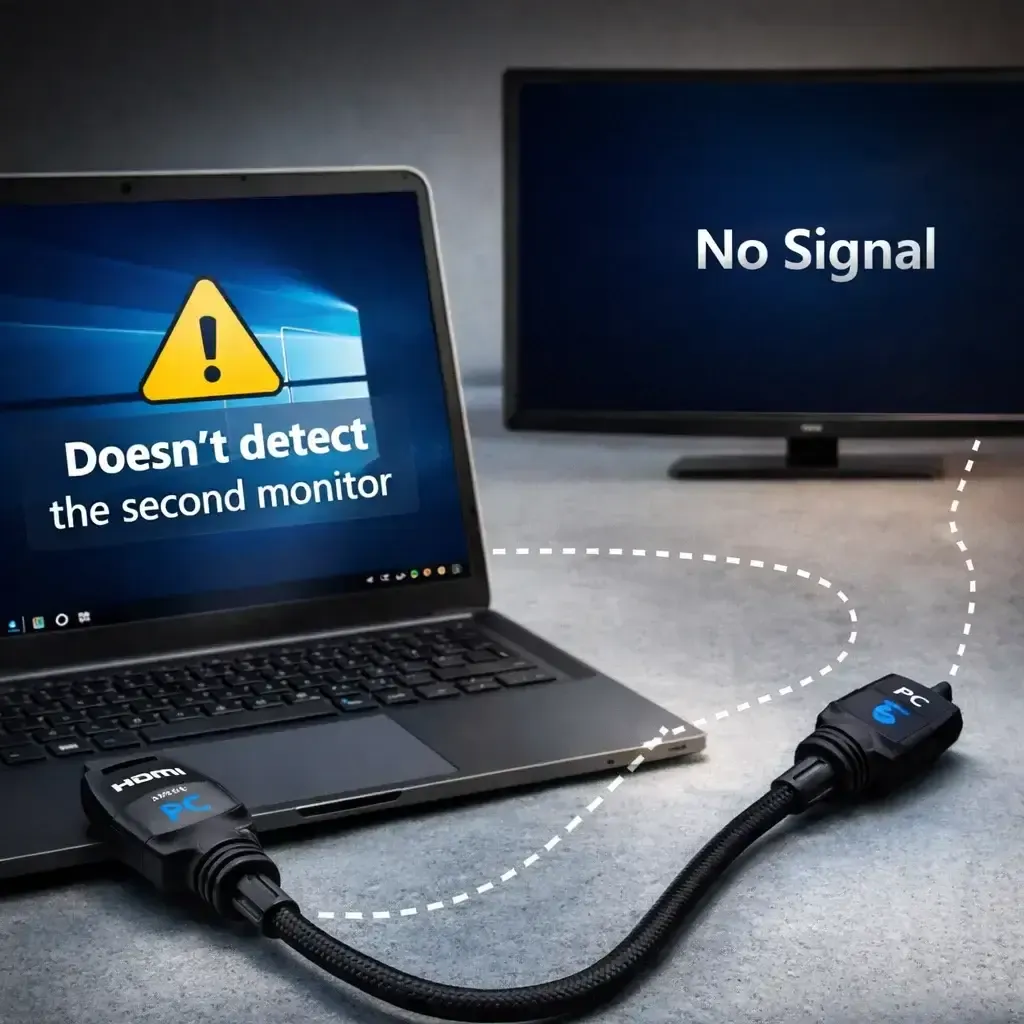
- Hardware Issues: Loose cables, faulty ports, or damaged cords.
- Software Issues: Outdated graphics drivers or corrupt system files.
- Configuration Errors: Windows is set to the incorrect projection mode (e.g., "PC screen only"), or the monitor is expecting input on the wrong HDMI channel.
How to Fix Second Monitor Not Detected
To fix the secondary monitor not detected issue, start with quick, simple steps that anyone can follow. If that doesn't work, try more involved solutions. This way, you can usually solve the problem in under ten minutes.
Fix 1. Check Cable Connection
It may seem too simple, but loose or damaged cables are behind a large number of "my second monitor is not detected Windows 11 or Mac" issues. Over time, HDMI, DisplayPort, or VGA cables can become loose, or the pins inside the connectors can bend.
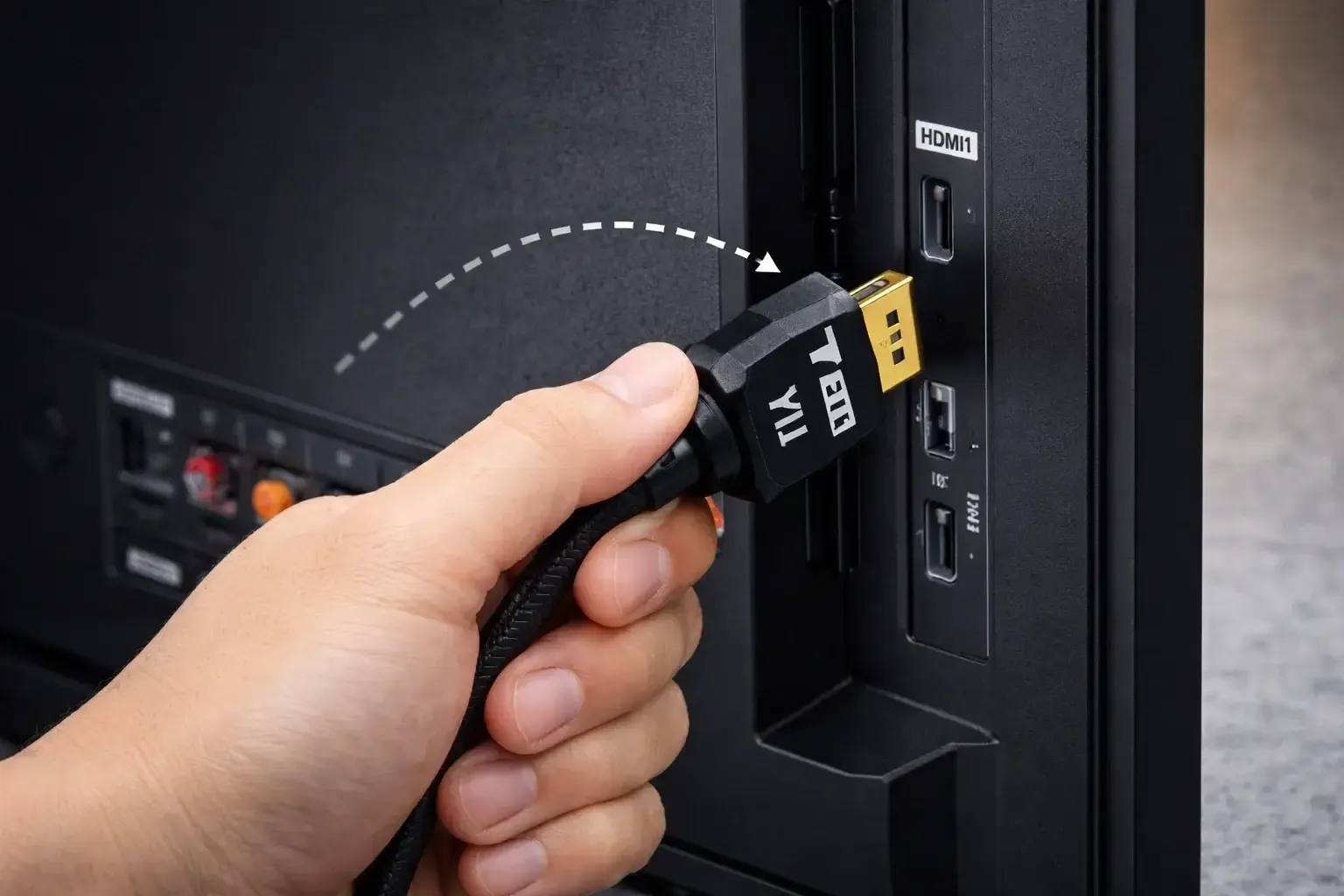
- Unplug both ends of the cable (from the monitor and the PC) and firmly plug them back in.
- While you have the cables unplugged, inspect them for any visible damage.
- If you have a spare cable lying around, swap it out to rule out the cable itself as the problem.
- Ensure that the monitor is set to the correct Input Source. Use the monitor's physical buttons or on-screen menu to cycle through HDMI 1, HDMI 2, DisplayPort, etc., until you land on the one your PC is actually connected to.
Fix 2. Change Projection Mode
Sometimes the monitor is connected properly, but Windows hasn't activated it. Projection mode controls how your system outputs display signals. An incorrect setting may make it appear as if the Windows or Mac second monitor not detected.
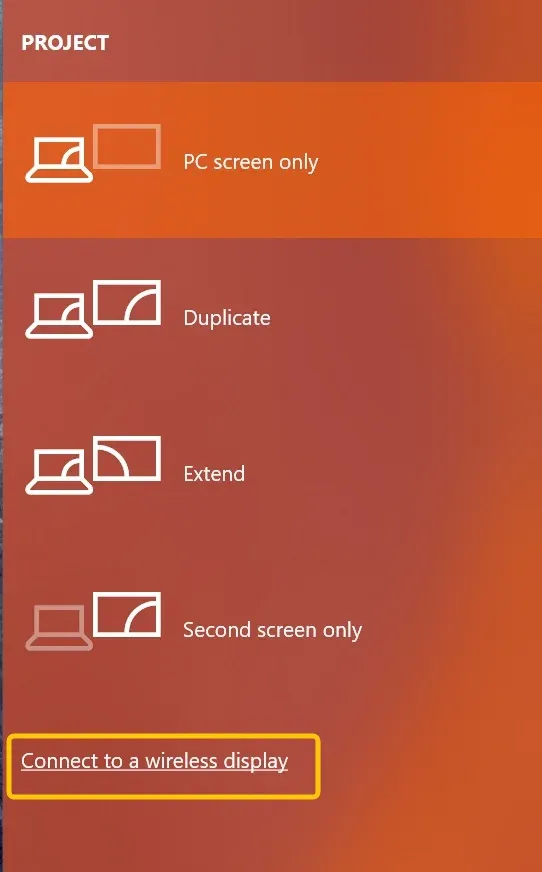
Press the Windows key + P on your keyboard. This will open a small side menu with four options:
- PC screen only: Second monitor is ignored.
- Duplicate: Both screens show the same thing.
- Extend: Your desktop spreads across from the Windows (the preferred mode for productivity).
- Second screen only: The primary laptop screen turns off, and only the external monitor works. Select Extend to get the full dual-screen experience. If you are in "PC screen only", that explains why your second monitor is dark. This fix is just a quick keyboard shortcut away.
Fix 3. Detect Display Manually
Even when connected properly, Windows doesn't always auto-detect a monitor immediately. You can manually force detection to solve your second monitor suddenly not detected:
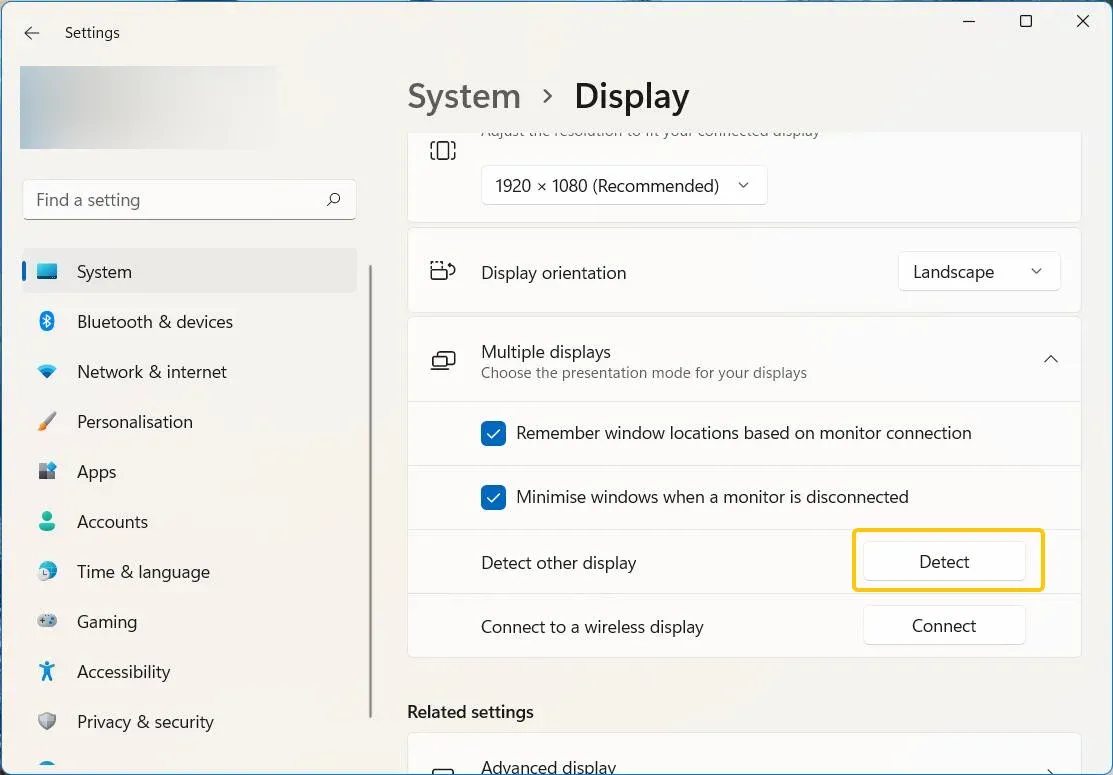
Step 1. Go to Settings > System > Display.
Step 2. Scroll down to click Detect from the Multiple displays menu.
Step 3. If the second display appears after manual detection, configure its position and resolution as needed.
Fix 4. Restart Graphics Driver
The graphics driver simply freezes or loses communication with the monitor, which causing laptop not detected as second monitor. Windows has a built-in shortcut to restart the video driver instantly without rebooting your entire computer.
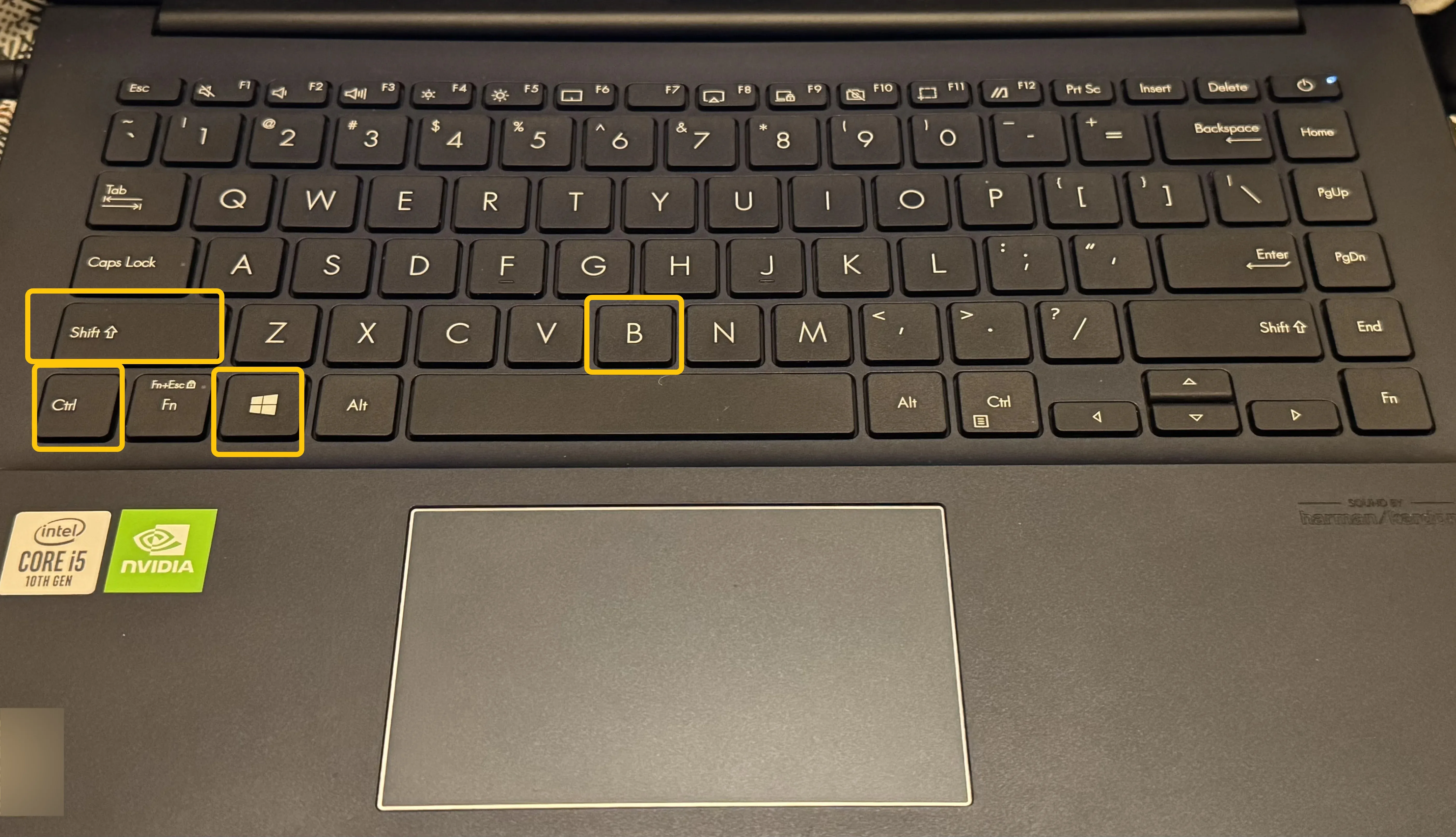
Press the keyboard shortcut: Windows Key + Ctrl + Shift + B.
Your screen will flash, and you might hear a beep. This command wakes up the graphics driver and resets the video signal. In many cases, this is enough to jolt the second monitor out of its idle state and get it displaying correctly. It takes two seconds, so it is always worth trying first.
Fix 5. Update Graphics Driver
These drivers are the software bridge between your operating system and your physical graphics card. If they are outdated, corrupted, or have recently become corrupted after a Windows update, they might fail to recognize new hardware. This fix is a bit more technical because it involves navigating system settings.
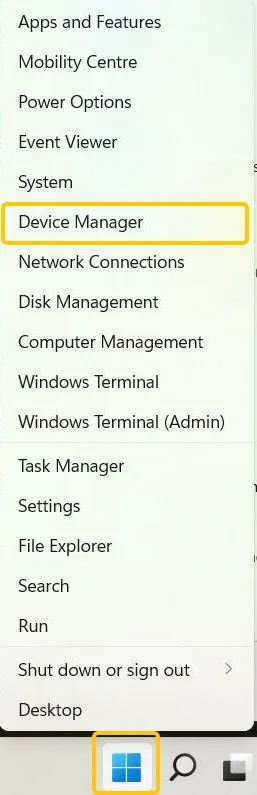
Step 1. Right-click on the Start button and select Device Manager.
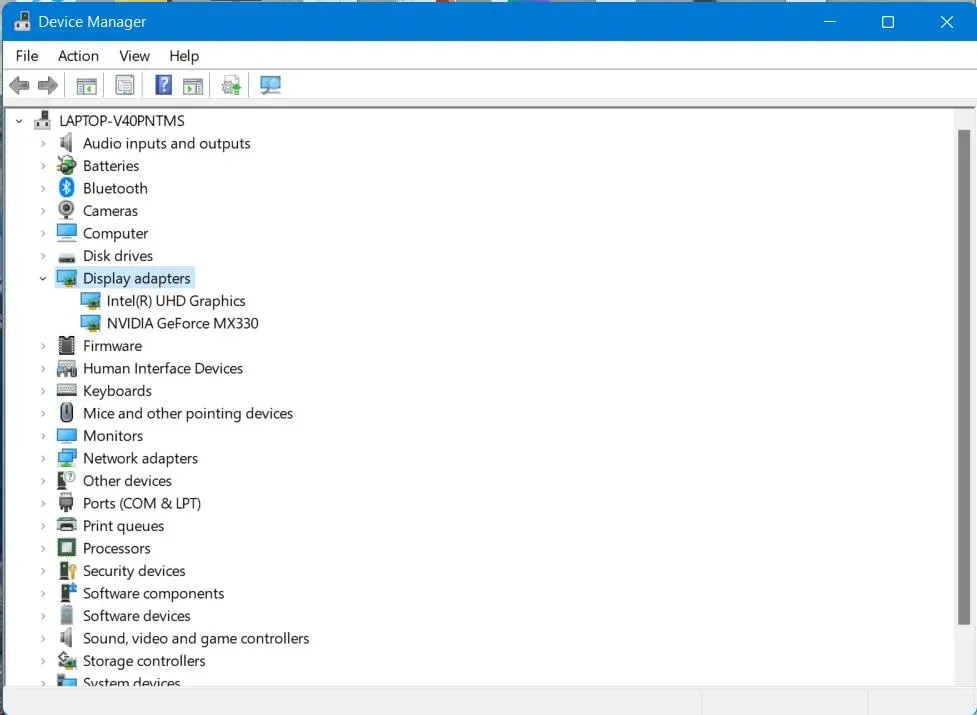
Step 2. Expand the Display adapters section, and you will see your graphics card listed (e.g., NVIDIA GeForce, AMD Radeon, or Intel UHD Graphics).
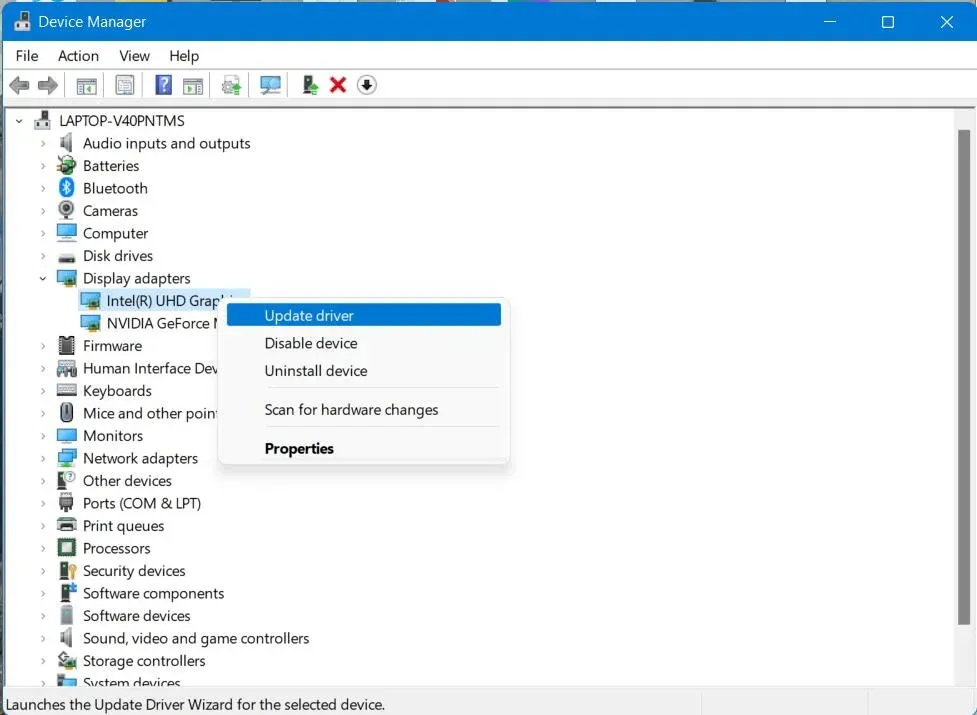
Step 3. Right-click on it and select Update driver > Search automatically for drivers.
Step 4. If Windows says you are up to date but you still have issues, consider going directly to the NVIDIA, AMD, or Intel website to download the very latest driver manually.
Fix 6. Test Another Port
If the software-based fixes haven't resolved the issue, it's time to check the hardware. The problem could be with the specific port you're using on either your computer or monitor. In this case, you may need to move your device to try different ports and see if that solves the Windows 11 second monitor not detected problem.
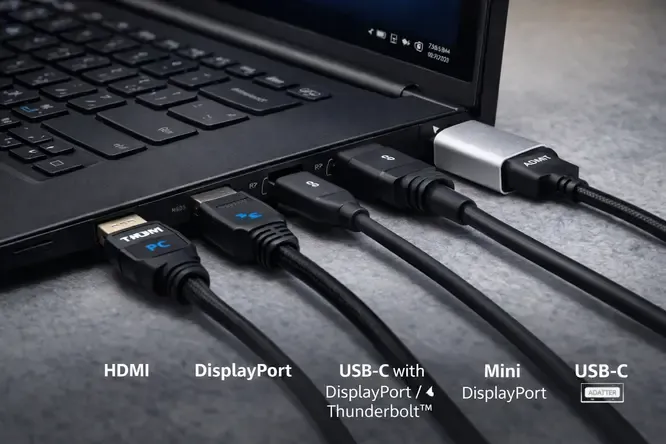
Step 1. Try plugging the cable into a different port on your PC.
Step 2. If you're using an HDMI port:
- Try switching to a DisplayPort.
- Alternatively, try a different HDMI slot if your GPU has multiple HDMI ports.
Step 3. If your computer has both a dedicated graphics card (NVIDIA/AMD) and integrated graphics (Intel):
- Make sure your monitor is connected to the dedicated GPU ports, which are usually located lower down on the back of the PC.
- Avoid using the motherboard ports near the USB slots.
If switching ports resolves the issue, you've identified a faulty port. Going forward, avoid using that port.
Bonus Fix: Use a Wireless Second Monitor Instead
If you're experiencing repeated second monitor not detected Windows 10 HDMI failures despite trying various solutions, the problem is likely hardware-related. At this point, it's worth considering a different approach. While traditional wired setups depend on physical ports, a wireless screen extension eliminates this reliance by transmitting the display signal over WiFi, freeing you from cables and physical connections.

This is where PigeonCast becomes a practical alternative. PigeonCast allows you to mirror your screen wirelessly without HDMI cables or docking stations. This free Windows & Mac mirroring app supports AirPlay, DLNA, and Google Cast across multiple platforms. It's an excellent workaround for when traditional cables fail or when you need a quick, portable second screen.
Step 1. Ensure your laptop and the device you want to use as a monitor (like an Android TV, FireStick, or even a tablet) are on the same Wi-Fi network.


Overall Rating:



Step 2. Install PigeonCast on your laptop from the Microsoft Store or App Store.
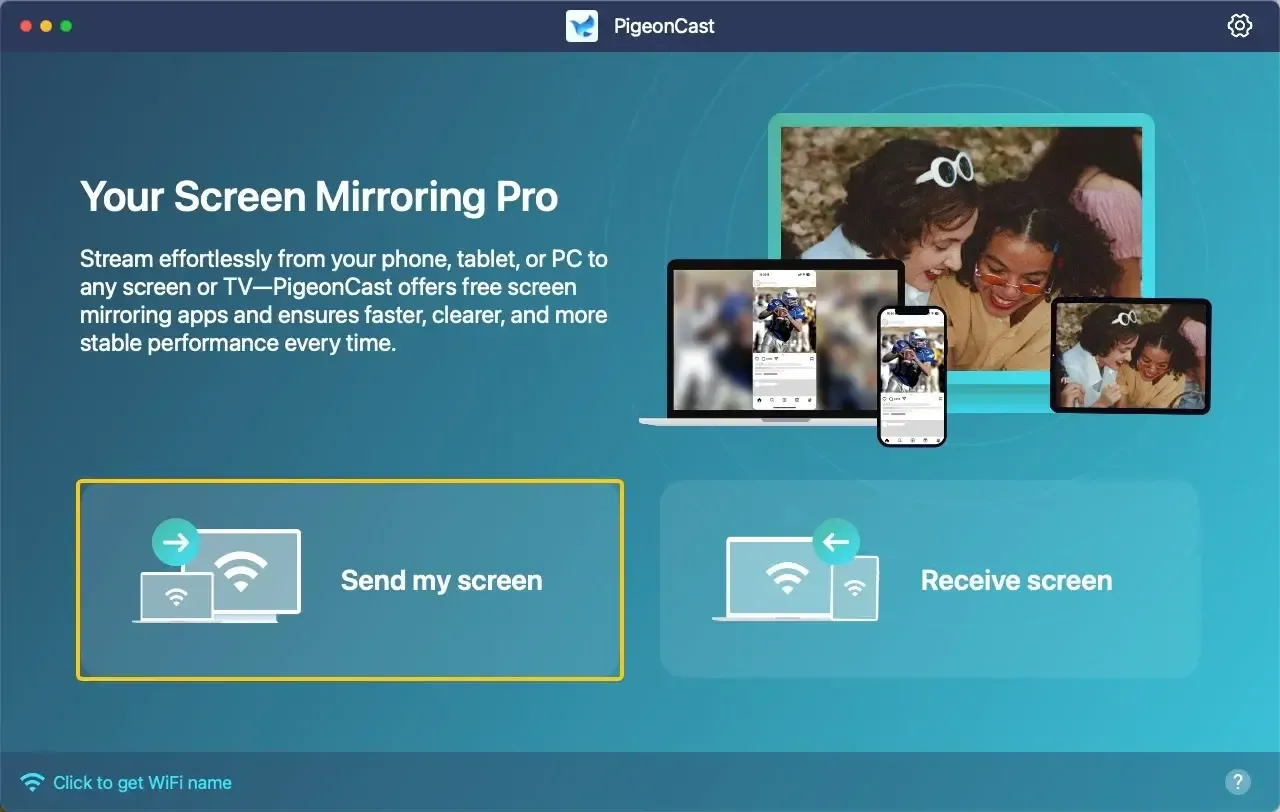
Step 3. Launch the app, then click Send my screen to choose your device from the available list.
Step 4. Enter the onscreen PIN code to confirm the pairing process.
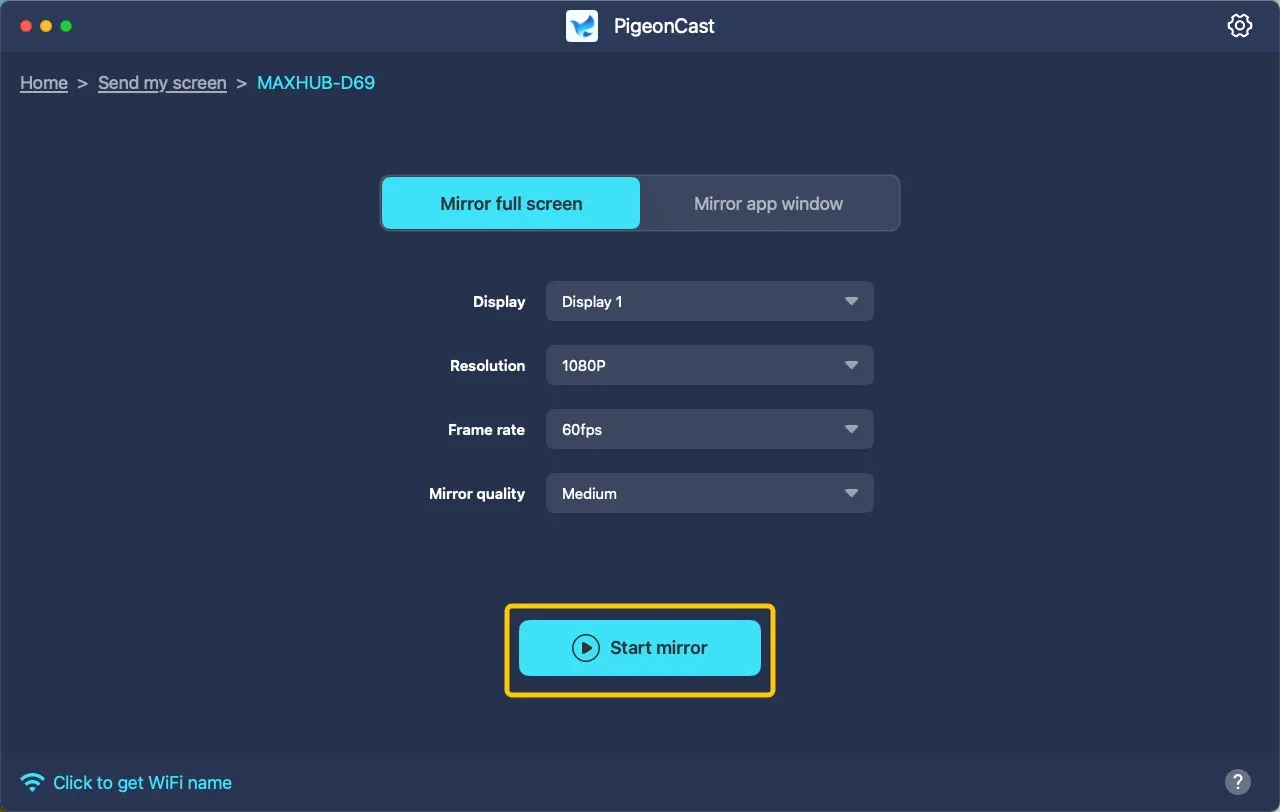
Step 5. Once the connection is complete, click Start mirror to begin mirroring activities on your second screen. Plus, you can choose whether to mirror a single window or the full screen.
Is Wireless Screen Extension Better Than HDMI
HDMI remains stable for permanent desk setups. However, modern workflows demand more flexibility. Here's a practical comparison you can refer to:
| HDMI Setup | Wireless via PigeonCast |
|---|---|
| Requires physical cable | No cable required |
| Port wear over time | No hardware strain |
| Limited by GPU ports | Multi-device flexibility |
| Dock often required | No dock needed |
| Cable clutter | Clean setup |
For fixed office workstations, HDMI works well. However, for remote workers, presenters, and laptop users with limited ports, wireless solutions reduce friction significantly.
Bottom Line
Experiencing the "Windows 10 second monitor not detected" issue can be frustrating, but it's easy to fix. Start by checking basic hardware connections and adjusting your projection settings. If the problem persists, try updating drivers or testing different ports. For a more flexible solution, consider using wireless screen extensions like PigeonCast, especially when traditional wired setups fail. With these steps, you can quickly resolve the issue and enjoy a seamless dual-screen experience.
Second Monitor Not Detected FAQ
How to fix Second monitor detected but not displaying?
If your second monitor is detected but not displaying, try the following steps:
- Ensure that the cable is securely connected to both the monitor and the computer. If possible, try using a different cable to rule out a faulty one.
- Make sure the monitor is set to the correct input (HDMI, DisplayPort, etc.) that your PC is connected to.
- Press Windows key + P and select Extend to activate dual-screen mode.
- Press Windows + Ctrl + Shift + B to restart the graphics driver. If that doesn't work, update your graphics drivers through Device Manager.
- Go to Settings > System > Display, scroll down, and click Detect to force Windows to recognize the monitor.
- Try connecting the monitor to a different port on your PC, as the current one may be faulty.
Linux Mint second monitor not detected?
If your second monitor is not detected on Linux Mint, follow these steps to troubleshoot:
- Check the cable and connection
- Check display settings
- Force display detection
- Update graphics drivers
- Check for multiple display configurations
- Reboot and check for updates
How to solve HDMI second monitor not detected?
If your HDMI second monitor is not detected, try these steps:
- Check Cable & Connections: Make sure the HDMI cable is securely plugged in at both ends. Try a different HDMI cable or port on your PC and monitor.
- Set Correct Input on Monitor: Ensure your monitor is set to the right HDMI input (HDMI 1, HDMI 2, etc.).
- Adjust Display Settings: Press Windows Key + P and select Extend to enable dual screens.
- Manually Detect Display: Go to Settings > System > Display and click Detect.
- Restart Graphics Driver: Press Windows Key + Ctrl + Shift + B to restart the graphics driver.
- Update Graphics Drivers: Right-click the Start button > Device Manager > Display adapters > Right-click your graphics card > Update driver.
- Test the Monitor: Try the monitor with another device to ensure it's working.
Why is Dell's second monitor not detected?
Here are some possible reasons why your Dell second monitor is not detected:
- Loose or faulty cable
- Incorrect input source
- Graphics driver issues
- Projection mode settings
- Faulty graphics port
- Monitor hardware failure
- Operating system glitch
- Monitor resolution or compatibility
How to solve the Second monitor not detected on Samsung?
If your Samsung second monitor is not detected, try these steps:
- Check Cable & Connection: Make sure the cable is securely connected to both the monitor and PC. Try a different cable or port.
- Set Correct Input on Monitor: Ensure the monitor is set to the right input (HDMI, DisplayPort, etc.).
- Adjust Projection Mode: Press Windows Key + P and select Extend to use the second monitor.
- Detect Display Manually: Go to Settings > System > Display and click Detect.
- Restart Graphics Driver: Press Windows Key + Ctrl + Shift + B to restart the graphics driver.
- Update Graphics Drivers: Right-click the Start button > Device Manager > Display adapters > Update driver.
- Test Monitor on Another Device: Connect the monitor to another device to check if it's working.
How do I force Windows to detect a monitor?
To force Windows to detect a monitor, follow these steps:
- Manually Detect the Monitor:
- Right-click on the desktop and select Display settings.
- Scroll down and click on Detect under the Multiple displays section.
- Windows will search for any connected monitors.
- Use Keyboard Shortcut:
- Press Windows Key + P to open the Project menu.
- Select any display option (e.g., Extend, Duplicate) to prompt Windows to search for connected monitors.
- Via Device Manager:
- Right-click the Start button and select Device Manager.
- Expand the Display adapters section, right-click your graphics card, and select Scan for hardware changes.
How to make a 2nd monitor active?
To make your second monitor active, follow these steps:
- Ensure the cable is securely connected to both the monitor and PC, and that the monitor is set to the correct input (HDMI, DisplayPort, etc.).
- Select Extend to extend your display across both monitors or Duplicate to show the same screen on both.
Clara Rossi is an experienced technology editor and a seasoned expert in screen mirroring and casting technologies. With a keen eye for detail and a deep understanding of how to seamlessly connect devices, Clara excels at optimizing user experiences for effortless sharing and streaming. Whether you're seeking quick fixes or advanced tips, her expertise and responsiveness ensure that every query is met with a well-informed and efficient solution.