

If you want to send files to TV, the first thing to figure out is what you actually mean. Some people want to copy a file into the TV's storage. Others just want to watch a video, show photos, open a PDF, or present slides on a bigger screen.
That difference matters more than the file itself. If you need the TV to store the file, use a transfer method such as a local file transfer app, a USB drive, or cloud storage. If you only want to view the content on the TV, casting or screen mirroring is usually faster and less annoying.
No matter whether you want to store files on your TV or have a big-screen entertainment, this post walks you through different methods.
Quick Answer: Do You Need to Transfer the File?
If you want to save a video, APK, document, or media file directly on an Android TV or TV box, use a true file transfer method. That means the file gets copied to the TV and stays there after the session ends.
If your goal is simply to watch a video, show a photo album, open a PDF, display a website, or present slides, you often do not need to move the file at all. In that situation, casting or screen mirroring is usually the better answer because the file stays on your phone or computer while the TV only shows the result.
| Goal | Best method |
|---|---|
| Save a file on TV storage | File transfer app, USB drive |
| Install an APK on Android TV | File transfer app |
| Watch a movie file on a bigger screen | Cast, mirror, or transfer |
| Show photos from your phone | Cast or screen mirroring |
| Open a PDF or PowerPoint on TV | Screen mirroring |
| Share a laptop screen on TV | Screen mirroring or HDMI |
Send Files to TV vs Cast Files to TV
People often use these phrases as if they mean the same thing, but they solve different problems.
File transfer is about storage. You move a file from your phone or computer to the TV, and the TV later opens that file with its own media player, file browser, or installer.
Casting and screen mirroring are about viewing. The file remains on the original device, and the TV becomes the display. In most everyday situations, that is the easier approach because you do not have to manage folders, storage limits, or file compatibility on the TV itself.
What usually matters more here is not the device, but the task. If you are trying to install something or keep a large movie file on the TV permanently, transfer it. If you just want to show the content for a few minutes, cast or mirror it instead.
Method 1: Use a File Transfer App for Android TV
This is the best method when you want to copy a file to Android TV or a TV box and keep it there. It makes sense for APK files, large offline videos, photo folders, and documents that the TV needs to access later without the sending device nearby.
The tradeoff is that transfer apps only help with moving files. They do not automatically solve playback problems. If the TV cannot open the file format, the transfer may succeed and still leave you stuck.
In most cases, the process looks like this:
Step 1. Install a file transfer app on the TV.
Step 2. Open the matching sender on your phone or computer.
Step 3. Connect both devices to the same Wi-Fi network.
Step 4. Choose Send on the source device and Receive on the TV.
Step 5. Select the file and wait for the transfer to finish.
I would use this method first only when local storage is the real goal. If the file does not need to stay on the TV, there is usually a simpler option.
Method 2: Send Files to Smart TV With a USB Drive
A USB drive is still one of the cleanest ways to move large files to a TV. It works especially well for movie files, photos, and offline media libraries because it avoids Wi-Fi issues entirely.
This method is practical when:
- the TV has a usable USB port
- the file is large
- you want stable offline playback
- you do not mind copying the file manually first
The downside is convenience. A USB drive is slower to manage than wireless viewing, some TVs only support certain video or document formats, and the process is not especially friendly on iPhone-based setups.
Step 1. Copy the file to the USB drive from your phone or computer.
Step 2. Plug the drive into the TV.
Step 3. Open the TV's file browser or media player.
Step 4. Find the file and open it.
If you want a permanent local copy on the TV side, this is often better than fighting with wireless transfer tools.
Method 3: Use Cloud Storage to Open Files on TV
Cloud storage works when the TV has a browser, a cloud app, or another way to log into your files online. It is a reasonable middle ground if you do not want to use USB and do not need fast local transfer.
This is useful for documents, smaller videos, and one-off sharing jobs, but I would not treat it as the default answer. Uploading large files takes time, signing in on a TV can be awkward, and privacy-sensitive files may not belong in a cloud folder just for a temporary viewing session.
The normal process is simple:
Step 1. Upload the file to your cloud storage service.
Step 2. Open the matching app or browser on the TV.
Step 3. Sign in and locate the file.
Step 4. Open or download it on the TV.
This method works best when the TV is already part of your cloud setup. Otherwise, it can feel like too much setup for a job that screen mirroring could solve in seconds.
Method 4: Cast Photos and Videos Without Sending the File
If the file is a photo or video and you only want to see it on a bigger screen, casting is usually easier than transferring it. The TV does not need a copy. Your phone, tablet, or computer keeps the file, and the TV only handles playback or display.
This is often the better option for:
- family photo albums
- quick video playback
- short clips stored on your phone
- casual sharing at home
Depending on your setup, you may use built-in casting, AirPlay, media sharing, or another native TV feature. The best part is that you avoid filling the TV with files you only plan to open once.
The limitation is compatibility. Casting works best when the sending device and the TV already support the same playback path. When that breaks down, full screen mirroring is usually the safer fallback.
Step 1. Connect your phone, tablet, or computer and the TV to the same Wi-Fi network.
Step 2. Open the photo or video you want to show on the sending device.
Step 3. Tap or click the built-in cast, AirPlay, or media share button if your app provides one.
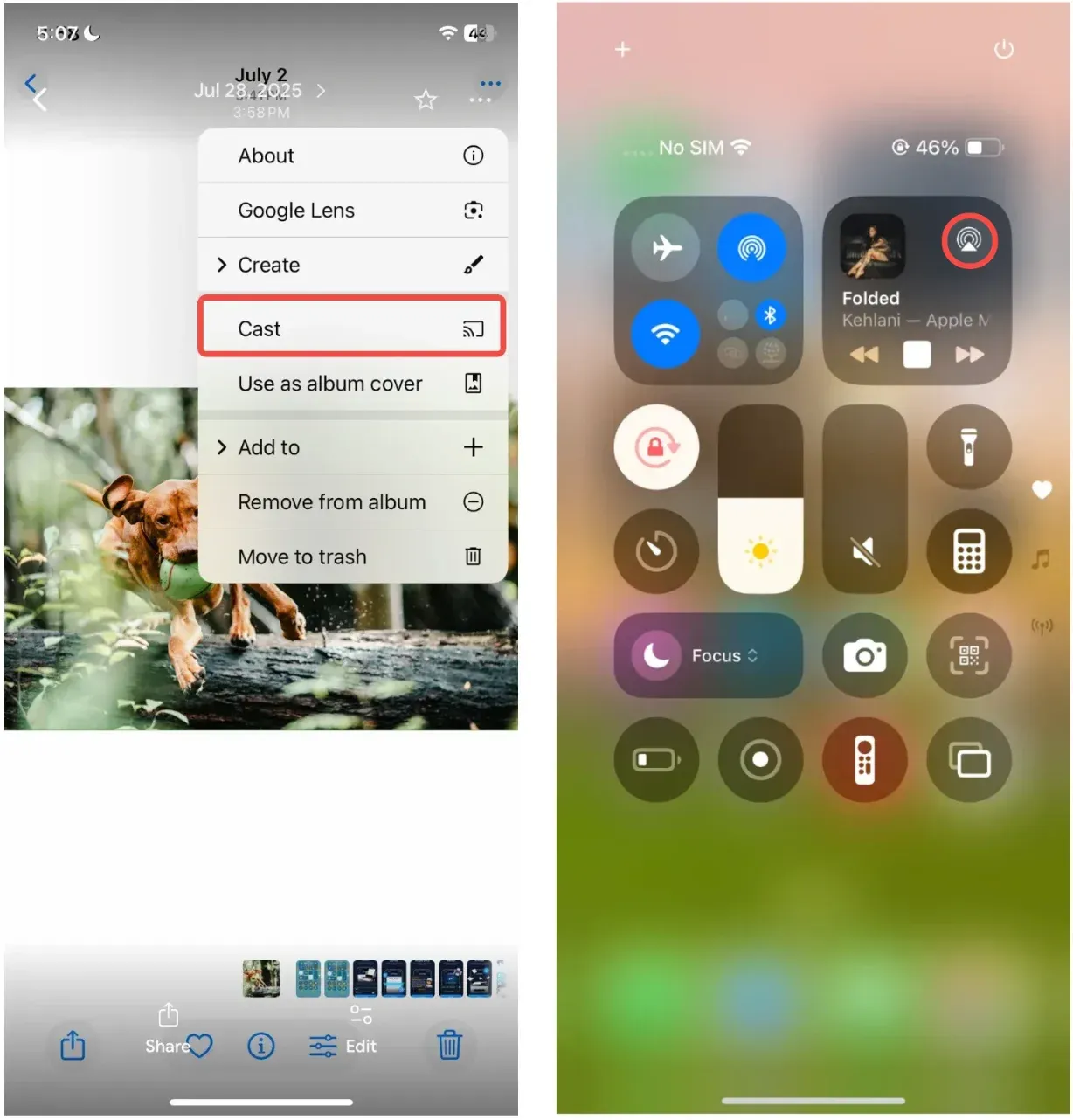
Step 4. Select the TV or streaming receiver from the device list.
Step 5. Start playback and confirm the content appears correctly on the TV.
Method 5: Mirror Your Phone or Computer to TV
Screen mirroring is the right move when the file itself is not the point and the TV only needs to display whatever is already open on your device. That is why it works so well for PDFs, slide decks, web pages, training materials, app demos, and other content that smart TVs do not always handle well on their own.
This is also the most natural place for PigeonCast. Instead of pretending to be a file transfer tool, it solves the second half of the search intent: showing the file on TV without making you move it first.
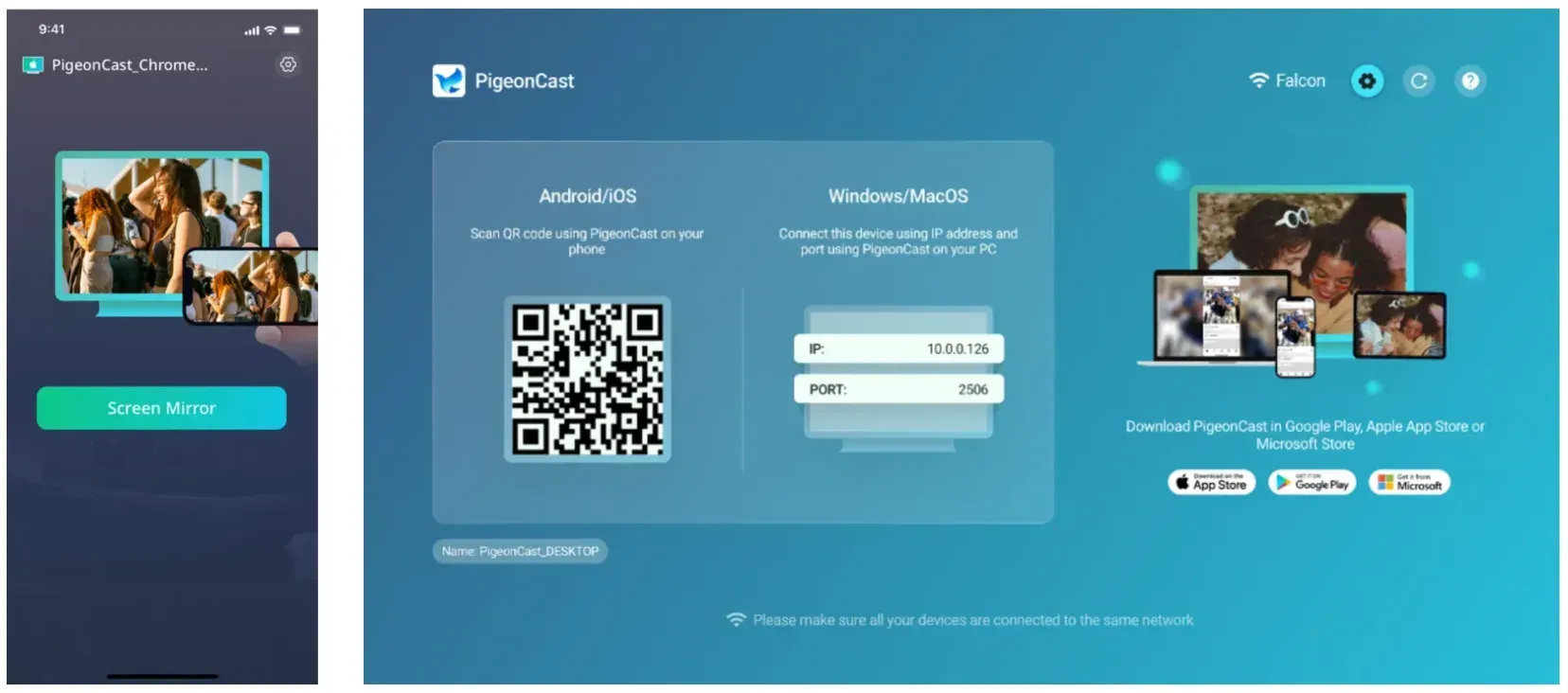
In most cases, I would recommend this route when:
- the TV cannot open the file type directly
- you want to display a PDF or presentation
- you need to share a laptop screen
- your household uses mixed devices
- transferring the file would add unnecessary steps
Step 1. Install PigeonCast on the sending device and receiving device if your setup requires both ends.


Overall Rating:



Step 2. Connect both devices to the same Wi-Fi network.
Step 3. Open the photo, video, PDF, slide deck, or app you want to show.
Step 4. Select the receiver device in PigeonCast.
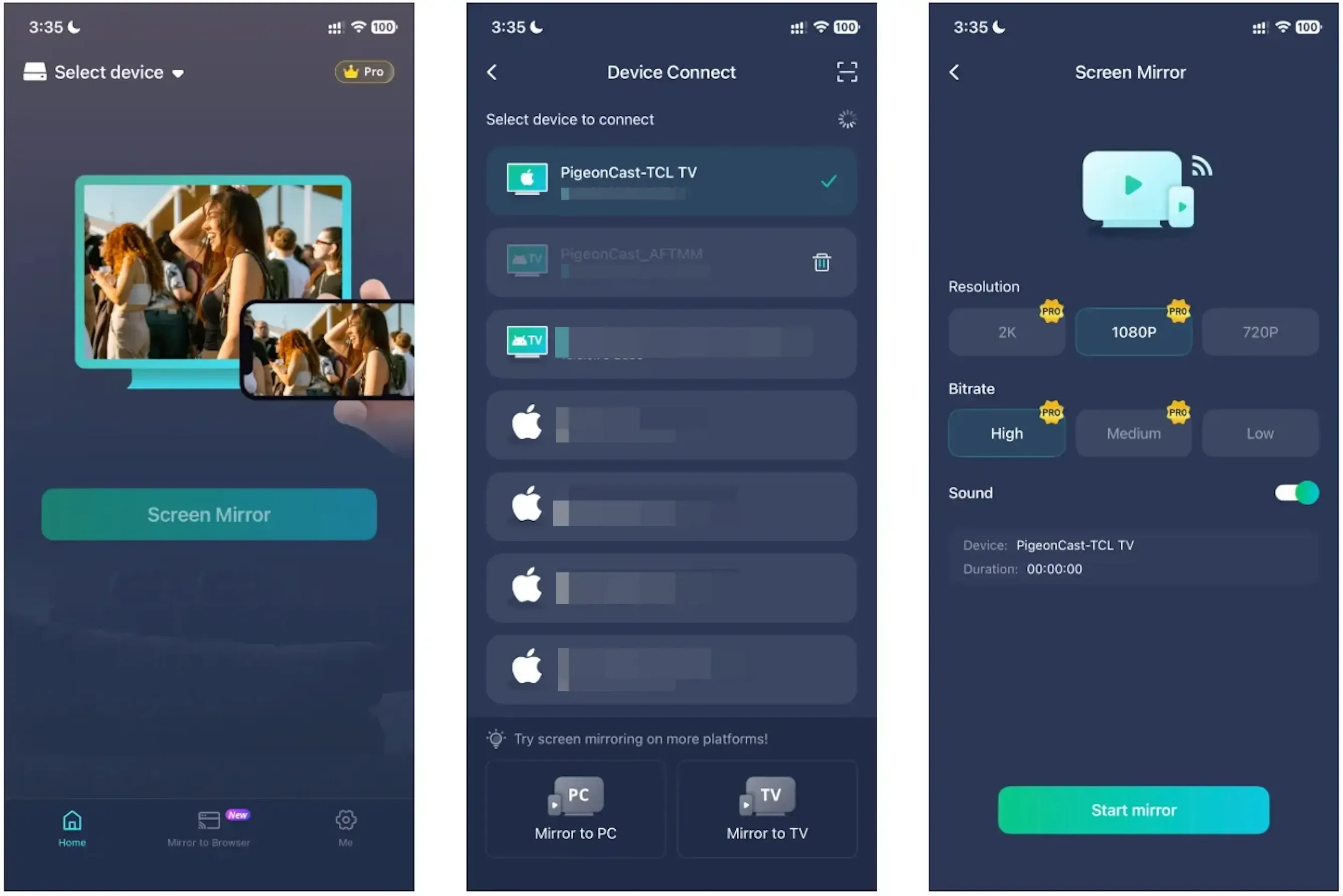
Step 5. Start mirroring or casting so the TV shows the content wirelessly.
The key point is accuracy. You are not really sending the file to the TV here. You are showing the device that already has the file, which is often the cleaner solution.
Best Method by File Type
The easiest method changes depending on what kind of file you are dealing with.
| File type | Best way to show or send it to TV |
|---|---|
| Photos | Cast or screen mirroring |
| Videos | Cast, mirror, USB, or file transfer app |
| PDF files | Screen mirroring |
| PowerPoint slides | Screen mirroring or HDMI |
| APK files | File transfer app |
| Music files | Cast, Bluetooth, or USB |
| Large movie files | USB drive or local file transfer |
| Web pages | Screen mirroring or browser casting |
If you only need a quick fix, use the table above instead of overthinking the method. The wrong choice is usually obvious in practice: if you keep transferring files that never needed to live on the TV, you chose storage when you really needed display.
Common Problems When Sending Files to TV
Most problems fall into one of two buckets: the file never reaches the TV, or it reaches the TV and still does not work correctly.
The TV does not appear on the phone or computer
This is usually a discovery problem, not a file problem. Make sure both devices are on the same Wi-Fi network, confirm the TV is fully awake, and restart the app or receiver list before trying again.
The transfer is too slow
Large files can take much longer than people expect, especially over crowded home Wi-Fi. If speed matters more than convenience, a USB drive is often faster. If the goal is only to watch the content once, skip transfer and mirror the screen instead.
The TV cannot open the file
A successful transfer does not guarantee playback. TVs often support fewer file types than phones and computers do. If the TV refuses to open the file, you can convert the file or use screen mirroring so the source device handles the format instead.
The file was sent but you cannot find it
Some TVs save received files in awkward folders or temporary download locations. Check the file manager, downloads section, or the transfer app's own history. If the TV interface makes this painful, that is another sign the file did not really need to be transferred.
Video plays without sound
This often points to codec support rather than connection failure. The file may contain audio the TV cannot decode cleanly. Try another player if available, convert the file, or use casting or mirroring from a device that already plays it correctly.
Conclusion
The best way to send files to TV depends on whether you need storage or display. If the file must live on the TV, use a file transfer app, a USB drive, or cloud storage. If you only want to watch, present, or show the content on a bigger screen, casting or screen mirroring is usually the smarter move.
That distinction is what saves time. A lot of people search for file transfer when what they actually need is a clean way to show photos, videos, PDFs, or slides on TV. When that is the goal, a screen mirroring app such as PigeonCast often makes more sense than moving the file first.
Send Files to TV FAQs
Can I send files to my TV wirelessly?
Yes. You can send files wirelessly with a local file transfer app if your TV supports that method, especially on Android TV. If your real goal is only to show photos, videos, PDFs, or slides on the screen, wireless casting or screen mirroring is often easier than transferring the file itself.
How do I send files from my phone to TV?
You can use a file transfer app, a USB drive, cloud storage, casting, or screen mirroring. The right choice depends on the outcome you want. Use transfer methods when the TV needs a copy of the file. Use casting or mirroring when you only want to view the content on the TV.
Can I send files from iPhone to TV?
Yes, but iPhone setups are often better for viewing than for true TV-side file storage. If you want to show photos, videos, PDFs, or apps, AirPlay or screen mirroring is usually the easiest route. If you need to move a file permanently, a cloud or computer-assisted method is often more practical.
What is the easiest way to send files to Android TV?
For true file transfer, a local network transfer app is usually the easiest method because it sends the file directly into the Android TV environment. For viewing-only tasks such as showing a document or video, screen mirroring is usually simpler because you avoid TV file management entirely.
Can I send a PDF or PowerPoint file to TV?
Yes, but in most cases it is better to open the document on a phone, tablet, or laptop and then mirror that screen to the TV, rather than relying on the TV to open the file itself. This works especially well for presentations, and if you need to cast PowerPoint to a TV, screen mirroring usually gives you better controls and fewer compatibility issues.
Is casting the same as sending files to TV?
No. Sending files means copying the file to the TV or TV-connected device so it can be stored or opened locally later. Casting and screen mirroring mean the original device keeps the file while the TV only displays the content. For many everyday viewing tasks, that second option is the better fit.
Mia Clarke is a technology editor specializing in screen mirroring and casting solutions across multiple platforms. Mia provides clear, practical guides and in-depth insights to help users seamlessly connect their devices. Passionate about enhancing digital experiences, Mia is dedicated to keeping readers updated on the latest trends and tools in cross-platform screen sharing. Whether you’re looking to mirror your smartphone, laptop, or smart TV, Mia’s content delivers reliable, user-friendly advice to simplify your tech setup.