
If you wonder how to display PDF on TV, the easiest solution is usually not to open the PDF on the TV itself. Instead, open the document on your phone, tablet, or computer and use the TV as a larger display.
Whether you're presenting a report in a meeting room, teaching from a workbook, reviewing documents with clients, or reading with family, the setup is generally the same: your device opens the PDF, and the TV shows it on a bigger screen.
Quick Answer to View PDF on TV
Most people display PDFs on a TV by opening the document on a phone, tablet, or computer and then connecting that device to the TV through AirPlay, Chromecast, a sreen mirroring app, or HDMI.
| Situation | Recommended Method |
|---|---|
| Apple devices | AirPlay |
| Android phones | Cast / Smart View |
| Mixed-device environment | Screen Mirroring App |
| Business presentation | HDMI |
| Classroom teaching | HDMI or Tablet Mirroring |
| Important client meeting | HDMI with wireless backup |
Why Most TVs Cannot Open PDF Files Directly
Many people first look for a way to make the TV open the PDF file itself. In practice, that is rarely the easiest or most reliable solution.
Smart TVs are primarily designed for streaming video and media content. While some models include file browsers, PDF support is often limited. Large files may not display properly, navigation can be slow, and moving through multiple pages with a remote control is rarely convenient.
That is why teachers, trainers, consultants, sales teams, architects, and project managers typically use a different approach. They open the PDF on a device that already handles documents well and simply display that screen on the TV.
Once you treat the TV as a display rather than a PDF reader, sharing documents becomes much easier and works across far more devices and TV brands.
DisPlay PDF on Any TV From Any Device
If you need a solution that works across different devices and TV brands, screen mirroring is usually the most flexible option. Instead of transferring the PDF to the TV, you simply open the document on your phone, tablet, or computer and mirror that screen to the TV using a screen mirroring app like PigeonCast.
This approach works particularly well for PDFs because the document remains on the device that already has a full-featured PDF reader. You can zoom in on small text, scroll through long reports, switch between pages instantly, and even annotate documents without worrying about whether the TV supports PDF files.
The main limitation is that wireless performance depends on the network. If the Wi-Fi connection is unstable, you may notice delays or occasional interruptions. For everyday viewing and most presentations, however, screen mirroring is often the easiest way to display a PDF on a TV.
Step 1. Install PigeonCast on your phone, laptop, and TV and make sure all devices are connected to the same Wi-Fi network.


Overall Rating:



Step 2. Launch PigeonCast on both devices and follow the onscreen instructions to connect.
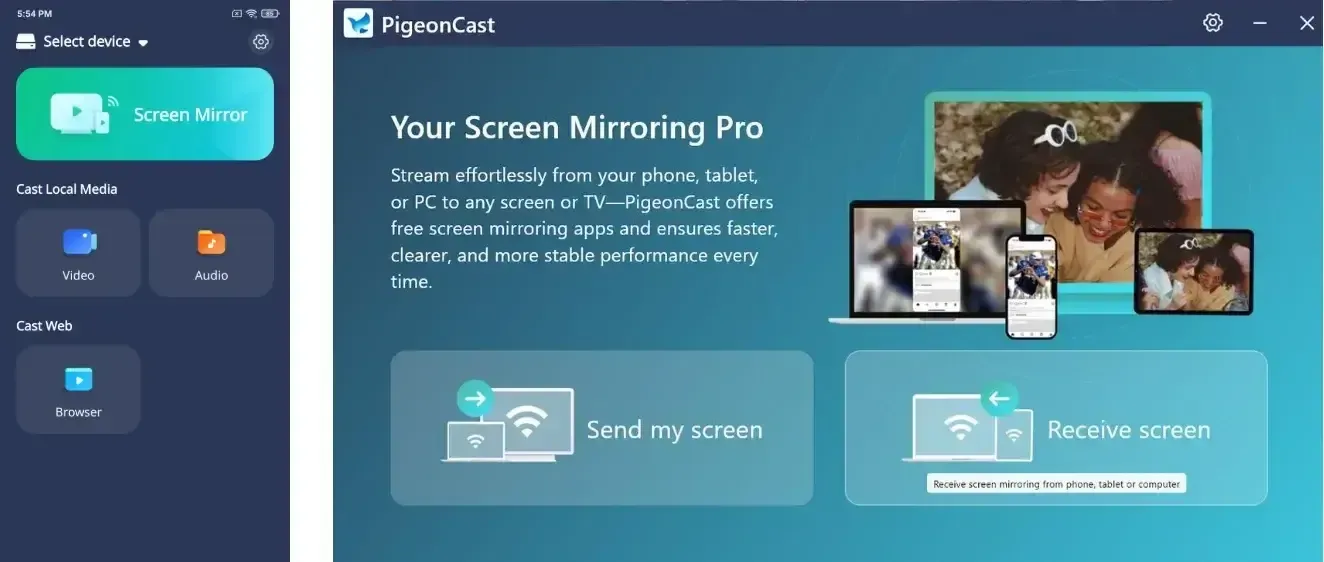
Step 3. Once connected, start screen mirroring your phone or laptop, and your device screen appears on the TV.
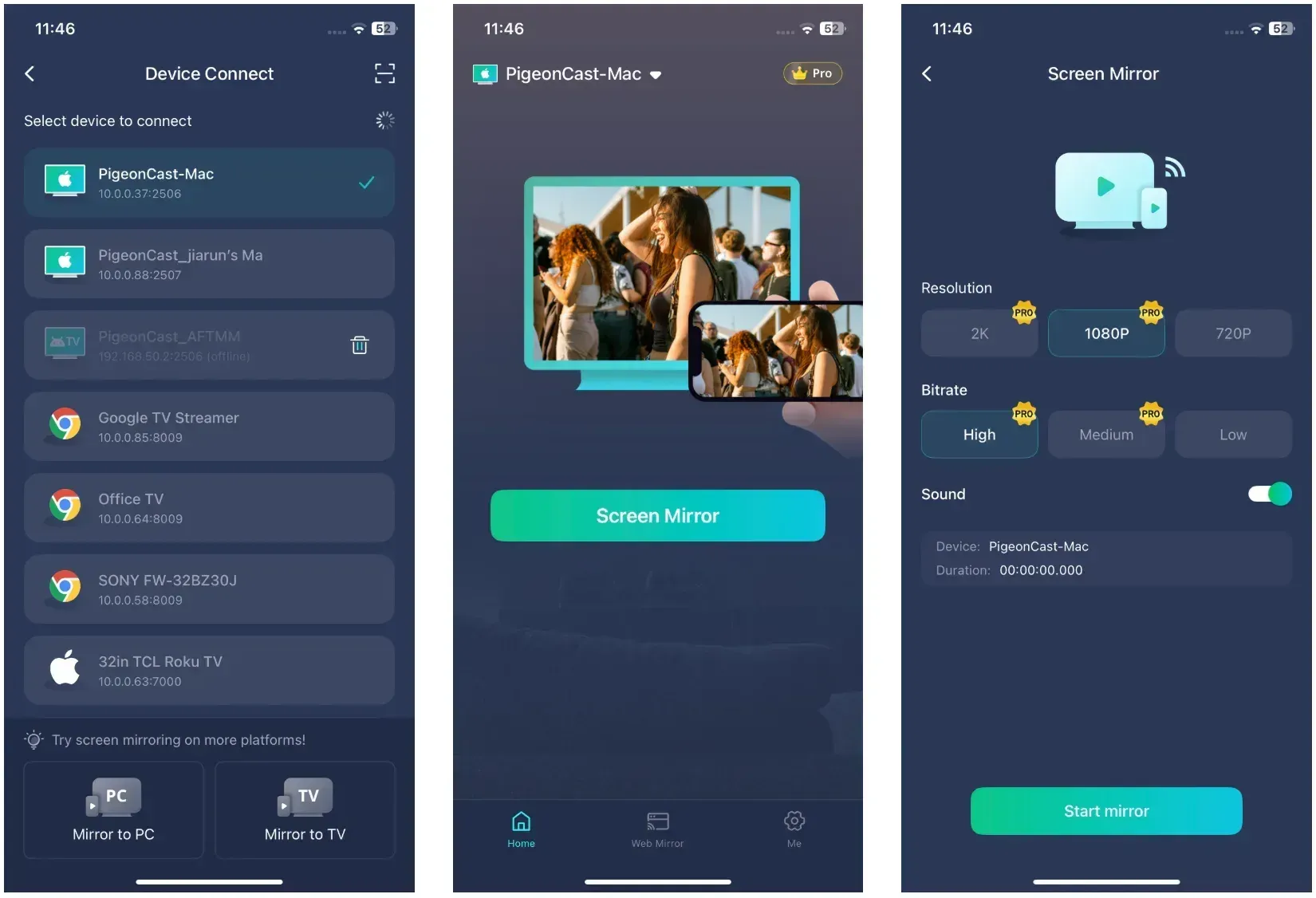
Step 4. Open the PDF and navigate through the document normally while it appears on the TV.
Display PDF on TV From iPhone
For iPhone and iPad users, AirPlay is usually the simplest way to display a PDF on a TV. Because AirPlay mirrors the entire screen, the TV shows exactly what appears on the device, including PDFs opened in Files, Books, Safari, or third-party apps.
AirPlay is especially useful for documents that require zooming, highlighting, or page-by-page review because all controls remain on the iPhone or iPad. There is no need to move through pages with a TV remote or rely on the TV to understand the file format.
The downside is compatibility. AirPlay works best with Apple TV and AirPlay-enabled smart TVs. If the TV does not support AirPlay, you may need a receiver app or a wired connection instead.
Step 1. Open the PDF in Files, Books, Safari, or another PDF app.
Step 2. Make sure the iPhone or iPad and the TV are on the same Wi-Fi network.
Step 3. Open Control Center and tap Screen Mirroring.
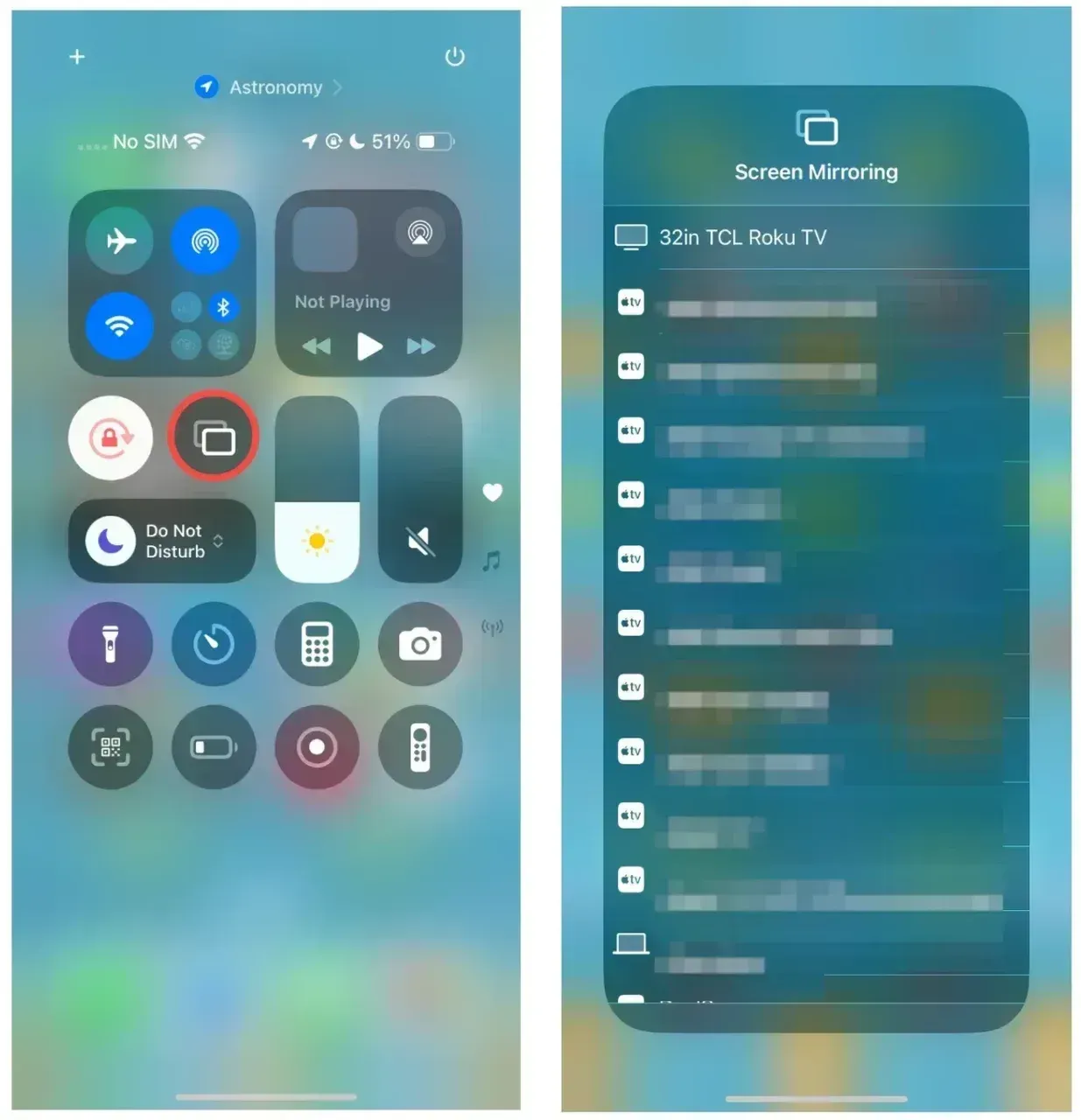
Step 4. Select the TV.
Step 5. Return to the PDF and move through the pages as needed.
If the TV does not support AirPlay, you can use Apple TV, an HDMI adapter, or an AirPlay receiver app such as PigeonCast.
Display PDF on TV From Android
Most Android devices support some form of wireless casting, whether it is called Cast, Smart View, Screen Cast, or Wireless Display. Regardless of the name, the goal is the same: show the PDF from the phone on the TV without transferring the file itself.
This method works well for PDFs because Android devices often provide better document controls than smart TVs. You can zoom into charts, review spreadsheets embedded in PDFs, and scroll through lengthy documents while everyone sees the same content on the larger screen.
The challenge is that Android casting standards vary between manufacturers. A casting feature that works perfectly with one TV brand may not be available on another. If you frequently present on different displays, a dedicated screen mirroring app can provide more consistent results.
Step 1. Open the PDF on the Android device.
Step 2. Open the cast or screen sharing control from Quick Settings.
Step 3. Select the TV.
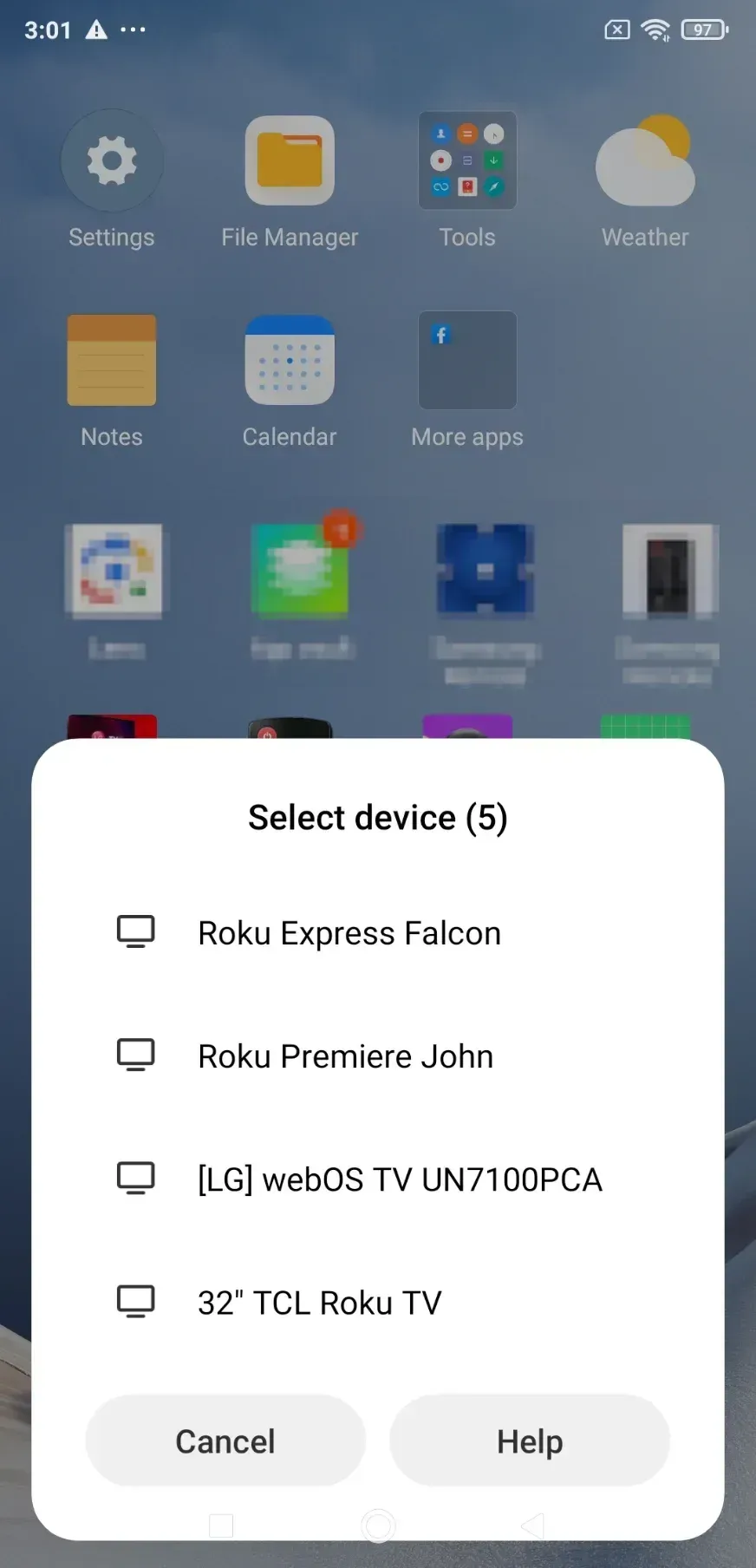
Step 4. Once the screen appears on the TV, return to the PDF and read, scroll, or zoom normally.
Some Android devices also support Google Cast directly from Chrome or Google Drive, but full-screen mirroring is often the simplest option for PDFs.
Display PDF on TV From Windows
Windows laptops are one of the most practical devices for displaying PDFs on a TV because they support both wireless and wired presentation methods. For document-heavy tasks, a larger screen combined with a full desktop PDF reader makes it easier to review reports, spreadsheets, manuals, and presentation materials.
If you want to connect wirelessly, the TV must support Miracast or have access to a compatible wireless display receiver. Otherwise, the TV may not appear when you open the Windows casting menu. In those situations, an HDMI connection or a dedicated screen mirroring receiver is usually the simpler solution.
Wireless display is convenient for quickly sharing PDFs without cables, especially in meeting rooms or classrooms. However, PDFs often contain detailed text, tables, and diagrams that people may view for extended periods. For longer presentations, HDMI remains the more reliable option because it avoids network interruptions and maintains a stable connection throughout the session.
For business meetings, training sessions, and client presentations, many presenters use wireless display when available but keep an HDMI cable as a backup.
Step 1. Open the PDF on the laptop.
Step 2. Press Windows + K and look for the TV in the connection panel.
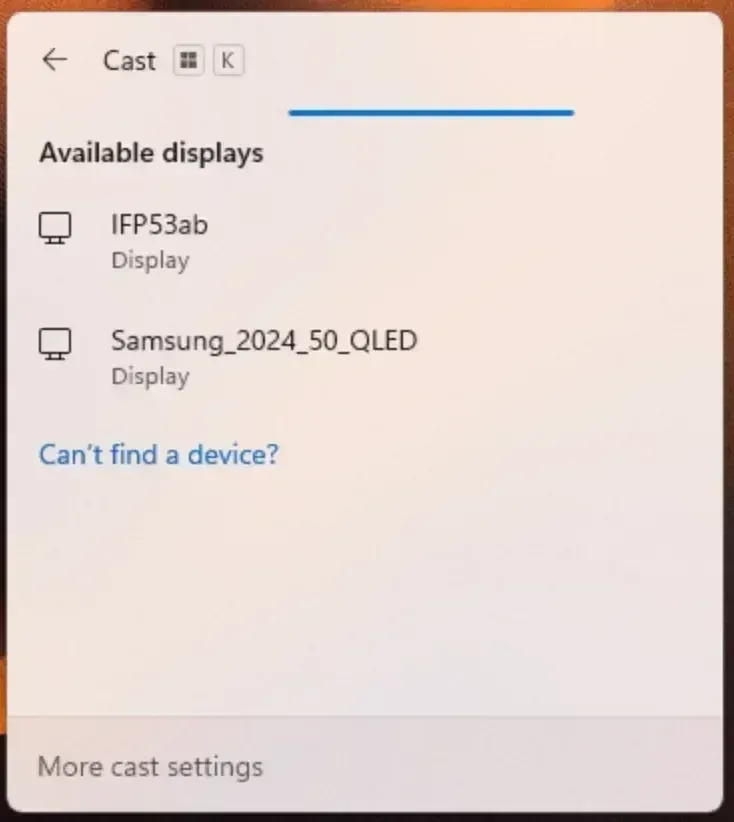
Step 3. Select the TV if it appears.
Step 4. Choose whether to duplicate the screen or extend it.
Step 5. Adjust the PDF size for easier viewing.
Display PDF on TV From Mac
Mac users can usually display PDFs on a TV through AirPlay, which provides a straightforward wireless connection to compatible displays. Since PDFs often require precise zooming and page navigation, controlling everything directly from the Mac is typically much easier than trying to interact with the document on the TV itself.
AirPlay works particularly well when presenting reports, contracts, manuals, or classroom materials because the Mac can run full desktop PDF software while the TV serves purely as the display.
The main consideration is compatibility. Outside Apple-focused environments, AirPlay support can be less predictable. When presenting in hotels, conference rooms, or client offices, many users still carry a USB-C to HDMI adapter as a backup.
Step 1. Open the PDF in Preview, Safari, or another PDF reader.
Step 2. Open Control Center from the menu bar.
Step 3. Choose Screen Mirroring and select the TV.
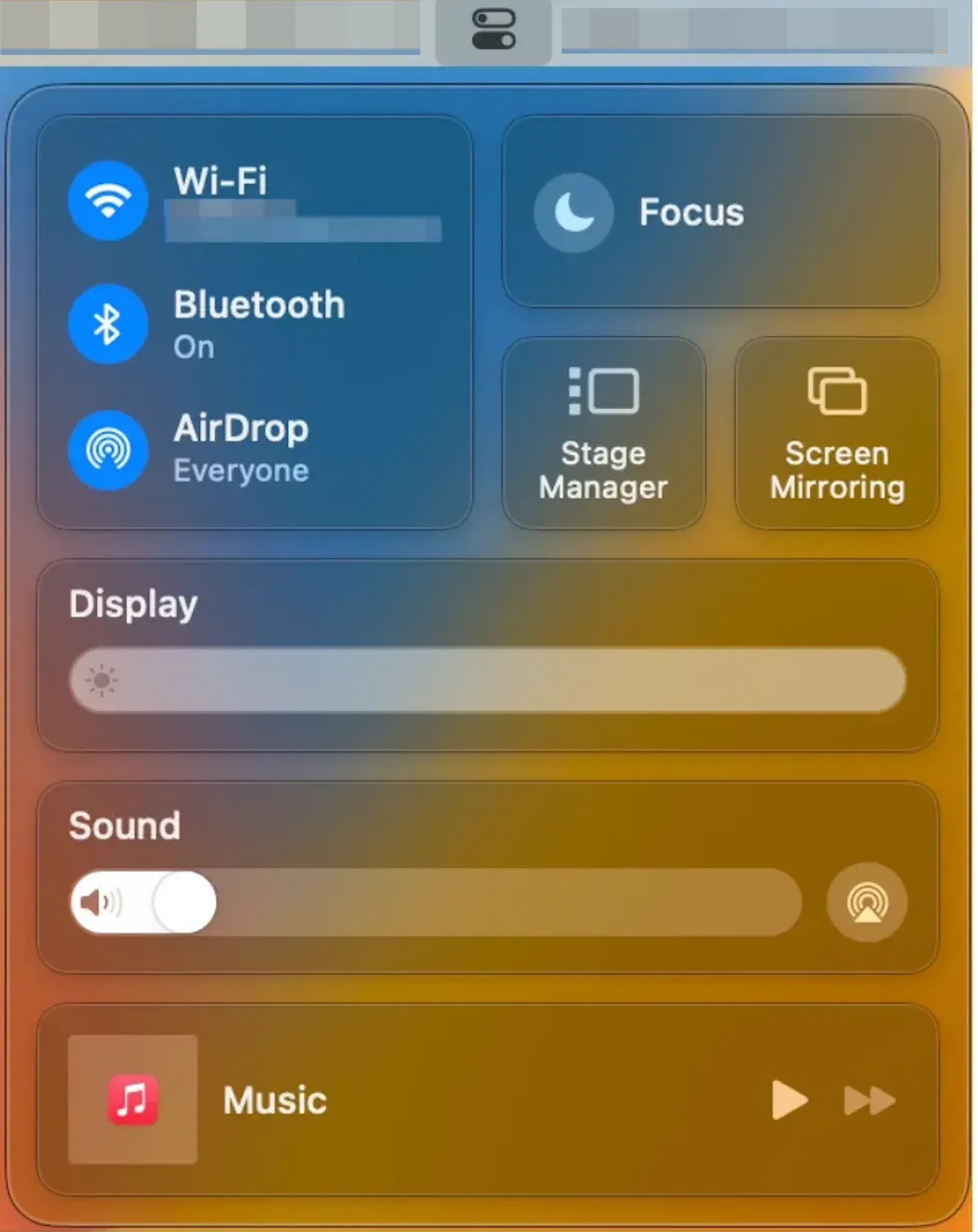
Step 4. Once the Mac screen appears on the TV, place the PDF in the size you want.
What to Do If the PDF Will Not Show on TV
If a PDF does not appear on the TV, the problem is usually related to the connection method rather than the document itself. In most cases, the PDF opens correctly on the phone, tablet, or computer, but the screen mirroring, casting, or wireless display connection fails before the content reaches the TV.
Start by confirming that both devices are connected to the same Wi-Fi network. If you are using AirPlay, Chromecast, Miracast, or another wireless display technology, network mismatches are one of the most common causes of connection failures.
If the connection succeeds but the PDF still does not appear, close and reopen the document after the screen sharing session begins. Some PDF readers do not refresh correctly when a display connection is established.
You can also try another PDF reader, restart both devices, or switch to HDMI if the wireless connection keeps disconnecting.
If the document appears but the text is difficult to read, increase the zoom level before mirroring. A larger display improves visibility, but it cannot compensate for text that is already too small on the source device.
How to Present a PDF on a TV for Meetings
When presenting PDFs in conference rooms, reliability is usually more important than the specific connection method. Reports, contracts, proposals, technical drawings, and training materials often contain detailed information that people need to review for extended periods.
For most meetings, wireless screen sharing provides the fastest setup. However, many professionals still keep an HDMI connection available as a backup because it eliminates compatibility issues and reduces the risk of interruptions during important presentations.
If the document contains small charts, tables, or financial data, consider increasing the zoom level before the meeting starts. This makes the content easier to read for people sitting farther from the screen.
How to Display a PDF in Classrooms
PDFs are widely used for lesson plans, worksheets, reading materials, manuals, and training guides. Displaying these documents on a TV allows everyone in the room to follow the same content while the instructor controls navigation from a phone, tablet, or computer.
Tablets are particularly useful in educational environments because they allow instructors to zoom, highlight, annotate, and switch between documents quickly. Students can follow diagrams, passages, and exercises on the larger display without constantly changing devices.
For longer lessons or training sessions, a wired HDMI connection may be worth considering because it reduces the chance of interruptions during instruction.
TV or Projector: Which Is Better for PDFs?
For most PDF documents, a TV provides a better viewing experience than a projector.
PDFs frequently contain small text, detailed tables, diagrams, and charts that benefit from higher brightness, stronger contrast, and sharper image quality. These advantages make TVs particularly effective for business reports, spreadsheets, technical documents, and educational materials.
Projectors can create larger images, which may be useful in large rooms. However, they often require dimmer lighting conditions and may not reproduce fine details as clearly as a modern TV.
If your primary goal is document readability, a TV is usually the better choice.
What Other Document Types Can You Display on a TV?
The same methods used to display PDFs can also work with many other document types. In most cases, the TV does not need to open the file itself. It only needs to display the screen of the phone, tablet, or computer where the document is already open.
- PowerPoint: Project PowerPoint to a TV using HDMI, AirPlay, casting, or screen mirroring from a compatible device.
- Word documents: Screen mirroring is usually the simplest option.
- Excel spreadsheets: HDMI or screen mirroring works well when you need to show detailed tables or charts.
- Google Docs: Browser casting or screen mirroring can display the document on a larger screen.
- Google Slides: AirPlay, casting, or screen mirroring can all work depending on your device.
As long as the document opens on your device, you can usually show it on a TV without relying on direct file-format support from the TV itself.
Conclusion
Displaying a PDF on a TV is usually much simpler than people expect. In most cases, you do not need the TV to open the document at all. Instead, open the PDF on a phone, tablet, or computer and use the TV as a larger screen.
Whether you're presenting in a meeting room, teaching a class, reviewing documents with clients, or sharing information at home, the same principle applies: your device handles the PDF, and the TV makes it easier for everyone to see. Once you approach it that way, choosing the right connection method becomes much easier.
How to Display PDF on TV FAQs
Can smart TVs open PDF files directly?
Some smart TVs can open PDF files through a built-in file browser or third-party app, but support is often limited. Large documents may load slowly, and navigating multiple pages with a remote control can be inconvenient. For most users, opening the PDF on another device and displaying it on the TV is the easier option.
Can I display a PDF on TV without Wi-Fi?
Yes. An HDMI cable is the most common way to display a PDF on a TV without Wi-Fi. You can connect a laptop directly to the TV and view the document on the larger screen. Some wireless display technologies may also work through direct device-to-device connections, but HDMI is usually the most reliable solution.
Why does my PDF look blurry on the TV?
Blurry text is often caused by display scaling, low screen resolution, or excessive zooming. PDFs with small fonts may also become harder to read when mirrored from a phone screen. Increasing the zoom level on the source device and using the TV's native resolution can usually improve readability.
Can I display password-protected PDFs on a TV?
Yes. As long as you can open the PDF on your phone, tablet, or computer, you can display it on a TV using screen mirroring, casting, AirPlay, or HDMI. The TV only shows what appears on your device and does not need direct access to the document itself.
Can I annotate a PDF while displaying it on a TV?
Yes. If your PDF app supports highlighting, drawing, or note-taking, those annotations will appear on the TV while screen sharing. This is especially useful for teaching, training sessions, document reviews, and collaborative discussions.
What is the best way to display large PDF files on a TV?
For large PDFs with many pages, a laptop is usually the best option because desktop PDF readers provide faster navigation, search tools, and smoother scrolling. Wireless mirroring works well in many situations, but HDMI may provide a more stable experience during longer viewing sessions.
Can I display a PDF on a TV from Google Drive?
Yes. Open the PDF from Google Drive on your phone, tablet, or computer, then share the screen to the TV using AirPlay, casting, screen mirroring app, or HDMI. The TV displays the document through your device rather than accessing the file directly from Google Drive.
Is it better to use a phone, tablet, or laptop for displaying PDFs on a TV?
All three can work, but the best choice depends on the document. Phones are convenient for quick viewing, tablets make zooming and annotation easier, and laptops are often the most practical option for long documents, presentations, spreadsheets, and detailed reports.
Mia Clarke is a technology editor specializing in screen mirroring and casting solutions across multiple platforms. Mia provides clear, practical guides and in-depth insights to help users seamlessly connect their devices. Passionate about enhancing digital experiences, Mia is dedicated to keeping readers updated on the latest trends and tools in cross-platform screen sharing. Whether you’re looking to mirror your smartphone, laptop, or smart TV, Mia’s content delivers reliable, user-friendly advice to simplify your tech setup.