
The small screen on a DJI Osmo Pocket is fine for checking a clip right after you shoot it. But if you want to watch travel footage, family videos, or a longer recording with other people, a TV is much more comfortable.
The good news is that you do not need a special DJI TV setup. In most cases, you simply move the video to a phone, computer, or storage device first, then play it on the TV from there.
The best method depends on what matters more to you: quick wireless viewing or keeping the original video quality.
Can You Connect DJI Osmo Pocket Directly to a TV?
Not in the usual way.
DJI states that Osmo Pocket devices do not support HDMI output, including through a Type-C to HDMI adapter. So plugging a USB-C to HDMI cable into a Pocket 3 or Pocket 4 will not send the camera image or recorded video directly to your TV.
This is different from some phones and laptops, where the USB-C port can also carry a video signal.
On an Osmo Pocket, the USB-C port is mainly used for things such as charging, file transfer, accessories, OTG connections, and supported webcam functions. It does not work as a standard TV video output.
That means this setup will not work: Osmo Pocket → USB-C to HDMI adapter → TV. Instead, the footage needs to be played from another device first.
The three most practical options are phone, USB drive, and computer. For a couple of short clips, your phone is usually the most convenient. For longer 4K footage, a USB drive or computer may be a better choice.
How to Watch DJI Osmo Pocket Videos on TV
There is no single method that works best for everyone. If your footage is already on your phone, wireless casting or screen mirroring takes very little setup. If the files are still on the camera or microSD card, you may prefer to move them to a USB drive or computer instead.
Watch DJI Pocket Videos on TV from Your Phone
If you already use DJI Mimo, your phone is a natural place to start. DJI allows Pocket footage to be transferred to a phone through the Mimo app. Pocket 3 and newer supported models can also use an OTG connection, which can be useful when you do not want to rely on wireless transfer.
You do not need to download everything from the camera. If you only want to show a few clips on the TV, transfer those files and leave the rest on the camera or memory card.
Once the video is on your phone, you have two main options.
Cast the Video to Your TV
If the app you are using has a Cast or AirPlay button, try that first.
For example, an iPhone may be able to send the video to an AirPlay-compatible TV, while an Android phone may work with a Chromecast or Google TV device.
The basic process is simple:
Step 1. Make sure your phone and TV are connected to the same Wi-Fi network.
Step 2. Open the DJI video on your phone.
Step 3. Tap the Cast or AirPlay button if one is available.
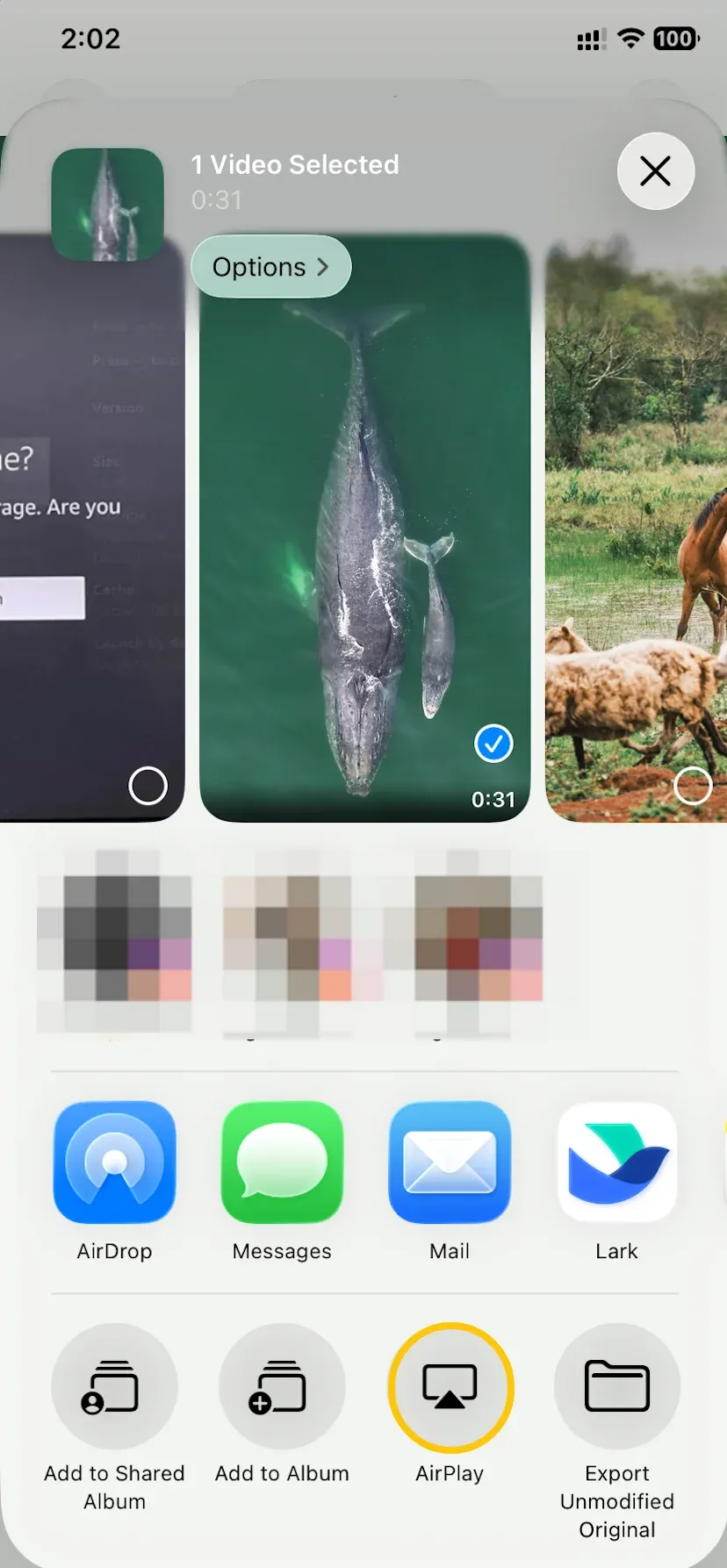
Step 4. Choose your TV or streaming device.
Step 5. Start playback.
This method is convenient because the TV handles the video playback while your phone acts more like a controller.
The exact controls will vary depending on the phone, TV, and app you use.
If there is no Cast or AirPlay option, screen mirroring is the next method to try.
Screen Mirror Your Phone to TV
Screen mirroring sends the whole phone screen to the TV, so it works even when the video app does not have its own Cast button.
The exact setup depends on the devices you are using, but the basic process is:
Step 1. Transfer or open the DJI video on your iPhone or Android phone.
Step 2. Connect your phone and receiving device to the same Wi-Fi network.
Step 3. Tap the Cast, Smart View, Screen Mirroring or somthing like this from the Quick Settings or Control Center menu.
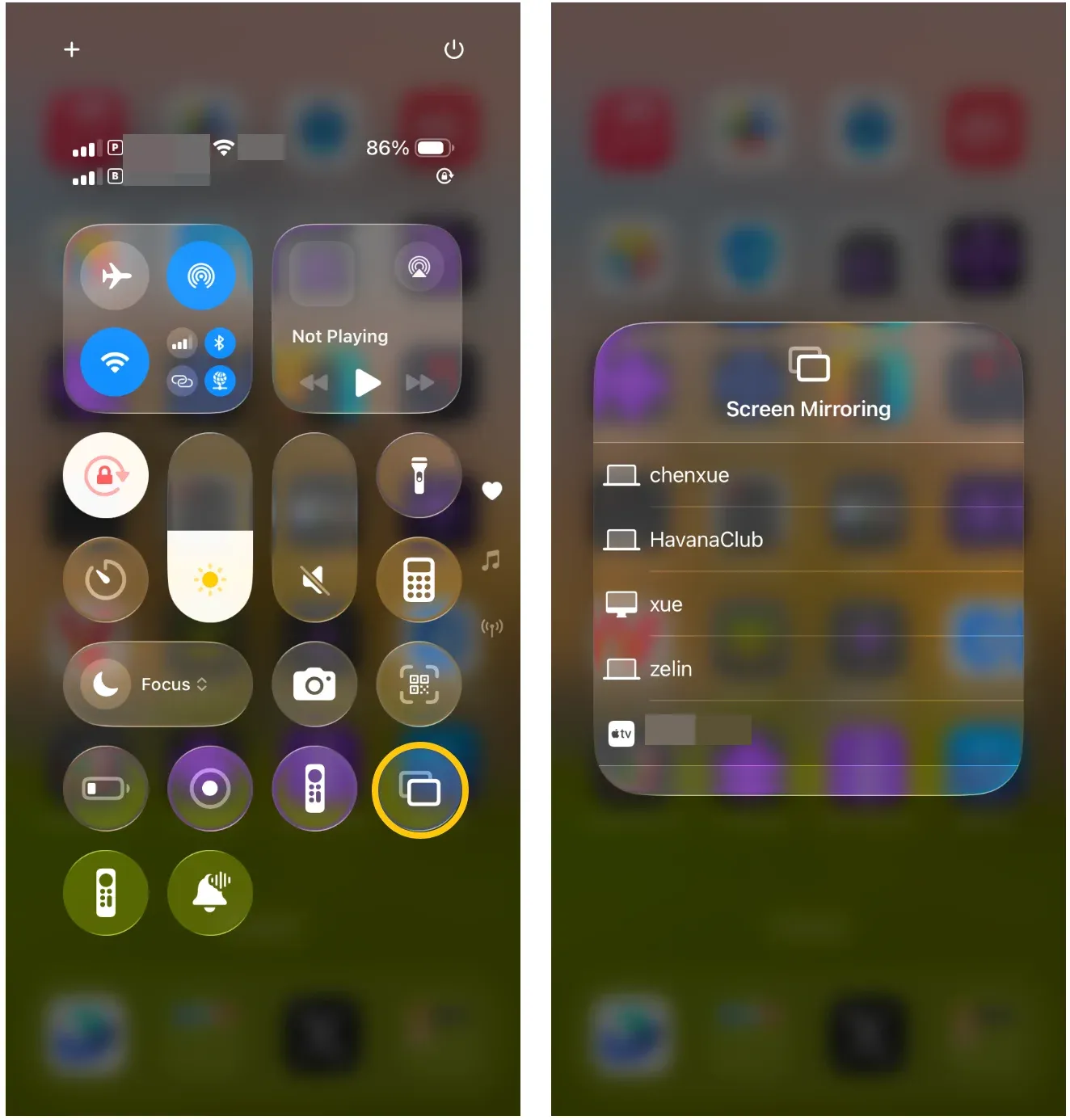
Step 4. Select the TV or receiver.
Step 5. Open the DJI video and switch it to full-screen playback.
Built-in mirroring works well when both devices support the same system. For example, an iPhone may mirror to an AirPlay-compatible TV, while some Android phones can connect to supported Google Cast or Miracast receivers.
The problem is that phones and TVs do not always use the same mirroring standard. That is where a cross-platform screen mirroring option such as PigeonCast can be useful.
To mirror a DJI video with PigeonCast:
Step 1. Open PigeonCast on your phone.


Overall Rating:



Step 2. Open PigeonCast on the receiving TV or supported device.
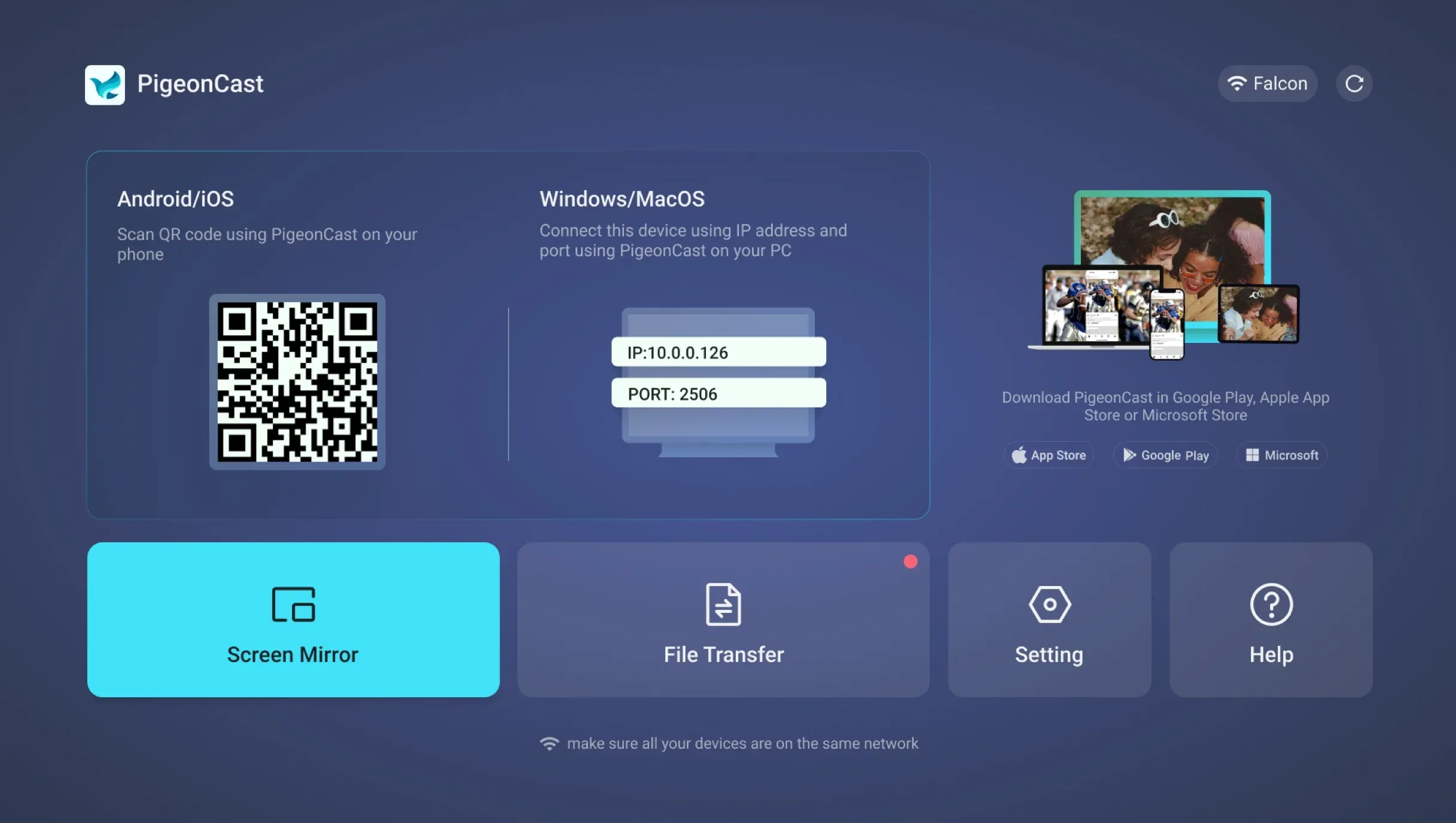
Step 3. Make sure both devices are on the same Wi-Fi network.
Step 4. Connect the devices using the available QR code or device connection option.
Step 5. Start screen mirroring from your phone.
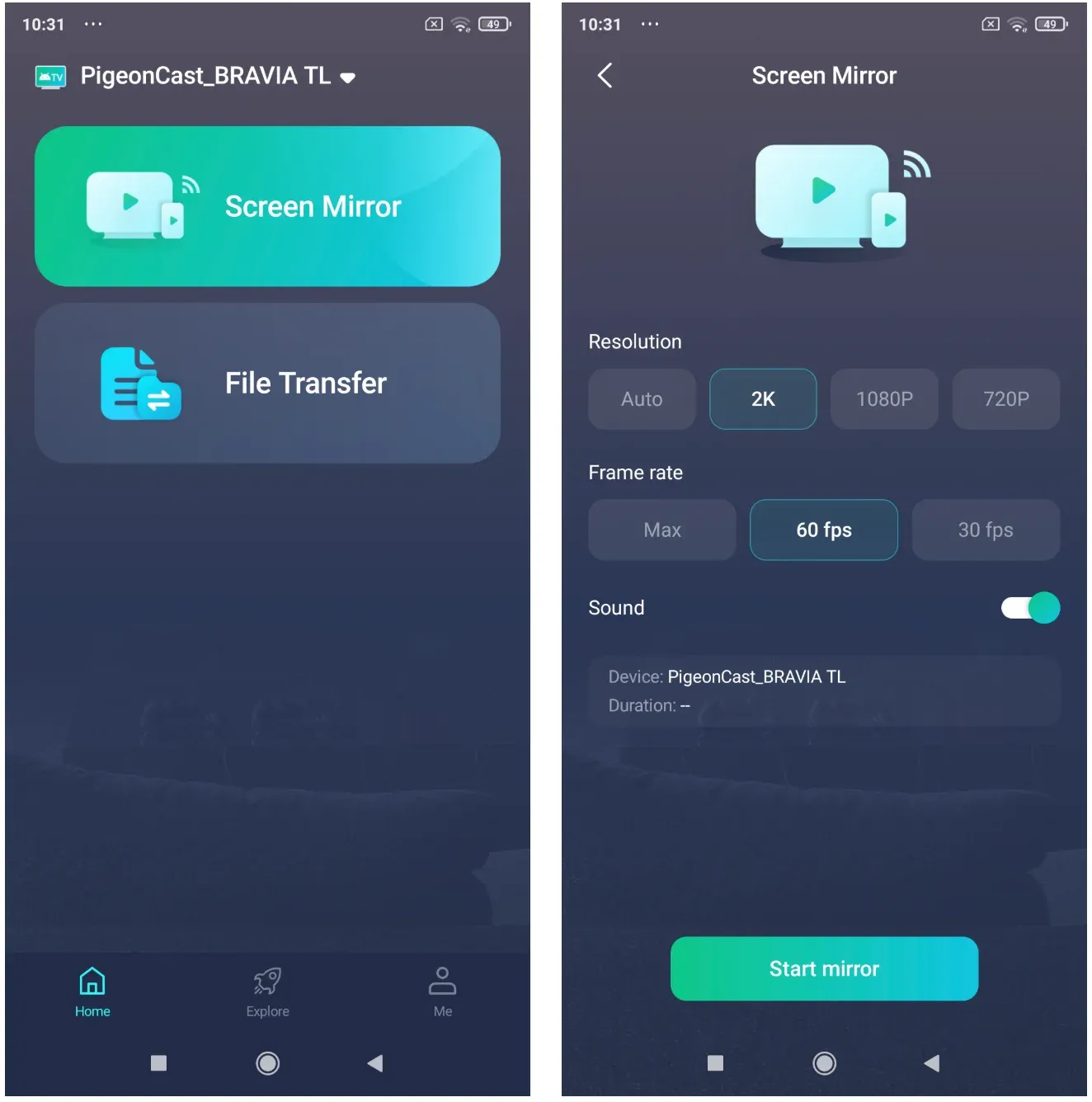
Step 6. Open the DJI video and play it full screen.
PigeonCast supports mirroring at up to 4K resolution on compatible devices and connections, which is useful if you are watching high-resolution footage recorded on an Osmo Pocket.
Actual playback quality still depends on the phone, receiver, TV, network conditions, and the original video, but 4K support gives you more headroom than a lower-resolution mirroring setup.
For a quick look at travel clips, family videos, or recent footage, this is often easier than moving the files to another storage device first.
Phone playback is convenient, but it is not always the best choice for a large collection of videos. If you have several long recordings or want to play the original file directly, a USB drive can be simpler.
Play DJI Pocket Videos on TV with a USB Drive
A USB drive works well when you want to avoid wireless connections altogether.
First, copy the footage from your Osmo Pocket or microSD card to a computer. Then move the videos you want to watch onto a USB drive.
Plug the drive into the TV, open the TV's media player, and select the video.
This approach makes sense if you have just returned from a trip with a large amount of footage and want to watch several original files without transferring them to your phone first.
There is one thing to check before copying everything over: your TV still needs to support the video's file format and resolution.
Newer TVs usually handle common video files without much trouble, but older models may struggle with some high-resolution recordings. If a file will not open, the problem may be the TV's media support rather than the DJI camera itself.
USB playback is less convenient than casting, but it has a clear advantage: the TV is opening the actual video file rather than receiving a mirrored phone screen.
If you already keep your DJI footage on a laptop or desktop, there is an even easier route.
Watch DJI Pocket Videos on TV from a Computer
A computer is a practical choice when your DJI footage has already been transferred there for editing, backup, or storage.
The most straightforward setup is an HDMI cable between the computer and TV.
Once connected, switch the TV to the correct HDMI input, open the video on your computer, and play it full screen.
This avoids moving the file again and works especially well when you want to watch several clips one after another.
You can also mirror or cast your computer wirelessly if your TV supports it. Wireless playback is convenient, but HDMI is usually easier when you are dealing with large files or long videos.
You can transfer Pocket footage to a computer through USB-C or remove the microSD card and copy the files with a card reader.
Whichever route you choose, the important difference is that the video is being played from the computer. The Pocket camera does not need to stay connected to the TV.
How to Keep DJI Video Quality When Watching on TV
DJI Pocket cameras can record high-resolution footage, so it is reasonable to expect the video to look just as good when you move it to a 4K TV.
Whether that happens depends partly on how you play it.
If you copy the original video file to a USB drive or play it from a computer over HDMI, you are working directly with the file recorded by the camera. This is usually the better choice when you want to inspect details or watch a long 4K recording.
Wireless casting and screen mirroring add another step between the phone and TV.
The final picture may be affected by:
- Your Wi-Fi connection
- The phone or receiving device
- The mirroring or casting method
- The TV's resolution
- Any compression used during playback
If you use PigeonCast with compatible hardware, mirroring can support up to 4K. That makes it a practical option for high-resolution DJI footage when you want the convenience of wireless playback without being limited to a basic low-resolution mirror.
Still, supported resolution is only one part of the picture. A weak Wi-Fi connection or lower-resolution receiving device can still reduce the final result.
For ordinary viewing, this may not matter much. A short holiday clip can still look very good when mirrored from a phone.
The difference becomes more important if you are checking fine details, comparing footage, or watching a long 4K video. In those situations, playing the original file directly from USB or a computer remains the safest option.
It is also worth checking which version of the video you transferred. If you exported an edited copy instead of moving the original footage, the file may already have been compressed before it reaches the TV.
If a video looks noticeably worse on your TV than it did on the camera, check the file and playback method before blaming the television.
Final Words
An Osmo Pocket is built to make shooting easy, not to act as a TV player. Once you treat the camera as the starting point rather than the playback device, the process becomes much simpler.
For a few clips, moving the video to your phone and casting or mirroring it is usually enough. It is quick, wireless, and easy to do when you want to show someone what you just filmed.
For a full travel video, a long family recording, or footage where 4K quality matters, playing the original file from a USB drive or computer is often the better experience.
There is no need to force every DJI video through the same setup. Use the phone when convenience matters and direct file playback when quality matters more.
DJI Osmo Pocket to TV FAQs
Can DJI Pocket 3 connect directly to a smart TV?
Not through a normal HDMI connection. DJI Pocket 3 does not support HDMI output, including through a USB-C to HDMI adapter. Transfer the video to a phone, computer, or storage device first, then play it on the TV.
Does DJI Pocket 3 have HDMI output?
No. Its USB-C port can be used for functions such as file transfer and supported accessories, but not as a standard HDMI video output.
Can I use USB-C to HDMI with DJI Pocket 3?
Not for direct TV playback. A standard USB-C to HDMI adapter will not turn Pocket 3 into an HDMI video source.
Can I use a TV as a live monitor for DJI Osmo Pocket?
There is no simple direct HDMI setup for this. DJI Mimo can provide a live preview on a connected phone, but sending that live view to a TV adds another connection. If you only need a larger screen while shooting, a phone or tablet is usually easier.
Can I watch DJI 4K videos on a 4K TV?
Yes, as long as the TV and playback method support the file. Playing the original video from a USB drive or computer is usually the most straightforward option when maintaining full quality is important.
Does screen mirroring reduce DJI video quality?
It can. Screen mirroring quality depends on the phone, receiver, Wi-Fi connection, and TV. PigeonCast supports up to 4K mirroring on compatible devices, but the final quality still depends on the full setup.
Can I watch DJI videos on TV without downloading them to my phone?
Yes. You can transfer the footage to a computer or copy it from the microSD card, then play it on the TV from a computer or compatible USB drive. A phone is convenient, but it is not required.
Mia Clarke is a technology editor specializing in screen mirroring and casting solutions across multiple platforms. Mia provides clear, practical guides and in-depth insights to help users seamlessly connect their devices. Passionate about enhancing digital experiences, Mia is dedicated to keeping readers updated on the latest trends and tools in cross-platform screen sharing. Whether you’re looking to mirror your smartphone, laptop, or smart TV, Mia’s content delivers reliable, user-friendly advice to simplify your tech setup.