
Need to mirror iPhone camera to Mac? AirPlay provides a wireless screen view, QuickTime Player offers a wired preview and recording option, and Continuity Camera lets compatible Mac apps use your iPhone as a webcam. This guide covers the steps and helps you choose the right method.
Can You Mirror an iPhone Camera to a Mac?
Yes, but the right method depends on how you plan to use the camera. AirPlay and QuickTime Player let you view the iPhone's Camera app or camera feed on your Mac, while Continuity Camera makes the iPhone available as a camera source inside compatible Mac apps.
Choose the Right Connection Method
Before you start, decide whether you need a wireless screen view, a direct USB preview, or camera access inside a Mac app. The table below shows what each method is designed for.
| Method | How it works | Connection | Best for |
|---|---|---|---|
| AirPlay | Mirrors the iPhone screen, including the Camera app | Wireless | Viewing a live camera preview |
| QuickTime Player | Displays the iPhone camera feed on your Mac | USB | Previewing and recording |
| Continuity Camera | Lets Mac apps use the iPhone as a webcam | Wireless or USB | FaceTime, Zoom, OBS, and other video apps |
Method 1. Mirror iPhone Camera to Mac with AirPlay
AirPlay mirrors your entire iPhone screen to your Mac, allowing you to view the Camera app wirelessly. Your Mac must support AirPlay to Mac, and both devices must be connected to the same Wi-Fi network.
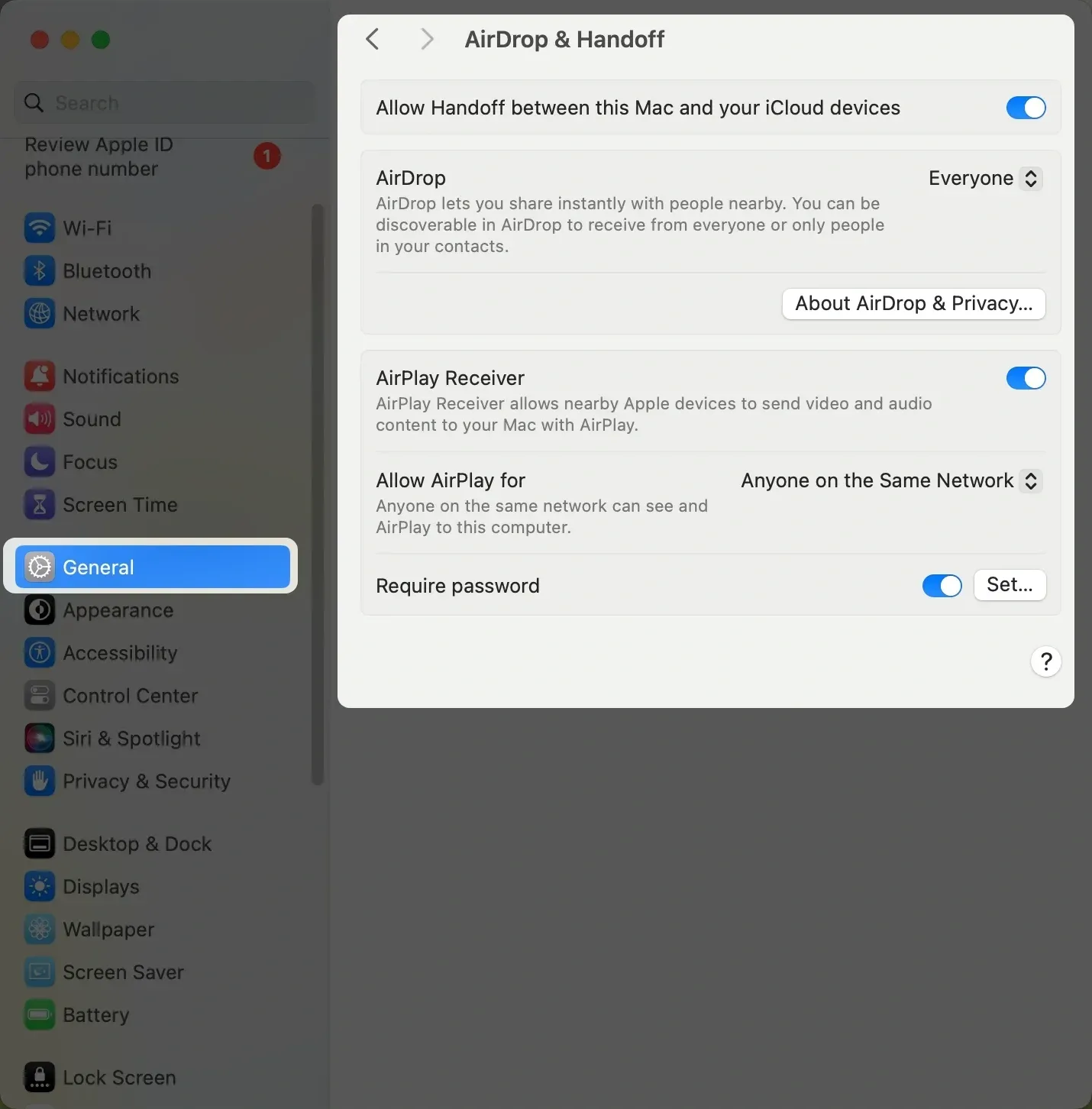
Step 1. On your Mac, open System Settings > General > AirDrop & Handoff and turn on AirPlay Receiver.
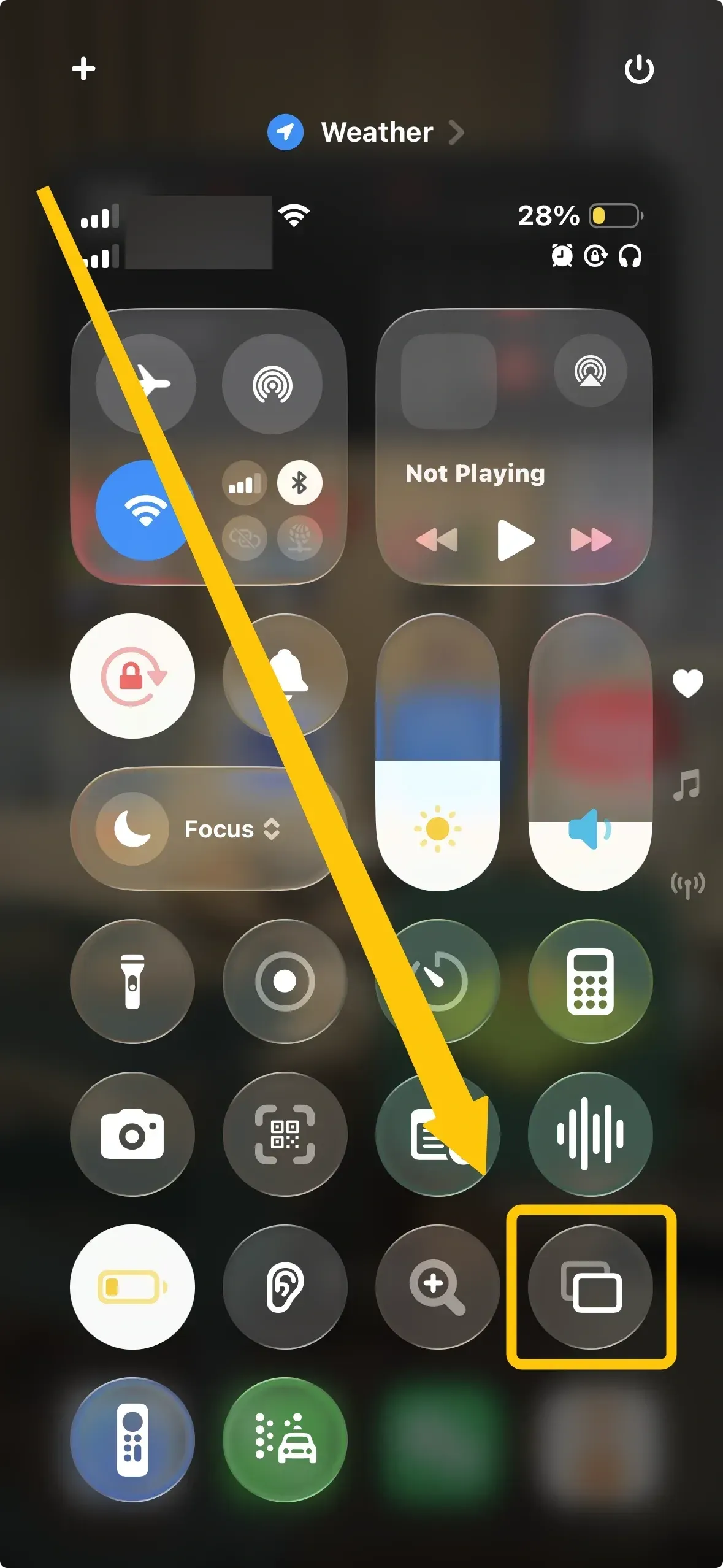
Step 2. On your iPhone, open Control Center and tap Screen Mirroring to select your Mac from the device list.
Step 3. Enter the AirPlay code shown on your Mac if prompted, then open the Camera app on your iPhone.
Step 4. To stop mirroring, open Control Center > Screen Mirroring > Stop Mirroring.
Method 2. View and Record iPhone Camera on Mac with QuickTime Player
QuickTime Player lets you view and record your iPhone's camera feed on your Mac through a USB connection. If you only need to move saved camera photos rather than monitor a live feed, see this guide on transferring photos from iPhone to computer. Choose the appropriate cable for your iPhone:
- iPhone 15 and later: Use a USB-C cable.
- iPhone 14 and earlier: Use a Lightning cable.
The cable must support data transfer. If your Mac only has USB-C or Thunderbolt ports, you may need a compatible adapter or cable.

Step 1. Connect your iPhone to your Mac, unlock it, and tap Trust if prompted.
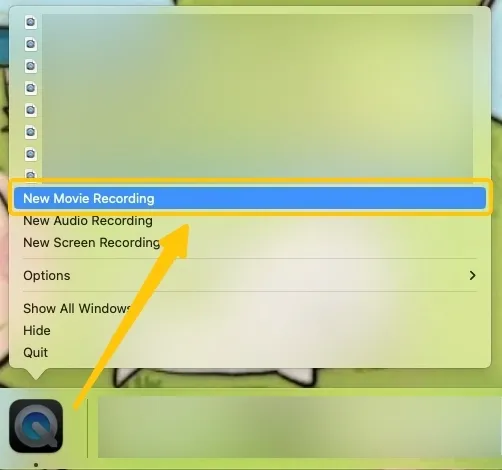
Step 2. Open QuickTime Player on your Mac and select File > New Movie Recording.
Step 3. Click the arrow next to the red Record button and select your iPhone under Camera.
Step 4. View the iPhone camera feed in the QuickTime window. Click Record to save the video if needed.
Step 5. Click Stop when you finish, then select File > Save.
Method 3. Use iPhone as a Mac Webcam with Continuity Camera
Continuity Camera lets compatible Mac apps use your iPhone as a webcam. It does not mirror the iPhone Camera app; instead, it sends the camera feed directly to apps such as FaceTime, Zoom, or OBS. Before you start, make sure:
- Your iPhone is XR or later and runs iOS 16 or later.
- Your Mac runs macOS Ventura 13 or later.
- Both devices use the same Apple Account with two-factor authentication enabled.
- Wi-Fi and Bluetooth are turned on, and the devices are nearby.
- Your iPhone is mounted securely, with the rear camera facing you, and remains locked.
Step 1. Open FaceTime, Zoom, OBS, or another Mac app that supports camera selection.
Step 2. Open the app's video or camera settings.
Step 3. Select your iPhone as the camera source.
Step 4. Start the video to use your iPhone camera on your Mac.
Step 5. To stop using Continuity Camera, switch to another camera or end the video.
Mirror iPhone Camera to Windows PC with PigeonCast
If you want to view your iPhone camera on a Windows PC, PigeonCast provides a practical cross-platform screen mirroring option. This screen mirroring app for iPhone to MacBook supports AirPlay, Google Cast, DLNA, and direct device-to-device mirroring. It works with iPhone, Android, Windows, Mac, Android TV, Apple TV, and other compatible screens.
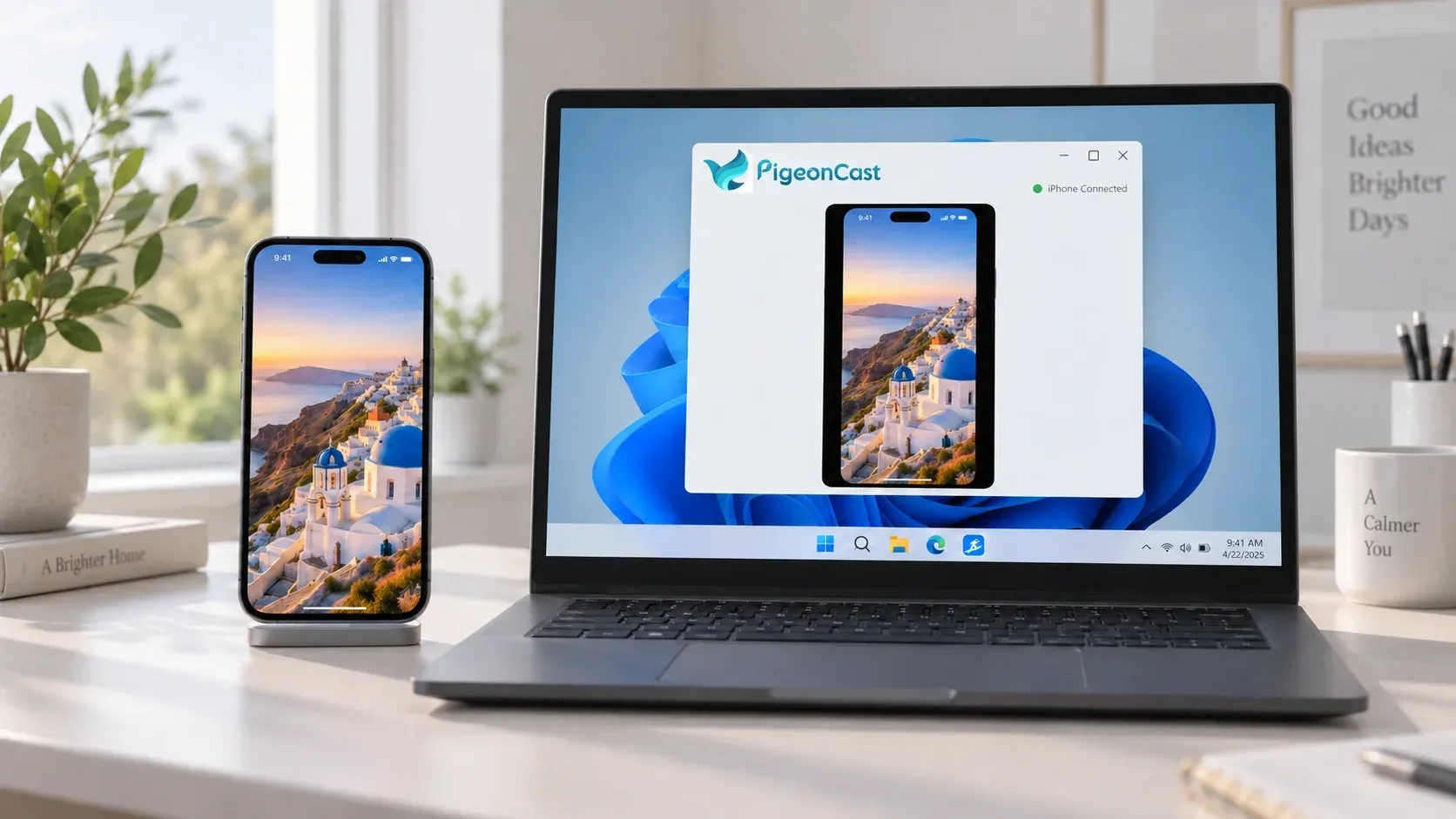
Step 1. Install PigeonCast on your iPhone and Windows PC from the official app store.


Overall Rating:



Step 2. Connect both devices to the same Wi-Fi network and open PigeonCast.
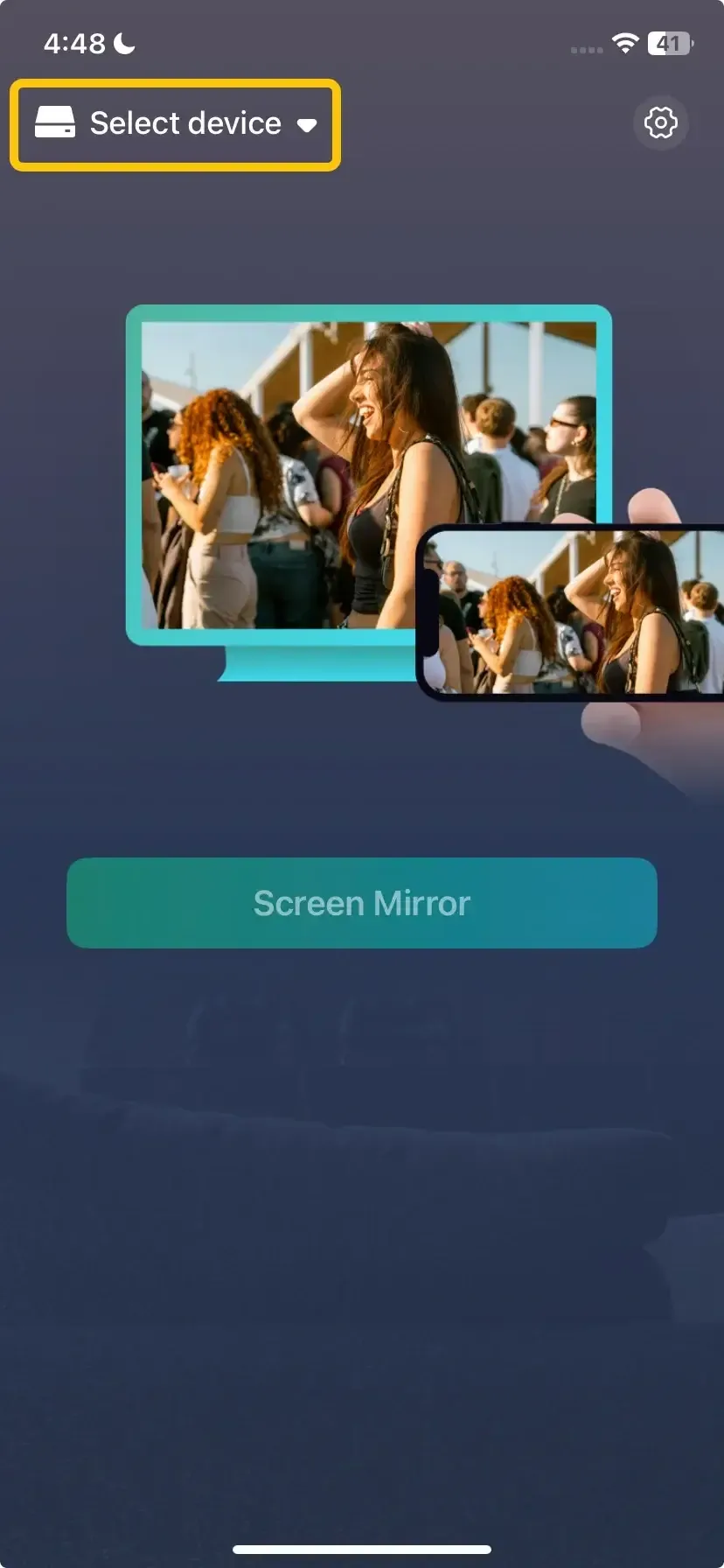
Step 3. Select your Windows PC from the device list on your iPhone.
Step 4. Confirm the connection, then open the Camera app on your iPhone. The iPhone camera screen will now appear on your Windows PC.
How to Fix iPhone Camera Not Showing on Mac
If your iPhone camera does not appear on your Mac, check the settings for the connection method you are using.
AirPlay Does Not Show Your Mac
AirPlay requires a compatible Mac with AirPlay Receiver enabled.
- Make sure your iPhone and Mac are connected to the same Wi-Fi network.
- On your Mac, open System Settings > General > AirDrop & Handoff and turn on AirPlay Receiver.
- Confirm that your Mac supports AirPlay to Mac.
- Restart both devices and try connecting again.
QuickTime Player Does Not Detect Your iPhone
QuickTime needs a working data connection and permission to access your iPhone.
- Use a USB cable that supports data transfer.
- Unlock your iPhone and tap Trust if prompted.
- Open File > New Movie Recording in QuickTime Player.
- Click the arrow next to the Record button and select your iPhone under Camera.
Continuity Camera Is Not Available
Continuity Camera only works when the required devices, software, and account settings are supported.
- Use an iPhone XR or later with iOS 16 or later.
- Use a Mac running macOS Ventura 13 or later.
- Sign in to the same Apple Account on both devices and enable two-factor authentication.
- Turn on Wi-Fi and Bluetooth, keep the devices nearby, and mount the iPhone securely.
- Keep the iPhone locked while using it as a camera.
The Camera Preview Is Lagging or Black
The cause usually depends on the connection type.
- For AirPlay or Continuity Camera, check the Wi-Fi connection and reduce network congestion.
- For QuickTime Player, reconnect the USB cable or try another compatible port.
- If only one Mac app shows a black screen, check whether it supports the selected camera source.
Final Thoughts
The best method depends on what you need after connecting your iPhone. AirPlay is convenient for a quick wireless view, QuickTime Player is better for a stable recording setup, and Continuity Camera is the right choice when a Mac app needs direct access to the iPhone camera. If you are using a Windows PC, PigeonCast provides a convenient way to display your iPhone camera screen wirelessly.
Mirror iPhone Camera to Mac FAQ
Why Can't I Find iPhone Mirroring on My Mac?
- Your Mac or iPhone may not meet Apple's compatibility requirements.
- The devices may use different Apple Accounts.
- Two-factor authentication may be disabled.
- Wi-Fi or Bluetooth may be turned off.
- The iPhone may not be nearby and locked.
- iPhone Mirroring is unavailable in the European Union.
How Do I Use the iPhone Camera in Photo Booth on Mac?
Photo Booth is a built-in Mac app for taking photos and recording short videos with your computer's camera. With Continuity Camera, you can use the rear camera on your iPhone instead, which may provide better image quality. To select your iPhone camera:
- Mount your iPhone near your Mac with the rear camera facing you.
- Keep the iPhone locked and make sure Continuity Camera is enabled.
- Open Photo Booth on your Mac. You can find it in the Applications folder or search for it with Spotlight.
- In the menu bar, select Camera and choose your iPhone.
- Select the photo or video mode, then click the capture or record button.
How to solve iPhone Not Listed in QuickTime Player?
-
Check whether the iPhone appears in the Finder sidebar. If it does not, the issue is likely related to the USB connection, cable, port, or permissions rather than QuickTime.
-
If the iPhone appears in Finder but not QuickTime, quit and reopen QuickTime Player, then check the camera list again.
-
If the "Trust This Computer?" alert does not appear, go to Settings > General > Transfer or Reset iPhone > Reset > Reset Location & Privacy on your iPhone, then reconnect it.
-
Make sure macOS and iOS are updated. VPNs or third-party security software may also interfere with device recognition.
-
If the iPhone still does not appear, try a different data-transfer cable or USB port. A charge-only cable cannot be used for QuickTime camera input.
Why Is Continuity Camera Not Working?
- Your iPhone or Mac may not meet the device or system requirements.
- Wi-Fi or Bluetooth may be turned off.
- The devices may not use the same Apple Account.
- Two-factor authentication may not be enabled.
- Continuity Camera may be turned off.
- The iPhone may not be locked, mounted securely, or close enough to the Mac.
- AirPlay or Sidecar may be active on the Mac.
Can I Record the iPhone Camera View on My Mac?
Yes. QuickTime Player is the most direct option for recording an iPhone camera view on a Mac. Connect the iPhone with a data-transfer cable, select it under Camera in a new movie recording, and click Record.
AirPlay is mainly designed for wireless viewing, while Continuity Camera lets compatible Mac apps use the iPhone as a camera source. To save the footage, use the recording feature provided by the selected app.
Is AirPlay or USB Better for an iPhone Camera Preview?
USB through QuickTime Player is the better choice for recording, monitoring shots with minimal delay, or maintaining a stable preview because it avoids wireless interference. AirPlay is better for a quick, cable-free view of the iPhone's Camera app, but it mirrors the screen rather than providing a direct camera input, so Wi-Fi quality can affect latency and smoothness.
Clara Rossi is an experienced technology editor and a seasoned expert in screen mirroring and casting technologies. With a keen eye for detail and a deep understanding of how to seamlessly connect devices, Clara excels at optimizing user experiences for effortless sharing and streaming. Whether you're seeking quick fixes or advanced tips, her expertise and responsiveness ensure that every query is met with a well-informed and efficient solution.