
If you need a reliable way to mirror your iPhone to a MacBook wirelessly, a dedicated screen mirroring app iPhone to MacBook can be easier to use than relying entirely on Apple’s built-in options.
PigeonCast provides a direct iPhone-to-MacBook mirroring setup with low-friction installation, simple device discovery, and support for everyday use cases such as demos, recordings, presentations, and screen sharing.


Overall Rating:


Apple’s built-in iPhone Mirroring and AirPlay features can still work well in supported Apple-only environments. However, dedicated iPhone cast to Mac apps become more useful when connection stability, compatibility, or repeated daily use matter more than staying fully inside Apple’s native ecosystem.
Why Use a Screen Mirroring App for iPhone to MacBook
Built-in mirroring options can become limiting when:
- AirPlay feels laggy or unstable on the network they already have
- they want to record or demonstrate iPhone content on a MacBook more easily
- their Mac setup does not fit Apple’s newest feature requirements
- they want a repeatable workflow instead of troubleshooting each session
That is also why a dedicated AirPlay alternative matters. The search is usually not for “another app” in theory. It is for a smoother result.
How to Mirror iPhone to MacBook with PigeonCast
If you want to mirror iPhone to MacBook wirelessly, the setup only takes a few steps.
Step 1: Install PigeonCast on your MacBook and iPhone
Download PigeonCast on the devices you want to use. This is the fastest path when you want a normal app workflow instead of relying on whether a built-in Apple feature is available on your exact Mac.
Overall Rating:
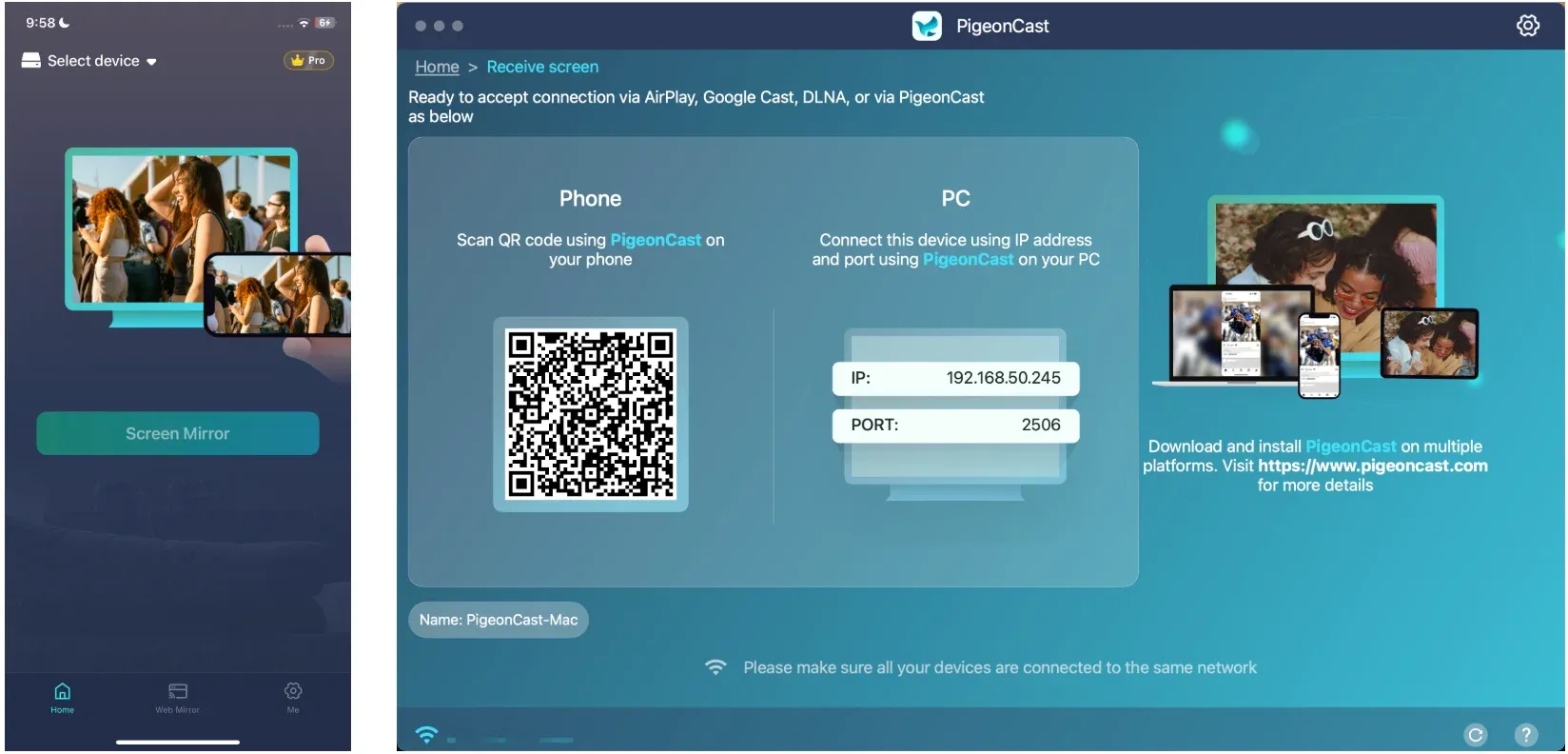
Step 2: Connect Both Devices to the Same Wi-Fi Network
Make sure your iPhone and MacBook are on the same local network, then open PigeonCast on both devices, and click Receive screen on the Mac. This gives the devices a clean local discovery path and avoids some of the pairing confusion people often run into with stop-start native mirroring sessions.
Step 3: Choose Your MacBook and Start Mirroring
Pick your MacBook from the available device list on the iPhone, confirm the connection, and start mirroring.
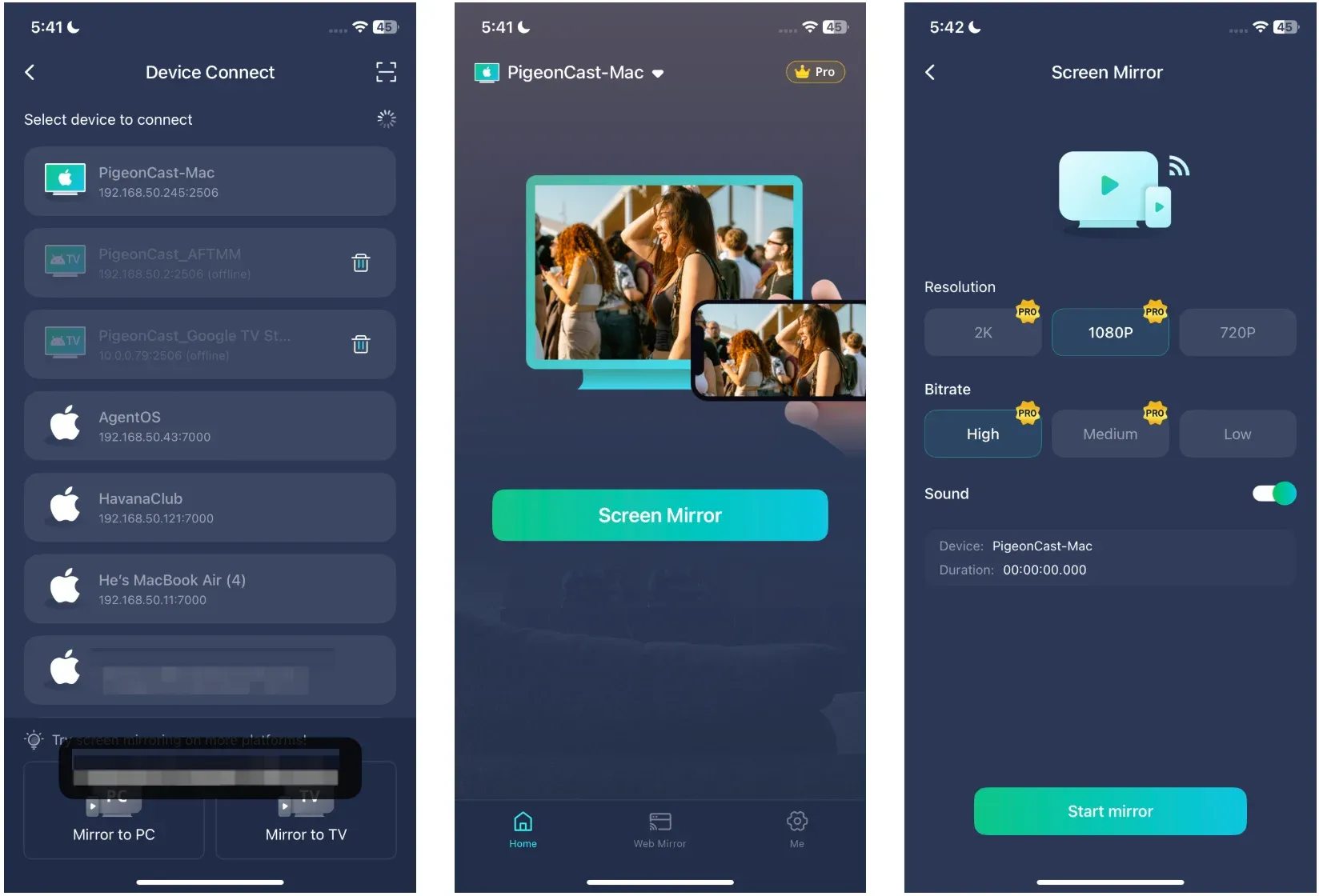
Step 4: Start Mirroring from iPhone to MacBook
Once the session is live, you can view your iPhone screen on the MacBook and use that larger display for demos, previews, or general screen sharing.

PigeonCast vs AirPlay vs iPhone Mirroring
AirPlay and Apple’s iPhone Mirroring both support wireless iPhone-to-MacBook viewing, but they are designed for slightly different situations.
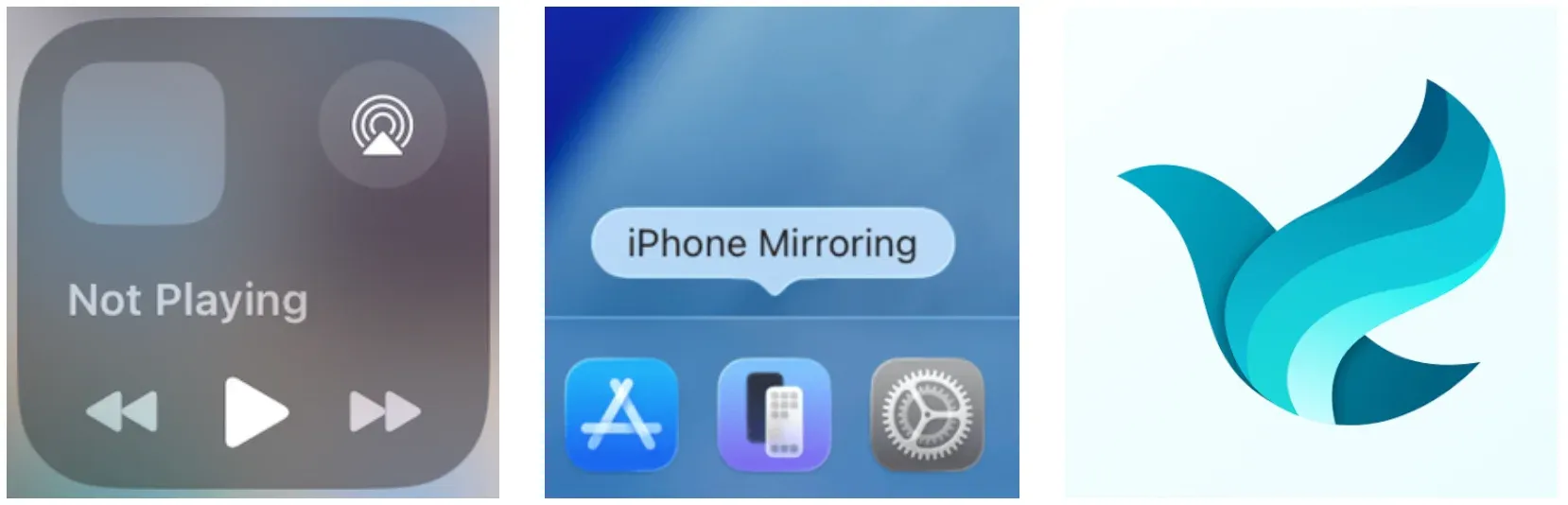
Apple’s native tools work best inside a fully supported Apple environment, while dedicated mirroring apps provide more flexibility across different hardware setups and repeated daily use.
When AirPlay or iPhone Mirroring Makes Sense
Apple’s native route is still fine when:
- the Mac and iPhone both meet Apple’s compatibility requirements
- both devices use the same Apple Account
- Wi-Fi and Bluetooth are enabled
- the setup stays fully inside Apple’s ecosystem
Apple’s current iPhone Mirroring requirements include:
- macOS Sequoia 15 or later
- iOS 18 or later
- two-factor authentication enabled
- nearby devices using the same Apple Account
- supported Mac hardware with Apple silicon or the Apple T2 Security Chip
For supported devices, the setup can feel convenient and tightly integrated with macOS.
When a Dedicated Screen Mirroring App Makes More Sense
A third-party screen mirroring app becomes more useful when:
- compatibility matters more than using Apple’s newest feature set
- demos, recordings, or presentations require a more consistent setup
- AirPlay connections behave unpredictably on certain networks (check the list of common AirPlay issues)
- multiple devices or repeated sessions are part of normal daily use
Dedicated apps can also simplify reconnecting and reduce dependency on Apple-specific hardware limitations.
Quick Comparison
| Option | Best for | Main strength | Main limitation |
|---|---|---|---|
| PigeonCast | Everyday iPhone-to-MacBook mirroring | Simple setup with flexible everyday use | Performance still depends on local network quality |
| Apple iPhone Mirroring | Supported Apple-only environments | Deep macOS integration and interaction support | Requires newer Apple hardware and software |
| AirPlay | Basic wireless streaming and playback | Native and familiar Apple experience | Less flexible for repeated mirroring sessions |
PigeonCast is a strong option when the priority is fast setup, broader compatibility, and consistent day-to-day mirroring. For a broader comparison of available tools and setups, this guide on the best screen mirroring app for Mac covers additional options.
Final Thoughts
Apple’s built-in mirroring tools are convenient for supported Apple-only environments, especially when all devices already meet the newest software and hardware requirements.
However, dedicated screen mirroring apps are often easier for repeated everyday use, recording workflows, demos, presentations, and situations where AirPlay reliability varies between networks or devices.
If you want a straightforward iPhone-to-MacBook mirroring setup without depending entirely on Apple’s latest ecosystem requirements, PigeonCast is a practical place to start.
Screen Mirroring App iPhone to Macbook FAQ
Can I mirror iPhone to MacBook without AirPlay?
Yes. Apps such as PigeonCast can mirror an iPhone to a MacBook without relying on AirPlay.
Is there a free screen mirroring app for Mac?
Yes. PigeonCast offers a free way to test screen mirroring between MacBook and other device like iPhone, Android, Windows PC, or Smart TV before using it as part of a regular setup.
Why is AirPlay lagging?
AirPlay lag is commonly caused by Wi-Fi congestion, network interference, router distance, or high device load during streaming or mirroring.
Can I record a mirrored iPhone screen on Mac?
Yes. Many users mirror an iPhone to a MacBook for recording tutorials, demonstrations, app previews, or presentations.
Is Apple’s iPhone Mirroring the same as AirPlay?
No. iPhone Mirroring is Apple’s newer interactive feature for supported Macs, while AirPlay mainly focuses on wireless streaming and display sharing.
Do I need a newer Mac for Apple’s iPhone Mirroring?
Usually yes. Apple currently requires compatible Macs running macOS Sequoia 15 or later together with iPhones running iOS 18 or later.
Mia Clarke is a technology editor specializing in screen mirroring and casting solutions across multiple platforms. Mia provides clear, practical guides and in-depth insights to help users seamlessly connect their devices. Passionate about enhancing digital experiences, Mia is dedicated to keeping readers updated on the latest trends and tools in cross-platform screen sharing. Whether you’re looking to mirror your smartphone, laptop, or smart TV, Mia’s content delivers reliable, user-friendly advice to simplify your tech setup.