
If your two monitors are showing the same screen, your system is in mirror (duplicate) mode instead of extend mode. That's the immediate answer, but if you've already switched it once and it keeps coming back, then the issue isn't just the setting. Something is forcing your system back into mirror mode.
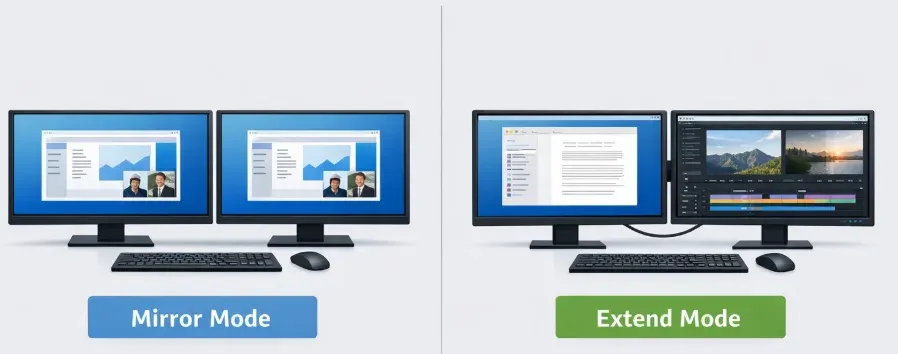
So, if you're asking why are my 2 monitors mirroring each other, the real goal is twofold: first, get your screens working properly again, and second, understand what's causing the reset so it doesn't happen again.
How to Stop Mirrored Monitors Immediately
When dual monitors are showing the same screen, the quickest way to fix it is simply to change how your system treats the displays.
How to stop mirrored monitors on a Windows laptop:
Step 1. Right-click the desktop and open Display settings.
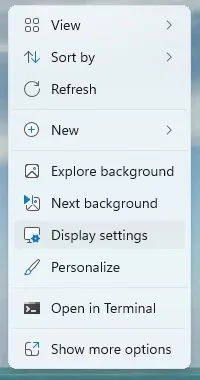
Step 2. Scroll to Multiple displays and set Extend these displays.
Step 3. Press Win + P and verify Extend is selected.
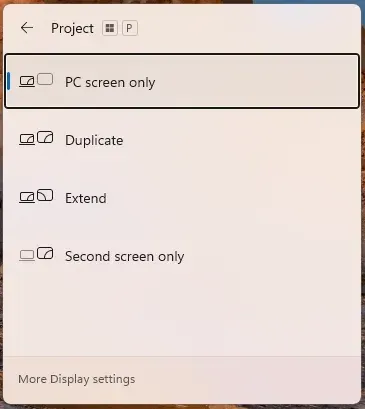
Step 4. Open your GPU control app once and check cloned output settings. If clone mode is enabled there, disable it and apply.
Step 5. Click Identify, then confirm each monitor has its own number and independent desktop area.
How to stop mirrored monitors on Mac:
Step 1. Open System Settings and go to Displays.
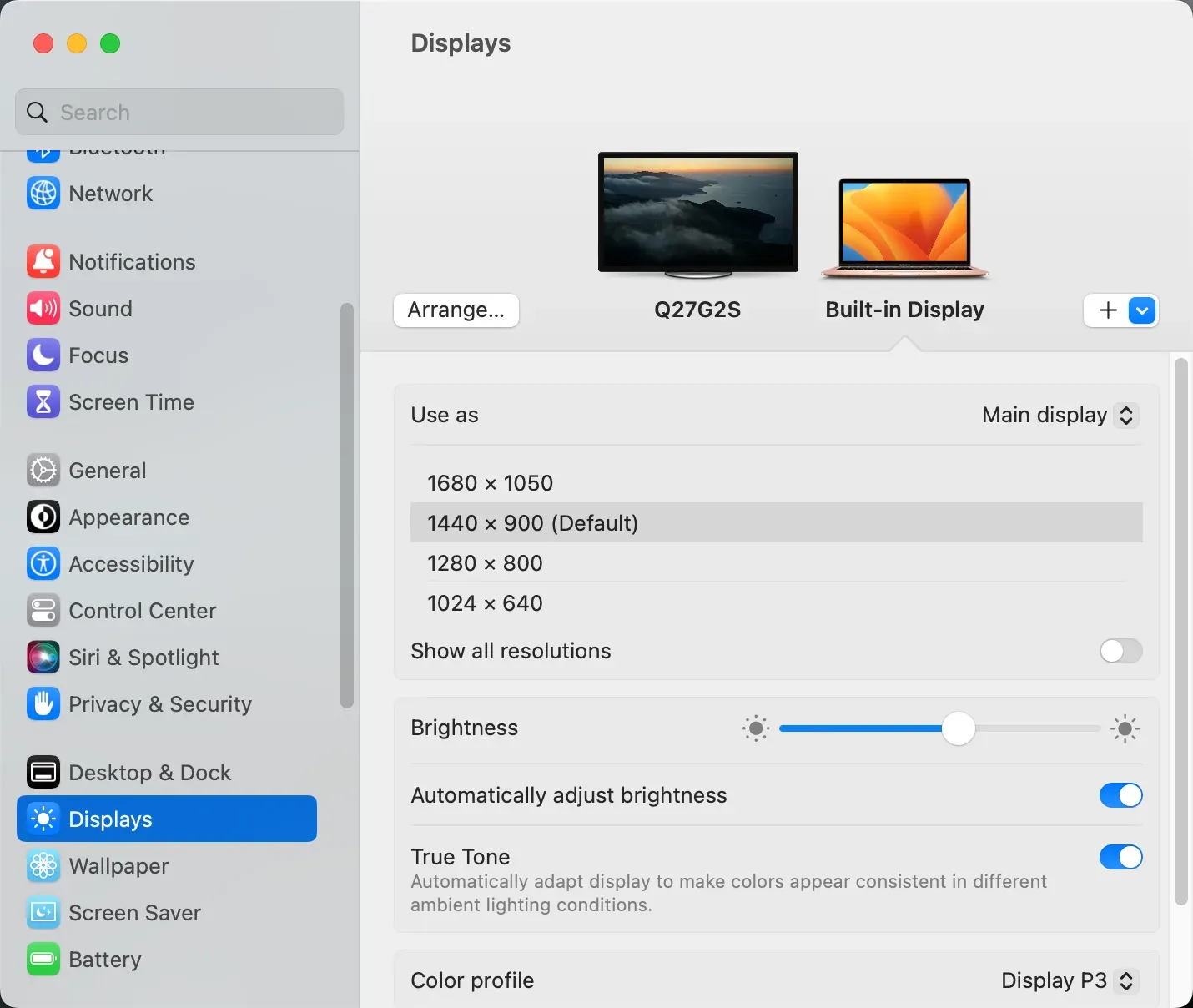
Step 2. Select your external monitor from the display tiles.
Step 3. Disable Mirror Displays or choose Use as Extended display.
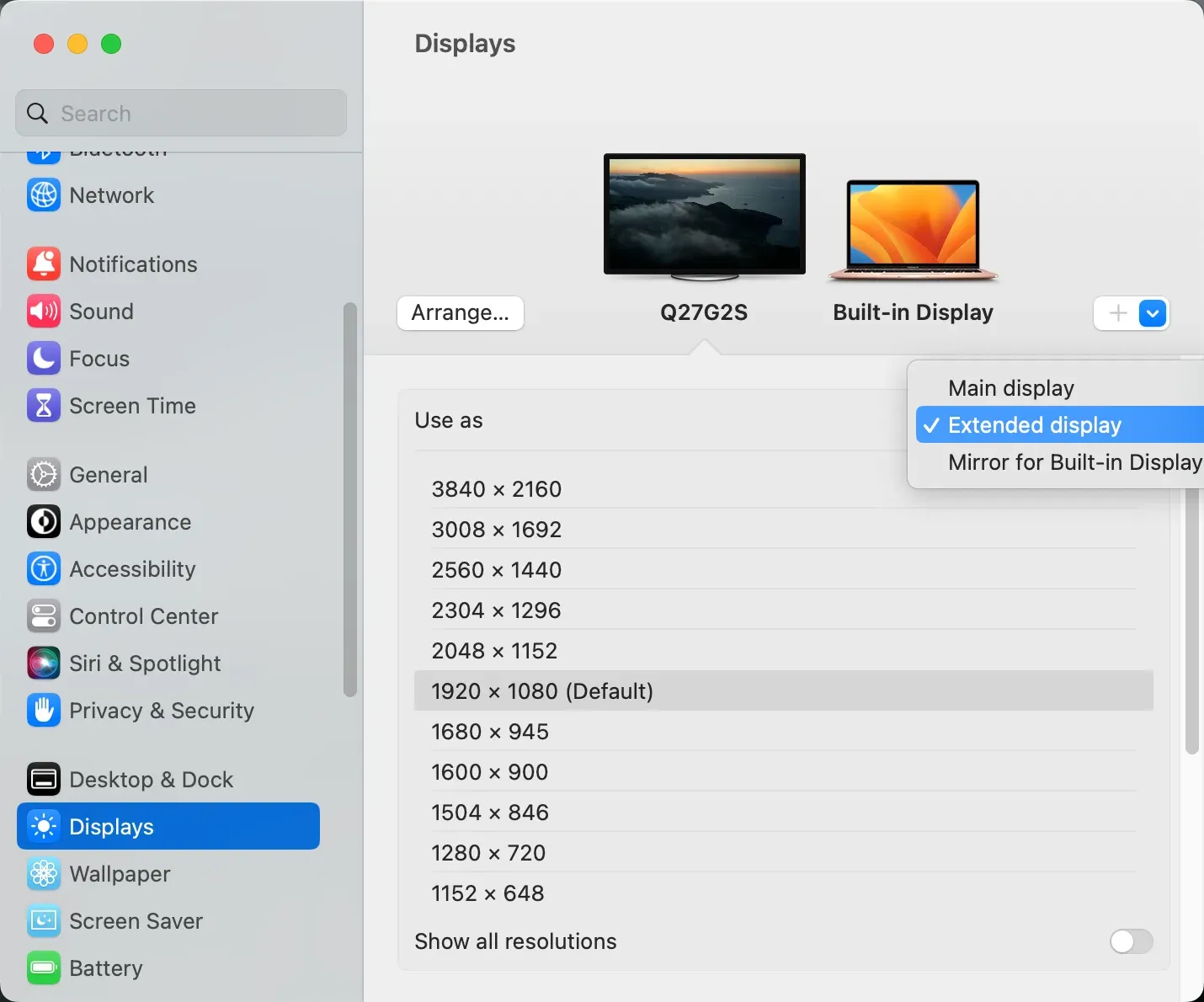
Step 4. Arrange display positions so the cursor path matches physical monitor placement.
Step 5. Disconnect and reconnect the display cable once, then verify settings persist.
In most cases, that alone solves the issue. If you were searching for how to make second monitor not mirror, this is the exact setting that controls it.
After switching, test it: drag a window across both screens and confirm each monitor shows different content. If it holds, you're done. If it switches back later, something else is overriding your setup, so the next step is to identify what's causing it.
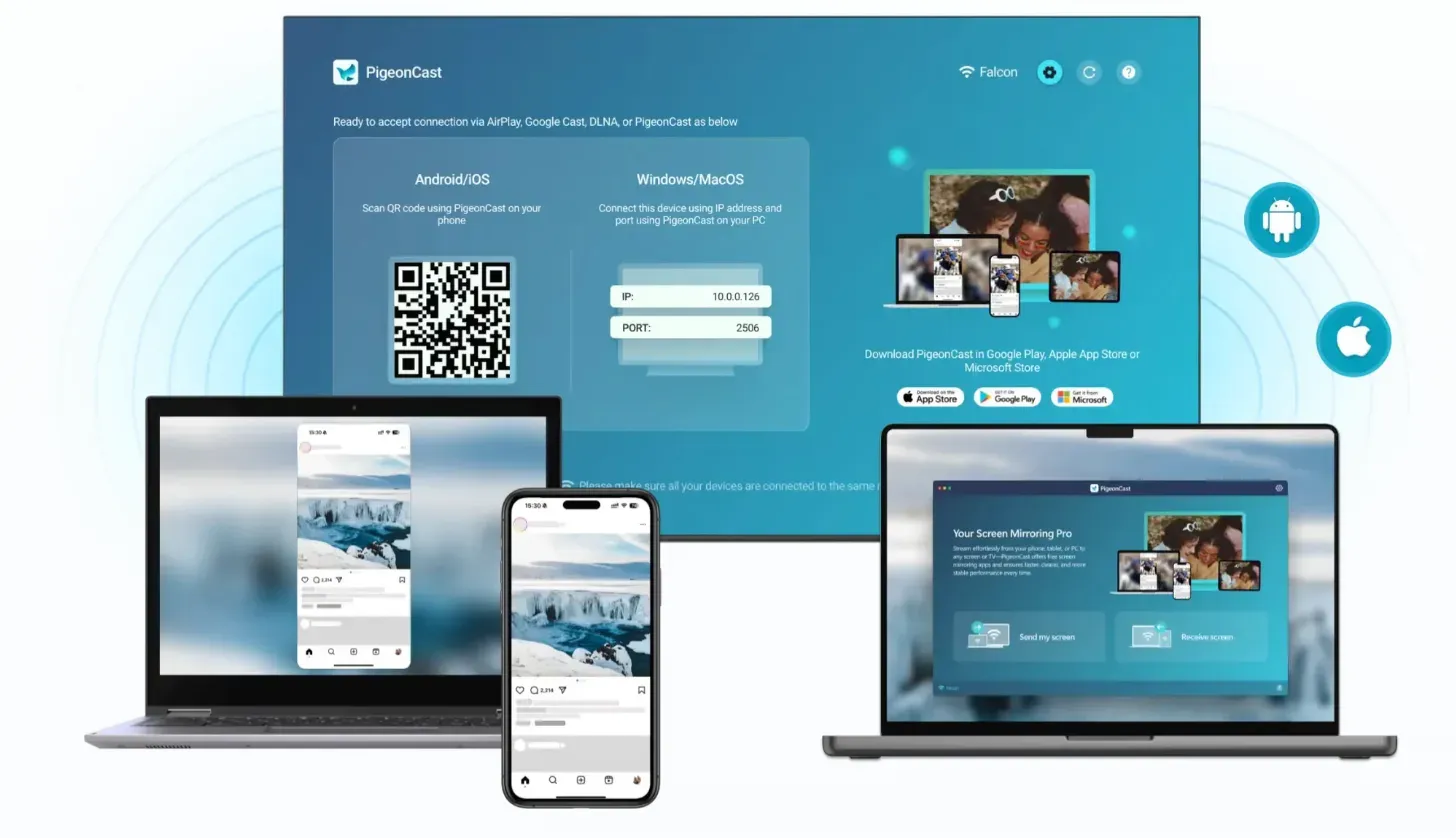
Tip: If you need a stable second screen immediately (for a meeting, presentation, or demo) and your system keeps reverting, a temporary workaround like free PigeonCast can give you a reliable extended workspace while you troubleshoot the root cause. It's especially useful when the issue is tied to unstable docks or driver resets.


Overall Rating:



Why Are My 2 Monitors Mirroring Each Other
If the two monitors showing same screen issue keeps coming back, stop repeating the same fix and look at when it happens. That timing tells you almost everything.
If your monitors are mirroring each other immediately after connecting, it's usually a configuration or hardware signal issue.
-
If it only happens when using a dock, the dock is likely the cause.
-
If it happens after a restart, the system isn't restoring your display layout properly.
-
If it feels random, shortcuts or GPU settings may be interfering.
This is why many people repeatedly search "why are my two monitors mirroring each other" without finding a lasting solution. The trigger changes, but the fix they try doesn't. Once you identify the pattern, the next step is to fix it in a way that actually holds.
How to Make Second Monitor Not Mirror (Fix It Properly and Make It Stick)
This is the step that actually solves the problem long-term, not just temporarily.
Step 1. Set your display mode to Extend in system settings.
Step 2. Check your GPU control panel and make sure clone/duplicate output is disabled.
Step 3. Stabilize your connections: use consistent ports and avoid unnecessary adapters.
On Windows, GPU settings can override your system settings entirely, which is why the issue may return even after switching to Extend. On macOS, if the system keeps reverting, reconnecting the display once can help the OS rebuild a stable layout.
If you're trying to figure out how to make a second monitor not mirror the first, consistency is what makes the fix stick.
How to Stop Dual Monitors Showing Same Screen with a Dock
If your setup works fine without a dock but breaks as soon as you use one, you've likely found the cause. This is one of the most common reasons people search why are my two monitors showing the same thing.
Many docks and adapters don't actually support dual independent displays, even if they have multiple ports. Instead, they split a single signal into two outputs, which forces both monitors to mirror each other.
A quick way to confirm this is to bypass the dock entirely:
Step 1. Disconnect the dock and connect one monitor directly to the computer.
Step 2. Add the second monitor using a separate direct port if available. If independent screens work directly, your monitors and OS are fine.
Step 3. Reconnect through the dock and check when mirroring starts.
Step 4. Review dock specs for dual independent display support, MST support, or DisplayLink support.
Step 5. Update dock firmware and replace cables, then retest once. If specs only support cloned output, replace the dock or adapter.
If everything works without the dock, then the limitation is hardware—not your settings.
How to Stop Dual Monitors Showing Same Screen After Restart
Why are my 2 monitors mirroring each other after restart? If your monitors only start mirroring after a restart, the problem is different:
When your system starts up, it re-detects connected displays. If anything changes: port order, timing, or driver state, it may treat the setup as new and default back to mirror mode.
This is especially common if:
-
You switch ports or cables
-
Your GPU driver was recently updated
-
The monitors reconnect at slightly different times
To make the setup stable after reboot, follow these steps:
Step 1. Update graphics drivers from Intel, NVIDIA, AMD, or your laptop manufacturer.
Step 2. Remove saved display profiles or third-party display managers you no longer use.
Step 3. Reboot with both monitors already connected. This lets the OS build one stable layout at startup.
Step 4. Test different cable and port combinations. Keep the pair that preserves extend mode after reboot.
Step 5. If the issue started after a recent OS update, compare behavior on the previous known-good driver version.
The key here is consistency. Your system needs to recognize the same setup every time.
What to Do If Your Monitors Are Mirroring Due to Hardware Limits
If none of the fixes above work, you may be dealing with a hardware limitation. HDMI splitters, for example, are designed to duplicate a signal, not extend it. Some entry-level docks and laptops cannot also drive multiple independent displays.
If that's the case, searching for how to get second monitor to stop mirroring won't lead to a solution, because the limitation exists at the hardware level.
How to Stop Monitors from Mirroring Again (Prevention)
Once everything is working, the goal is to keep it stable.
Step 1. Keep one fixed cable map and port map. Do not rotate ports unless troubleshooting.
Step 2. Save your display arrangement after every major OS or driver update.
Step 3. Avoid mixing low-quality adapters in the same chain. Use certified cables and one docking standard where possible.
Step 4. Recheck extend mode after sleep and after reboot once each week. This catches regression early before meetings or deadlines.
Step 5. Keep your GPU driver, dock firmware, and OS current. Update one layer at a time and verify monitor behavior after each change.
A stable setup prevents the issue from returning, not just fixing it once.
Wrapping Up
Why are my 2 monitors mirroring each other? Usually because duplicate mode was enabled by shortcut, reconnect behavior, or hardware limitations in the dock path. The fastest fix is to restore extend mode first, then diagnose Windows or macOS settings, then validate hardware support, and finally lock a stable prevention baseline.
When native display behavior remains unstable, use an alternative workflow to stay productive, then switch back after native mode passes reboot and sleep stability checks.
Why Are My 2 Monitors Mirroring Each Other FAQ
How do I turn off the mirrored display?
To turn off a mirrored display, you need to switch your system from duplicate mode to extend mode.
-
On Windows, press Win + P and choose Extend.
-
On macOS, go to System Settings → Displays and turn off Mirror Displays.
Once you do this, each monitor will act as its own workspace instead of showing the same screen.
How do I delete a duplicate screen?
You don't actually "delete" a duplicate screen as your system is just set to mirror both displays.
To fix it, open your display settings and change the mode from Duplicate to Extend. This tells your computer to treat each monitor as a separate display instead of copying one screen to another.
If a display still appears incorrectly, reconnecting the cable once can help your system detect it properly.
How to get second monitor to stop mirroring permanently?
To stop mirroring permanently, you need more than just switching to extend mode, and you need a stable setup.
Make sure:
-
Your display mode is set to Extend
-
Your GPU settings are not forcing clone/duplicate output
-
You use the same cables and ports consistently
Most "temporary fixes" fail because something in the system resets the configuration. Once your setup is stable, the issue usually won't come back.
Can I fix mirrored monitors without restarting?
Yes. In many cases you can switch to extend mode, reseat one cable, and confirm display arrangement without rebooting. Restart only if settings do not stick.
How to screen mirror two laptops?
To mirror one laptop to another, you need to use screen sharing or casting tools like PigeonCast (not a display cable). Unlike dual monitors, laptops cannot mirror each other directly through HDMI—one device must act as a receiver.
Mia Clarke is a technology editor specializing in screen mirroring and casting solutions across multiple platforms. Mia provides clear, practical guides and in-depth insights to help users seamlessly connect their devices. Passionate about enhancing digital experiences, Mia is dedicated to keeping readers updated on the latest trends and tools in cross-platform screen sharing. Whether you’re looking to mirror your smartphone, laptop, or smart TV, Mia’s content delivers reliable, user-friendly advice to simplify your tech setup.