
When AirPlay is not showing up on your iPhone, screen mirroring and in-app streaming controls can seem to disappear without warning. The cause is often limited to Control Center, the app you are using, or an iPhone restriction. Follow the checks below to locate the missing control and bring it back.
Why Is AirPlay Not Showing Up on My iPhone
AirPlay is built into iOS, but it does not appear as a standalone app or one fixed button. Its location changes depending on whether you want to mirror the full screen, stream video, or send audio. Identifying which control is missing helps you avoid changing settings that do not affect the problem.
| What is missing | What it usually means |
|---|---|
| You cannot find an AirPlay app or main AirPlay switch | AirPlay does not have a standalone app or universal on/off switch on the iPhone |
| Screen Mirroring is missing from Control Center | The control may have been removed or moved to another Control Center page |
| The AirPlay icon is missing in one app | The app or current content may not support direct AirPlay, or the button may be inside another playback or sharing menu |
| AirPlay controls are missing in several places | The Control Center layout, an iPhone restriction, or an iOS issue may need attention |
How to Restore AirPlay on Your iPhone
AirPlay does not need to be reinstalled. First confirm that you are looking for the correct control, then check Control Center or the affected app. Only move to restriction and iOS fixes if AirPlay is missing in several places.
Fix 1. Find or Restore the AirPlay Control on Your iPhone
AirPlay uses different controls for full-screen mirroring, video, and audio. Open the one that matches what you want to share:
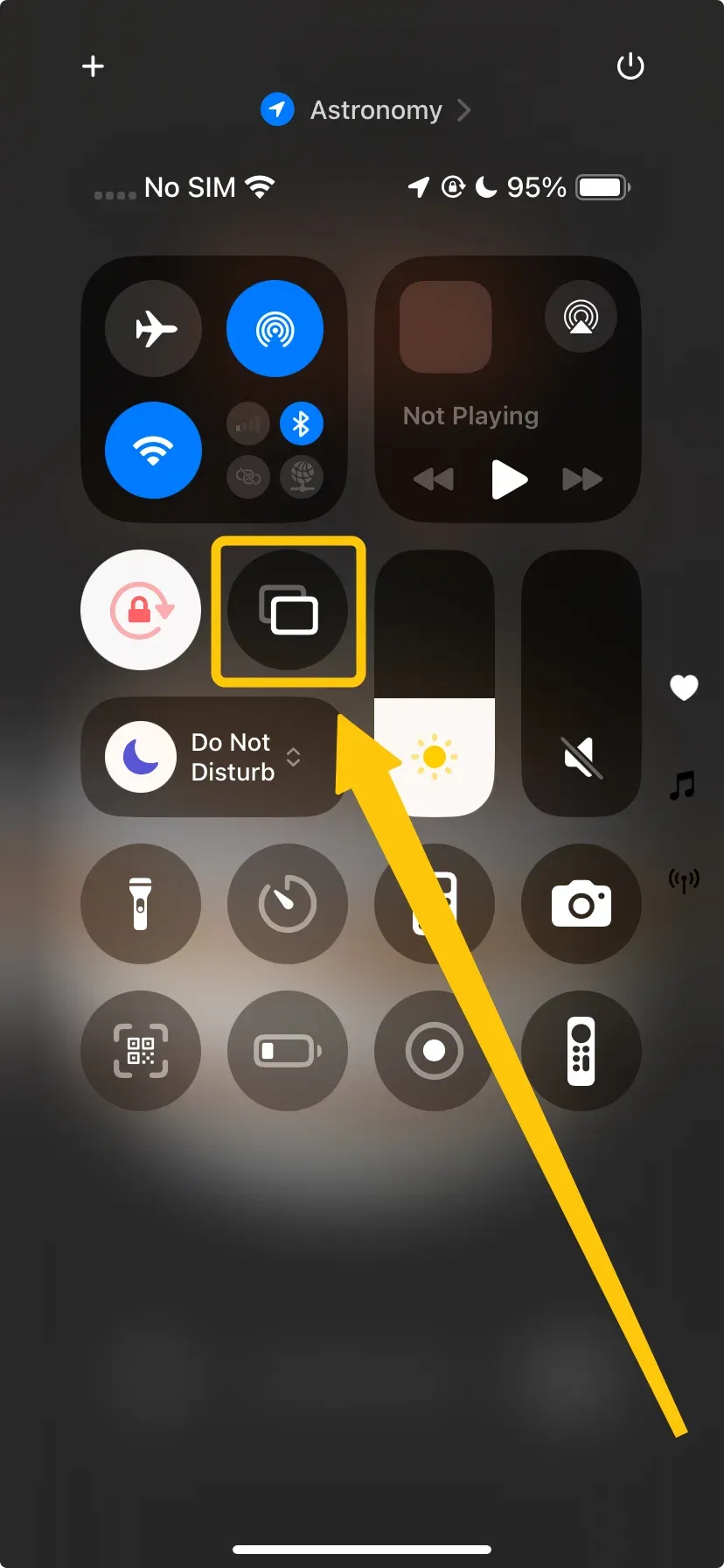
- Full-screen mirroring: Open Control Center and tap Screen Mirroring.
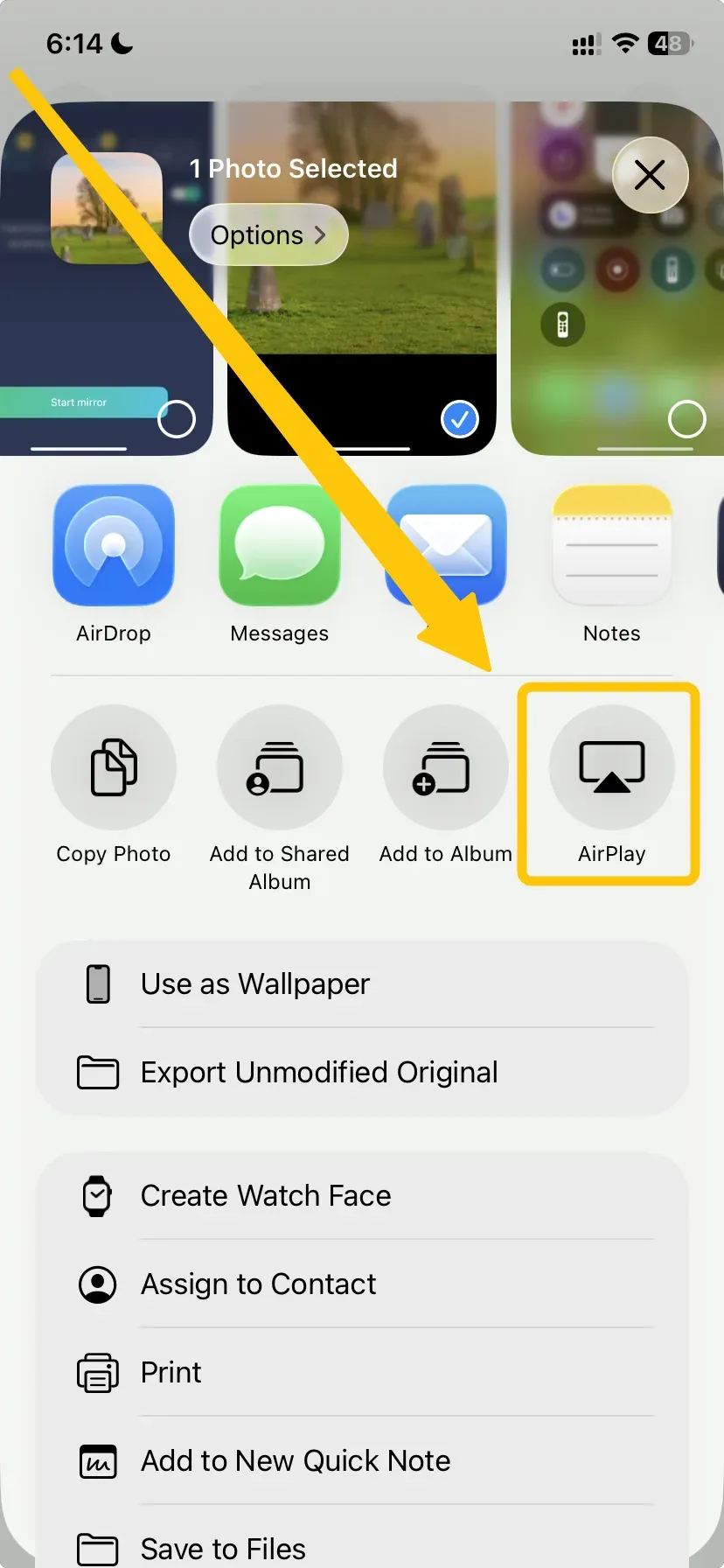
- Videos or photos: Open the content and tap the AirPlay icon. In some apps, you may need to open Share or the playback controls first.
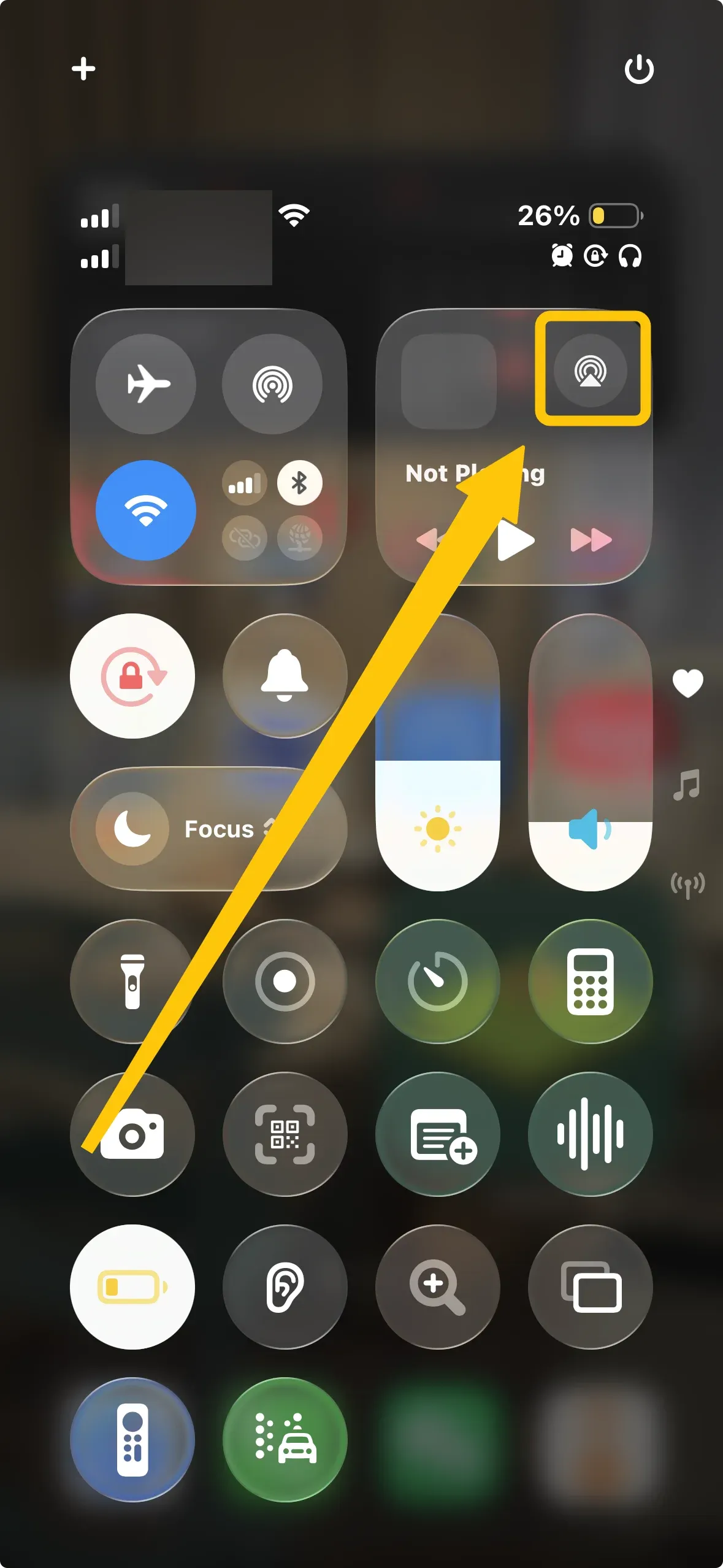
- Audio: Open Control Center, expand the current playback card, and tap the AirPlay audio icon.
On an iPhone with Face ID, swipe down from the top-right corner to open Control Center. On an iPhone with a Home button, swipe up from the bottom edge. If Screen Mirroring is not present, add it back with the next fix.
Fix 2. Add Screen Mirroring Back to Control Center
If Screen Mirroring does not appear on any Control Center page, add the control again manually.
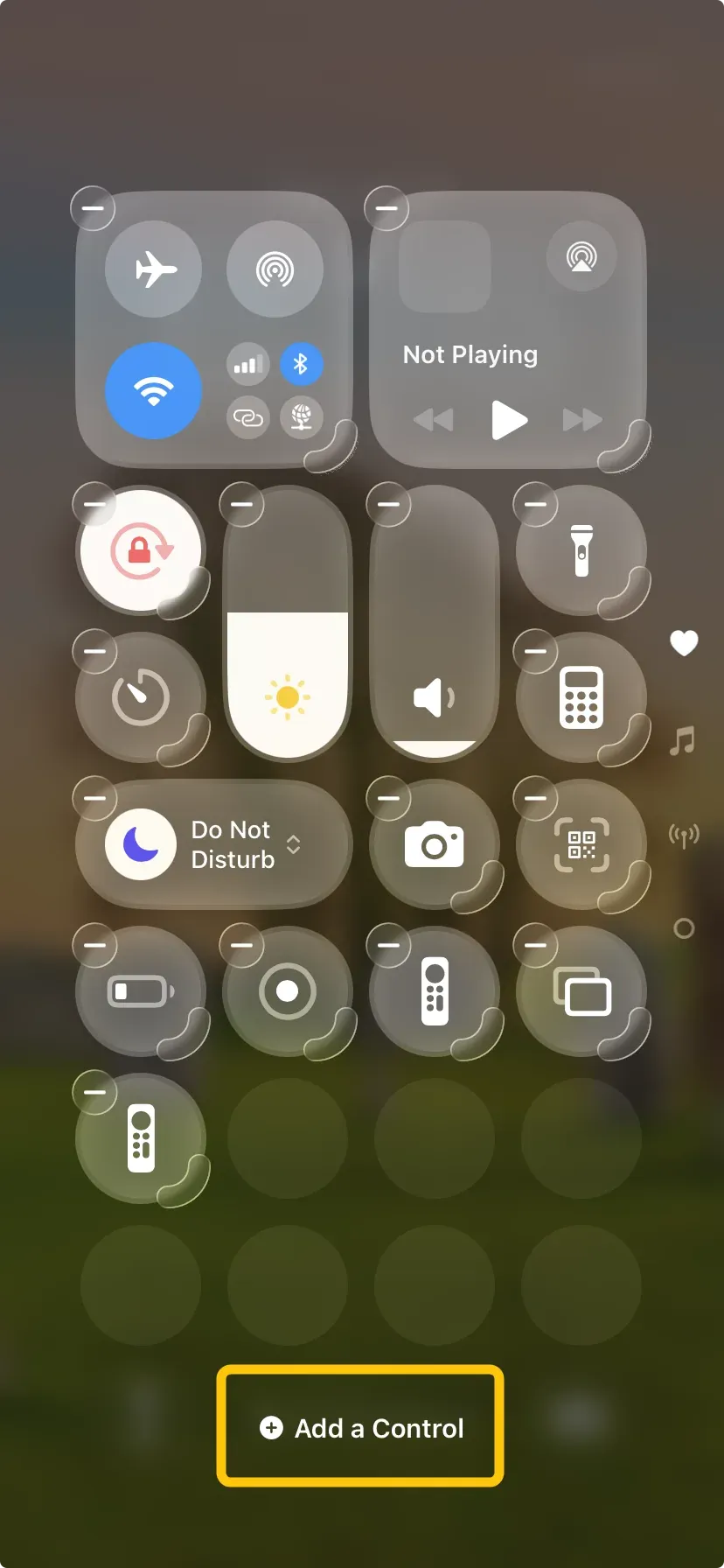
Step 1. Open Control Center and swipe through its pages to make sure the control was not moved.
Step 2. Touch and hold an empty area, then tap Add a Control.
Step 3. Search for Screen Mirroring and tap it to add the control. Exit editing mode, then open Screen Mirroring to confirm that it is available.
Fix 3. Check Whether the App Supports AirPlay
If the AirPlay icon is missing only in one app, the problem is likely limited to that app or the content you opened. Test AirPlay in an Apple app such as Photos or Music. If the icon appears there, AirPlay is still available on your iPhone.
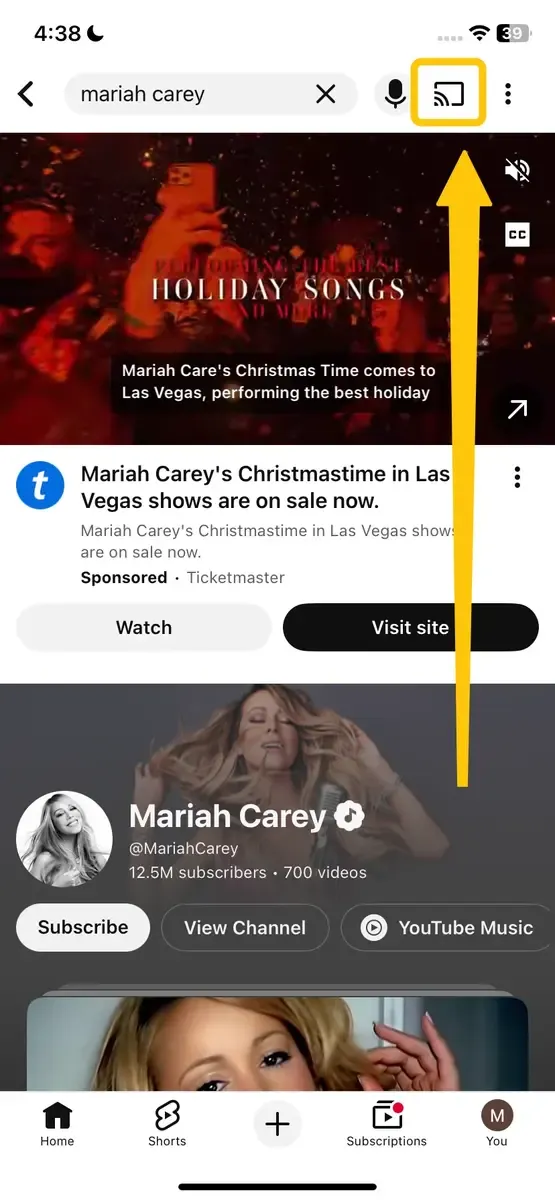
Return to the affected app and check its Share menu or playback controls. Some apps do not provide direct AirPlay for every type of content. In that case, use Control Center > Screen Mirroring if the app allows full-screen mirroring.

If the affected app does not provide an AirPlay button but allows screen sharing, PigeonCast offers another way to mirror your iPhone without relying on the app’s playback menu. It can share the iPhone screen with AirPlay-compatible TVs, Windows PCs, Macs, Chromecast-enabled displays, and web browsers.


Overall Rating:



Fix 4. Restart or Update the Affected App
If AirPlay appears elsewhere and the app supports it, close and reopen the affected app before changing any iPhone settings.
Step 1. Open the App Switcher and swipe up on the affected app to close it.
Step 2. Reopen the app, start the content again, and check its playback or sharing controls.
Step 3. If the AirPlay icon is still missing, open the App Store, tap your profile picture, and install any available update for the app.
Fix 5. Restart Your iPhone
If AirPlay controls are missing from Control Center and several apps, restart your iPhone to reload the iOS interface and media controls.
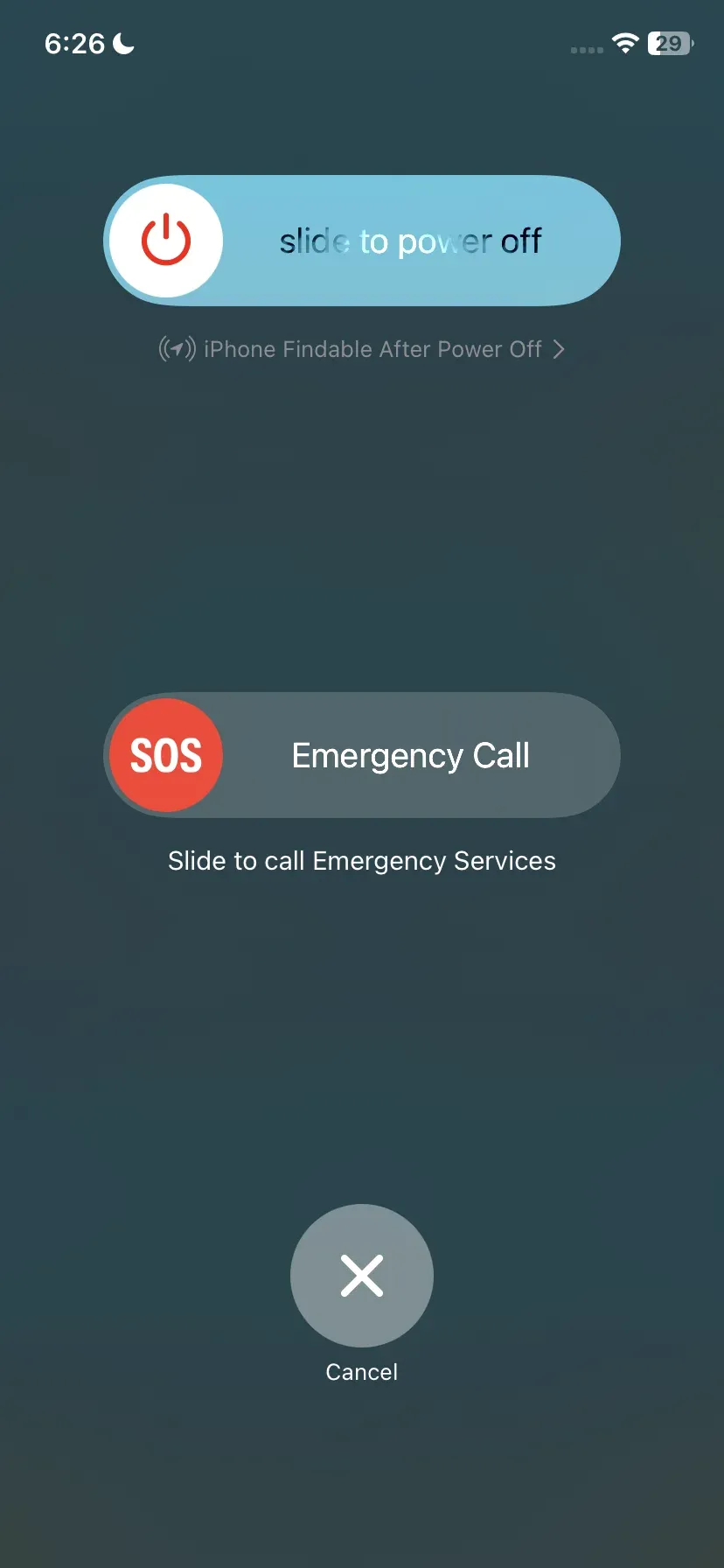
- iPhone with Face ID: Press and hold the Side button and either Volume button until the power-off slider appears.
- iPhone with a Home button: Press and hold the Side or Top button until the power-off slider appears.
Drag the slider and wait for the iPhone to turn off. Then press and hold the Side or Top button until the Apple logo appears. After the restart, check Control Center and an AirPlay-supported app again.
Fix 6. Update iOS
If AirPlay remains missing after a restart, install any available iOS update. An update can correct system interface or media-control errors that affect AirPlay in Control Center and supported apps.
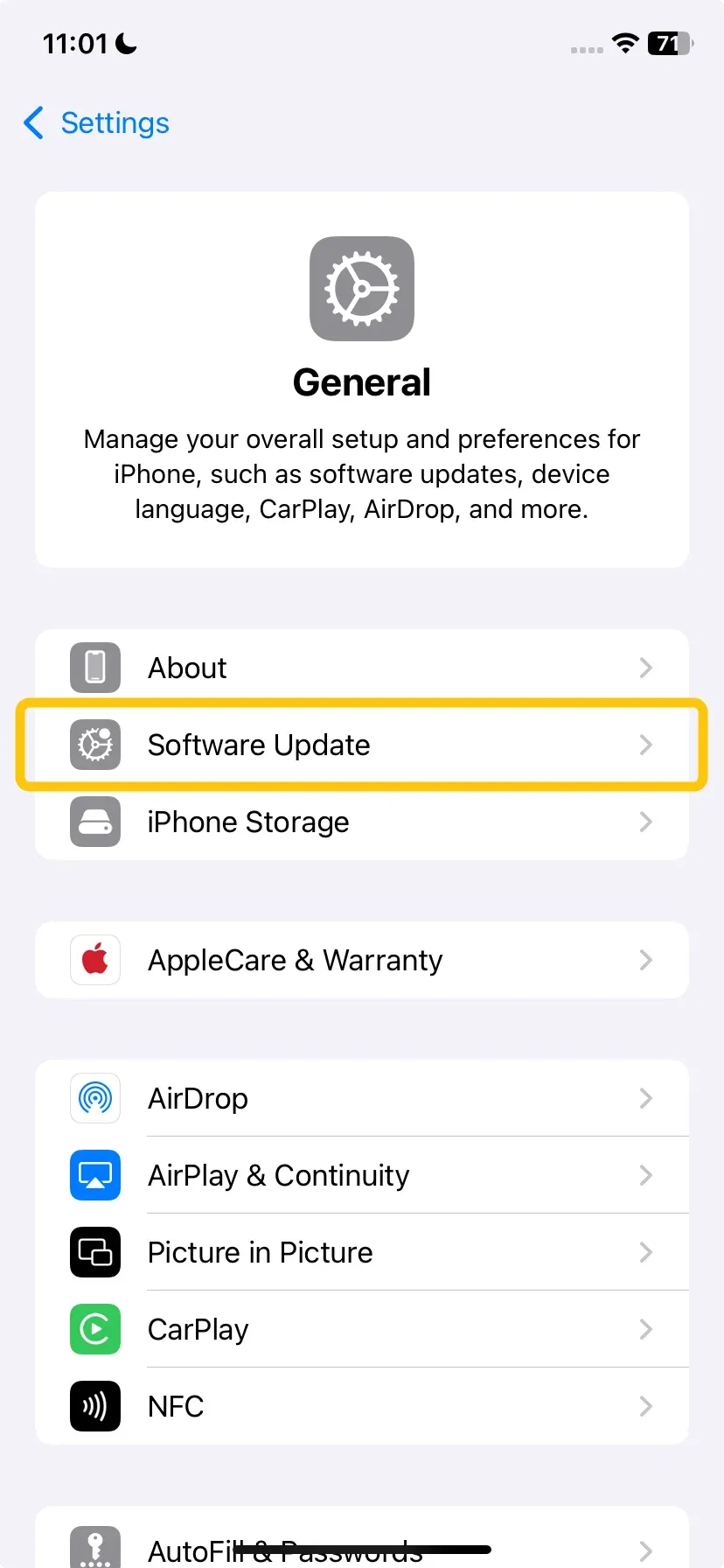
Step 1. Open Settings > General > Software Update.
Step 2. If an update is available, tap Update Now or Download and Install.
Step 3. After the update and restart are complete, open Control Center and check the affected apps again.
If AirPlay is still missing from Control Center and Apple apps after the update, contact Apple Support. If the iPhone is managed by your work or school, ask the administrator whether a device policy limits AirPlay or screen-sharing features.
Wrapping Up
Use the scope of the problem to decide what to do next. If AirPlay is missing only in one app, focus on that app; if Screen Mirroring is absent from Control Center, restore the control; if both remain missing after an iOS update, contact Apple Support or your device administrator. This keeps the troubleshooting focused on the iPhone instead of changing unrelated TV or network settings.
AirPlay Is Not Showing Up on Your iPhone FAQ
Is the Cast icon on an iPhone the same as AirPlay?
No. A Cast icon often refers to Google Cast or another app-specific casting system, while AirPlay uses Apple’s playback destination or Screen Mirroring controls. Some apps place both options inside the same device menu, so check the label before selecting an output.
Can Focus or Low Power Mode hide AirPlay?
No. Focus changes notifications, and Low Power Mode reduces background activity, but neither setting normally removes AirPlay or Screen Mirroring from the iPhone. Turning them off is not a relevant fix for a missing AirPlay control.
Why is the AirPlay icon grayed out instead of missing?
A grayed-out icon usually means the current app or media cannot use AirPlay at that moment. Start the video or audio, open the full playback controls, and check whether external playback is allowed for that content.
Does Turning Off Bluetooth Remove AirPlay from the iPhone?
No. Turning off Bluetooth should not remove Screen Mirroring from Control Center or erase an AirPlay button that an app normally provides. Bluetooth can assist with nearby-device discovery in some situations, but the visibility of the AirPlay control is a separate issue. If the control itself has disappeared, focus on the iPhone interface or the affected app instead of Bluetooth.
Why Is AirPlay Missing from the Lock Screen on My iPhone?
The AirPlay output control normally appears on the Lock Screen only while an app has an active media session. If playback has ended, the app has been closed, or its player does not use the iOS Now Playing panel, the control may not be displayed. This does not mean AirPlay has been removed from the iPhone.
Why Is AirPlay Missing for Downloaded Content?
Some streaming apps apply different playback permissions to downloaded and online versions of the same content. An offline download may not allow external playback even when the streamed version displays an AirPlay button. Test the online version of the title to determine whether the restriction applies only to the download.
Clara Rossi is an experienced technology editor and a seasoned expert in screen mirroring and casting technologies. With a keen eye for detail and a deep understanding of how to seamlessly connect devices, Clara excels at optimizing user experiences for effortless sharing and streaming. Whether you're seeking quick fixes or advanced tips, her expertise and responsiveness ensure that every query is met with a well-informed and efficient solution.