
If you are searching for where is screen mirroring in iPhone settings, the short answer is: you will not find it as a main item inside the Settings app list. On iPhone, Screen Mirroring is launched from Control Center, while several iPhone settings for screen mirroring determine whether your TV or Mac appears.
Many people open Settings first, so your question is completely reasonable. The practical workflow is simple: verify a few settings, open Control Center, then start Screen Mirroring. If discovery fails, use targeted fixes instead of repeating the same attempt.
Is Screen Mirroring in iPhone Settings or Control Center?
Most connection failures start with a path mismatch: users expect a Screen Mirroring menu inside Settings, then assume the feature is missing when they cannot find it. That confusion delays setup and leads to unnecessary resets.
Confirming the real entry point first gives you a clean starting point before you adjust any AirPlay settings on your iPhone.
Step 1. Unlock your iPhone and open Control Center.
-
On iPhone with Face ID, swipe down from the top-right corner.
-
On iPhone with a Home button, swipe up from the bottom edge.
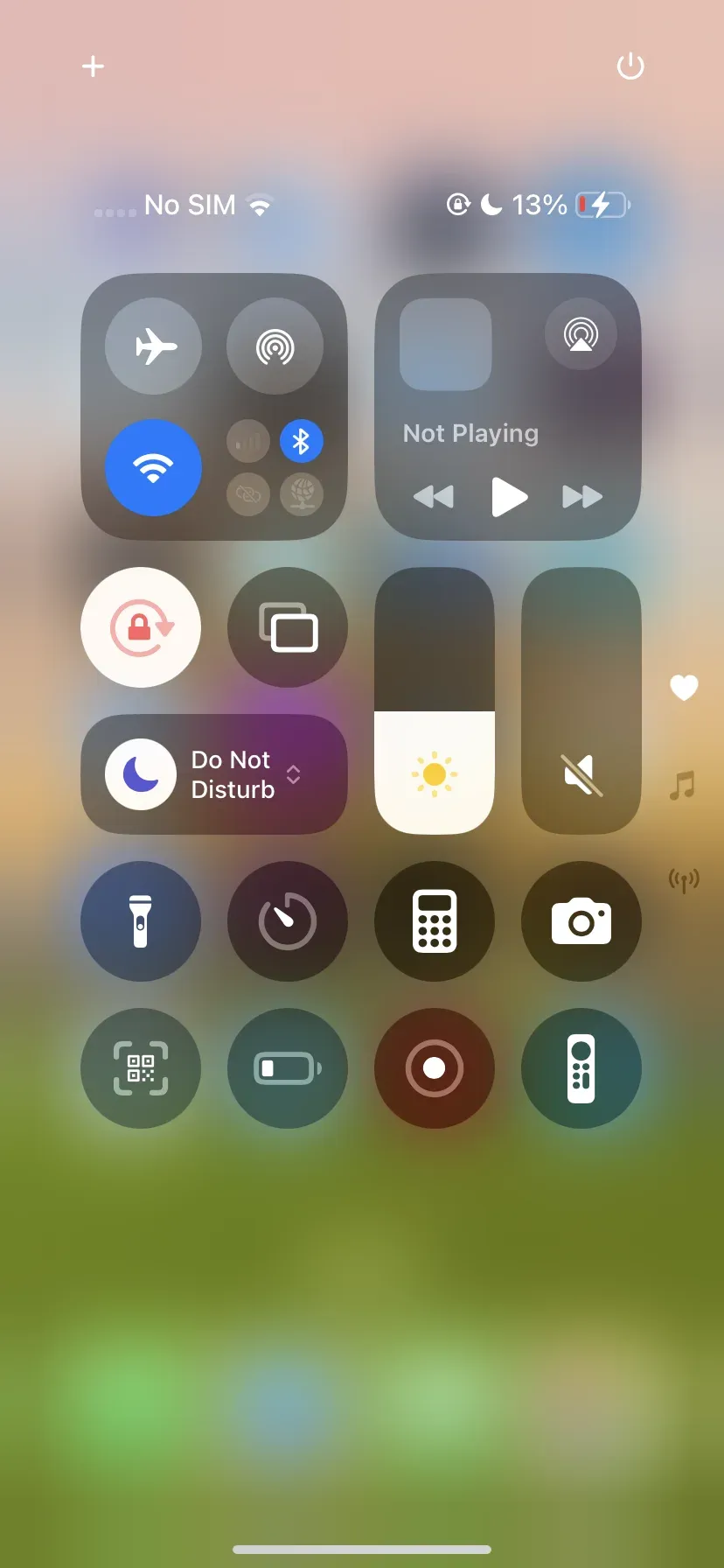
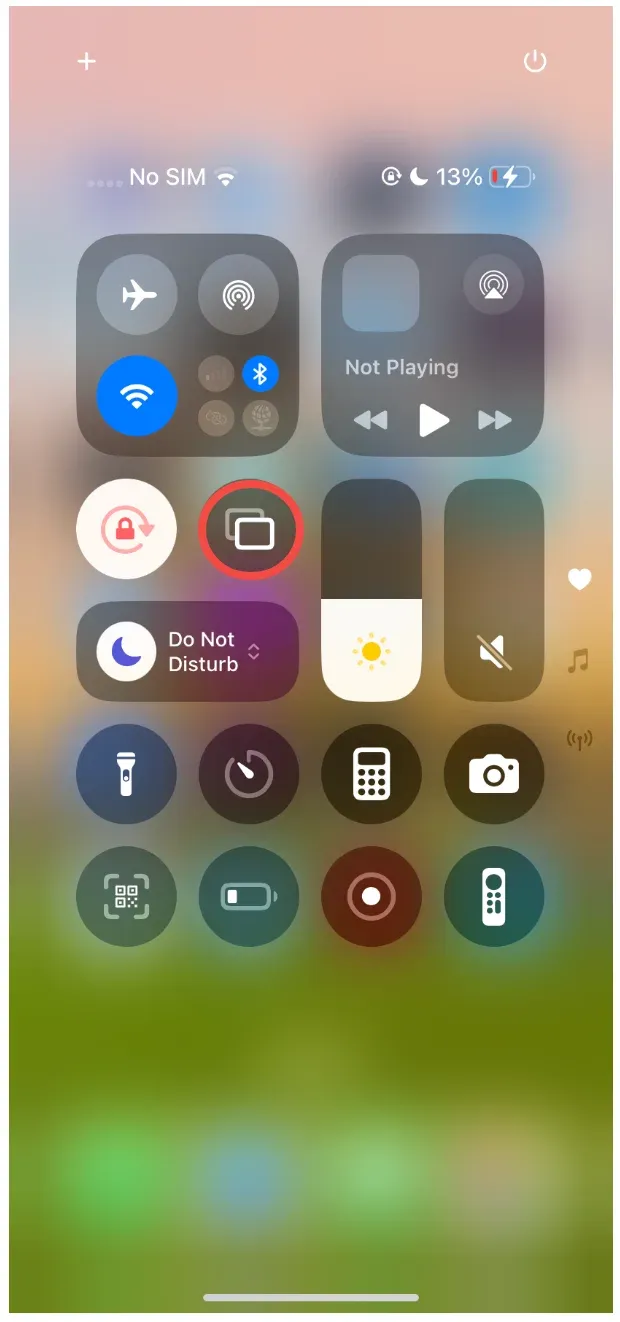
Step 4. Tap Screen Mirroring (two overlapping rectangles).
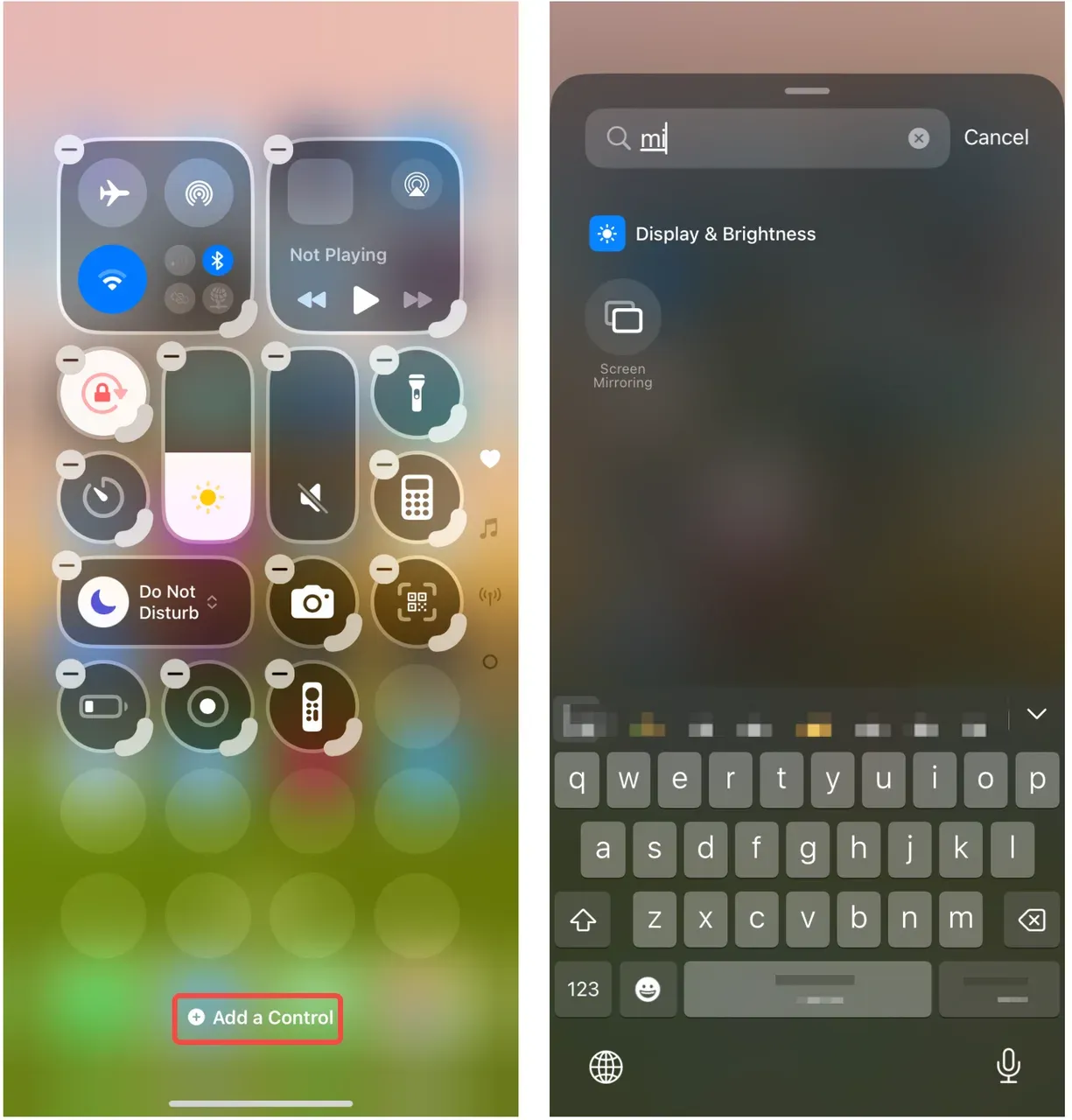
Note: If it is unavailable, tap the plus icon in the upper-right corner, tap Add a control, type 'mirror' into the search bar, and add the feature to your Control Center.
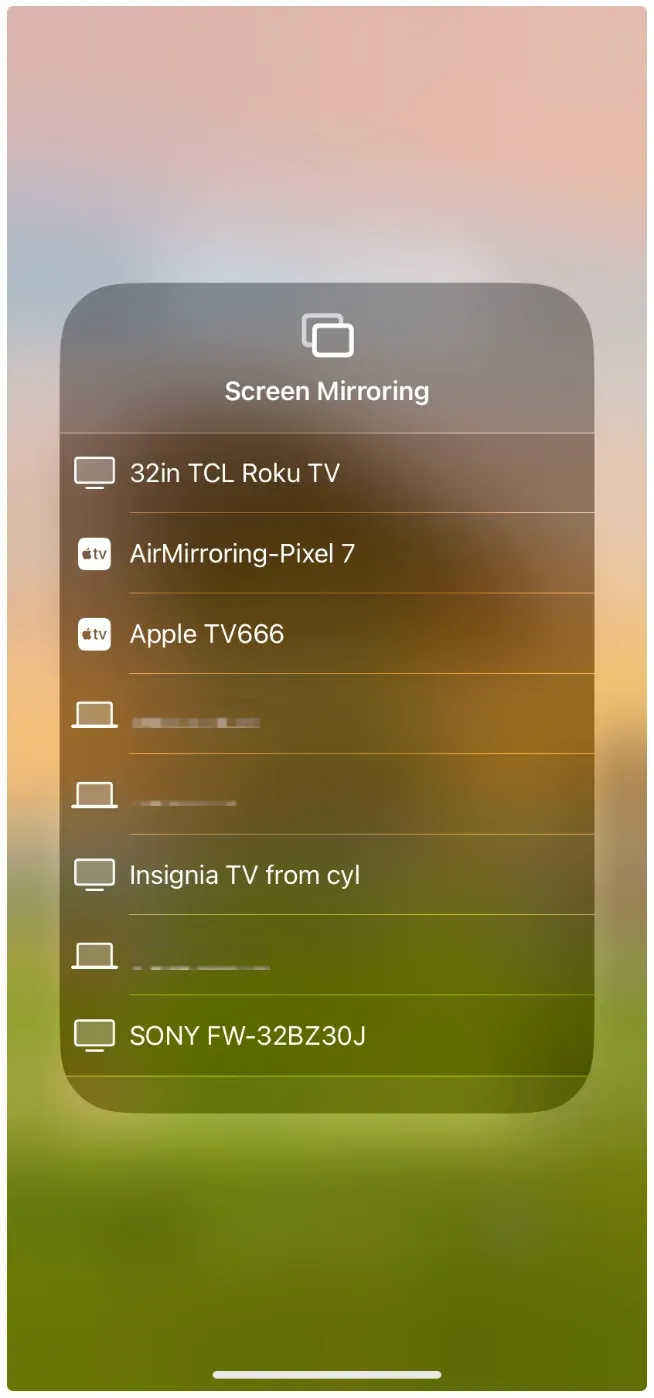
Step 5. Choose your AirPlay-compatible TV, Apple TV, or Mac from the list.
If you were specifically checking where is screen mirroring in Settings on iPhone, treat Control Center as the launch panel and Settings as the support panel
iPhone Settings That Affect Screen Mirroring Before You Connect
When a device does not appear after you open Control Center, a hidden setting mismatch is usually the real blocker. The impact is immediate: your target screen stays invisible even though both devices are powered on. Run these checks once in order, then return to Control Center to test again.
Step 1. Open Settings > Wi-Fi, then confirm iPhone and TV or Mac are on the same network name (SSID).
Step 2. Disable VPN temporarily in your VPN app or in Settings if you use one.
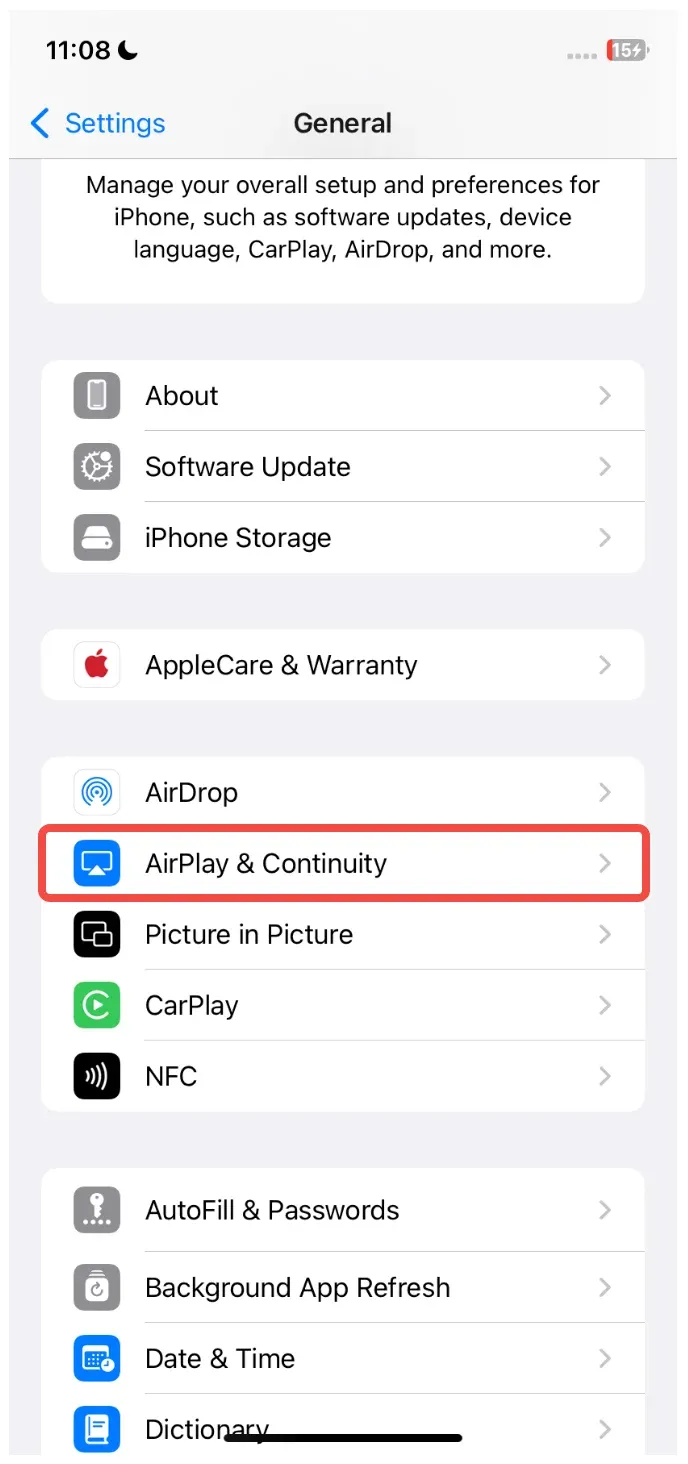
Step 3. Open Settings > General > AirPlay & Continuity.
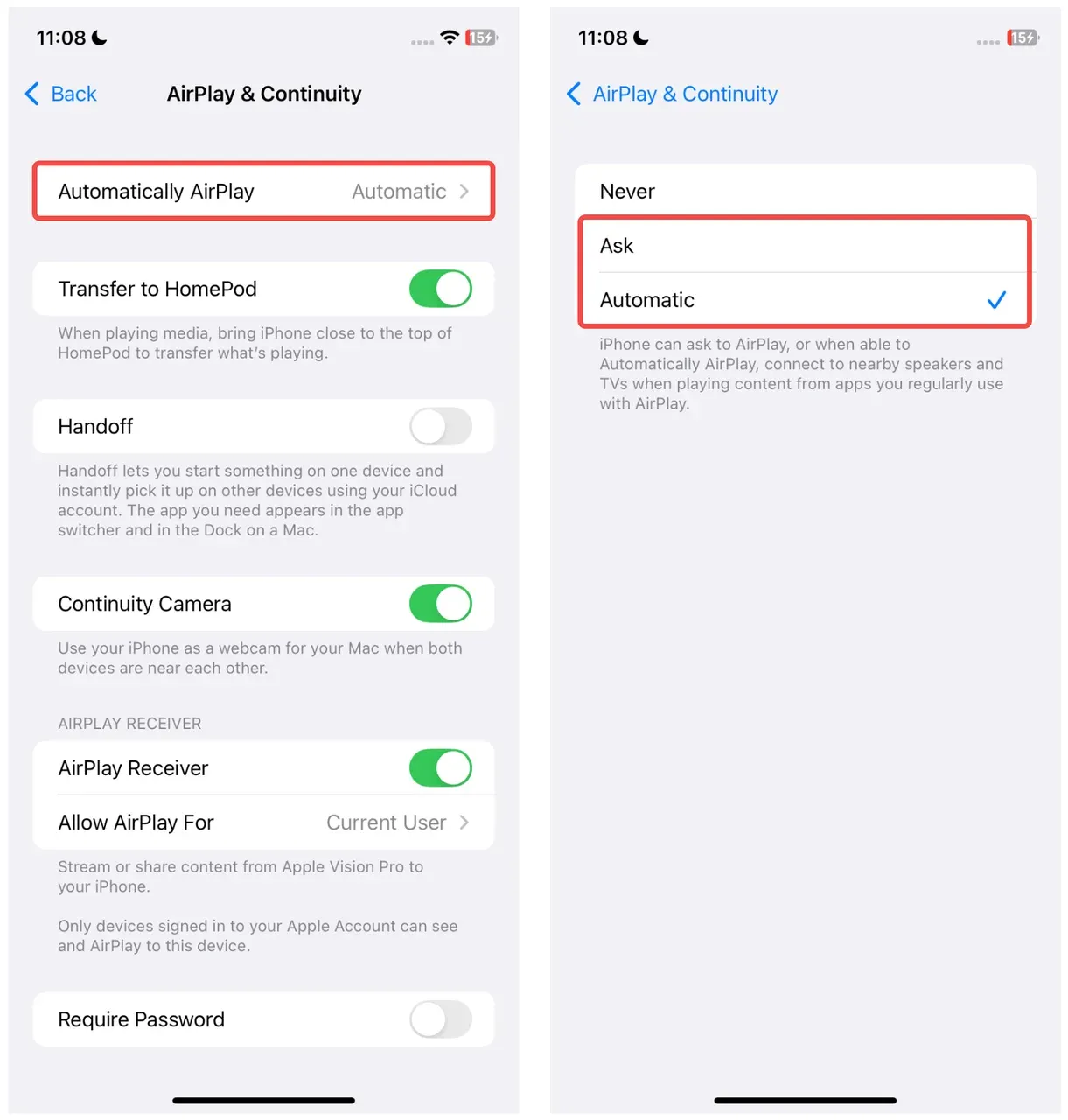
Step 4. Tap Automatically AirPlay and set it to Automatic or Ask.
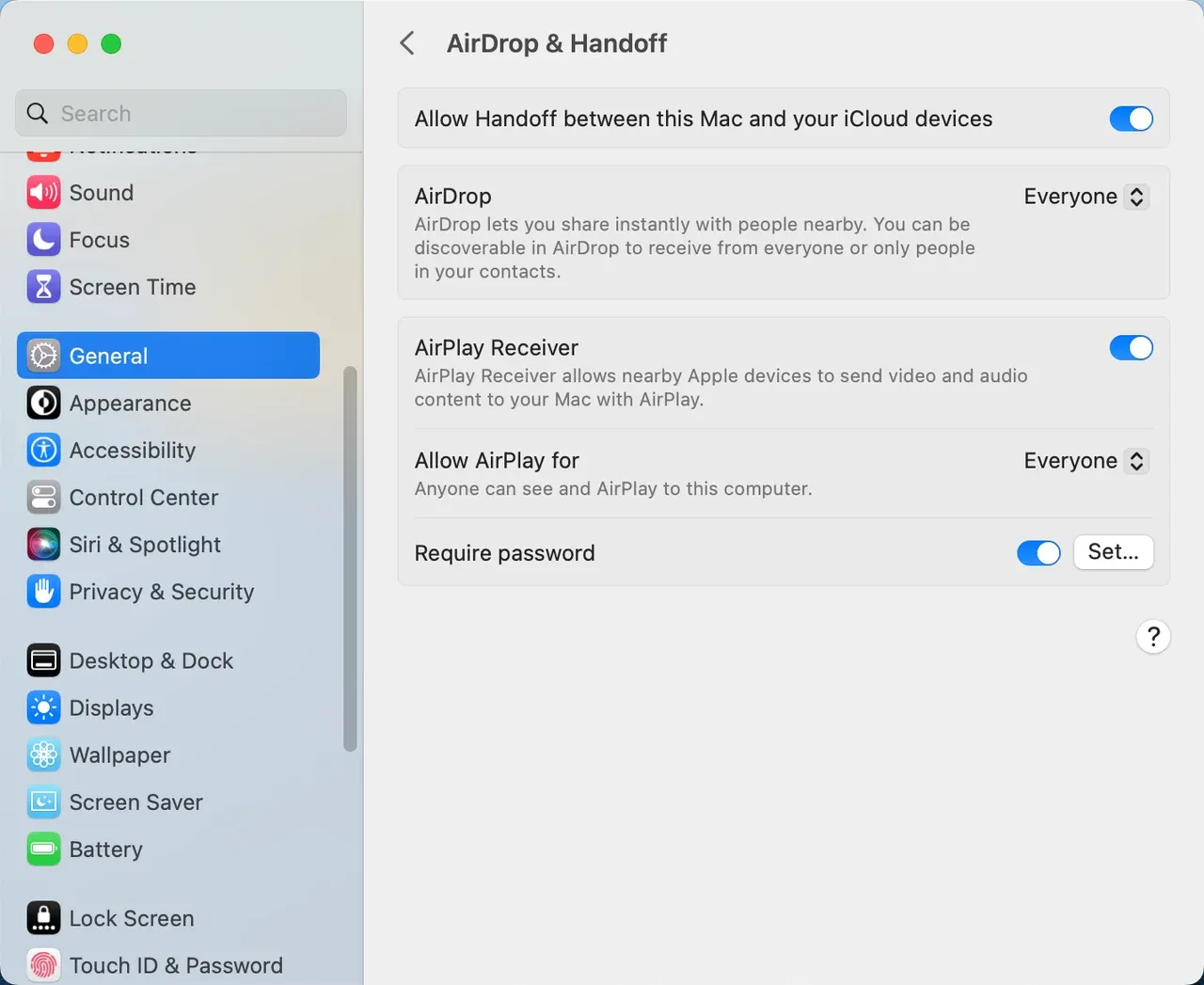
Step 5. If you mirror to a Mac, open Mac System Settings > General > AirDrop & Handoff and allow AirPlay Receiver.
Step 6. Restart both devices if settings were changed.
Why do these iPhone screen mirroring settings matter so much? AirPlay discovery depends on local network visibility. If one device is isolated on guest Wi-Fi or filtered by VPN, Screen Mirroring can appear unavailable even though the feature itself is fine.
How to Start Screen Mirroring After Checking iPhone Settings
After baseline settings are correct, connection usually succeeds on the first or second try. At this stage the goal shifts from fixing configuration to selecting the right target and confirming a stable session. Follow one clean attempt from start to finish before making more changes, so you can identify what actually works.
Step 1. Ensure your TV, Apple TV, or Mac is awake and connected to the same Wi-Fi.
Step 2. Open Control Center on iPhone and tap Screen Mirroring.
Step 3. Select your target device from the discovered list.
Step 4. Enter the AirPlay code shown on the TV or Mac, if prompted.
Step 5. Start playback or navigate your home screen to verify live mirroring.
Step 6. To stop screen mirroring, open Control Center, tap Screen Mirroring, then tap Stop Mirroring.
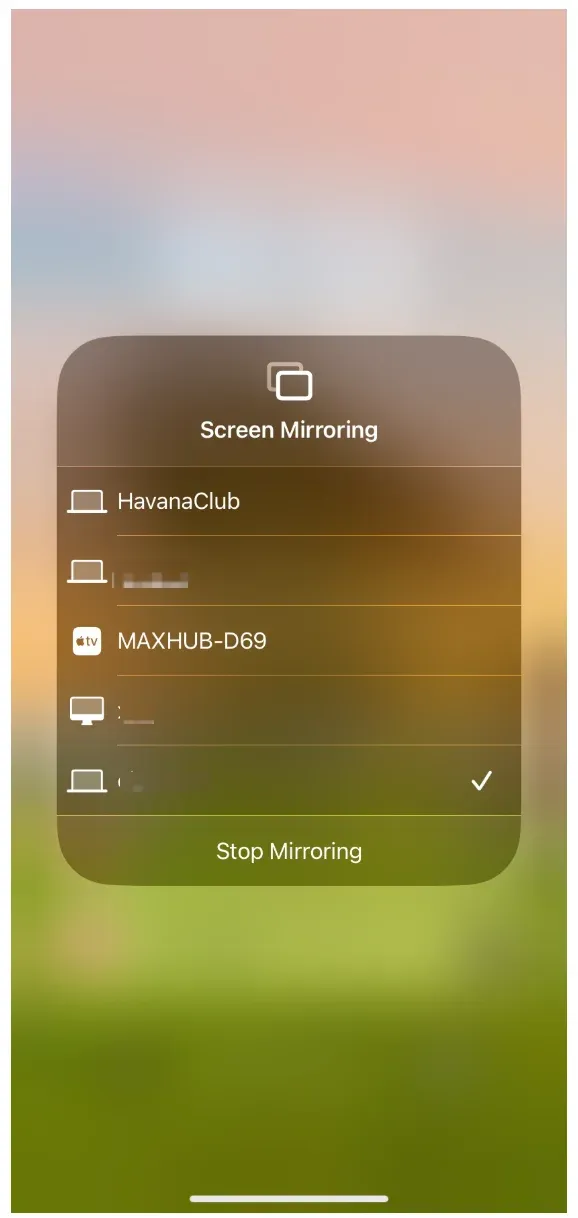
Your iPhone display will appear on the larger screen within a few seconds. If audio plays but video does not, disconnect once and reconnect before changing advanced settings.
Screen Mirroring Not Showing in iPhone Settings: Fix Steps
If screen mirroring not showing in iPhone settings is still your main issue, the trigger is often a misunderstanding of placement, a restriction profile, or outdated software. The impact is that many people keep searching the Settings app and miss the Control Center tile entirely.
Use the sequence below to restore access fast.
Step 1. Confirm you are opening Control Center, not searching the Settings main list.
Step 2. Check Settings > Screen Time > Content & Privacy Restrictions.
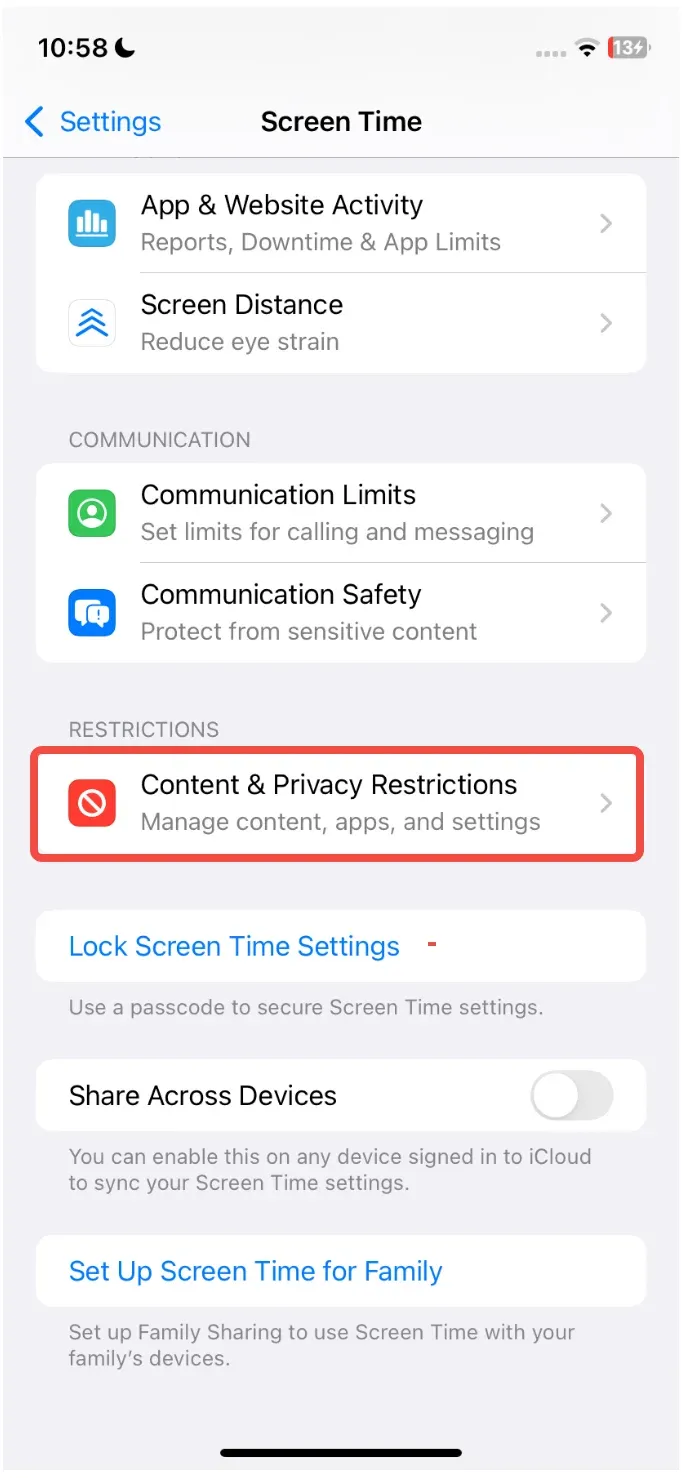
Step 3. Tap Allowed Apps & Features and make sure AirPlay-related features are not restricted.
Step 4. Update iOS in Settings > General > Software Update.
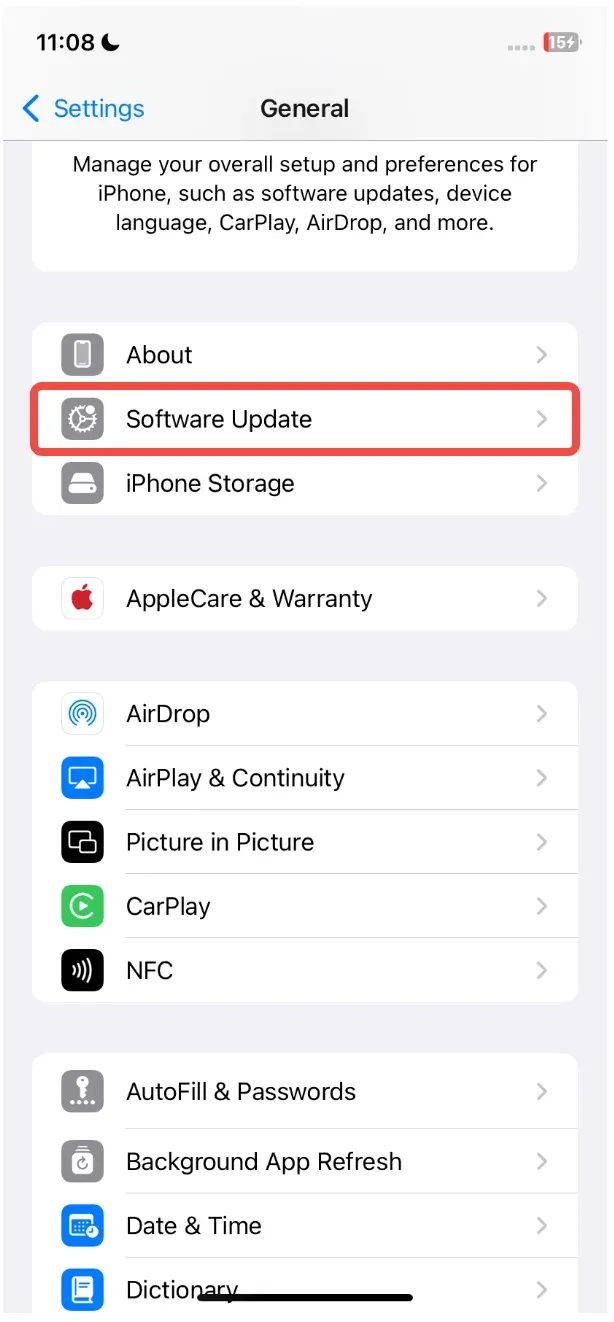
Step 5. Restart iPhone and check Control Center again.
Step 6. Reset network settings only if discovery still fails: Settings > General > Transfer or Reset iPhone > Reset > Reset Network Settings.
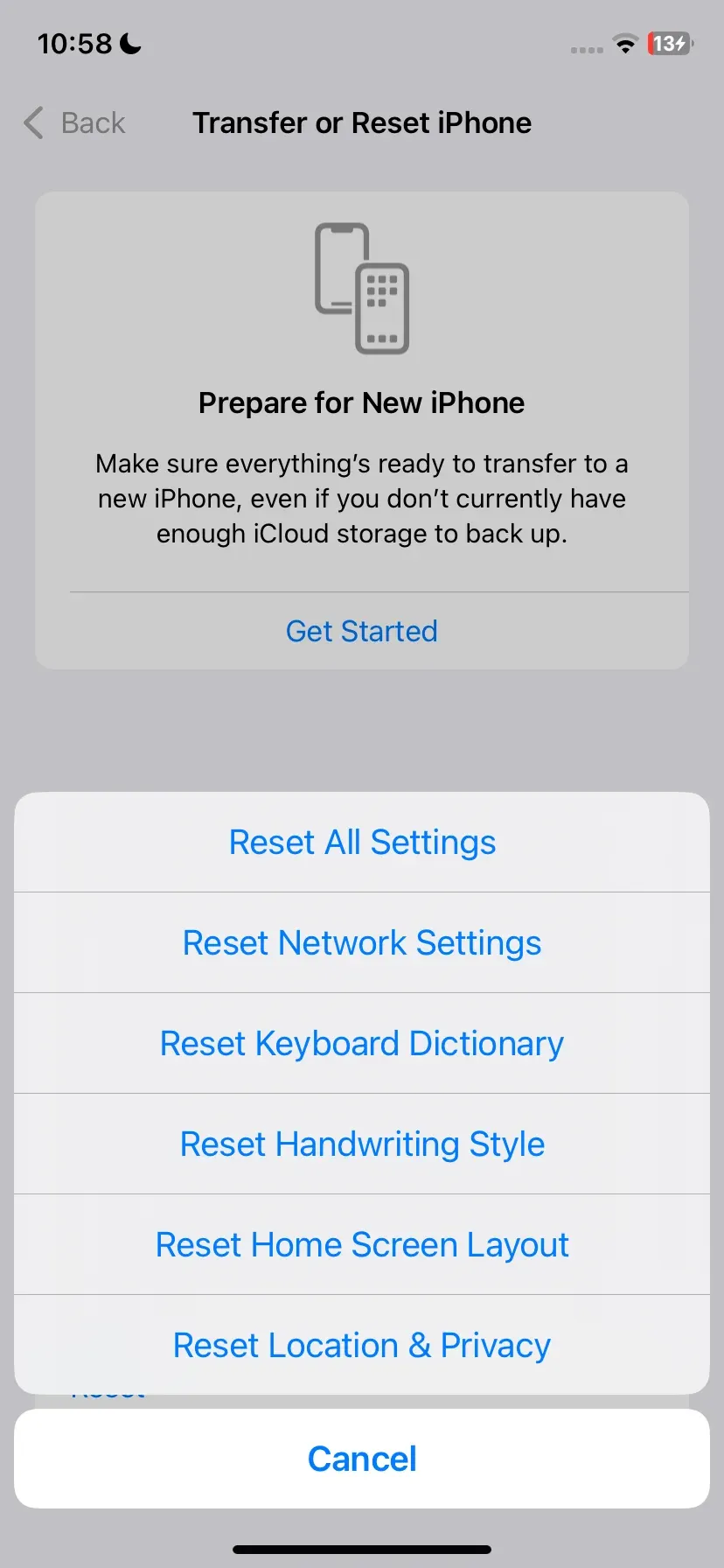
If your target device still does not appear after one full cycle of checks, restart, and network reset, stop repeating settings edits and move to an alternative casting path.
No Devices Found: Wi-Fi and AirPlay Setting Checks
When Screen Mirroring opens but shows no devices, discovery traffic is being blocked somewhere between your iPhone and receiver. Repeating tap-and-wait attempts rarely helps, because the failure is environmental, not procedural. Is your router separating 2.4 GHz and 5 GHz networks with isolation enabled? Verify network behavior directly.
-
Move your iPhone closer to the router and receiver to reduce weak-signal drops.
-
Disable guest mode on the router for the receiver device.
-
Reconnect both devices to the same band and SSID.
-
Power cycle router, then restart your iPhone and receiver.
-
Retry Screen Mirroring from Control Center.
-
If possible, test with another AirPlay receiver to isolate whether the issue is TV-side.
If local network policy cannot be changed, use a wired HDMI adapter or an app-based casting workflow that matches your device mix.
Try a Free iPhone Screen Mirroring App: PigeonCast
Sometimes your environment keeps blocking AirPlay even after correct setup, especially on restricted office networks or mixed-device homes. The impact is wasted time retesting the same settings with no new result. In that scenario, switch to an alternative method once your native checks fail one complete cycle.
If you need a cross-platform option, PigeonCast for iPhone Screen Mirroring app can be a practical alternative when native AirPlay discovery remains unreliable.
Step 1. Install PigeonCast on your iPhone and the target receiving device.


Overall Rating:


Step 2. Connect both devices to the same network.
Step 3. Launch the app on your iPhone and Mac or TV.
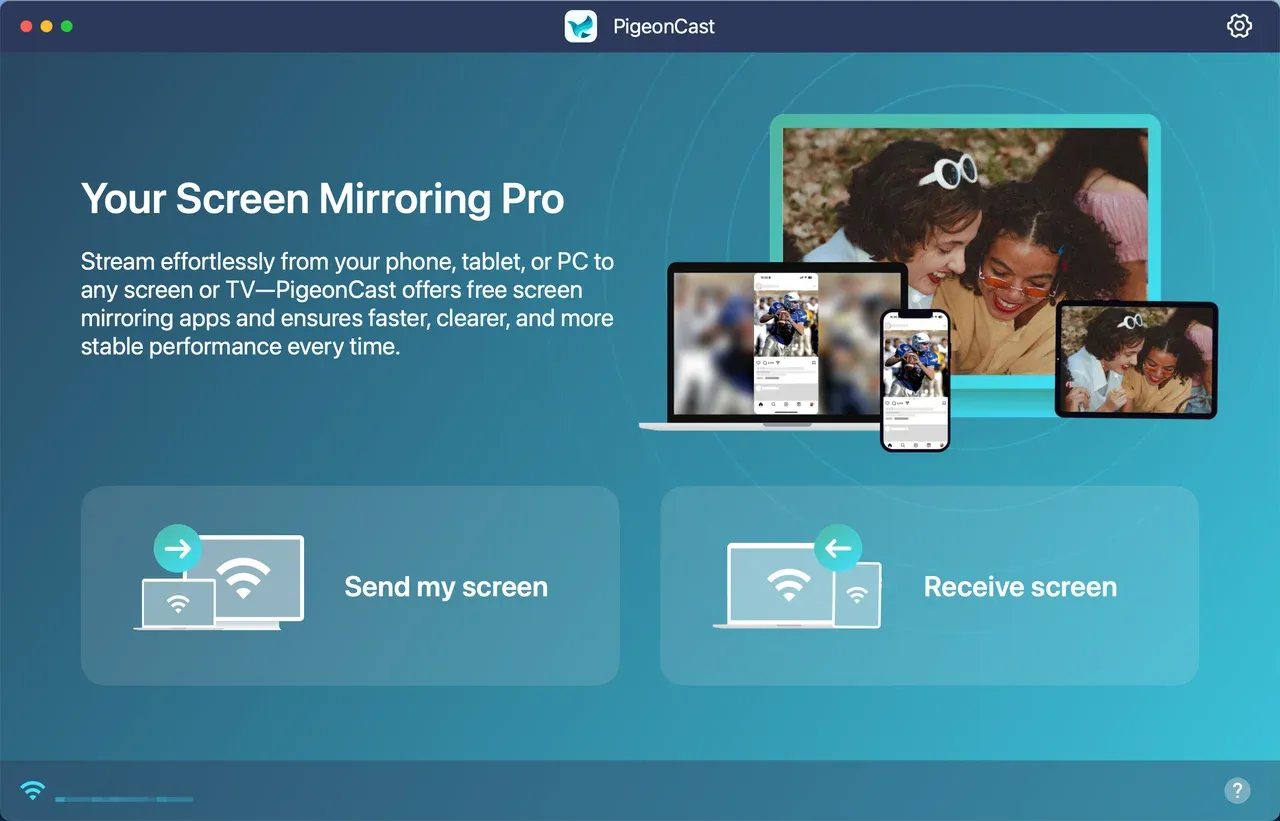
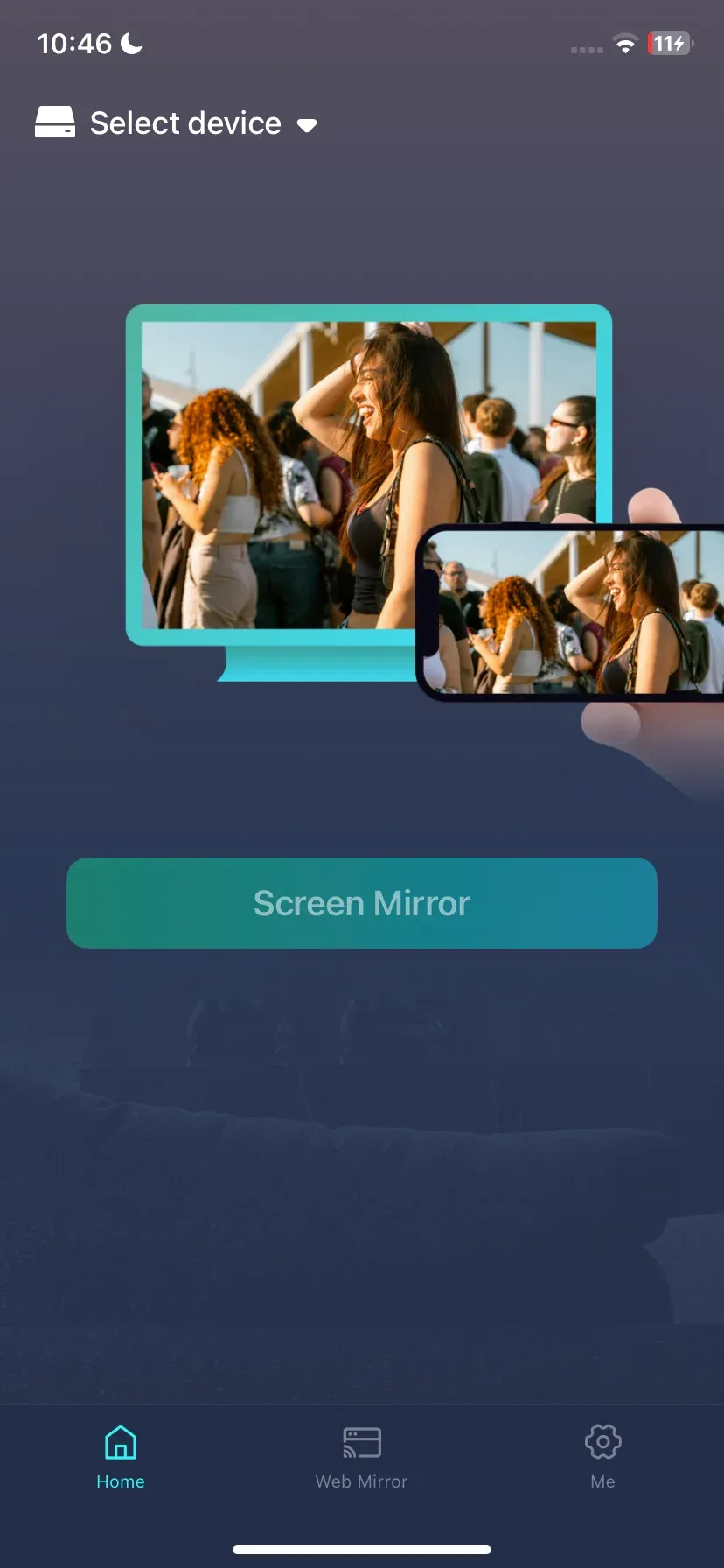
Step 4. On your iPhone, tap Select device and choose your device from the list.
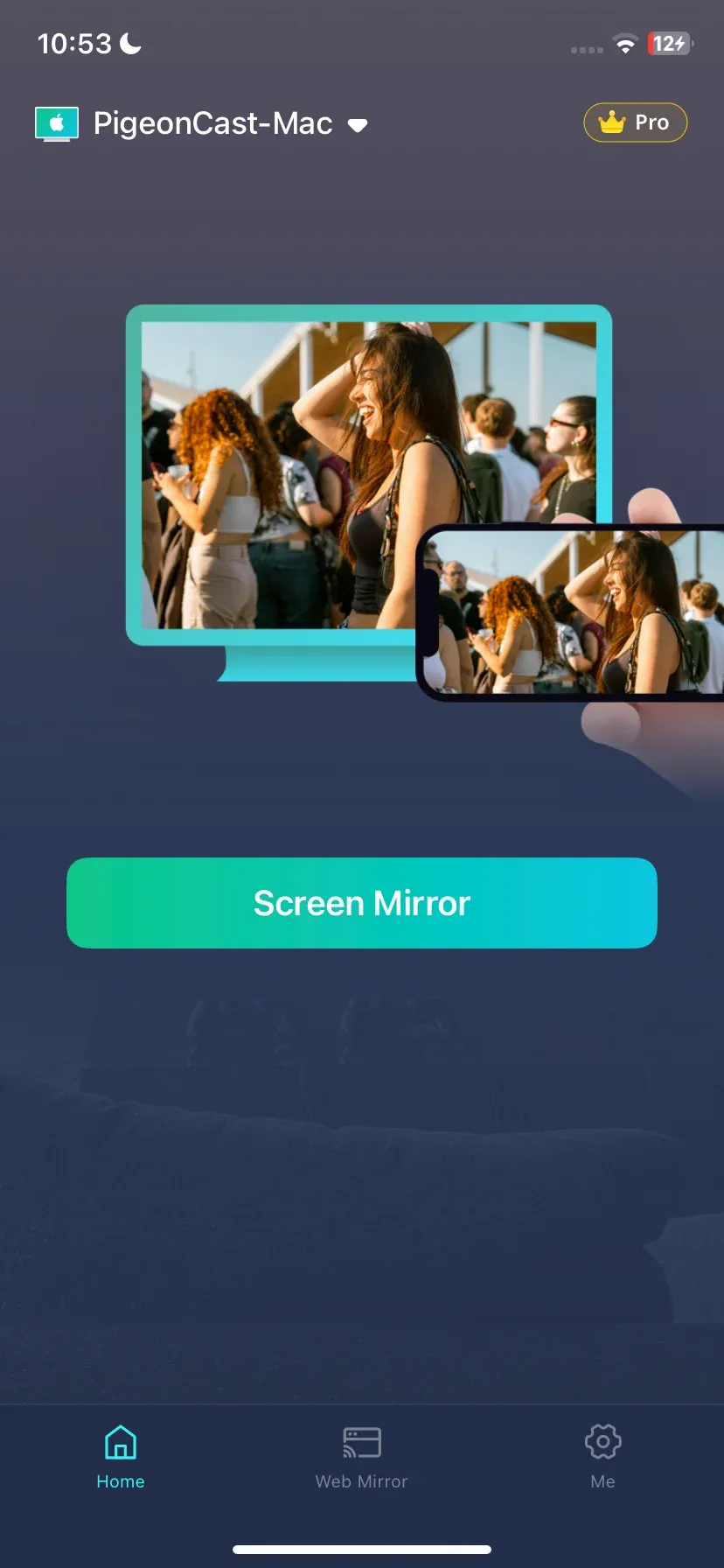
Step 5. Once connected, tap Screen Mirror on your iPhone.
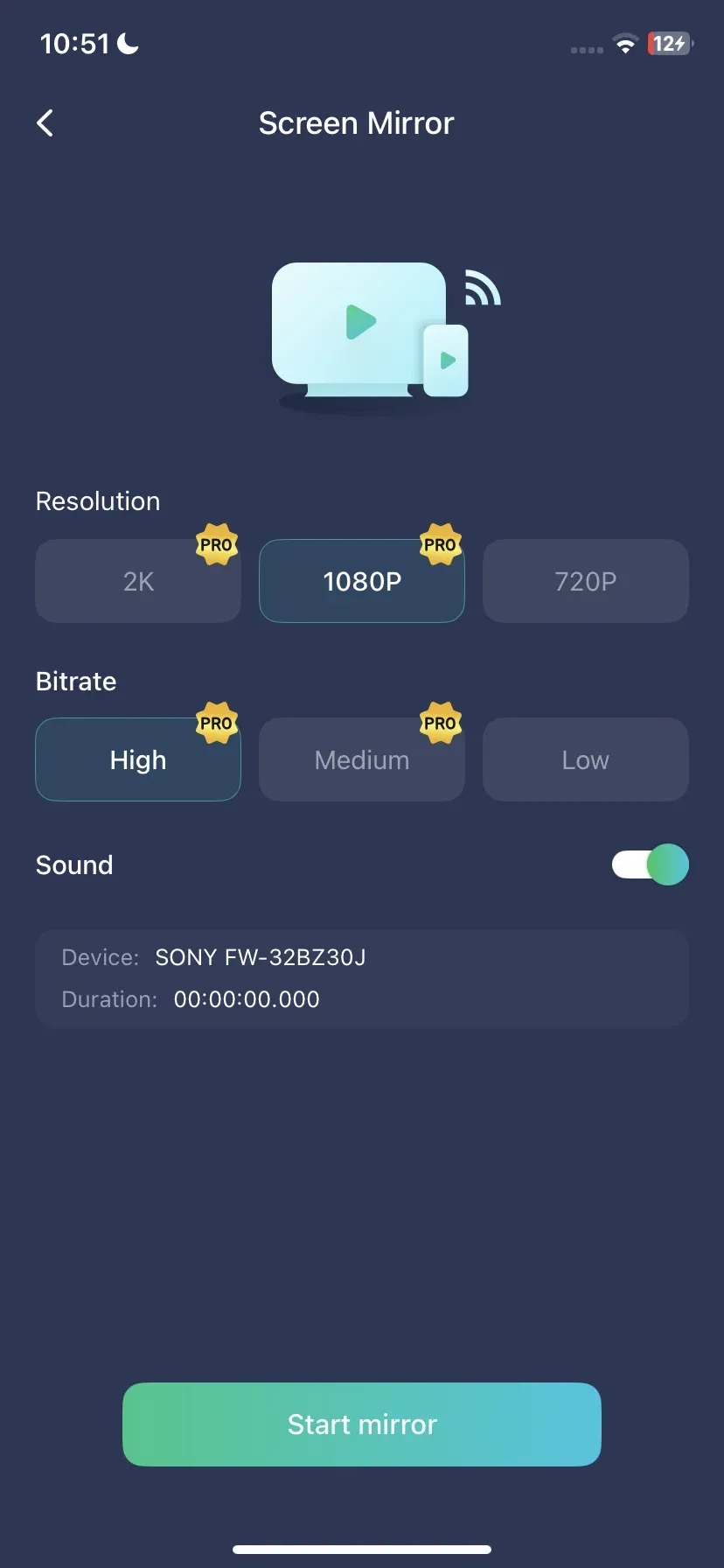
Step 6. Adjust the resolution, bitrate, and sound, then start mirroring with the onscreen instructions.
Conclusion
The answer to where is screen mirroring in iPhone settings is straightforward: Screen Mirroring is started from Control Center, not from the Settings main menu. Use Settings to confirm Wi-Fi, AirPlay, and restriction-related controls, then launch the mirror session from Control Center.
If your receiver does not appear, run one full troubleshooting cycle in order before switching methods. That sequence saves time, avoids random toggling, and gives PigeonCast a try when native discovery keeps failing.
Where Is Screen Mirroring in iPhone Settings FAQ
Where is screen mirroring in iPhone settings on newer iPhones?
Open Control Center first, then tap Screen Mirroring. On Face ID models, swipe down from the top-right corner to access it quickly. Use Settings only to adjust supporting controls like Wi-Fi and AirPlay behavior. The mirror launch button is not listed as a standalone menu in Settings.
Why can I not find screen mirroring in Settings?
Check Control Center instead of the Settings list, because that is where the feature is triggered. Most users who cannot find it are searching the right function in the wrong app area. If Screen Mirroring is still unavailable in Control Center, review Screen Time restrictions and update iOS before deeper resets.
Which iPhone settings for screen mirroring should I verify first?
Start with Wi-Fi and ensure both devices use the same SSID. Then check Settings > General > AirPlay & Continuity and set automatic behavior to Automatic or Ask. After changing any related option, restart both devices once and test again from Control Center.
Does Screen Mirroring require Bluetooth?
Use Wi-Fi as the primary requirement for AirPlay discovery and streaming. Bluetooth may assist nearby discovery in some cases, but stable mirroring depends on local network visibility. If your network blocks peer discovery, enabling Bluetooth alone will not solve missing device issues.
What should I do if no AirPlay device appears?
Reconnect both devices to the same non-guest network and restart router plus devices. Then retry from Control Center after the network fully comes back online. If nothing appears after one complete retry cycle, switch to a fallback path such as wired HDMI or an app-based casting workflow.
How do I enable screen mirroring on iPhone quickly every time?
Use Control Center as your consistent entry point and keep AirPlay-related settings stable. Once your network and receiver are known-good, connection usually takes only a few taps. For frequent use, avoid changing VPN, guest Wi-Fi, or receiver sleep settings before you mirror.
Mia Clarke is a technology editor specializing in screen mirroring and casting solutions across multiple platforms. Mia provides clear, practical guides and in-depth insights to help users seamlessly connect their devices. Passionate about enhancing digital experiences, Mia is dedicated to keeping readers updated on the latest trends and tools in cross-platform screen sharing. Whether you’re looking to mirror your smartphone, laptop, or smart TV, Mia’s content delivers reliable, user-friendly advice to simplify your tech setup.