

To set up an AirPlay receiver Mac, use a compatible model running macOS Monterey or later and enable AirPlay Receiver under System Settings > General > AirDrop & Continuity. You can then select the Mac from an iPhone, iPad, or another Mac to mirror the screen or send supported media. If the receiver setting or Mac is missing, check the device requirements, access permissions, and local network.
What Macs Can Be Used as an AirPlay Receiver
Native AirPlay Receiver requires macOS Monterey 12 or later. The receiving Mac must also meet Apple’s hardware requirements.
| Mac | Supported receiver models |
|---|---|
| iMac Pro | All models |
| Mac mini | Introduced in 2020 or later |
| Other Mac models | Introduced in 2018 or later |
To check your model and year, open the Apple menu > About This Mac. If your Mac falls outside these requirements, the AirPlay Receiver option may not appear even after macOS is updated. You can verify the current requirements on Apple’s AirPlay to Mac compatibility page.
How to Turn On AirPlay Receiver on Mac
On macOS Ventura or later, AirPlay Receiver is located under General in System Settings. macOS Monterey places it in Sharing instead. After enabling the feature, you can decide which devices may find and connect to your Mac.
On macOS Ventura or Later
Depending on your macOS version, the relevant menu may be called AirDrop & Continuity or AirDrop & Handoff. Both contain the same AirPlay Receiver control.
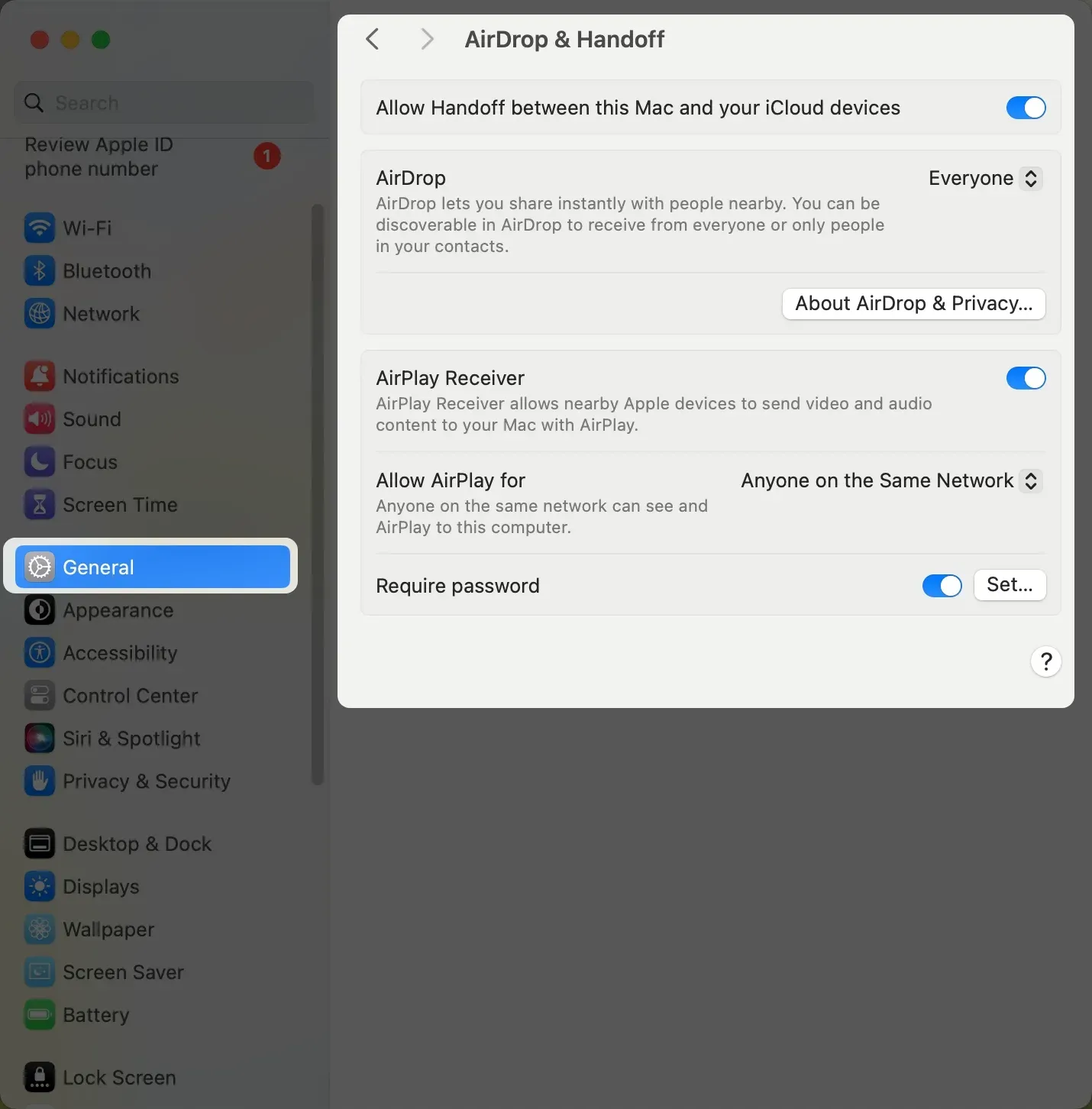
Step 1. Open the Apple menu and select System Settings > General.
Step 2. Select AirDrop & Continuity or AirDrop & Handoff, depending on your macOS version.
Step 3. Turn on AirPlay Receiver.
On macOS Monterey
Monterey uses the older System Preferences layout and lists AirPlay Receiver as a sharing service.
Step 1. Open the Apple menu and select System Preferences.
Step 2. Click Sharing.
Step 3. Select AirPlay Receiver in the sidebar.
Choose Who Can AirPlay to Your Mac
The Allow AirPlay for setting determines which devices can find and use your Mac as a receiver.
- Current User: Allows devices signed in to the same Apple Account.
- Anyone on the Same Network: Allows devices connected to the same local network.
- Everyone: Makes the Mac available to other nearby AirPlay devices.
You can also require a password before a device connects. This is useful when your Mac is on a shared network or used in a public space.
How to AirPlay to a Mac
The sending method depends on what you want to display. Screen Mirroring shows the entire device screen, while an in-app AirPlay button sends only the selected video, photo, or audio.
AirPlay From iPhone or iPad to Mac
Use Screen Mirroring when you want to show apps, webpages, presentations, or everything else visible on your iPhone or iPad.
Step 1. Turn on Wi-Fi and connect the iPhone or iPad and the Mac to the same network.
Step 2. Keep the Mac awake and confirm that AirPlay Receiver is turned on.
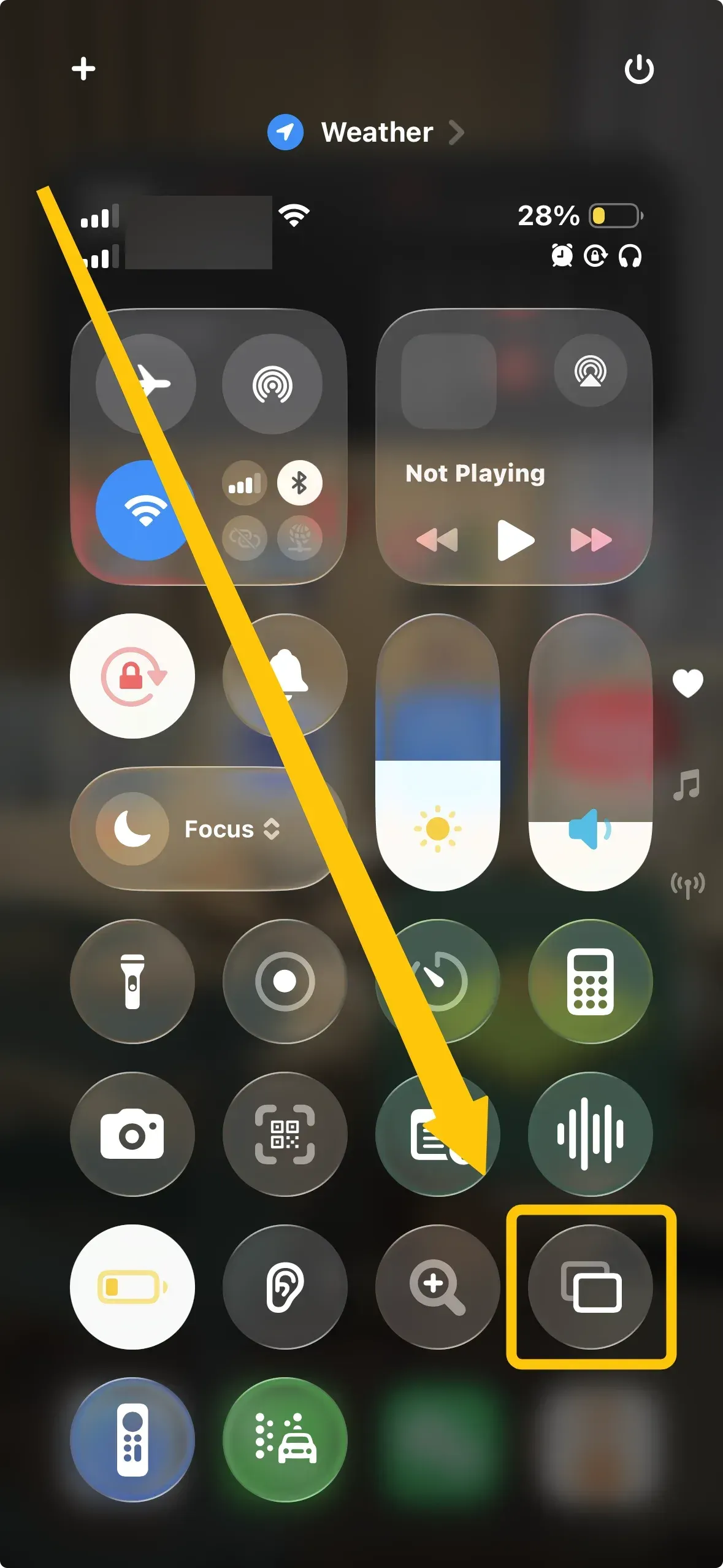
Step 3. Open Control Center on your iPhone or iPad, tap Screen Mirroring to select your Mac from the device list.
Step 4. Enter the AirPlay code displayed on the Mac if prompted.
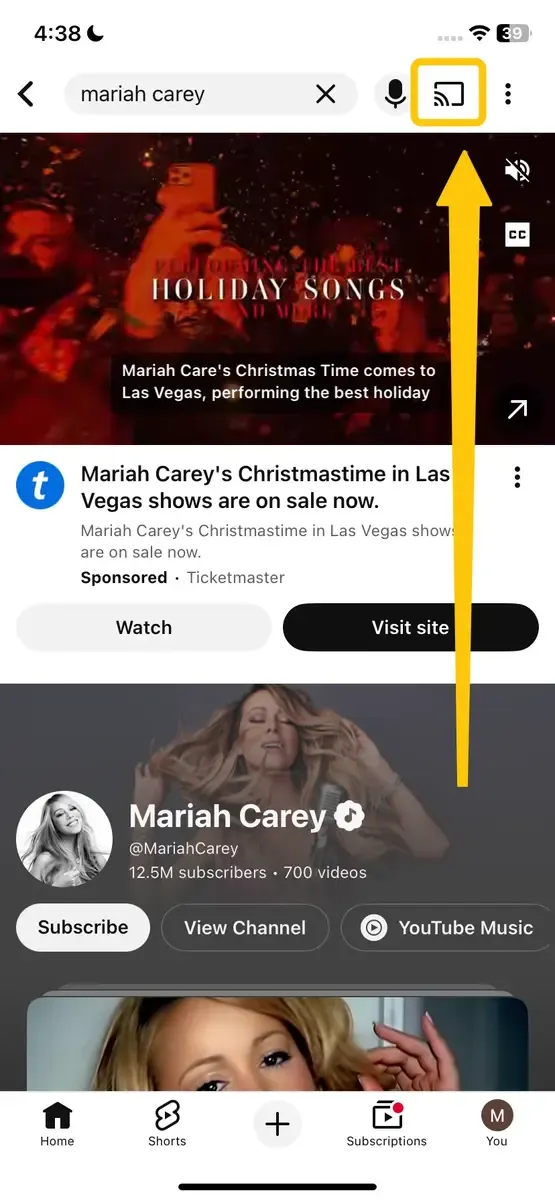
To play only a video, photo, or audio file, open the content and tap the AirPlay button. Some apps place it inside the Share menu. Select your Mac, and the content will play there without mirroring the rest of your screen.
AirPlay From Another Mac to Mac
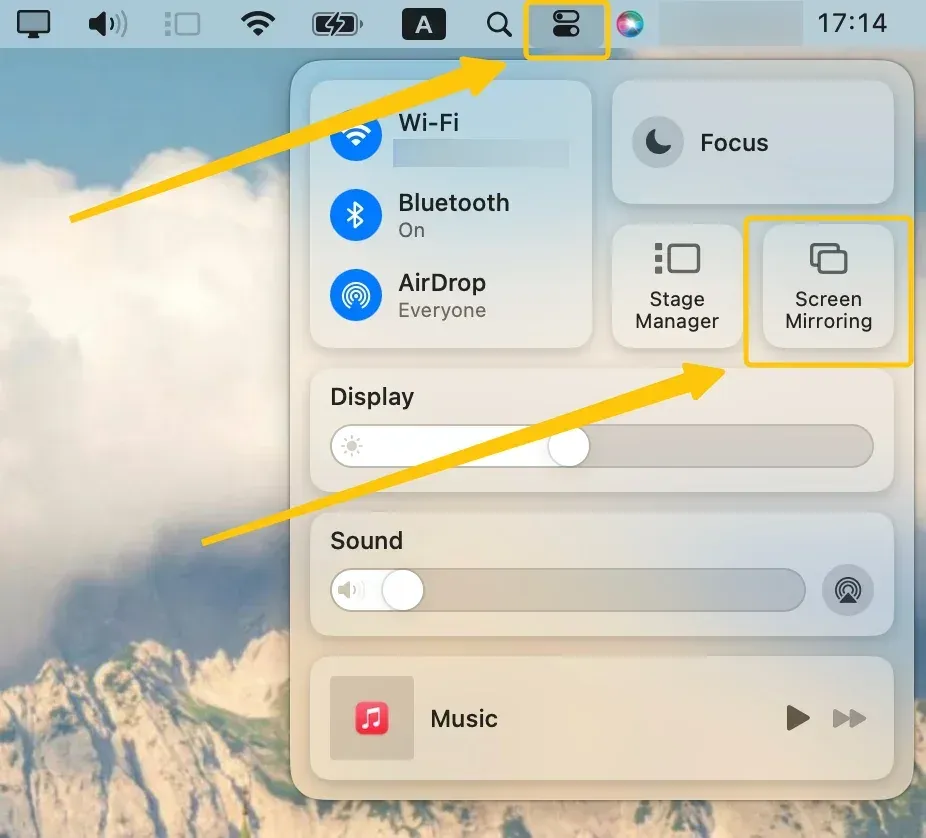
Another Mac can send its entire display through the Screen Mirroring control. For video or audio only, use the AirPlay button inside the playback app instead. Here's how to AirPlay Mac to Mac:
Step 1. Confirm that both Macs have Wi-Fi turned on and are connected to the same network.
Step 2. Open Control Center on the sending Mac, click Screen Mirroring to choose the receiving Mac.
Step 3. Enter the displayed code or approve the connection if requested.
Use a Mac as a Receiver With PigeonCast
If Apple’s built-in receiver does not suit your setup, PigeonCast provides another way to use your Mac as an AirPlay receiver. Once PigeonCast is open in receiver mode, an iPhone, iPad, or another Mac can find it through the standard Screen Mirroring menu and send the full screen to your Mac.
Step 1. Connect the Mac and the sending Apple device to the same Wi-Fi network.


Overall Rating:



Step 2. Download and install PigeonCast on the Mac or the sending device from the corresponding app store.
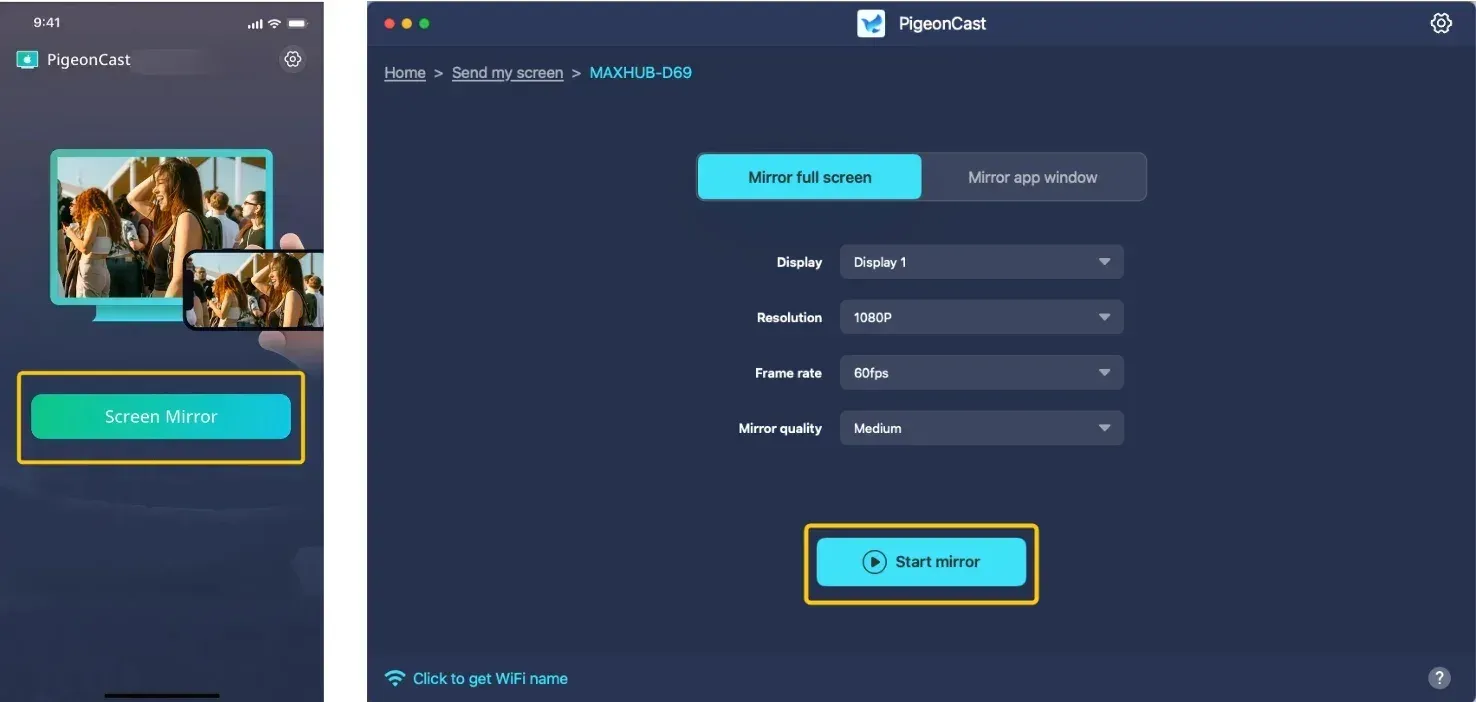
Step 3. Launch PigeonCast, tap Select device from the sending device to choose your Mac. Alternatively, tap Receive screen on the Mac, then connect to it from the sending device.
Step 4. Enter the onscreen PIN to confirm the pairing request.
Step 5. After the devices connect, follow the onscreen instructions to adjust the mirrored image to fit your Mac screen.
Fix AirPlay Receiver Not Showing or Working
The point of failure usually indicates where to look. A missing AirPlay Receiver setting is normally related to compatibility, while a Mac missing from the device list points to access or network discovery. Playback problems usually appear after the connection has already been established.
AirPlay Receiver Is Missing From Settings
First, confirm that the Mac meets the model and macOS requirements listed earlier. On a supported Mac, update macOS and search for AirPlay Receiver in System Settings. If the hardware is unsupported, updating macOS will not add the native receiver option.
The Mac Does Not Appear in the AirPlay List
If AirPlay Receiver is available but the Mac cannot be found, check the settings that control local discovery:
- Make sure AirPlay Receiver is turned on.
- Change Allow AirPlay for to Anyone on the Same Network for testing.
- Connect both devices to the same Wi-Fi network.
- Avoid guest Wi-Fi, which may prevent devices from seeing each other.
- Turn off VPN temporarily.
- Keep the Mac awake and place the devices closer together.
- Update and restart both devices if the Mac still does not appear.
AirPlay Connects but Does Not Play Correctly
A black screen may appear when the video app or protected content does not allow full-screen mirroring. Try the app’s own AirPlay button instead. If there is no sound, raise the volume on both devices and confirm that the Mac is selected as the audio destination. For lag or repeated disconnections, move closer to the router and pause large downloads or cloud syncing before reconnecting.
To Sum Up
A Mac receiver is useful for previewing phone content on a larger screen, sharing presentations, or playing media without moving files between devices. For regular personal use, keep Allow AirPlay for set to Current User. Change it to Anyone on the Same Network only when another person needs to connect, then restore the more private setting afterward.
AirPlay Receiver Mac FAQ
Does AirPlay Receiver Work Without the Internet?
Yes. AirPlay can mirror a screen or stream local content over the same local network without an active internet connection. Internet access is still required for online videos, cloud files, and other web-based content.
Can a Mac Receive AirPlay While Connected Through Ethernet?
A Mac may use Ethernet for its network connection, but Apple recommends keeping Wi-Fi turned on for AirPlay to Mac. The sending device and Mac must also be on the same local network, and the router must allow wired and wireless devices to discover each other.
Does AirPlay Receiver Work When a MacBook Is Closed?
Not normally. Closing a MacBook usually puts it to sleep, which makes it unavailable as an AirPlay receiver. In closed-display mode, received content would appear on a connected external display rather than the MacBook’s built-in screen.
Is AirPlay Receiver the Same as Sidecar?
No. AirPlay Receiver sends content from an iPhone, iPad, or Mac to the receiving Mac. Sidecar works in the opposite direction by turning an iPad into a mirrored or extended display for a Mac.
Can I Control an iPhone Through AirPlay Receiver on Mac?
No. AirPlay Receiver displays the iPhone screen or plays its media, but the iPhone still controls apps, navigation, and playback. Apple’s iPhone Mirroring is a separate feature designed for interacting with an iPhone from a compatible Mac.
How to Connect a MacBook to a TV Wirelessly?
- Connect the MacBook and an AirPlay-compatible TV or Apple TV to the same Wi-Fi network.
- Open Control Center > Screen Mirroring on the MacBook, select the TV, and enter the code displayed on the TV if requested.
- You can then choose to mirror the MacBook screen or use the TV as a separate display.
- If the TV does not support AirPlay, use a compatible Google Cast device or a wireless screen mirroring app, like PigeonCast.
Clara Rossi is an experienced technology editor and a seasoned expert in screen mirroring and casting technologies. With a keen eye for detail and a deep understanding of how to seamlessly connect devices, Clara excels at optimizing user experiences for effortless sharing and streaming. Whether you're seeking quick fixes or advanced tips, her expertise and responsiveness ensure that every query is met with a well-informed and efficient solution.